Document custom fields offer a powerful way to personalise and streamline the document creation process, especially when you need to generate letters or other formal documents. By allowing you to add specific fields to a document template, you can quickly enter customised information during document generation, ensuring that each document is tailored to the individual's details. In this article, we'll explore the available custom fields, use cases, and how these fields can enhance your document generation process.
What Are Document Custom Fields?
Document custom fields are placeholders or input fields that you can create in a document template. When generating a letter or document, these fields are used to enter unique information about the recipient, the job position, or any other relevant details. This automation saves time, eliminates the need for manual data entry, and ensures consistency across documents.
How Document Custom Fields Work
When creating a document template, you can add custom fields to capture specific information. These fields will appear as placeholders in the document, and when you generate the document, you’ll be prompted to fill in the required data. This is especially helpful in scenarios like creating personalized letters, certificates, contracts, or performance review documents, where every recipient has unique attributes.
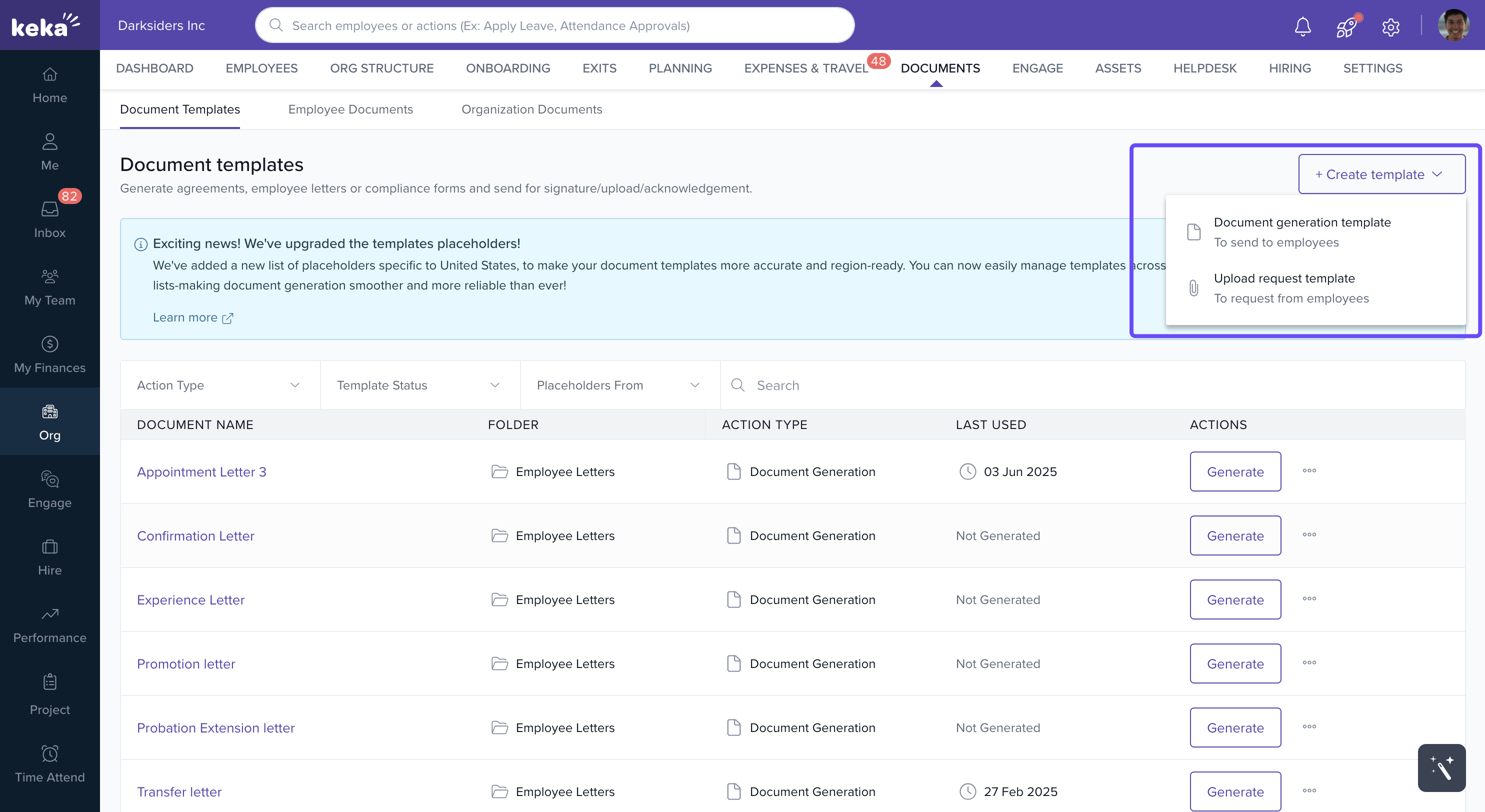
1. Access the Document Template Section
In the Document Templates tab, click Create Template and select
Document Generation Template
In the Compose tab, you will see an option to +add custom field
2. Adding custom fields
A new page will open where you can choose which types of custom fields you want to add. Click on +Add Field
First you have a choose a name for your attribute and then choose what type of data you want to enter in the field.
TextBox: For free-text input, like names or degrees.
Dropdown: For predefined options, such as “Yes” or “No”.
Date: For selecting specific dates.
MultiDropdown: For selecting multiple options, like years of experience.
3. Create and Save Custom Fields
Step 1: Once you choose the field type, you'll need to name the field (e.g., Degree Achieved, Experience, Java Certified).
Step 2: For dropdowns or multi-dropdowns, define the possible options (e.g., for Experience, you might have options like "5 years", "10 years", etc.).
Step 3: After configuring your fields, save them to your template.
4. Using Custom Fields in the Document Generation Process
Once your custom fields are added to the template, these fields will now appear as placeholders in the document when you begin generating it.
Step 1: After selecting the employee(s) whose document you want to generate, you’ll move to the "Prepare" section.
Step 2: In the "Prepare" section, you’ll see a list of the custom fields you created earlier (like Degree Achieved, Java Certified, Experience, etc.). Here, you will be prompted to provide specific data for each placeholder:
Degree Achieved: Input the degree for the employee (e.g., B.com).
Java Certified: Select whether the employee is certified or not (e.g., Yes).
Experience: Select the relevant experience years (e.g., 5 years, 10 years).
Once you’ve filled in the data, you can move forward to generate the document.
5. Finalizing the Document
After you’ve entered all the data for the custom fields in the "Prepare" section, you can proceed to the Finalise step where the document will be automatically generated using the personalised data.
Practical Use Cases for Custom Fields
1. Certification and Skill Tracking
Use Case: Add certifications or skill levels that aren’t captured in standard employee records.
Field Name:
Java CertifiedType: Dropdown (
Yes,No,Beginner)Why Needed: Helps HR mention certifications in offer letters or promotion letters.
Field Name:
AWS Certification LevelType: Dropdown (
Associate,Professional,None)Why Needed: To include certification details in appraisal letters or internal role change documents.
2. Educational Background Details
Use Case: Capture the exact degree or academic qualification for inclusion in formal documents.
Field Name:
Degree AchievedType: TextBox (
MBA,B.Tech in IT, etc.)Why Needed: Educational details might be required in joining letters, background check forms, or LORs (Letters of Recommendation).
Field Name:
Graduation DateType: Date
Why Needed: Not usually part of core HRIS; useful in scholarship-related letters or joining letters.
3. Experience Specifics
Use Case: Capture custom information about an employee’s total or domain-specific experience.
Field Name:
ExperienceType: MultiDropdown (
5 Years,8 Years,10 Years)Why Needed: Useful in job offers or client-facing project assignment letters where seniority matters.
Field Name:
Previous OrganizationType: TextBox
Why Needed: To personalize onboarding or offer letters with employee’s last company info.
4. Location or Region-Specific Information
Use Case: Manage information for region-based customizations, legal clauses, or compensation terms.
Field Name:
Work LocationType: Dropdown (
Hyderabad,Mumbai,Remote)Why Needed: Some documents have city-specific clauses or allowances.
Field Name:
Applicable Labor LawType: Dropdown (
Shops & Establishment Act,Factories Act)Why Needed: Useful in compliance letters or employment agreements.
5. Custom Compensation Elements
Use Case: When certain pay components or benefits are not part of the standard salary structure.
Field Name:
Stock Options AllottedType: TextBox or Number
Why Needed: Equity-related letters or grant communications.
Field Name:
Special Joining BonusType: Number
Why Needed: Mentioned in specific offer letters but not always part of payroll.
6. Contractual or Project-Based Attributes
Use Case: For fixed-term or project-based staff with custom contract terms.
Field Name:
Contract DurationType: TextBox or Dropdown (
6 months,1 year)Why Needed: Clearly stated in contracts for consultants or project hires.
Field Name:
Project NameType: TextBox
Why Needed: Used in project allocation letters or client communication.
7. Custom Review or Appraisal Inputs
Use Case: Add new review criteria not covered by the default performance attributes.
Field Name:
Leadership Potential RatingType: Dropdown (
High,Medium,Low)Why Needed: Used in promotion recommendations or leadership development program letters.
8. Compliance or Policy-Specific Fields
Use Case: Track policy acceptance or training completion required for legal or compliance purposes.
Field Name:
Data Privacy Training CompletedType: Dropdown (
Yes,No)Why Needed: Used in internal compliance certificates or onboarding acknowledgements.
Field Name:
Policy Acknowledgement DateType: Date
Why Needed: To confirm when an employee signed a specific policy.
9. Custom Communication or Event Info
Use Case: Personalize internal communications, recognition letters, or event invites.
Field Name:
Award TitleType: TextBox (
Best Performer Q2,Innovation Award)Why Needed: Used in awards, recognition emails, or letters.
Field Name:
Event Participation RoleType: Dropdown (
Speaker,Attendee,Volunteer)Why Needed: Useful in conference documentation or event acknowledgements.
Comments
0 comments
Please sign in to leave a comment.