We are pleased to introduce the Expiry Settings for Organization Documents feature in Keka's Core HR module. This update allows Global Admins and HR Managers to track and manage the expiry of organization documents, set reminders, and take timely actions to ensure document validity. The feature includes visual indicators, automated email reminders, and the ability to edit expiry dates, improving document management efficiency and compliance.
Key Features
-
Set Expiry Date for Documents:
A checkbox has been added to the document upload/edit page to enable setting an expiry date for organization documents.
The expiry date is optional, and it can be edited post-upload to reflect changes in document timelines.
Once enabled, a calendar selector allows users to select the expiry date.
-
Visual Indicators for Expiring Documents:
Yellow dot and “Expiring Soon” or “Expired” tags appear next to documents within 30 days of expiry.
These visual cues help users quickly identify documents that are nearing expiry and take action accordingly.
-
Employee Document Expiry Reminder:
The existing event trigger “Document Expiry Reminder” has been renamed to “Employee Document Expiry Reminder”.
The reminder will now execute 15 days before the expiry date to ensure timely action.
-
Organization Document Expiry Reminder:
A new event trigger, “Organization Document Expiry Reminder”, has been added.
The reminder will be sent 7 days before the document’s expiry date.
Public documents will send reminders to HR Managers and Global Admins, while private documents will only send reminders to Global Admins.
-
Expiry Date Editability:
Users can update the expiry date of a document after it has been uploaded.
Editing the expiry date will reset the reminder logic to ensure new reminders are generated based on the updated expiry date.
-
Email Notifications for Expiry:
Email reminders will be sent to relevant recipients (HR Managers and Global Admins) when documents are approaching expiration.
The email subject will be “Action Required: Expiring Organization Document”, and it will include document details along with a link to take immediate action.
-
Document Expiry Tracking and Alerts:
Expiry dates will now appear in the document listing under a new “Expiration Date” column.
A yellow triangle icon will be used for documents that are expiring soon.
Expiring documents will be displayed prominently to ensure quick attention.
How to Use
-
Setting Expiry Date for a Document:
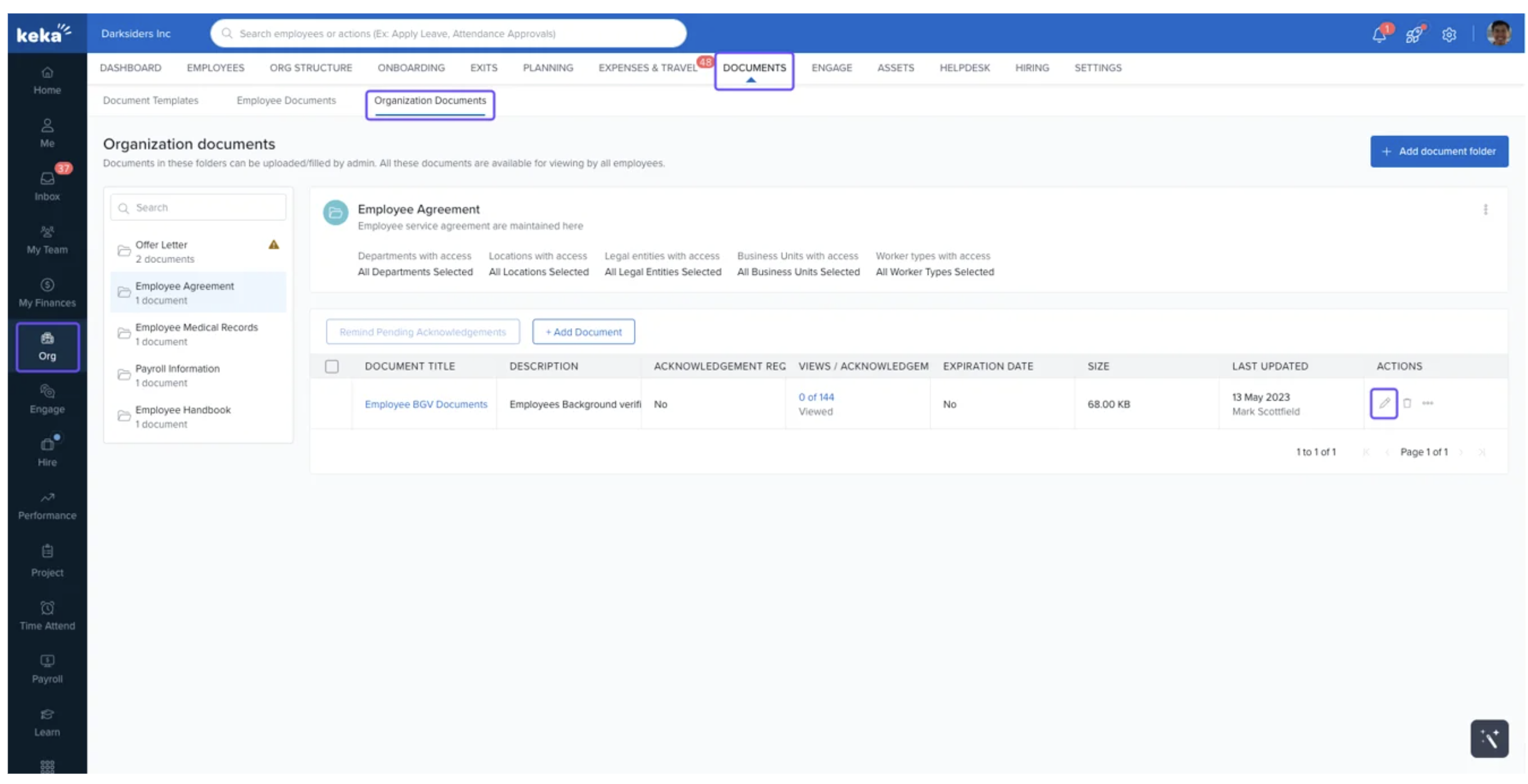
Navigate to Core HR > Org > Documents > Organization Documents.
During document upload or editing, check the “Set expiration date” box and select the expiry date using the calendar picker.
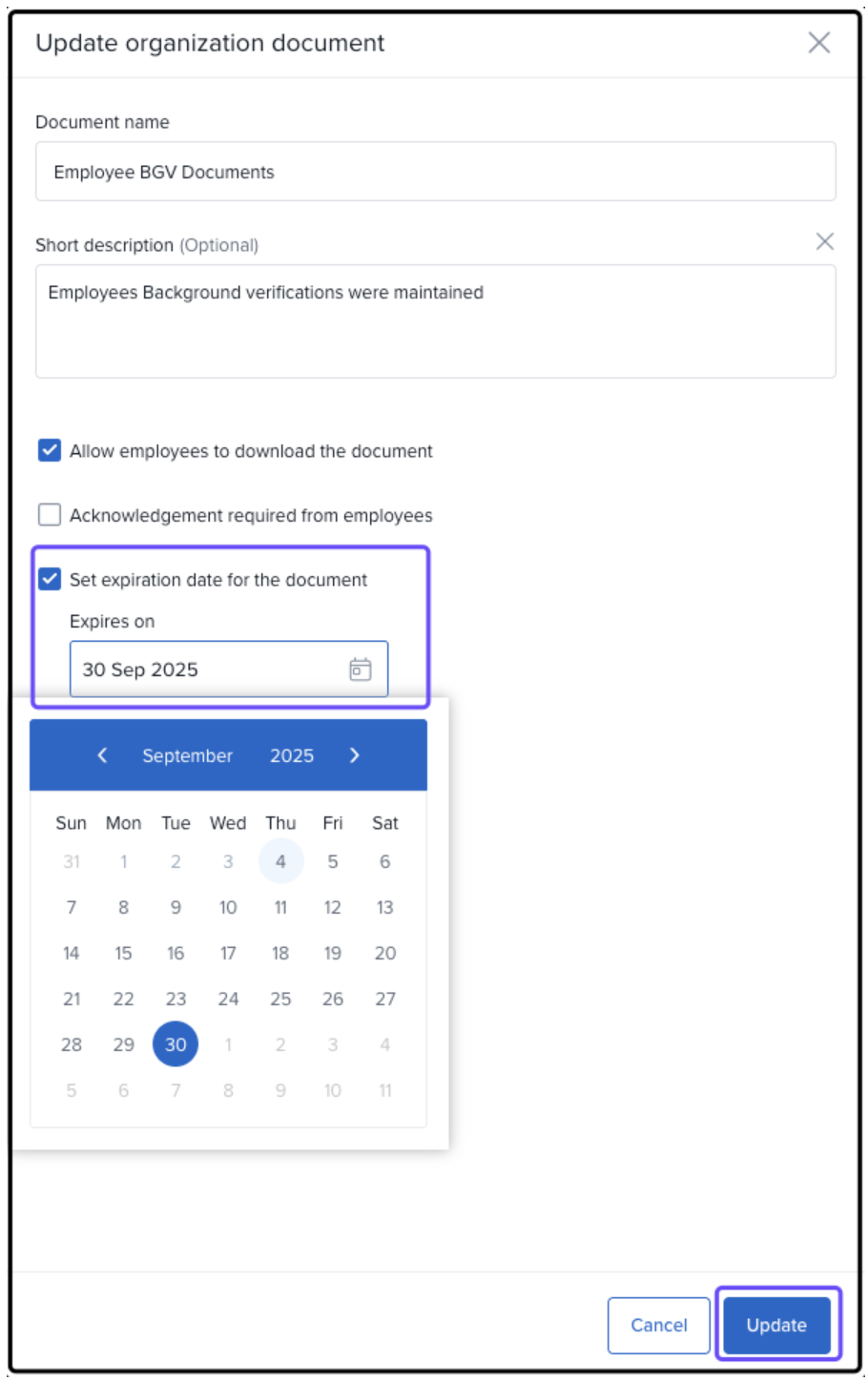
Save the document to apply the changes.
-
Editing Expiry Date:
Open the document detail page and edit the expiry date as needed.
Changes to the expiry date will reset reminder notifications.
-
Viewing Expiring Documents:
Look for the yellow dot and “Expiring Soon” or “Expired” tags next to documents that are within 30 days of expiry.
Use the “Expiration Date” column for easy tracking.
-
Managing Expiry Notifications:
Automated emails will be triggered 15 days before the document expiry (for employee documents) and 7 days before the expiry (for organization documents).
The email includes a direct link to the document for easy action.
Conclusion
The Expiry Settings for Organization Documents feature provides a seamless way to track and manage document expiration dates in Keka. With this update, users can set expiry dates, receive timely reminders, and take action before documents expire, ensuring better compliance and document management.
For more details, please refer to the updated Help Center
Comments
0 comments
Please sign in to leave a comment.