Overview
In this guide, you will learn:
- How to mark allocations as billable or non-billable in Keka PSA
- Who can manage allocation types and where the setting resides
- How it affects billing, cost, utilization, and revenue recognition
Who Can Do This?
- Project Managers with the “Manage Project Team” privilege
- Client Managers
- PSA Admins
- Users with “Manage Team” permission
Pre-requisites
- Project must have at least one existing resource allocation.
- User should have access to edit the team
- Feature is available only in Pro plan and above.
Where to Enable This Setting
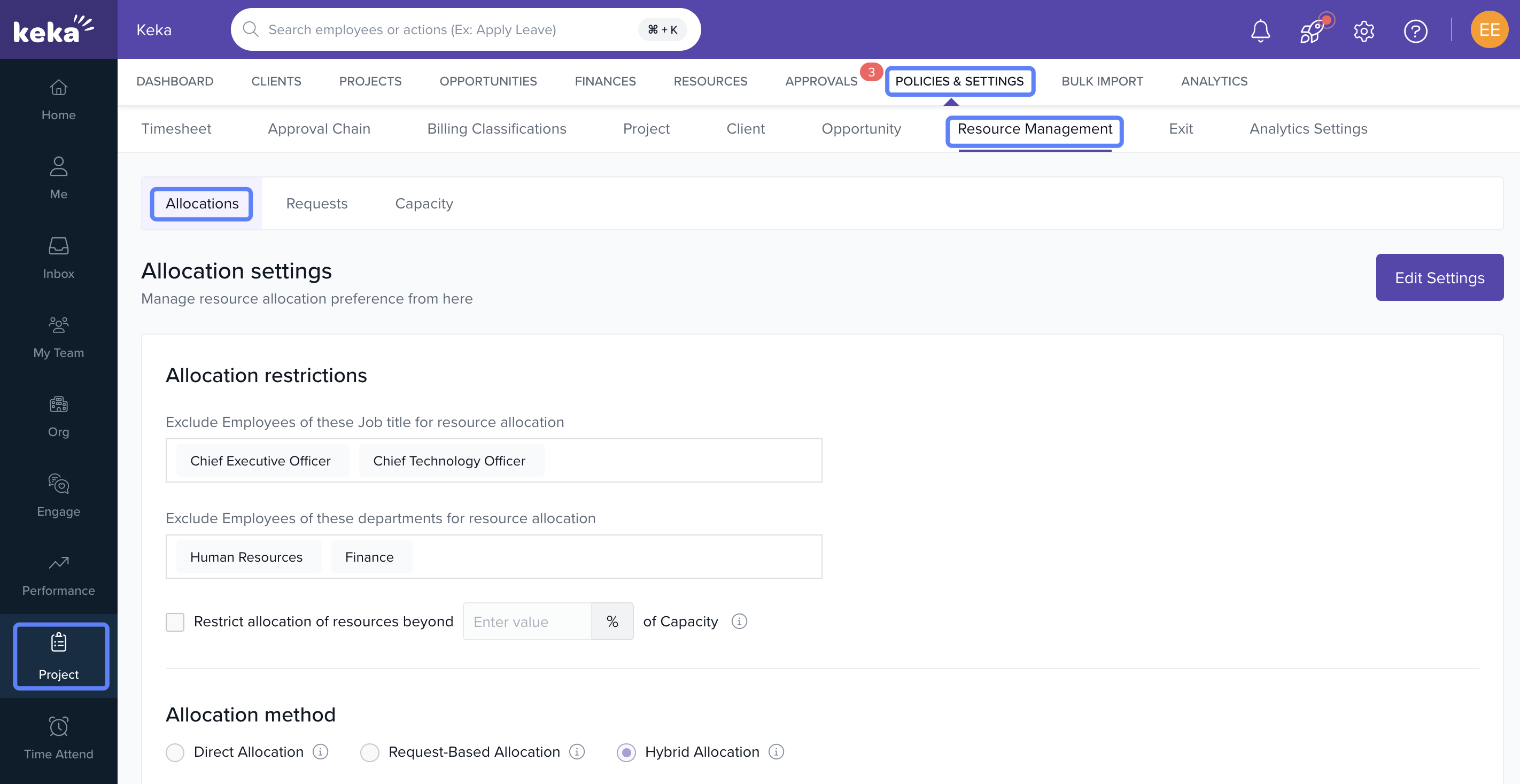
- Navigate to Project > Policies and Settings > Resource Management > allocation
- Enable the toggle for Non-billable resource allocation
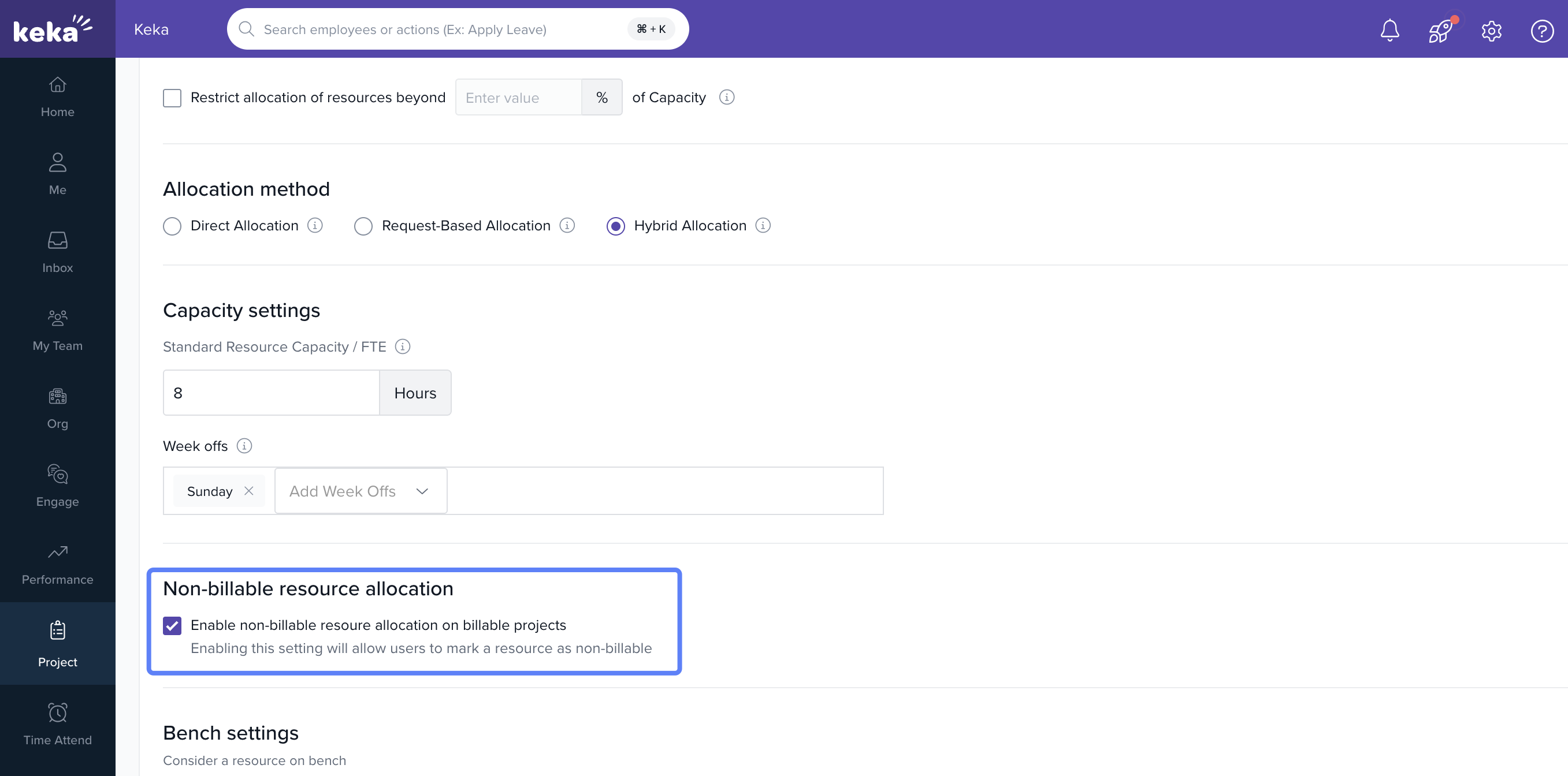
Note: If this setting is disabled, the option to modify billability during allocation will not appear.
Adding Resource and Setting Allocation Type
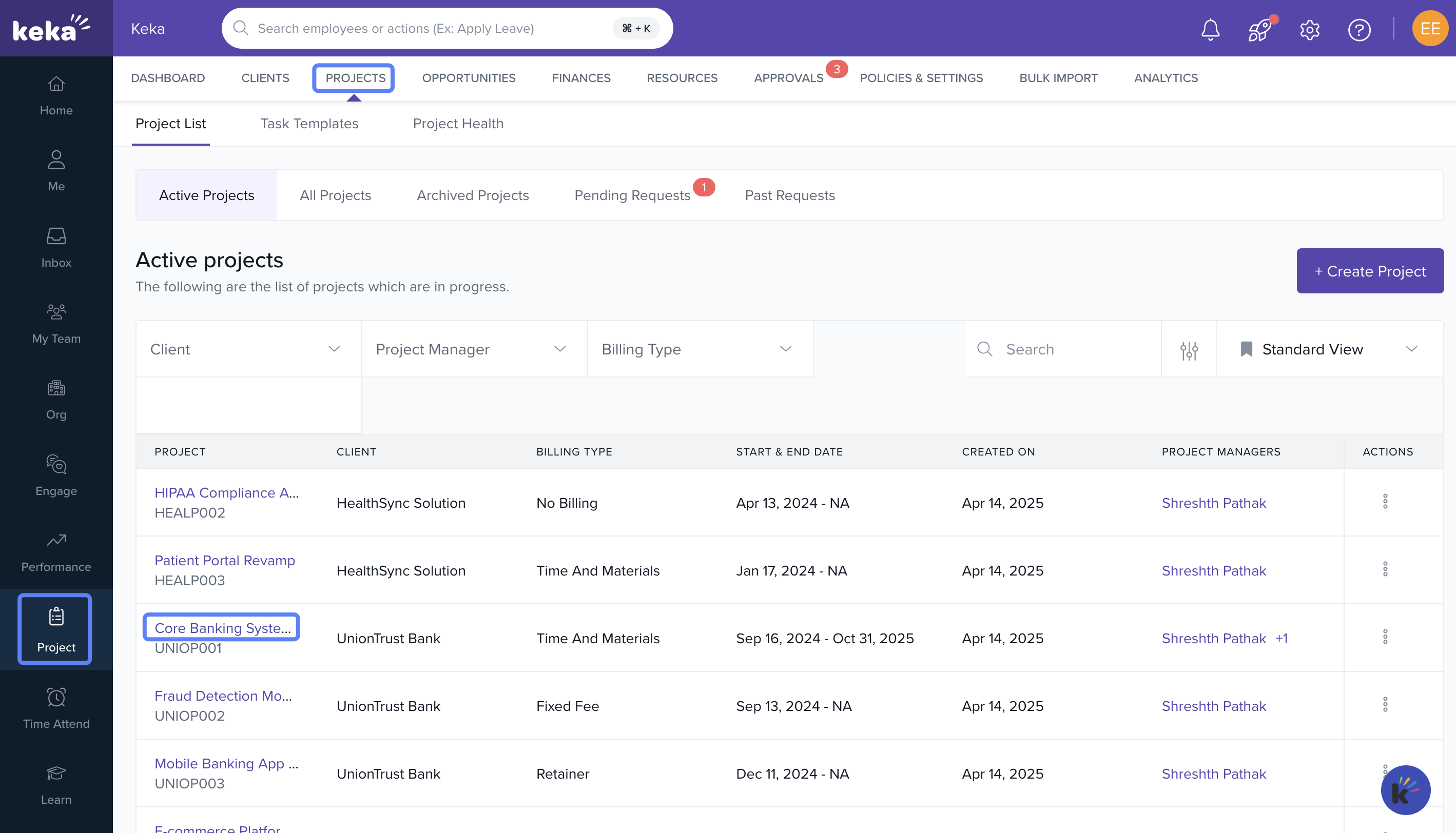
- Go to Projects > Projects and select a project
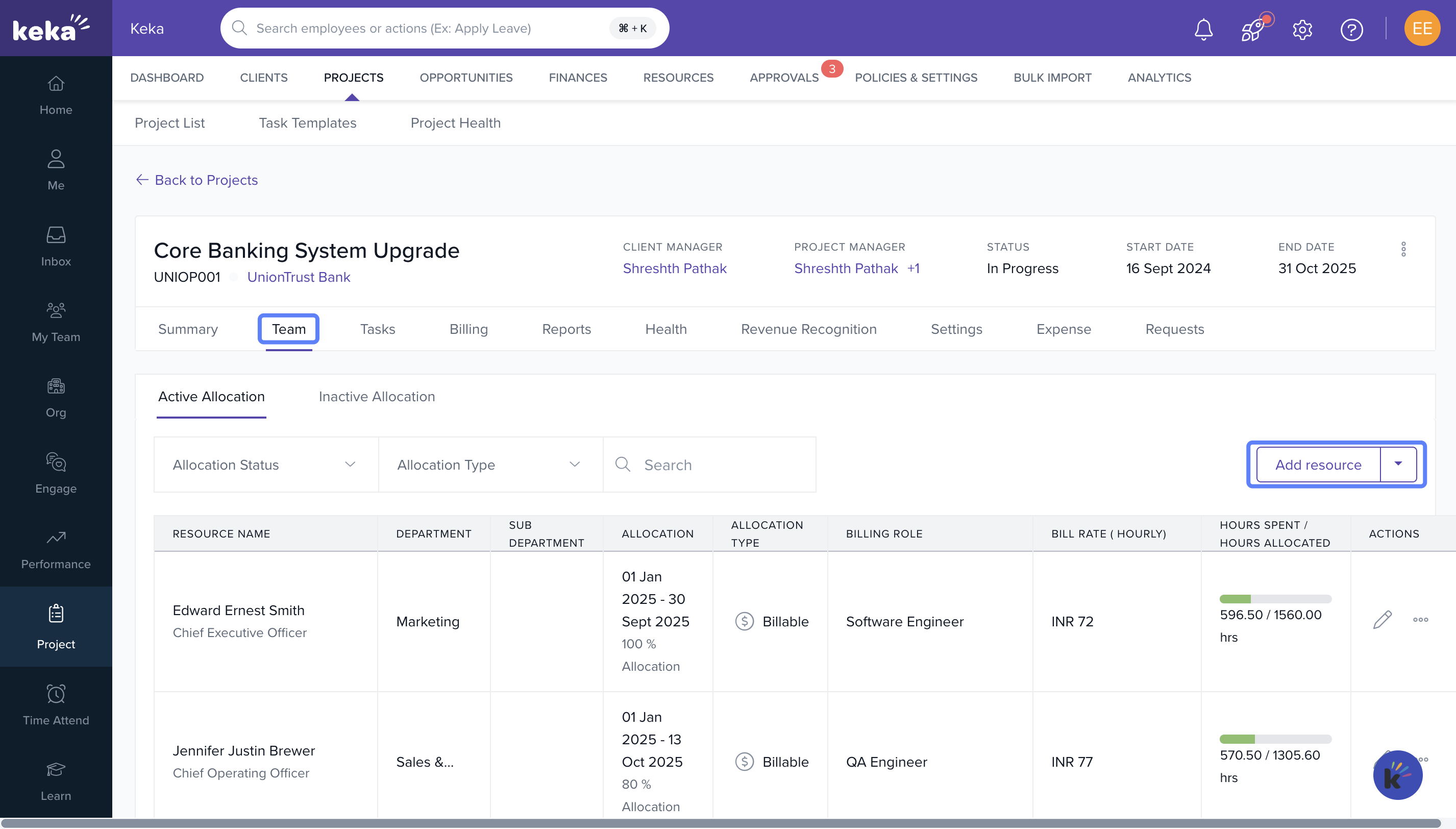
- Click on the Team tab
- Click Add Resource
- Set the allocation date range and percentage
-
Choose Billable or Non-Billable as the allocation type
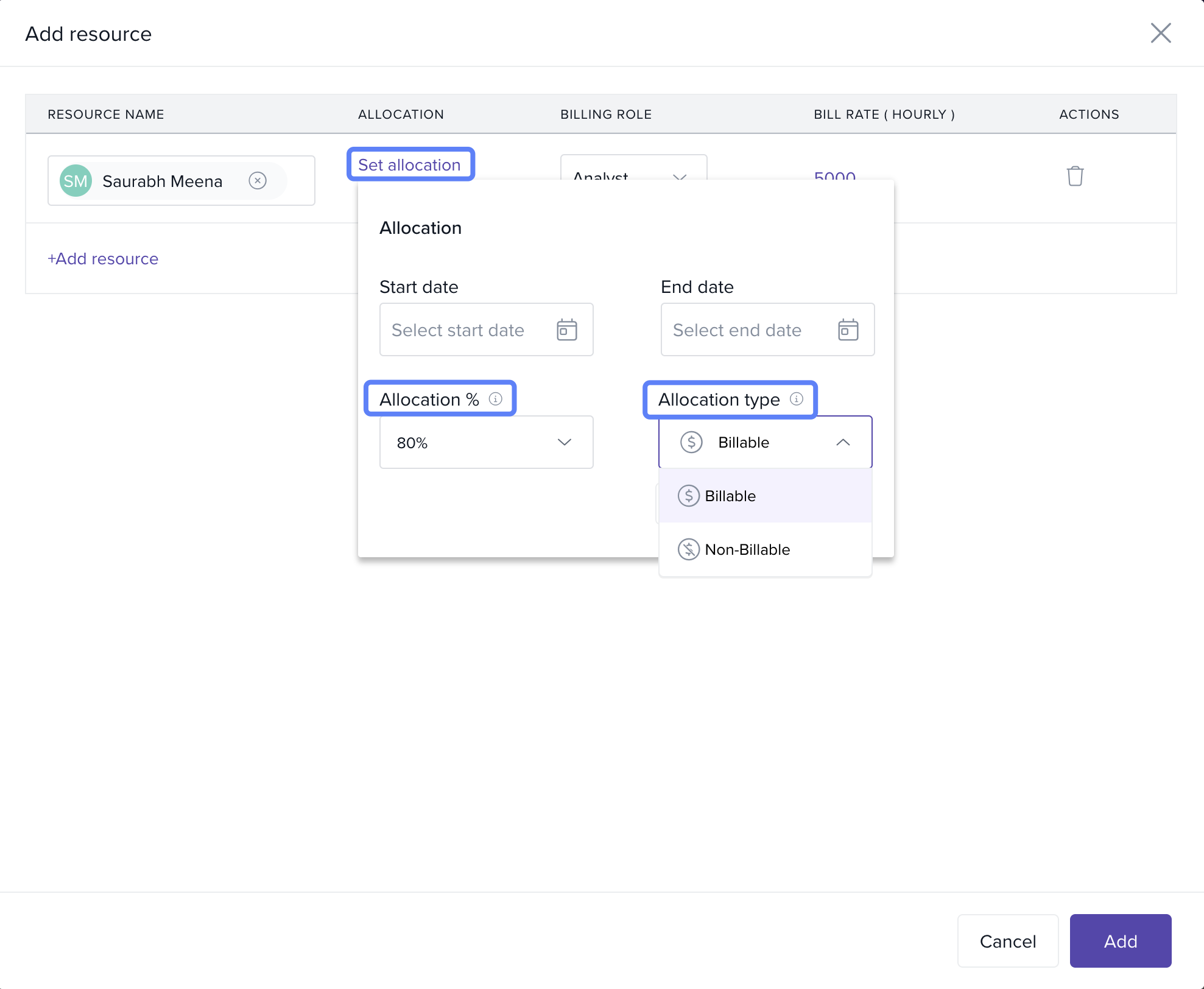
Note: If Non-Billable is selected, the Bill Rate will show as “NA”.
Editing Allocation Type
- Go to Projects > Projects and select a project
- Click on the Team tab
- Click the Edit icon next to the resource
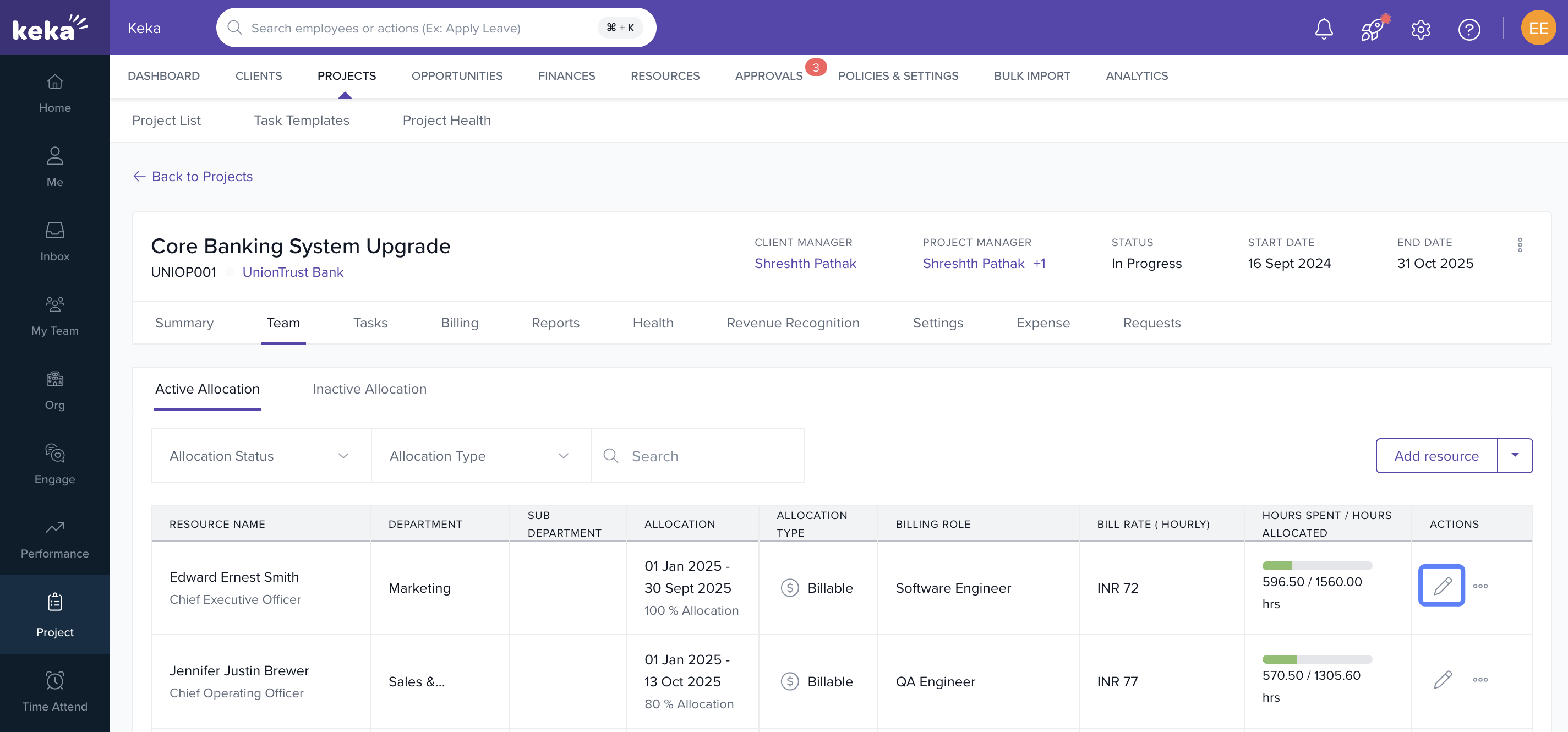
- Click on the Allocation Type field
- Choose the new allocation type and set the Effective Date.
- Click Update under actions column.
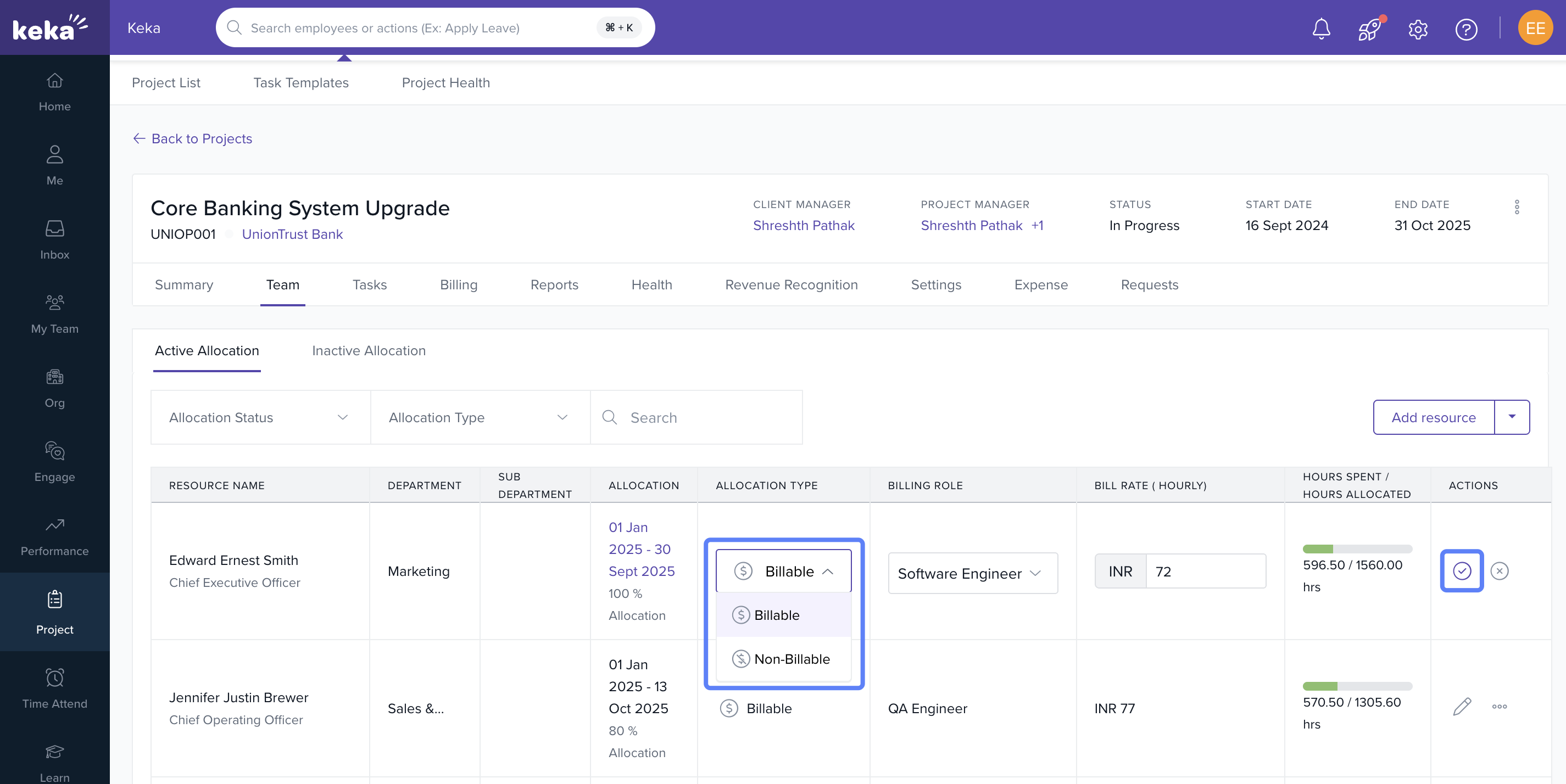
Note: If invoices or charges have already been generated for that period, the allocation type cannot be changed.
Allocation Types Behaviour by Project Type
| Project Type | Allocation Billability Option |
|---|---|
| Billable Project | Can choose Billable or Non-Billable |
| Non-Billable/Internal | All allocations auto-set to Non-Billable |
| Base Plan | Allocation type is fixed; cannot modify |
How It Connects with Other Modules
| Aspect | Billable Allocation | Non-Billable Allocation |
|---|---|---|
| Billing | Hours can be invoiced | Hours cannot be invoiced |
| Cost | Incurred | Incurred |
| Utilization | Counted | Counted |
| Revenue Recognition (Cost-Based) | Included | Included |
| Revenue Recognition (Invoice-Based) | Included | Not Included |
Note : Shadow resources are always marked as Non-Billable and inherit billability from their parent.If parent is billable, their hours are billed using the parent’s bill rate
FAQs
Q: Why is the option to change billability disabled?
A: Either the setting is disabled under global policies, the project is marked as Non-Billable/Internal, or the organization is on the base plan
Q: Why can’t I set a bill rate for a Non-Billable allocation?
A: Since non-billable hours cannot be invoiced, a bill rate is not applicable
Comments
0 comments
Please sign in to leave a comment.