Overview
This article explains how to add, view, edit, and delete product subscriptions in Keka PSA. These product entries can be included in project invoices and are useful for billing clients for tools or services used during project delivery.
Who Can Do This?
- PSA Admins
- Finance Admins
- Global Admins
Pre-requisites
- Product pricing and description details should be available
- Invoice module should be active
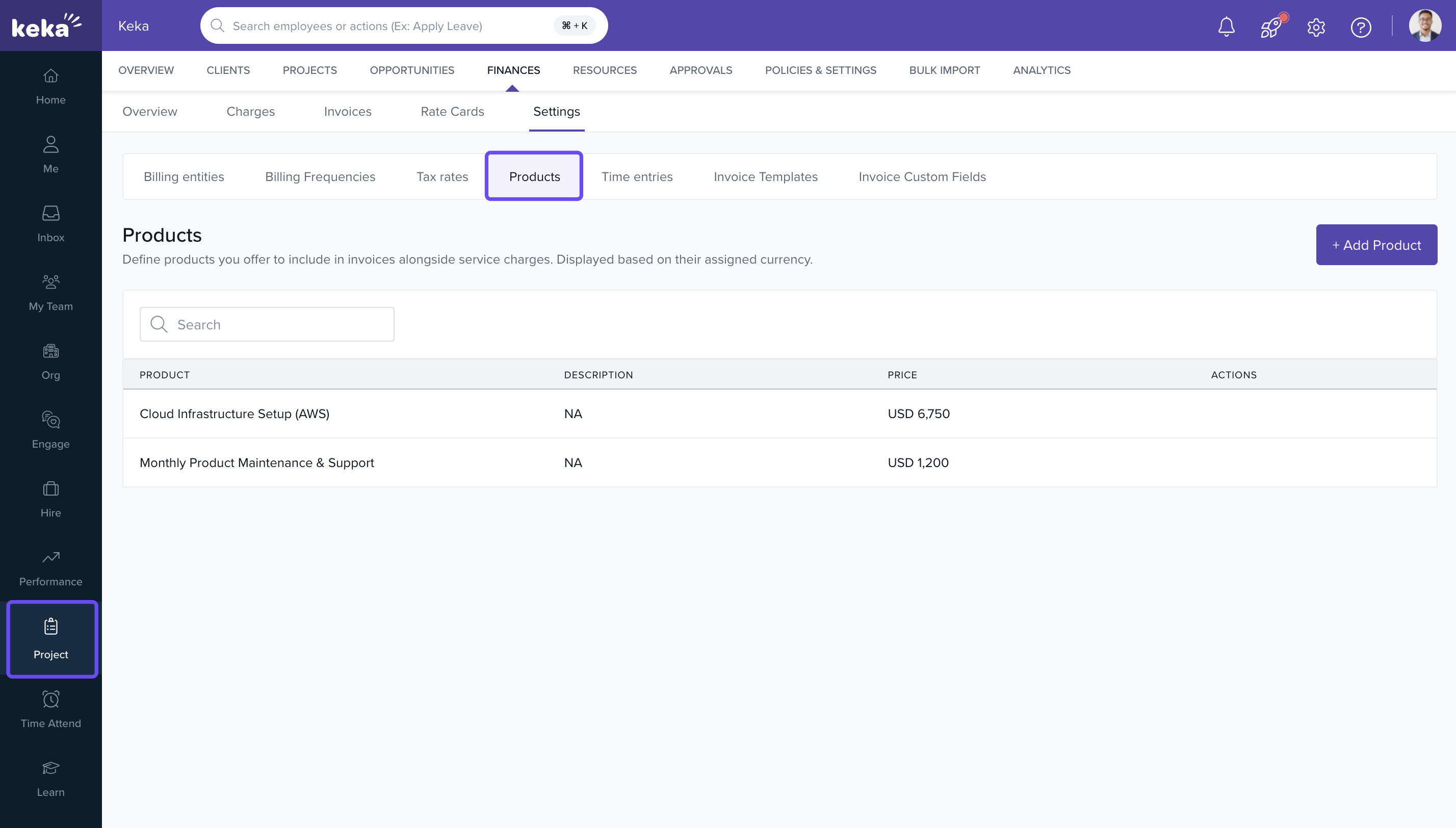
Navigating to the Products Section
- Go to the Projects section in the left navigation pane
- Click on the Finances tab
- Select the Settings tab
- Click on Products
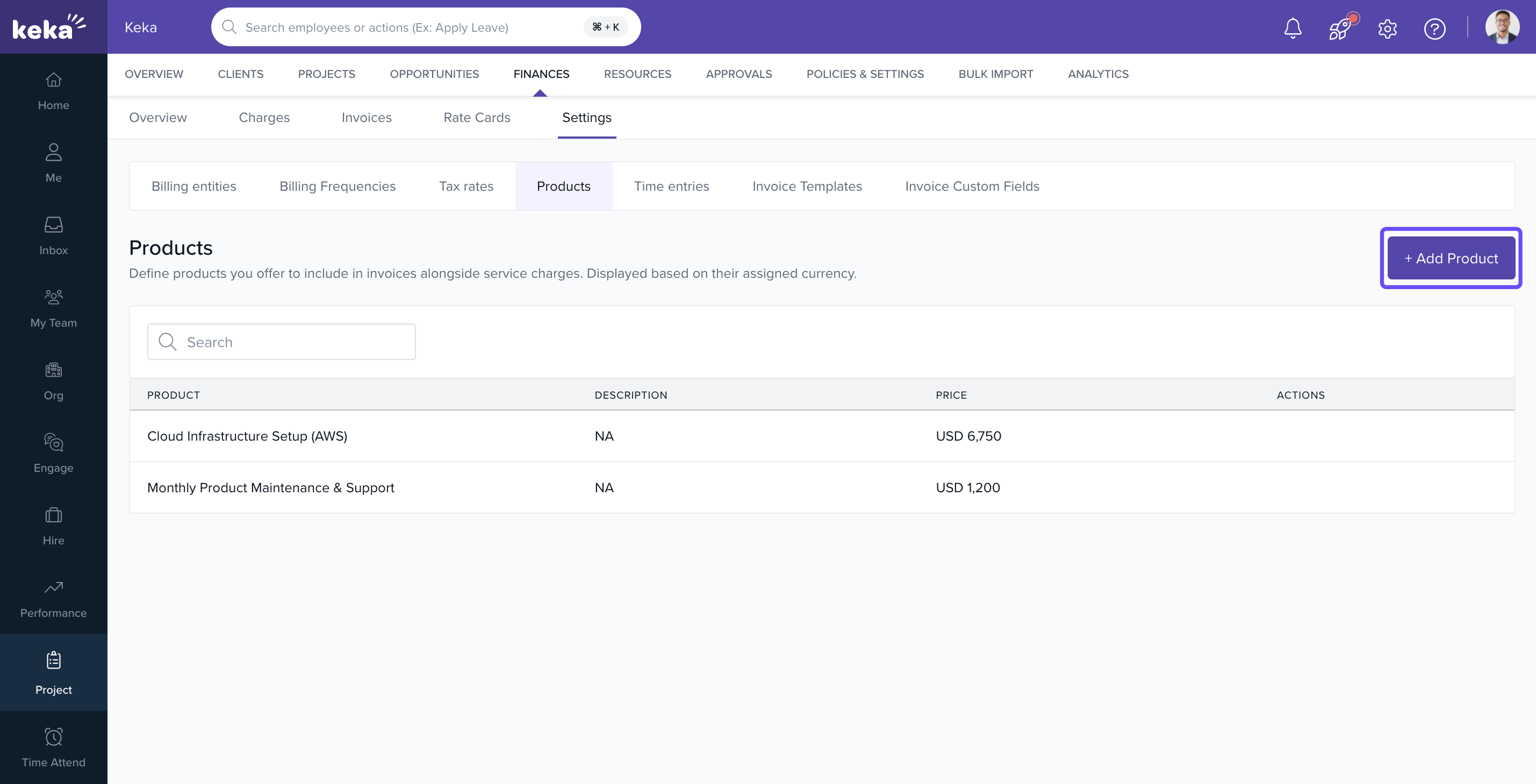
Adding a New Product
- Click on +Add Product
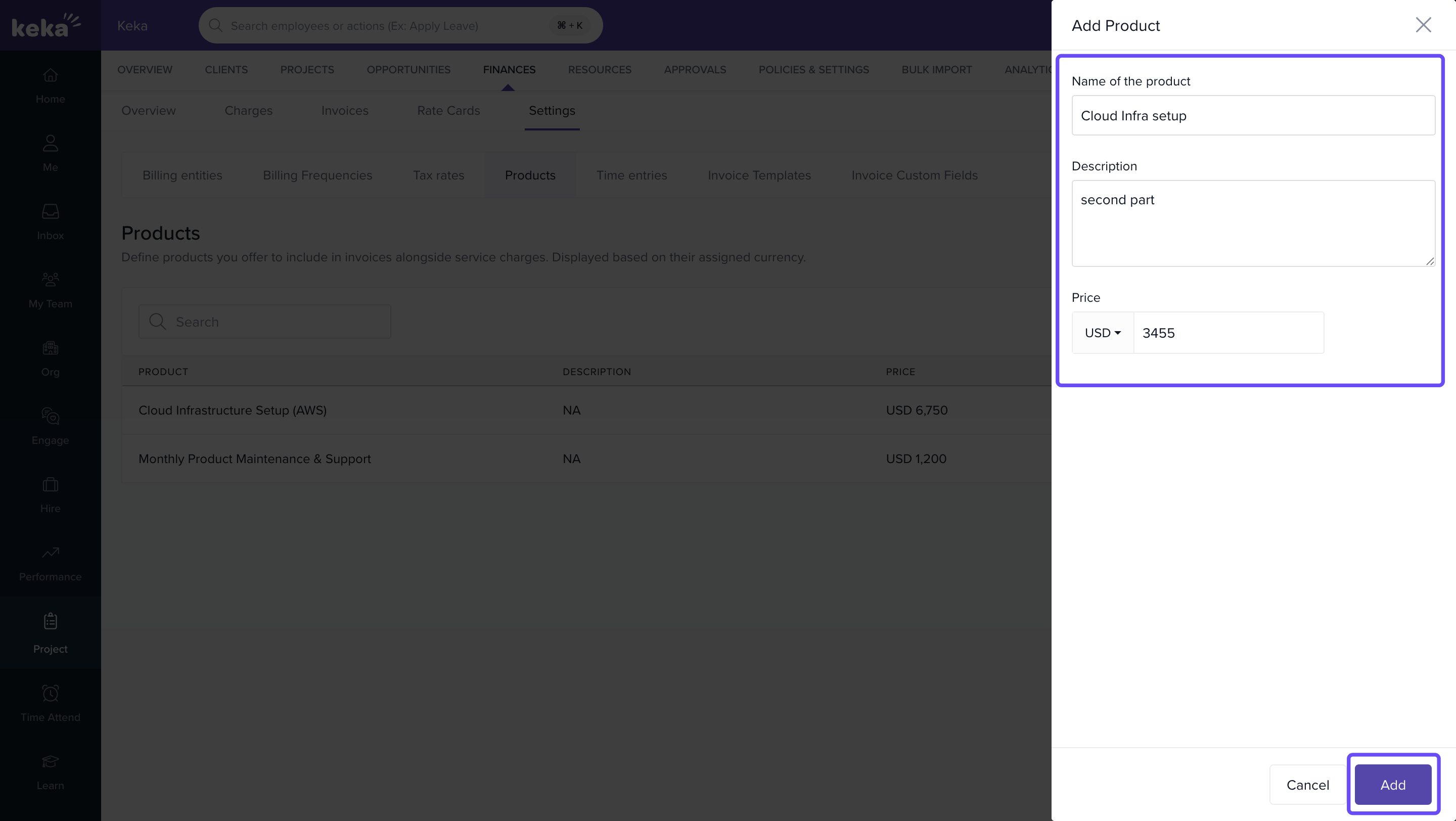
- In the Add Product window:
- Enter the Product Name
- Click +Add Description if you want to provide additional details
- Enter the Price
- Select the Currency from the dropdown
- Click Add to save the product
Note: The products added here can be used while invoicing
Viewing or Editing Existing Products
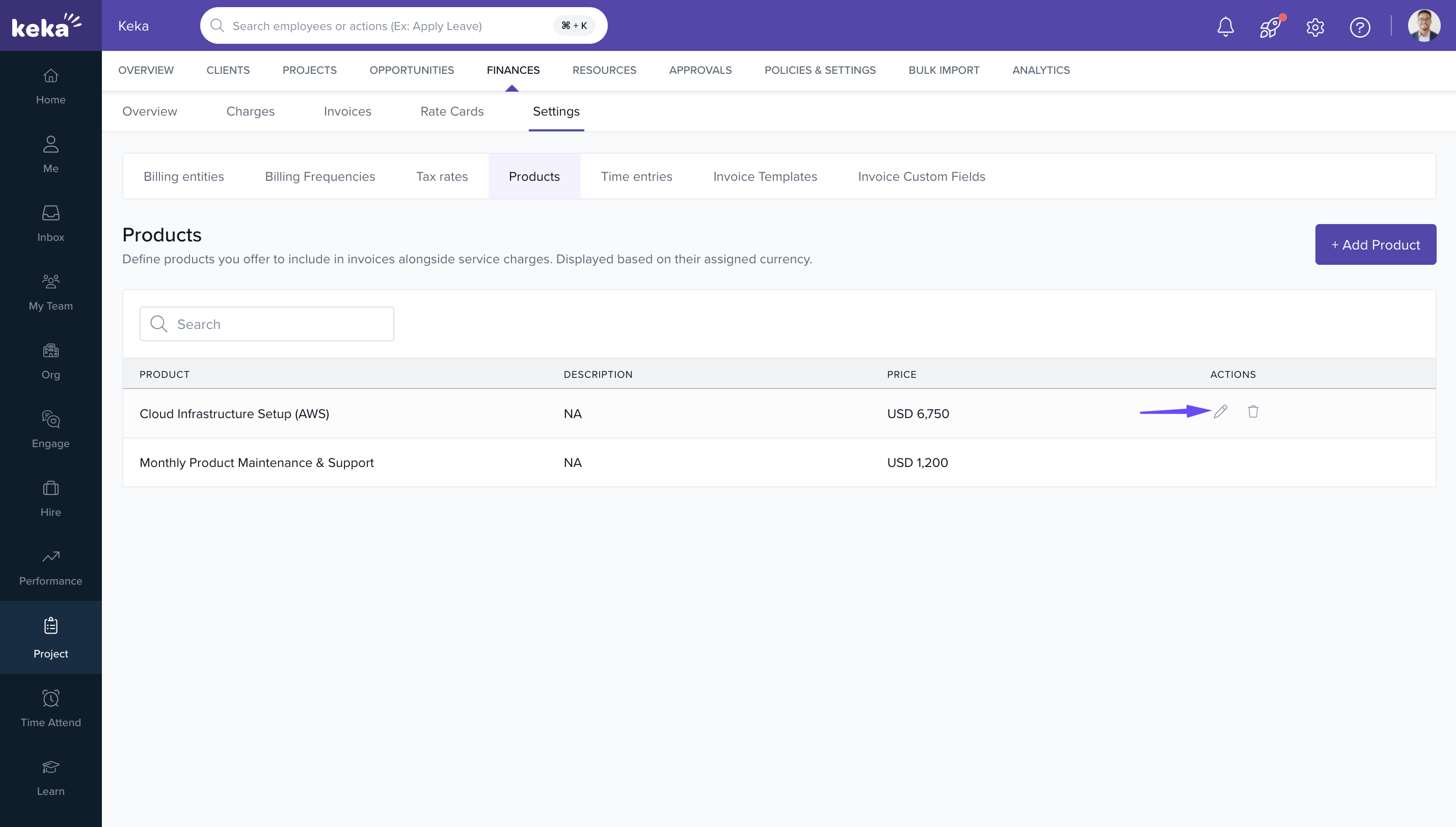
- All added products appear on the Products page
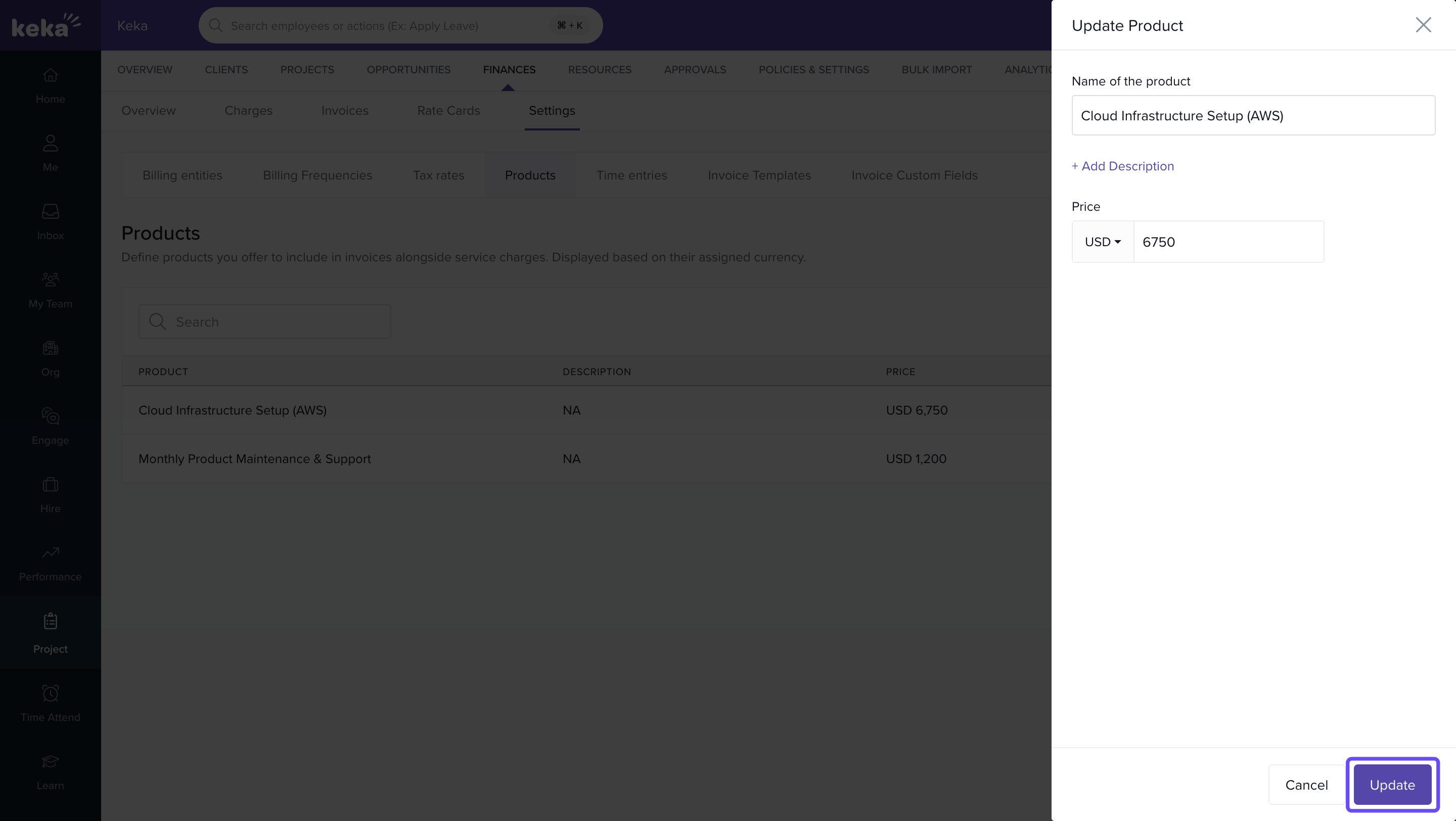
- To edit a product:
- Hover over the row
- Click the Edit icon in the Actions column
-
Update the product details and click Update
Deleting a Product
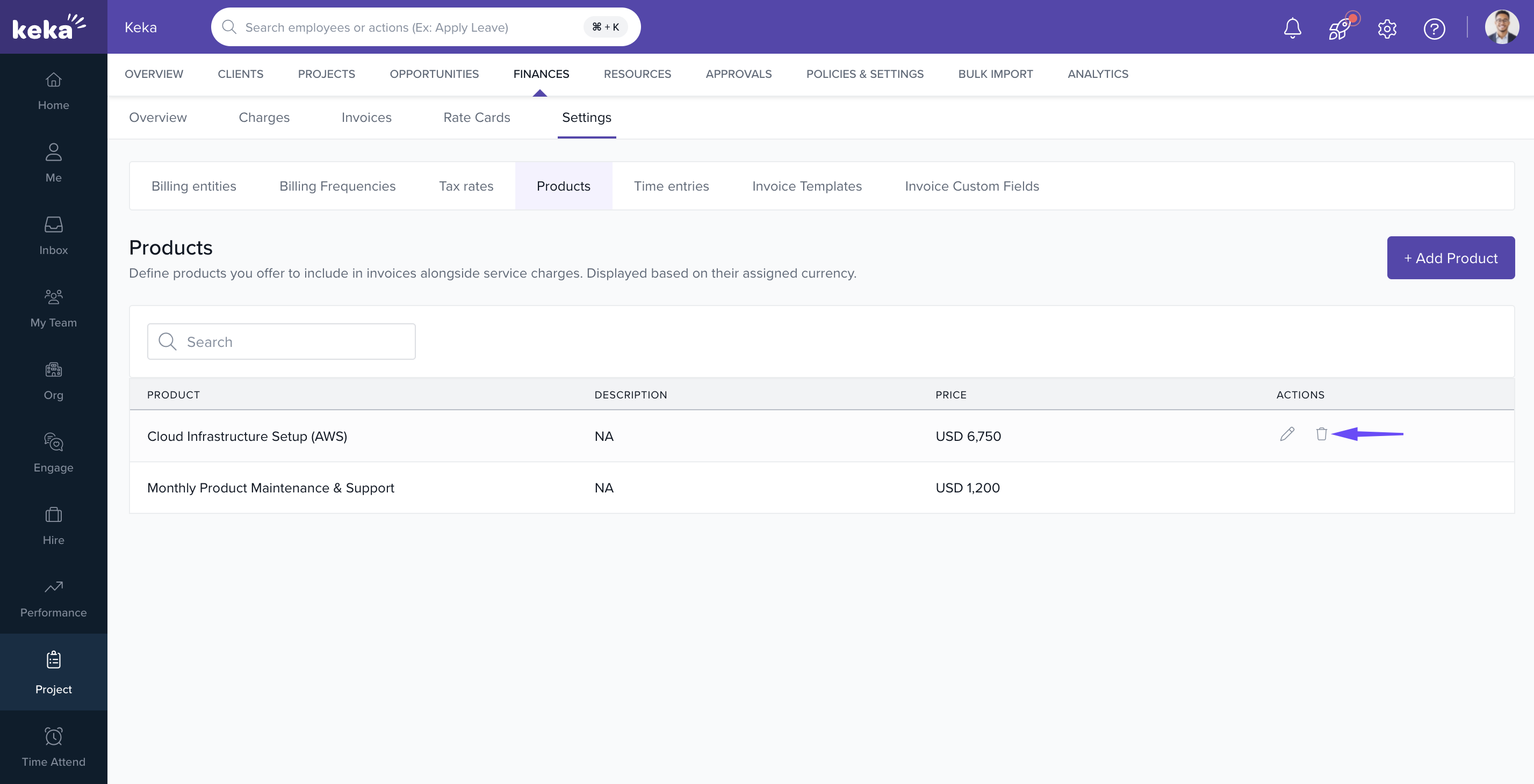
- Hover over the product row
- Click the Delete icon in the Actions column
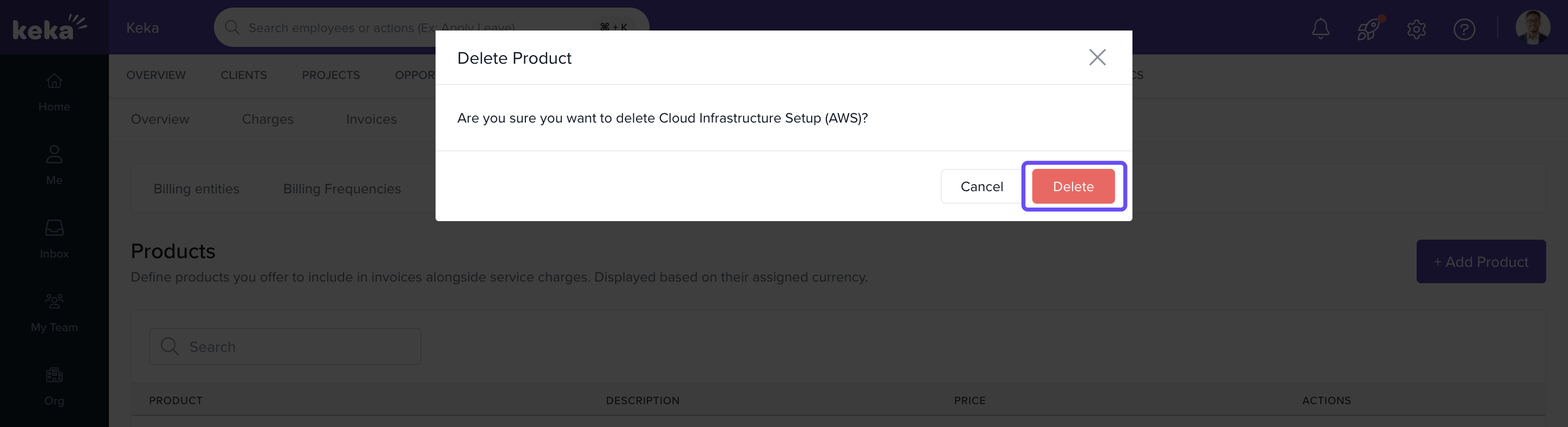
- Confirm the deletion in the popup
Note: Products already added to invoices cannot be deleted.
FAQs
Q: Can I add recurring product subscriptions?
A: Yes. Add them as individual products and reuse them across projects.
Q: Can I assign products to a specific project phase or milestone?
A: No. Products are currently linked at the invoice level only.
Q: Will product prices support multiple currencies?
A: Yes. Choose the appropriate currency when creating the product.
Q: Can I edit the price after the product is used in an invoice?
A: No. Once billed, historical pricing remains intact for audit purposes.
Comments
0 comments
Please sign in to leave a comment.