Overview
This guide will walk you through how to create new rate cards, import rate cards using Excel, and manage existing ones, including modifying and deleting rate details. Additionally, you will learn how to customize role rates and apply them efficiently to various projects, ensuring proper invoicing and cost management.
Who Can Do This?
- PSA Admins
- Finance and Operations Team Members
- Global Admins with rate card configuration access
Pre-requisites
- Billing roles must be configured in Keka PSA.
- Currency and role categories should be finalized before rate card creation.
- Roles should already exist in the system if you're uploading via Excel.
Accessing the Rate Cards Section
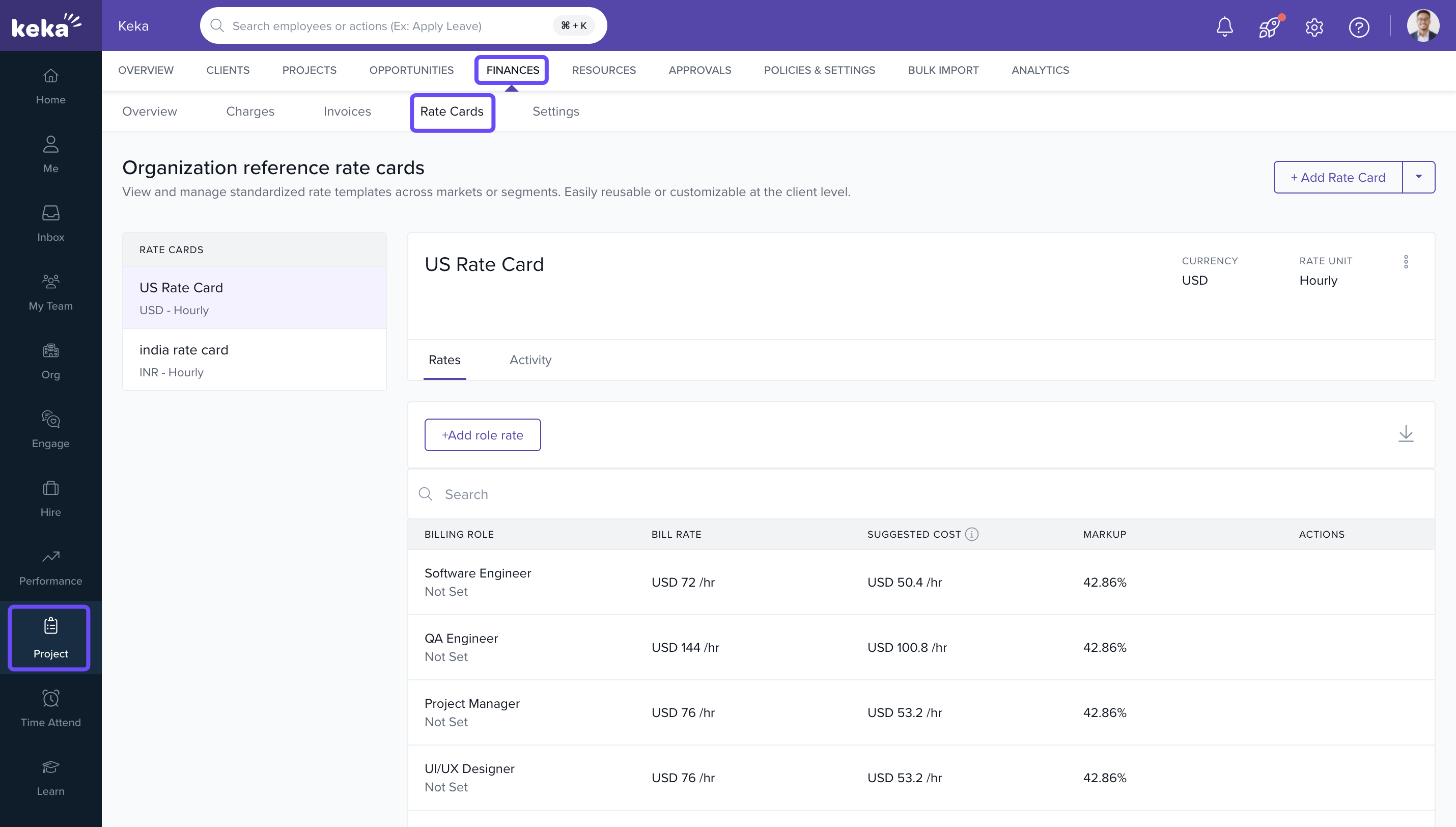
- Navigate to the Projects section.
- Go to the Finances tab.
- Click on the Rate Cards tab.
- You will see the list of existing Organization Reference Rate Cards.
Three Ways to Add Reference Rate Cards
Method 1: Creating a New Rate Card from Scratch
- Click +Add Rate Card.
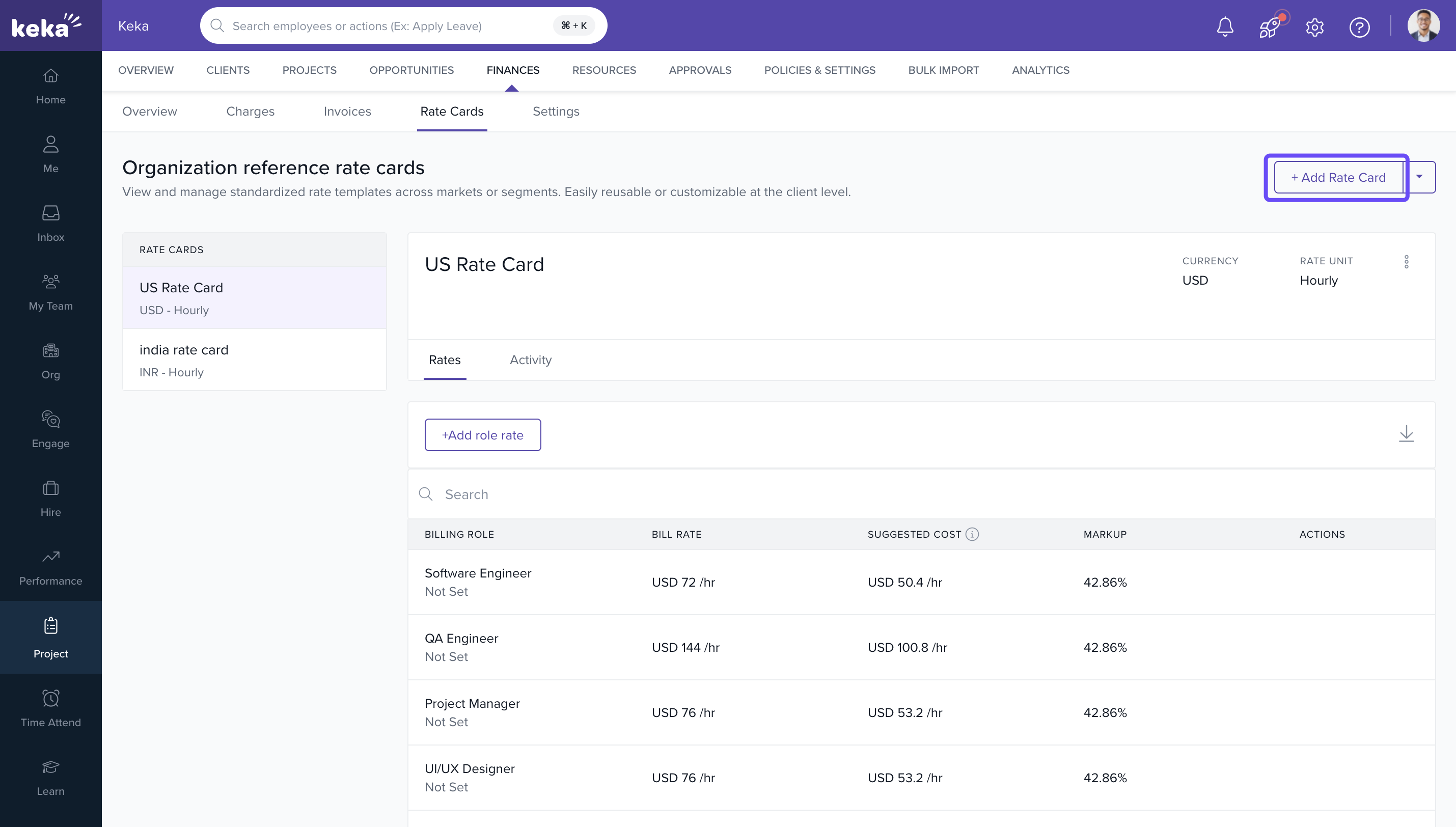
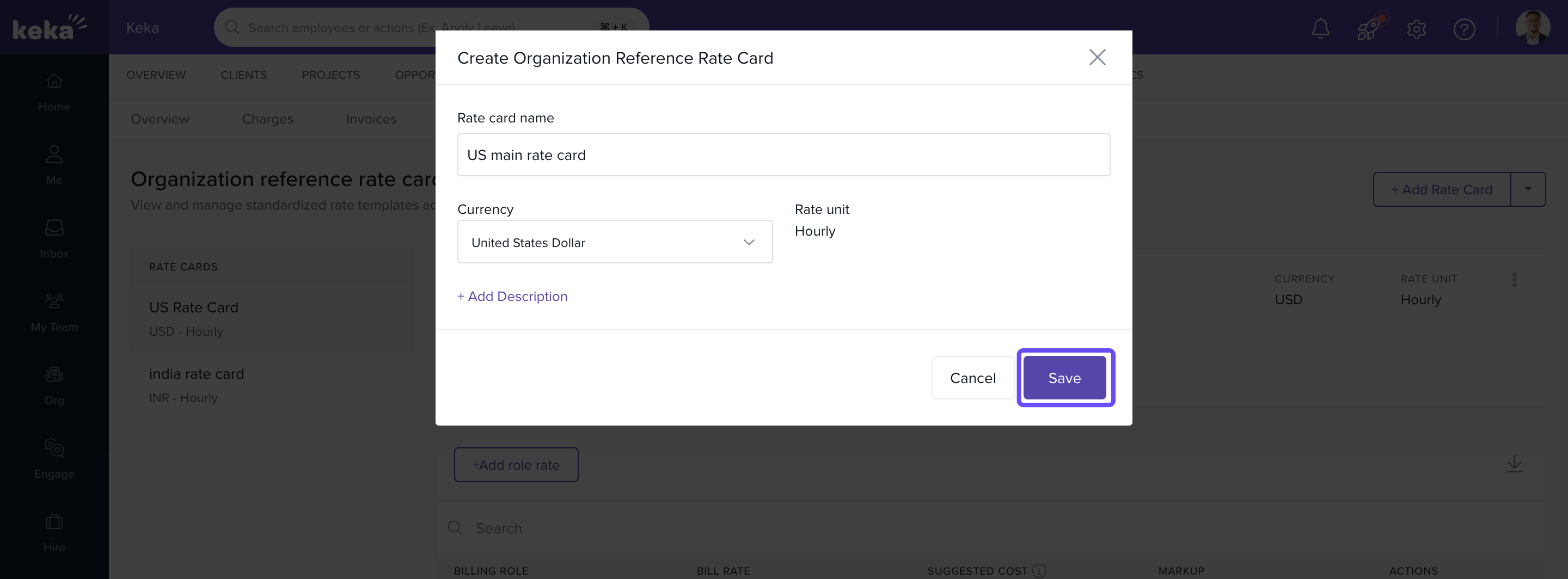
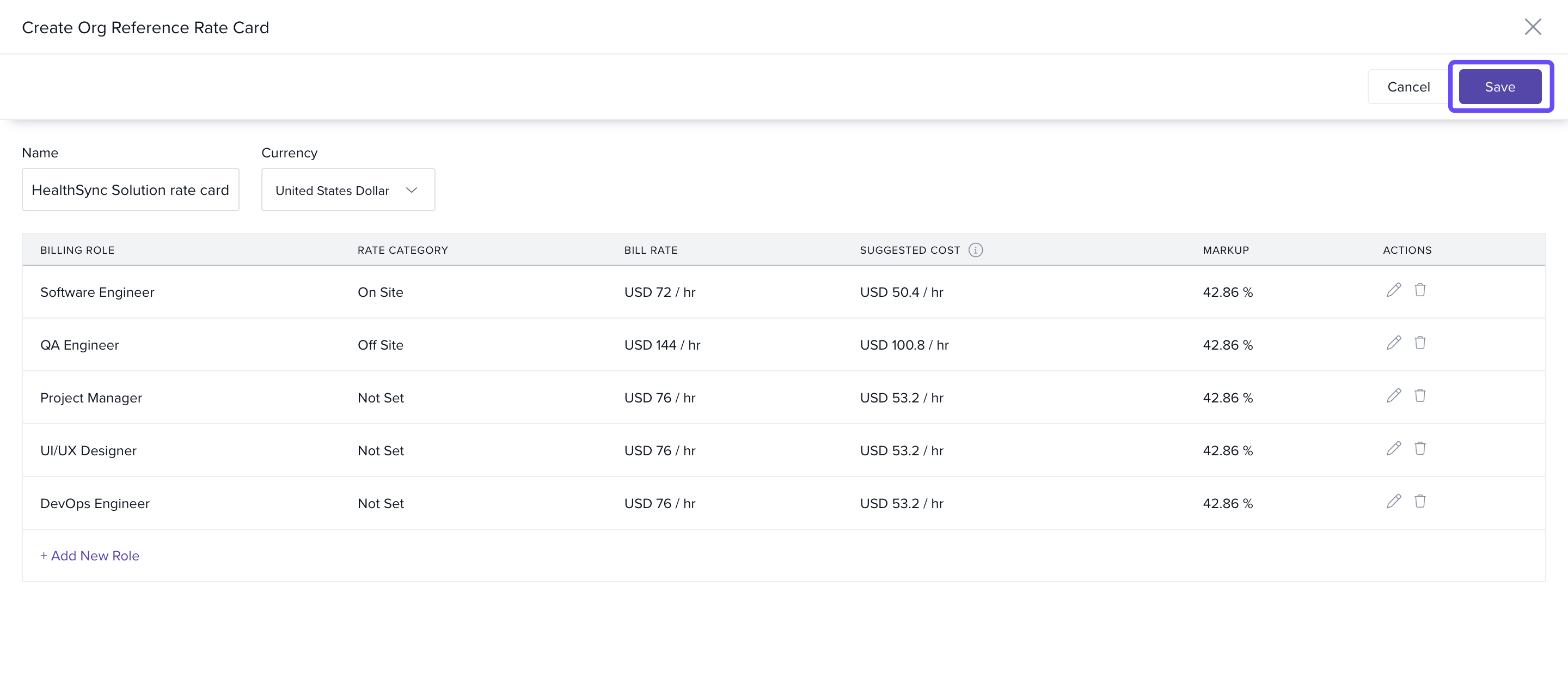
- On the Create Organization Reference Rate Card window, enter:
- Rate Card Name
- Currency
- Description (optional)
- Click Save.
-
To add role rates:
- Select the newly created rate card from the list.
- Click +Add Role Rate.
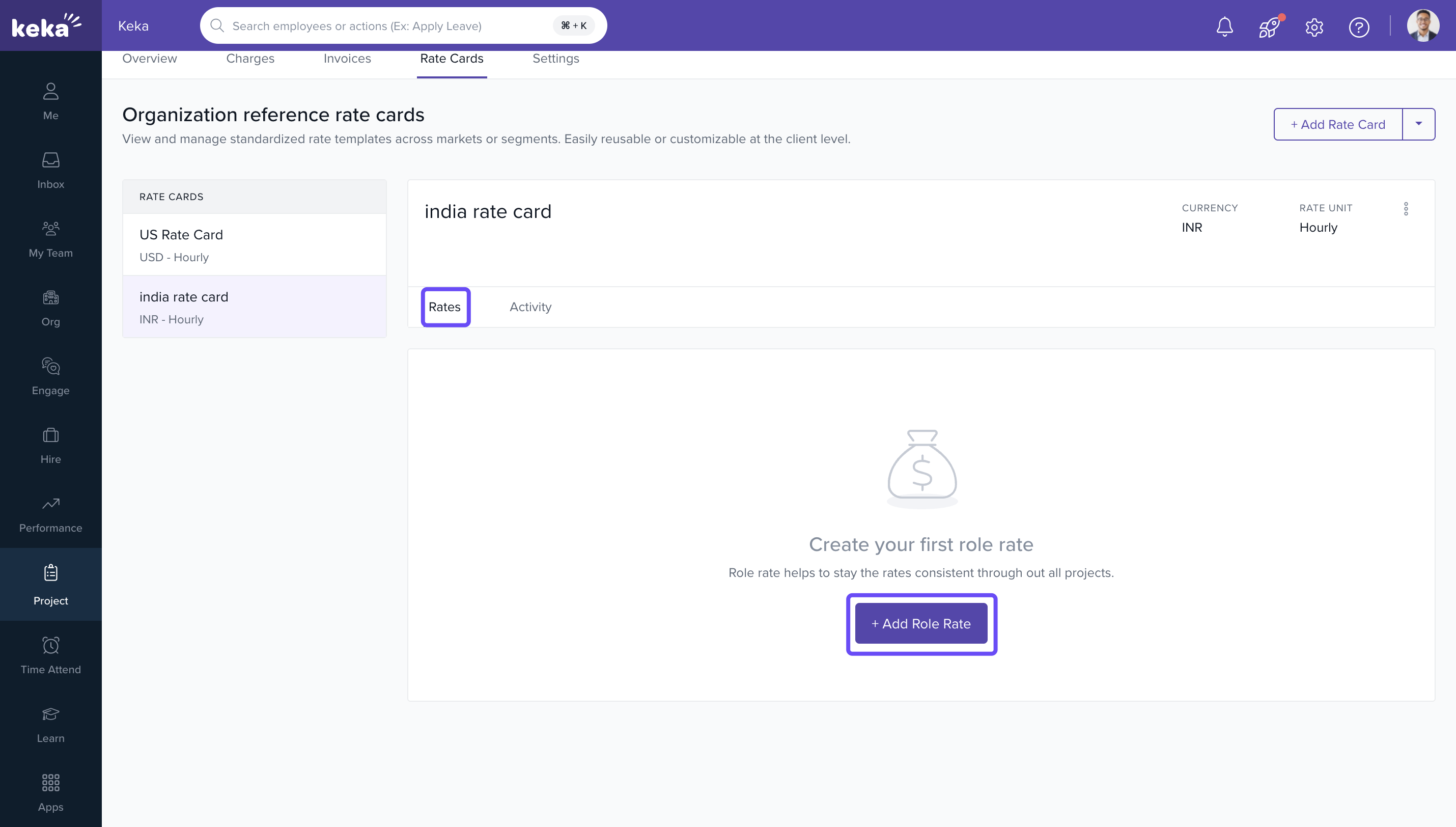
- In the Add Role Rate window:
- Select a role from the dropdown or click +Add Role if it's not listed.
- Enter Bill Rate and Suggested Cost.
- Choose a Rate Category (e.g., onsite/offsite).
- Click Add.
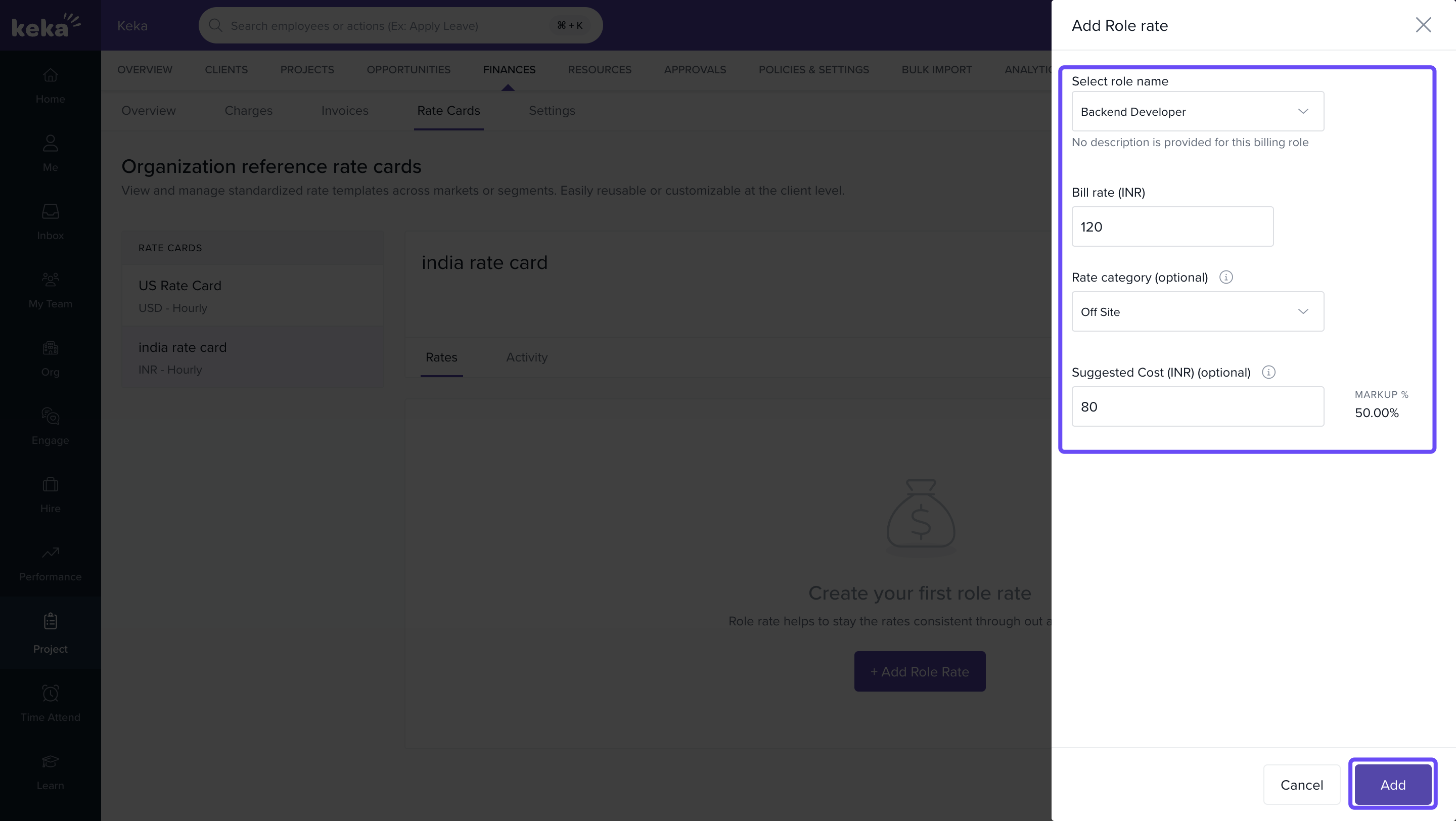
Repeat the process for each additional role you want to include.
Method 2 : Importing Rate Card via Excel
- Click the dropdown beside +Add Rate Card.
- Select Import from Excel.
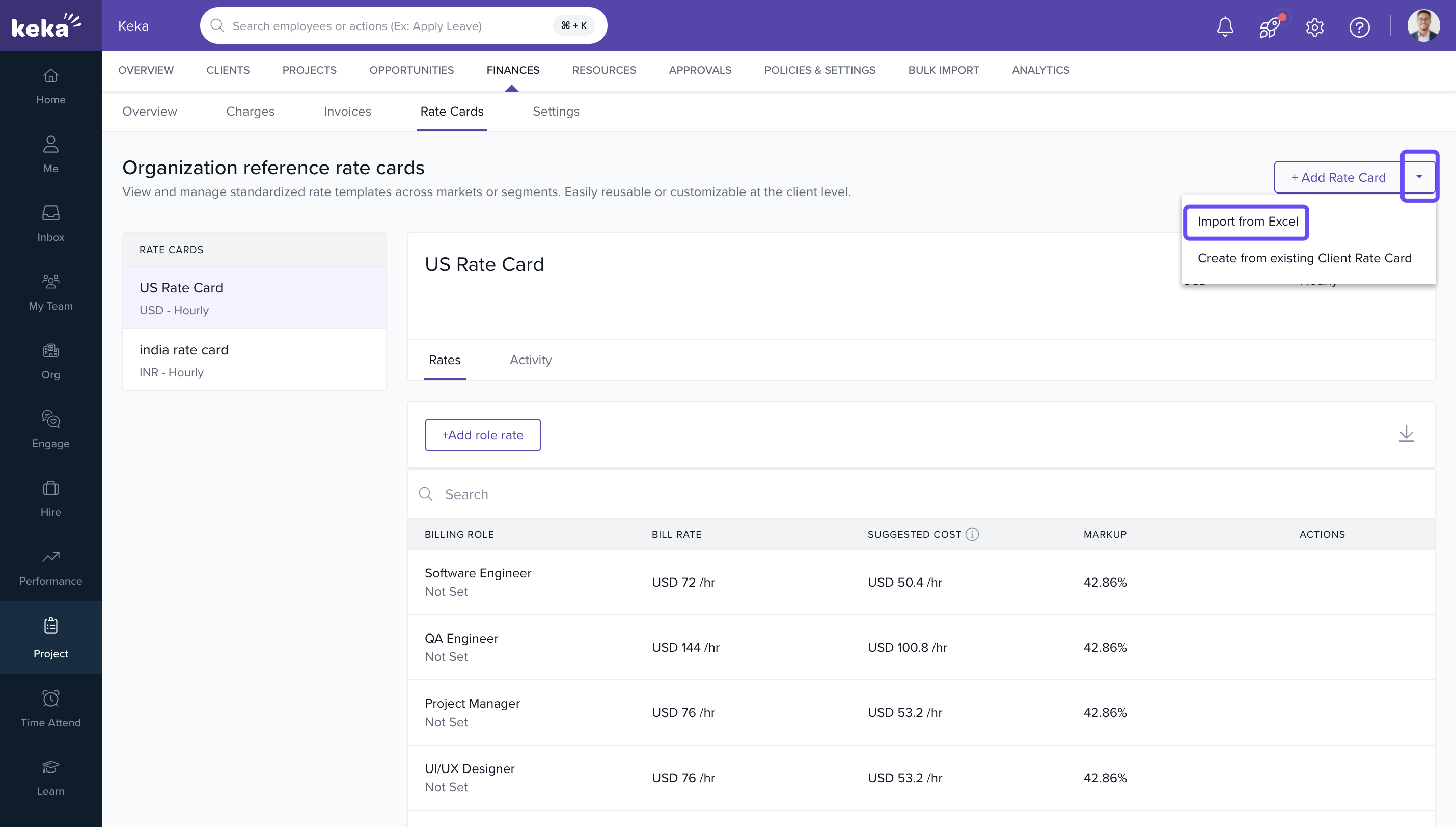
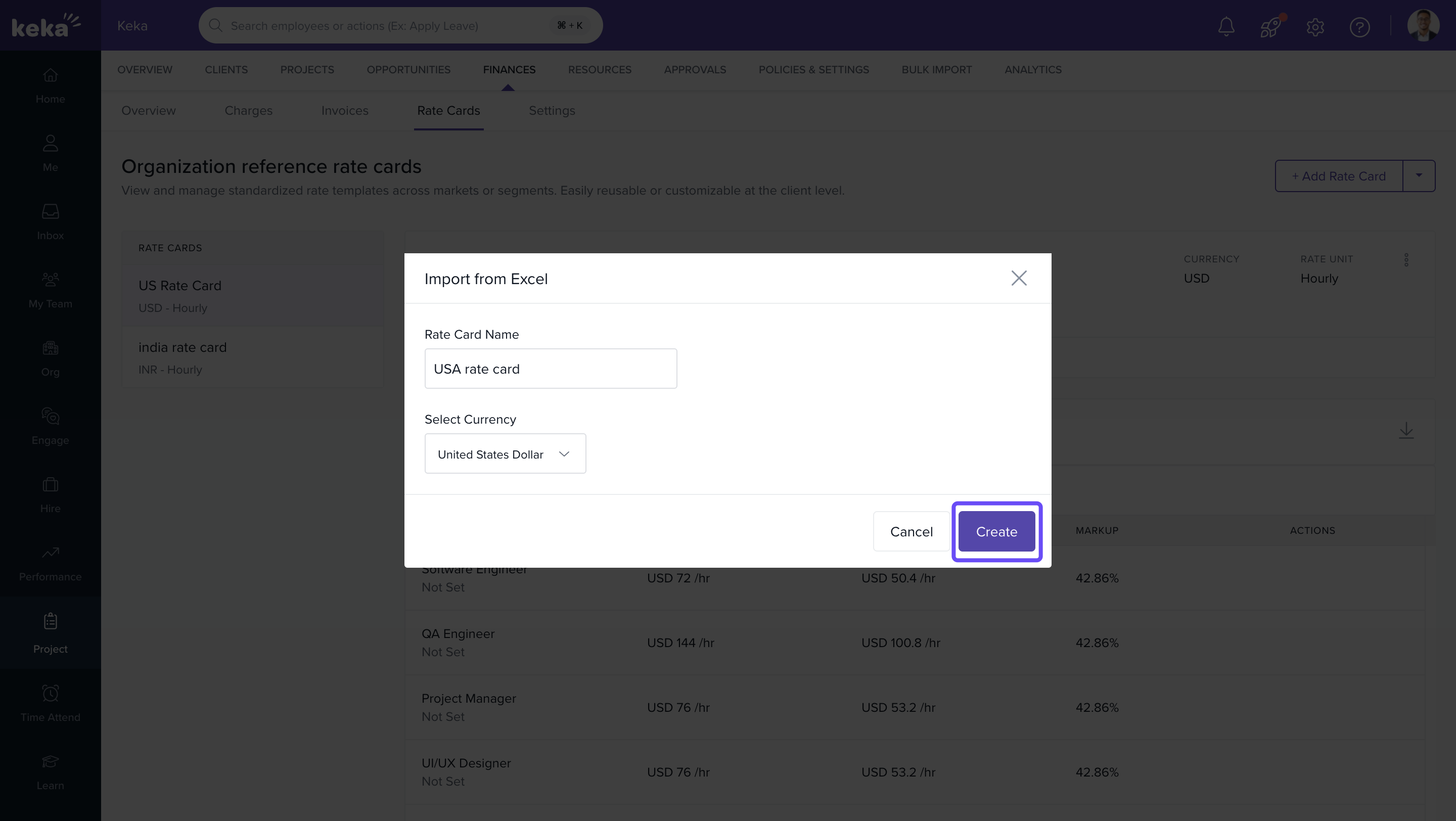
- Enter the Rate Card Name and choose Currency.
- Click Create.
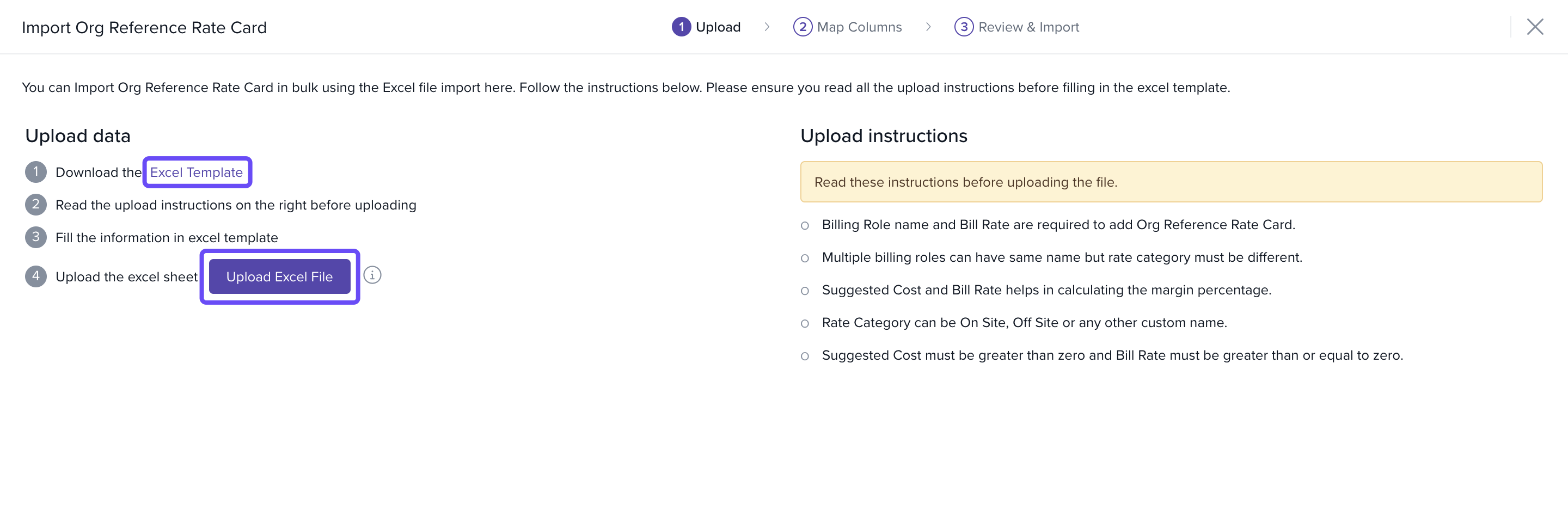
- On the next screen, click Download Excel Template.
- In the Excel file, fill in:
- Role Name
- Rate Category
- Bill Rate
- Suggested Cost
- Save the file and return to the import screen.
- Click Upload Excel File.
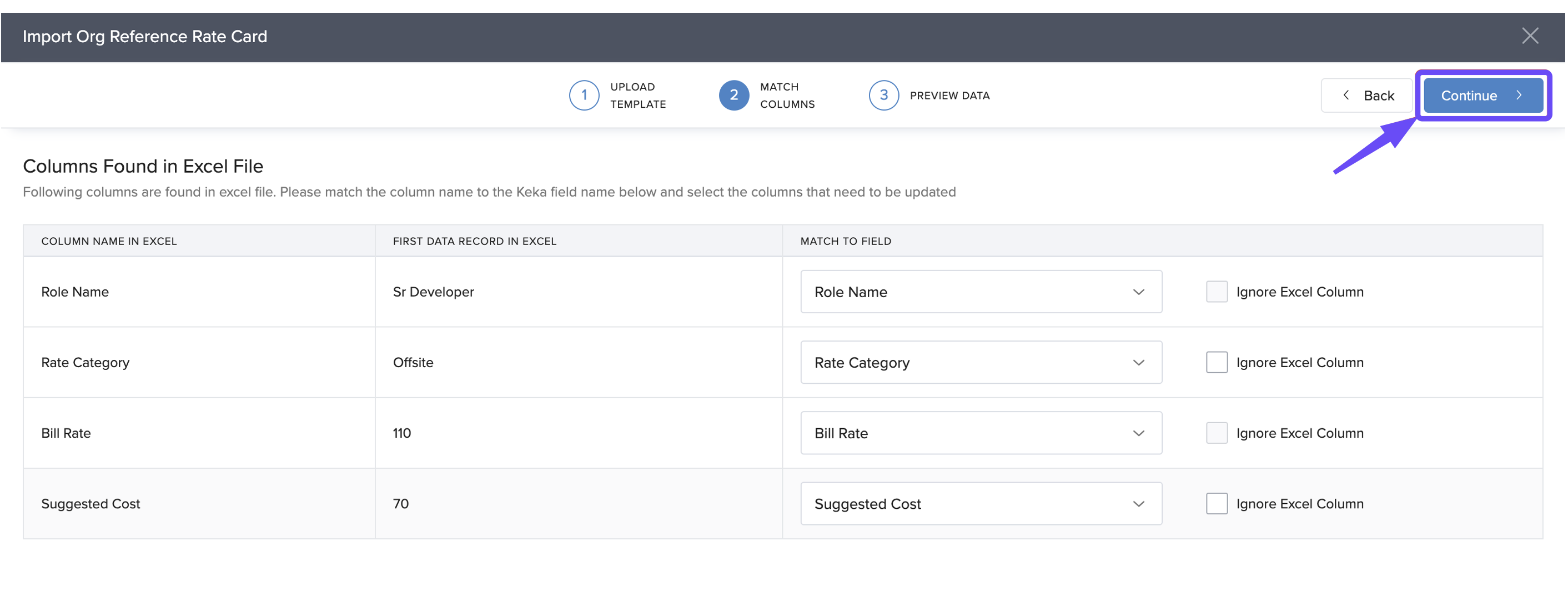
- Match columns correctly, then click Continue.
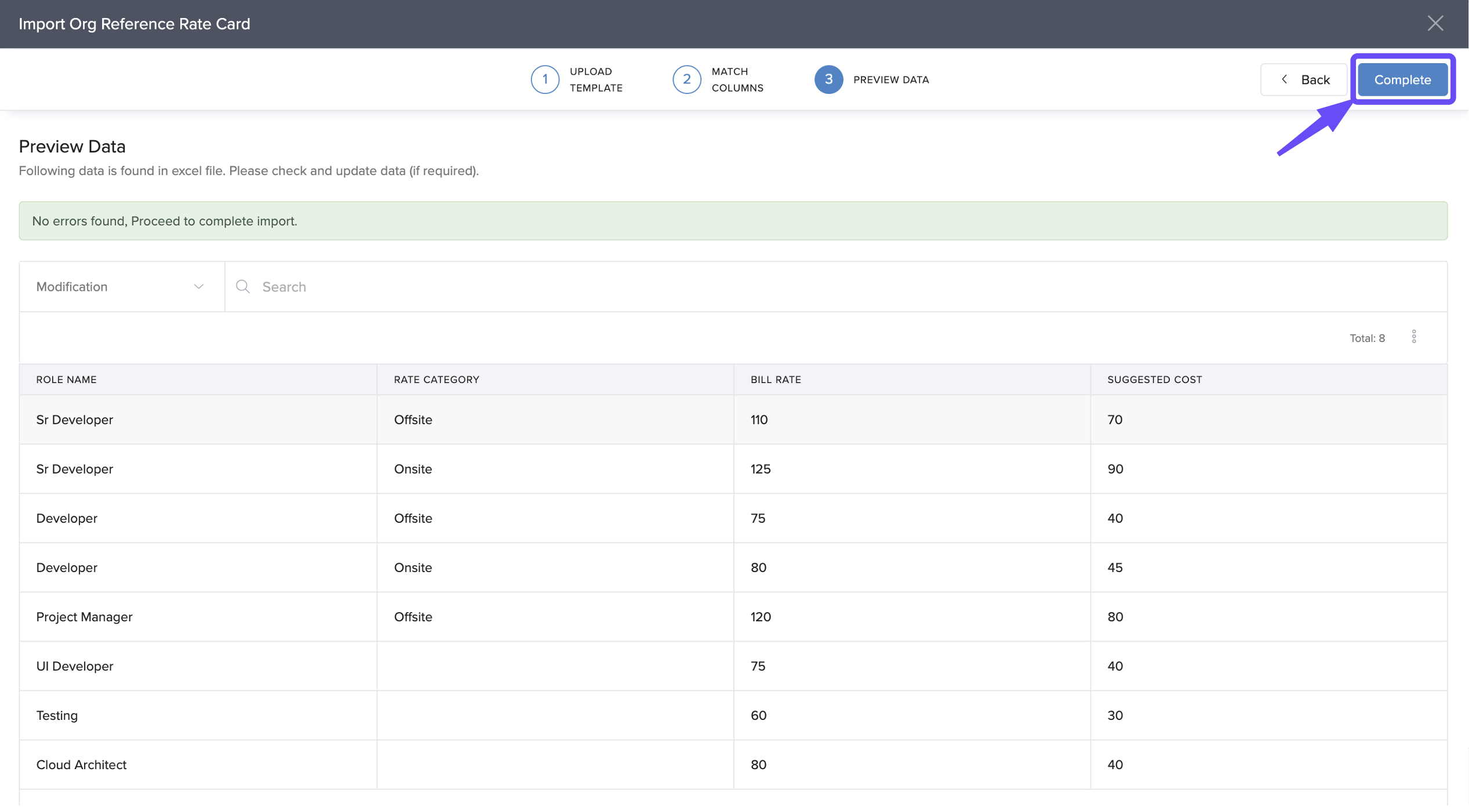
- In the Preview Data page, review for errors and click Complete.
Method 3 : Creating from an Existing Client Rate Card
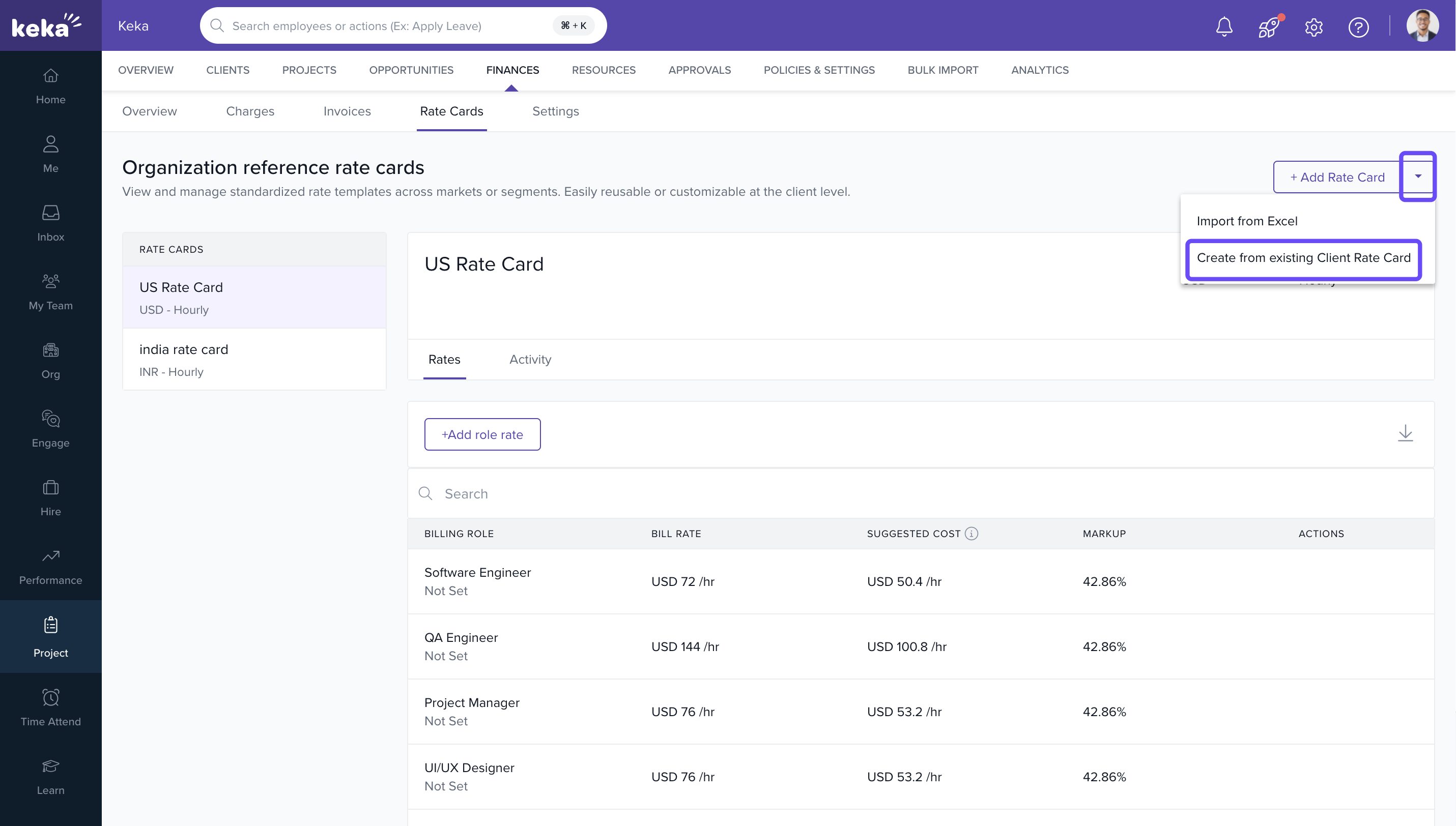
- Click the dropdown beside +Add Rate Card.
- Select Create from Existing Client Rate Card.
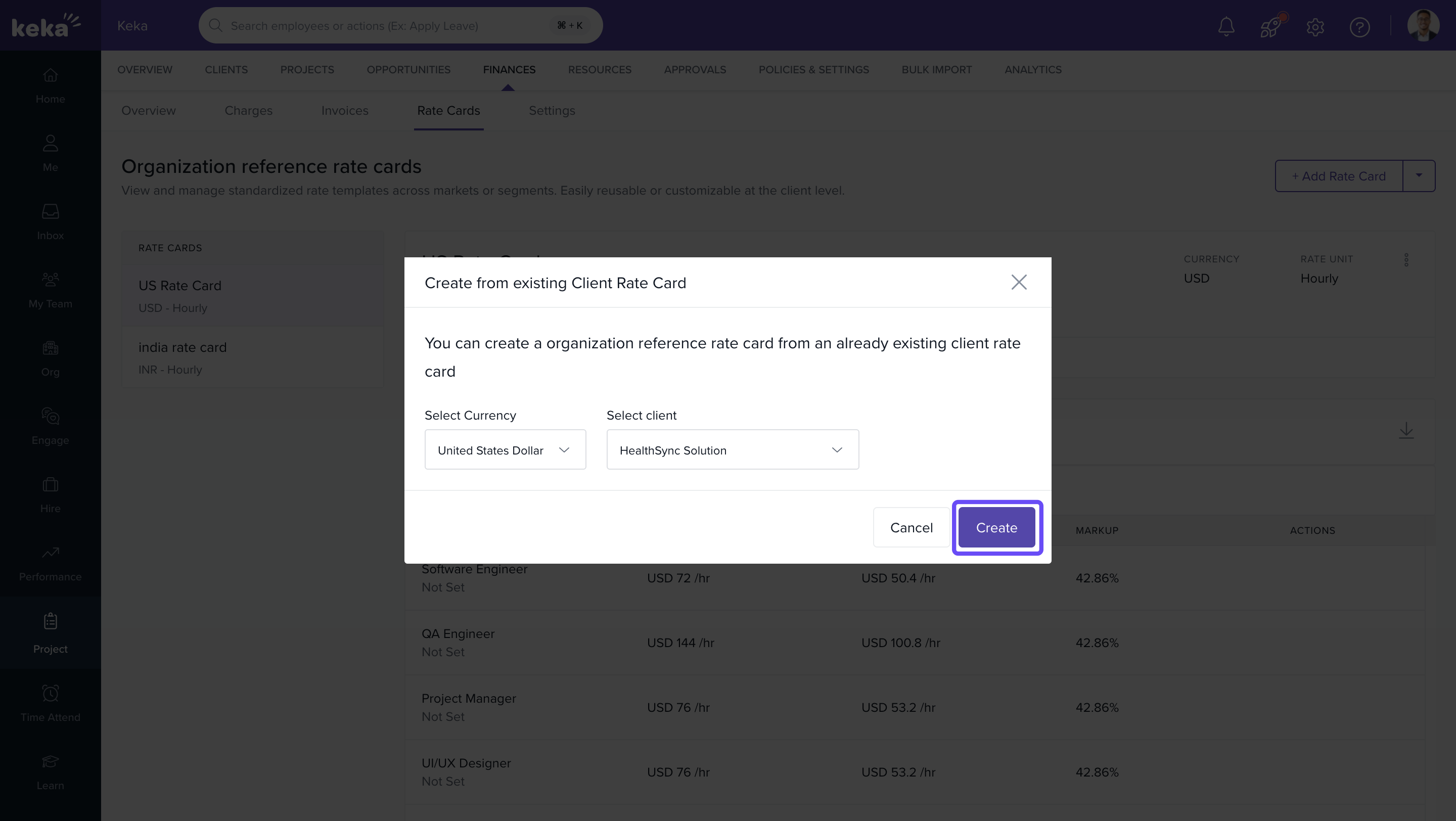
- Choose the Currency and select the Client Name.
- Click Create.
- In the configuration screen, you can:
- Edit Rate Card Name, Currency, and Descriptions.
- Customize Billing Role, Rate Category, Bill Rate, and Suggested Cost.
- Click the Save icon next to each entry.
- After finalizing edits, click Save to complete the setup.
Managing Role Rate Details in a Rate Card
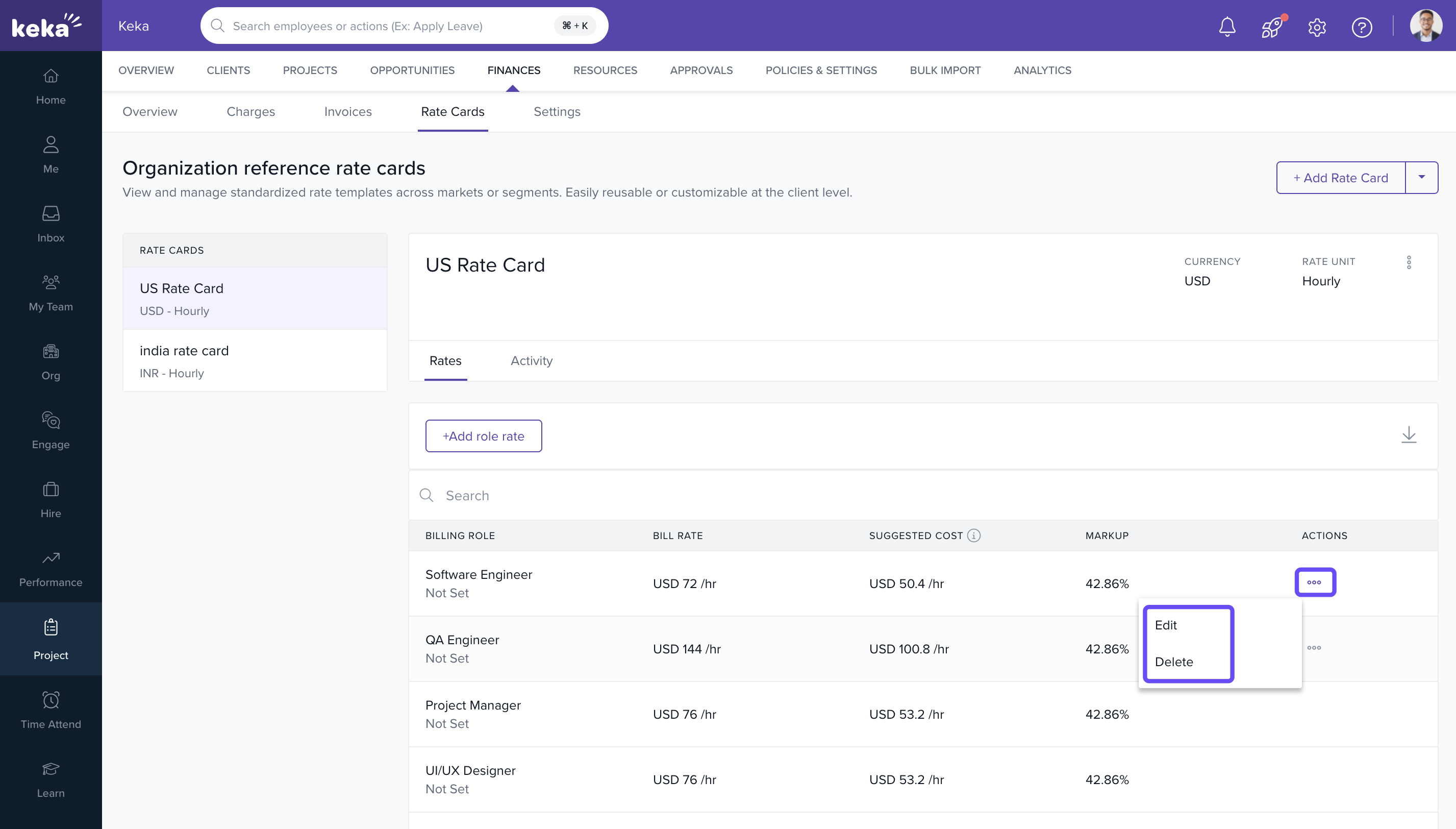
Edit a Role Rate
- Select the rate card from the left pane.
- Locate the role rate.
- Click the three-dot menu under the Actions column.
- Select Edit.
- Update the rate details and click Update.
Delete a Role Rate
- Click the three-dot menu next to the role.
- Select Delete.
- Confirm deletion in the pop-up window.
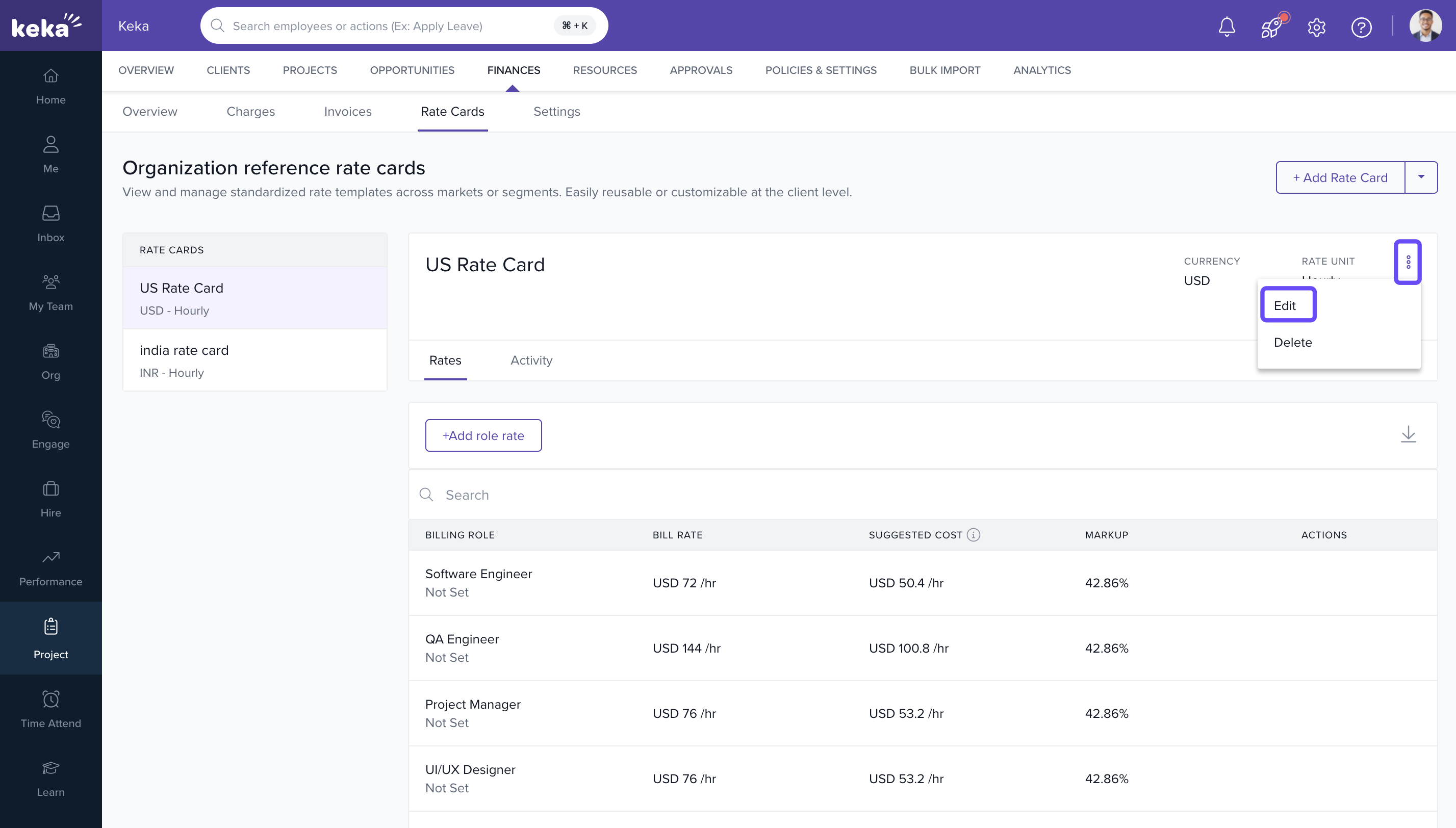
Edit a Rate Card
- Click the three-dot menu next to the rate card on the main list.
- Select Edit.
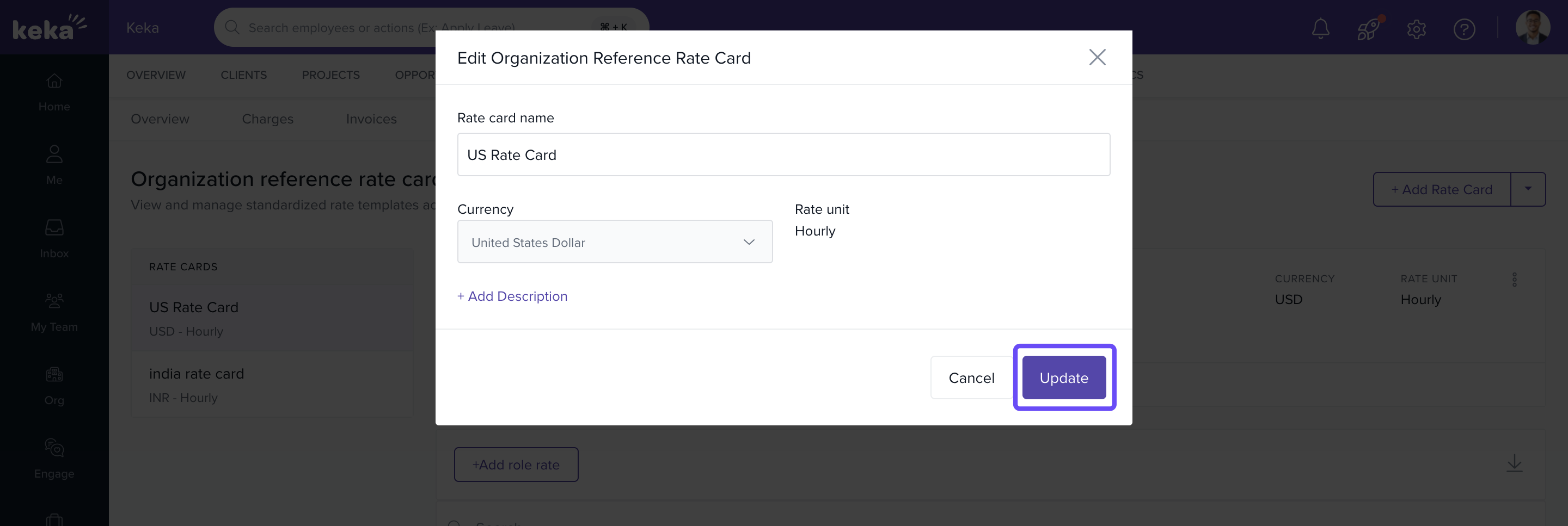
- Modify Rate Card Name or Description.
- Click Update to save changes.
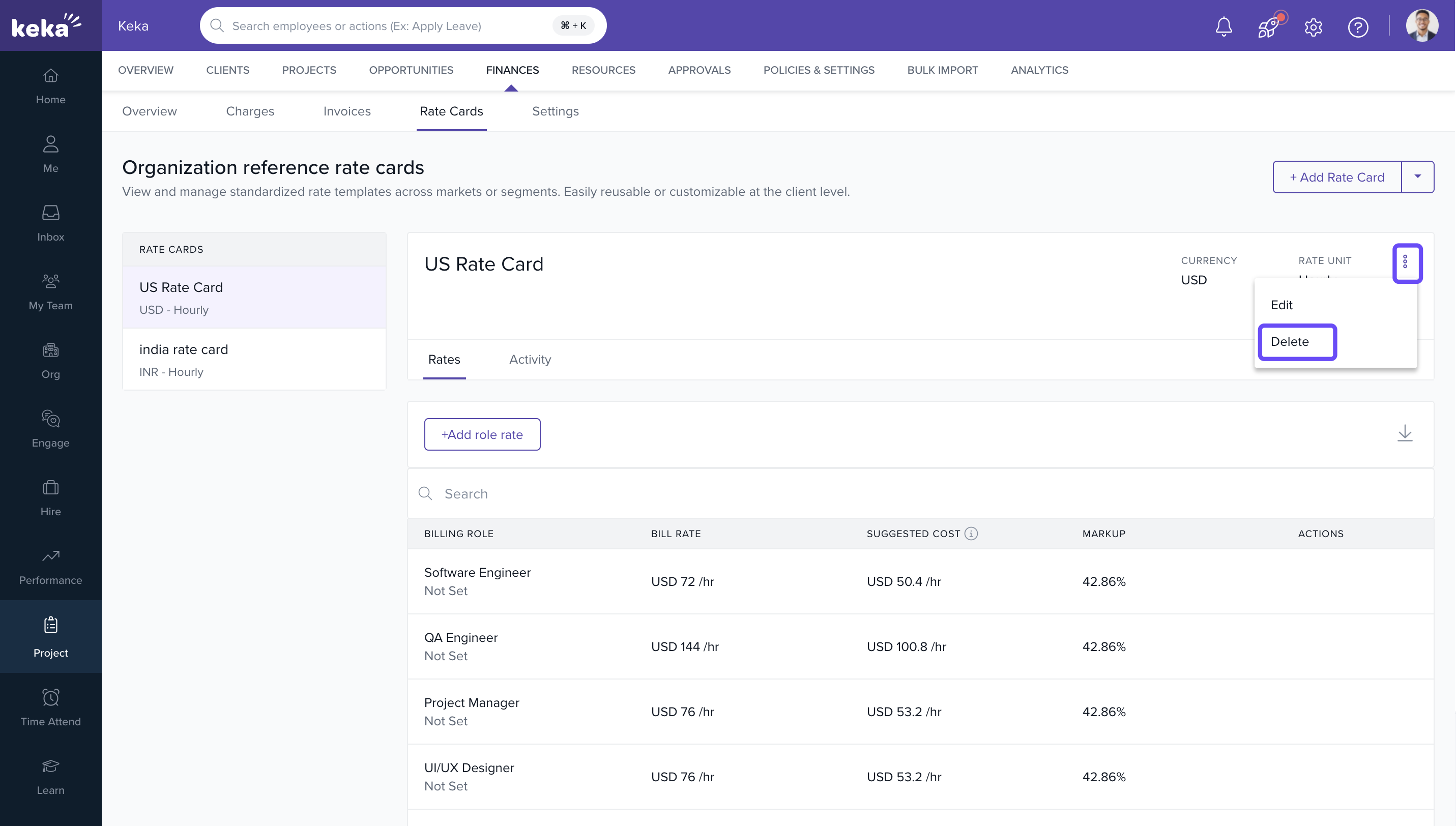
Delete a Rate Card
- Click the three-dot menu next to the rate card.
- Select Delete.
- Confirm deletion in the pop-up window.
FAQs
Q: Can I assign a reference rate card to a specific project or client?
A: No. Reference rate cards are for organizational-level use. You can copy them into client-specific rate cards if needed.
Q: Can I set different rates for the same role?
A: Yes. Use Rate Categories like onsite/offsite or senior/junior to create variations.
Q: What is the difference between Bill Rate and Suggested Cost?
A: Bill Rate is what you charge the client; Suggested Cost is the internal cost to your organization. The margin between them indicates project profitability.
Q: Can I bulk upload roles with the same name?
A: Yes, as long as their Rate Category differs.
Troubleshooting
Q: Import fails or shows errors?
- Verify that all required fields are filled and match the expected format.
- Use the Match Columns step to correct mapping issues.
Q: Tasks not visible after upload?
- Refresh the page or check under the assigned phase.
Q: Billing type icon missing in tasks?
- Ensure billing classification is enabled for the project.
Q: Unable to assign employees?
- Confirm employees are already allocated to the project.
For further information on managing client rate cards, click here for detailed guidance: Managing Client Rate Cards
Comments
0 comments
Please sign in to leave a comment.