Overview
This article explains how to create and manage invoices in Keka PSA. You’ll learn how to generate new invoices, customize line items, apply taxes and discounts, edit draft invoices, and finalize billing for clients and projects. Proper invoice management ensures accurate revenue tracking, simplifies financial operations, and maintains compliance with client agreements.
Who Can Do This
- PSA Admins
- Finance Admins
- Global Admins with invoice permissions
Pre-requisites
- Billing entities must be configured
- Products, taxes, and payment terms should be pre-defined
- Timesheet entries should be submitted and approved for the billing period
Step-by-Step Instructions
Access the Invoice Section
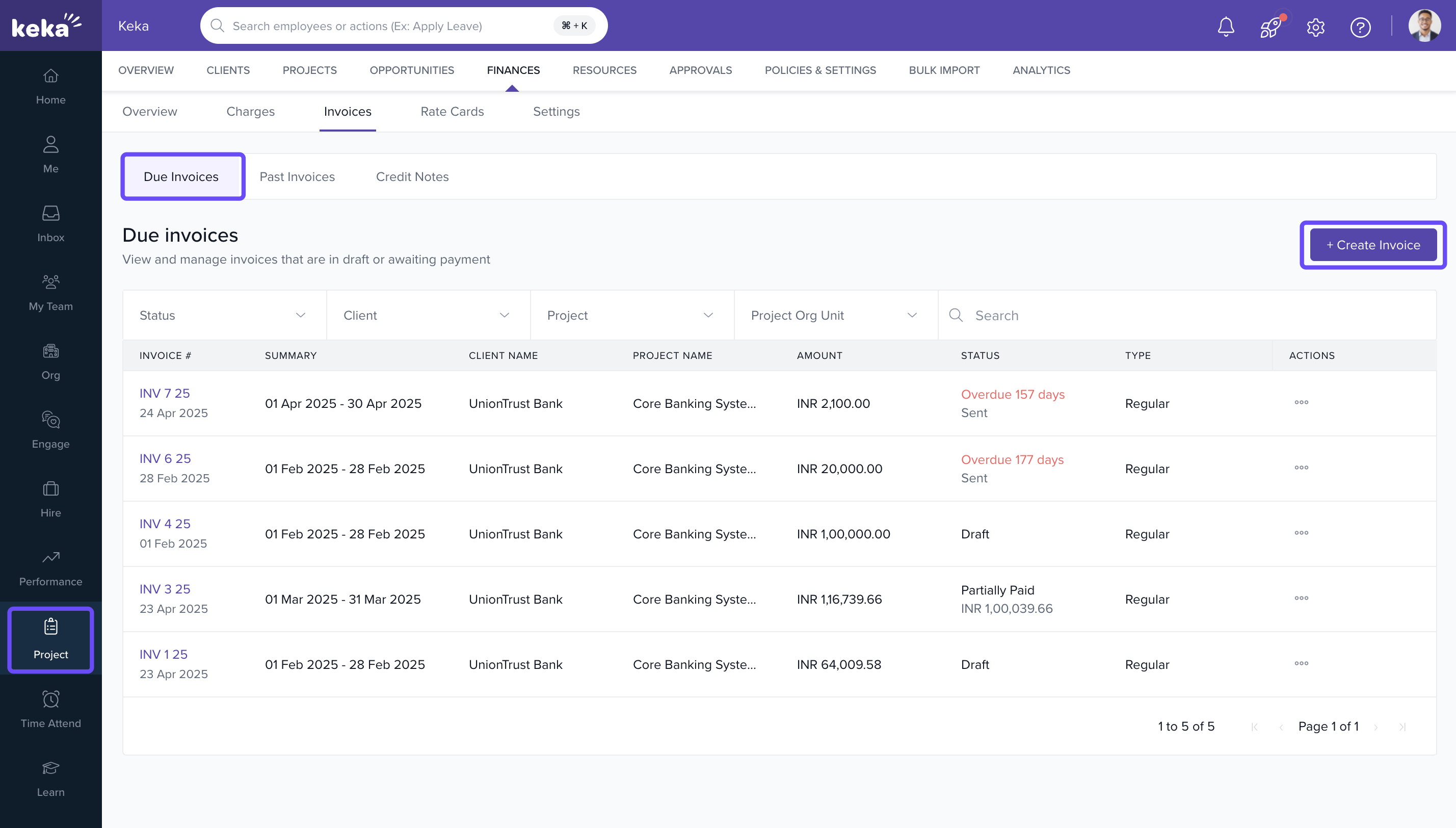
- Go to the Projects section
- Click on the Finances tab
- Select the Invoices section
- On the Due Invoices tab, click +Create Invoice
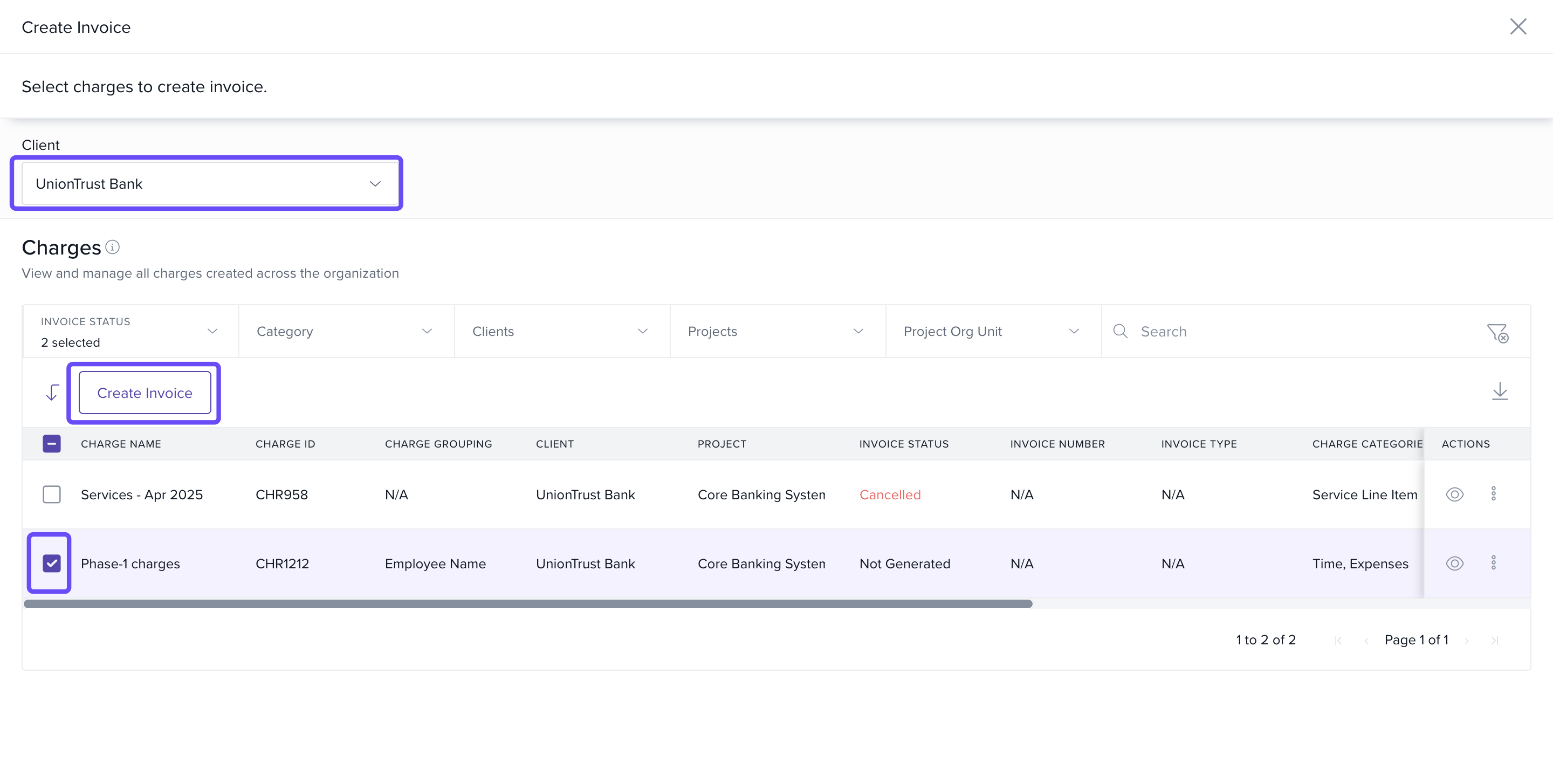
Select the client and charges
- Choose the Project
- Select the charges
- Click Create invoice to proceed
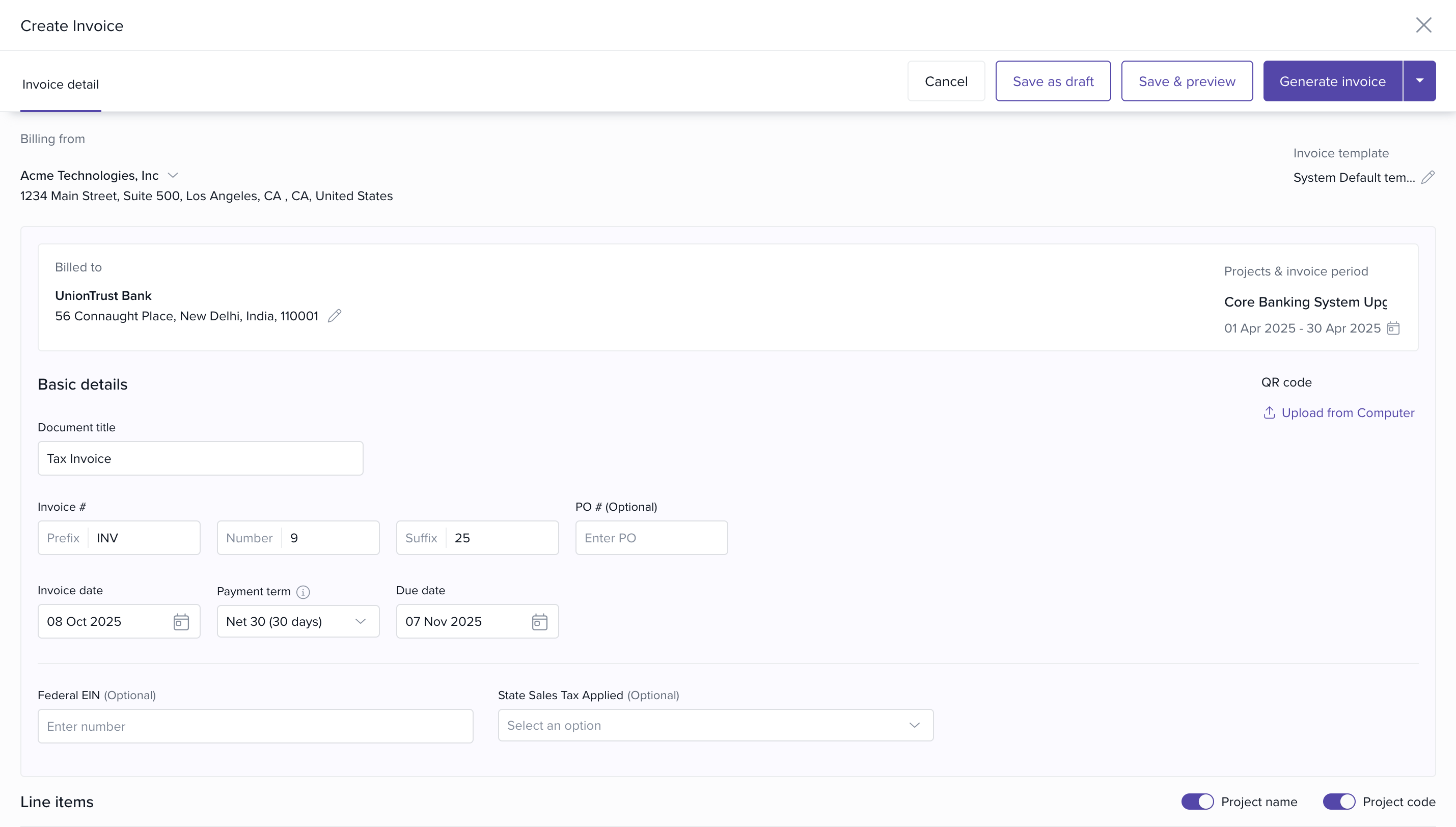
Enter Invoice Details
- Specify Client Contact, Purchase Order Number, Invoice Date, Billing Entity, and Payment Terms
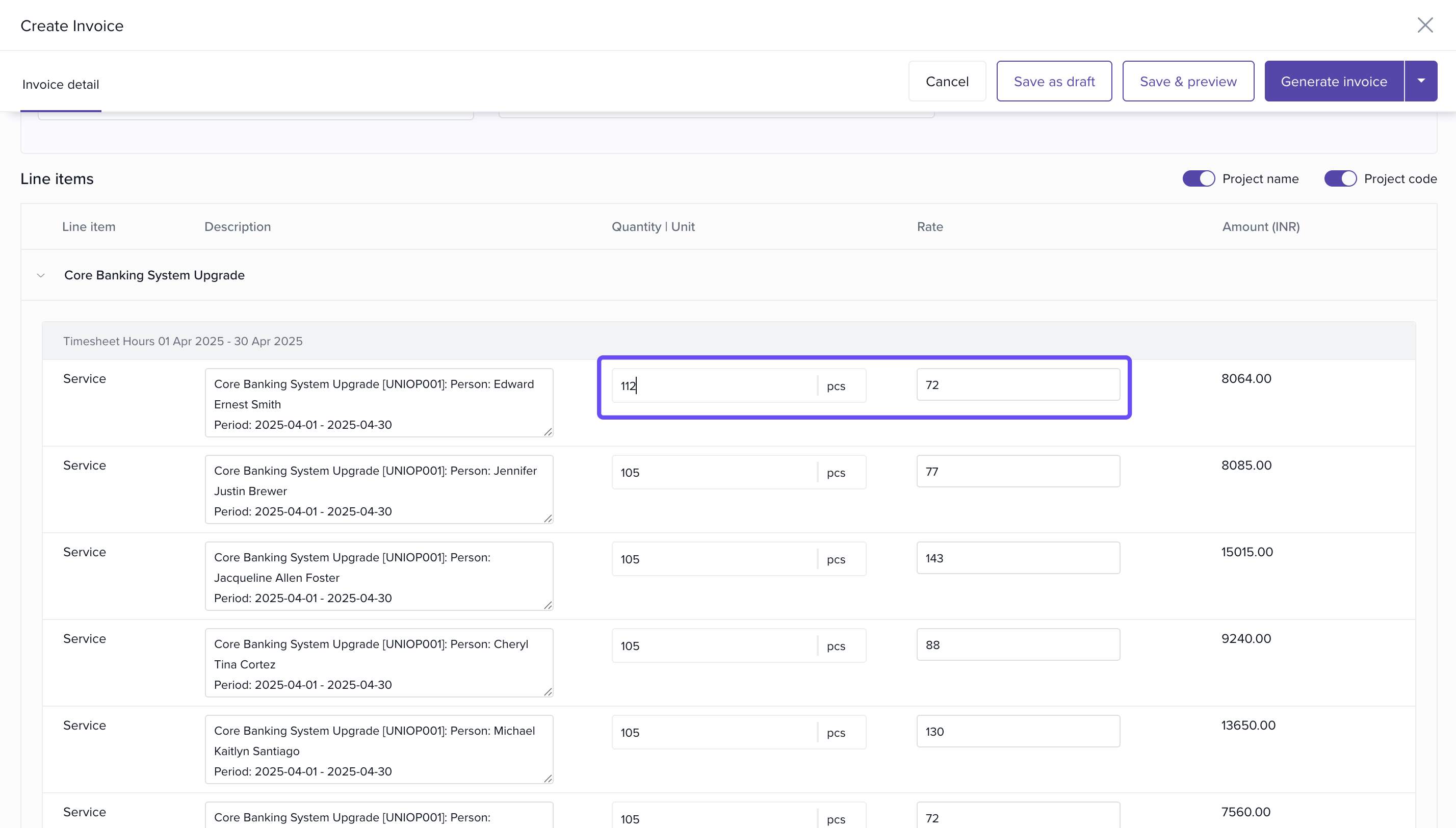
Edit the Line Items
- Include Timesheet Entries automatically for the billing period
- Click to manually edit the line items .
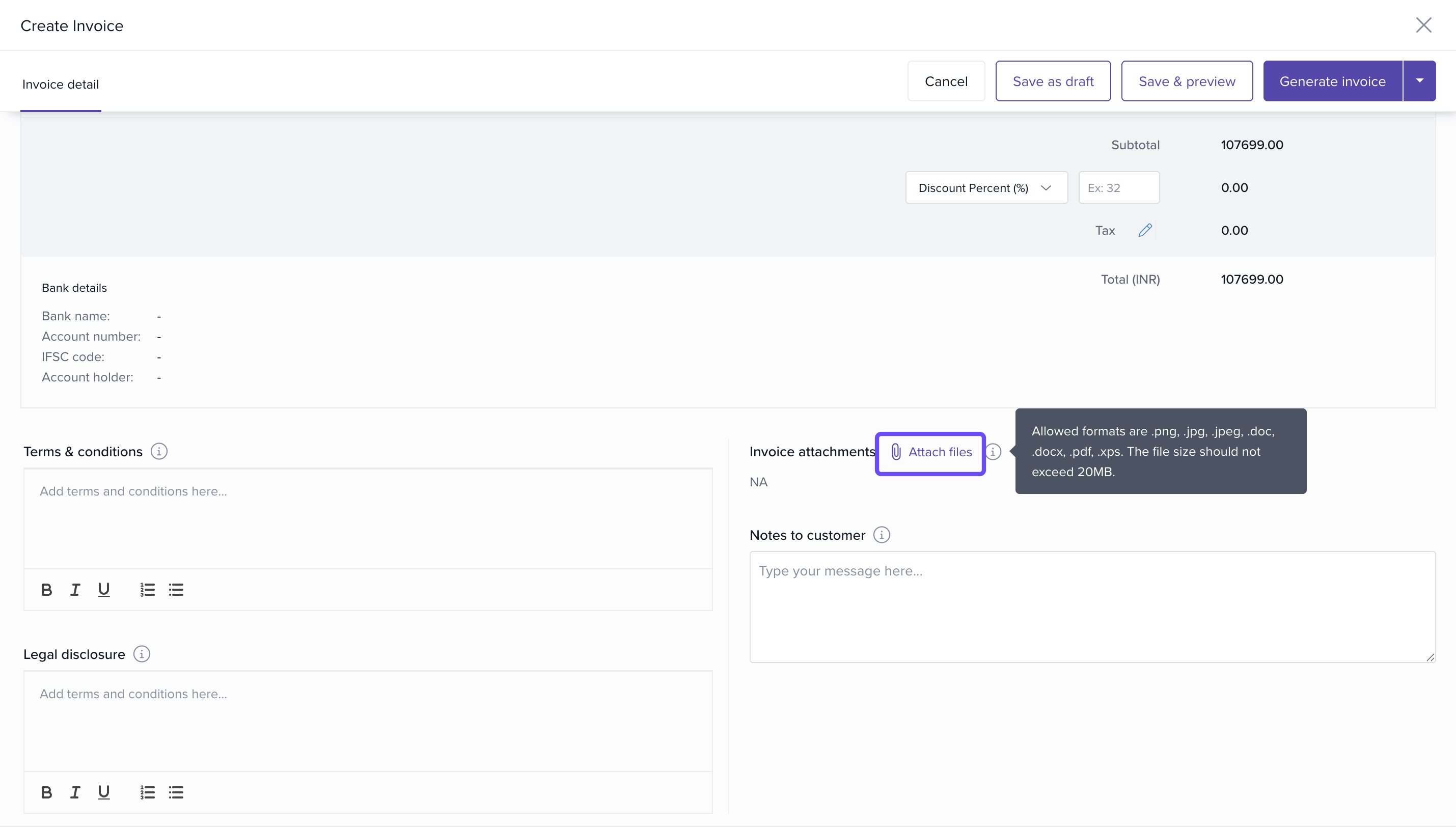
Attach Files or Add Notes
- Click Attach Files to upload documents
- Use the Note field to include contextual information or client instructions
- Add any Terms & conditions , Legal disclosure.
Apply Discounts and Taxes
- Choose Discount Type:
- Percentage (e.g., 10%)
- Flat Value (e.g., ₹1,000)
- Select Tax from the dropdown
- Taxes will be applied to the total after discounts
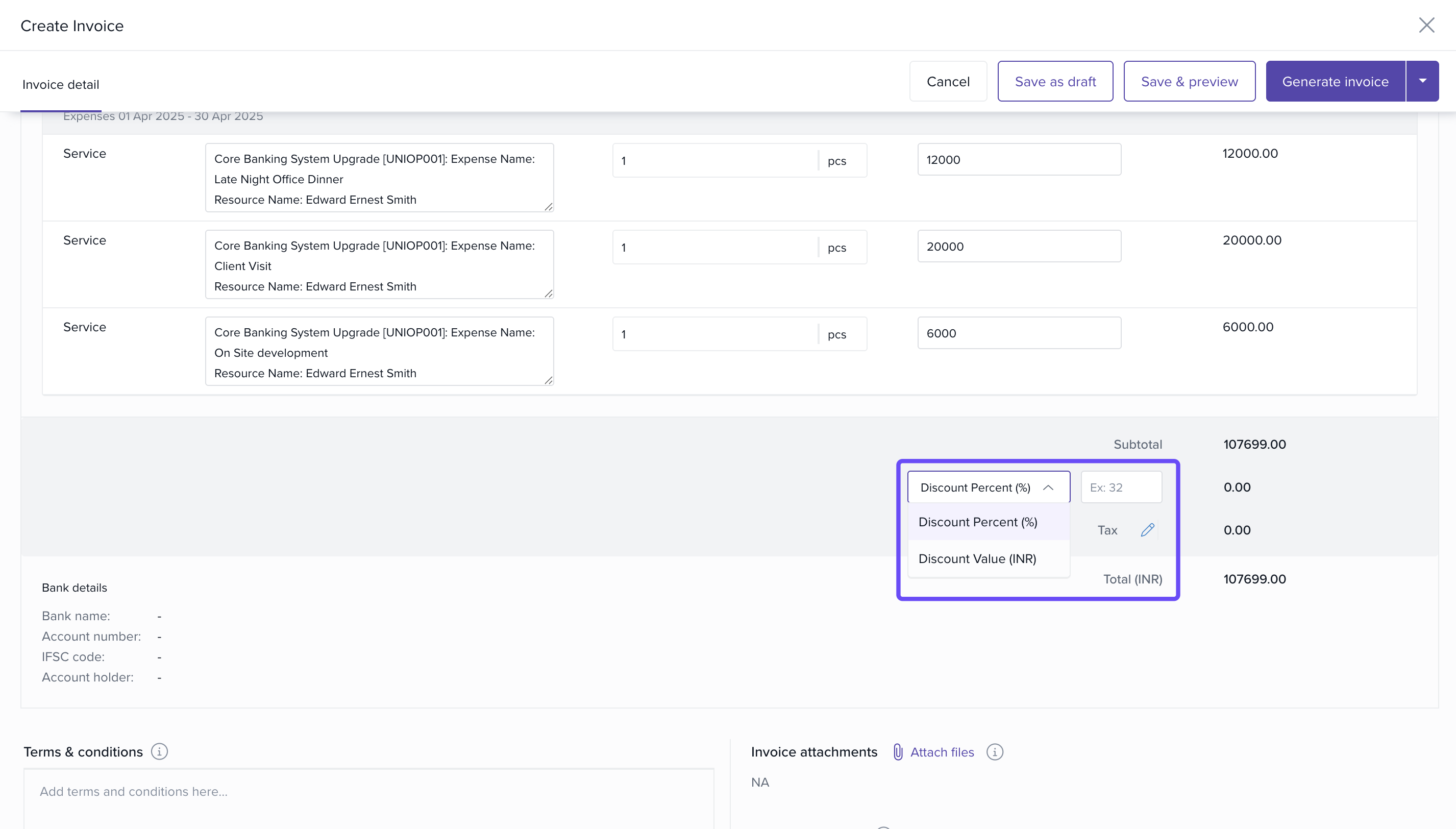
Ensure taxes and discounts are pre-configured in Finances > Settings
Finalize the Invoice
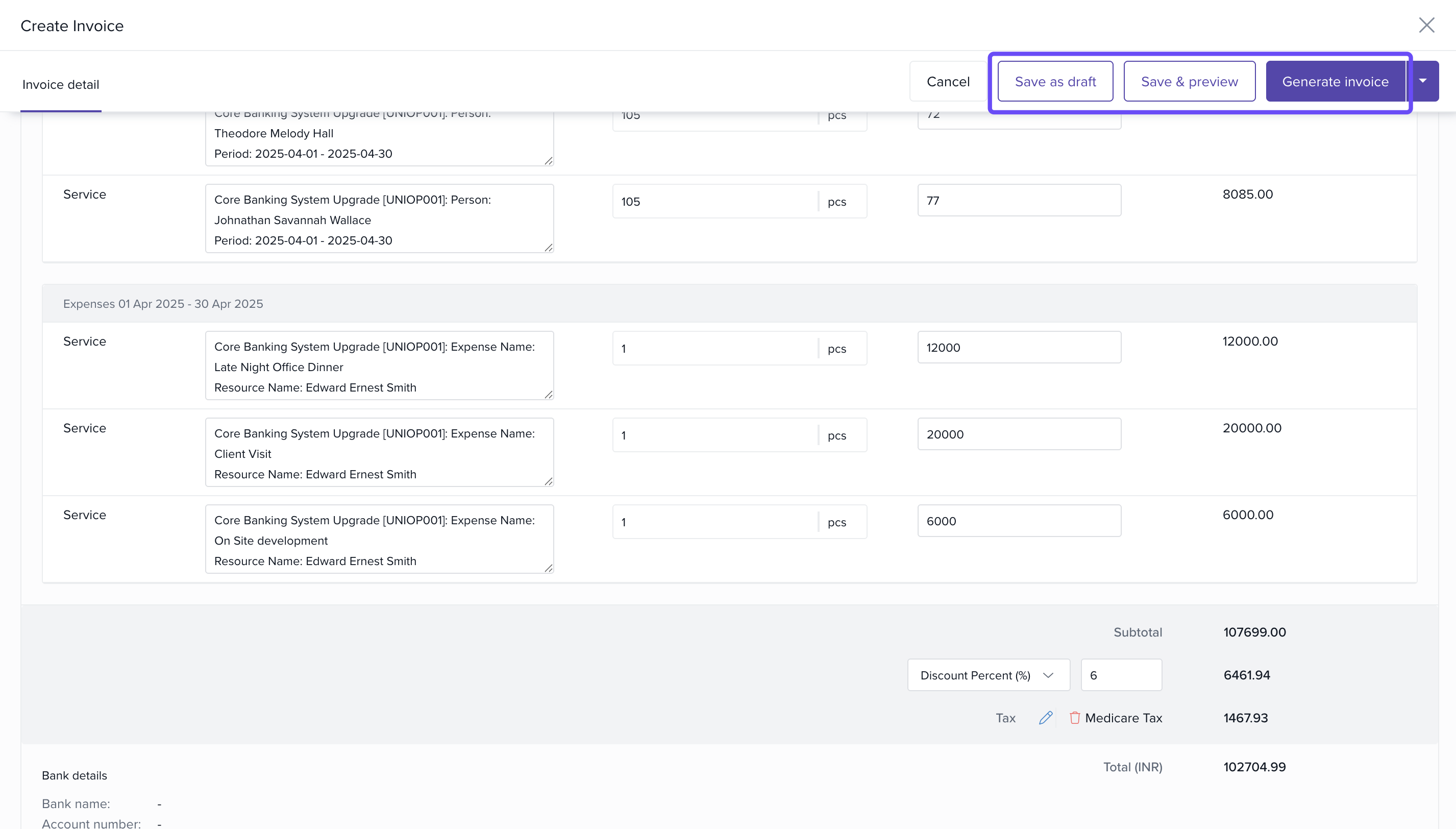
- Choose Save as Draft if not ready to finalize
- Click Generate Invoice to issue the final version
Editing or Cancelling Draft Invoices
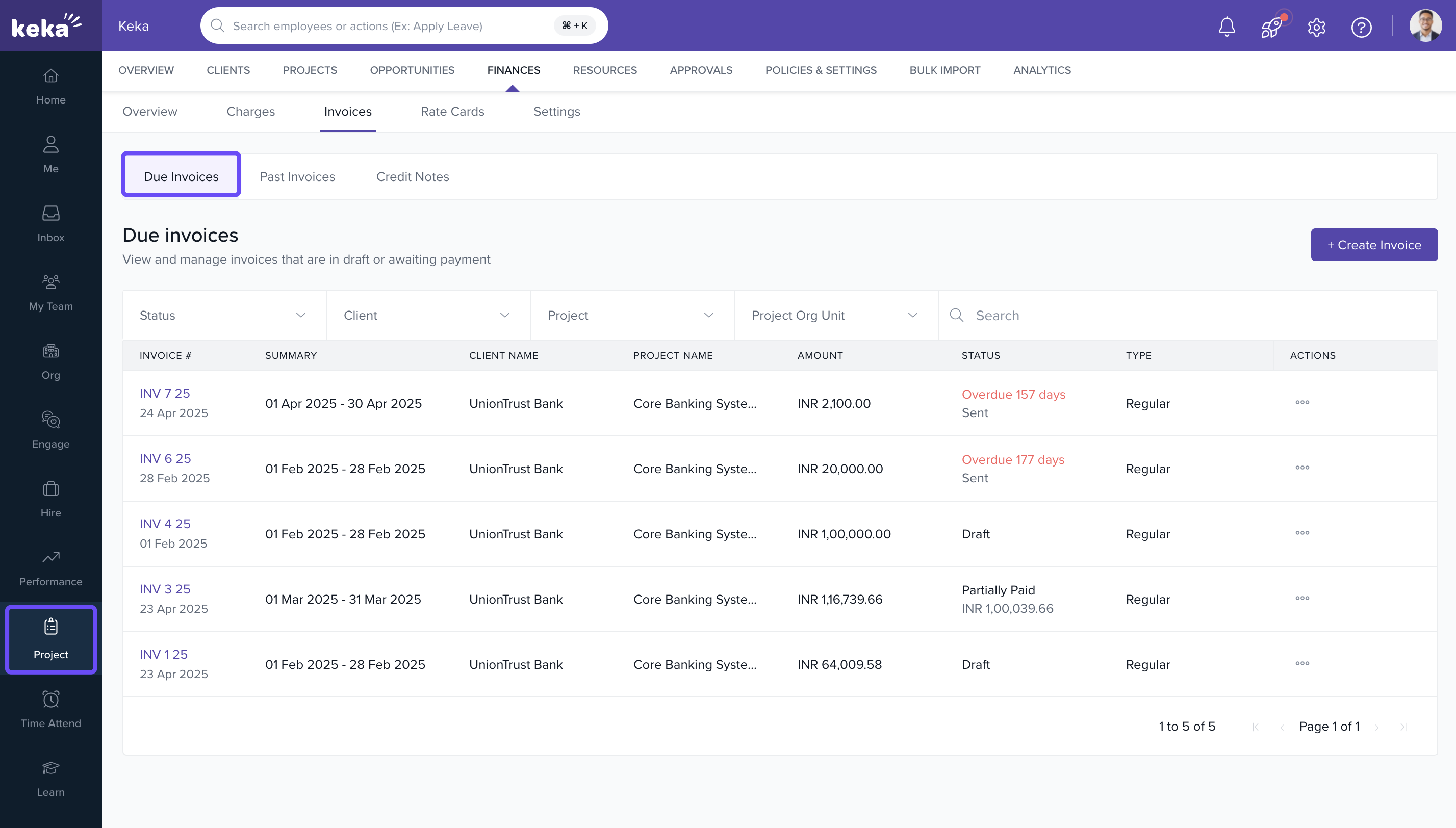
View Draft Invoices
- Go to Projects > Finances > Invoices
- Locate the invoice under the Draft section
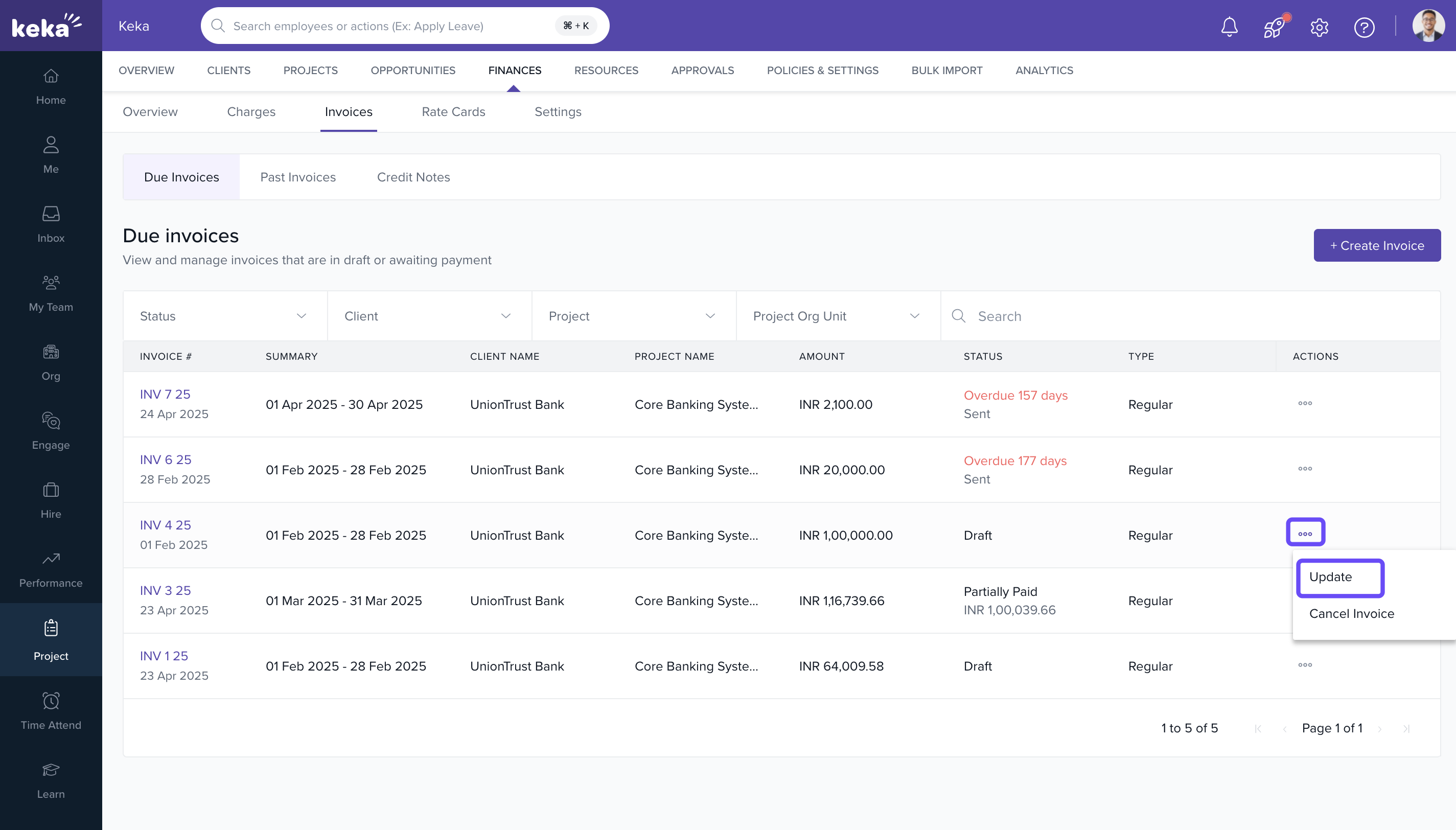
Edit a Draft Invoice
- Click the three-dot menu next to the invoice
- Select Update
- Make changes and click Update Invoice
Cancel a Draft Invoice
- Click the three-dot menu next to the draft
- Select Cancel Invoice
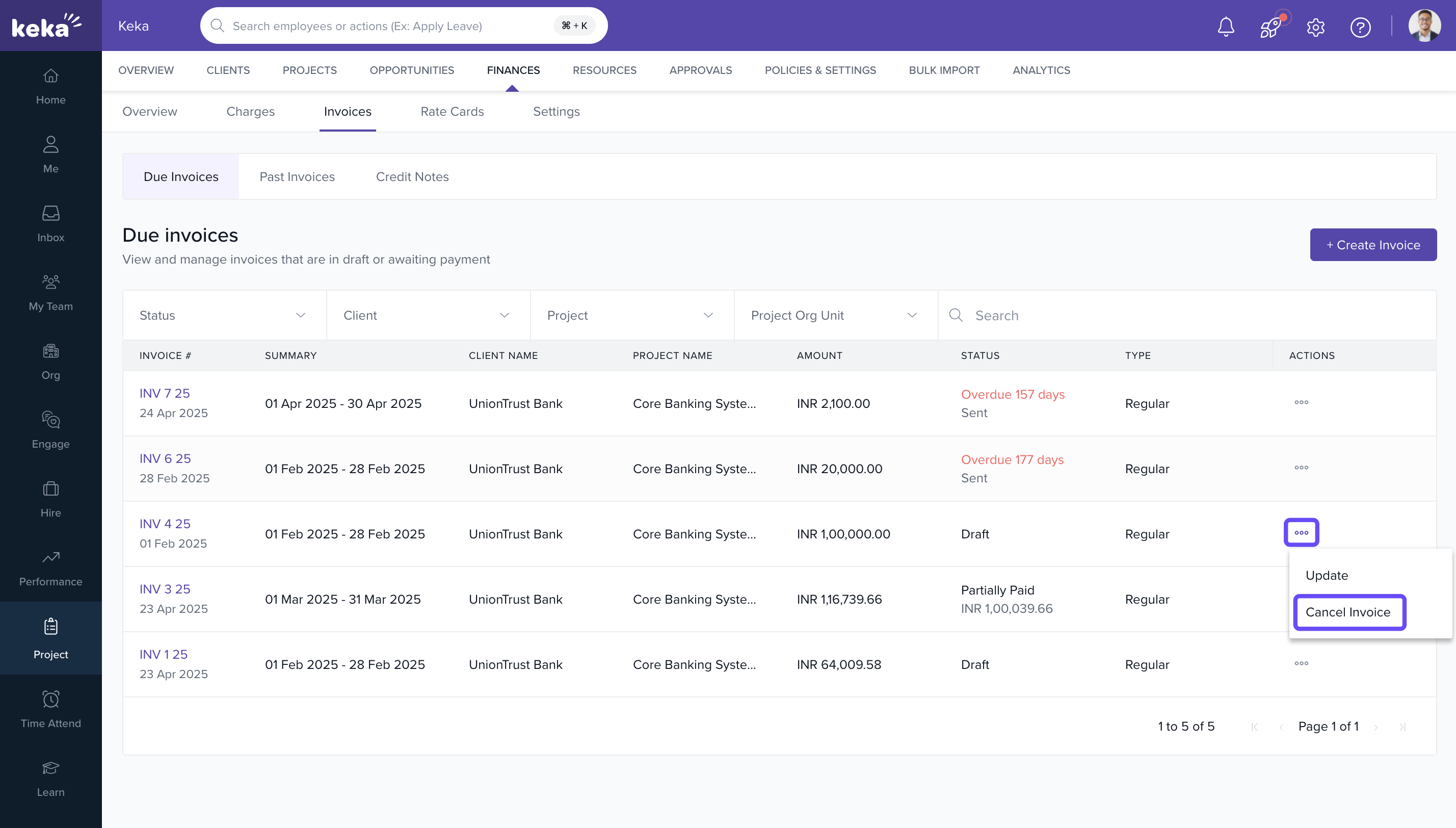
- Provide a cancellation reason and click Yes, Cancel
Note: Invoices marked as "Sent" cannot be edited or canceled
Pro Tips for Invoice Management
- Use the Charges Creation feature to simplify pre-invoice billing
- Customize invoice templates using notes, PO numbers, or extra line items
- Apply consolidated invoices for clients with multiple active projects
- Ensure tax and discount settings are configured in advance for faster billing
FAQs
Q: Can I include both product and timesheet line items in one invoice?
A: Yes. You can add both using the line item options
Q: Can I re-open a sent invoice for editing?
A: No. Once marked as "Sent", invoices become non-editable
Q: Are product prices and taxes pulled automatically?
A: Yes, if they're pre-defined in the system under Finances > Settings
Q: Can I edit the invoice number?
A: Yes. Refer to the article on invoice number series setup
For further information on editing invoice number series, simply click here. How to Edit Invoice Number Series?
Comments
0 comments
Please sign in to leave a comment.