Overview
This article provides a detailed explanation on how to add new tax rates as well as how to modify existing tax rates within your system. It covers the step-by-step process to ensure that you can efficiently manage tax settings, helping you keep your records accurate and compliant with current tax regulations.
Who Can Do This?
Pre-requisites
- You must have billing privileges in the Keka PSA Finance section
- Legal entities must be configured in the system
- Ensure that tax rates are not already applied to existing invoices if you intend to delete or modify them
Why Are Tax Rates Important?
- Tax rates ensure legal compliance with regional and international tax regulations
- Applicable tax may vary based on business location, service type, or customer segment
- For example, India uses GST, a combination of Central and State tax components that must be managed accurately
Benefits of Keka PSA Tax Management
- Simplified Compliance: Configure tax rates to meet country-specific invoicing rules
- Flexible Configuration: Add or group tax types as per business needs
- Streamlined Invoicing: Automatically apply correct tax values while generating project invoices
Accessing the Tax Management Section
- Go to the Projects section
- Navigate to the Finance tab
- Click on Settings
- Select Taxes to view and manage tax configurations
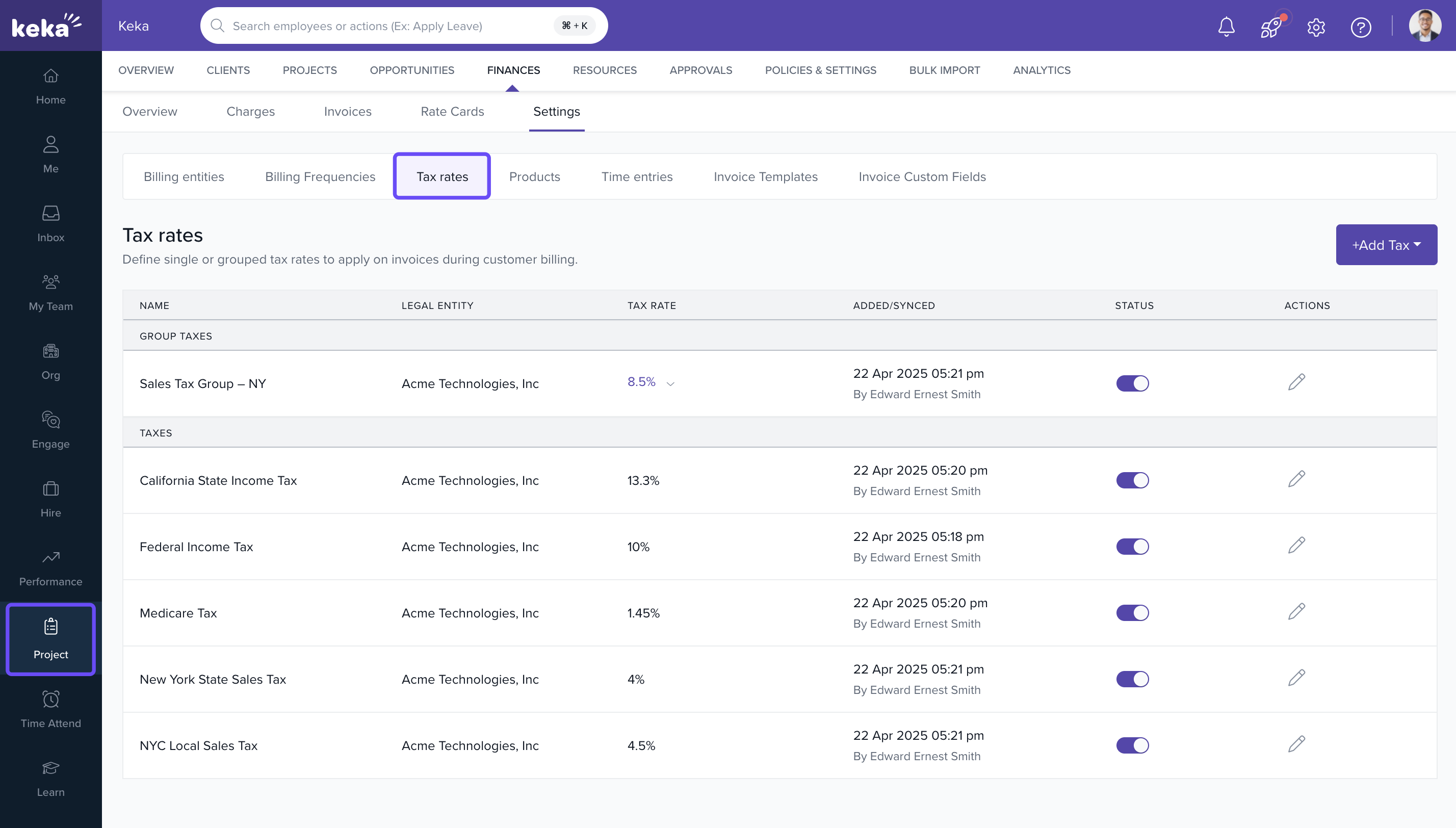
Adding an Individual Tax Rate
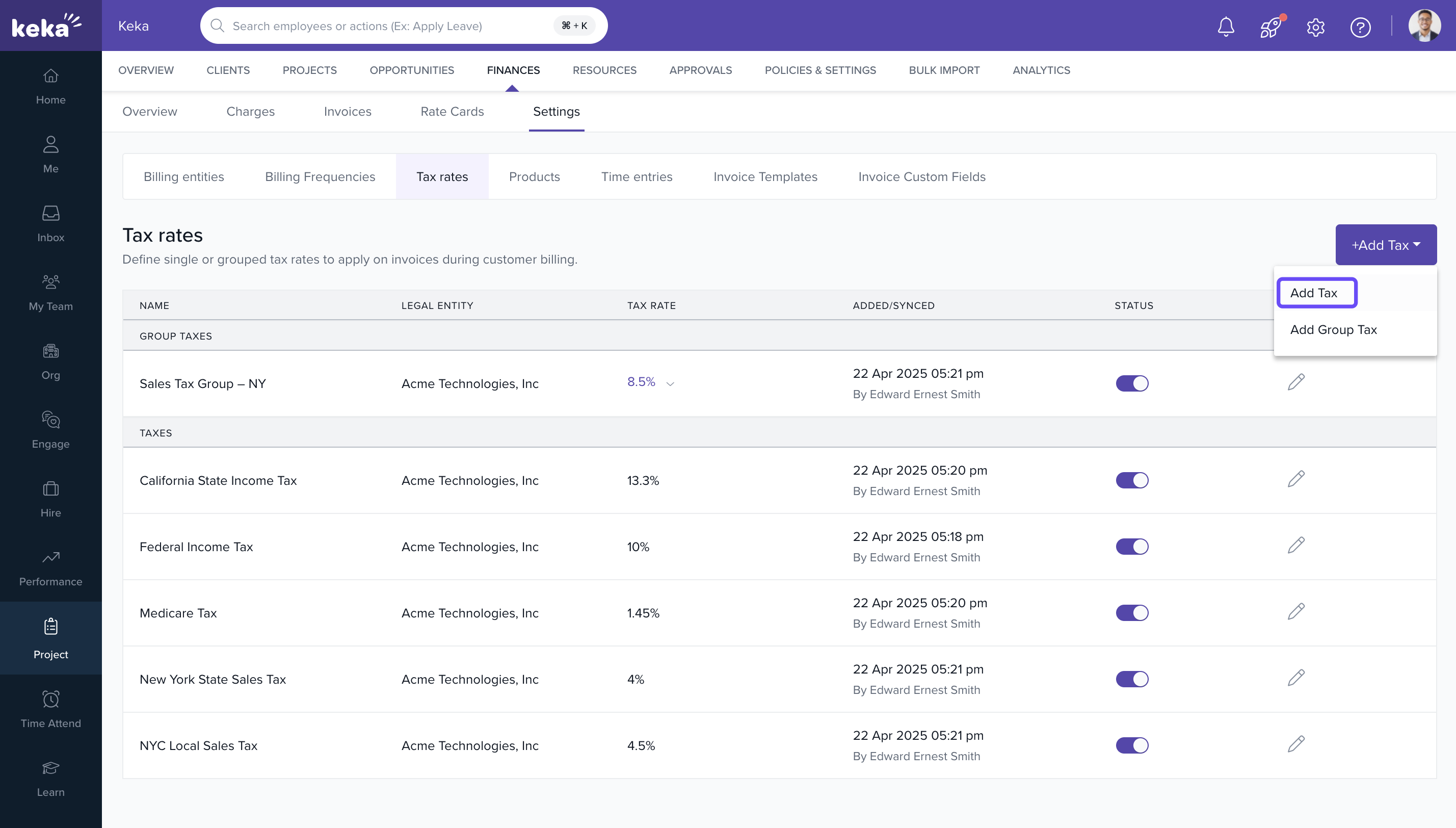
- Click on the +Add Tax button
- Select Add Tax from the dropdown
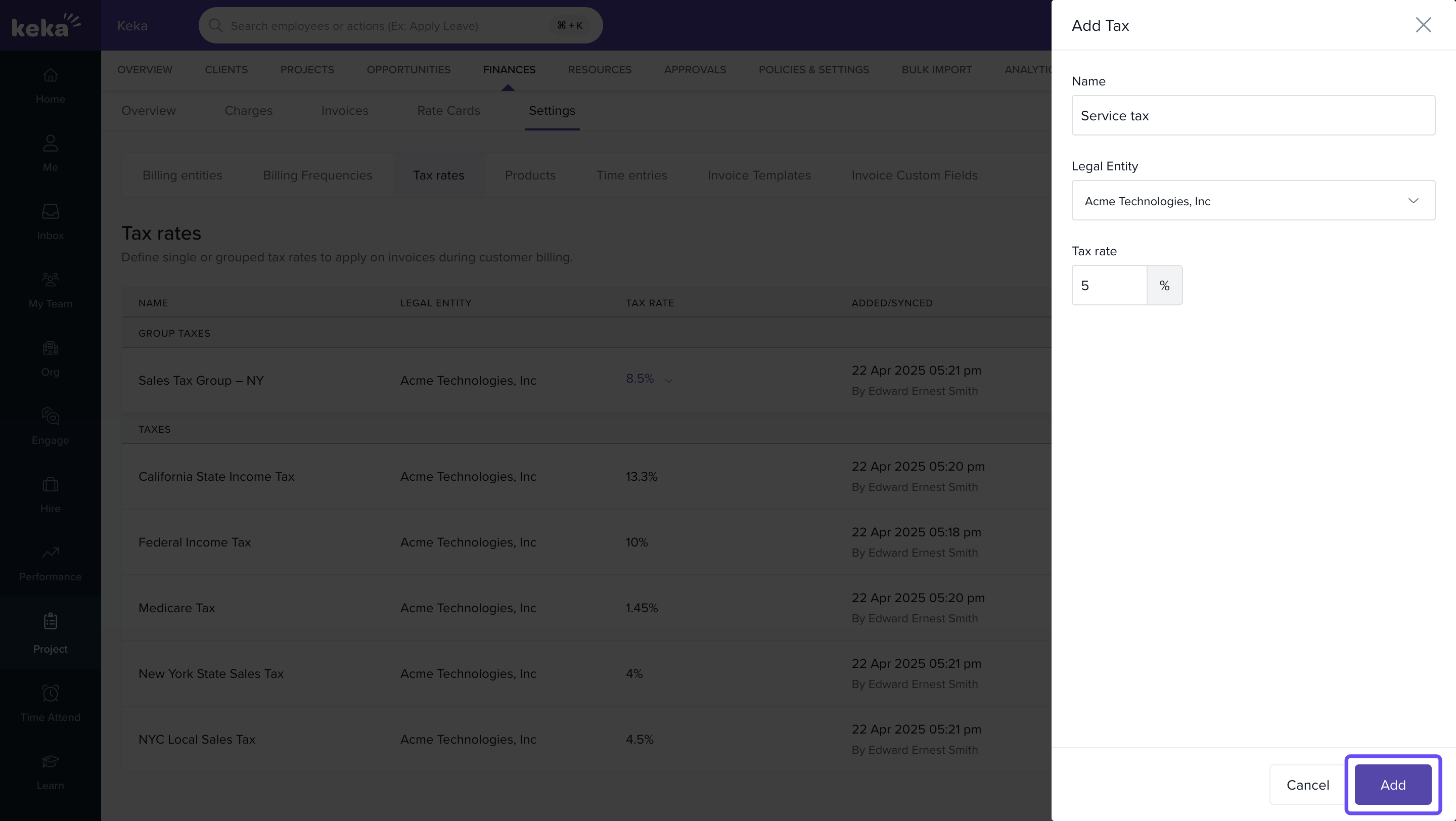
- In the Add Tax window, fill in the following:
- Name: Example – Service Tax
- Legal Entity: Choose from your configured legal entities
- Tax Rate (%): Input the tax percentage (e.g., 18%)
- Click Add to save
Adding a Group Tax Rate
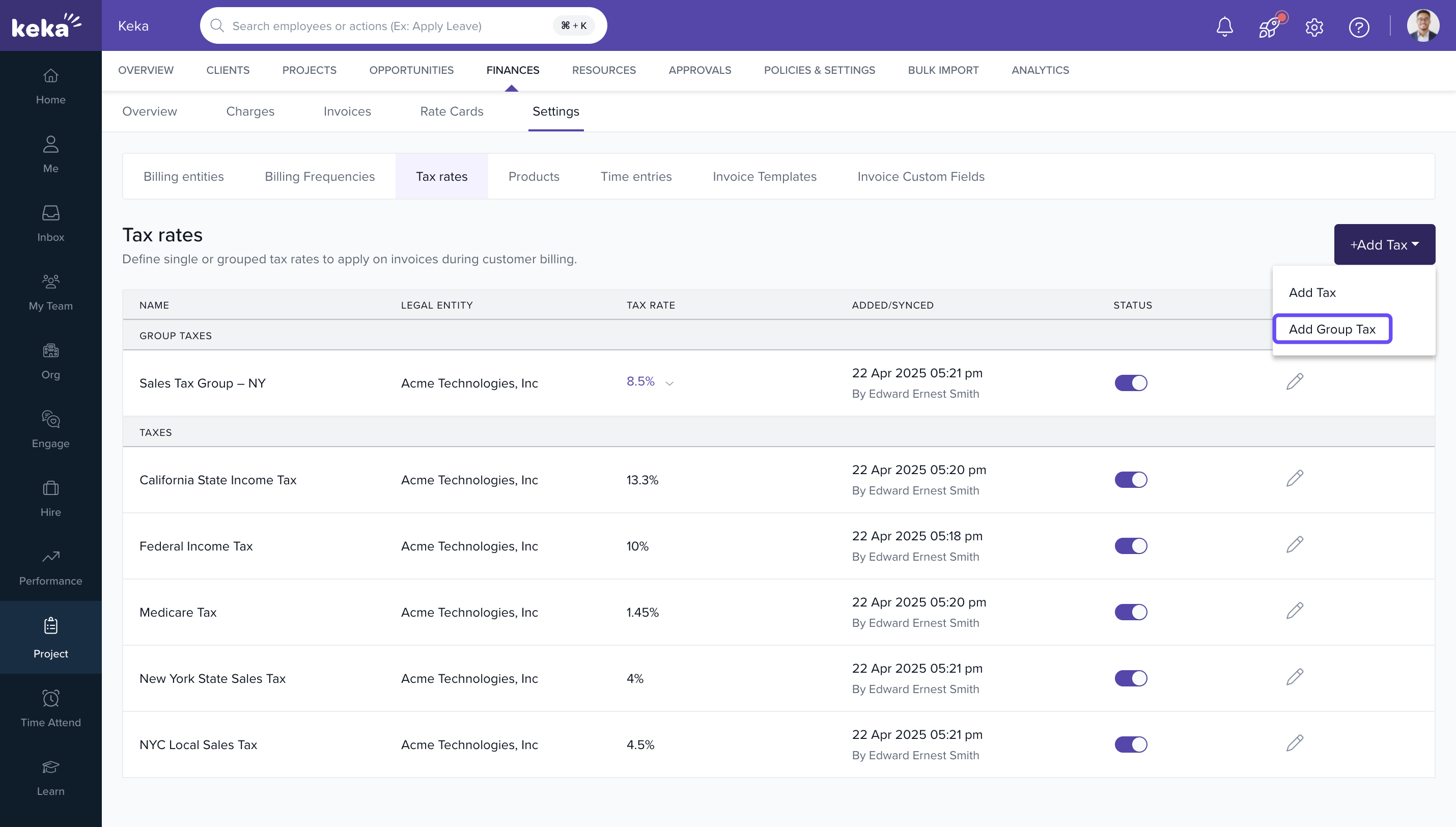
- Click on the +Add Tax button
- Select Add Group Tax
- In the Add Group Tax window:
- Enter Name for the group (e.g., GST India)
- Select the Legal Entity
- Under Taxes, choose individual taxes to group or click +Add New Tax to create new ones
- Click Add to save the group tax rate
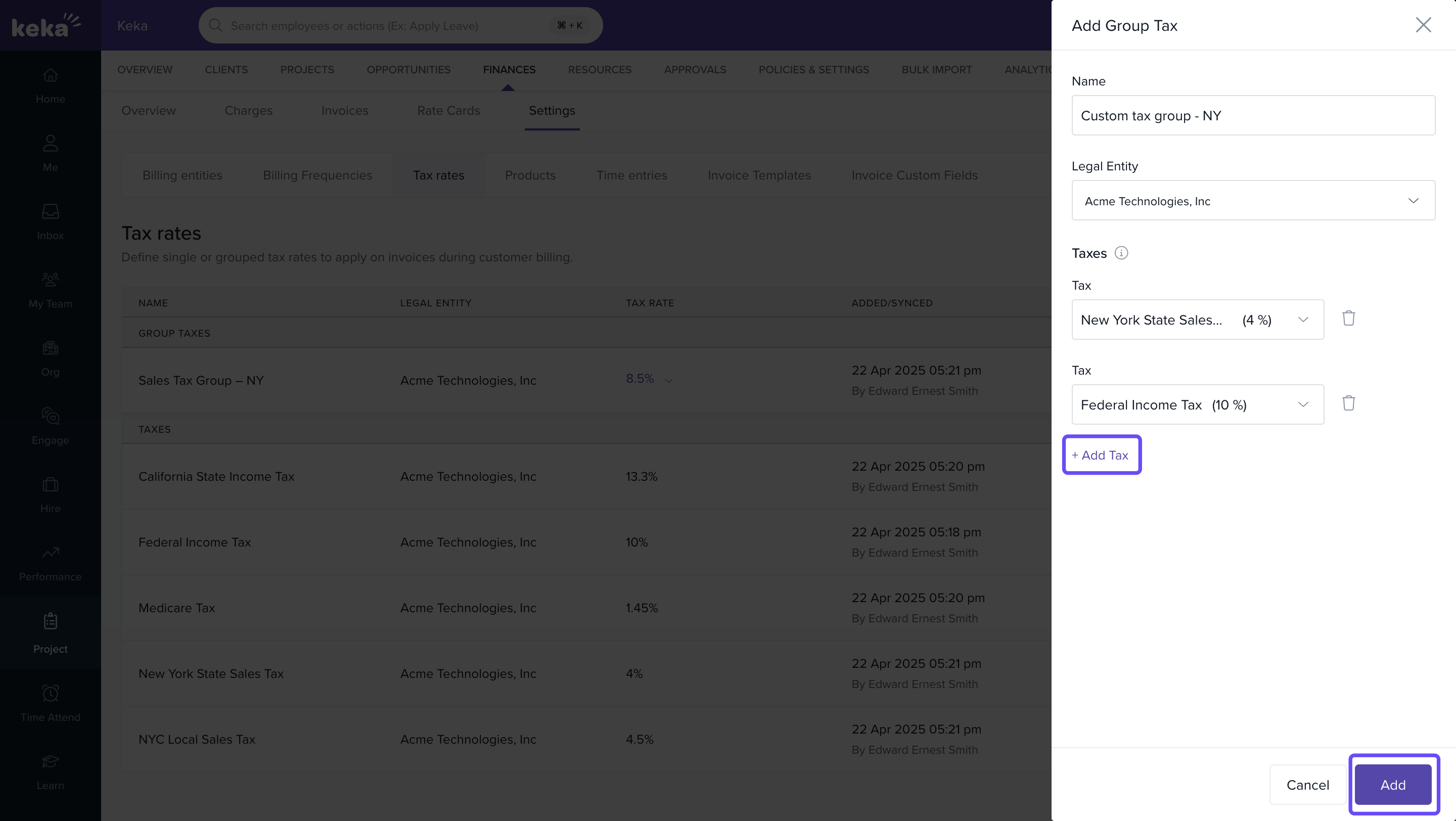
Note: Group taxes are especially useful in countries like India where multiple tax components apply
Managing Existing Tax Rates
- On the Tax Rates page, view all configured tax rates
- Use the toggle button in the Status column to enable or disable taxes
- Click the Edit icon in the Actions column to update rate name or percentage
- To delete a tax rate, ensure it is not applied to any timesheets or invoices and then click Delete from the action menu
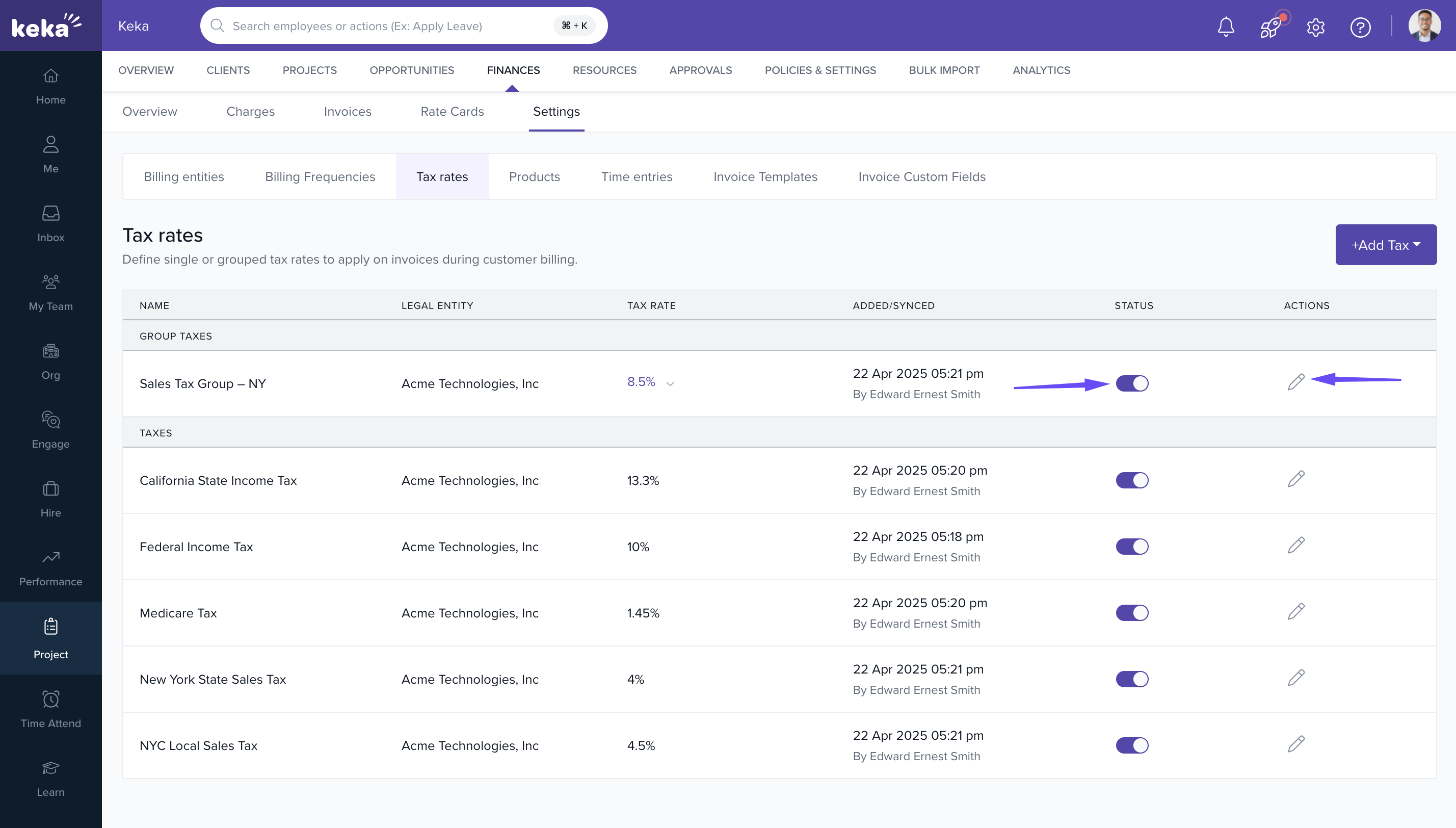
Note: Disabled taxes will not be available while invoicing
FAQs
Q: Can I apply multiple taxes to the same invoice?
A: Yes. Use the Group Tax feature to combine multiple individual taxes into a single line item
Q: What happens if I disable a tax rate?
A: It won’t be available for future use but will still appear on past invoices for audit consistency
Q: Can I delete a tax rate that’s in use?
A: No. You must first remove it from all associated records
Q: Are taxes automatically applied based on project location?
A: No. Taxes must be manually selected or configured per client/project
Q- If a tax is edited, will it affect the past invoices as well?
A- no. Only future invoices
Comments
0 comments
Please sign in to leave a comment.