When some documents fail during upload or processing, Keka provides an intuitive interface that allows HR teams to fix issues without leaving the bulk upload flow, saving time and reducing frustration.
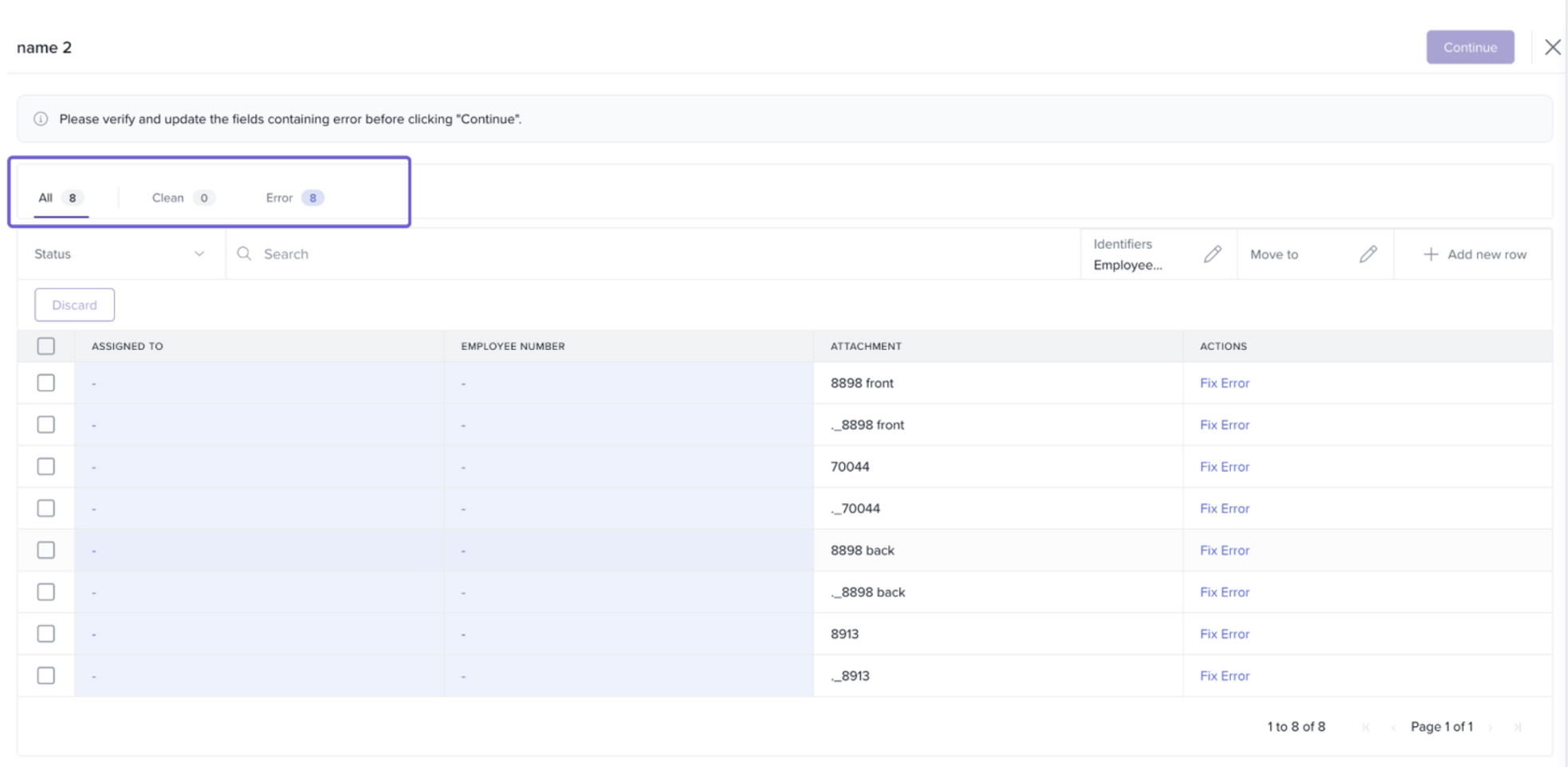
Tabs for Easier Navigation
At the top of the bulk upload screen, you will find All, Clean, and Error tabs.
All: Shows all entries, regardless of status.
Clean: Displays only successfully mapped documents.
Error: Displays entries that require attention.
These tabs help quickly filter and focus on documents that need correction.
Fixing and Validating Errors
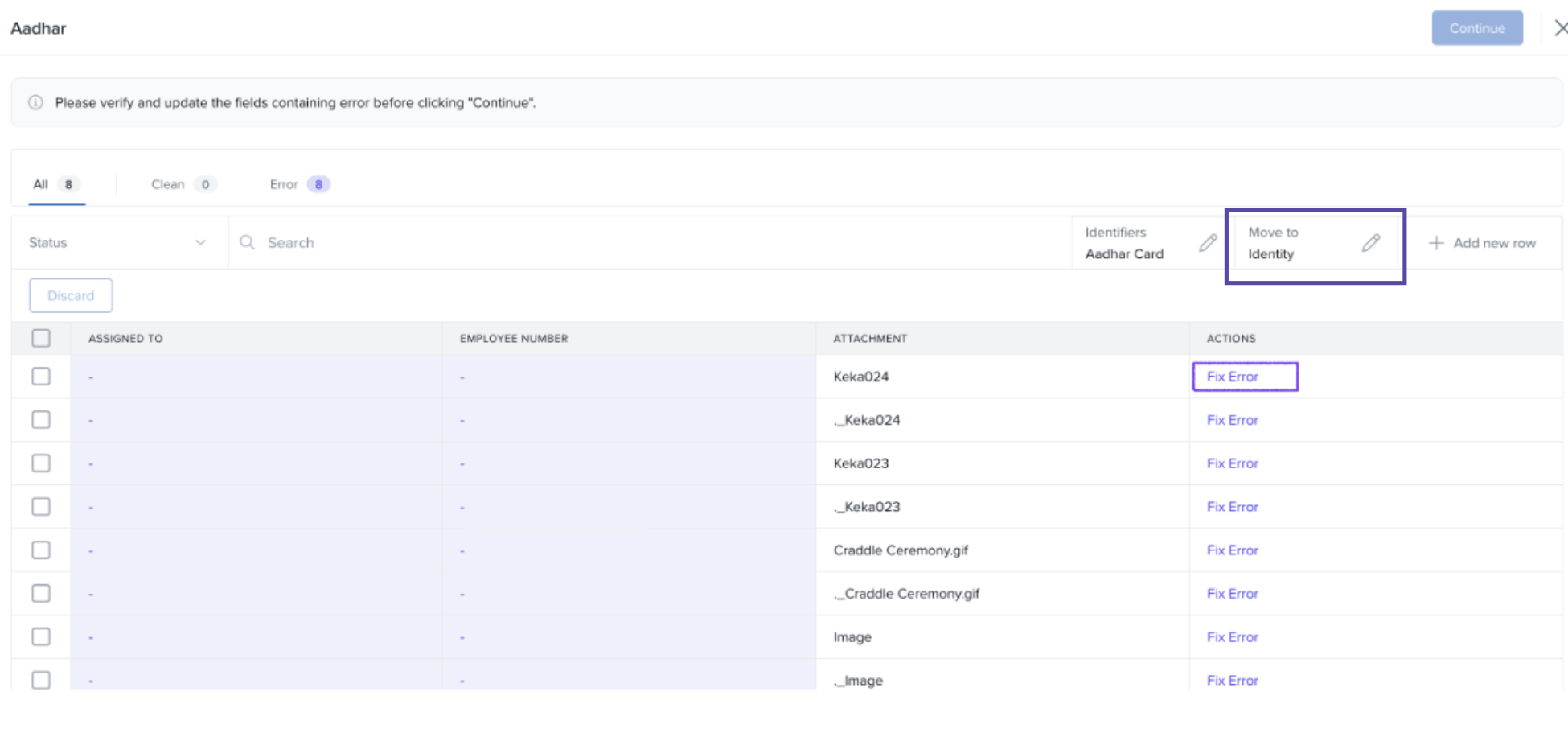
Documents with missing or incorrect information are highlighted in red and labeled as Fix Error.
Use the Move to field to reassign a folder location if a document was uploaded to the wrong folder.
Update employee mapping directly in the Identifiers field on the screen.
All corrections can be made in-line, without navigating away from the bulk upload interface, allowing HR teams to resolve issues quickly.
Additional Actions in the Flow
-
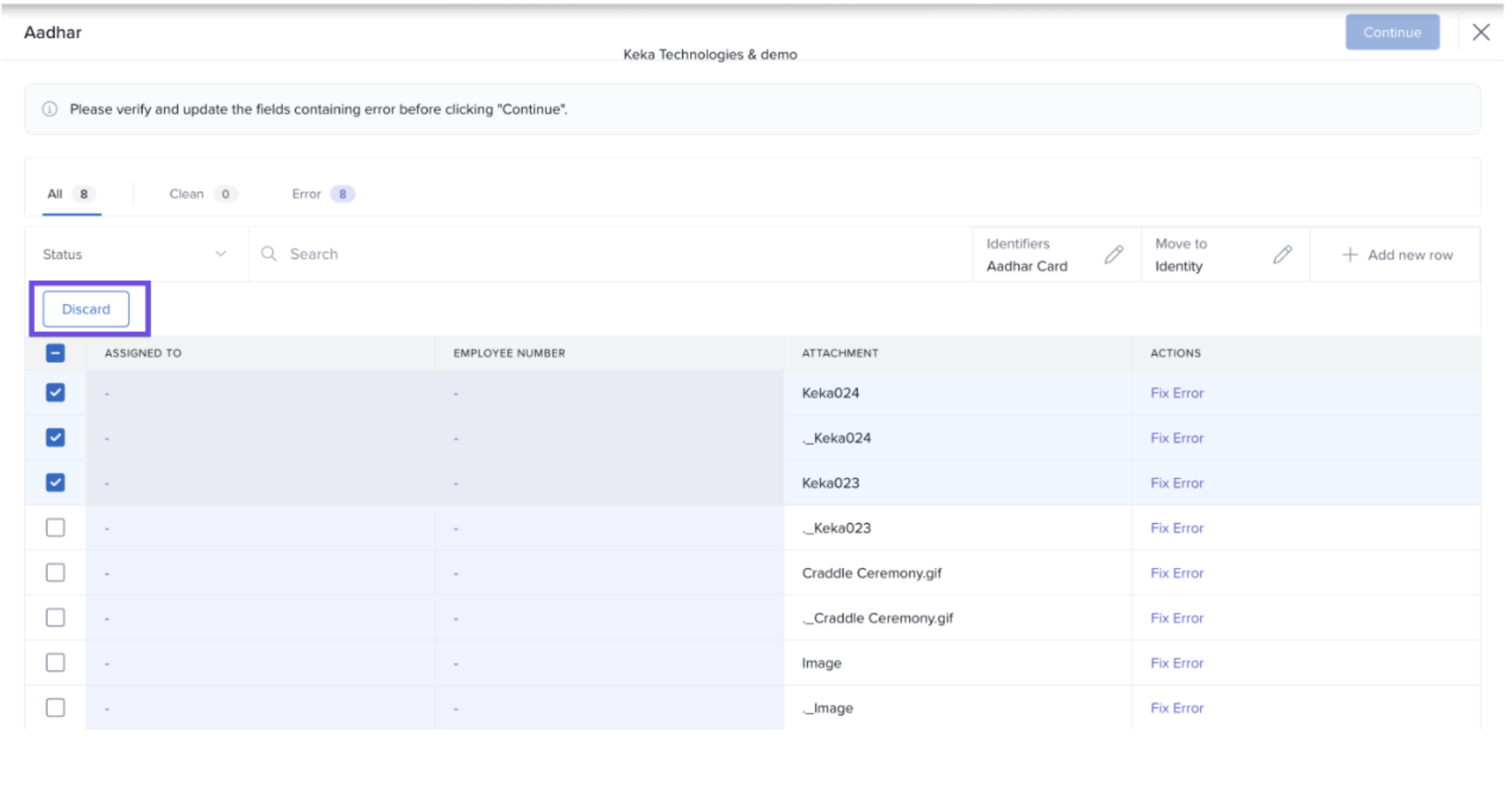
Discard Options: Incorrect rows can be discarded directly from the screen using buttons at the bottom left.
-
Add a Single Row: Use the "+ Add new row" option to manually insert a missing record without restarting the entire upload.
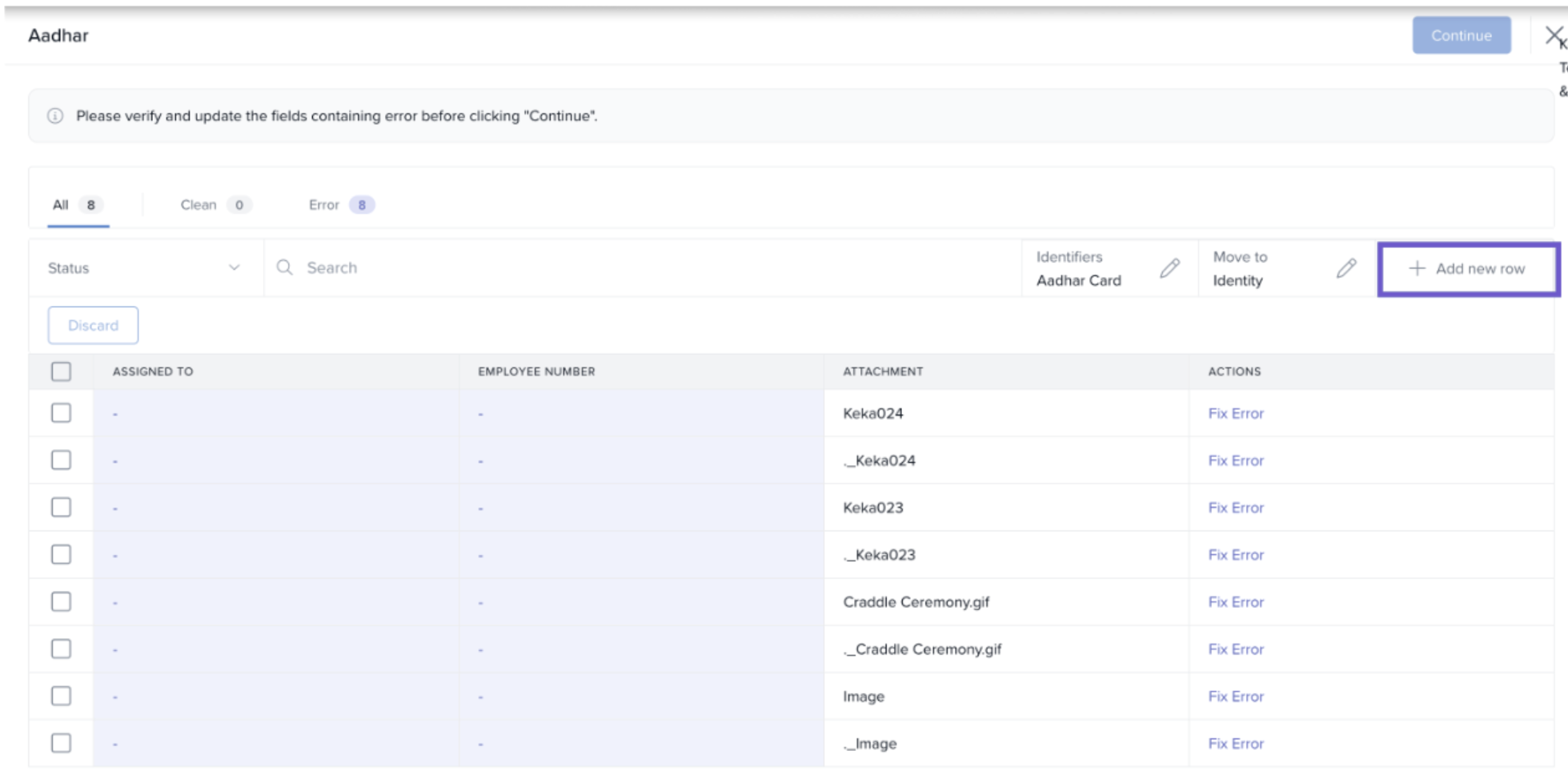
These features help maintain efficiency and minimize disruption to the bulk upload workflow.
Identifier Mapping in Bulk Upload
During bulk uploads, Keka uses file names to map documents to employees based on selected identifiers, such as:
PAN Card
Aadhar Card
Employee Number
Email
Phone Number
First Name / Last Name
Display Name
Identifiers in file names are typically separated using an underscore (_) or hyphen (-).
Example: If Employee Number and PAN Card are selected as identifiers, the file name should follow this format:
001_CLPPG8219M.pdf
Here, 001 is the Employee Number and CLPPG8219M is the PAN.
Handling Special Characters in Identifiers
In enterprise organizations, identifiers may themselves contain special characters (e.g., underscores). For example:
Keka_001_CLPPG8219M.pdf
Without special handling, the system may split Keka_001 incorrectly, causing mapping failures.
Solution: Custom Separator Option
Users can define the separator used in file names (e.g.,
_,-,/, or any character).If no separator is used, users can select No Separator.
Example with custom separator /:
Keka_001/CLPPG8219M.pdf → correctly identifies Keka_001 as Employee Number and CLPPG8219M as PAN Card.
This flexibility improves compatibility for enterprise clients and ensures accurate mapping for complex file naming conventions.
Conclusion
Keka’s enhanced bulk upload interface allows HR teams to easily identify, fix, and validate errors during document uploads. With features like tabs for filtering, in-line corrections, additional actions, and customizable separators for identifiers, the system minimizes mapping failures and improves efficiency.
Comments
0 comments
Please sign in to leave a comment.