Introduction
Keeping employee financial details up to date is essential for smooth payroll processing and compliance. Correct information ensures salaries are credited to the right bank accounts, payments are made through the preferred mode, and statutory components (like PF, ESI, LWF, and Professional Tax) are properly maintained.
Instead of updating each profile manually, Keka lets you bulk update financial details using an Excel template.
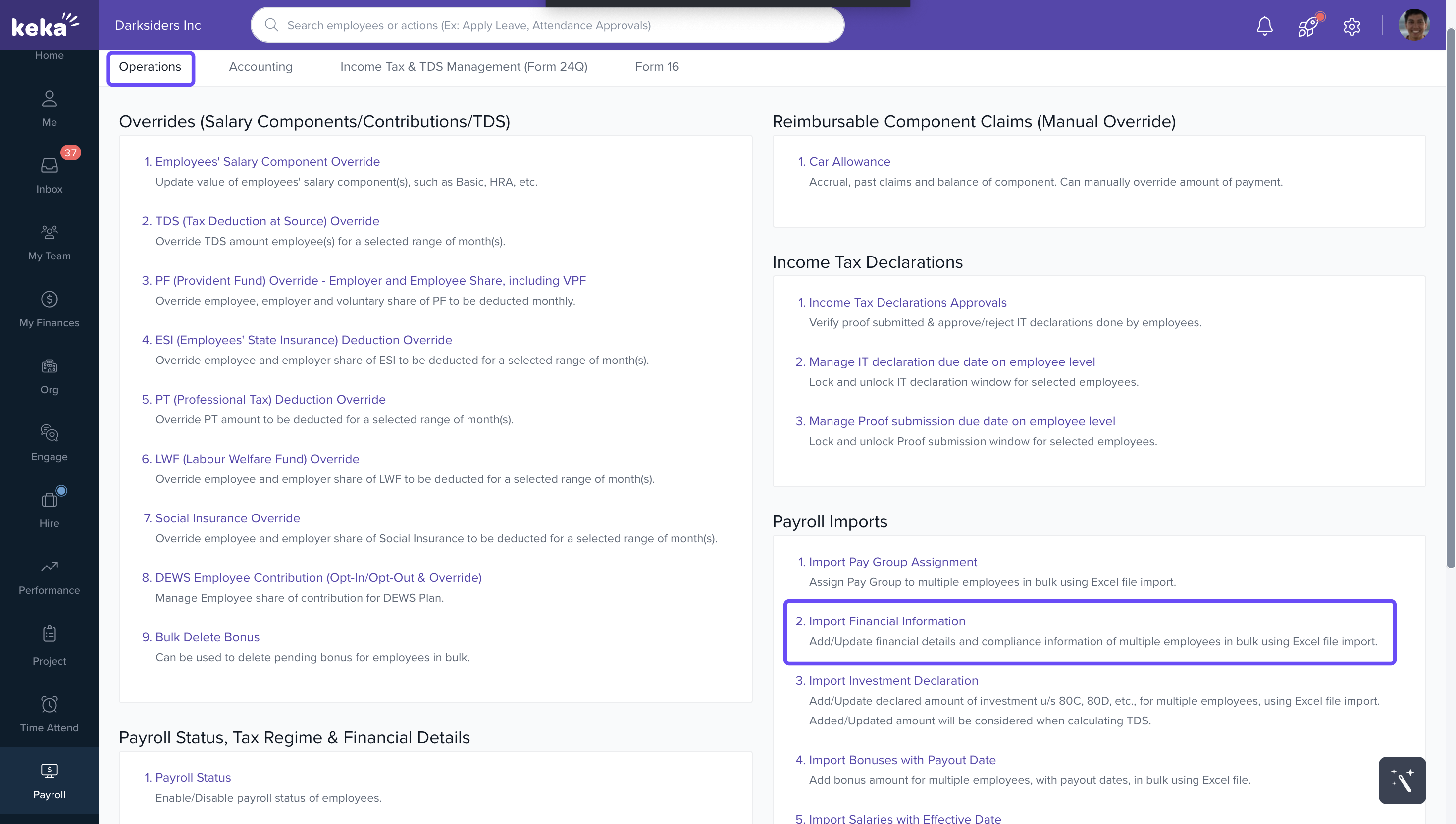
Navigate to Import Financial Information
Go to Payroll from the left navigation pane.
Select Payroll Admin → Operations tab.
Under Payroll Imports, click Import Financial Information.
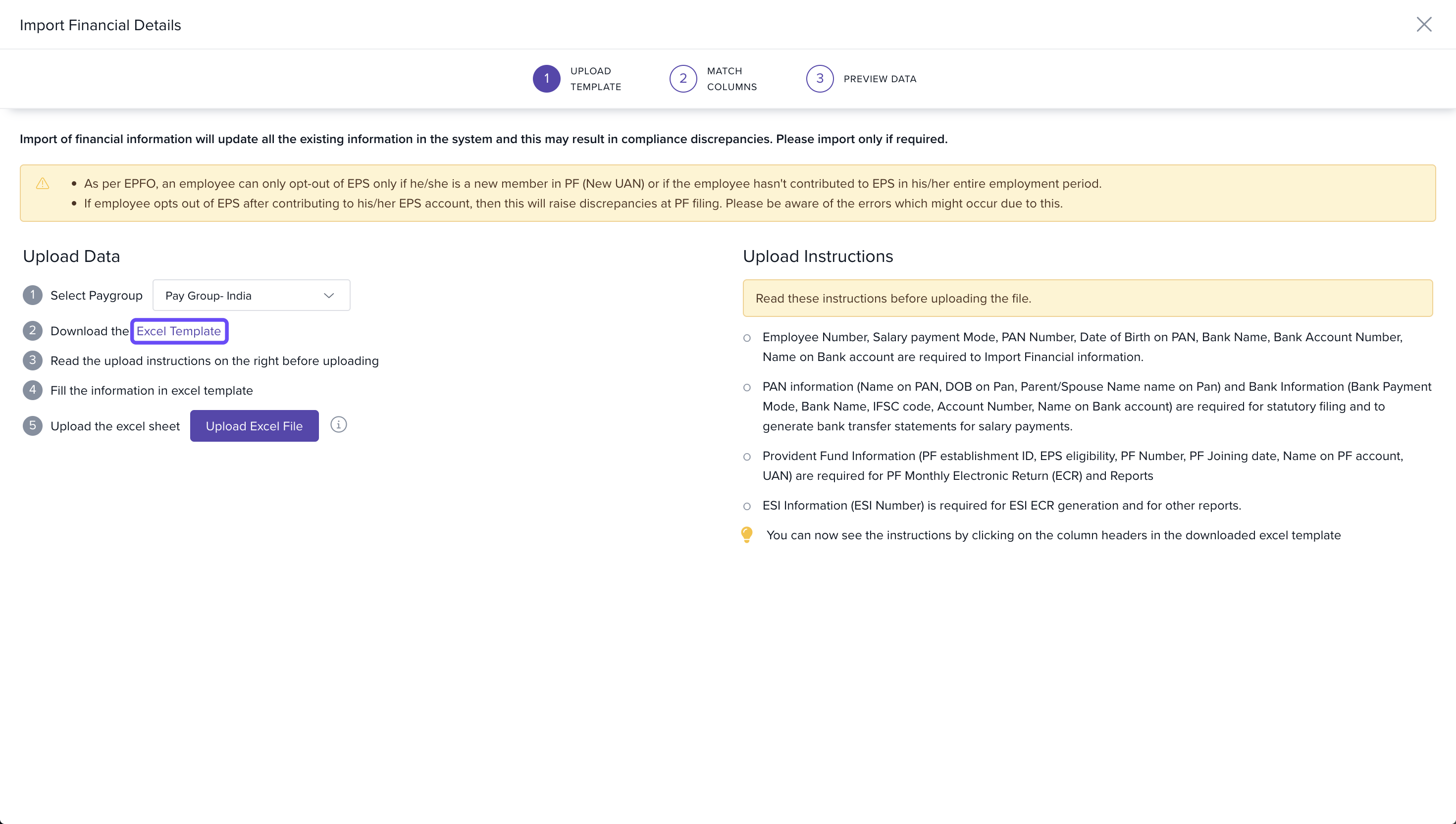
Download the Excel Template
On the Import Financial Details page, select a Pay Group (if multiple pay groups are configured).
Click Download Excel Template to get the file with employee details.
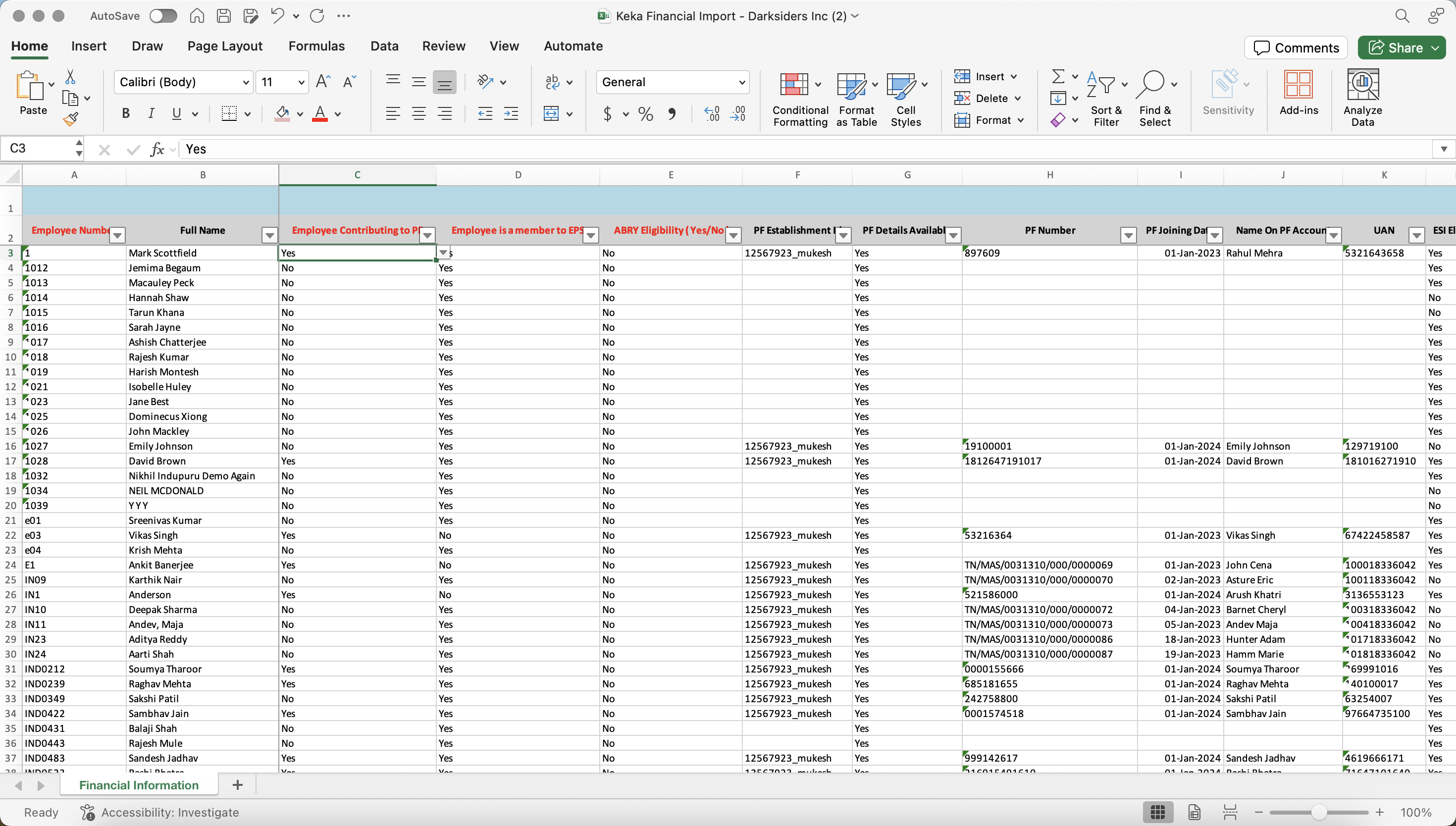
Edit the Excel File
In the downloaded file, delete rows for employees whose details you are not updating.
Enter updated financial details for the employees you want to modify.
You can update fields such as:
PAN Information
Salary Payment Mode
Bank Information
PF, ESI, LWF, Professional Tax details
Aadhaar Information
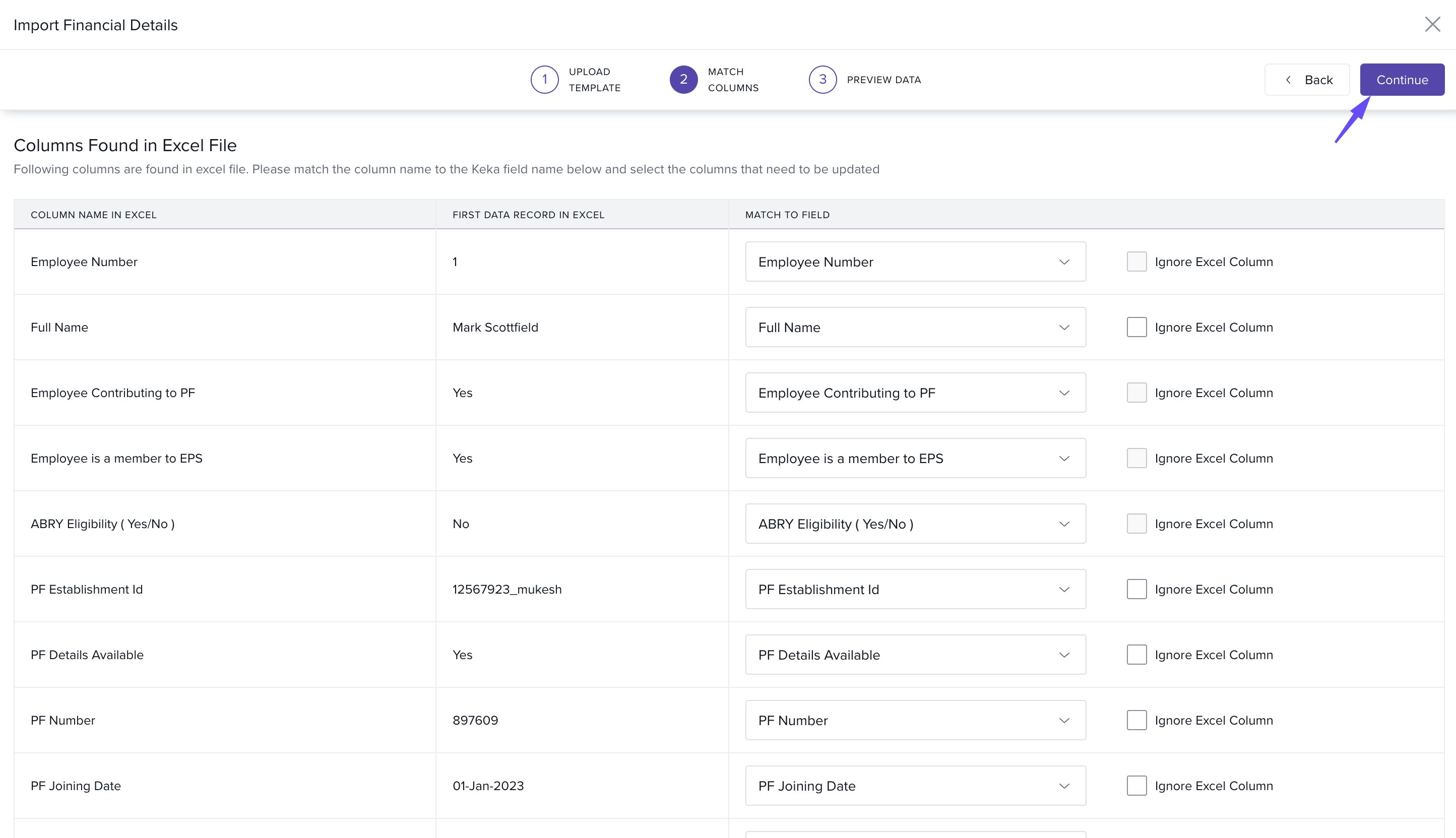
Match Columns
In the Match Columns section, make sure each column from your Excel file matches the right field in Keka.
Click Continue.
Preview and Correct Errors
Review the uploaded data in the Preview Data screen.
If errors appear (such as missing data or invalid formats), correct them in your Excel file and re-upload from the Upload Template section.
Once all data is correct, click Complete to finalize the upload.

This will update the financial information of the selected employees. More questions regarding importing employee financial information in bulk? Visit Help.keka.com
Please let us know if you find this article helpful.
Comments
0 comments
Please sign in to leave a comment.