Introduction
Salary revisions and structure changes are a regular part of employee management—whether due to promotions, role changes, or annual appraisals.
Instead of updating salaries one by one, Keka lets you import multiple salary and structure revisions in bulk. This saves time and ensures accuracy.
Access Payroll Imports
From the left navigation pane, select Payroll.
Go to Payroll Admin → Operations tab.
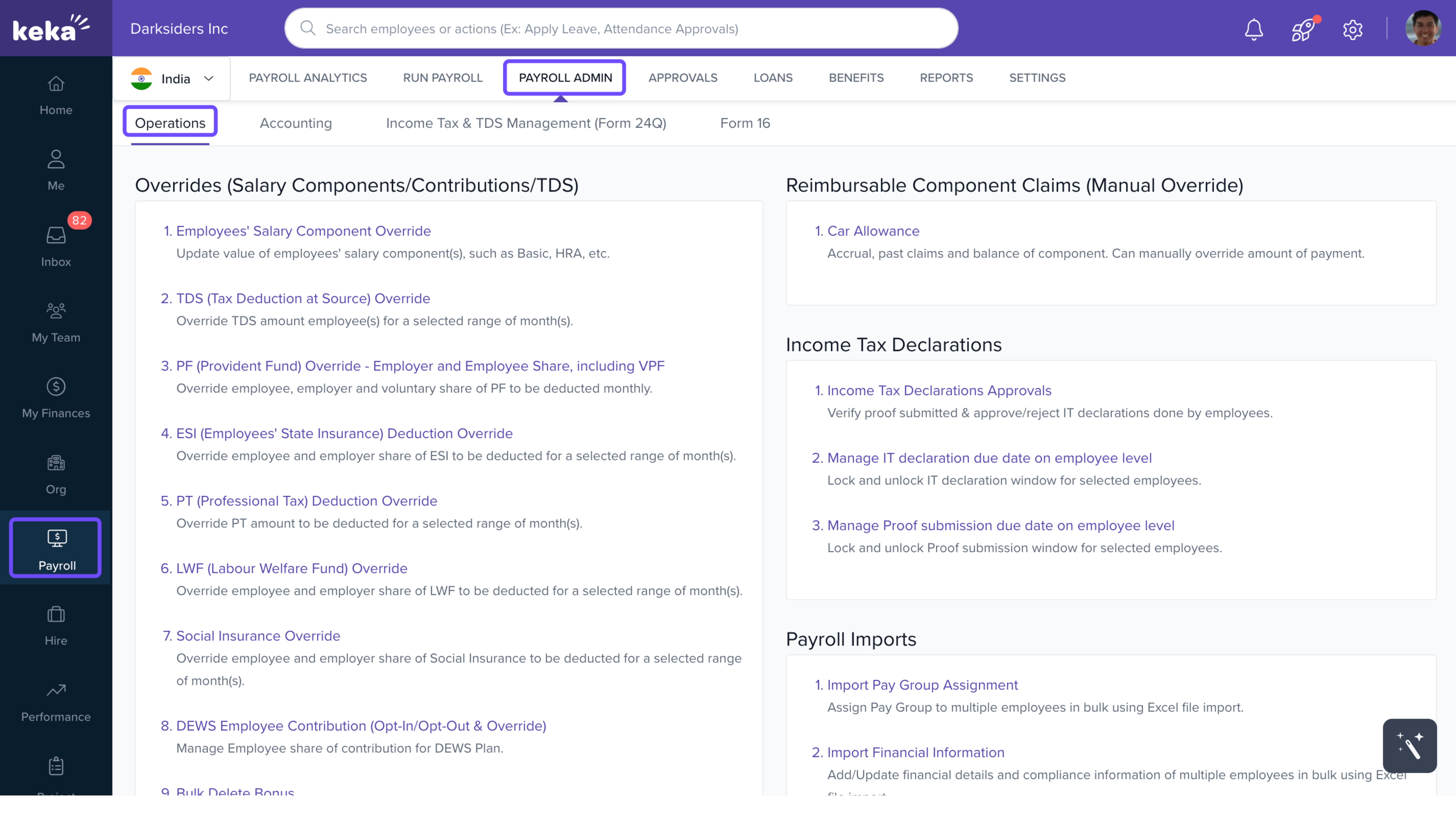
Under the Payroll Imports section, click Import Salaries with Effective Dates.
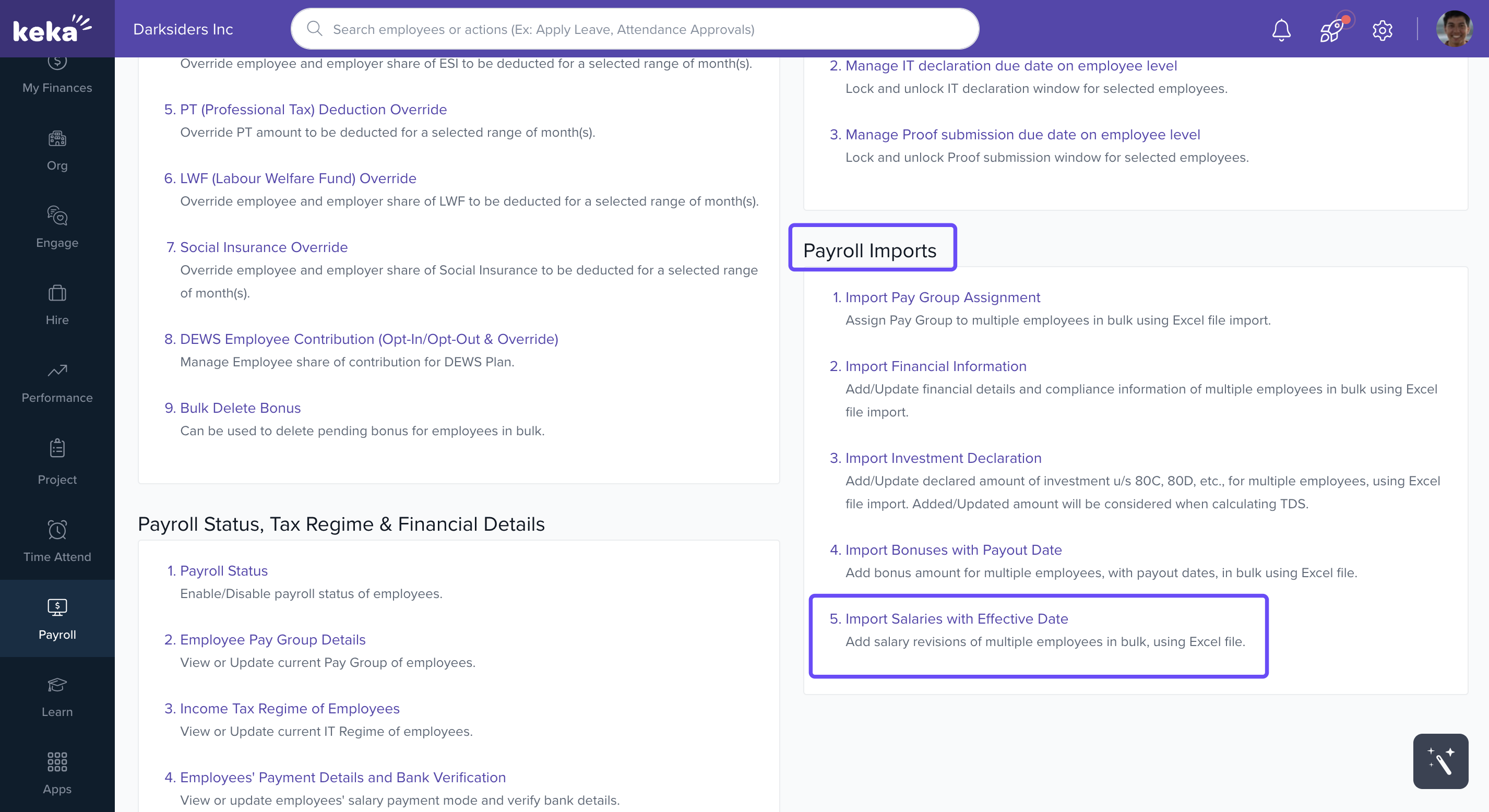
Download the Excel Template
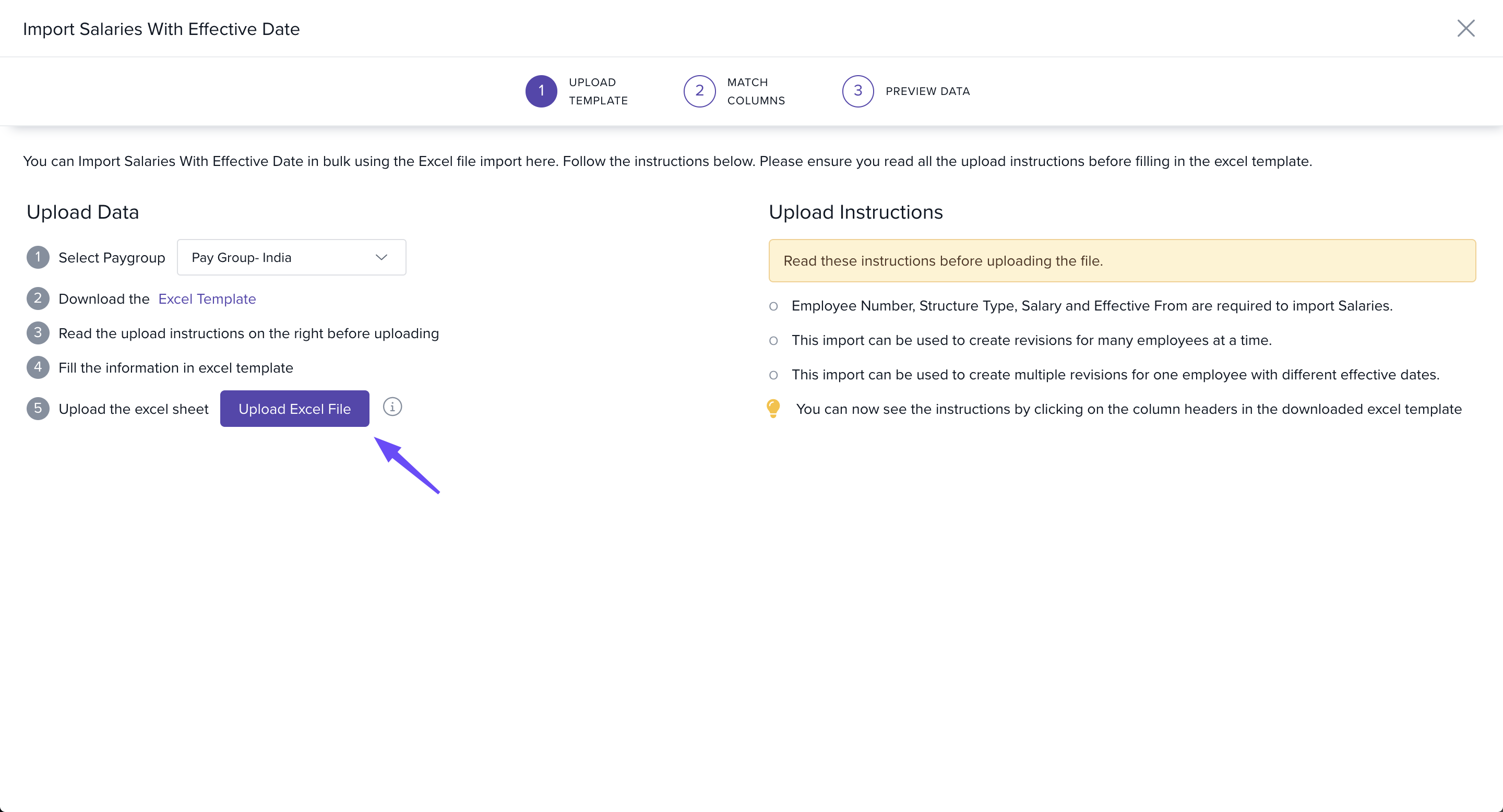
On the Import Salaries with Effective Date window, select the Pay Group where you want to make revisions.
Click Download the Excel Template to get the editable file.
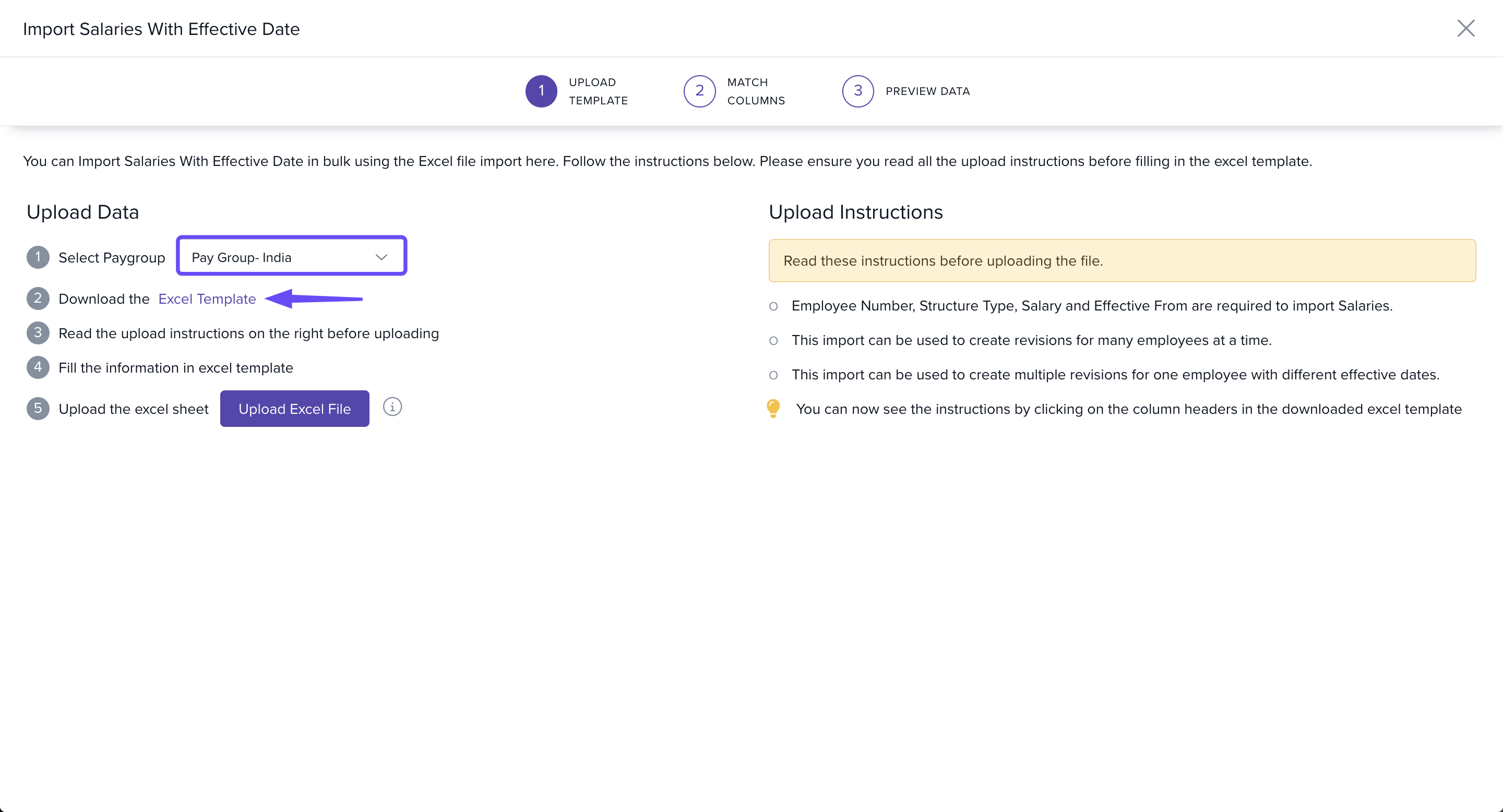
Fill in the Template
In the downloaded Excel file:
Select the Structure Type (either range-based or custom, as defined in your portal).
Enter the revised salary amount.
Enter the effective date for the new salary.
(Optional) Enter a percentage increase instead of a salary value. The system will calculate the revised salary automatically.
Once done, save the file to your system.
Upload the File
Return to the Import Salary with Effective Date window.
Click Upload Excel File and select the saved file.
Match and Review Data
In the Match Columns section, make sure Excel columns map correctly to Keka fields.
-
Click Continue to move to Preview Data.
Review the uploaded details.
Fix any missing or invalid entries by correcting the Excel file and re-uploading.
Once all errors are resolved, click Continue.
On the confirmation screen, click Confirm to finalize the import.
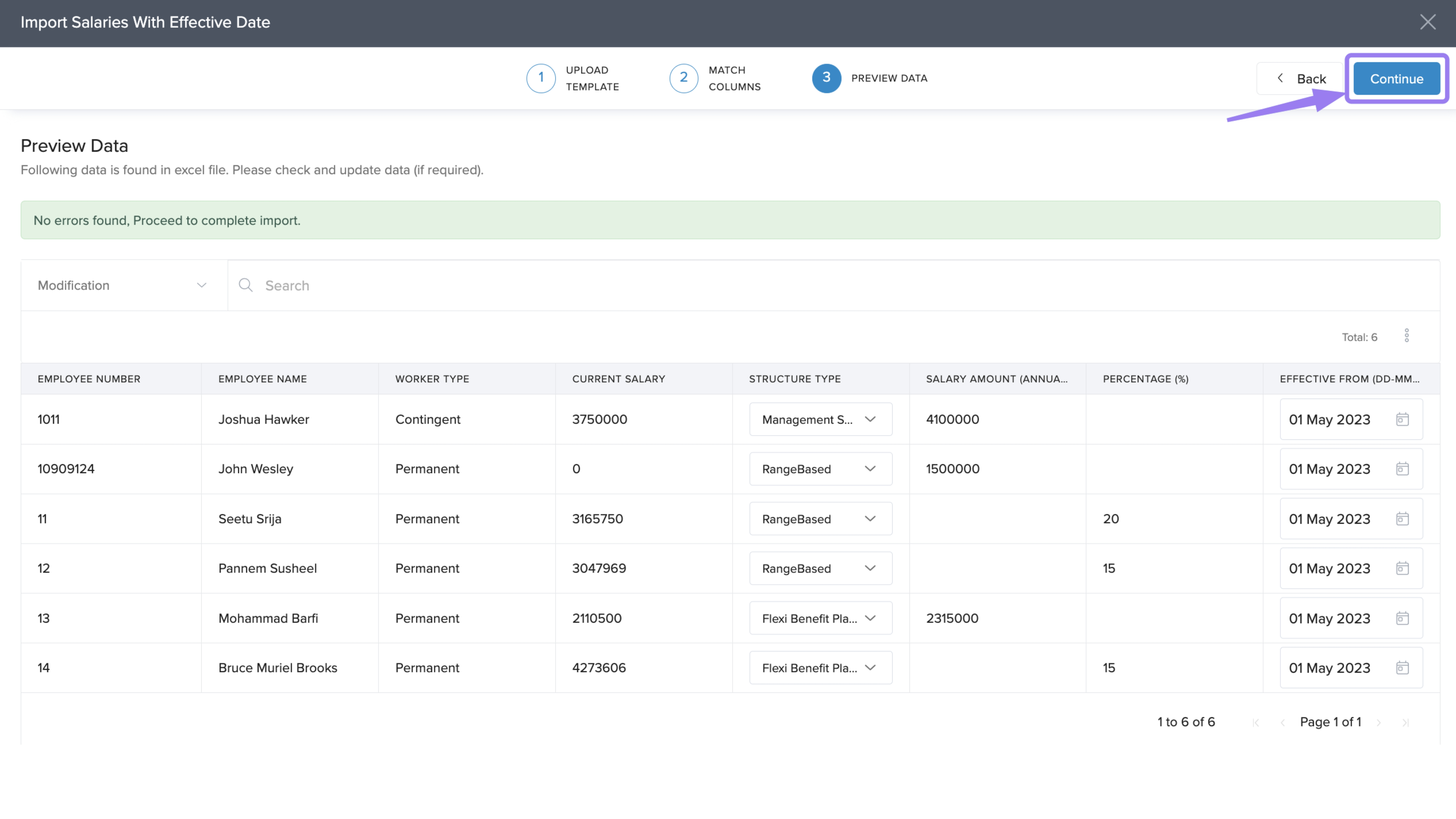
The salaries for the selected employees will now be updated as per your file.
Notes & Tips
Tip: You can schedule multiple salary revisions for the same employee in one import. Simply add separate rows with different effective dates. Keka will automatically apply the revisions on the dates you specify.
Comments
0 comments
Please sign in to leave a comment.