Introduction
As an admin, Keka makes it simple to manage different remuneration types for your employees. Whether it's Annual, Monthly, Daily, or Hourly, you can switch remuneration types to fit your organization's needs. This flexibility ensures employees are paid in alignment with their contract terms, whether they’re on a full-time annual salary, working part-time, or on a daily wage.
Why Choose Different Remuneration Types?
Different employees require different remuneration arrangements. Here’s how each type works:
Annual Remuneration: Perfect for full-time employees on long-term contracts who receive a fixed annual salary.
Monthly Remuneration: Ideal for employees on short-term contracts (e.g., 6–12 months) where a fixed yearly salary isn’t required.
Daily Remuneration: Common for employees who work on a daily wage basis, such as contractors or temporary staff.
Hourly Remuneration: Designed for employees paid per hour, typically in retail, part-time, or gig roles.
Switching between these remuneration types ensures employees are paid according to their role and working conditions, keeping payroll aligned with your organization’s policies.
How to Check Enabled Remuneration Types in Keka
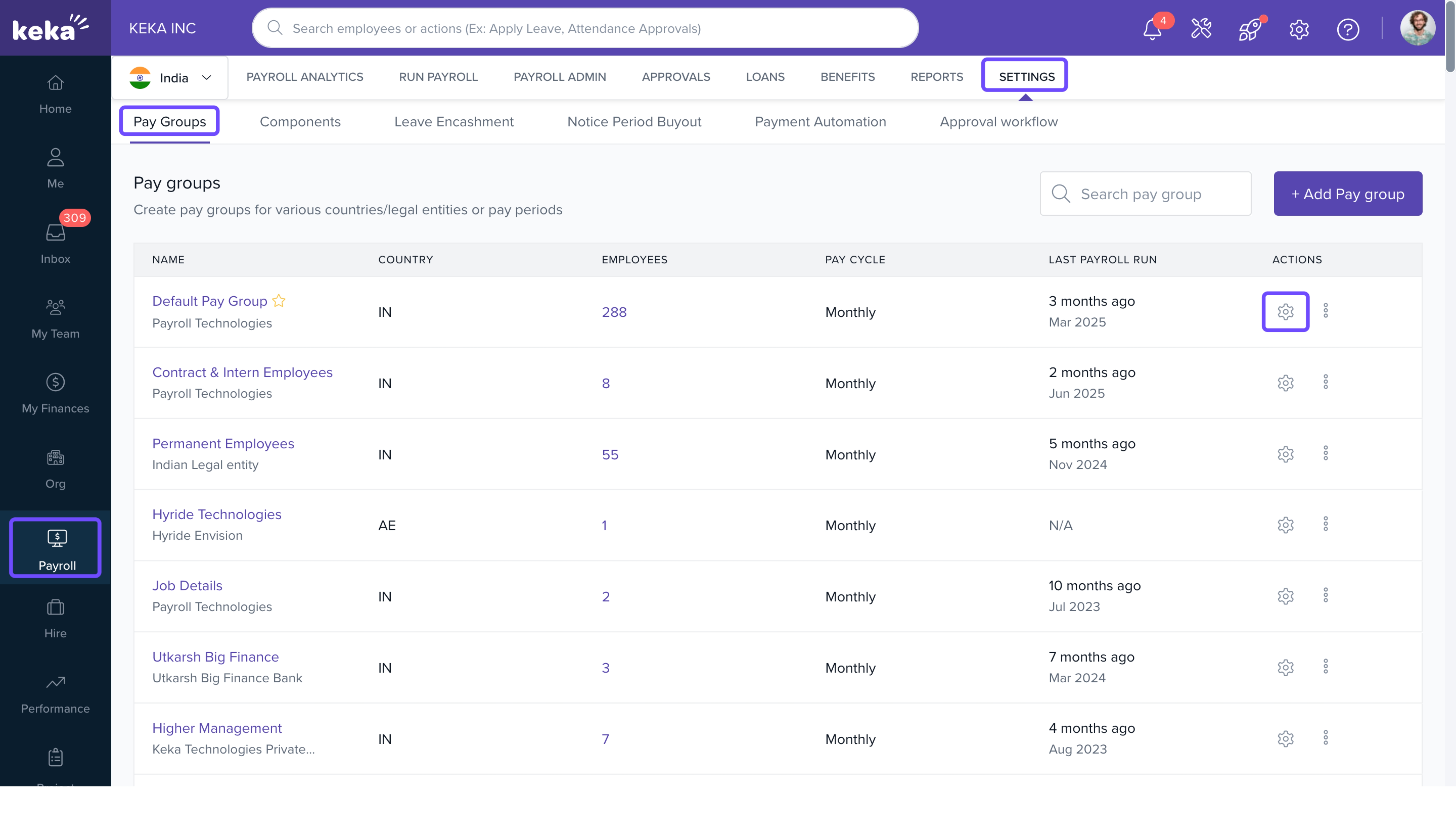
Navigate to Payroll > Settings > Pay Groups.
Select the pay group for which you want to check or configure remuneration settings.
Click on Configure.
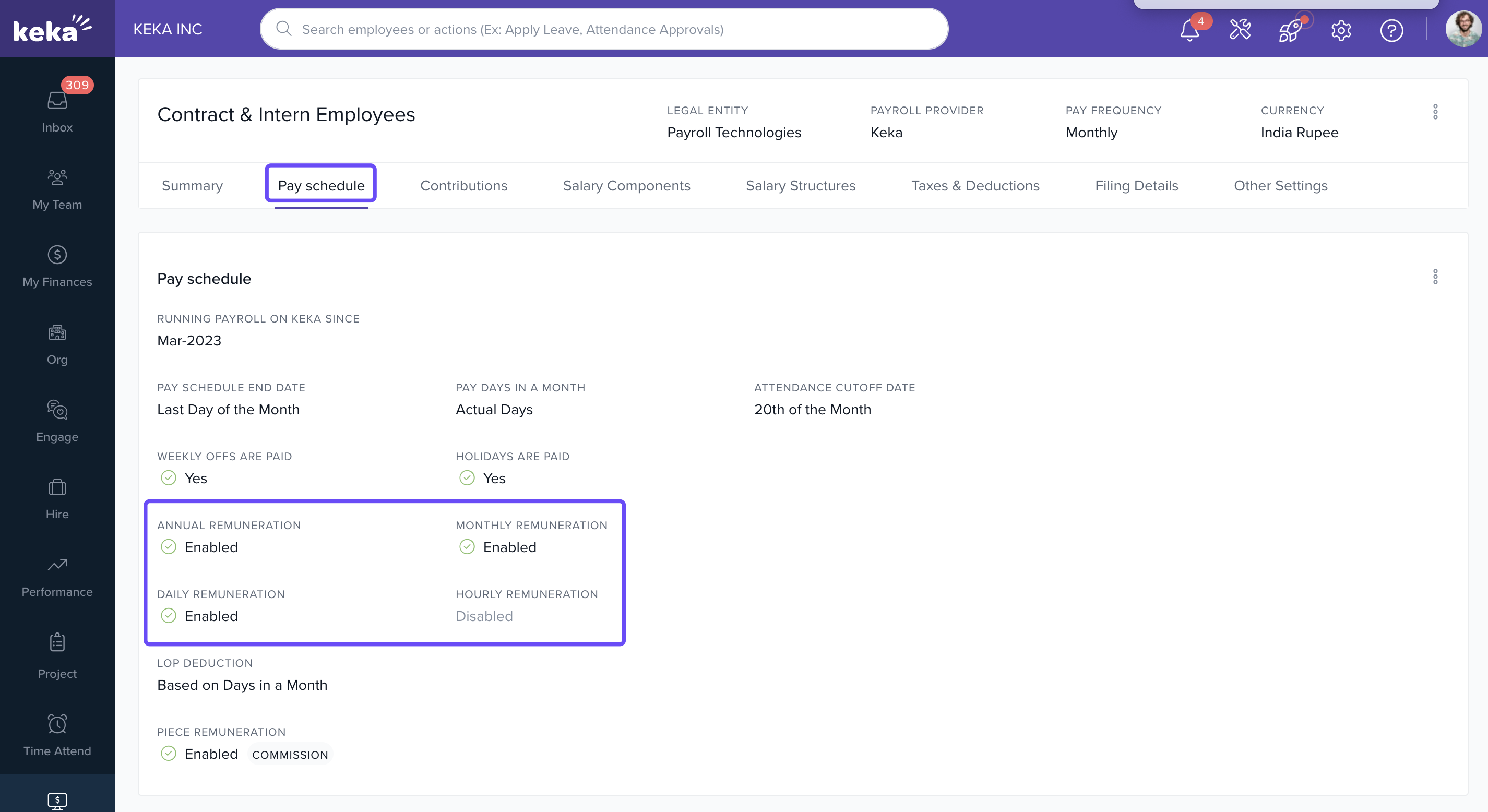
Go to the Pay Schedule tab.
At the bottom of this page, you’ll see if Annual, Monthly, Hourly, and Daily remuneration types are enabled.
How to Switch Remuneration Types for Employees
You can change an employee’s remuneration type using either of two methods: through the Payroll Admin Operations or the Employee Profile.
From Payroll Admin Operations
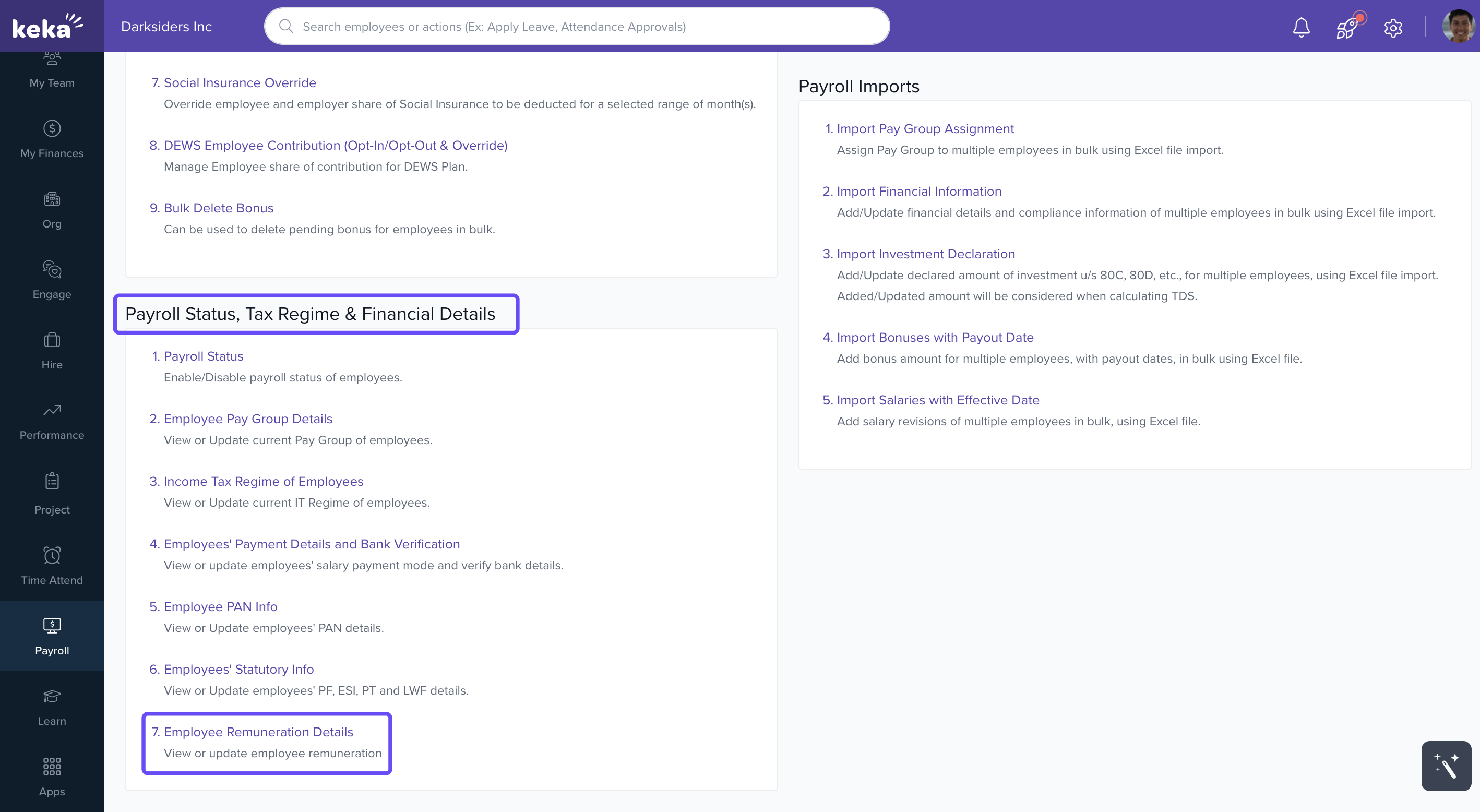
Go to Payroll > Payroll Admin.
Navigate to the Operations tab.
Scroll down to Payroll Status, Tax Regime & Financial Details and click on Employee Remuneration Details.
Apply filters to narrow down your list (by pay group, etc.) and select the employee whose remuneration type you want to change.
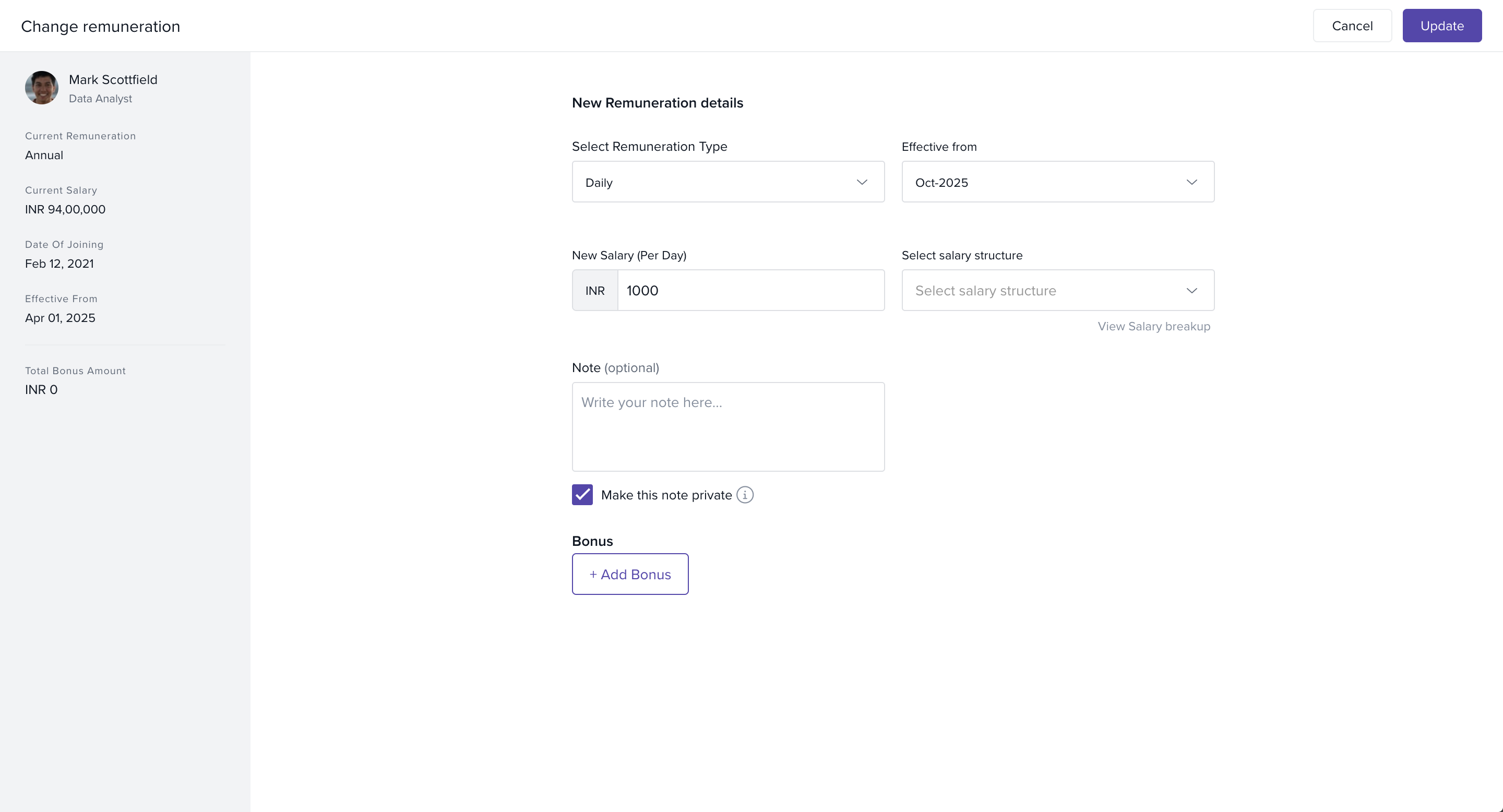
Click Update under the Actions column.
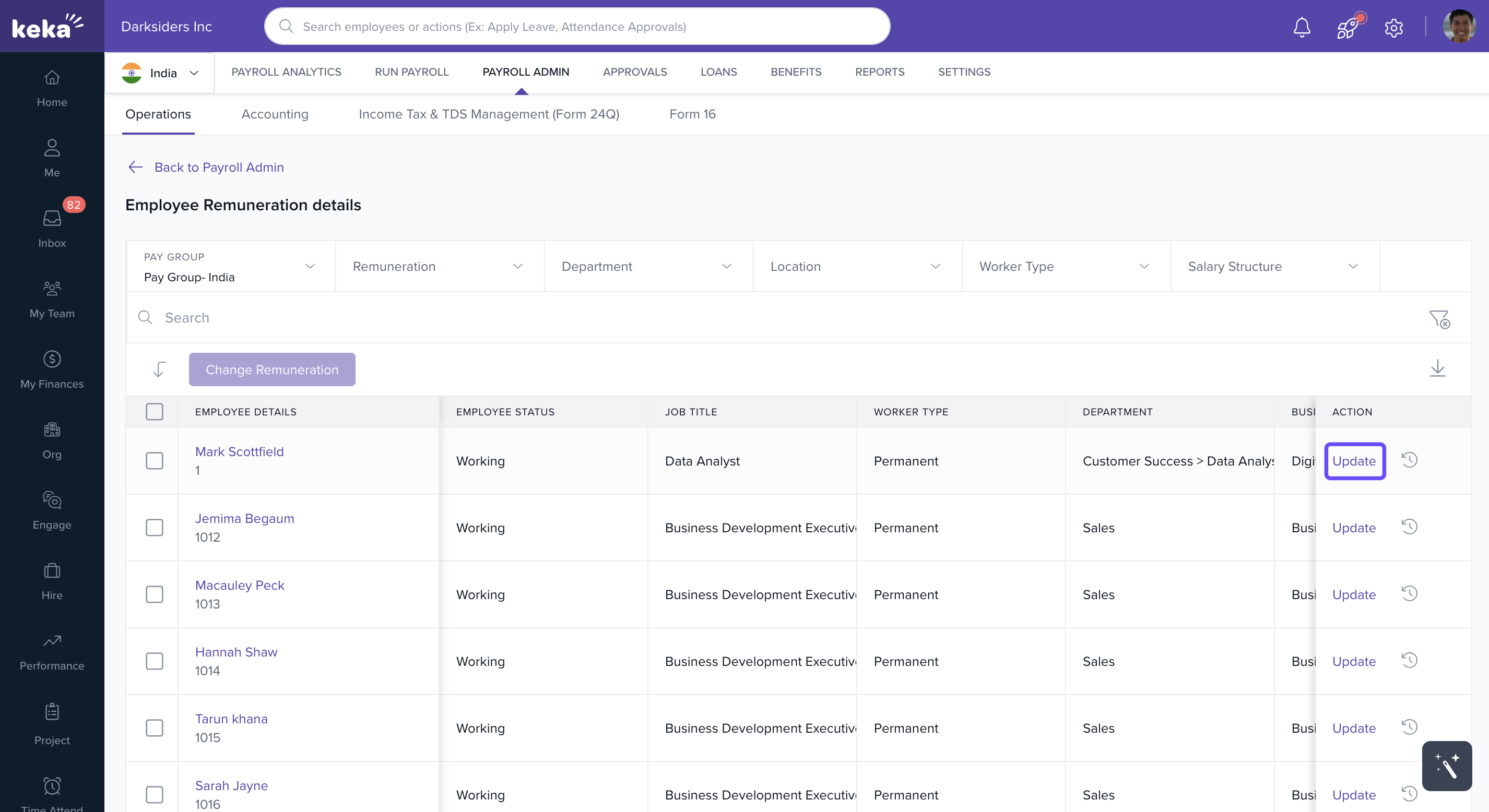
A new window will open with the current remuneration details. Add the new remuneration type and click Update to save.
Bulk Changes:
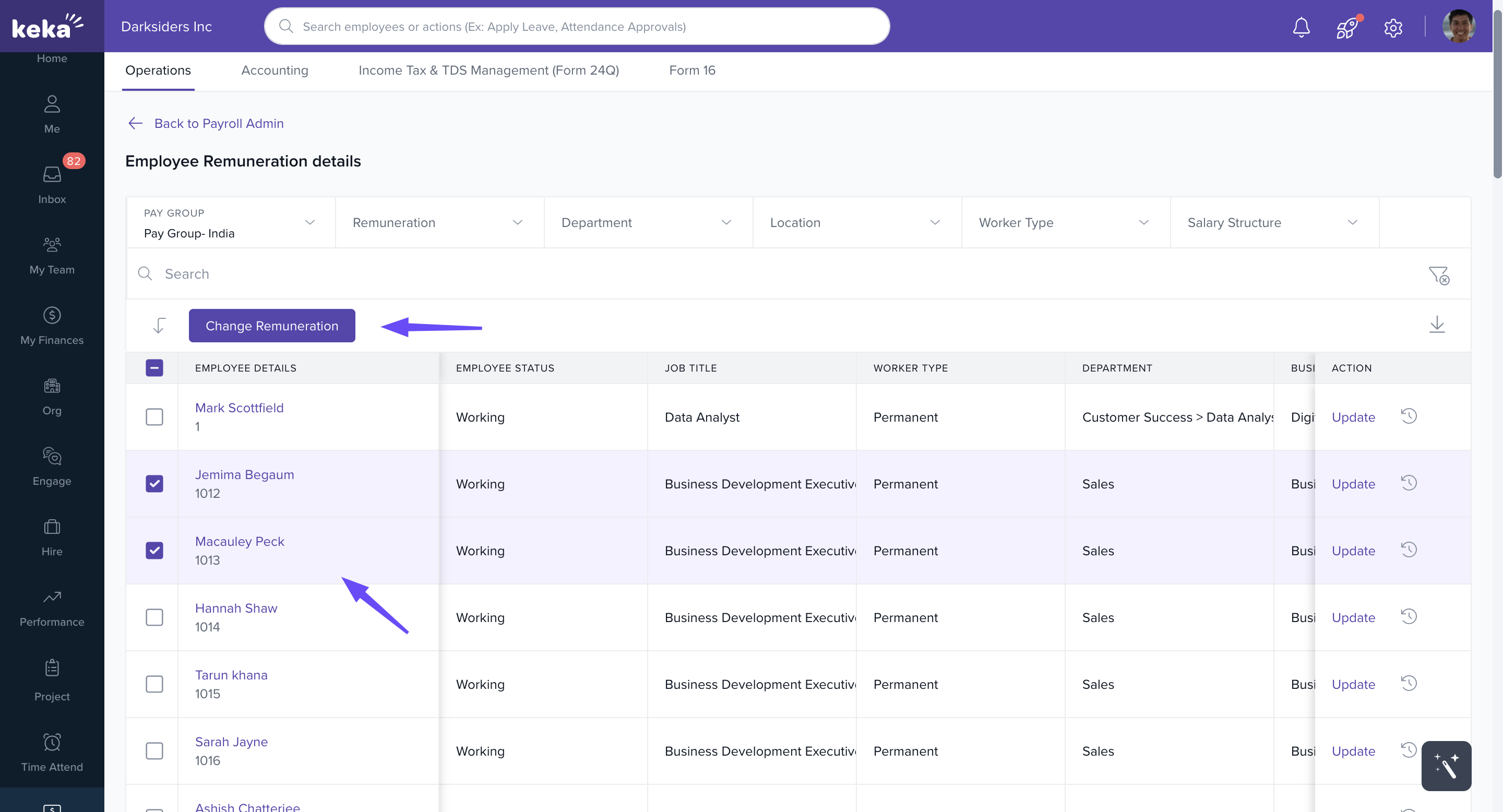
Select multiple employees by ticking the checkboxes next to their names.
Click Change Remuneration.
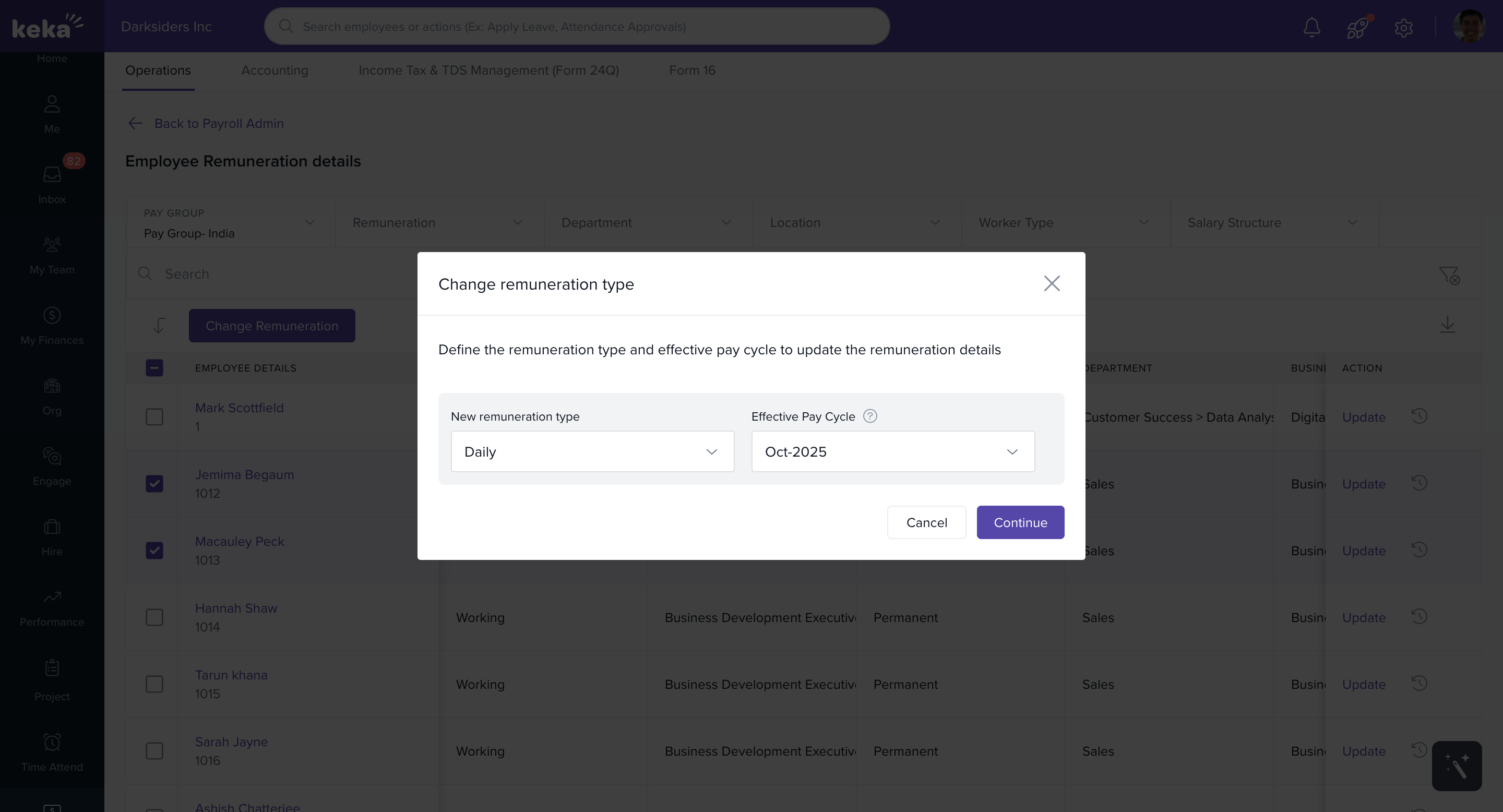
In the pop-up, choose the new remuneration type and the pay cycle from which the change should take effect. Click Continue.
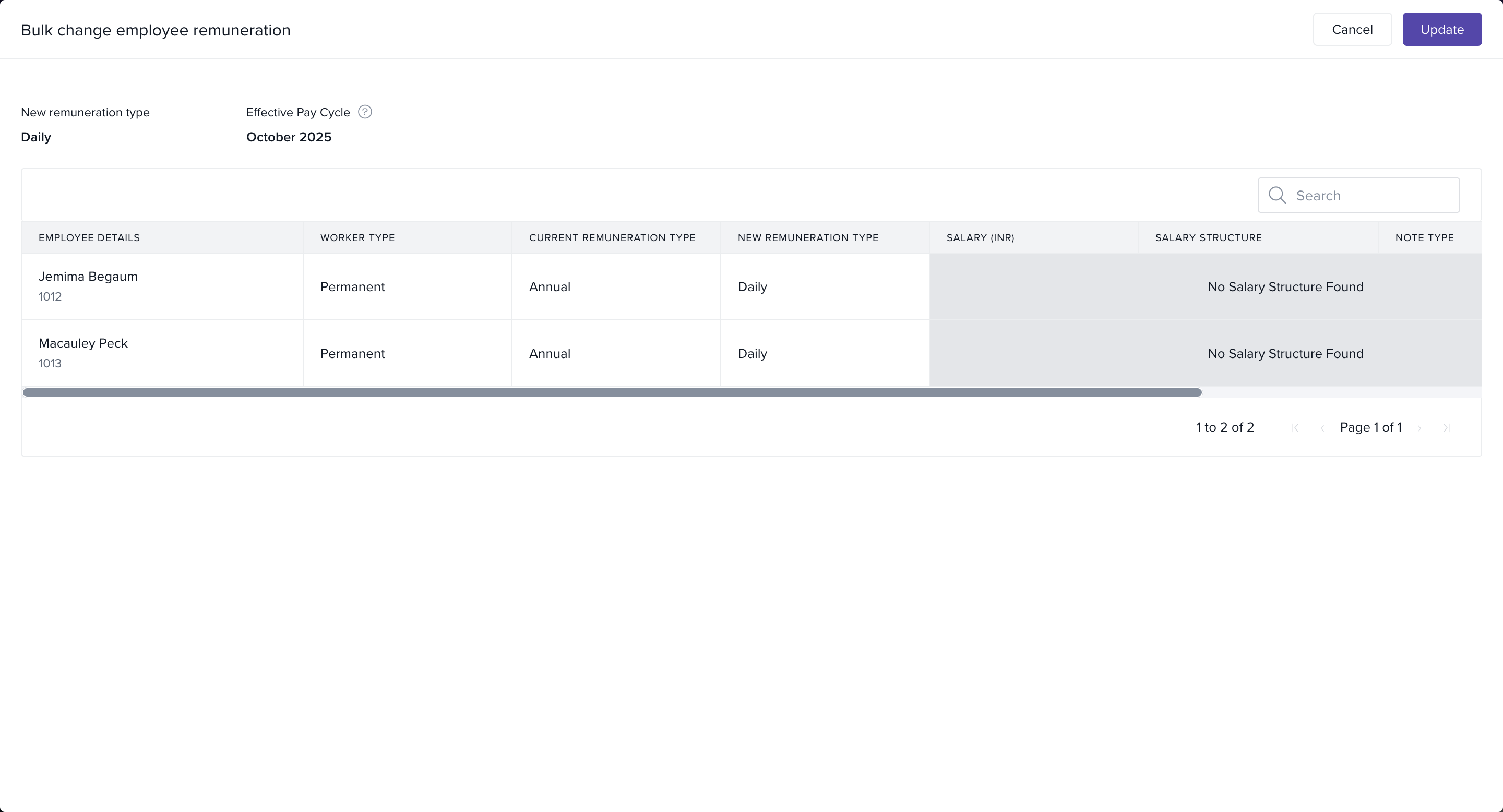
A new window will prompt you to add the new salary and salary structure.
Click Update to apply the changes.
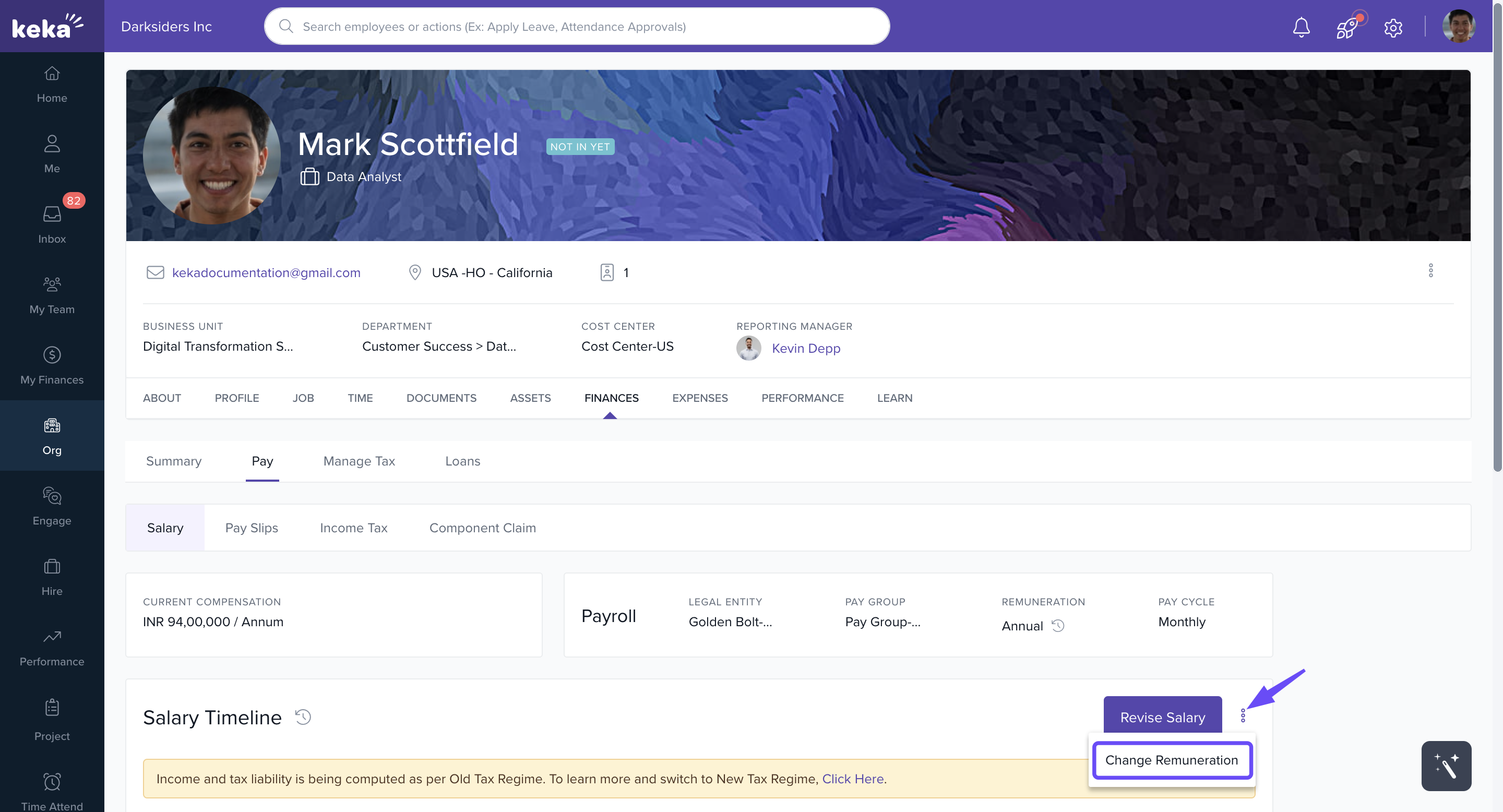
From Employee Profile
Search for the employee in the Global Search Bar.
Go to their Finances > Pay tab.
Click on the three dots next to Revise Salary and select Change Remuneration.
Update the remuneration type and click Update.
Notes and Restrictions
Pending salaries or payments: You cannot change the remuneration type if there are any pending salaries or payments on hold for the employee.
Salary structure deletion: The salary structure that was assigned as part of the remuneration type cannot be deleted after the change.
Comments
0 comments
Please sign in to leave a comment.