Introduction
This guide shows how to enable or disable an employee’s payroll status in Keka. Payroll status controls whether an employee is included in a payroll run, whether they can view financial details, and whether pending payments (from previous months) are considered.
Table of content :
- Navigate to the Payroll Status Section
- Disabling or enabling payroll for an individual employee
- Disabling or enabling payroll in bulk
Navigate to the Payroll Status Section
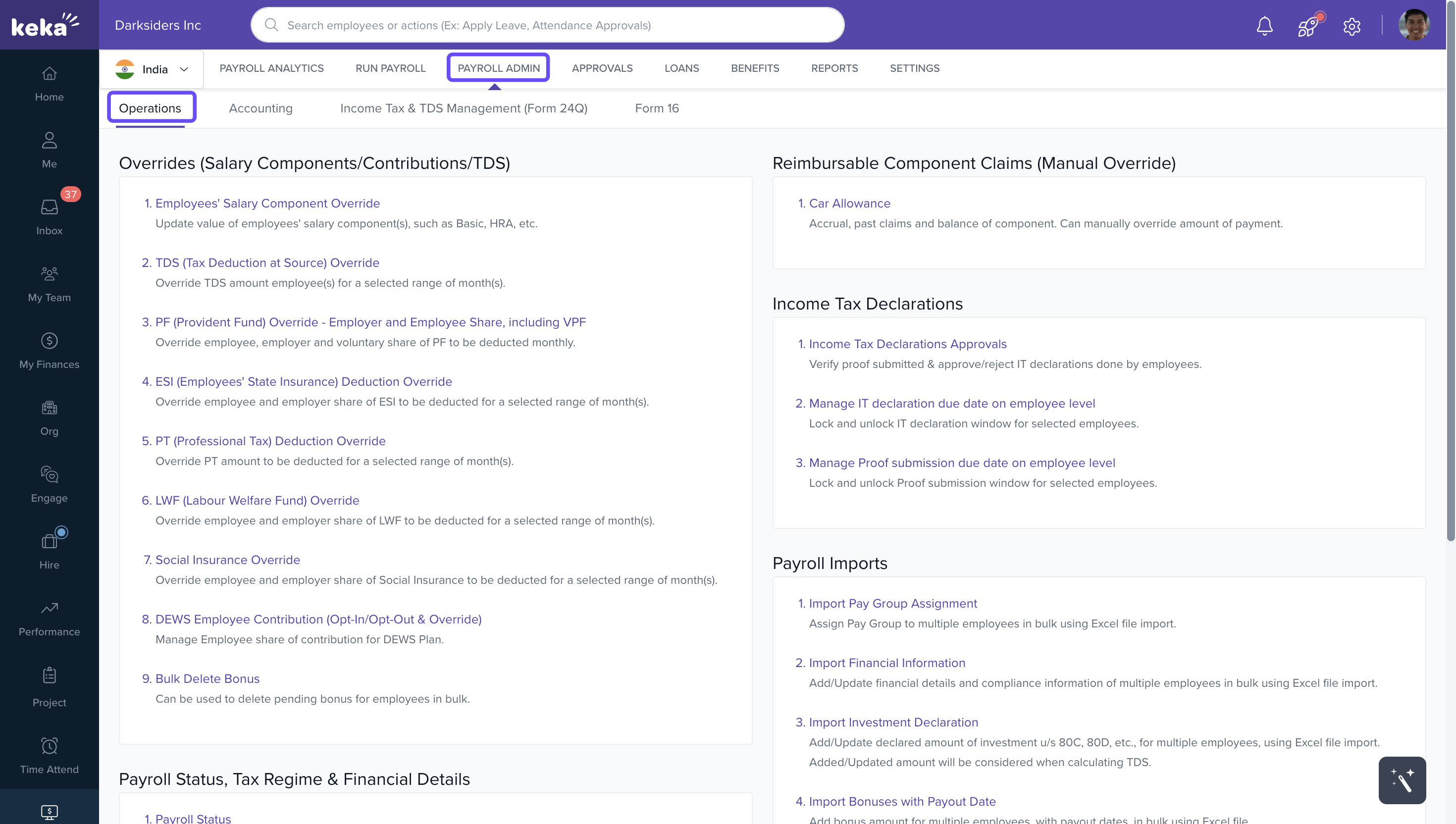
1. Go to Payroll in the left sidebar.
2. Open the Payroll Admin tab.
3. Click the Operations tab.
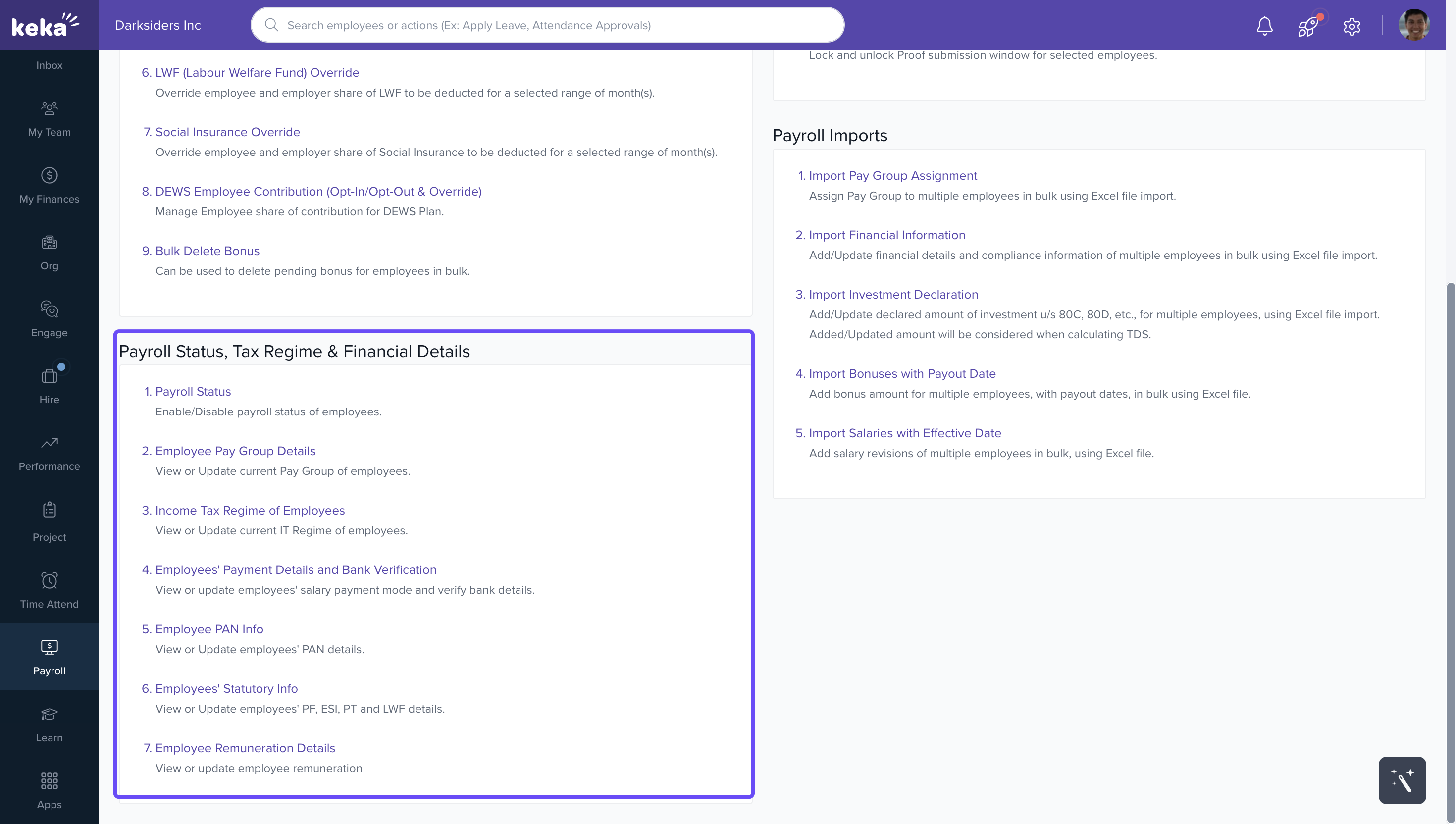
4. Find Payroll Status, Tag Regime & Financial Details.
Disabling or enabling payroll for an individual employee
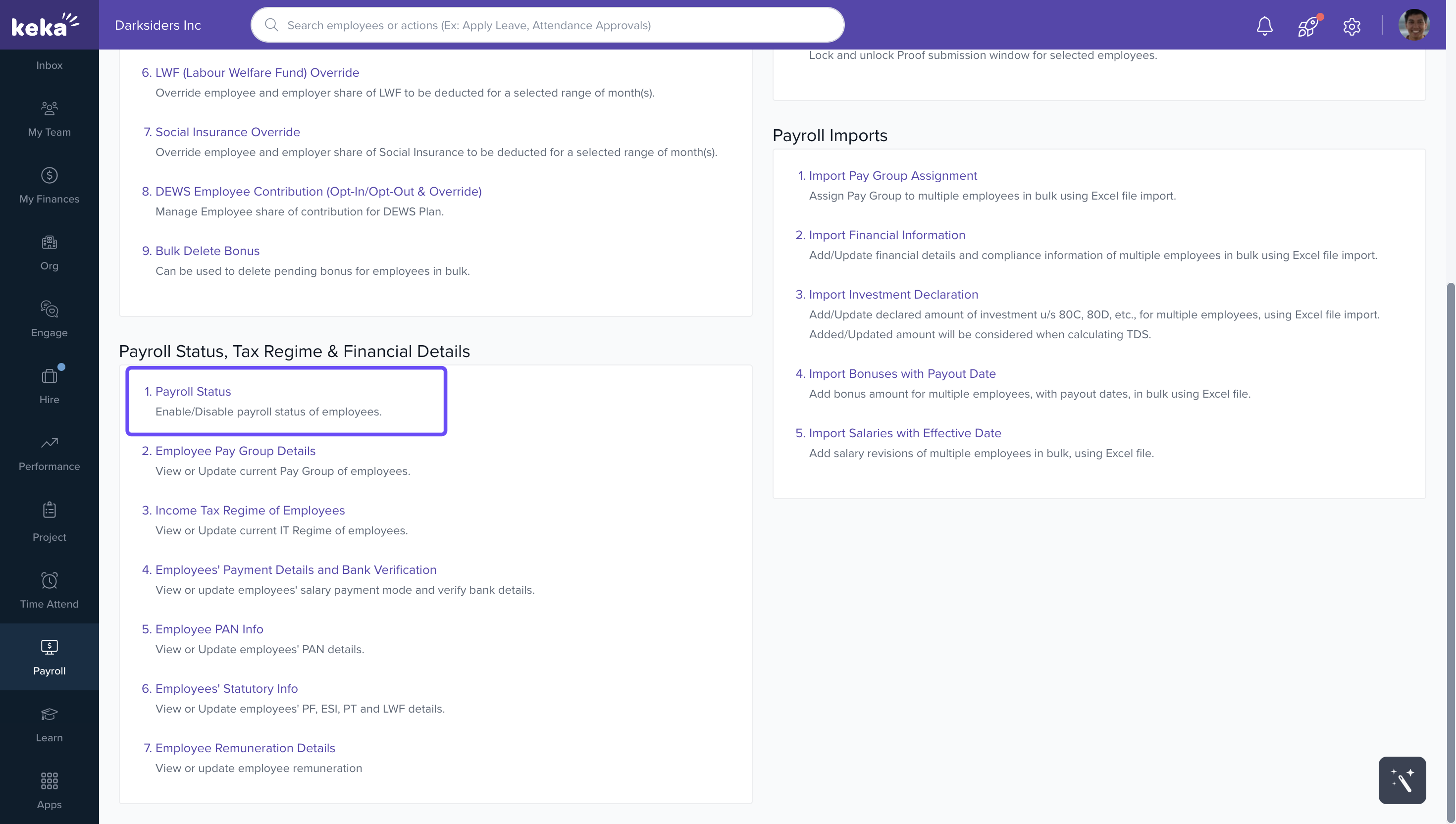
1. Click on Payroll Status in that section.
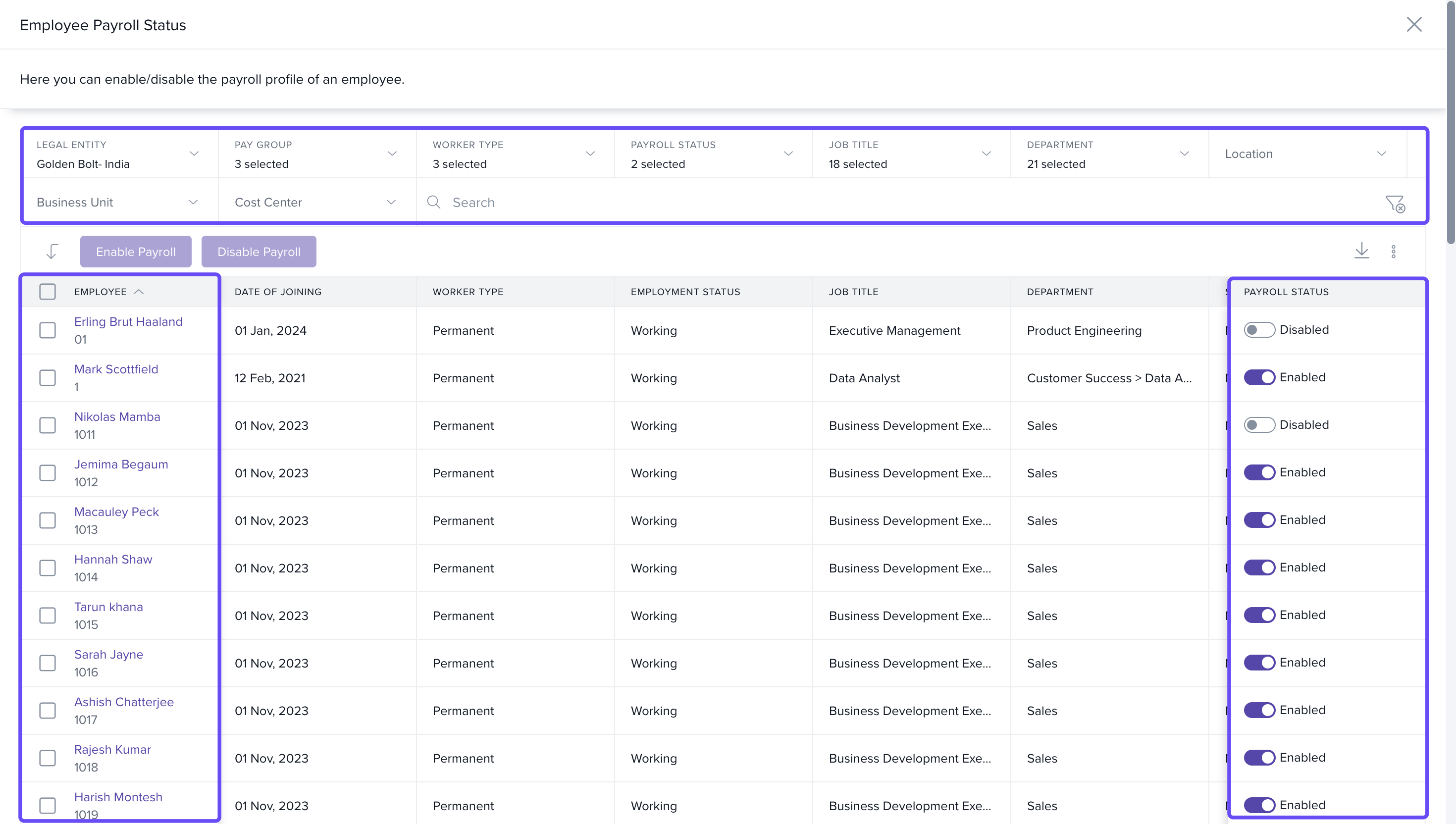
2. If you have multiple pay groups configured, select the relevant Pay Group.
3. Select the employee.
4. Choose to enable or disable payroll for that employee.
Disabling or enabling payroll in bulk
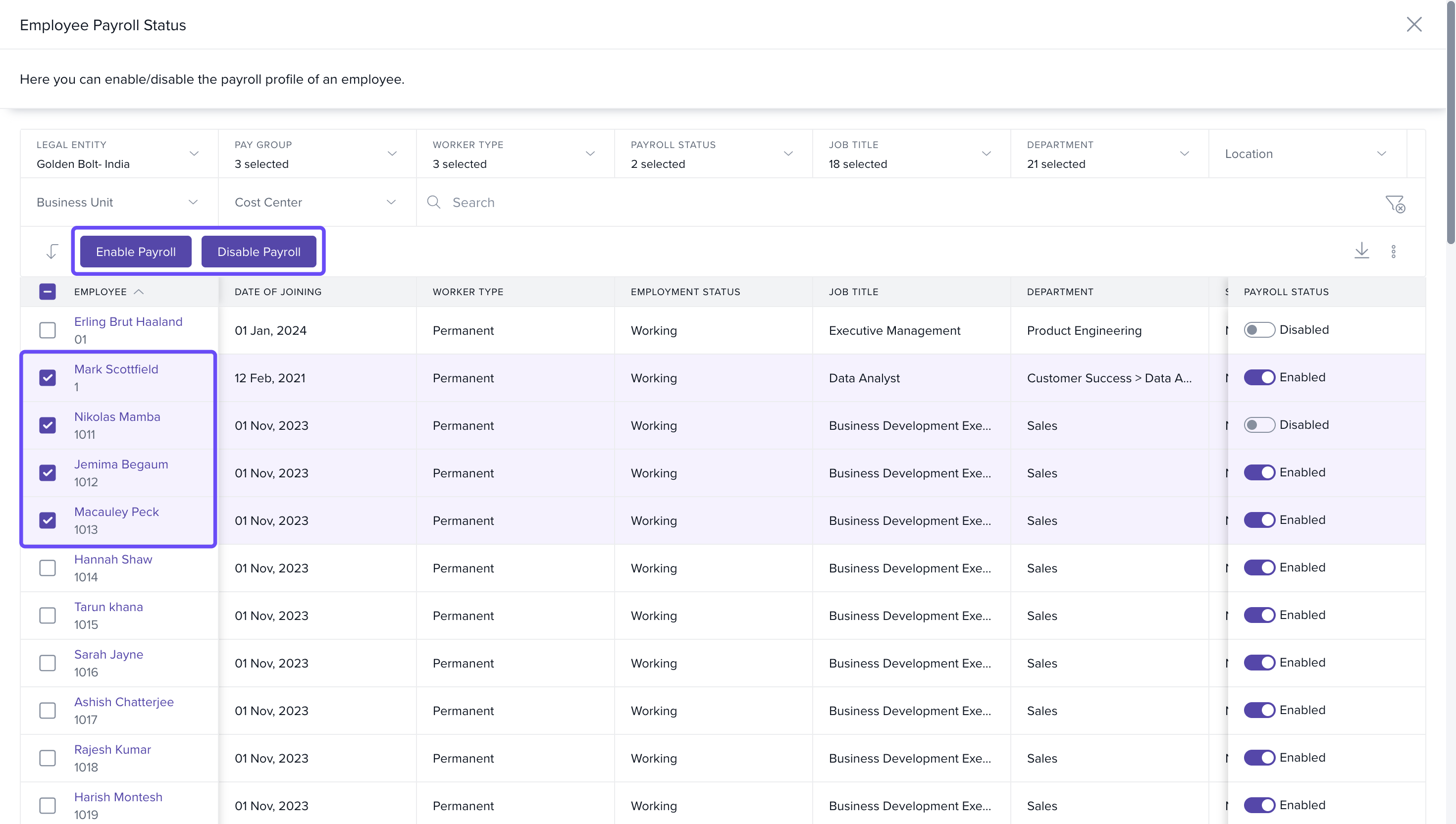
1. On the Employee Payroll Status page, select the relevant Pay Group (if applicable).
2. Choose the employees from the list.
3. Use the Enable payroll or Disable payroll option to make changes for all selected employees.
Once payroll is disabled for an employee:
-
They no longer appear in the pay register.
-
They lose access to their financial details (My Finance page)
Comments
0 comments
Please sign in to leave a comment.