Introduction
Keka helps ensure fairness in attendance management by automatically adjusting expected work hours when hourly or quarter-day leave is approved. This means employees are not penalized for short-duration approved absences.
Once adjusted, penalties apply only if employees fail to meet the updated requirements—making the process more accurate and transparent.
This guide shows you how to create and edit a Penalization Policy in Keka.
Initial Steps
Go to Time Attend → Attendance Tracking → Penalization Policy.
-
Click +Add Penalization Policy.
Select the parameters you want to use for penalization and click Continue.
Enter a name for the policy.
On the left panel, you’ll see the parameters you selected. Click Add Penalization Methods if you need to add more.
The right panel provides help text explaining available features.
Basic Information
In this section:
-
Choose whether penalties will be applied as:
Loss of Pay
Deducted Paid Leave
Set a buffer period before/after which the penalties will apply.
Click Save to continue.
No Attendance
Define how many leaves to deduct per day of no attendance.
Optionally, penalize for shortage of work hours.
Consider adjacent holidays/weekly offs if employees miss consecutive days.
Late Arrival
-
Choose whether penalties are based on:
Number of incidents
Total hours late
Set a Grace Period (minutes before penalization starts).
Exempt a certain number of incidents per weekly/monthly cycle.
Define how many leaves to deduct after the buffer is crossed.
Advanced Settings
Ignore penalty if employees complete effective/gross hours.
Create rules that scale leave deduction based on lateness hours.
Define what happens if late arrival coincides with work hour shortage.
Apply penalties for late arrivals caused by missing logs.
Work Hours
Penalize shortage of hours (effective or gross) on daily, weekly, or monthly basis.
Set rule: penalize if worked hours are less than assigned shift hours.
Use the built-in work hours calculator to convert hours ↔ percentages.
Additional Settings
Exclude hours outside shift timings when calculating penalties.
Penalize shortages caused by missing logs.
Note: Expected work hours are automatically adjusted for hourly or quarter-day leave. Adjusted values appear in the Attendance Summary for both employees and admins.
Missing Logs
Exempt a fixed number of days with missing logs per weekly/monthly cycle.
After the buffer, define how many leaves to deduct for missing logs.
Ignore penalties if employees exceed shift hours by a defined percentage.
Just remember to click Save on each section and your tracking policy is all set.
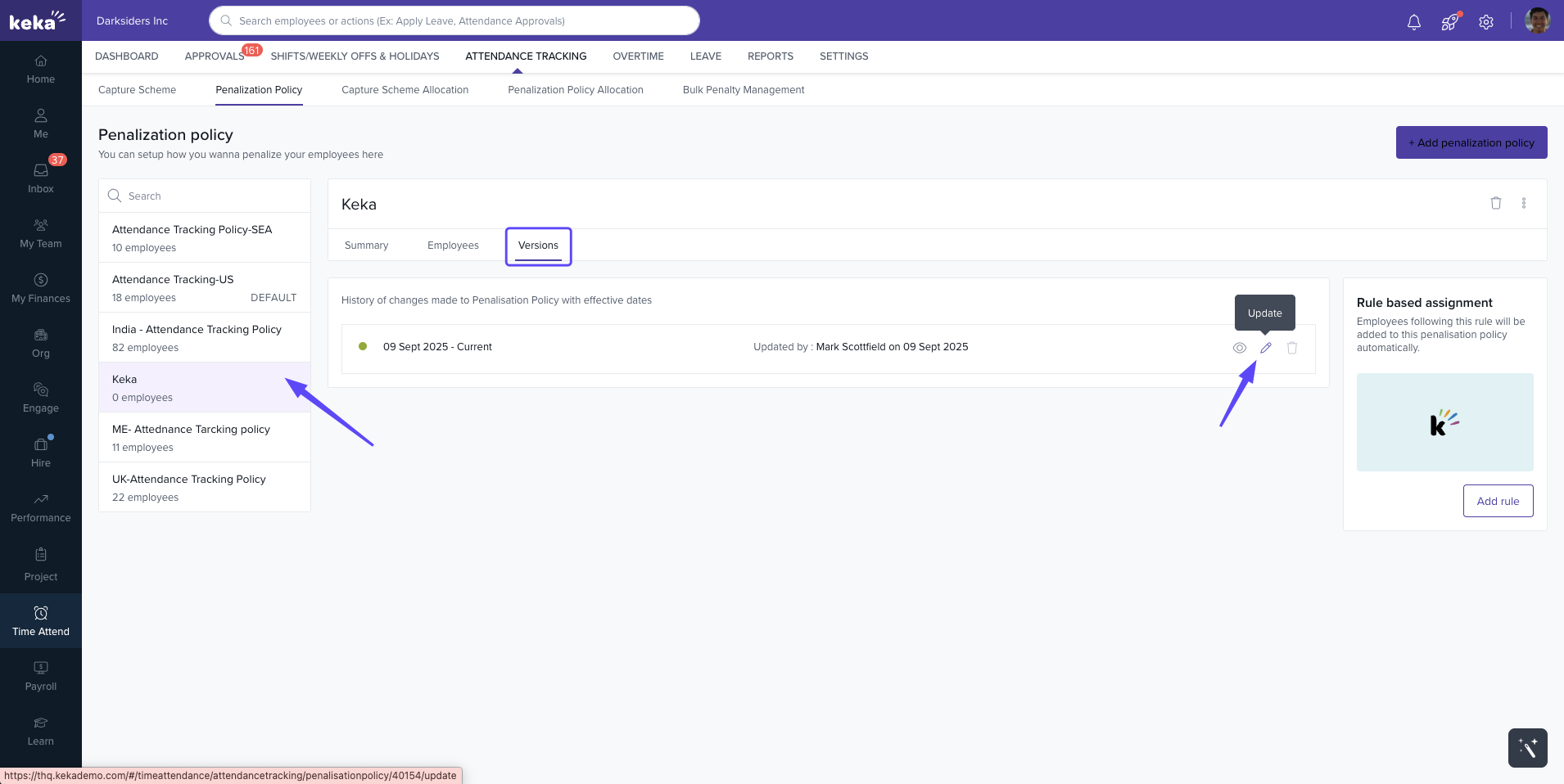
Editing the Tracking Policy
Once saved, the policy appears in your list of tracking policies.
To edit: go to Versions → Edit icon.
In Basic Information, you can set a future Effective Date for changes.
Update any section (No Attendance, Late Arrival, Work Hours, Missing Logs).
Next: Learn how to allocate these polices to employee in this article.
Note: When penalization policies change mid-cycle, employees are proactively notified through alerts and banners on their profile. These notifications clearly explain the impact and expected behaviour, helping reduce disputes and clarification requests.
Next Steps
Configure all sections of your penalization policy.
Test with a small group before applying organization-wide.
Update policies as your rules or attendance requirements evolve.
Comments
0 comments
Please sign in to leave a comment.