Once you've created Time Tracking Policies & Penalisation Policies in Keka, the next step is assigning them to employees. You can allocate these policies either individually or in bulk, making it easy to manage time tracking compliance across your organization.
This guide walks you through how to assign time tracking policies step by step.
How to Assign?
Navigate to the Time attend panel on the left pane and got to attendance tracking tab
You will see two tabs:
Time Tracking Policy Allocation
Regularize & Cancel Penalties
Use these tabs to manage policy assignments and to review, regularize, or cancel employee penalties as needed.
Allocating Time Tracking Policy
Go to the Time Tracking Policy Allocation tab.
Use filters such as Department, Location, or Current Policy to narrow down the employee list.
Select one or more employees you want to update.
Click Update Time Tracking Policy
A pop-up will appear:
- Choose the new Time Tracking Policy from the dropdown.
- Click Update Time Tracking Policy again to confirm.
To update a single employee:
- Click the edit icon in the Actions column next to their name.
- Select the desired policy and save your changes.
Allocate Penalisation Policies
- Go to the Penalisation Policy Allocation tab under Attendance Tracking.
- Filter and select the employees you want to update.
- Click Update Penalisation Policy.
In the pop-up:
- Select the new Penalisation Policy from the dropdown.
- Optionally, check the box to exempt employees from penalisation.
- Set the Effective Date Range.
- Click Update Penalisation Policy again to apply changes.
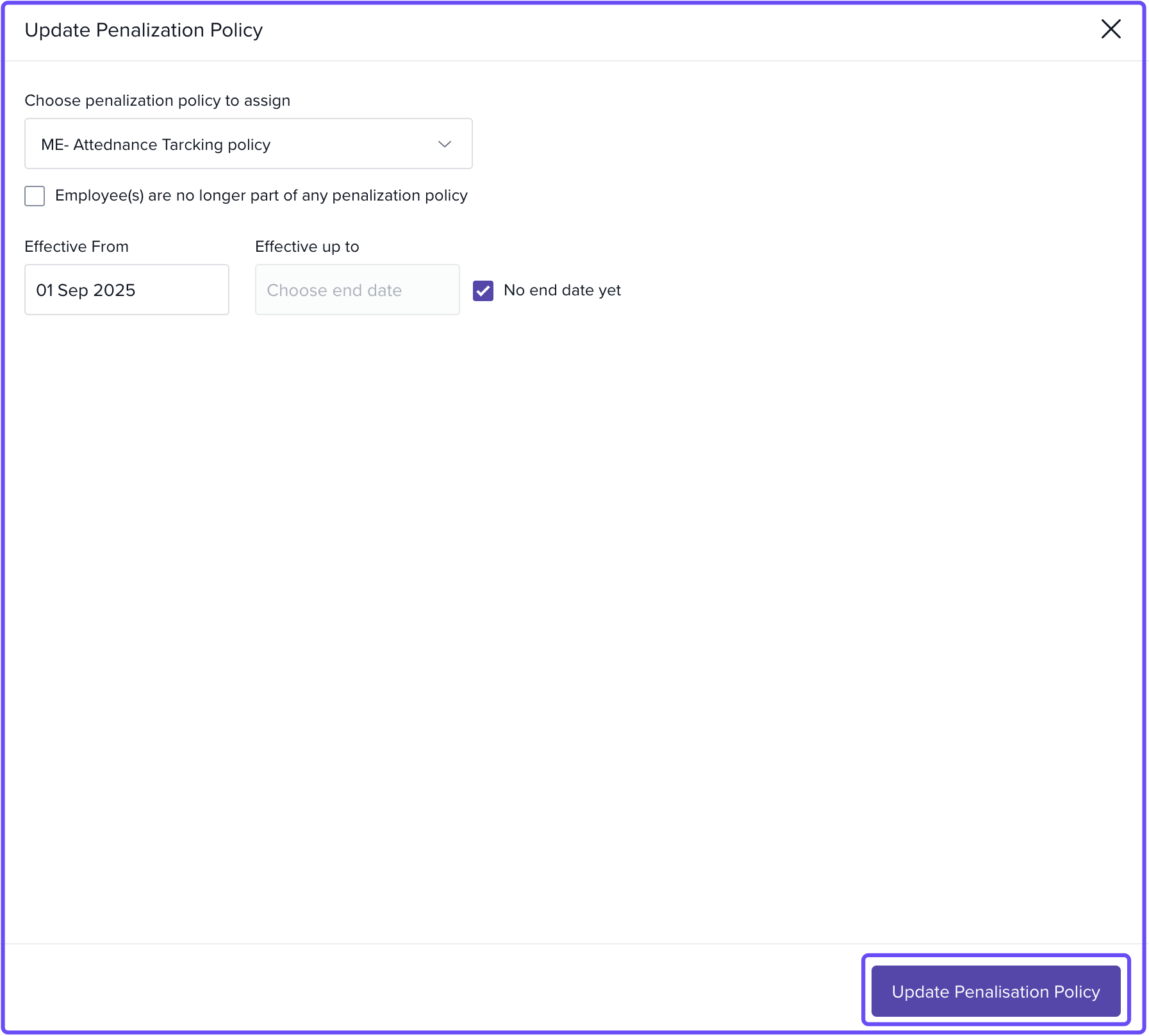
To update a single employee:
- Use the edit icon in the Actions column next to their name.
From Employee Profile
Admins can also change these policy allocations by visiting the Job section in an employee's profile.
.png) Notes & Tips
Notes & Tips
Tip: Use filters when working with large employee lists to save time during bulk updates.
Important: Always set an effective date for penalisation policies to ensure clear tracking and prevent overlap or confusion.
Next Steps
- Review policy settings for accuracy.
- Revisit the allocation tabs anytime to update or exempt employees as needed.
- Explore other attendance automation features in Keka.
Comments
0 comments
Please sign in to leave a comment.