Introduction
Before you set up biometric device integration with Keka HRMS, it’s important to prepare your system and devices. This ensures a smooth configuration process and minimizes delays during the integration call with our team.
This guide covers:
Minimum system requirements
Standard prerequisites (for SQL, SDK, and Push integrations)
Specific requirements for each integration method (SQL, SDK, Push, API)
Required System Configuration
To run the Keka Sync tool, your system must meet the following minimum requirements:
Operating System: Windows 10
Processor: Intel Pentium 4 or higher
RAM: 4 GB or higher
Disk Space: ~500 GB or higher
Tip: Confirm these specs before scheduling your integration call.
Standard Prerequisites for SQL, SDK, and PUSH Integration Methods
For SQL, SDK, and Push integrations, check the following before proceeding:
All biometric devices are connected to your LAN.
The PC hosting the Keka Sync tool stays powered on and connected to the internet.
Devices show the correct date and time.
Employee attendance numbers in Keka match those in the device.
Device time zone matches office time zone.
-
If you have a firewall, whitelist:
Host: a.keka.com
Ports: 80 / 443
Install Anydesk on the PC for remote support.
Important: Only assign premises to devices after verifying these steps. Doing so too early may trigger incorrect attendance summaries.
Integration Specific Requirements
MS-SQL Based Integration
Currently, only MS-SQL is supported. Please provide the following before your integration call:
Server Name (mandatory)
Database Name (mandatory)
Authentication Type (MS-SQL)
Username
Password
Table Name
Table Structure
The table must include these columns:
| Column Name | Data Type | Notes |
|---|---|---|
| Device Number | varchar(64) NOT NULL | Biometric device number |
| User ID | varchar(64) NOT NULL | Employee attendance number |
| Log Time | datetime NOT NULL | Attendance log entry |
| Status | varchar(64) NOT NULL | IN/OUT (0=IN, 1=OUT) |
| Log Index | INT IDENTITY | Log index |
There are two setup options:
Single Device Table View:
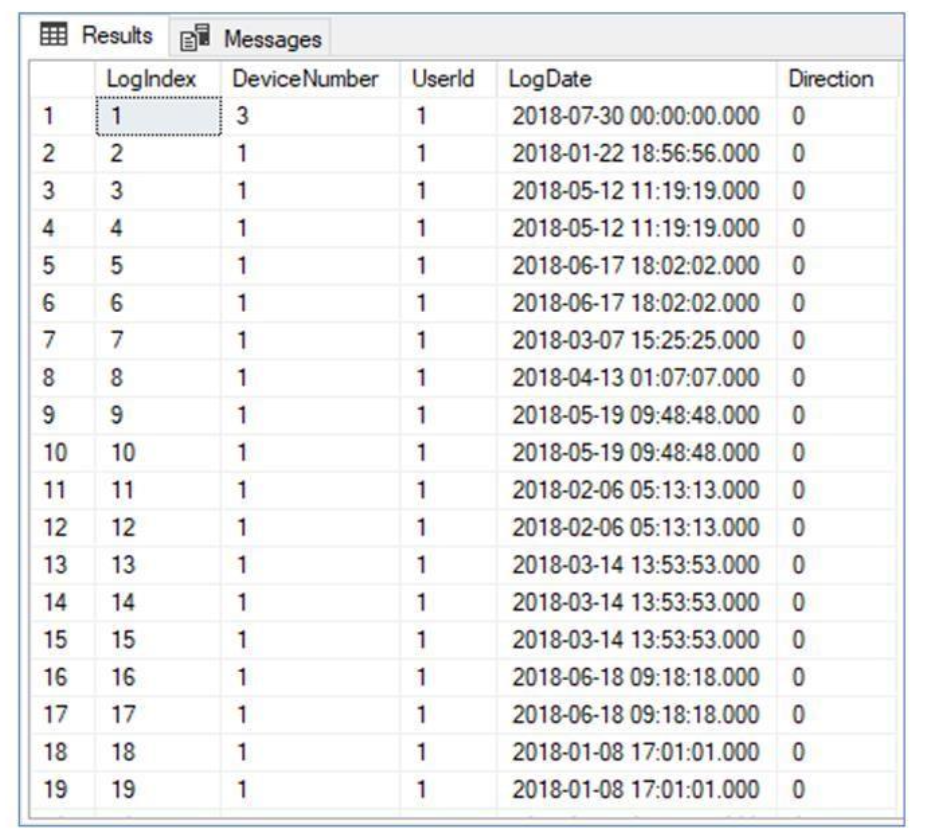
Multi-Device Table View: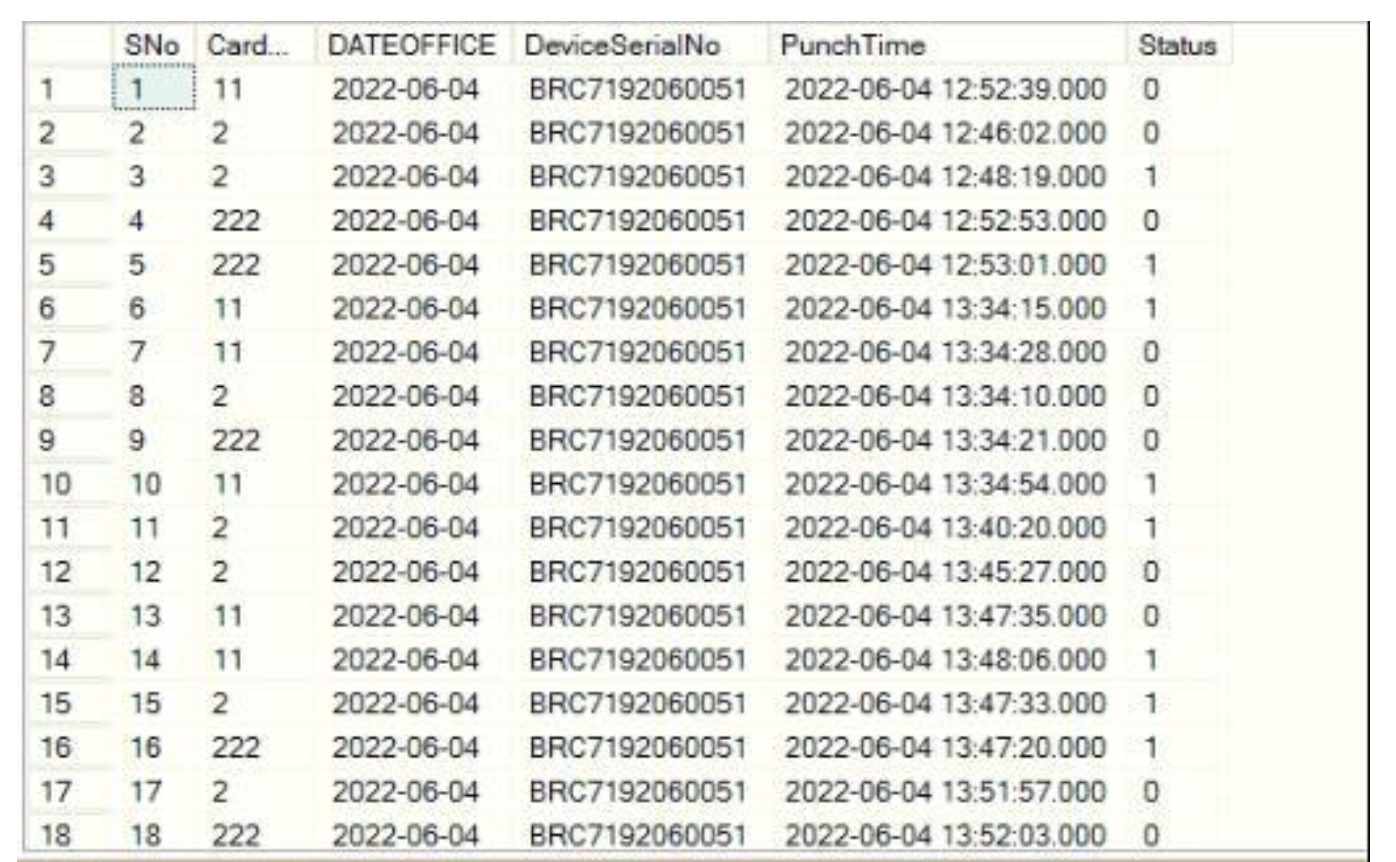
Push Based Integration
Keep the following ready:
Biometric device images (mandatory)
Device name (optional if image shared)
Model number (optional if image shared)
Serial number (mandatory; Menu → System Info → Device Info)
Device IP address (mandatory; Menu → Comm → Ethernet)
Device Configuration
Enable Domain Name: Menu → Comm → Cloud Server Settings
Set Server Address: a.keka.com
SDK Based Integration
Same prerequisites as Push:
Device images (mandatory)
Device name (optional if image shared)
Model number (optional if image shared)
Serial number (mandatory)
Device IP address (mandatory)
API Based Integration
For API-based setup, keep this information ready:
Number of devices
Device names
Device images
Device manufacturer names
Comments
0 comments
Please sign in to leave a comment.