Overview
This article explains how to activate and configure the timesheet integration for payroll automation in Keka PSA. This feature links your timesheet and leave data with payroll, ensuring compliance, reducing errors, and improving processing efficiency.
Who Can Do This?
- PSA Admins
- Global Admins
- Project Admins with access to Finance and Policy Settings
Pre-requisites
- Available only for customers on the PSA Advanced Plan or higher
- Users must have appropriate permissions to edit finance and policy settings
- Leave and attendance modules must be active to enable full integration
Step-by-Step Instructions
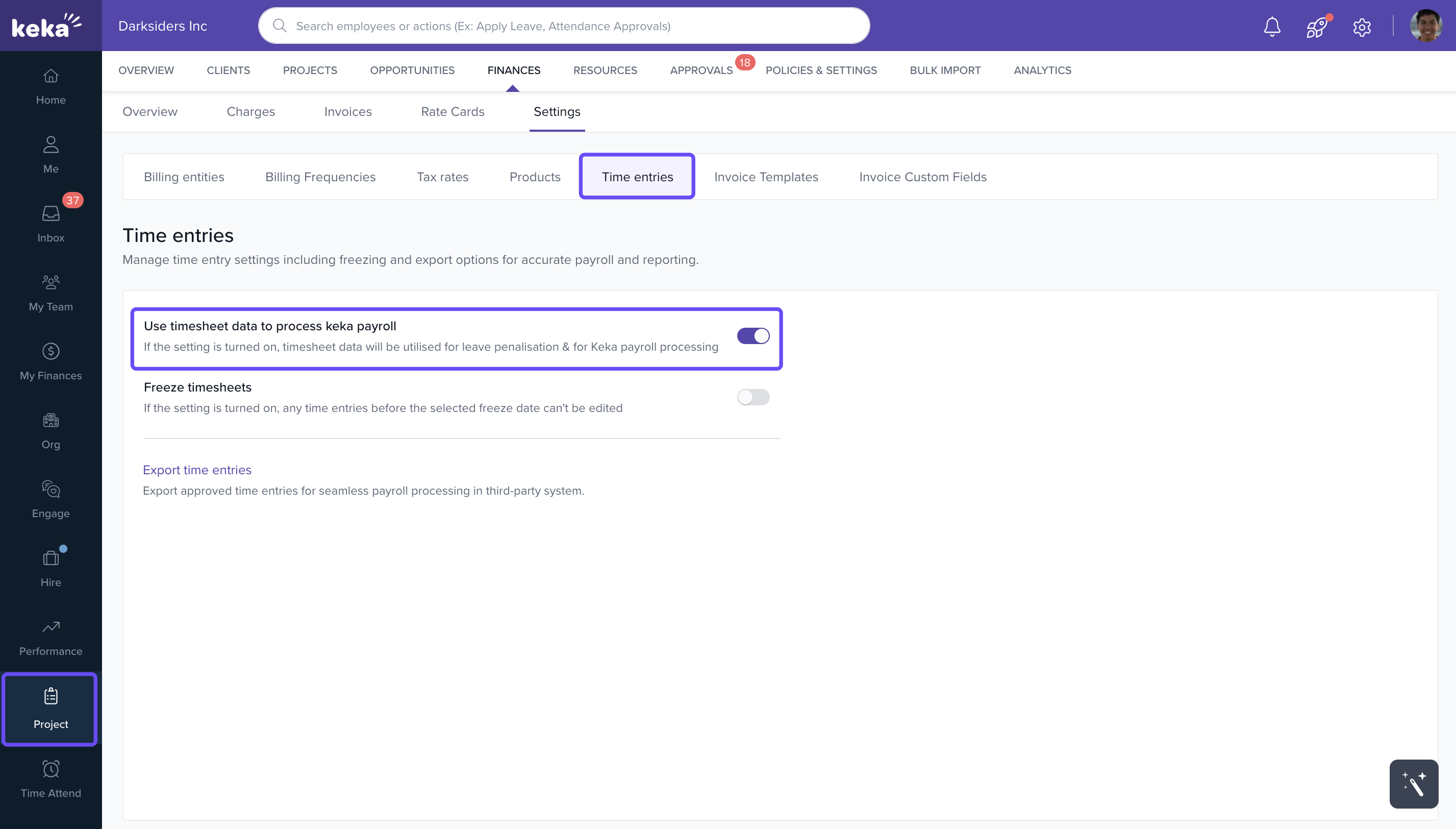
Activate the Integration Feature
- Log in as a Project Admin or user with required permissions.
- Go to the Projects section.
- Click on the Finances tab.
- Navigate to Settings > Time entries.
- Toggle “Use timesheet data for payroll processing” to ON.
- This enables the feature and unlocks relevant options at the timesheet policy level.
Configure Timesheet Policies
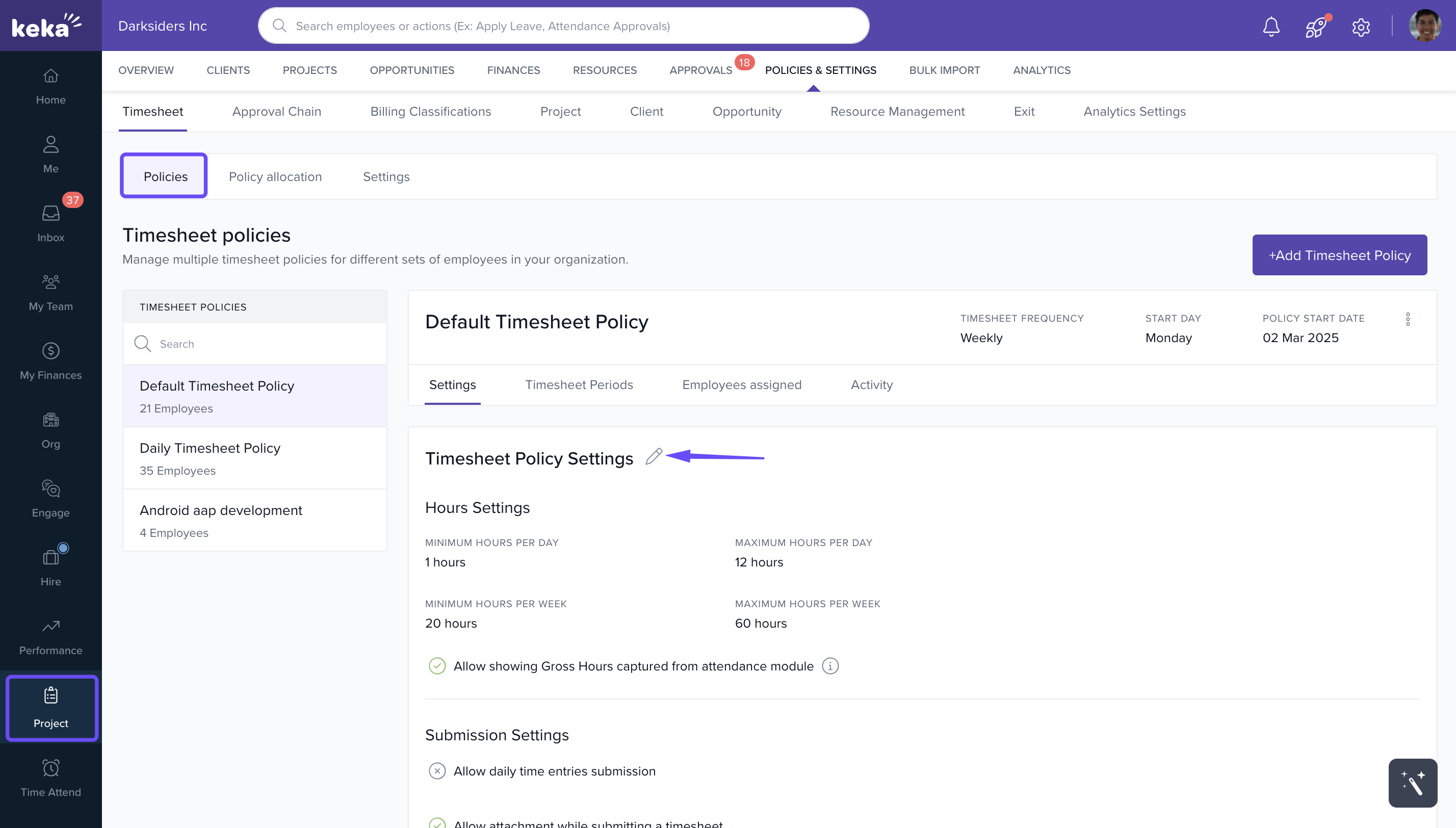
- Go to Projects > Policies & Settings > Timesheet Policies.
- Click the Edit icon next to the policy you wish to modify.
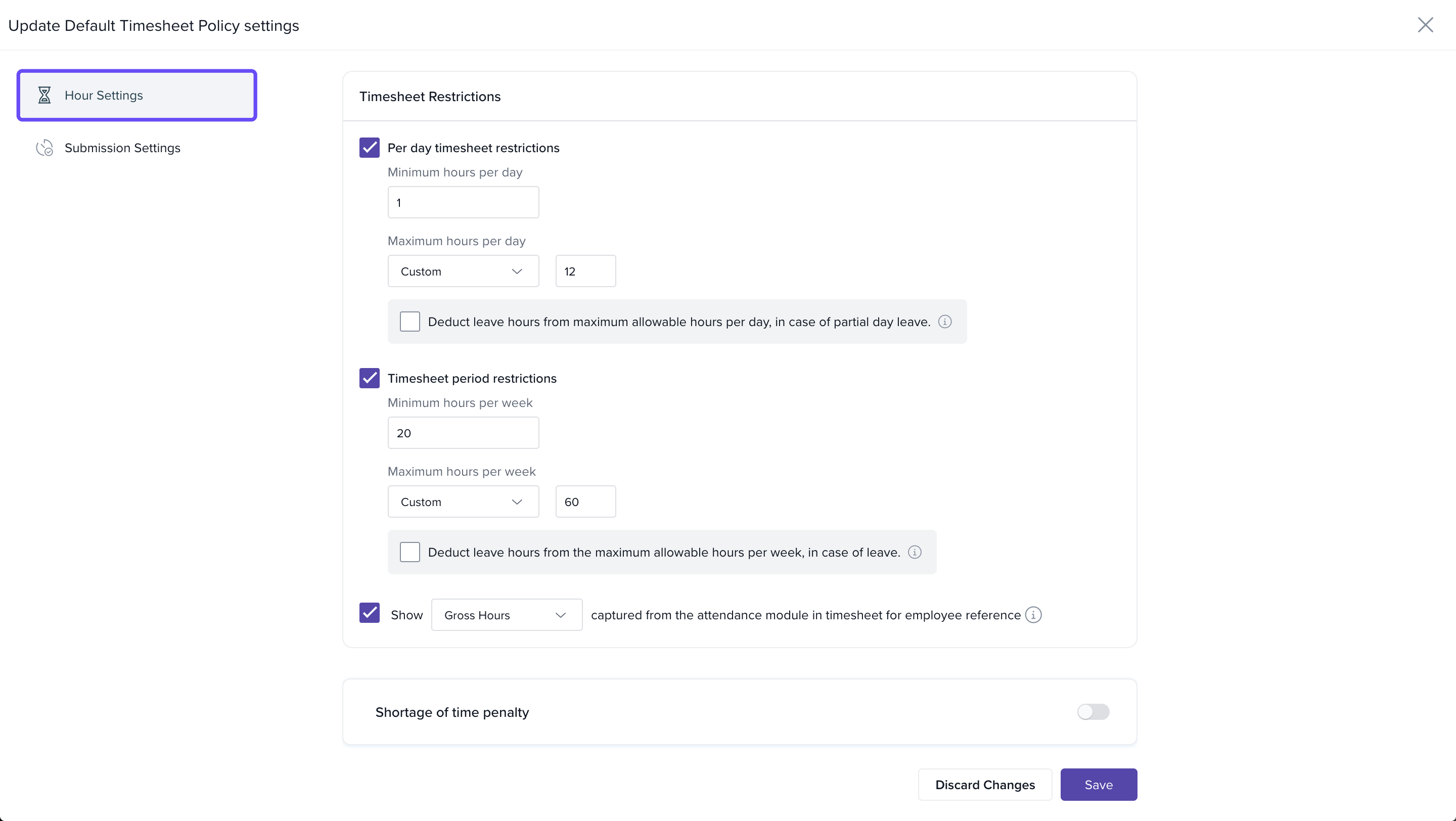
Configure Hour Settings
- Define Minimum Daily and Weekly Hours.
- Choose between Effective (from attendance) or Gross hours.
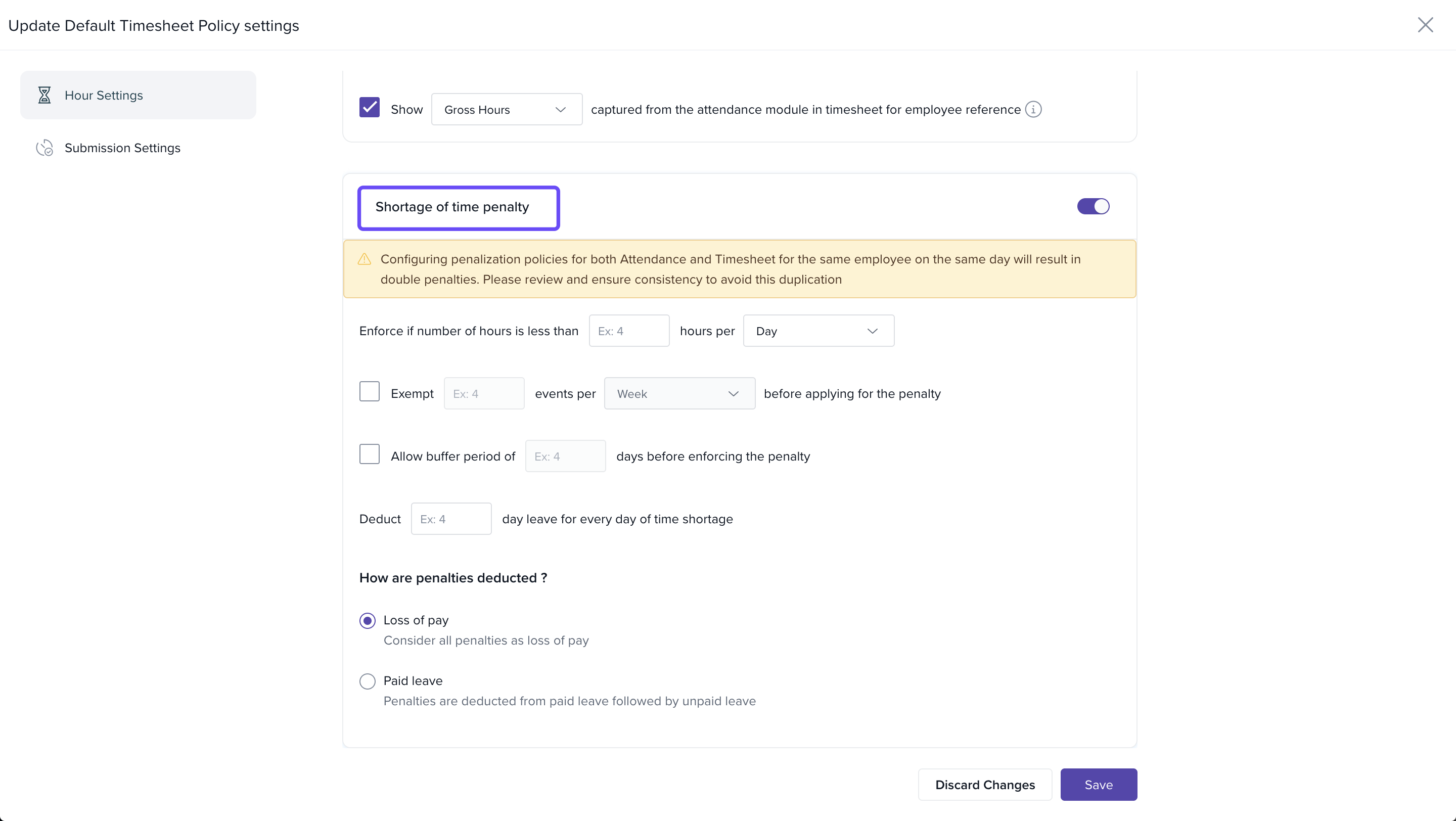
- Set Buffer periods to allow grace time without penalties.
- Enable Auto-penalization for shortfall in work hours.
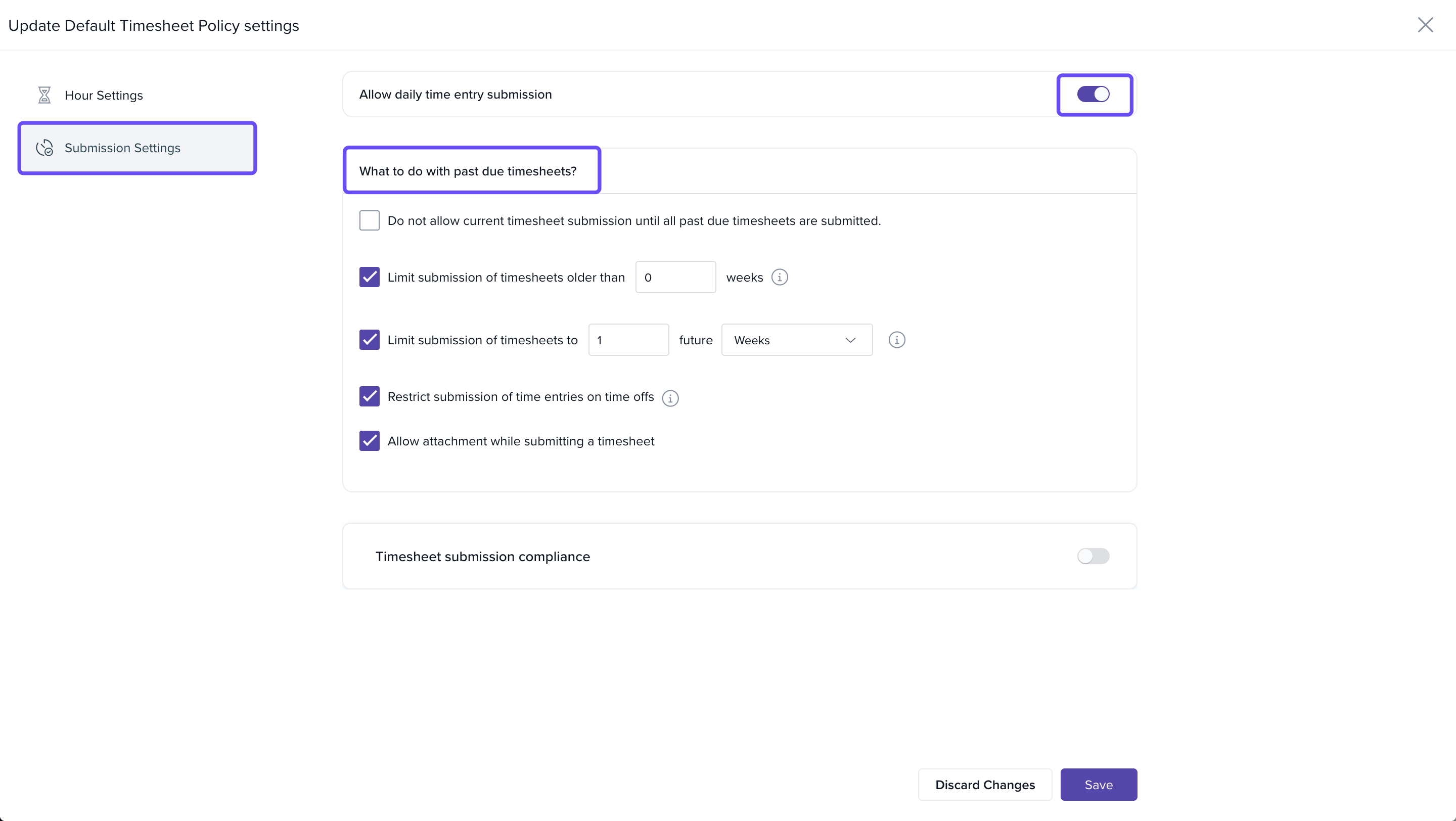
Configure Submission Settings
- Require Daily or Weekly submissions.
- Define Submission deadlines (e.g., within 24 hours of the workday).
- Set up Reminders to prompt submissions.
- Optionally allow entries beyond the deadline with late penalties.
Penalties appear as a red bar in the employee's timesheet view, and hovering over it shows penalty details. Managers can revoke penalties directly from the penalization settings.
Process Payroll with Penalty Visibility
- Penalties are highlighted for payroll admins during processing.
- Admins can choose to process payroll with penalties or make manual adjustments.
- This reduces the need for separate audits and manual checks before processing.
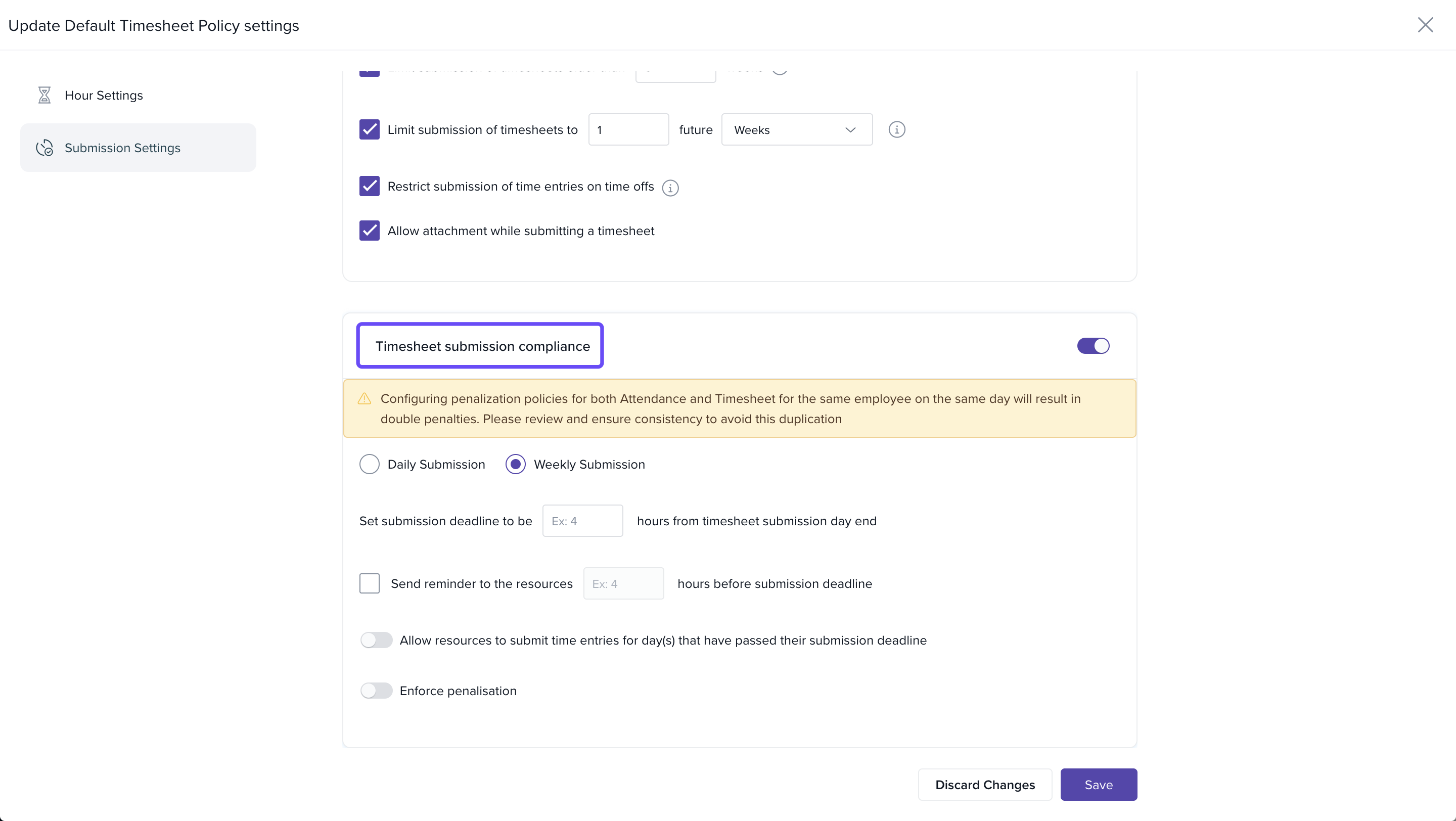
- Policies can be applied to specific employee groups or organization-wide, offering flexibility in enforcement.
FAQs
Q: Can employees see the penalties applied to their timesheet?
A: Yes. A red bar appears on the affected date in their timesheet with a tooltip showing penalty details.
Q: Can managers override penalties?
A: Yes. Managers can revoke penalties if they find them unjustified.
Q: Will payroll run automatically once timesheets are submitted?
A: No. Payroll still requires manual processing, but it will reflect penalties and compliance data.
Q: Is this feature available to all customers?
A: No. This is available only to customers subscribed to the PSA Advanced Plan or higher.
Comments
0 comments
Please sign in to leave a comment.