Introduction
In Keka, every new employee is automatically assigned a default pay group. You can choose any of your configured pay groups as the default.
If you need to reassign pay groups—for example, when employees move laterally or when a new pay group is created—you can do so using the bulk import option.
Important:
This method only works for employees who are new or for whom payroll hasn’t been processed yet.
Reassigning a pay group will delete all payroll data for that employee. You will need to re-enter their salary details and statutory information such as PF and ESI establishment IDs.
Access Payroll Imports
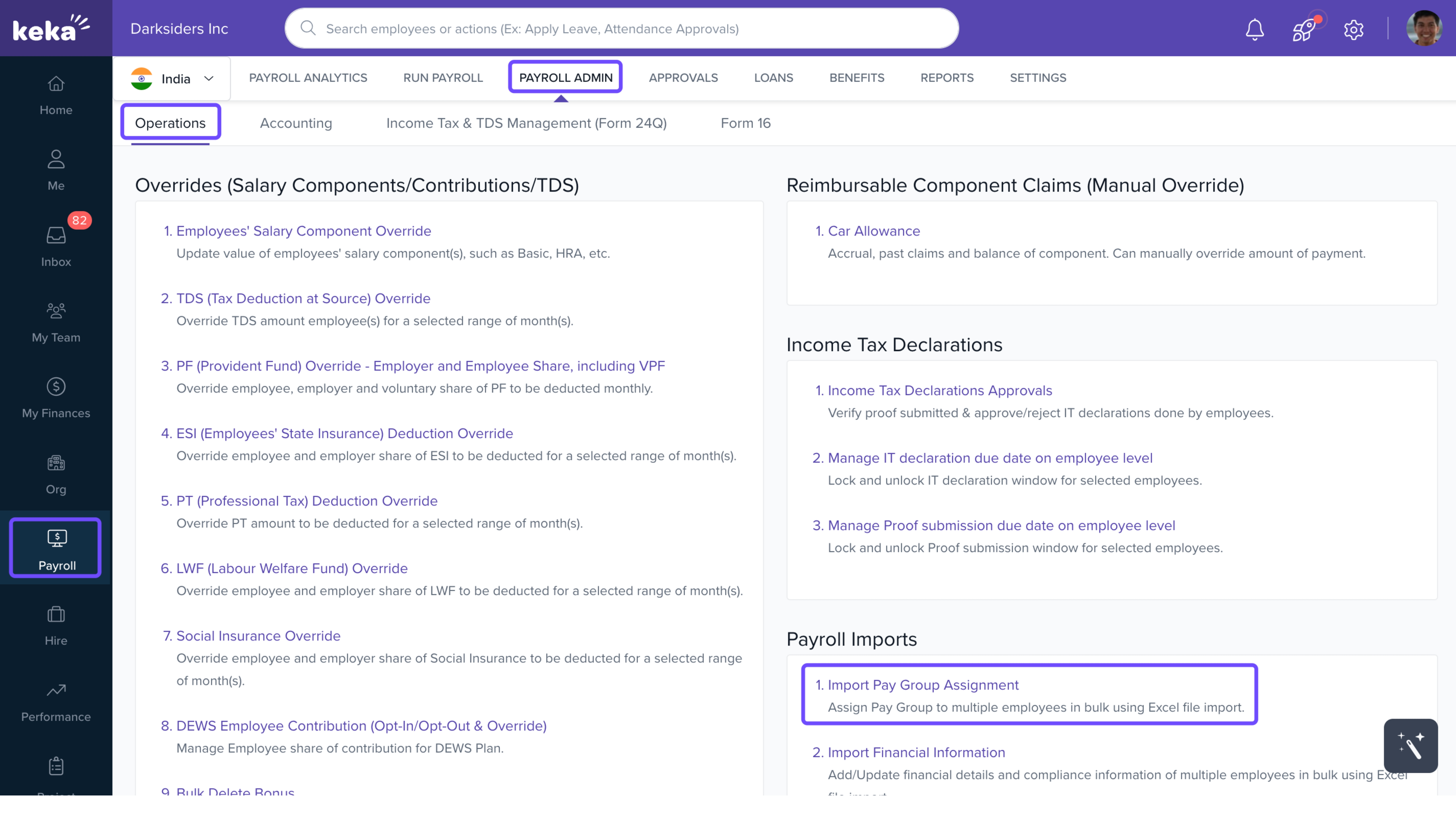
From the left navigation menu, go to Payroll.
Select Payroll Admin → Operations tab.
In the Payroll Imports section, click Import Pay Group Assignment.
Download the Excel Template
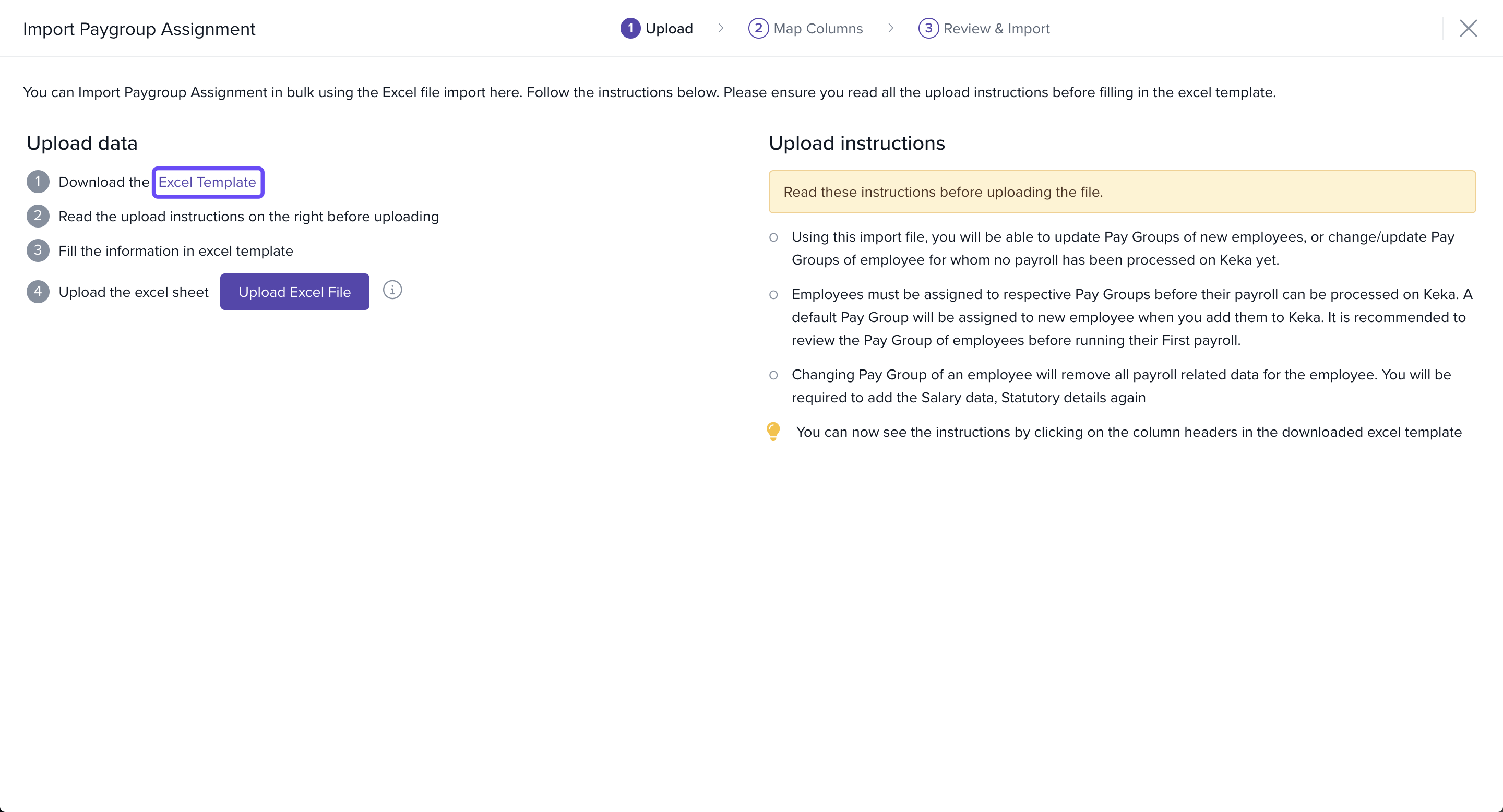
In the Import Pay Group Assignment window, click Download the Excel Template.
-
On the download screen, choose:
All Employees – to include details of all employees, or
Only Group of Employees – apply filters to include only selected employees.
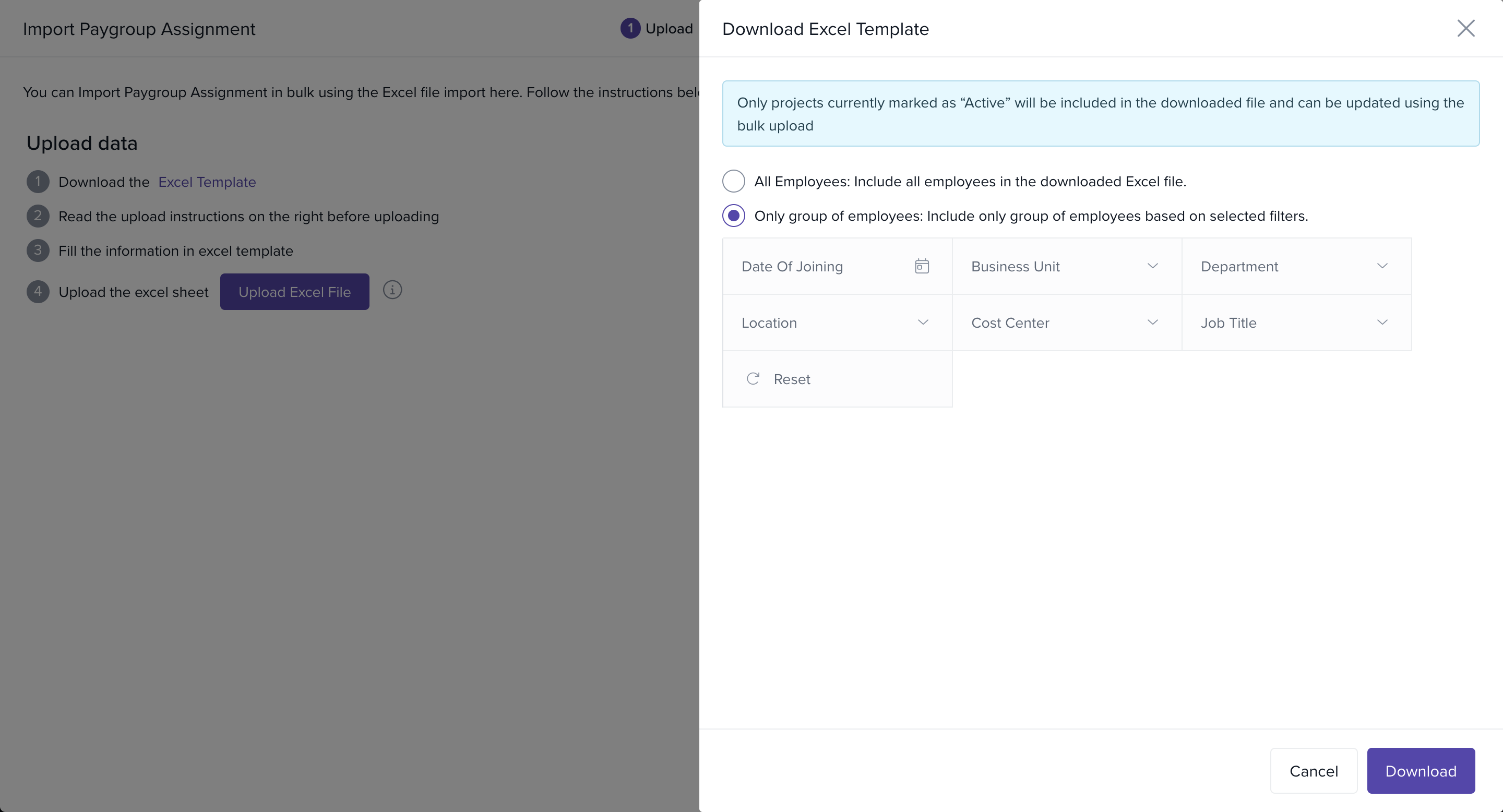
Click Download to get the file.
Edit the Excel Template
The downloaded file will contain Employee Number and Employee Name for the selected employees.
In the Pay Group Name column, select the new pay group from the dropdown of configured pay groups.
Delete any rows you do not want to update.

Upload the Edited File
Save the Excel file.
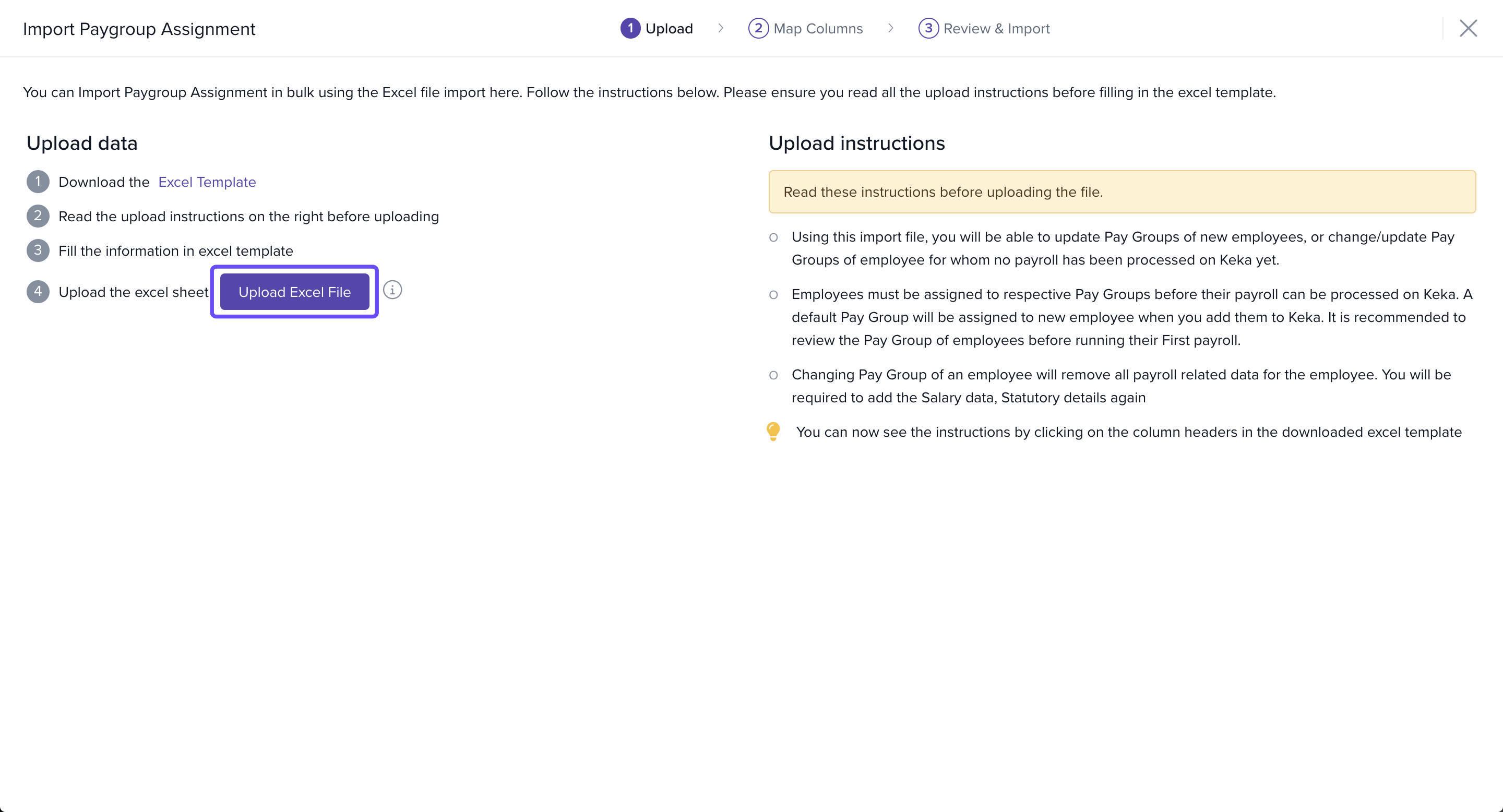
Return to the Import Pay Group Assignment window and click Upload Excel File.
Match and Preview Data
In the Match Columns step, confirm that Excel fields map correctly to Keka fields.
-
In Preview Data, check for errors:
If errors exist, click Back, fix the Excel file, and re-upload.
If no errors, continue.
Click Complete.
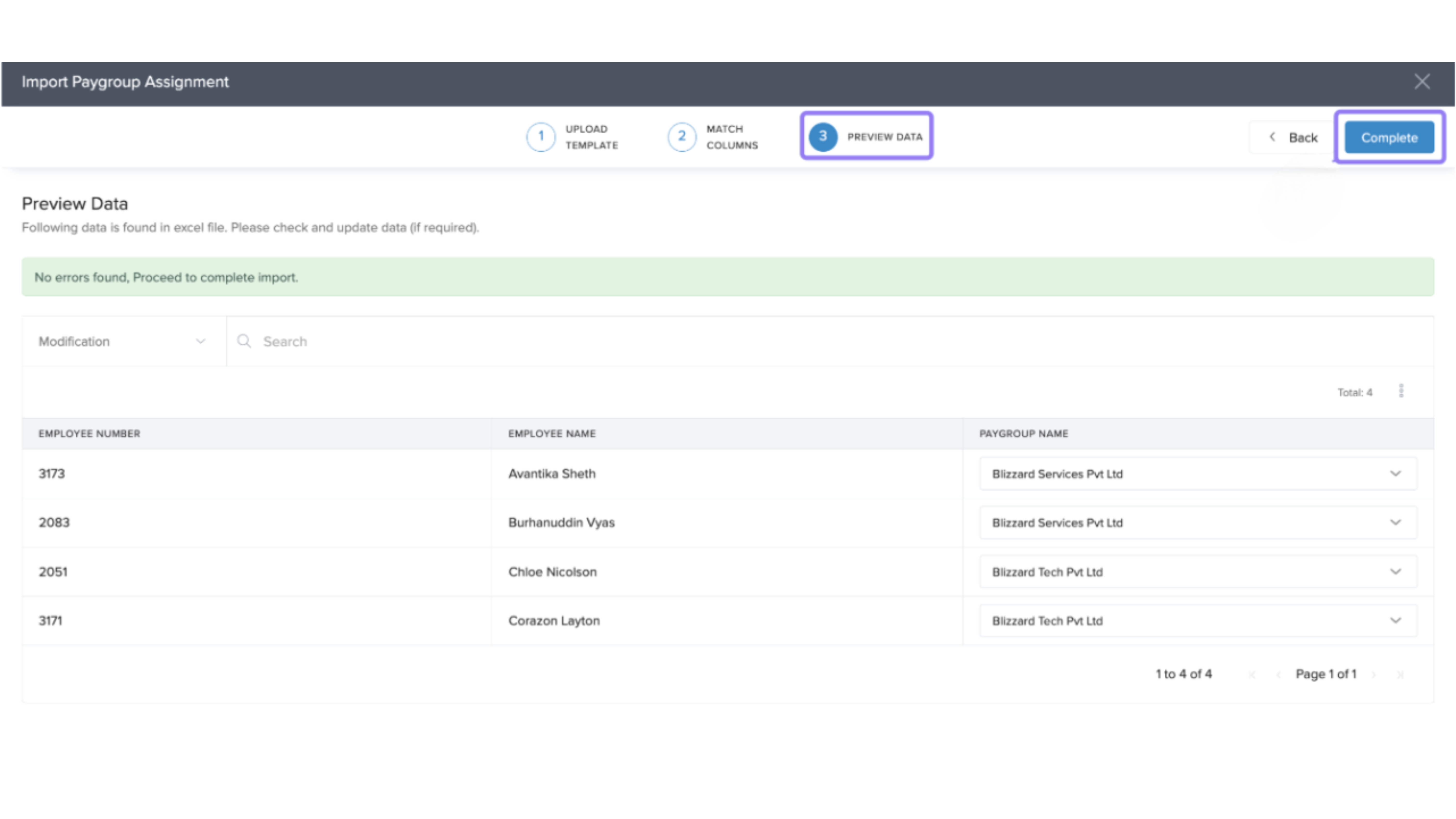
The selected employees will now be reassigned to the new pay group.
Notes & Warnings
Warning: Once payroll has been processed for an employee, you cannot use this bulk method to reassign their pay group.
Note: If you reassign, payroll data is cleared and statutory details like PF and ESI IDs must be re-entered.
Comments
0 comments
Please sign in to leave a comment.