Introduction
In Keka, Payroll Admins and Global Admins can override salary components, statutory contributions, and TDS amounts at the employee level—without altering the default salary structure.
This flexibility allows you to apply common salary structures across the organization, while adjusting values for individual employees as needed.
The Override Section
- Navigate to Payroll from the left menu.
- Click on Payroll Admin.
- In the Operations tab, find the Overrides (Salary Components / Contributions / TDS) section.
You’ll see options to override salary components, TDS, and Provident Fund contributions.
Overriding Employee Salary Components
Override via UI
- Click on Employees' Salary Component Override.
- Use filters at the top to select the Pay Group and optionally a Salary Structure.
- Scroll to the employee and component you want to update.
- Enter the new annual value and click Update.
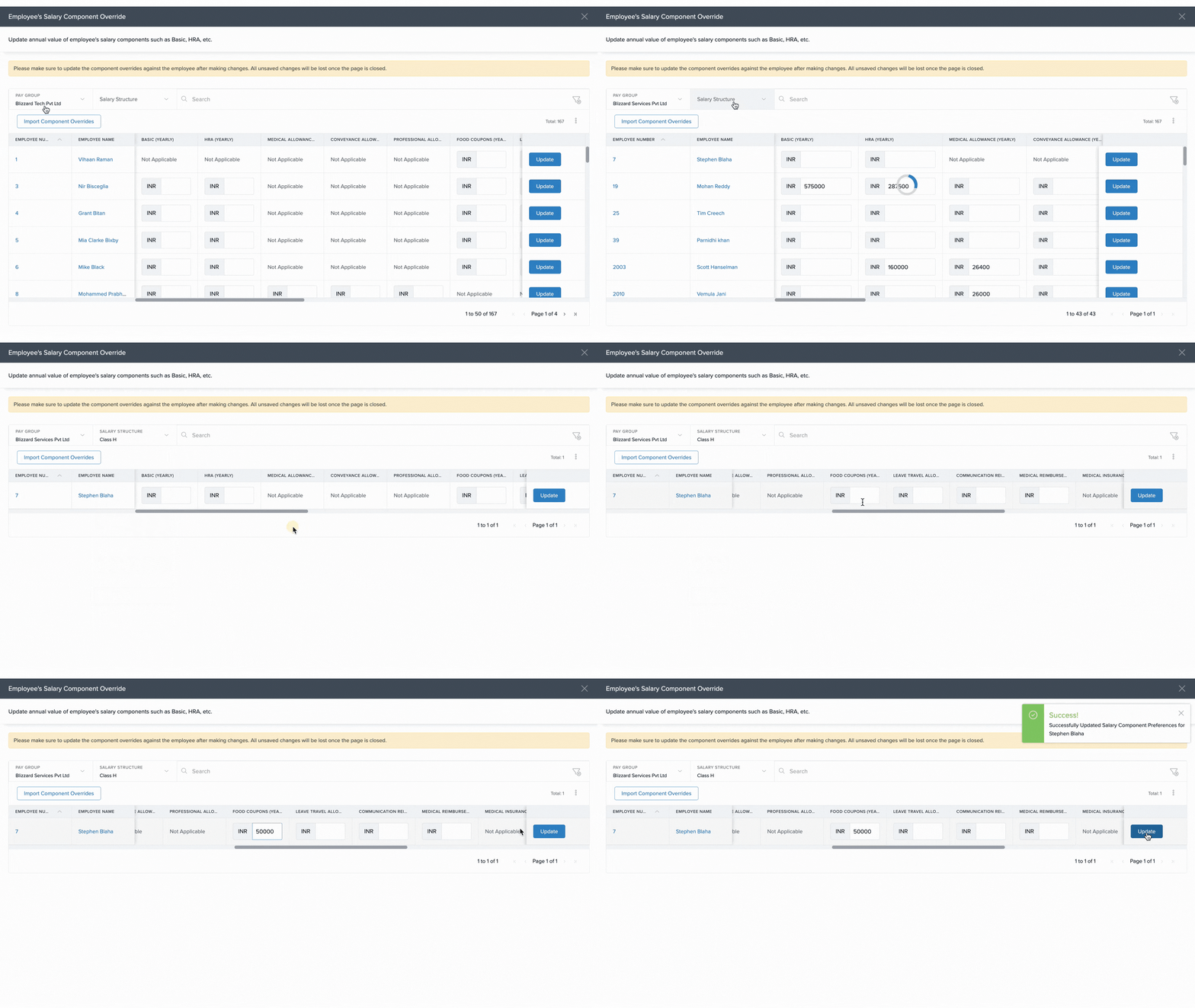
Repeat for other employees and components as needed.
Override via Excel (Bulk Upload)
- In the override section, click Import Component Overrides.
- Select the Pay Group.
- Click Download Excel Template.
In the downloaded file:
- Locate the employee.
- Update the annual values for the components you wish to override.
- Remove rows for employees you don’t want to update.
- Save and upload the file using Upload Excel File.
- In the Match Columns screen, confirm column mapping.
- In Preview Data, review errors and fix if needed.
- Click Complete to finish the import.
Note: If no override is set, Keka uses the value from the employee’s salary structure.
Overriding TDS Contributions
Override via UI
- Click on TDS (Tax Deducted at Source) Override.
- Select the Pay Group and Financial Year.
- Click + Add Employee.
- Search and select the employee.
- Set the Override Range using From Month and To Month.
- Enter the TDS Override Amount and a Comment explaining the change.
- Click Save.
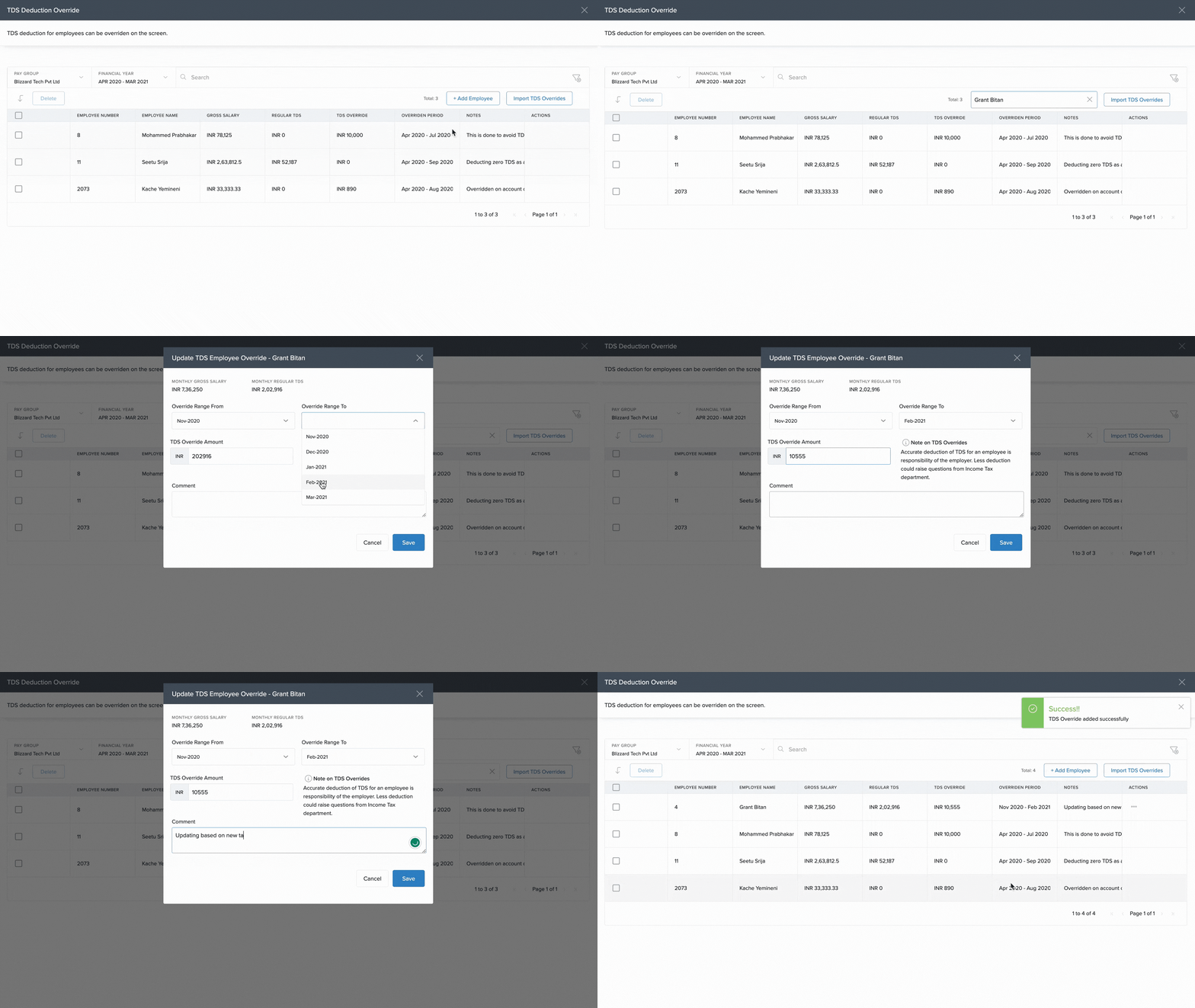
Repeat for other employees as needed.
Override via Excel (Bulk Upload)
- Click Import TDS Overrides.
- Download the Excel template.
- Fill in:
| Column | Description |
|---|---|
| From Month | Month to start the override |
| To Month | Month to end the override |
| Amount | Monthly TDS amount |
| Comment | Reason for the override |
- Save the file and upload it using Upload Excel File.
- Match columns in the Match Columns step.
- Review errors in Preview Data, fix, and re-upload if necessary.
- Click Complete and Confirm to activate the overrides.
Overriding PF (Provident Fund) Contributions
Override PF via UI
- Click on PF (Provident Fund) Override - Employer and Employee Share.
- Select the Pay Group.
- Search and click Edit beside the employee’s name.
- On the Override PF screen, use the toggle to enable or disable PF.
- To override contribution value:
- Set Do you want to override monthly PF Value? to Yes.
- Enter the custom monthly amount or formula.
- Click Update.
Comments
0 comments
Please sign in to leave a comment.