Introduction
Bonuses are typically paid on top of regular salary to reward performance, milestones, or special contributions. While you can add bonuses manually for individual employees or through salary structures, Keka also supports bulk bonus imports using an Excel template. Let us look at how you can do this.
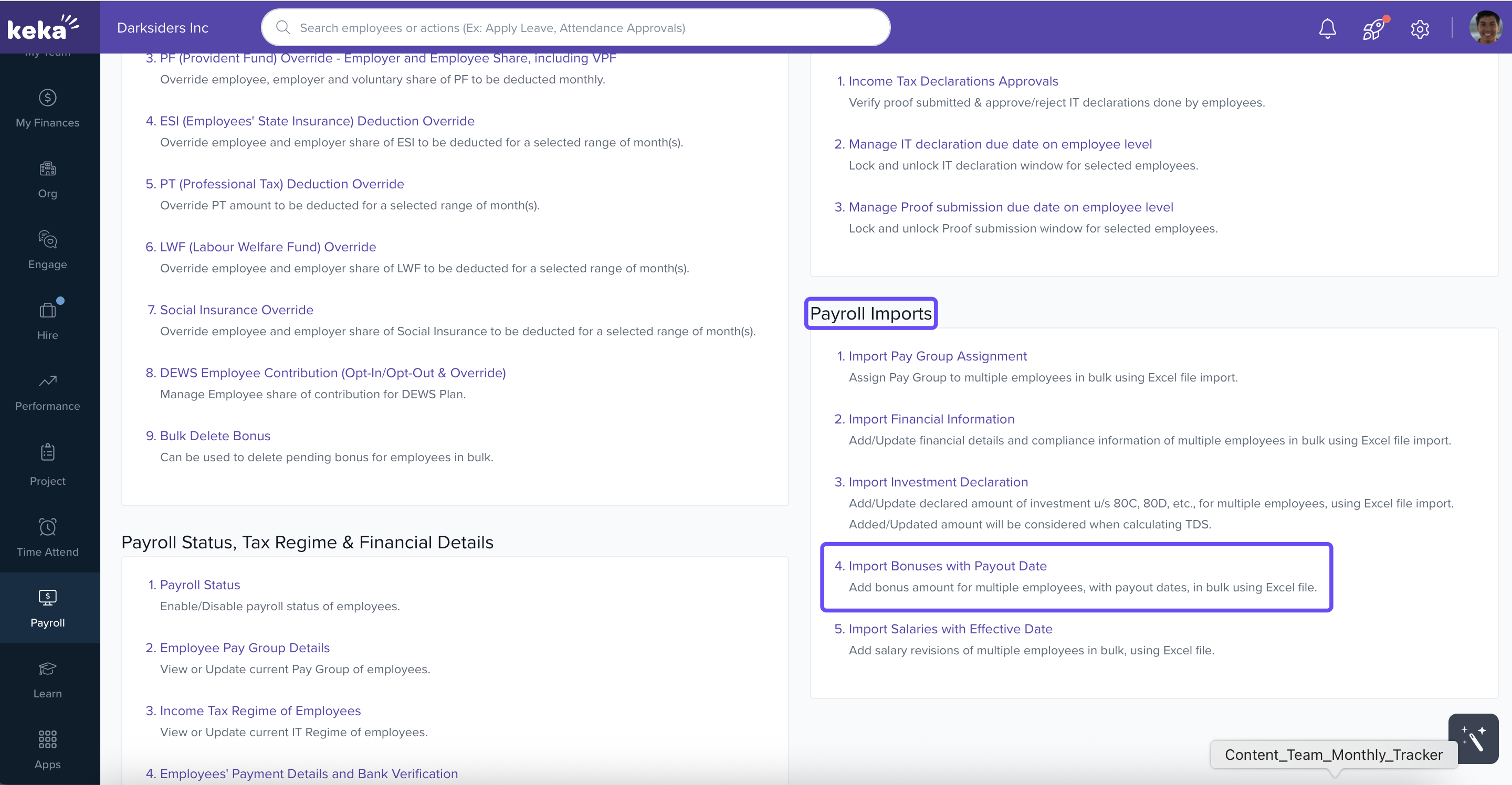
Navigate to the Import Section
1. Go to Payroll from the left navigation.
2. Select Payroll Admin → Operations tab
3. Under Payroll Imports, click Import Bonuses with Payout Date.
Download the Excel Template
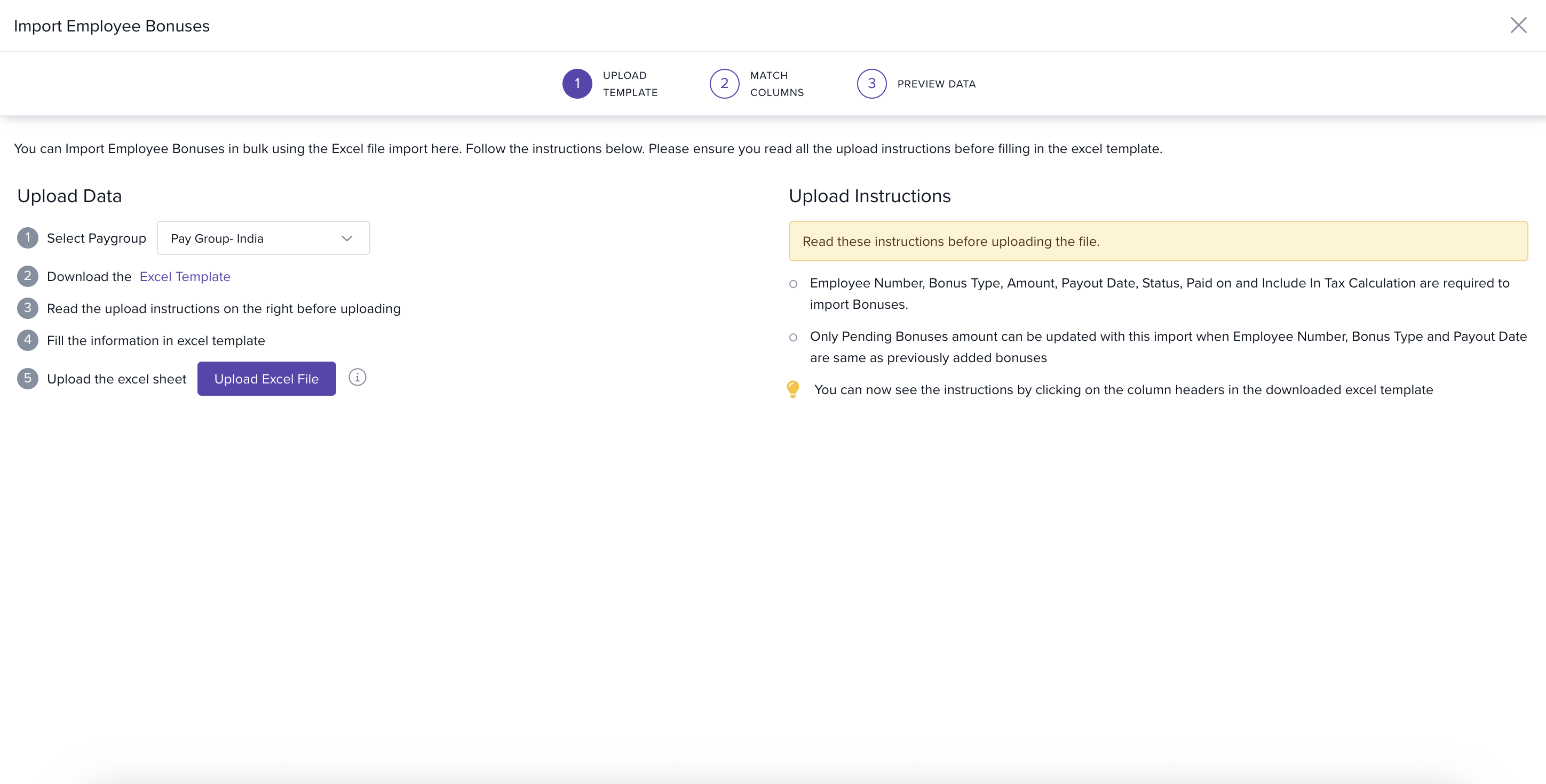
1. On the Import Employee Bonuses page, choose a Pay Group from the dropdown if you have more than one.
2. Click Download Excel Template. This template includes all employees in the selected pay group.
After downloading, remove the rows for employees who are not receiving a bonus. This keeps your import clean and focused.
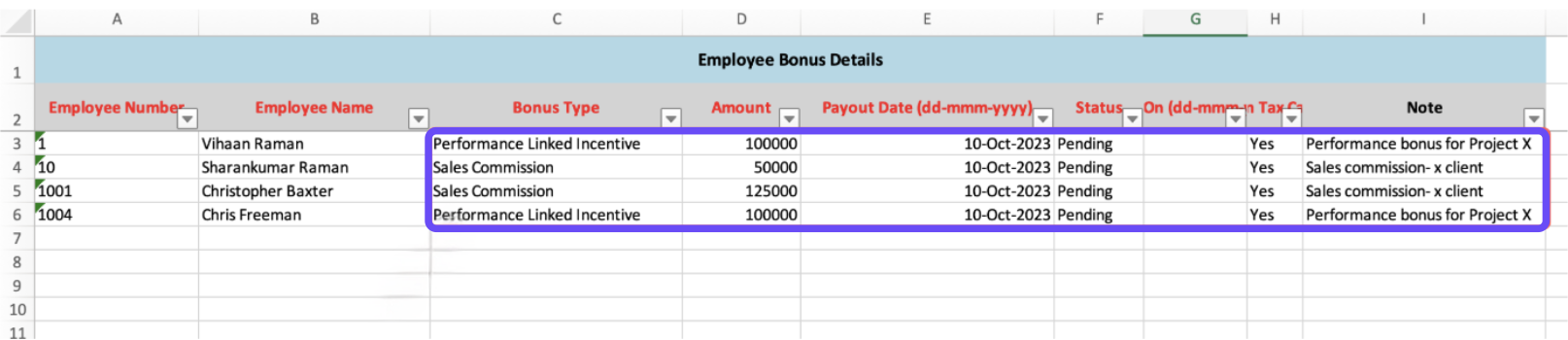
Fill in Bonus Details
1. In the Excel file, enter bonus information for each selected employee
Upload the Excel File
1. Return to the Import Employee Bonuses page.
2. Click Upload Excel File and select the file you just edited.
Match and Review Columns
1. In the Match Columns section, ensure your Excel columns match the Keka fields.
2. Click Continue to move to the Preview Data screen.
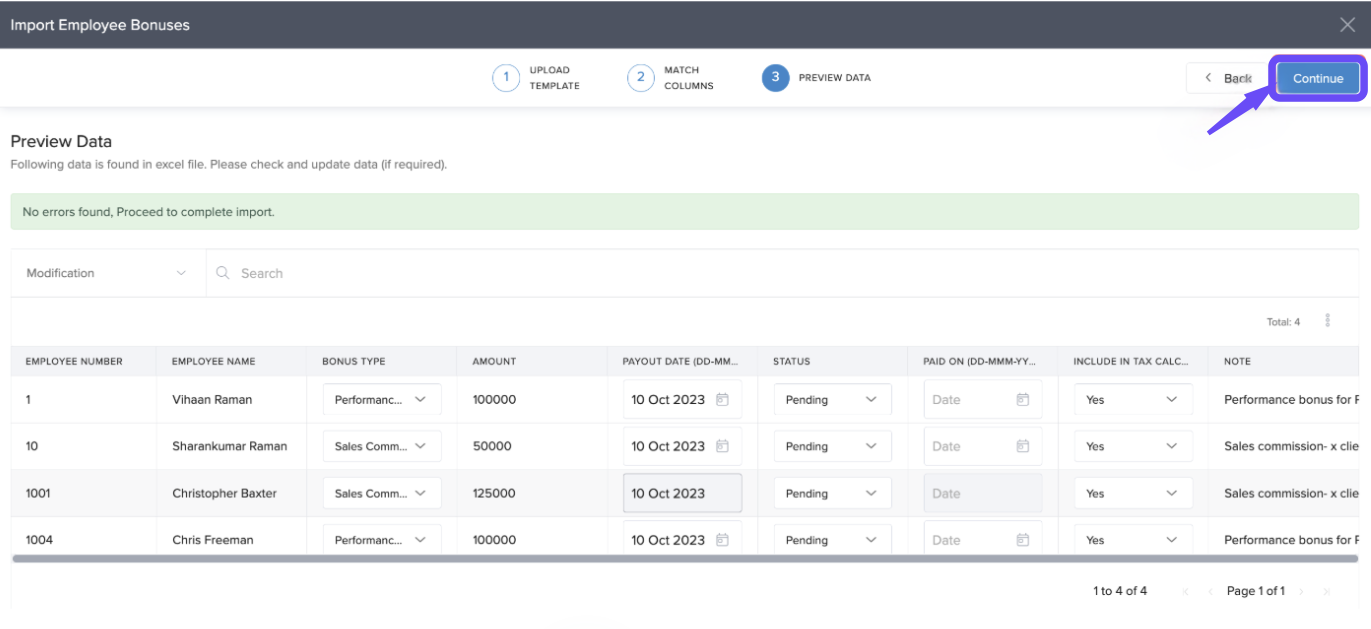
This will add the new bonuses you have added in the file to the respective employees. If they are pending to be paid out, these will be processed as a part of payroll for the selected month.
If you have previously added a bonus for the employee with the same bonus type and payout date, the value in the Amount column will be updated as the pending bonus amount to be paid out on the selected date.
Comments
0 comments
Please sign in to leave a comment.