Introduction
Investment declarations are key to calculating the monthly TDS (Tax Deducted at Source) for employees. Keeping these records updated in Keka ensures accurate tax deductions every month.
Bulk import is especially useful when:
You start using Keka mid-financial year.
Employees have already submitted declarations offline, and you need to upload them into Keka.
Navigate to Import Investment Declarations
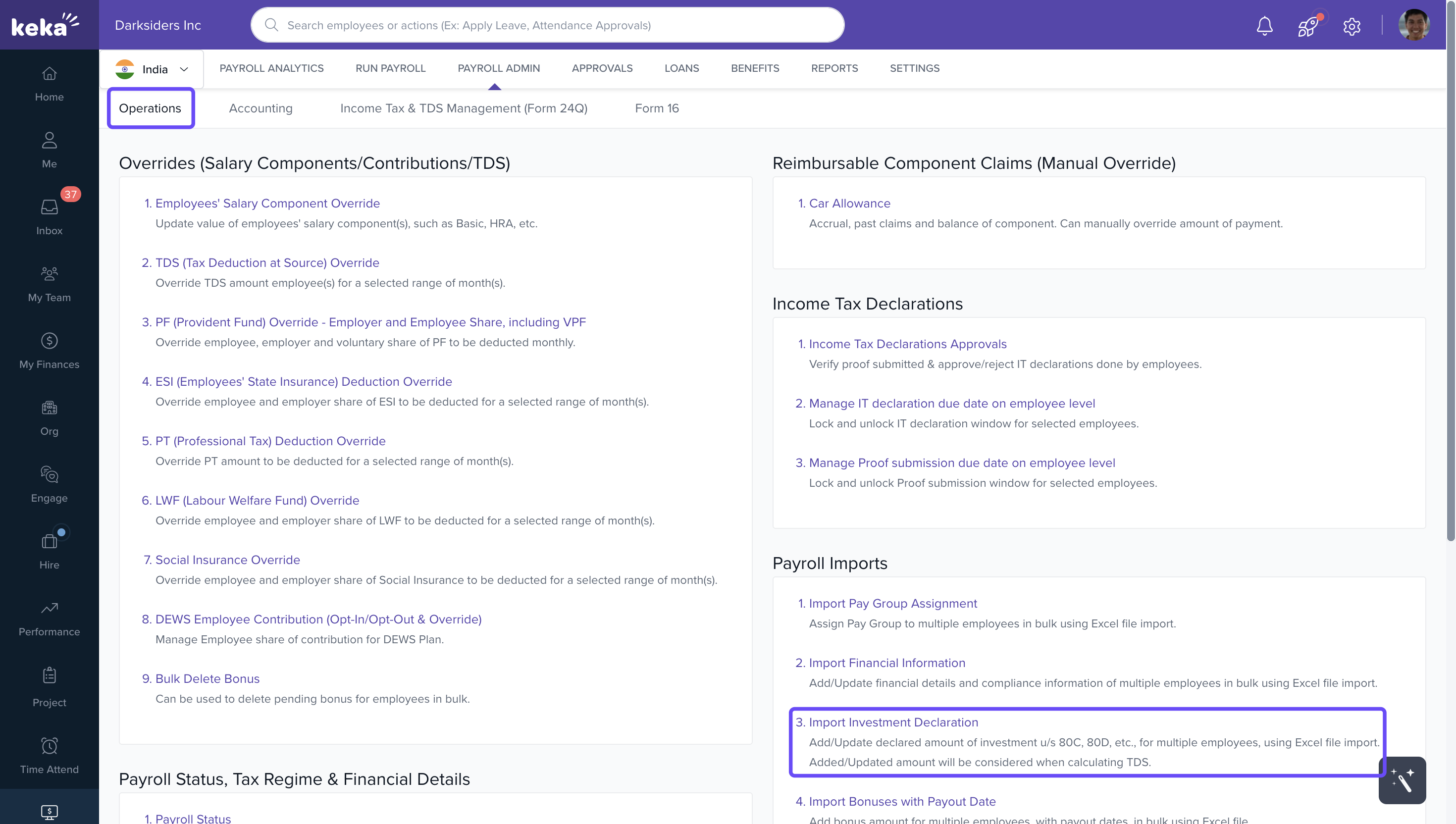
Go to Payroll from the left navigation pane.
Select Payroll Admin → Operations tab.
Under Payroll Imports, click Import Investment Declaration.
Download the Excel Template
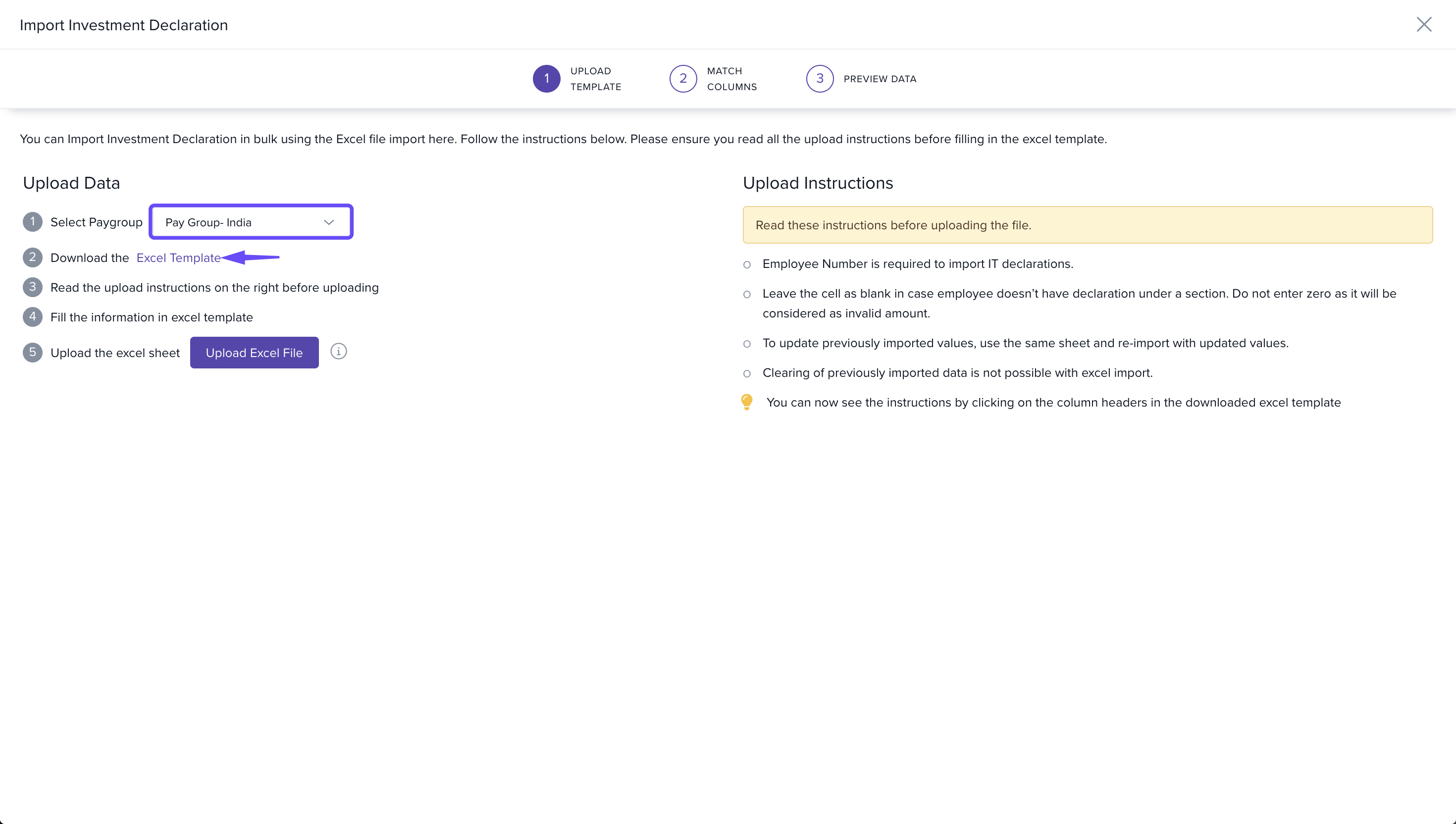
In the Import Investment Declaration window, select the Pay Group (if multiple pay groups are configured).
Click Download Excel Template. This template will include all employees in the selected pay group.
Edit the Excel File
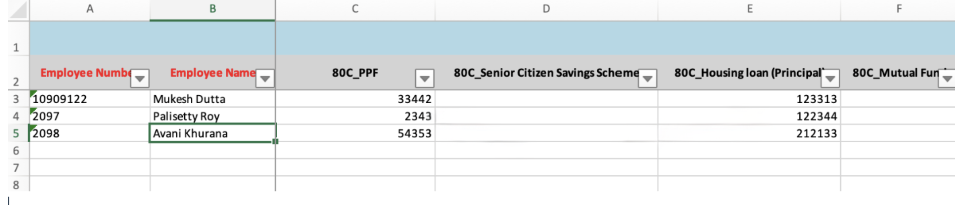
Keep only the rows for employees whose declarations you want to update. Delete the rest.
Enter the investment details under the relevant deduction columns.
Save the file once all edits are complete.
Upload the Updated File
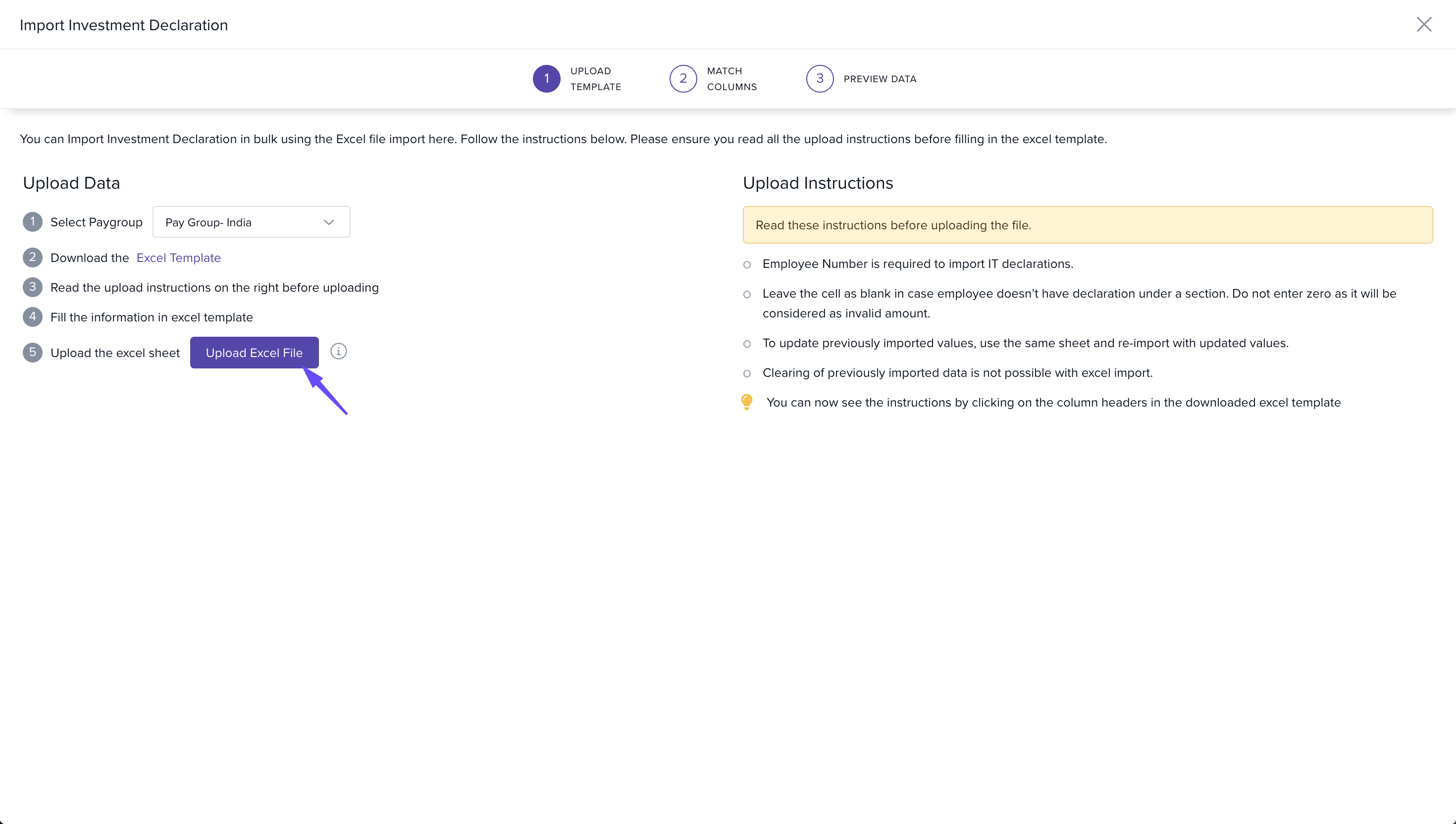
- Go back to the Import Investment Declaration window.
Click Upload Excel File and select your saved file.
- In the Match Columns section, ensure that Excel columns are correctly mapped to fields in Keka.
- Click Continue.
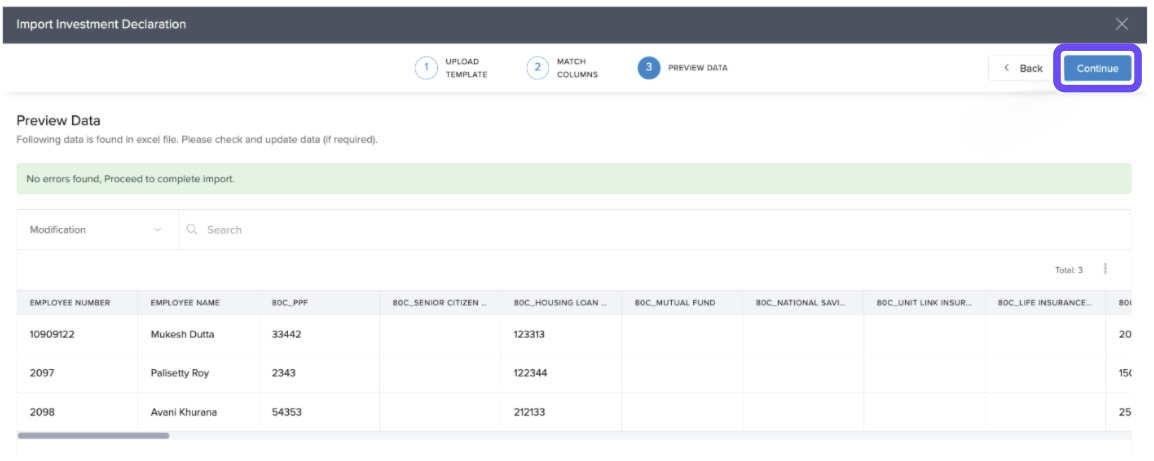
You can upload the sheet with new values to update the values currently configured on the system. However, you cannot delete a value by uploading an excel file
This will complete the update of investment declaration for your employees on Keka. The TDS values will now be calculated based on the updated declaration.
Comments
0 comments
Please sign in to leave a comment.