Introduction
Financial information—like payment details, statutory data, tax declarations, and loans—requires trust and transparency. With Audit Logs for My Finances, you can track every change: what was modified, who made the change, and when it was done.
This feature gives:
Per-employee visibility: View audit logs directly in an employee’s profile for updates to salary, declarations, component claims, loans, and more.
-
Downloadable reports: Generate an Excel report for your legal entity showing all employee finance changes, useful for statutory or internal audits.
Viewing audit logs in employee profile
1. Use the global Search Bar to find the employee.
2. In the profile, click Finances.
3. Go to Manage Tax → Previous Income tab.
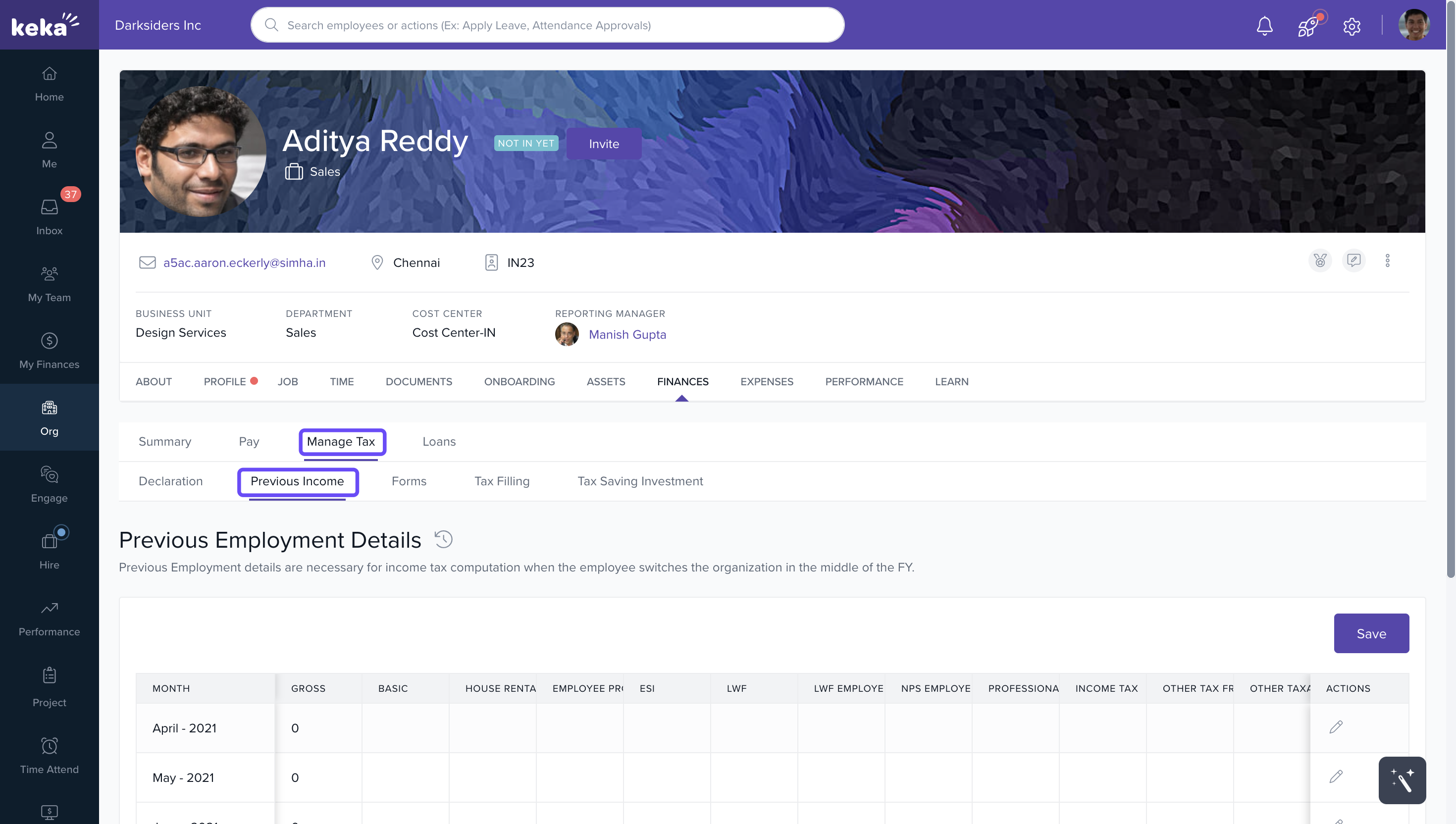
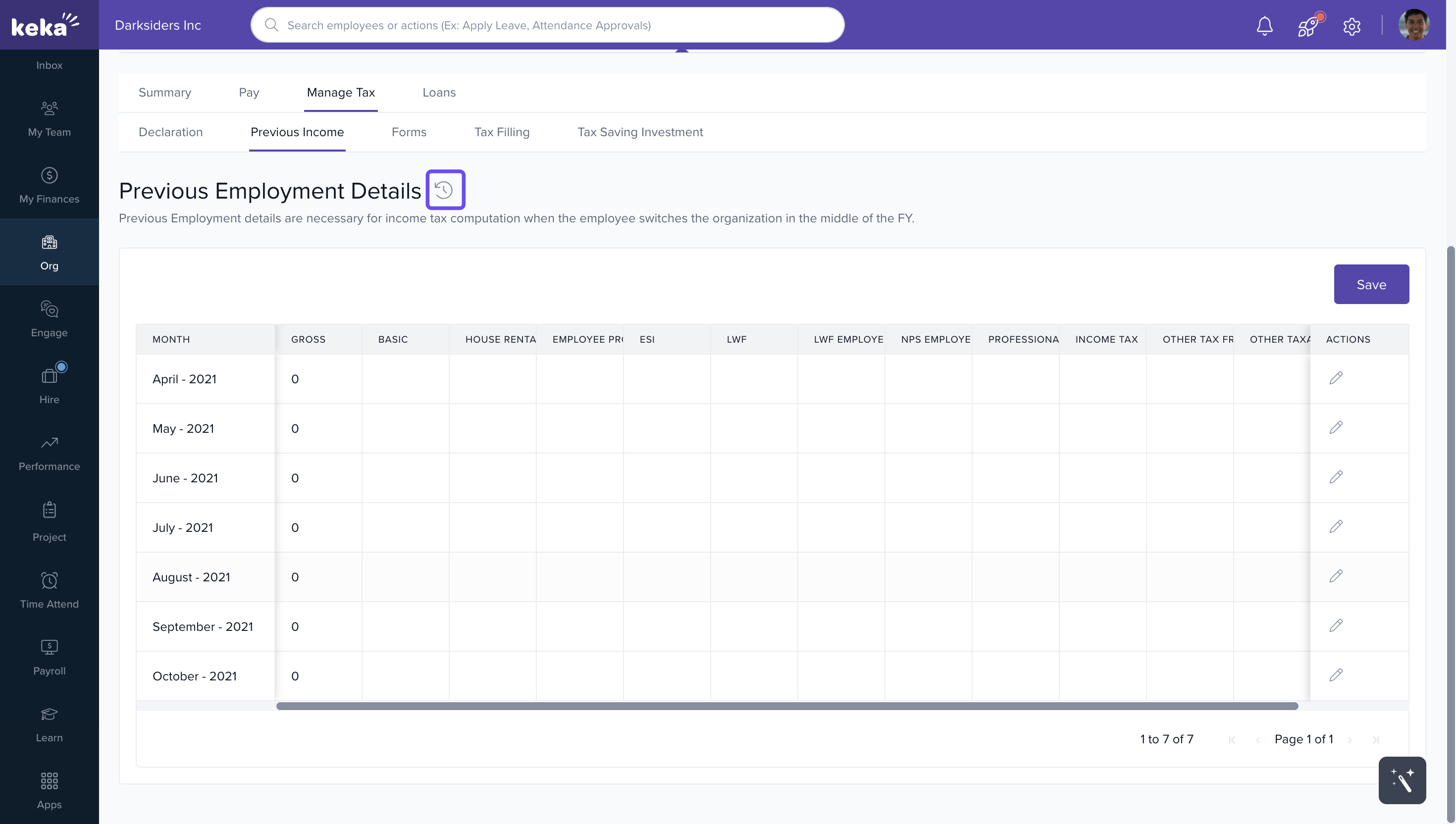
4. Click the Past Actions icon to view detailed audit logs.
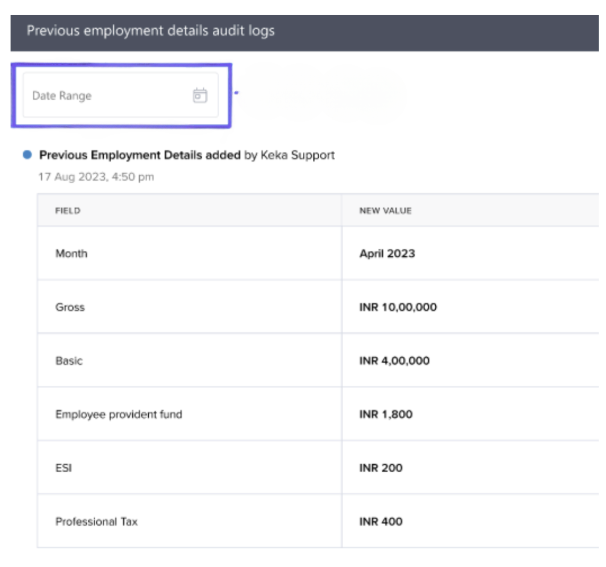
5. A pop-up window will display a report .
Excel Reports for Audit Logs
Admins can generate a detailed report of all audit logs for financial changes. This is especially useful during audits.
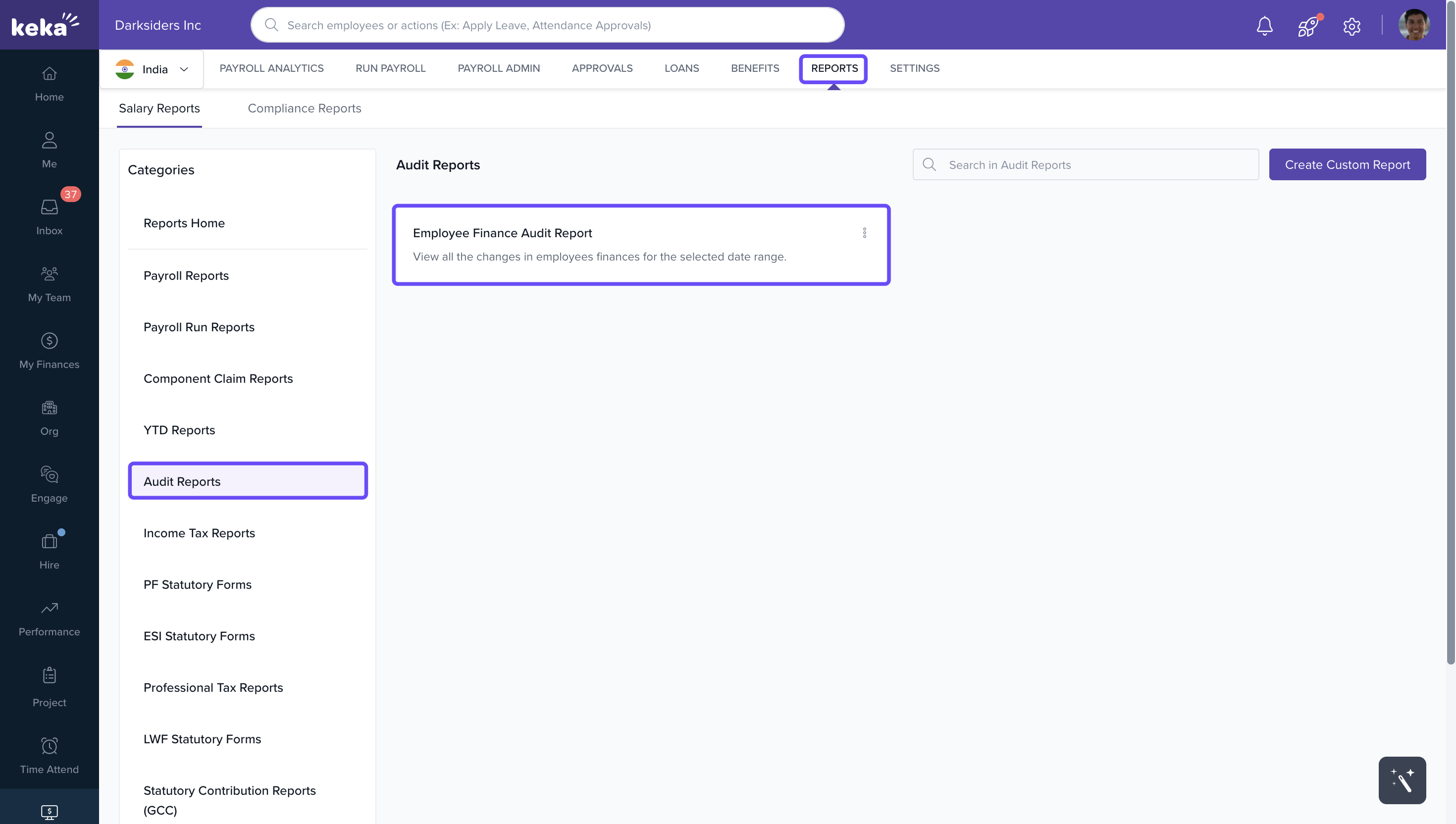
1. Go to Payroll → Reports.
2. Under Salary Reports, click Audit Reports.
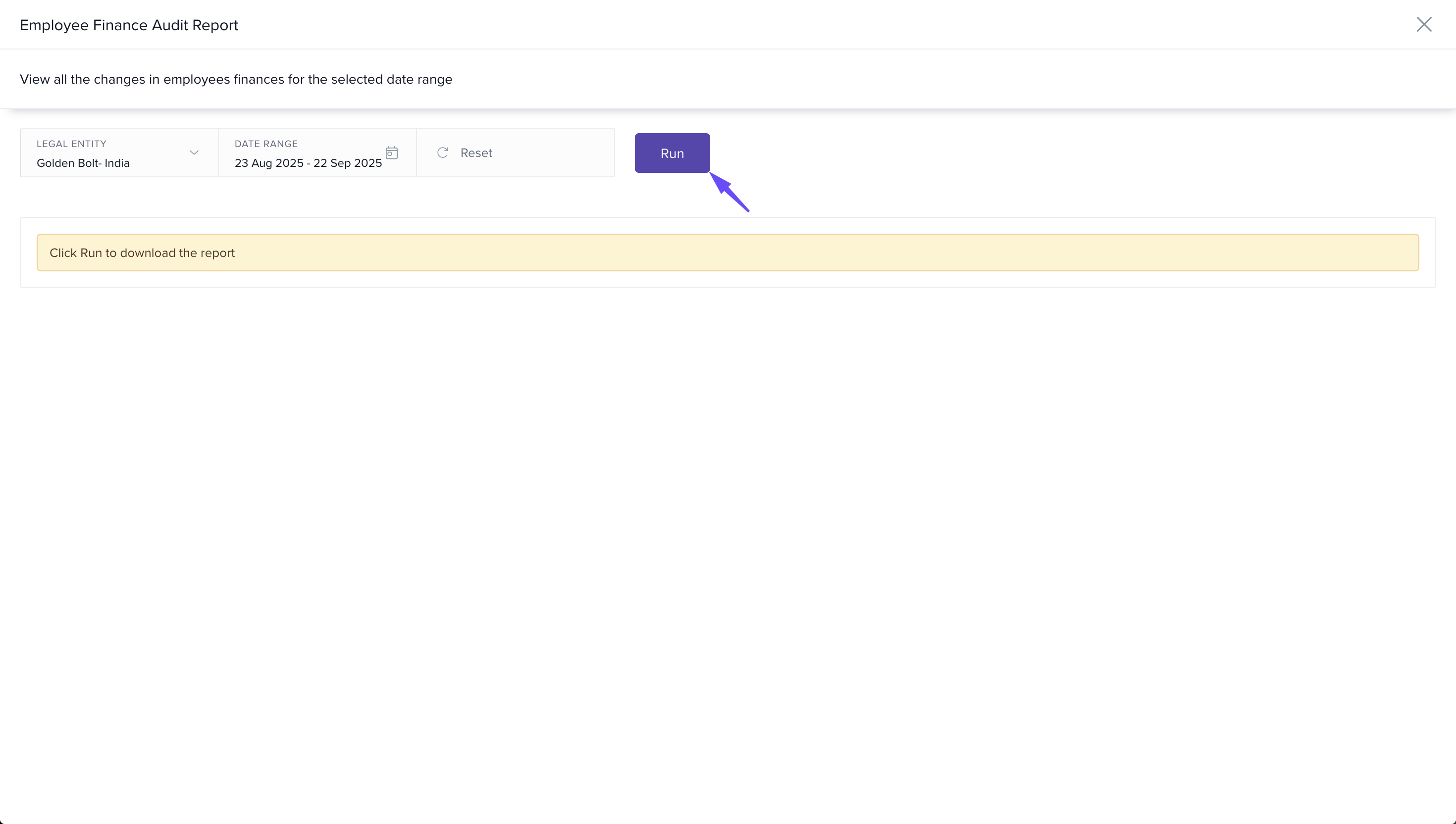
3. Select Employee Finance Audit Report.
4. On the download screen, set your criteria and click Run.
- The report will download in Excel format.
Audit report can be downloaded for a maximum range of 366 days.
To access this feature, users need:
View Audit privilege under Employee Finance
View Audit Reports under Payroll
Download Audit Reports under Payroll
These privileges are automatically enabled for Payroll Admins and Global Admins.
Comments
0 comments
Please sign in to leave a comment.