Introduction
While bank transfer remains the most preferred mode of salary payment, there are often employees who are paid in other modes such as cash or cheque. Employees also often switch their banks and in these cases, you may have to update the bank information for these employees. There are multiple ways in which you can do this on Keka.
Updating Salary payment mode and bank details of individual employees
To update the bank details of an employee, search for the employee by typing their name into the search bar.
1. Select the employee and go to their profile.
2. On the Employee Profile page, Select the Finances tab and then select the Summary tab.
3. In the Payment Information section, click on the Edit icon.
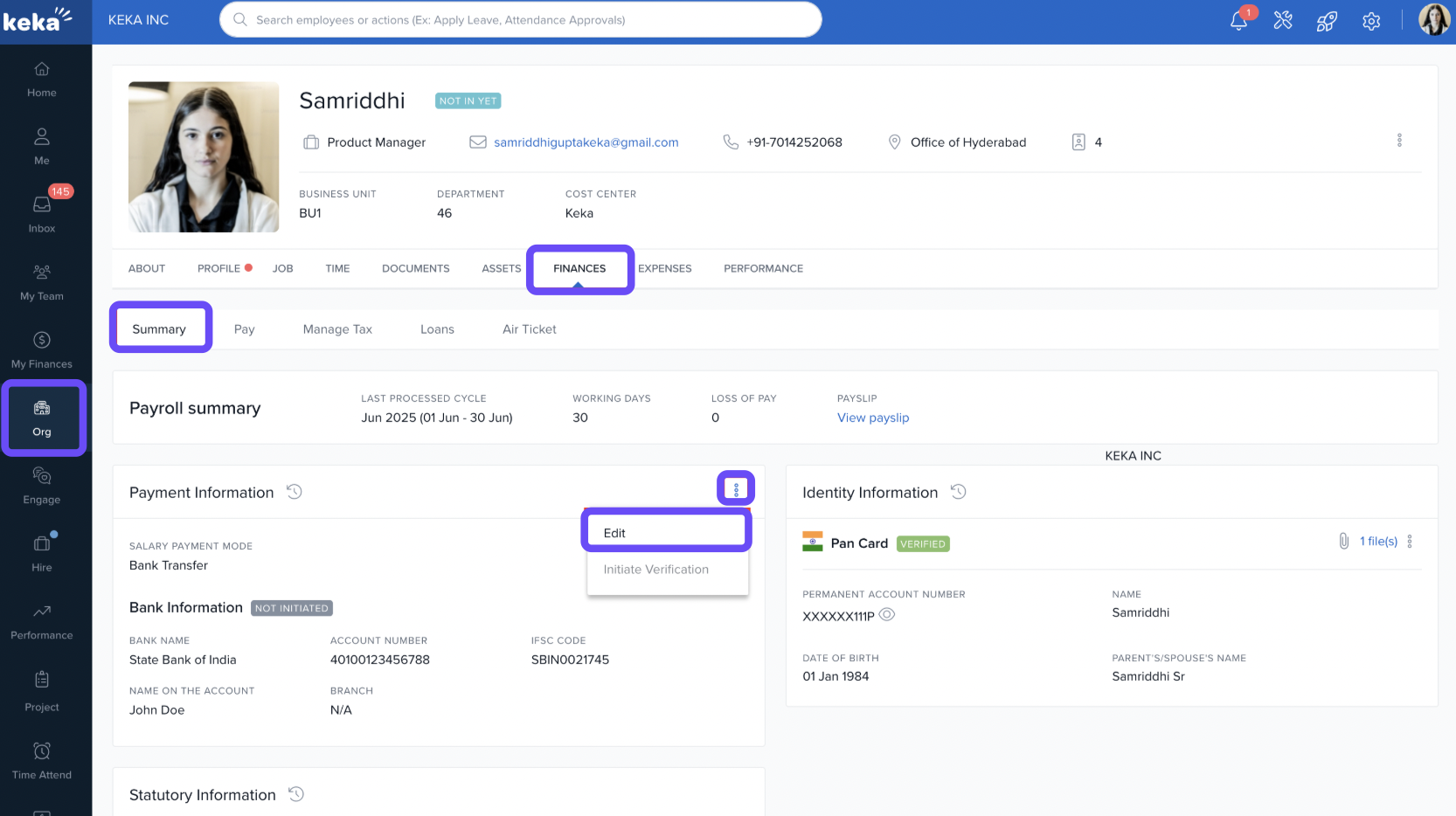
4. In the edit screen:
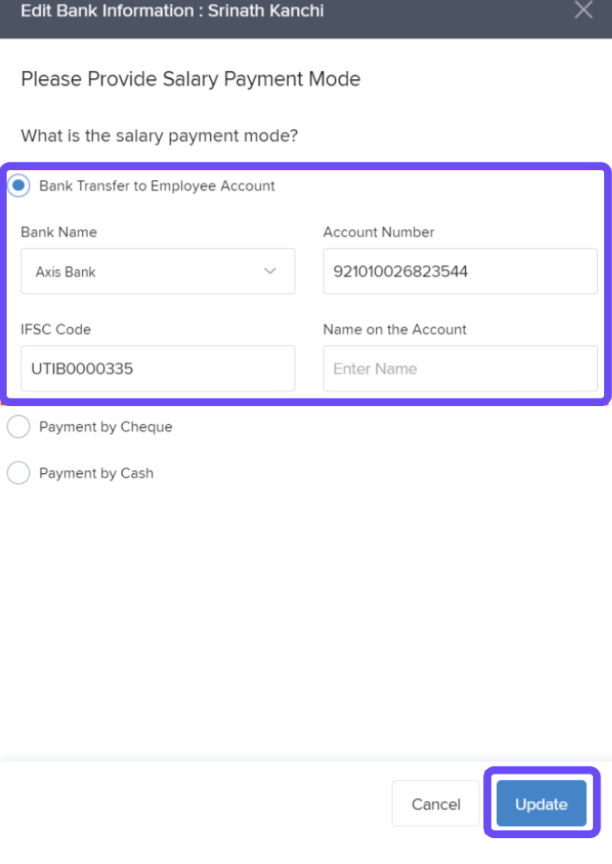
Choose the Salary Payment Mode (Bank Transfer, Cheque, or Cash).
Update bank information such as Bank Name, Account Number, IFSC Code, and Account Holder Name.
If the employee does not have bank details, you may set the mode to Pay by Cheque or Pay by Cash.
5. If the bank details for the employee are not available, you can choose to Pay by cheque or Pay by Cash.
6. Click Update once you are done editing the details.
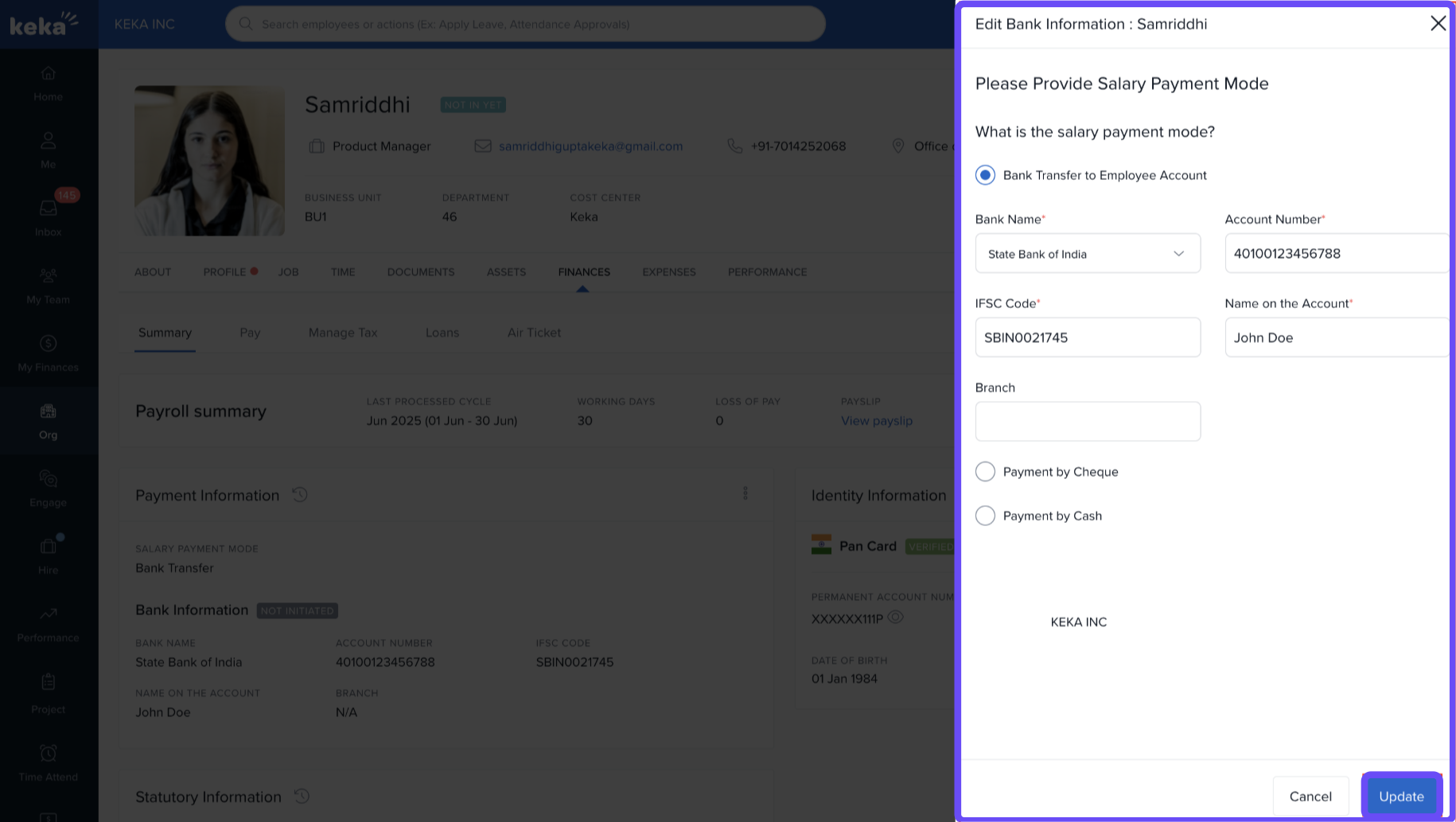
This will update the bank information for that employee.
7. You can also perform this action for an individual employee by going to Payroll, then Payroll Admin, and finally Payroll Status.
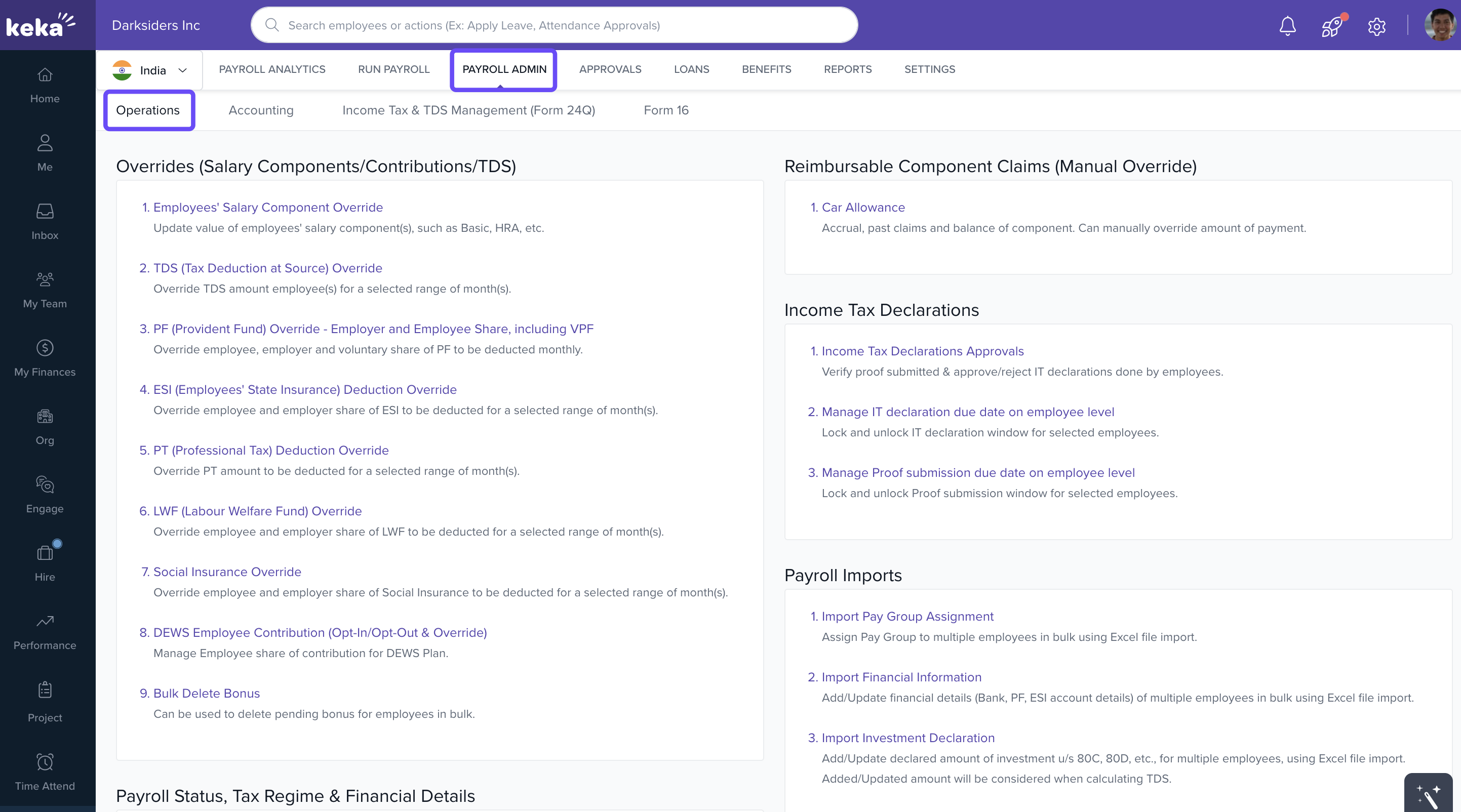
8. Then find the section titled Tax Regime & Financial Details and click on Employees' salary payment details & Bank verification.
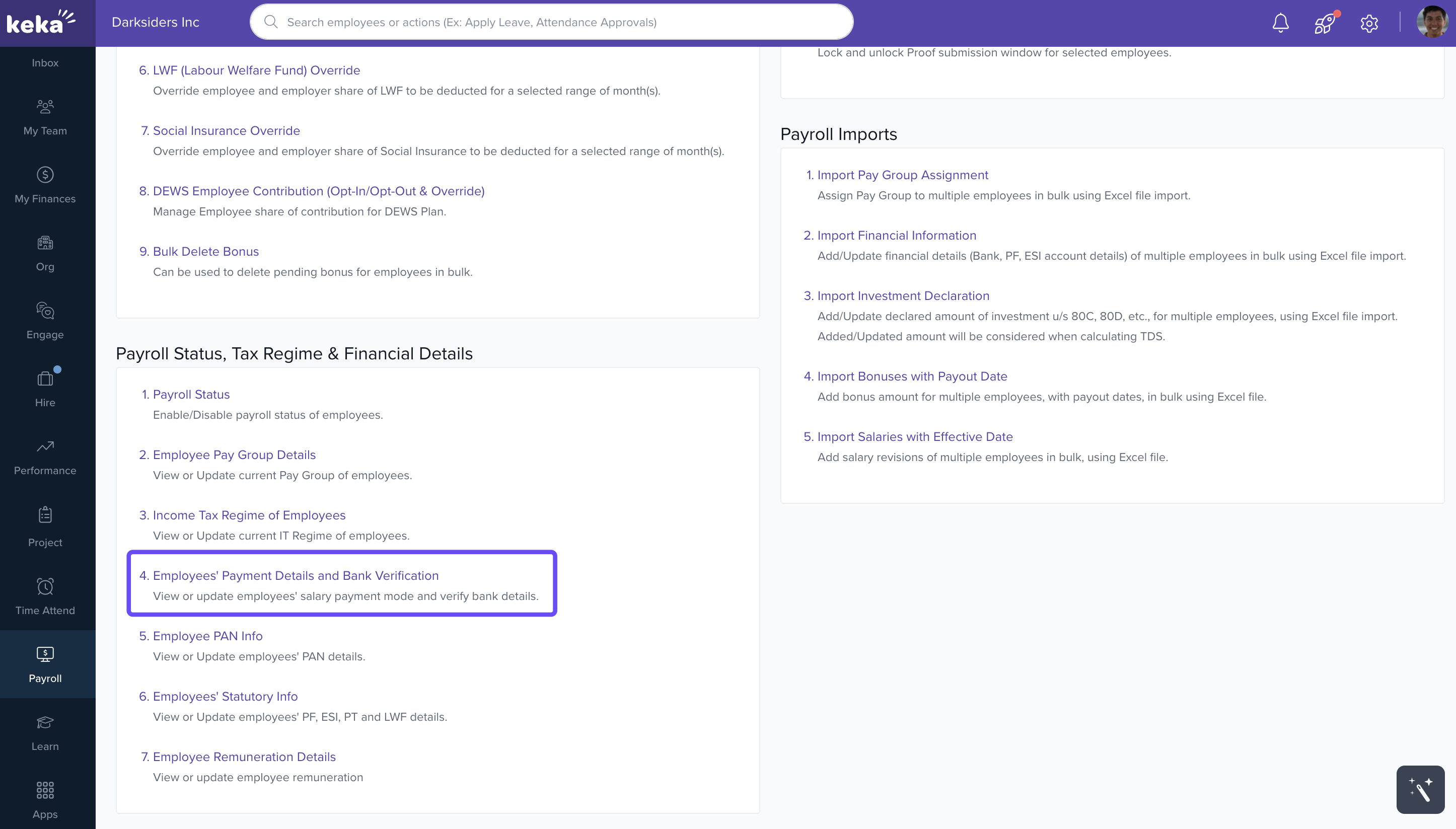
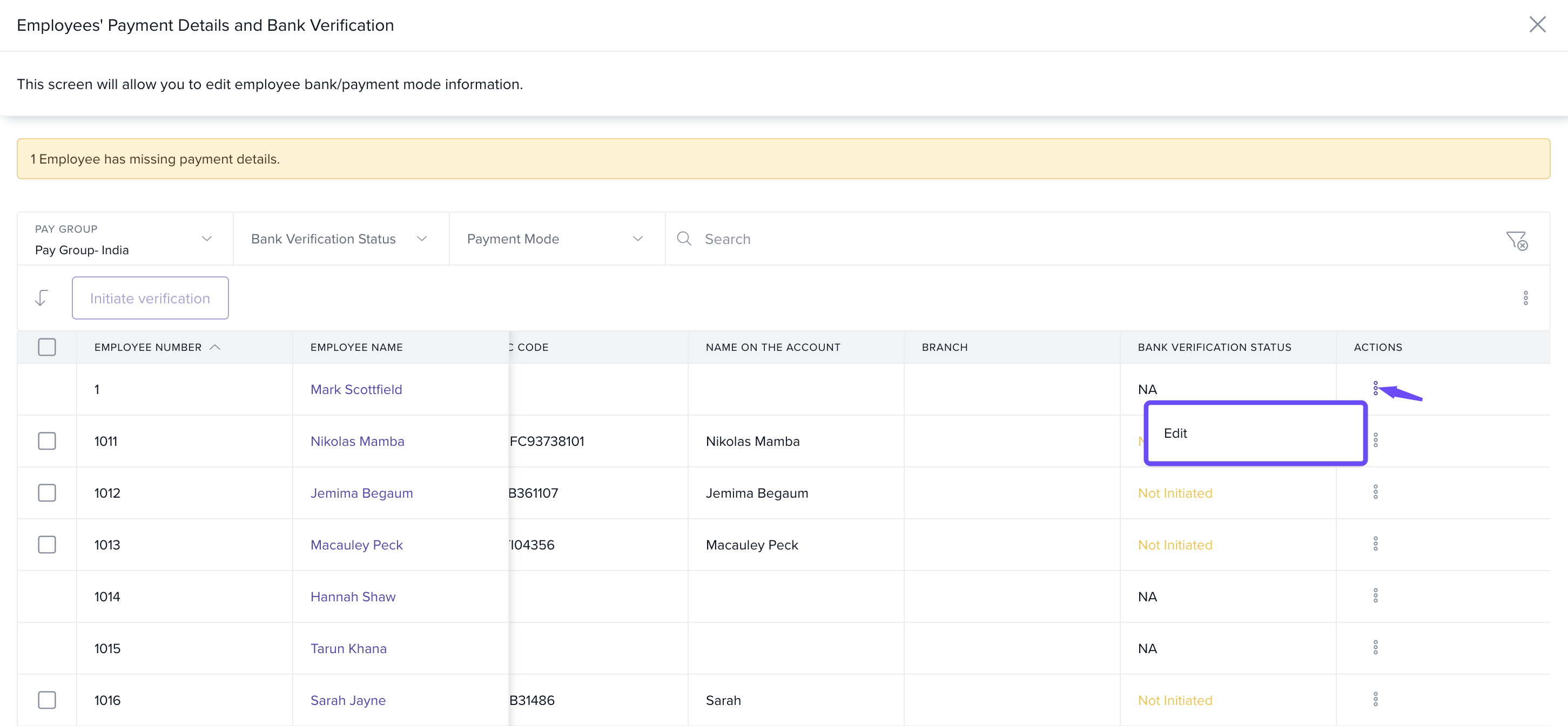
9. In the window that opens, select the Pay Group that the employee is a part of and then find the employee in the list.
10. Then click on Edit to bring up the edit bank details window.
11. Make the necessary changes (mode + bank details), then Update.
Updating payment mode and bank details in bulk
1. To update employee bank details in bulk, go to the Payroll tab, select Payroll Admin, and navigate to the Operations section.
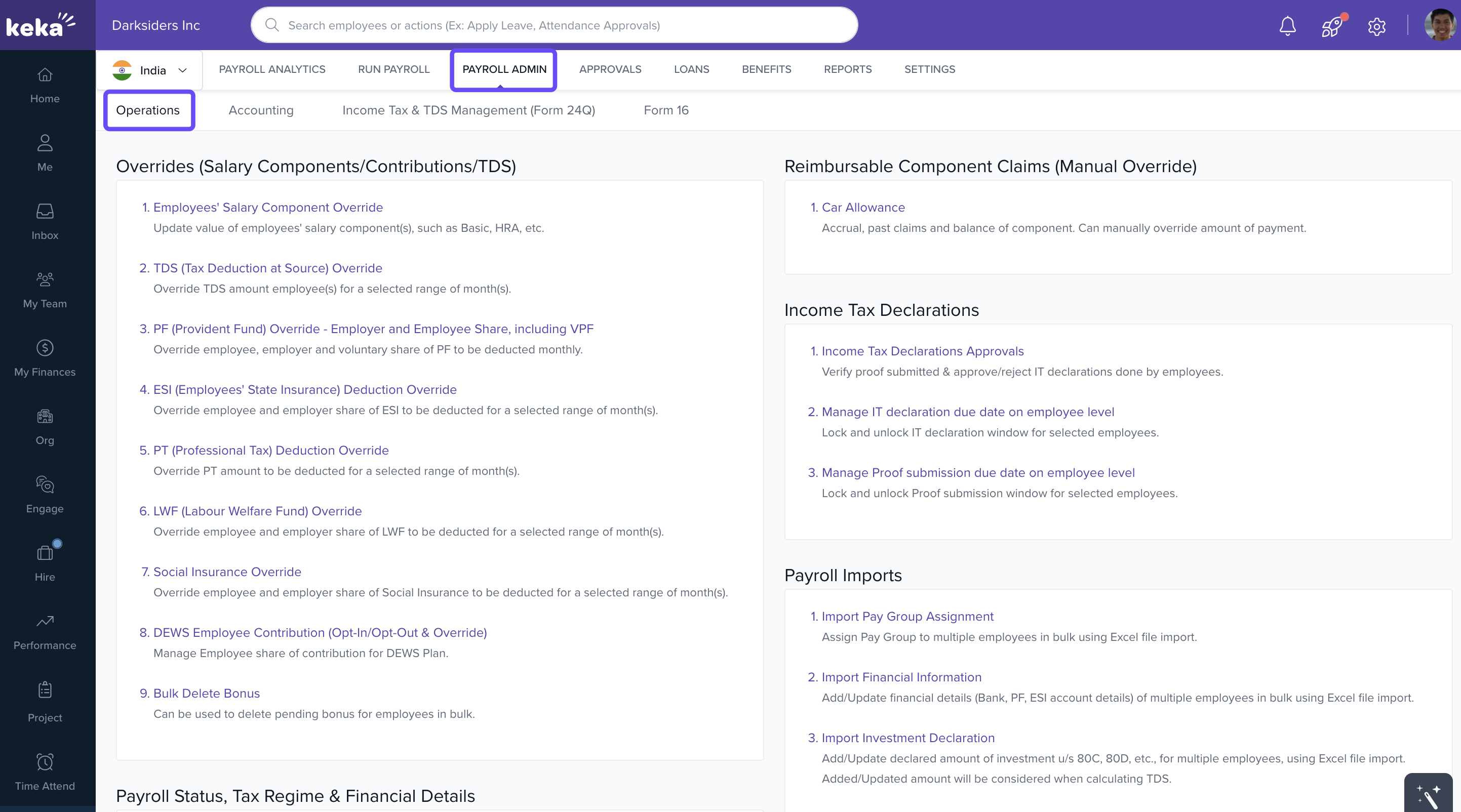
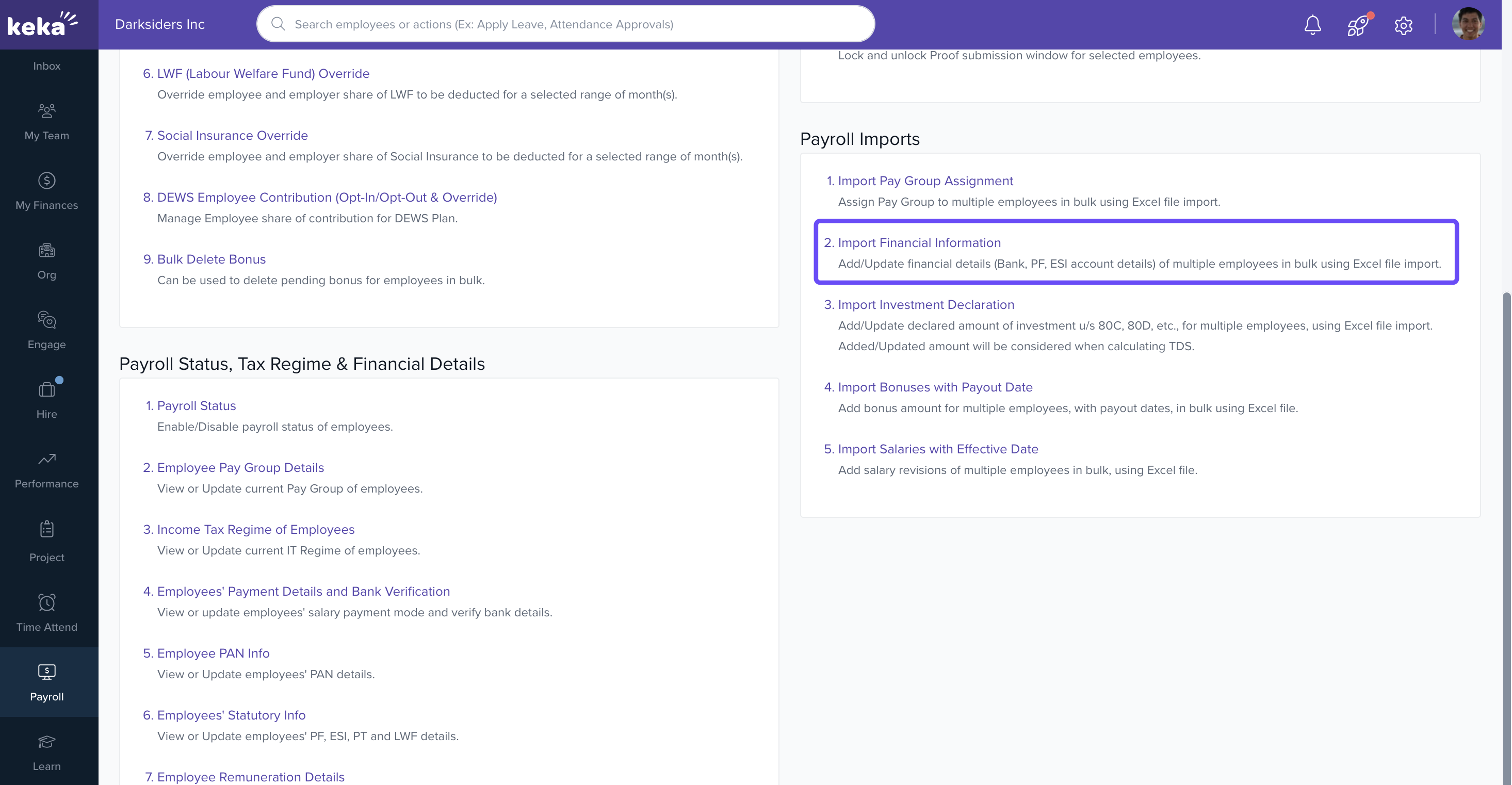
2. In the Operations tab, find the Payroll Imports section and select Important Financial Information.
3. On the Import Financial Details page, select the Pay Group if you have multiple pay groups configured.
4. Download the Excel template from this window.
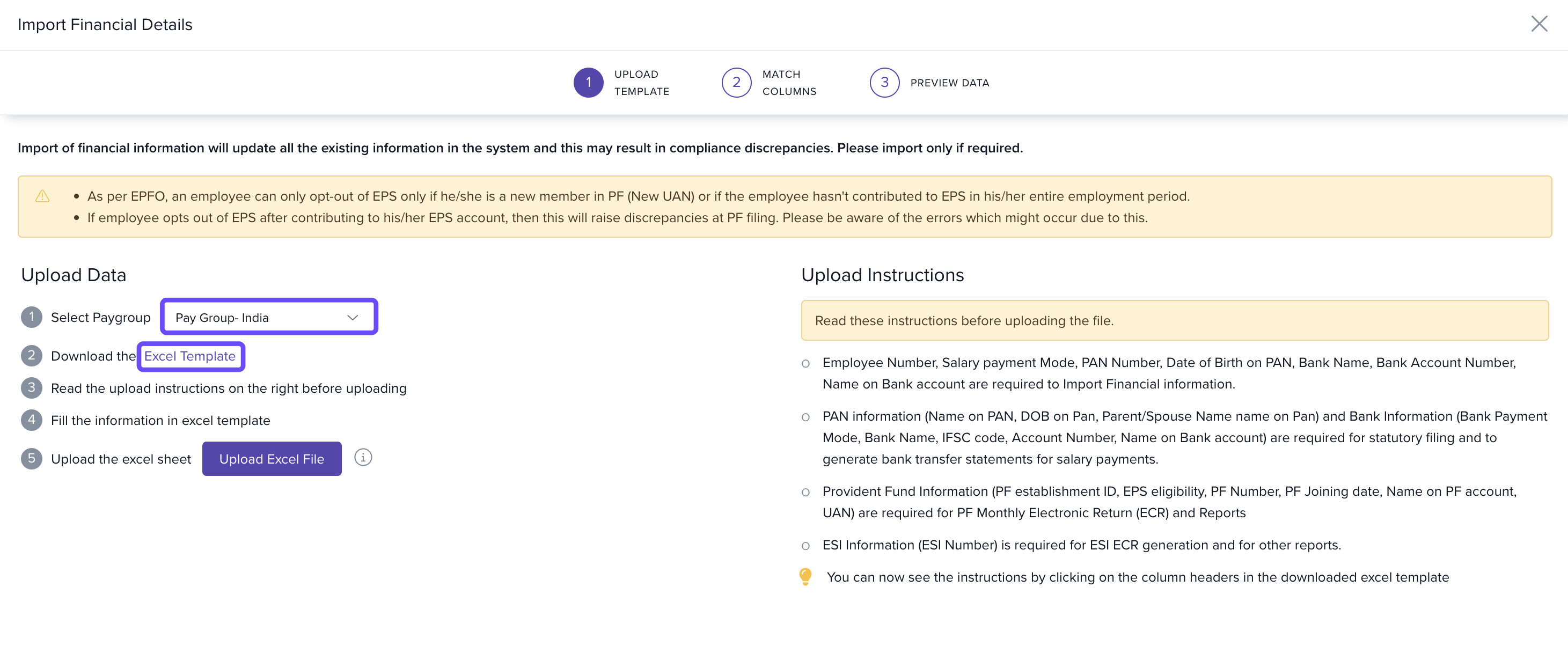
5. Save the file and upload it using the Upload Excel File button.
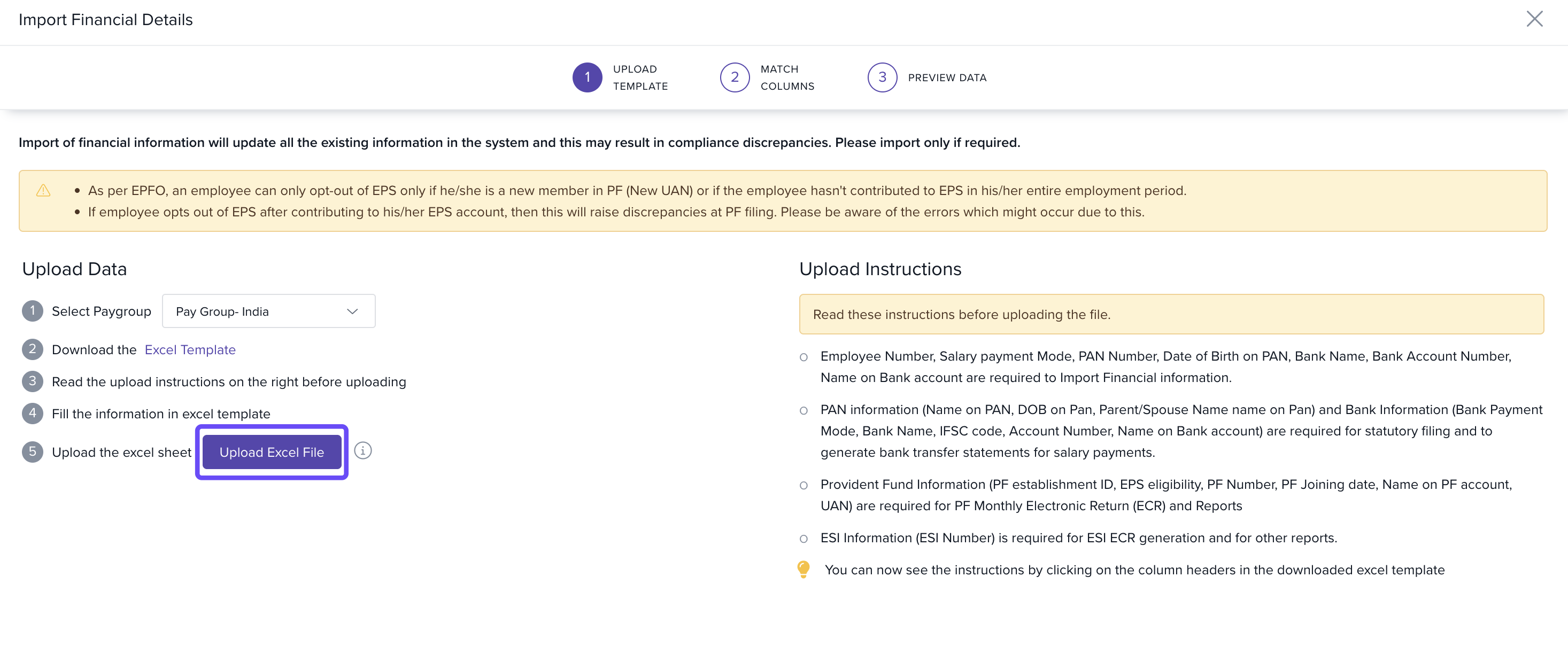
7. In the matching step, map the columns in your Excel to the corresponding fields in Keka.
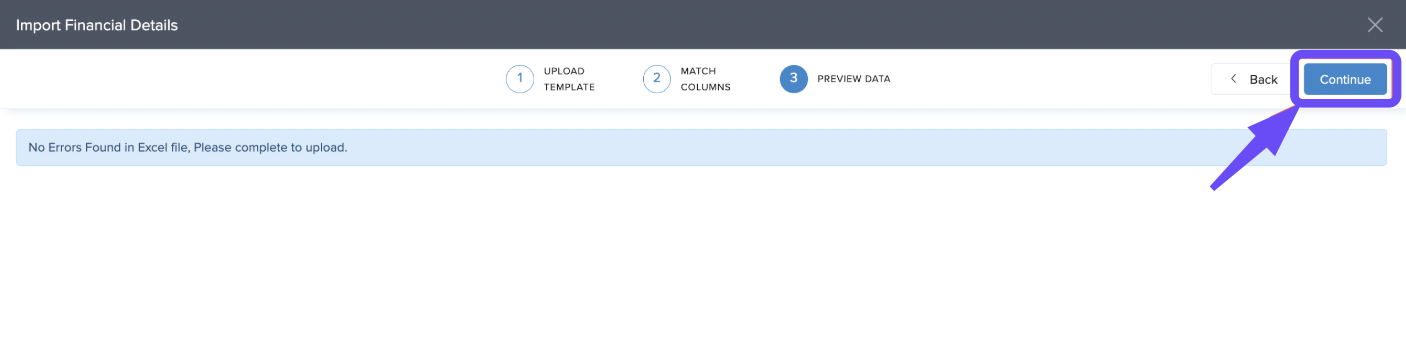
8. Review the Preview Data to check for any errors. If there are mistakes, return to your Excel file to correct them.
9. Once everything looks correct, click Complete to finalize the upload.
The updated bank details will be reflected only in the upcoming payroll and previously finalized payroll will remain unaffected.
Maintaining accurate and updated employee bank and payment details ensures smooth salary disbursement and prevents any payroll delays or discrepancies.
Comments
0 comments
Please sign in to leave a comment.