Overview
In this article, you’ll learn how to export employee timesheets from Keka PSA in formats compatible with leading US payroll platforms such as QuickBooks, Gusto, Paylocity, Paychex, and Paycom. The guide also explains how to define export codes and ensure payroll-ready reports are generated accurately.
Who Can Do This?
- PSA Admins
- Finance Admins
- Global Admins with export permissions
Pre-requisites
- Ensure timesheets are submitted and approved
- Have payroll software details ready, including company IDs where required
- Export codes must be re-entered each time as they are not saved
What Is the Feature?
This feature allows US-based companies to export employee timesheets in the required format of five commonly used payroll software:
- QuickBooks
- Gusto
- Paylocity
- Paychex
- Paycom
If your payroll system is not listed, use the Others option to generate a general report including legal entity, business unit, department, location, and worker type.
Why Is the Feature Needed?
- Timesheets are critical for payroll processing, especially for hourly workers
- Exporting in compatible formats reduces manual entry and errors
- It simplifies integration with third-party payroll systems commonly used in the US
Step-by-Step Instructions
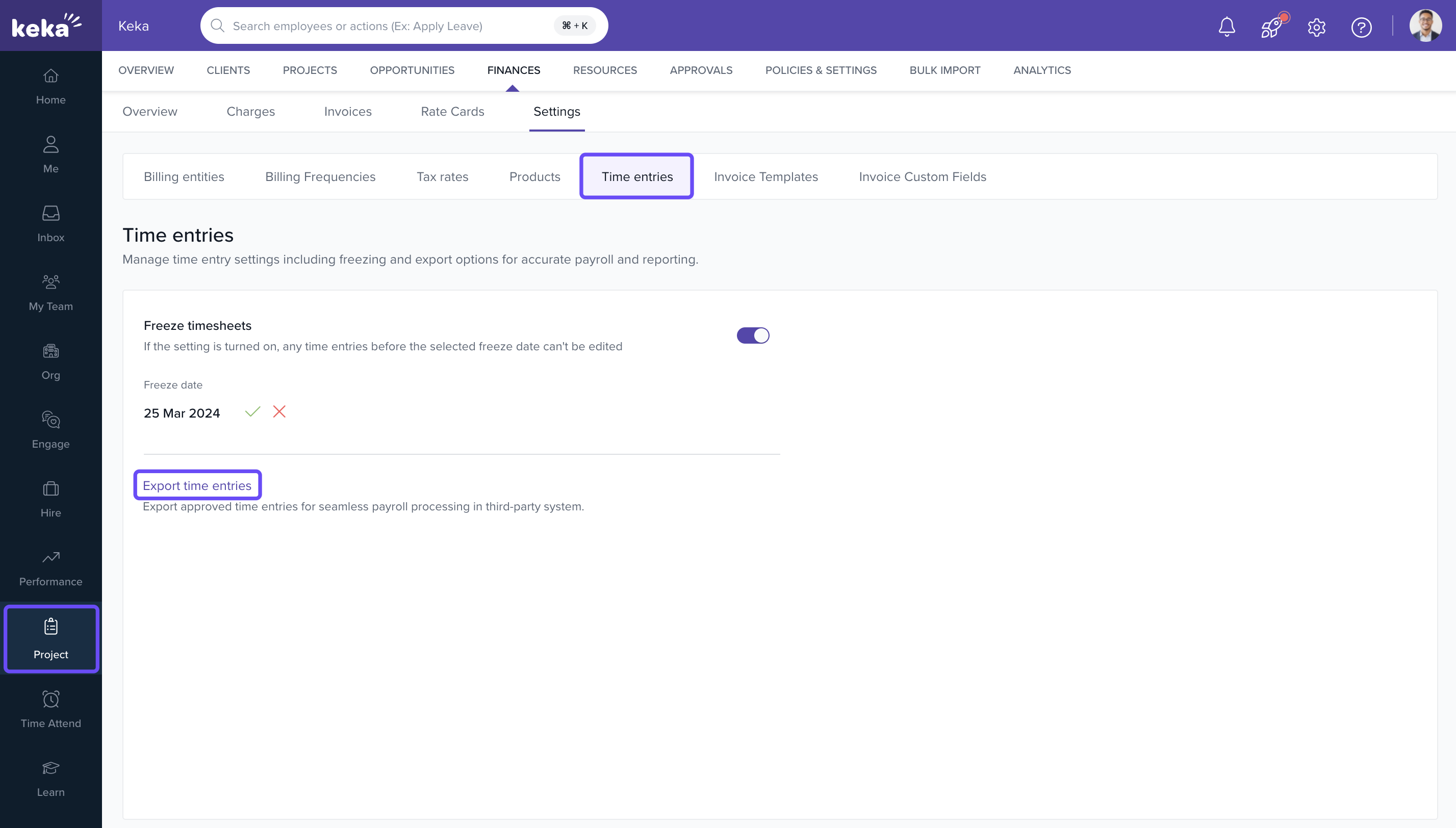
Navigate to Timesheet Export
- Go to the Projects section
- Click on the Finances tab
- Go to Settings
- Select Time entries
- Click on Export Time entries
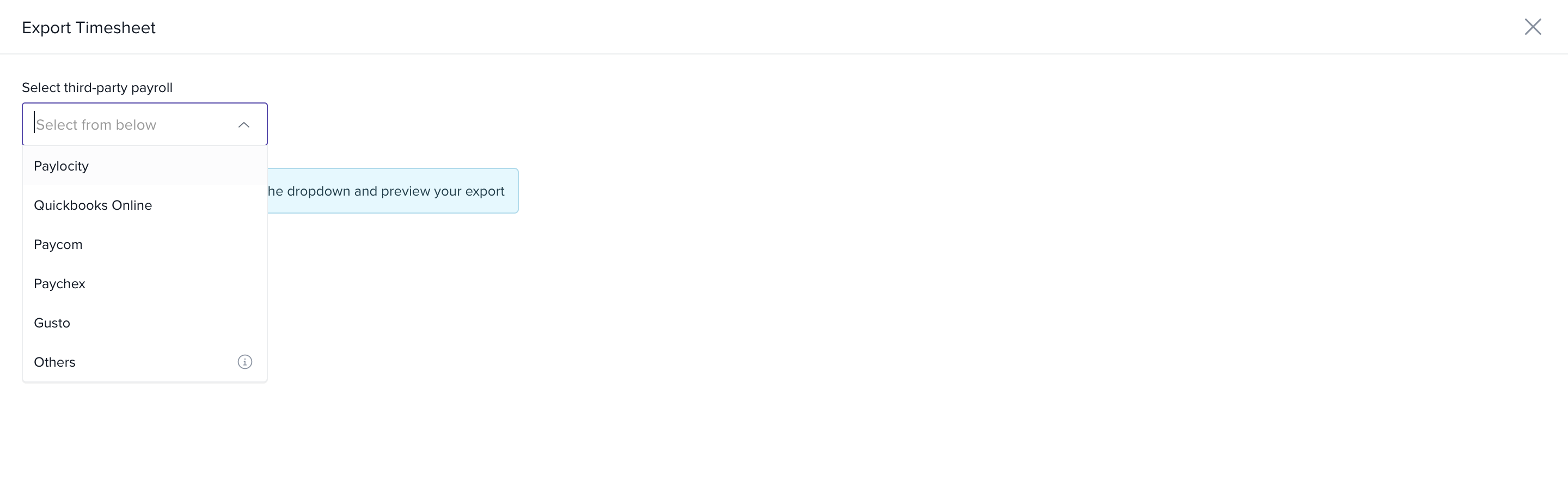
Select Payroll Software
- Choose your payroll system from the dropdown menu
- If using other software, select Others to export a generic report
Enter Export Codes
- Regular Hours: Default is ‘Regular’
- Overtime Codes: Define up to 5 custom conditions
- Weekly Offs: Check the box, specify the day(s), and enter an export code
-
Holiday Hours: Check the holiday option and enter a code
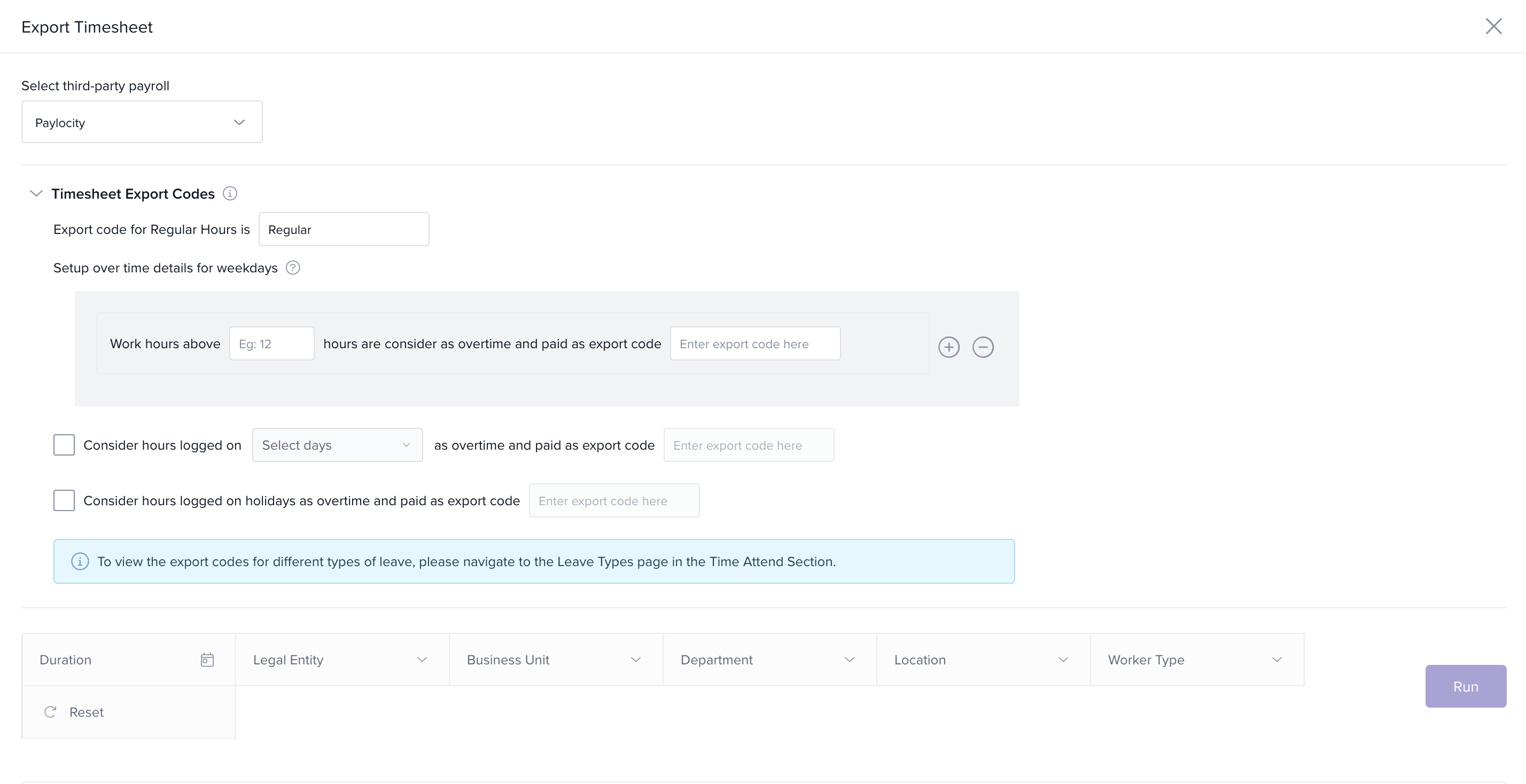
Note: These codes must be entered manually each time. They are not saved.
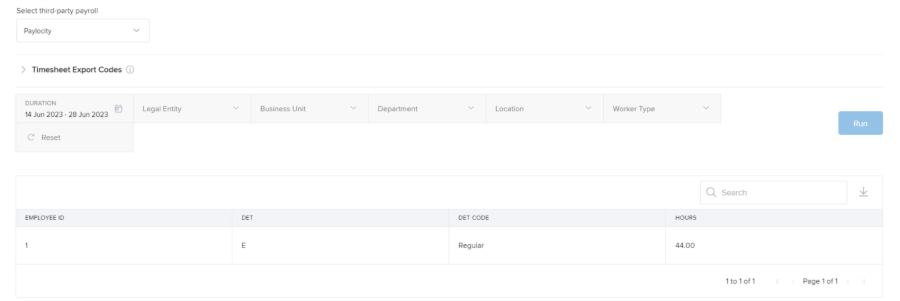
Preview and Download Report
- After entering codes, preview the report
-
Download the file in Excel or PDF format for uploading into your payroll software
Specifications for Each Payroll Format
-
QuickBooks
- Does not support direct import of timesheets
- Use an importer tool from the QuickBooks Apps section
- Overtime and leave fields are disabled in export
-
Gusto
- Timesheet export shows Regular, Overtime, and Leave hours in separate columns
- Each category is summarized for the selected date range
-
Paylocity
- Includes a ‘Det’ column marked as ‘E’ (Earnings)
- Export also contains leave hours alongside worked hours
-
Paychex
- Requires a Company/Client ID to match with your Paychex system
- Ensures timesheet records are mapped accurately
-
Paycom
- Exports include both timesheet and leave hours for the selected period
- Helps provide complete visibility of employee availability
FAQs
Q: Can export codes be saved for reuse?
A: No. You must re-enter export codes each time you generate a report.
Q: Can I export timesheets for multiple payroll platforms at once?
A: No. You must export one format at a time.
Q: What happens if I select an unsupported platform?
A: Use the Others option to generate a general export.
Q: Does the export include unapproved timesheets?
A: No. Only approved timesheets are included in the export.
Comments
0 comments
Please sign in to leave a comment.