Introduction
Salary structures define how an employee’s pay is broken down—what components are included and how much value each holds. Setting up the right structure helps reduce tax liabilities and ensures compliance with statutory deductions, while also maximizing take-home pay.
Keka provides built-in range-based salary structures and lets you create custom or daily wage-based structures tailored to your organization.
Applies to: Payroll Admins using Keka
Access: Go to Payroll > Settings > Pay Groups, then select Configure next to your chosen pay group and click the Salary Structures tab.
Range-Based Salary Structures
These are predefined structures grouped by salary range. You can edit them or create your own.
Edit, Create, or Delete Salary Ranges
In Payroll Settings, go to Salary Structures > Range Based tab.
Select a salary range and click Edit Salary Structure.
Click the Edit icon in the Salary Ranges pane.
In the Manage Salary Range window, update:
Lower Limit
Upper Limit
Range Name
Optional Description
To split a range:
Click the Split Range icon
Adjust the upper limit of the existing range
To delete a range:
Click the Delete icon or you can also delete the salary range by clicking on the three dots next to the salary range name.
Confirm by typing CONFIRM
Employees will be reassigned to the next appropriate range
Update Component Values
On the Edit Salary Structure page, select a component.
Click the edit icon next to Formula for Value / Fixed Value.
In the Update Value of Component window:
Enter a fixed value or
Create a formula using the annual value of other components
Example: PF = 12% of Basic (Annual Basic = Monthly Basic × 12)
Click Update.
Add New Component
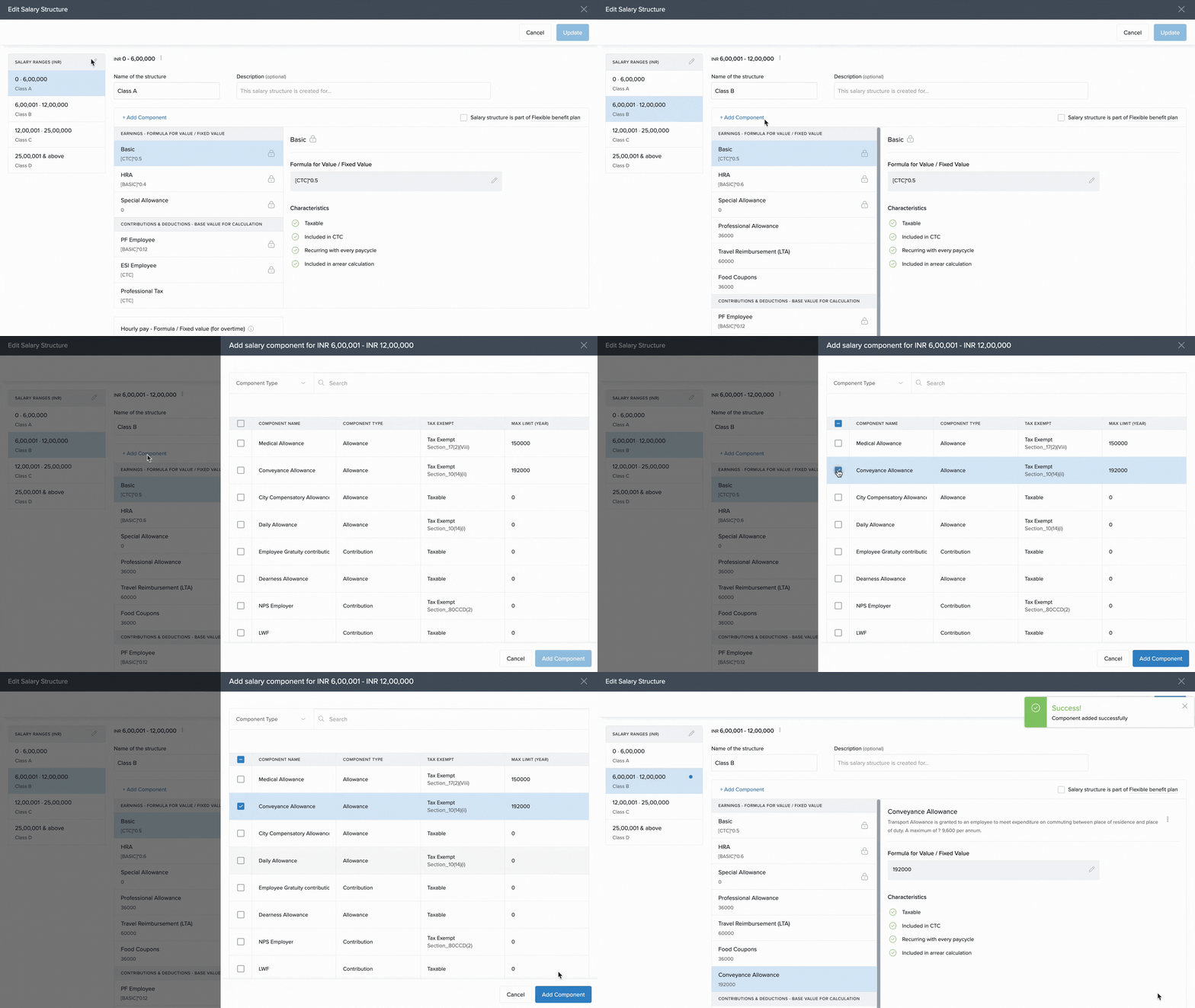
On the Edit Salary Structure page, click Add Component.
Select a component from the list.
Click Add Component to include it in the structure.
Include in Flexible Benefits Plan
On the salary structure setup page, check Salary Structure is a Part of Flexible Benefits Plan.
This allows employees to choose tax-saving benefits and submit claims.
Add Hourly Rate for Overtime
In the Hourly Pay section, click + Add Calculation.
In the Add Calculation for OT window:
Use a formula or fixed value based on annual component values
Example: Hourly Rate = Annual Basic / 2920
Click Update.
Custom Salary Structures
Use custom structures if you want to replicate your organization’s existing pay format.
Create a New Custom Salary Structure
Go to Custom Salary tab.
Click Create Custom Salary Structure.
In the creation window:
Enter a Name and optional Description
Toggle on/off PF, ESI, and choose TDS method (slab or formula)
Add or edit salary components:
Click on a component
Click Edit, enter a formula or fixed value, then click Update
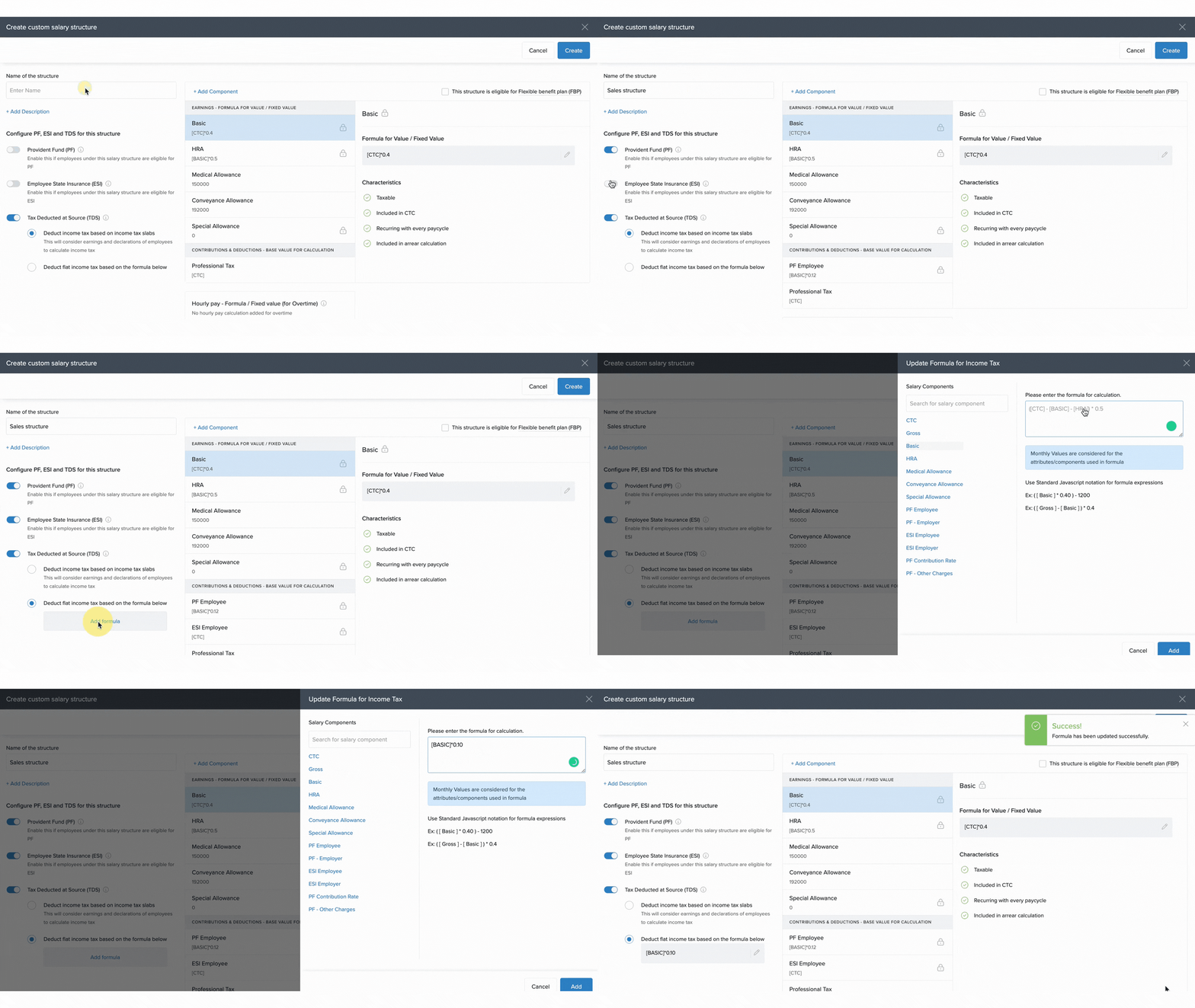
Click Add Component to include more components
To delete a component:
Click the three dots next to it and select Delete Component
Confirm by typing CONFIRM
Deleted amounts shift to Special Allowance
To make the structure part of FBP, check This Structure is Eligible for Flexible Benefits Plan.
To add an overtime rate:
Click + Add Calculation in the Hourly Pay section
Use the annual value formula (e.g., Annual Basic / 2920)
Click Create to finish.
Clone an Existing Structure
On the Custom Salary tab, click the Clone Salary Structure icon.
Make the required edits.
Click Create.
Delete a Custom Structure
Click the Delete icon for the structure.
Confirm by clicking Delete in the popup.
Edit a Custom Structure
Click the Edit icon next to the structure.
Make changes and click Update.
Daily Wage Salary Structures
Ideal for employees paid on a daily basis.
Create a Daily Wage Structure
Go to the Daily Wage tab.
Click Create Daily Wage Salary Structure.
Enter details and component values.
Click Create.
You can create multiple daily wage structures this way.
Manage Daily Wage Structures
From the Daily Wage tab, you can:
Edit
Clone
Delete salary structures using options under the Actions column.
Examples & Use Cases
Example: Hourly Pay Rate Calculation
Annual Basic = ₹360,000
Hourly Rate = ₹360,000 / 2920 = ₹123.29 per hour
Example: PF Component
Monthly Basic = ₹15,000
Annual Basic = ₹180,000
PF = 12% of ₹180,000 = ₹21,600 annually
Hope this guide helps you in understanding the various salary structures on Keka and how to create and edit these. If you have more questions, reach out to our product experts for a quick resolution!
Comments
0 comments
Please sign in to leave a comment.