Introduction
Once you’ve set up salary components, structures, and filing details for your pay groups, you can fine-tune additional settings like payslip preferences, full and final configurations, and other pay group-specific rules.
This guide covers how to customize payslips, apply password protection, and configure other optional settings in Keka.
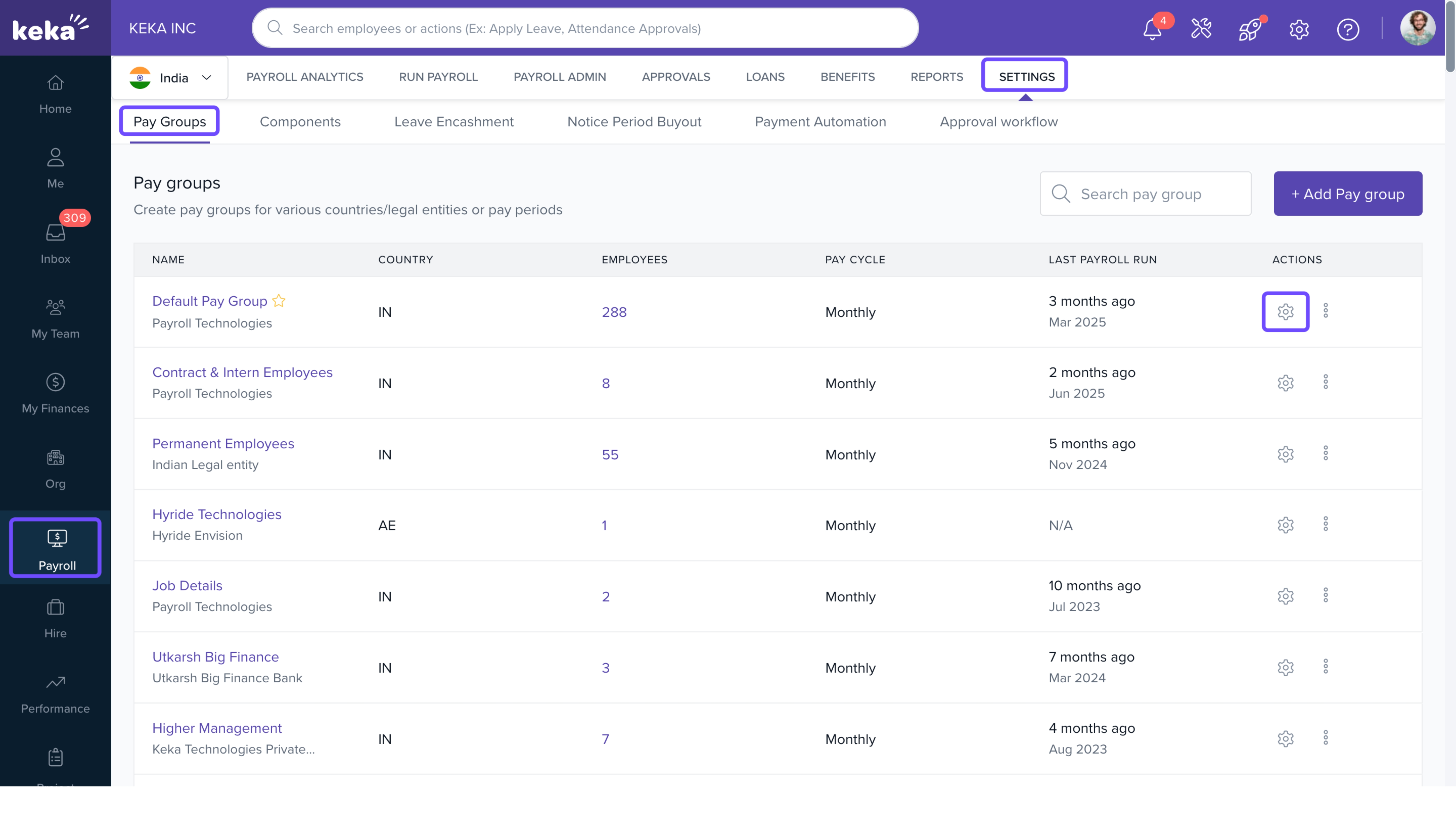
Navigate to Pay Group Settings
Click Payroll from the left navigation panel.
Select the Settings tab.
Under the Pay Groups section, find the pay group you want to configure.
Click the Configure icon next to it.
Navigate to the Other Settings tab.
Access Payslip Settings
From the Other Settings tab, go to Pay Slip Settings.
Click the edit (pencil) icon next to Update Settings.
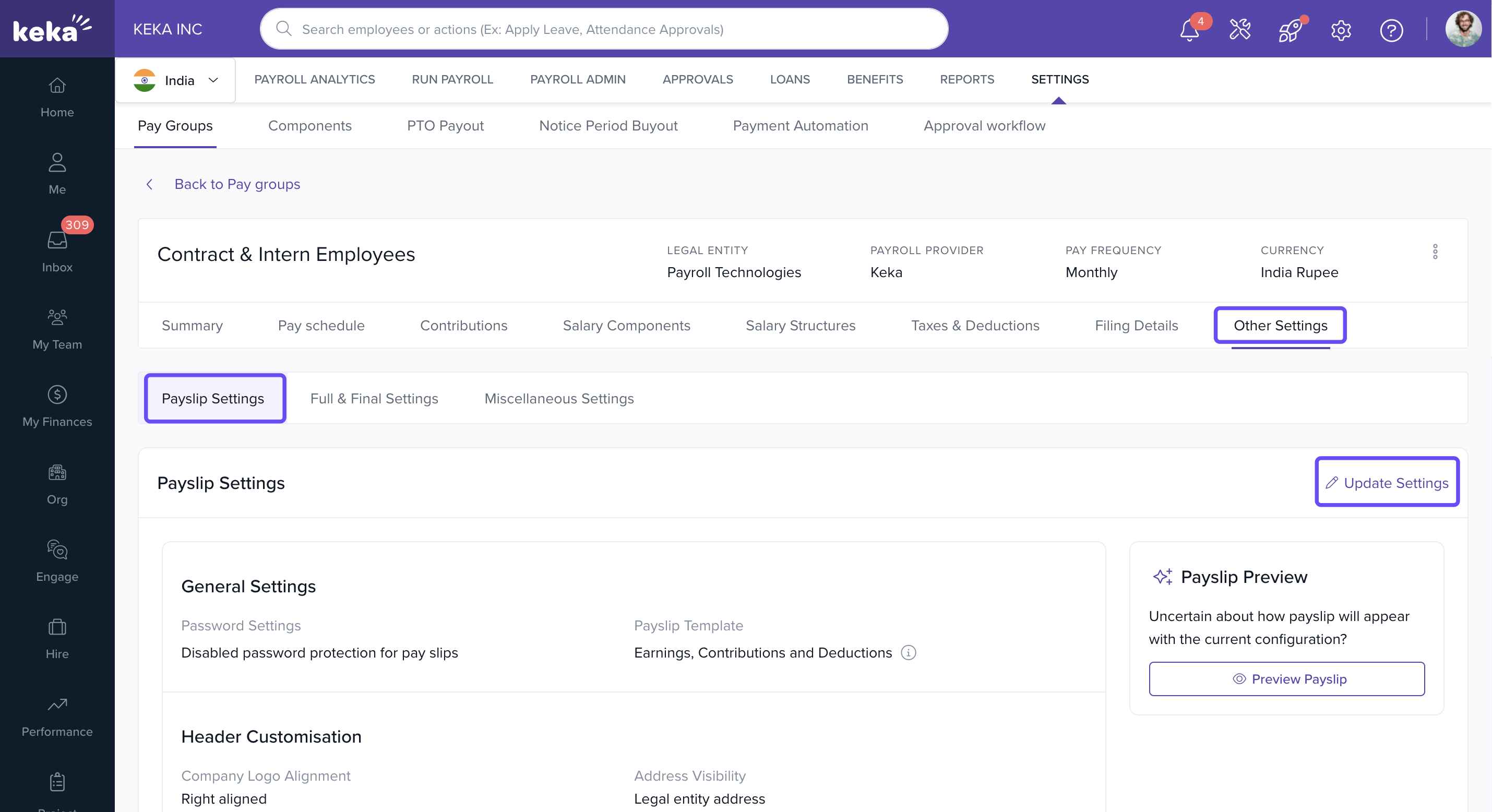
A pop-up will appear with all payslip customization options.
Payslip Configuration Options
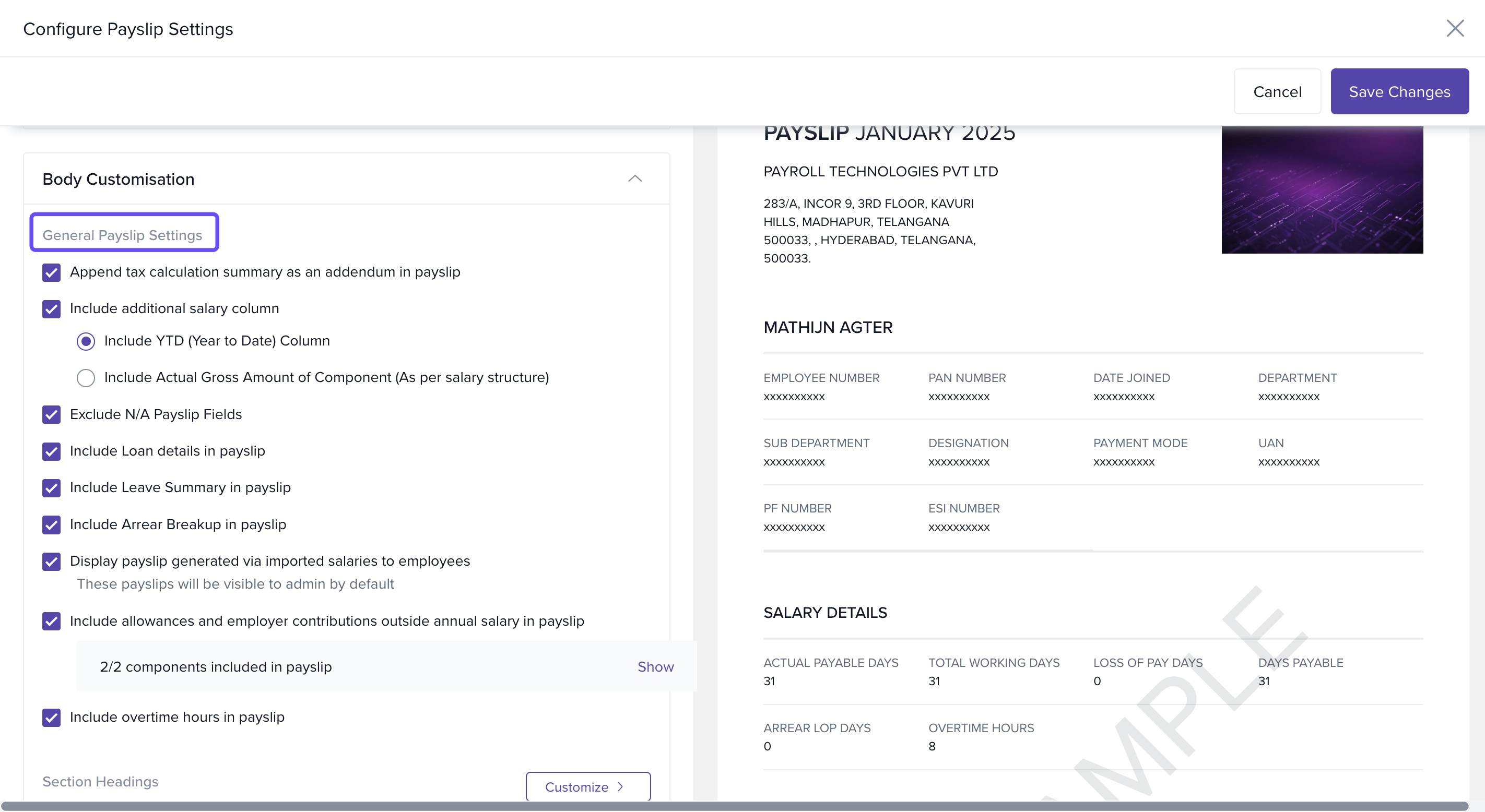
General Payslip Settings
Toggle the following options to control what appears on employee payslips:
Append Tax Calculation Summary: Adds a breakdown of how the tax was calculated.
-
Include Additional Salary Column:
Show Year-To-Date (YTD) totals, or
Display the Actual Gross amount per component based on salary structure.
Exclude N/A Payslip Fields: Hides fields that don’t apply or have no values.
Include Loan Details: Adds EMI deductions and outstanding loan amounts.
Include Leave Summary: Displays remaining leave balances per leave type.
Include Arrear Breakup: Shows arrears paid for prior periods.
-
Display Payslip for Imported Salaries:
Lets employees view payslips generated from imported salary data.
(Admins can always view these by default.)
- Include allowances and employer contributions outside annual salary in payslip.
- Include overtime hours in payslip.
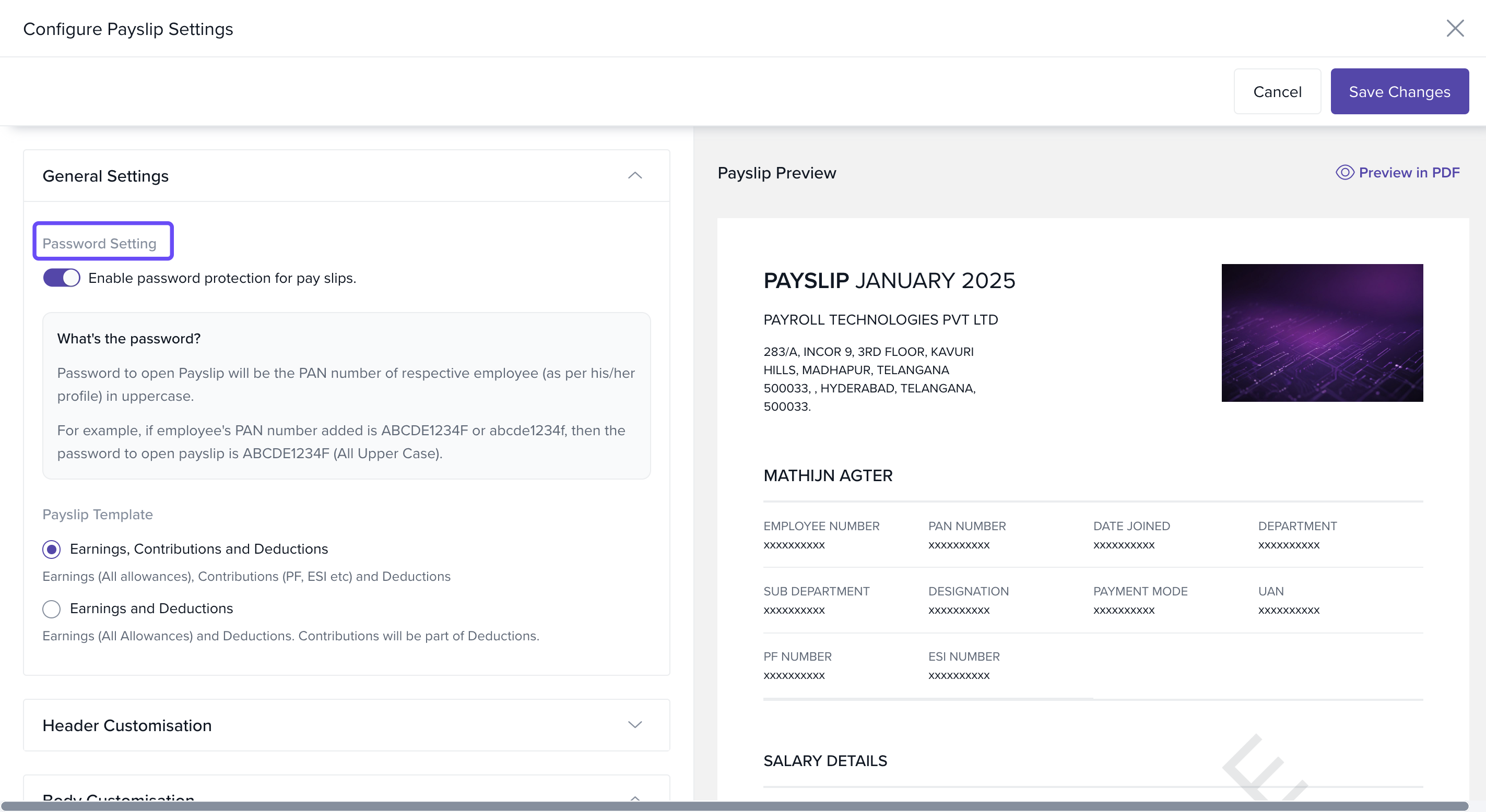
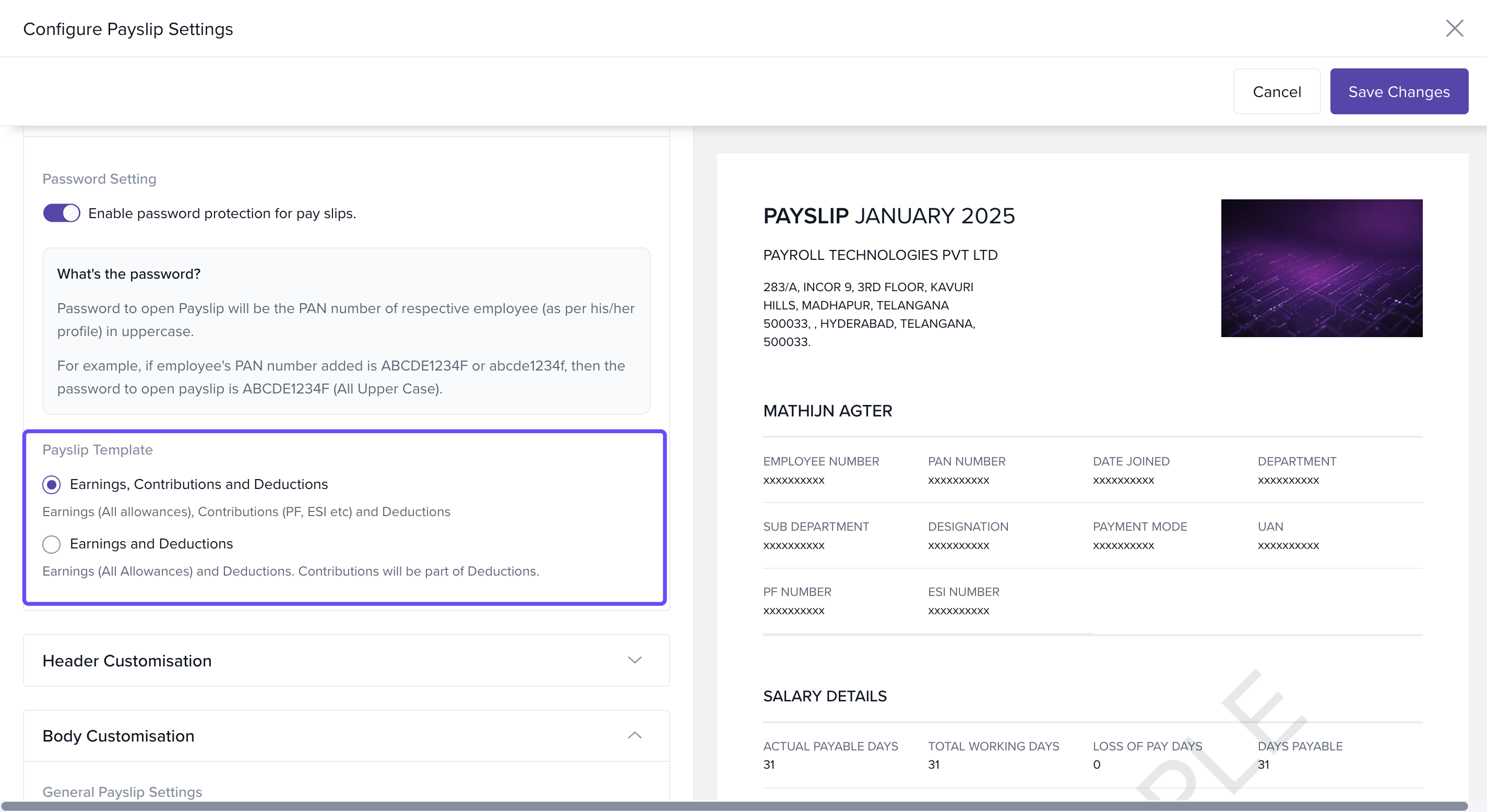
Payslip Password Protection
Toggle password protection for downloaded payslips.
If enabled, the employee’s PAN (in uppercase) is used as the password.
Important: Inform employees about the password format so they can access their payslips smoothly.
Customize Payslip Format
Choose Payslip Structure
You can choose between two layout formats:
-
Earnings, Contributions, and Deductions (3 sections):
Earnings: All pay components
Contributions: Statutory contributions
Deductions: Taxes and other withholdings
-
Earnings and Deductions (2 sections):
Contributions and deductions are merged into one section
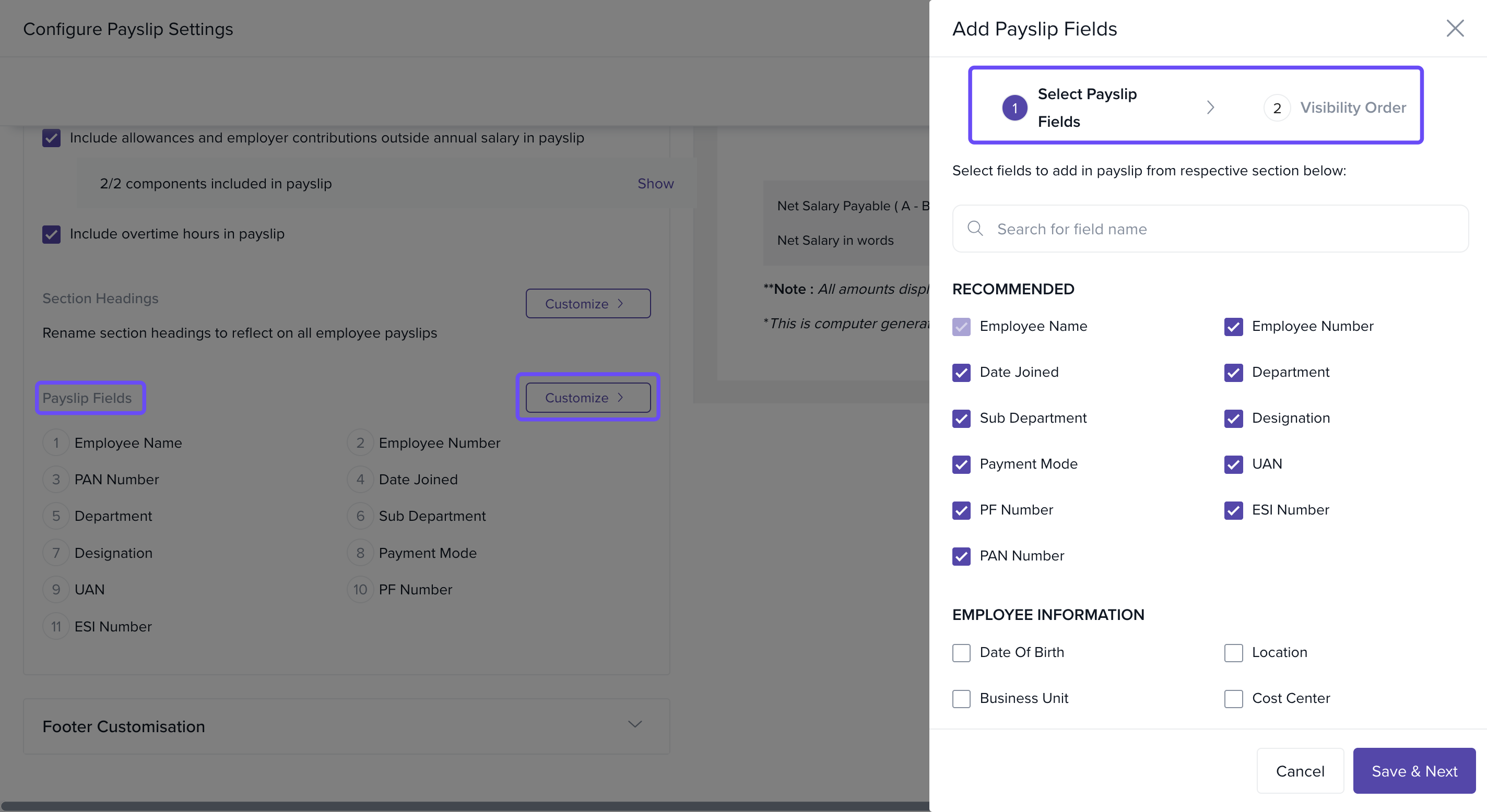
Customize Payslip Fields
Drag and drop fields to include on the payslip:
Fields available are listed on the left panel.
Drag selected fields to the right panel to include them in the payslip.
Rearrange to set the order of appearance.
Notes & Tips
Tip: Payslip customizations apply from the next payroll cycle. Plan your updates accordingly.
Important: If using password protection, remind employees that their PAN in uppercase is the password to open the payslip.
Comments
0 comments
Please sign in to leave a comment.