Keka now allows admins to restrict document template visibility and access based on legal entity scope. This improvement ensures that templates like offer letters, contracts, and forms are only visible to users who manage employees within specific legal entities—enhancing compliance, security, and data segregation.
This guide explains how to configure template access for selected legal entities and how permissions behave across different user roles.
Where the scope can be defined
The legal entity scope for document templates is configured in the final step of the document template creation or edit process. A dropdown field allows you to specify which legal entities can view and use the template.
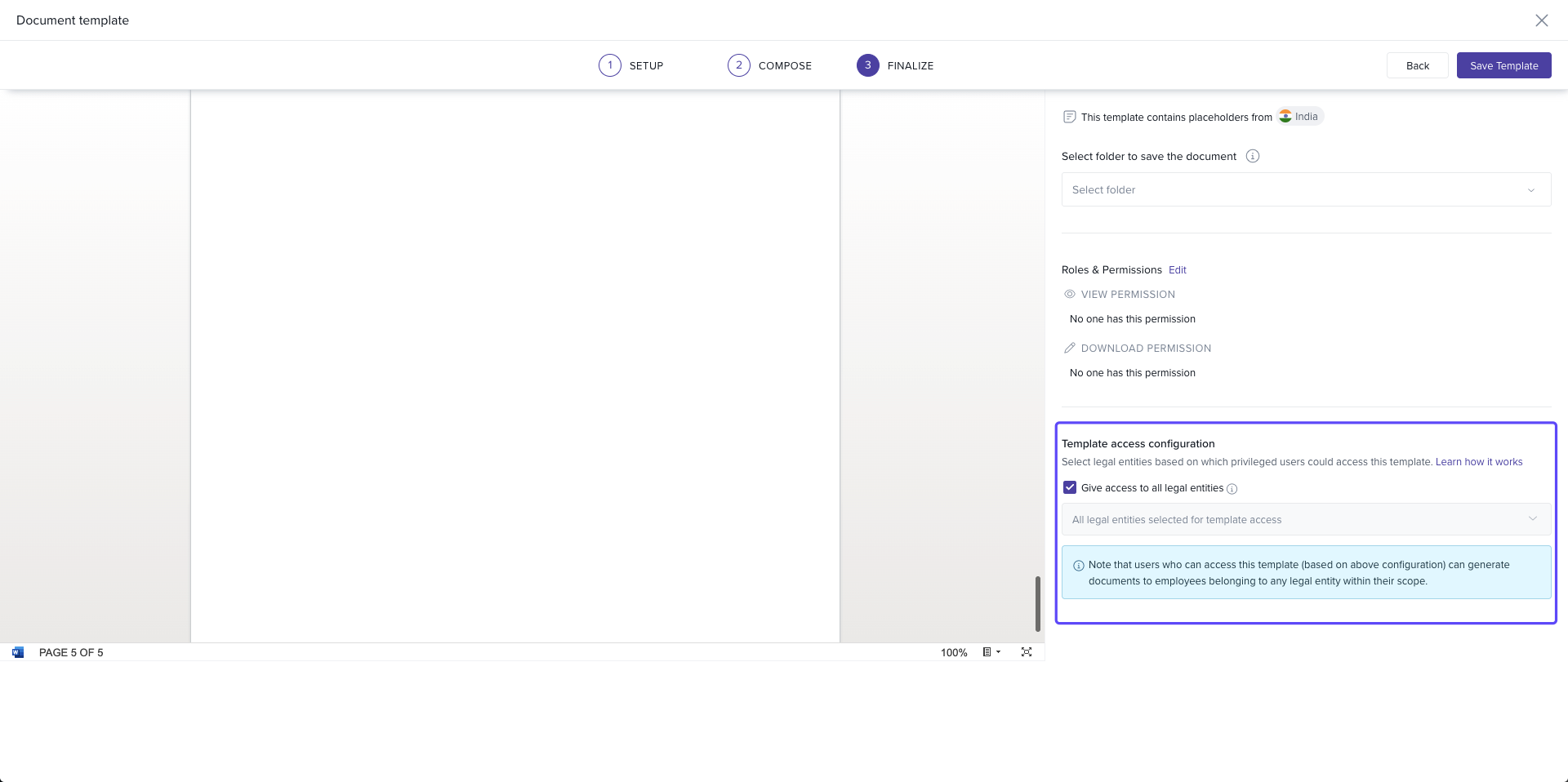
How to scope a template to legal entities
Navigate to Org > Documents > Document Templates.
-
Click Create Template to build a new one or select an existing template to edit.
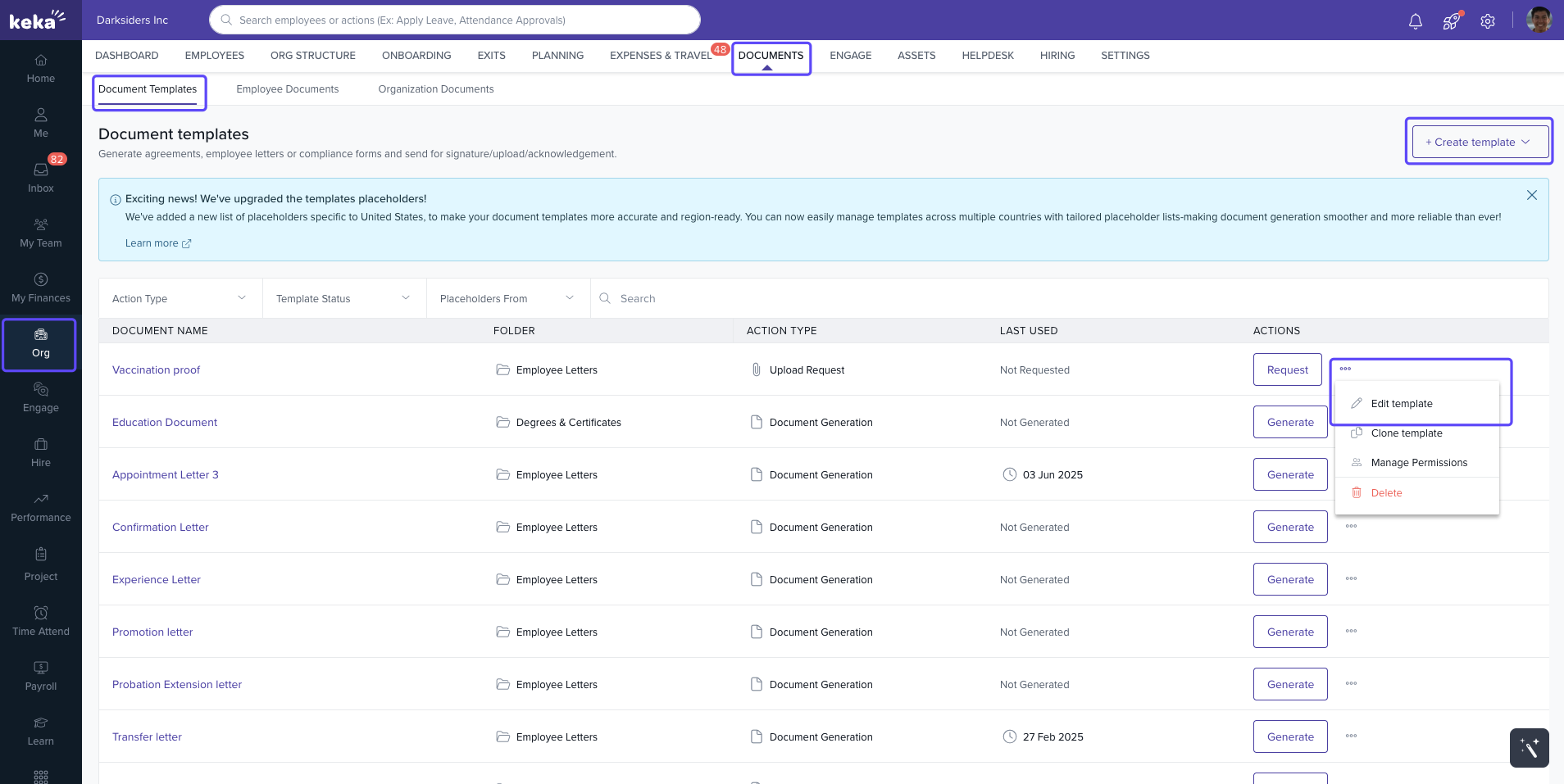
In the final step of the template setup, locate the Legal Entities dropdown.
-
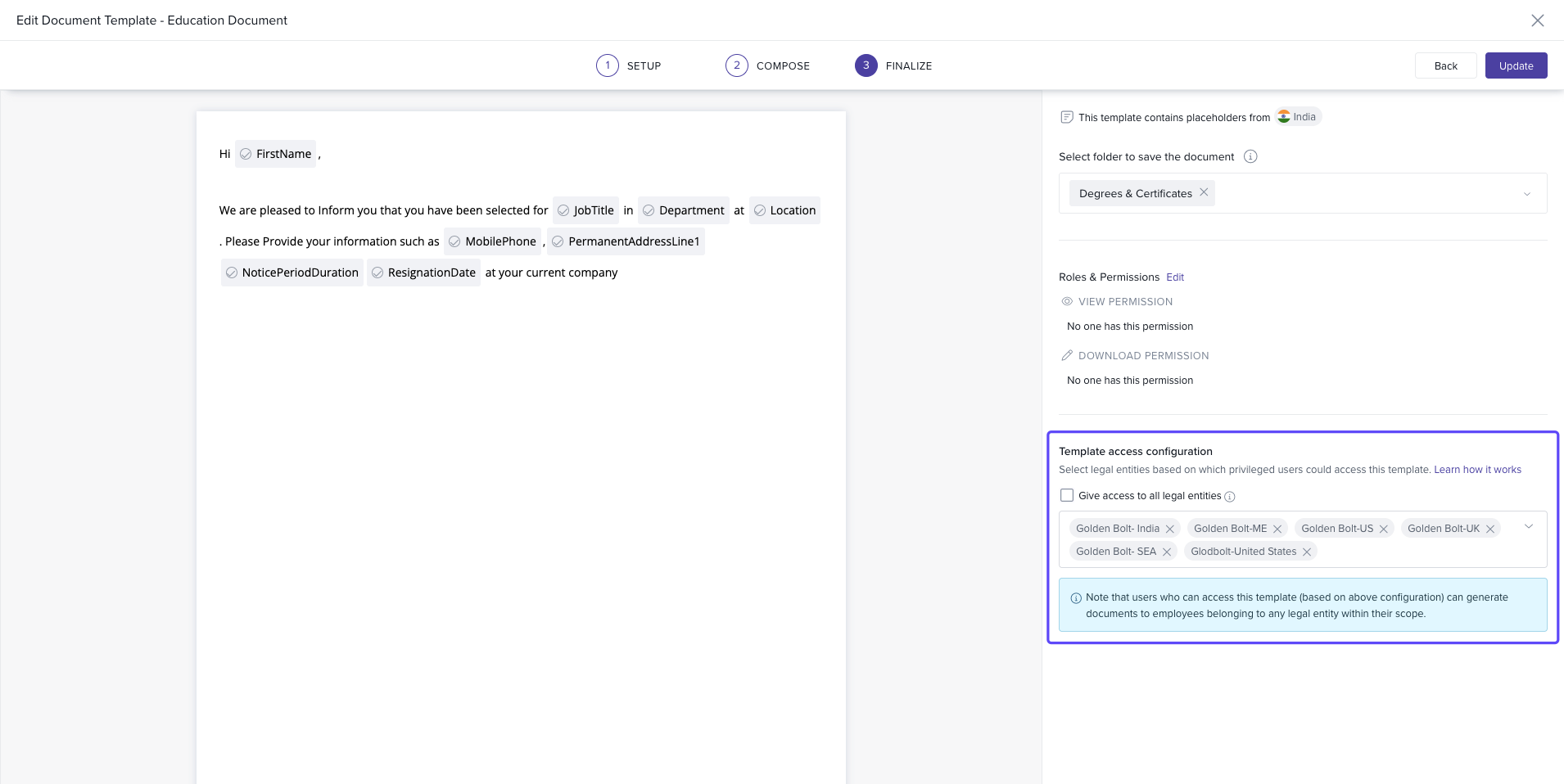
Select the legal entities that should have access to the template.
By default, all legal entities are selected.
You can uncheck specific entities that should not have access.
-
At least one legal entity must be selected to proceed.
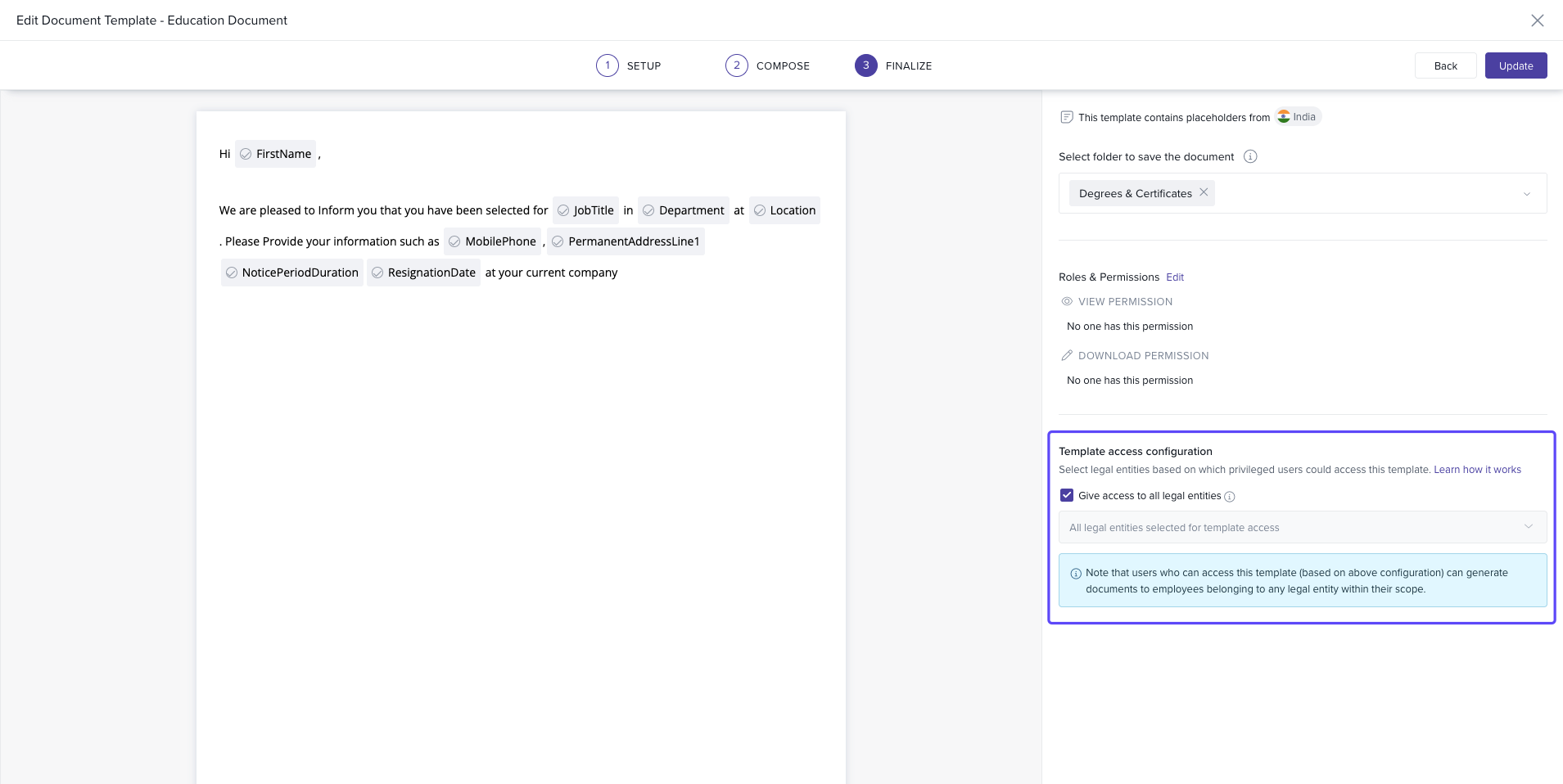
If needed, you can choose Grant access to all legal entities for broader accessibility.
Click Save Template/Update to confirm and apply the scope settings.
Understanding access behaviour by user type
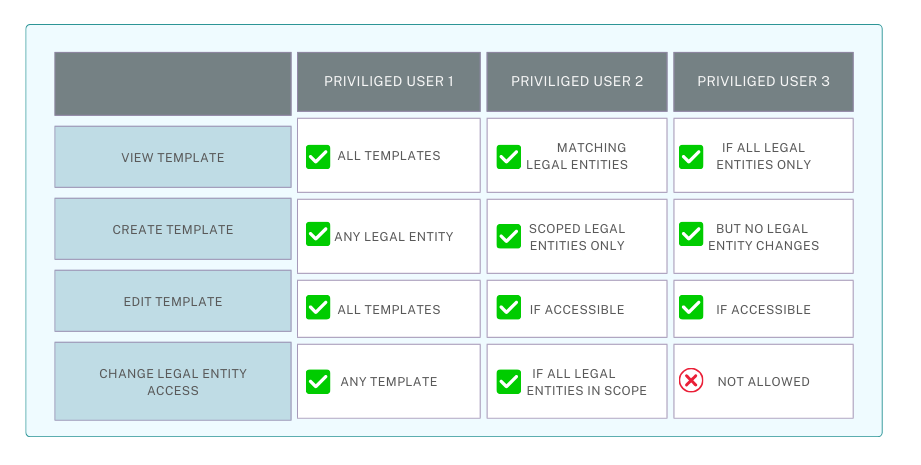
Access to document templates now depends on how both the template and user are scoped. Below is a breakdown of how permissions apply for different user roles:
Privileged Users with Access Across All Employees
These users are not restricted by any scope and have complete access.
| Action | Access |
|---|---|
| View any template | ✅ Yes |
| Create new template for any LE | ✅ Yes |
| Edit any template | ✅ Yes |
| Change LE access of any template | ✅ Yes |
Privileged Users scoped to specific legal entities
These users can only access and manage templates linked to their assigned LEs.
| Action | Access |
|---|---|
| View template | ✅ Only if the template has at least one LE that matches user’s LE scope |
| Create new template | ✅ Yes, but only for the LEs they are scoped to |
| Edit existing template | ✅ Only if the template is accessible |
| Change LE access of a template | ✅ Only if all template LEs are within user’s scope |
Privileged Users scoped to other attributes (e.g., location, department)
These users can access templates available to all legal entities but cannot modify LE-specific access.
| Action | Access |
|---|---|
| View template | ✅ Only if template is set to All legal entities |
| Create new template | ✅ Yes, but cannot change LE access (default: All LEs) |
| Edit existing template | ✅ Only if template is accessible |
| Change LE access of a template | ❌ Not allowed (tooltip explains why) |
Conclusion
By scoping document templates to specific legal entities, Keka enables better control over document visibility, compliance, and confidentiality. This ensures that templates are securely accessed only by authorized users based on their legal entity permissions.
To learn more about creating document templates, refer to our article on Creating and Managing Document Templates in Keka.
Comments
0 comments
Please sign in to leave a comment.