Introduction
The Keka dashboard is your personalised workspace that appears when you log in. It provides easy access to the tools and information you need most, using visual widgets and interactive elements.
Admins can customise this dashboard for different teams, helping everyone stay focused and informed.
The dashboard also acts as a communication wall, where employees can share updates and stay connected with their department and organisation.
Dashboard
The dashboard is split into two sections:
Quick Access (left side): Contains useful widgets for time tracking, tasks, leave, and more.
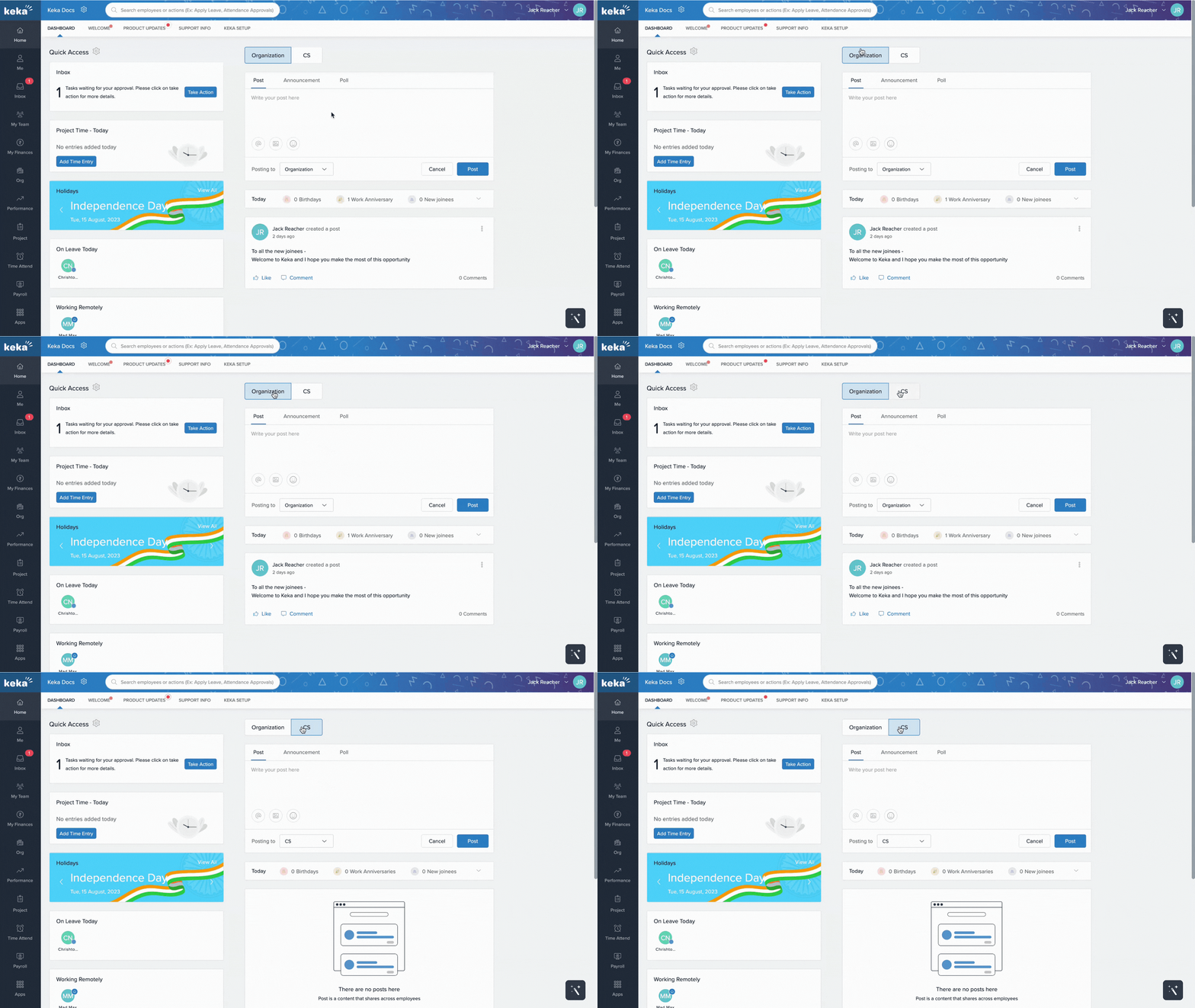
Wall (right side): A space for announcements, posts, polls, and celebrations. Employees can react or comment on posts here.
Quick Access Widgets
Widgets provide real-time updates and direct access to features. Your available widgets depend on how your admin has set up the portal.
Time Widget
Shows the current date and time and lets you:
- Web Clock-in/Clock-out
- Use Remote Clock-in when working off-site.
- Submit Work from Home requests with dates, reasons, and alerts.
- Send On Duty notifications for external assignments.
- Request Partial Day Offs by specifying time, reason, and notifications.
Project Time Widget
If you're assigned to a project that needs timesheet submissions:
Click to go directly to the Timesheets section.
Inbox Widget
Displays tasks waiting for your attention.
Click Take Action to respond or complete them.
Holidays Widget
Shows the next upcoming holiday.
Click View All to see the full holiday calendar.
On Leave Today & Working Remotely Widgets
On Leave Today: Lists team members on leave.
Working Remotely: Shows who is working from home or on duty today.
Leave Balances Widget
Displays available leave balances.
Click Apply Leave to submit a request.
Click View All Balances to see a detailed breakdown.
Quick Links Widget
Admins can add important organisation-wide links here for easy access.
Use the Wall to Connect
Making a Post
Type your message in the input box.
Mention someone using
@name.Add images via the image icon or emojis using the emoji icon.
Choose whether to post to the entire organization or a specific department.
Click Post.
Making an Announcement
Click + icon on the wall to make an announcement.
Enter the announcement title and details.
-
Choose to:
Notify employees
Request acknowledgment
Set an expiry time (hides the post after a specific time)
Select the audience and click Configure & publish.
Conducting a Poll
Go to the Poll tab.
Enter a title and options.
-
Optional settings:
Set an expiry date.
Notify employees.
Keep responses anonymous.
Select where to post and click Post.
Giving Praise
Go to the Praise tab.
Search and select the employee you're recognising.
Choose a reason and a badge.
Optionally, attach files.
Pick the posting audience and click Post.
Daily Updates
-
See highlights like:
Birthdays
Work anniversaries
New joinings
Upcoming celebrations
Admins can choose who can post on the wall. By default, all employees can post, but admins can restrict posting rights to only themselves.
If you're part of multiple departments, use the dropdown to switch between department walls for more focused communication.
Options & Variants
Widget customisation: Admins can add, remove, or rearrange widgets.
Wall access: Admins can restrict posting rights or allow everyone.
Department walls: Employees in multiple departments can switch views via a dropdown.
Notes, Tips, Important, Warnings
Note: Widget availability and layout depend on your organisation's configuration and your admin's settings.
Tip: Use the Wall not just for formal announcements but also to build a sense of team culture through praise and updates.
With this, you're all set to maximise the potential of your Keka dashboard.
Comments
0 comments
Please sign in to leave a comment.