Introduction
Your Keka profile is more than just name and job title—it’s a way to present yourself professionally and keep your employment, education, and contact information up to date. Completing your profile builds trust with peers and helps your organization work more smoothly.
Table of Contents
Profile overview
-
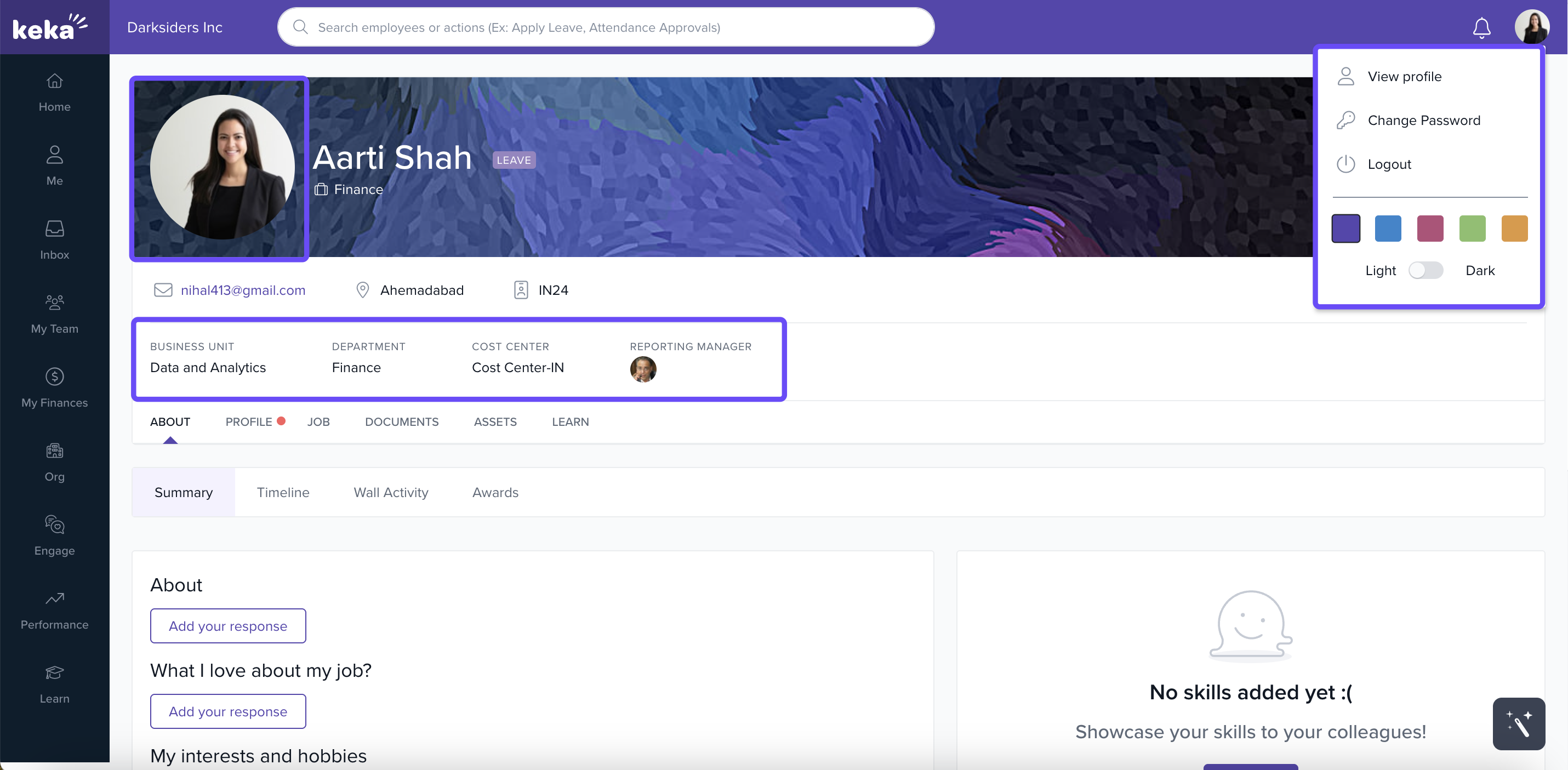
Click your name (top right corner) → View Profile.
-
You’ll see your profile picture (which you can change by clicking it), your name, location, official email, and other key details.
-
You also see your job title, department, business unit, reporting manager, and your employee ID.
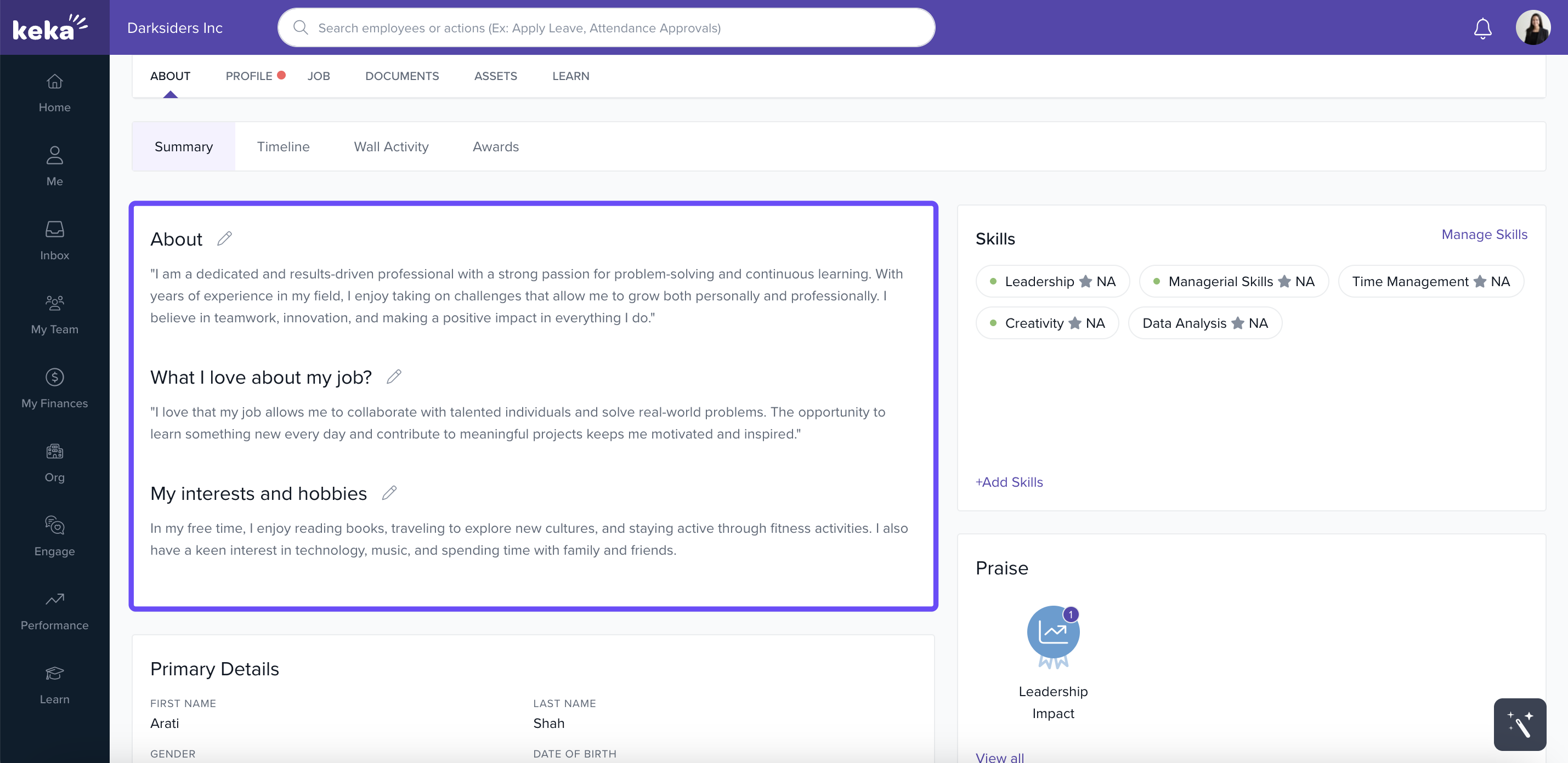
About
“About” section includes:
-
Summary
-
“What I love about my job”
-
“My interests and hobbies”
To add details here, click on Add Your Response or the pencil icon to edit.
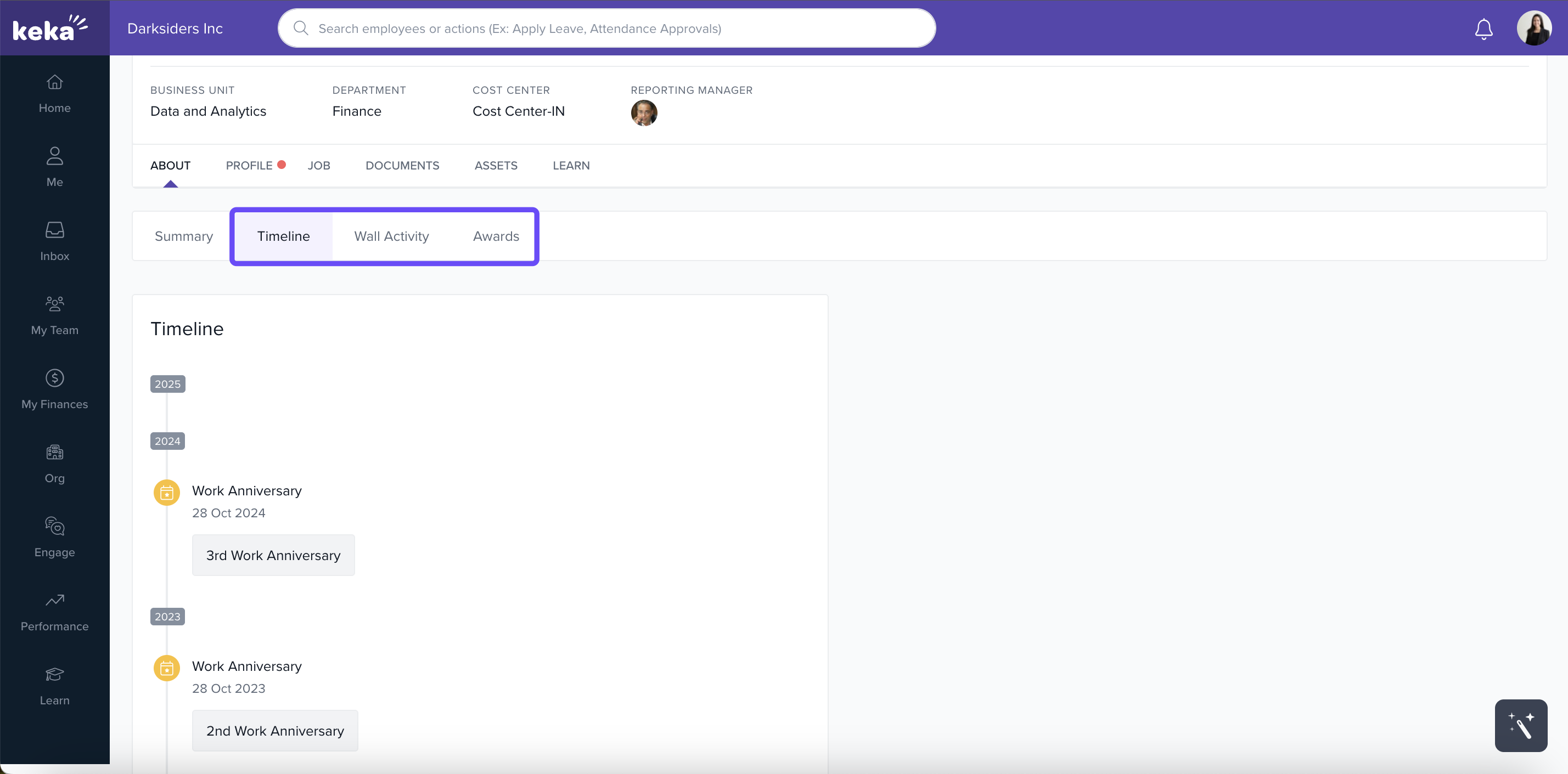
There are additional sections under About: your Timeline (milestones since joining) and Wall activity (posts/polls/announcements).
Praise is a feature to recognize and give a shout-out to the top performers. You can see the various praises you've received in this section here.
If you want to trace back your journey in the organization, click on About and then on Timeline. This section shows every milestone you have achieved since you joined the organization.
Wall activity under About shows details about your past activities on the Wall. This will include the posts, polls, and announcements you've made on the organization or the department wall.
Profile
-
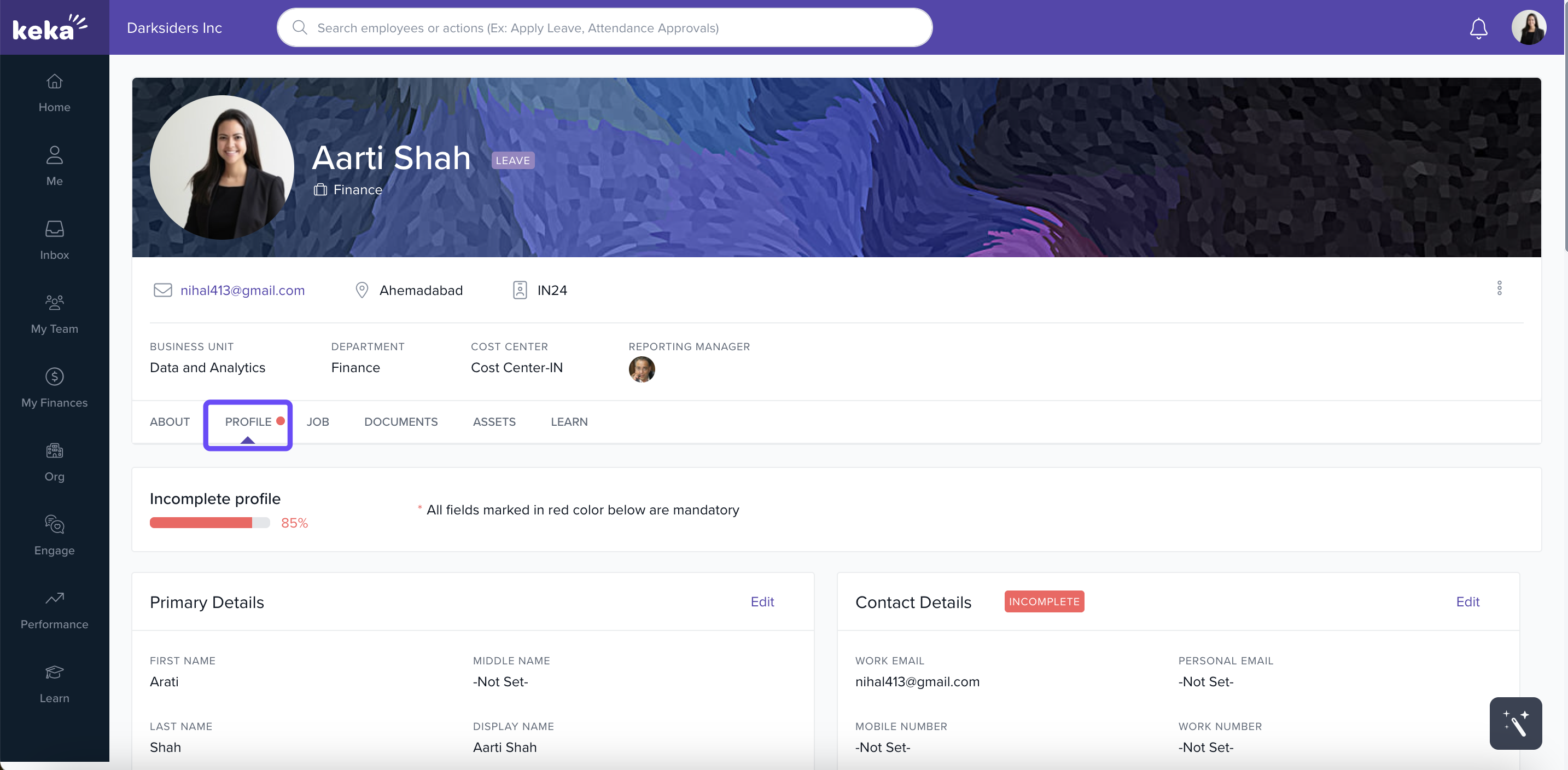
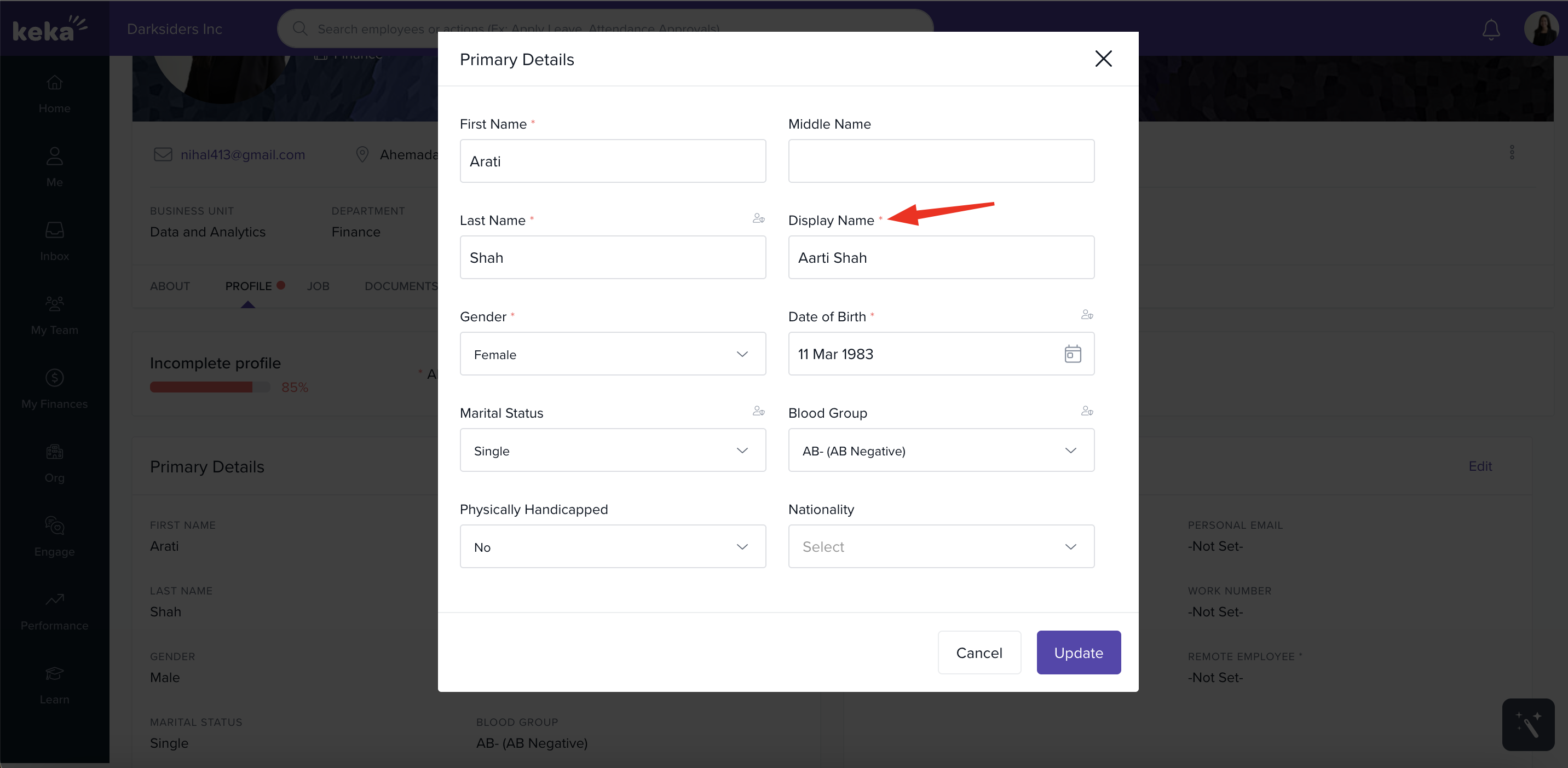
The “Profile” tab shows your personal and contact details, addresses, relations, experience, education, etc.
-
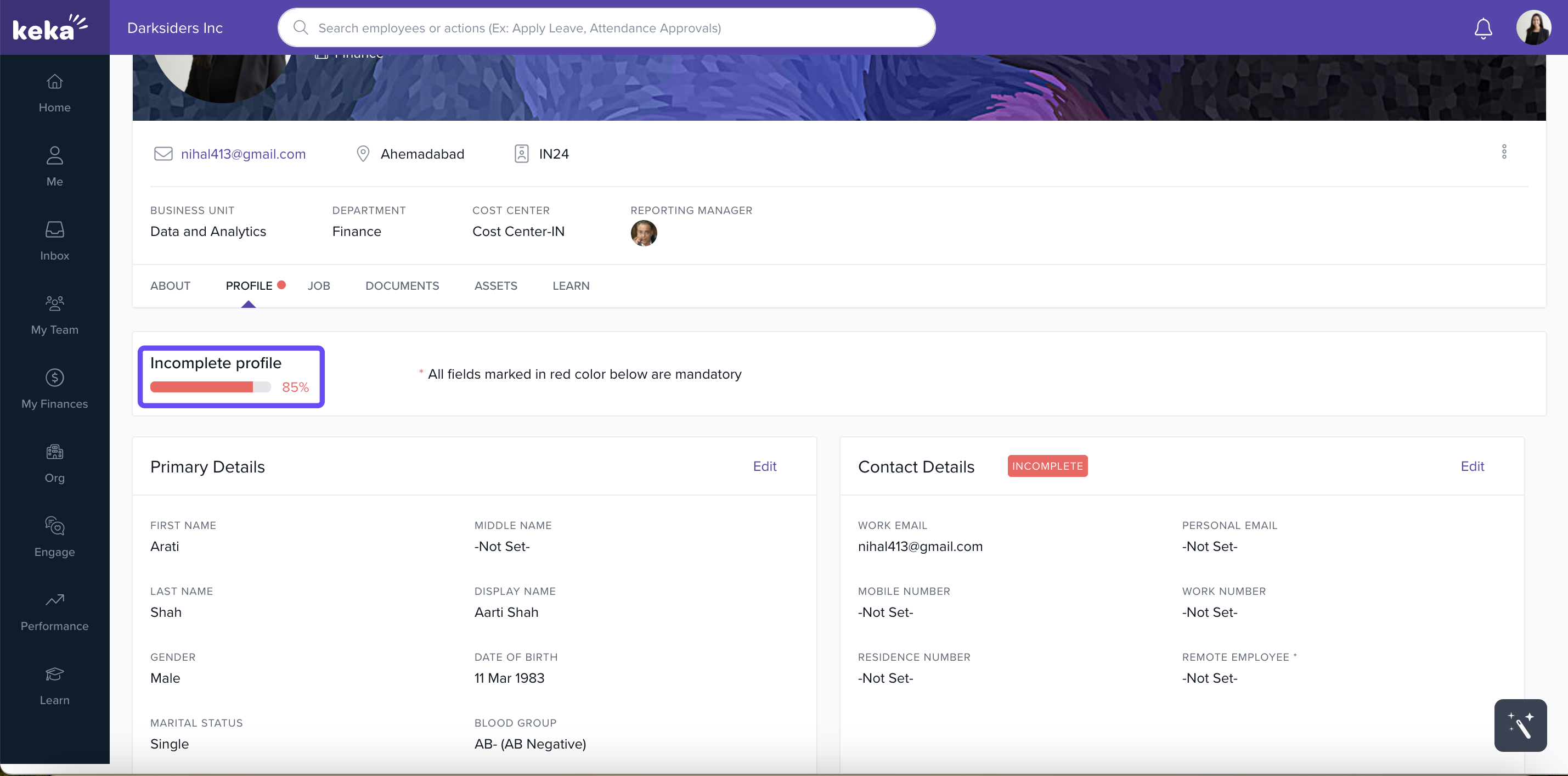
Mandatory fields are marked in red. You can edit any section by clicking the Edit (pencil) icon, making changes, and then clicking Update.
-
The profile completeness indicator shows how much of your profile is filled.
Job
-
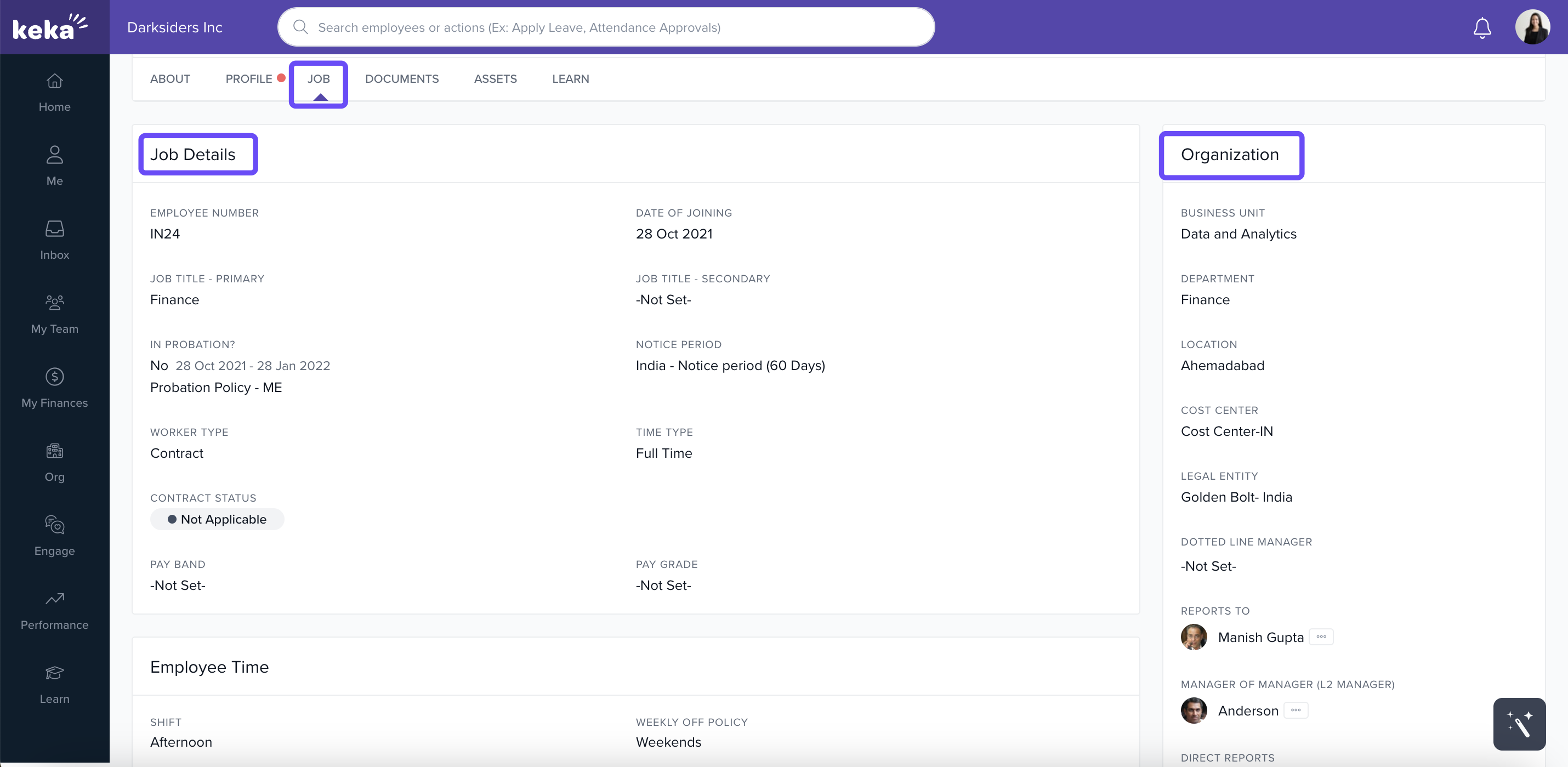
The “Job” section shows all job-related info: title(s), job type, department, business unit, your reporting manager, work policy settings, etc.
-
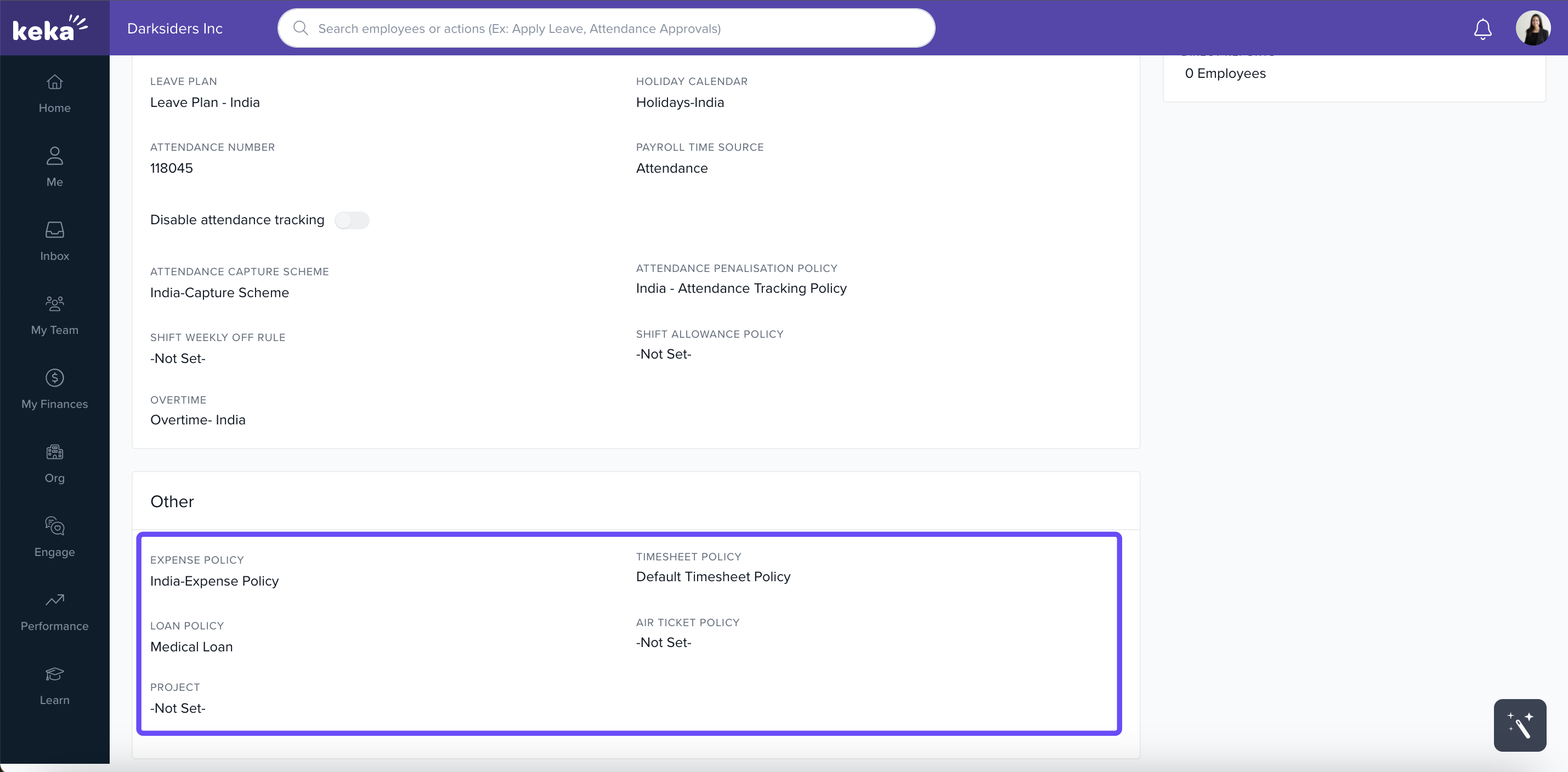
Also includes assigned policies: leave policy, timesheet policy, expense policy, etc.
Documents
-
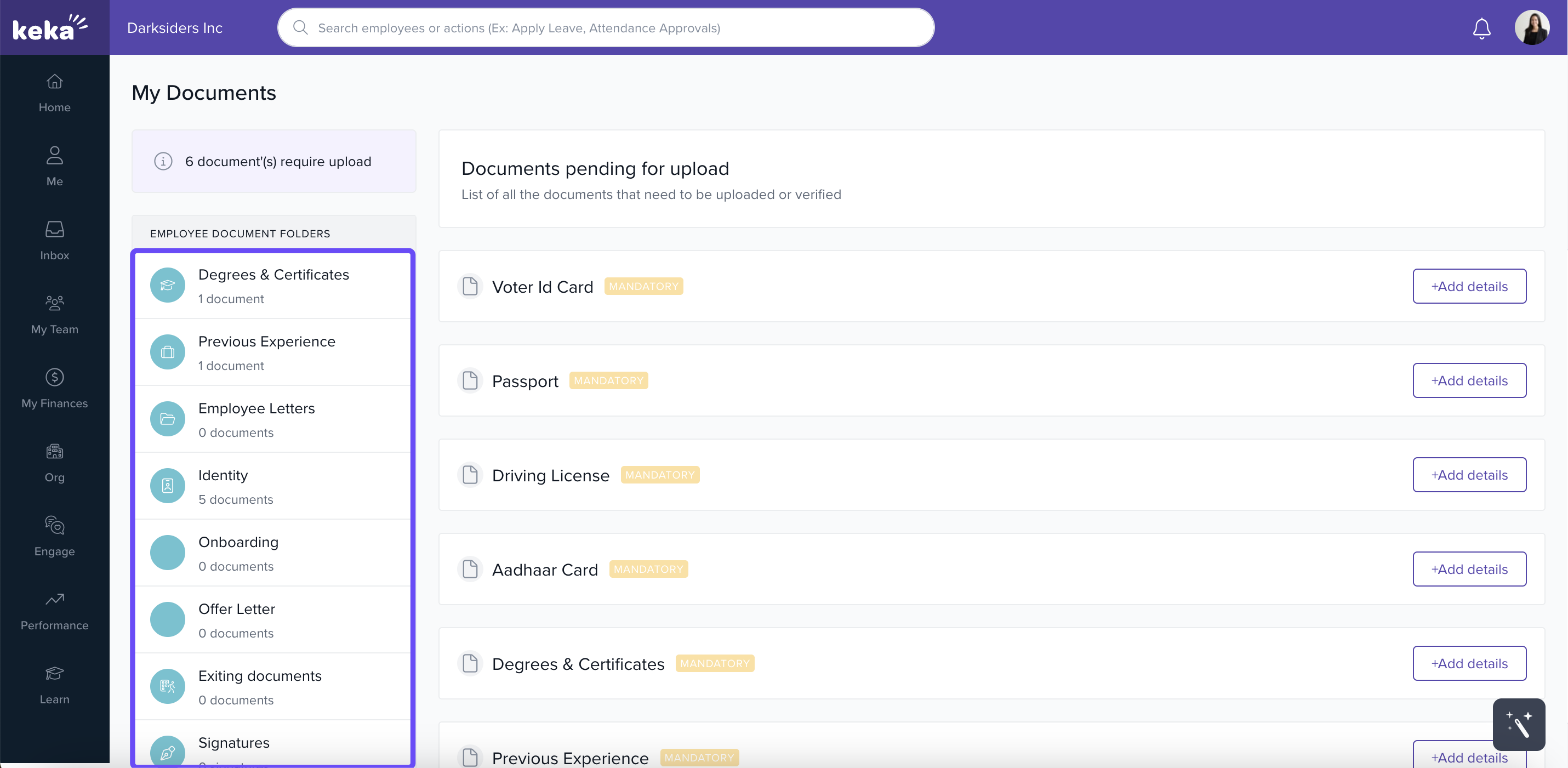
This tab includes the documents you’ve submitted or need to submit. Categories include identity documents (PAN, passport, etc.), degrees & certifications, previous experience letters, etc.
-
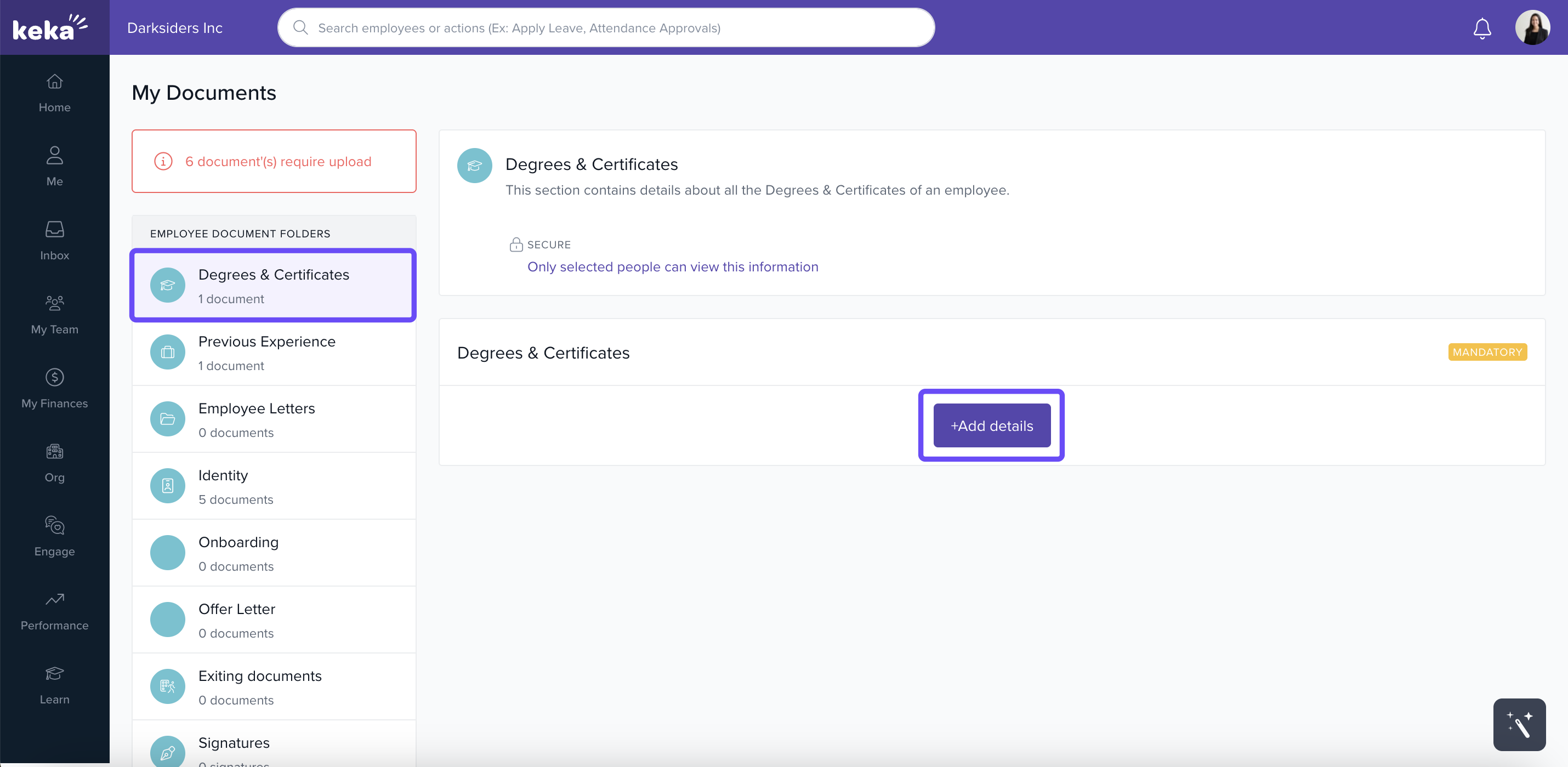
Uploading: open the relevant folder → click +Add details → add any required info → attach the document → Save.
Assets
-
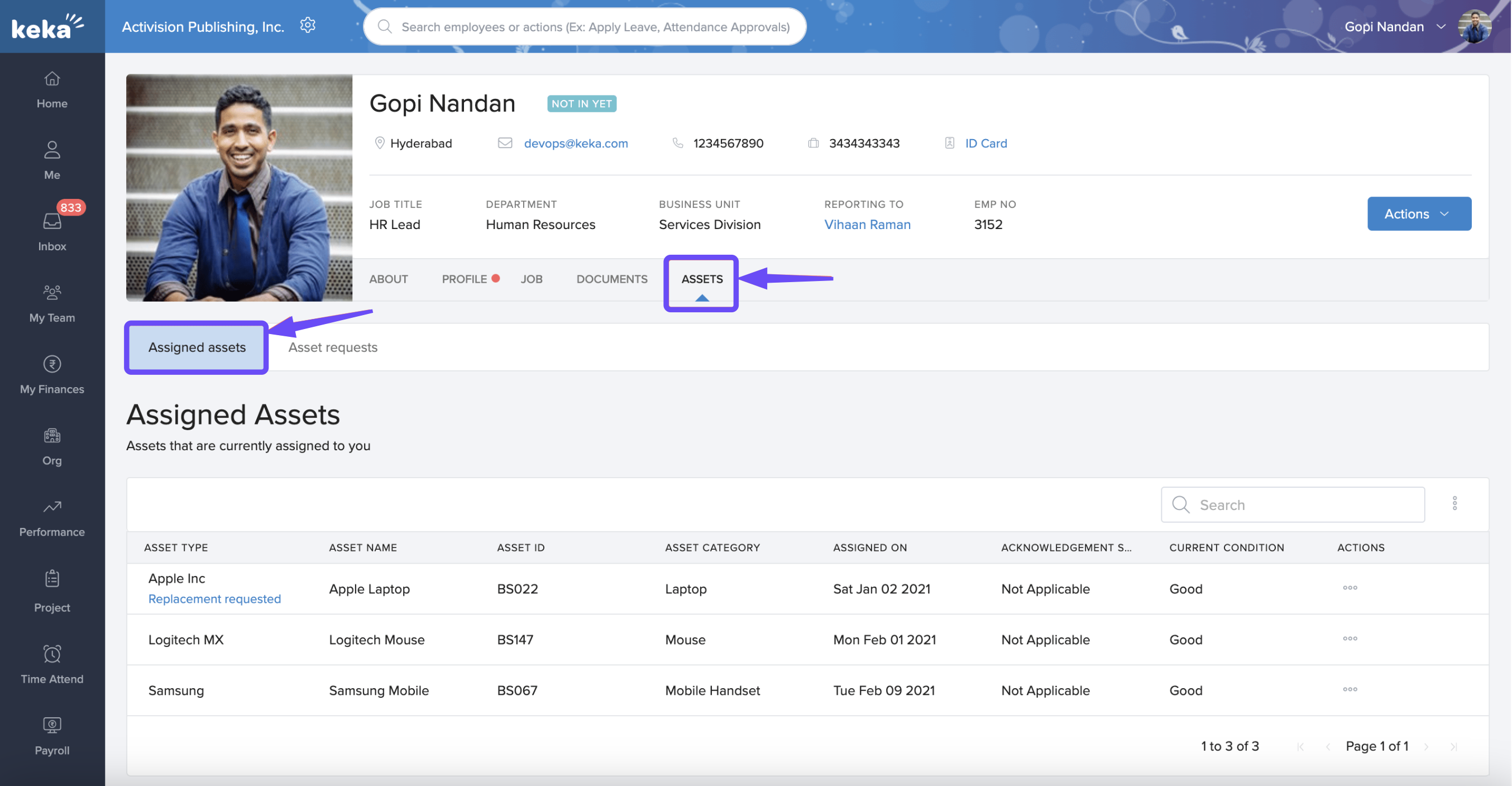
Shows assets assigned to you (laptop, phone, etc.) along with details like date assigned, category, etc.
-
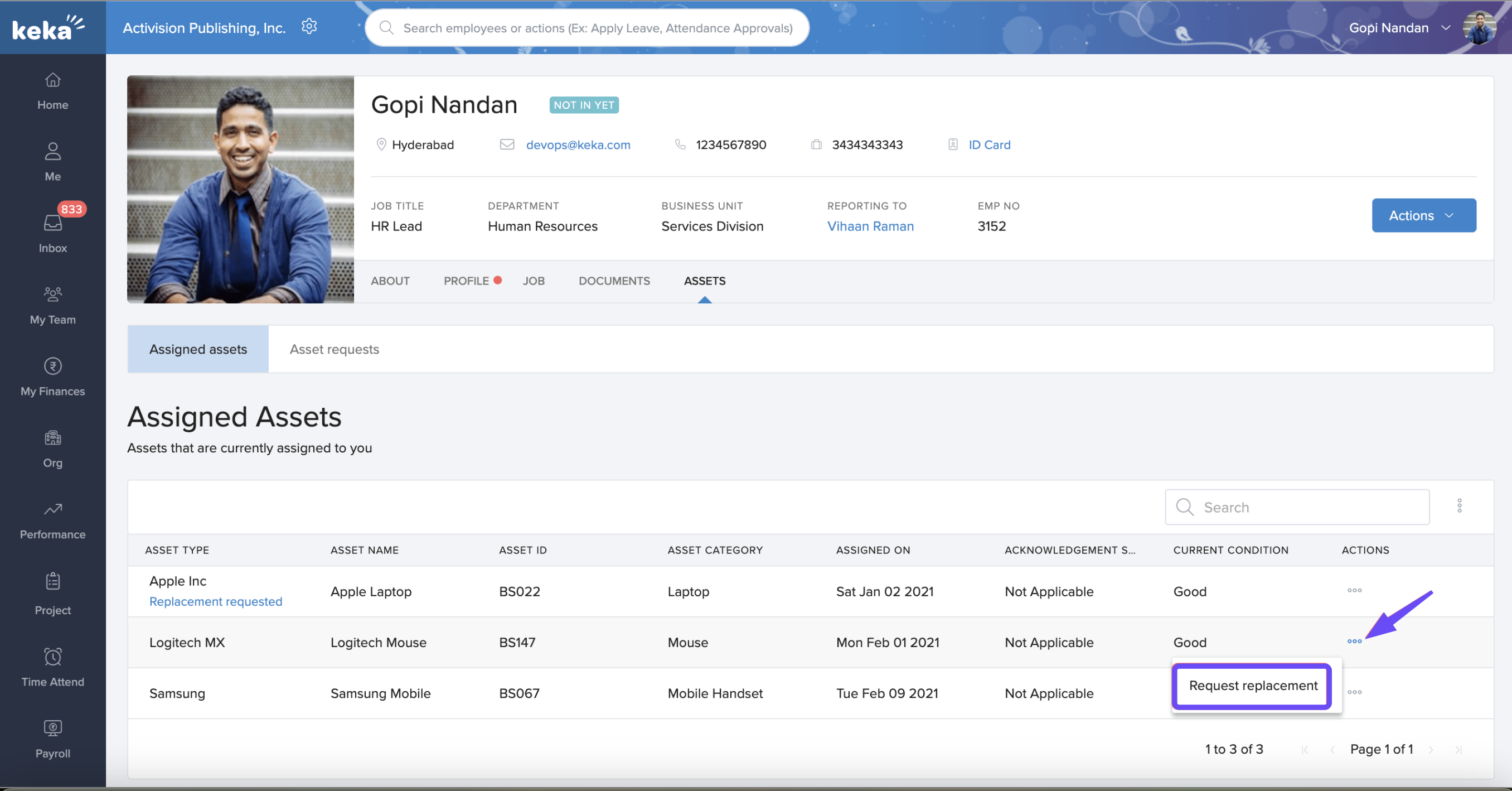
To request a replacement, click the three dots beside the asset → select Request Replacement → fill out the requirement and upload supporting images if needed → Submit.
Resigning from the job
-
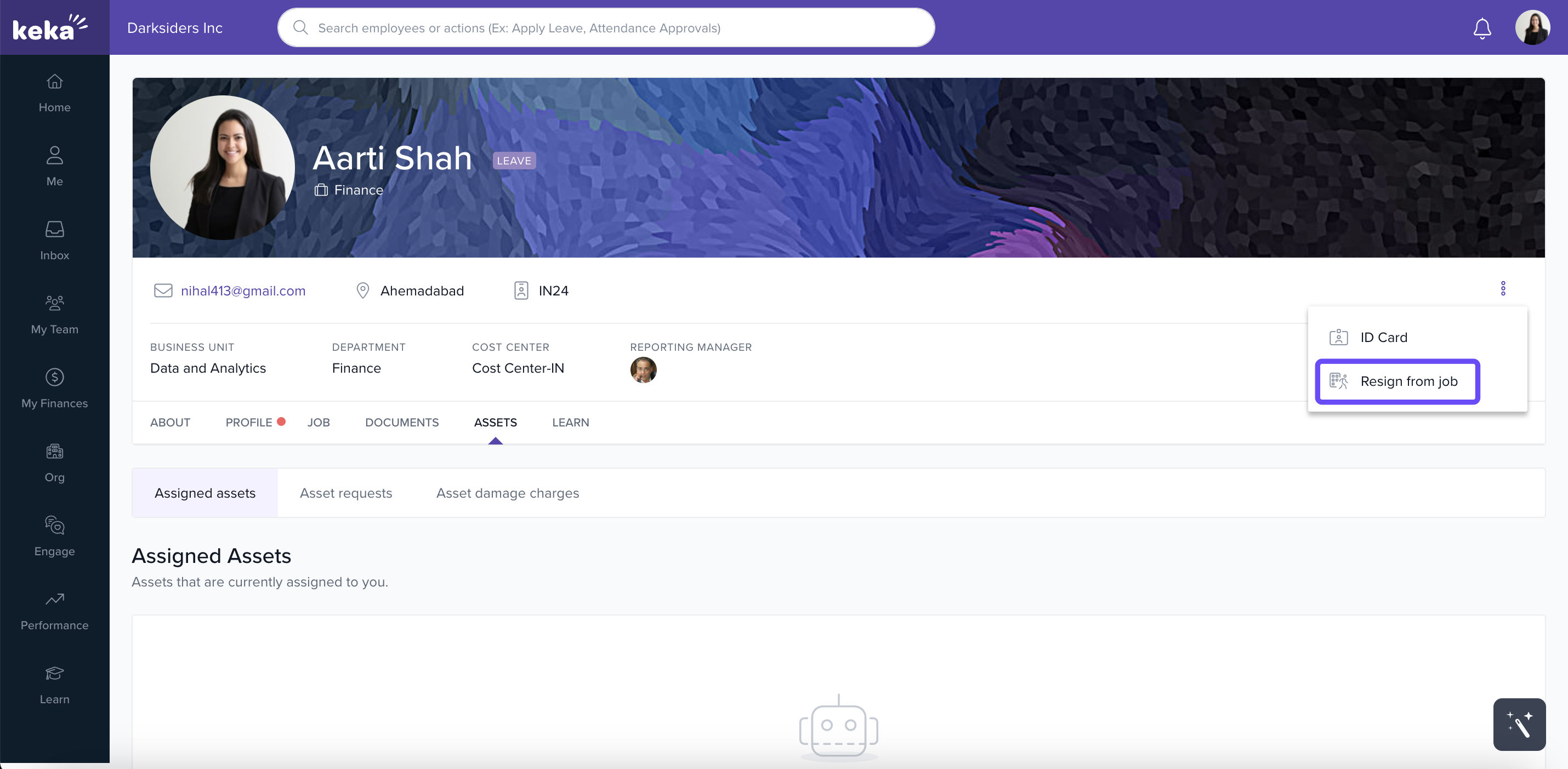
If you want to resign, under Actions you’ll see Resign from job (if enabled by your organization) in your profile.
-
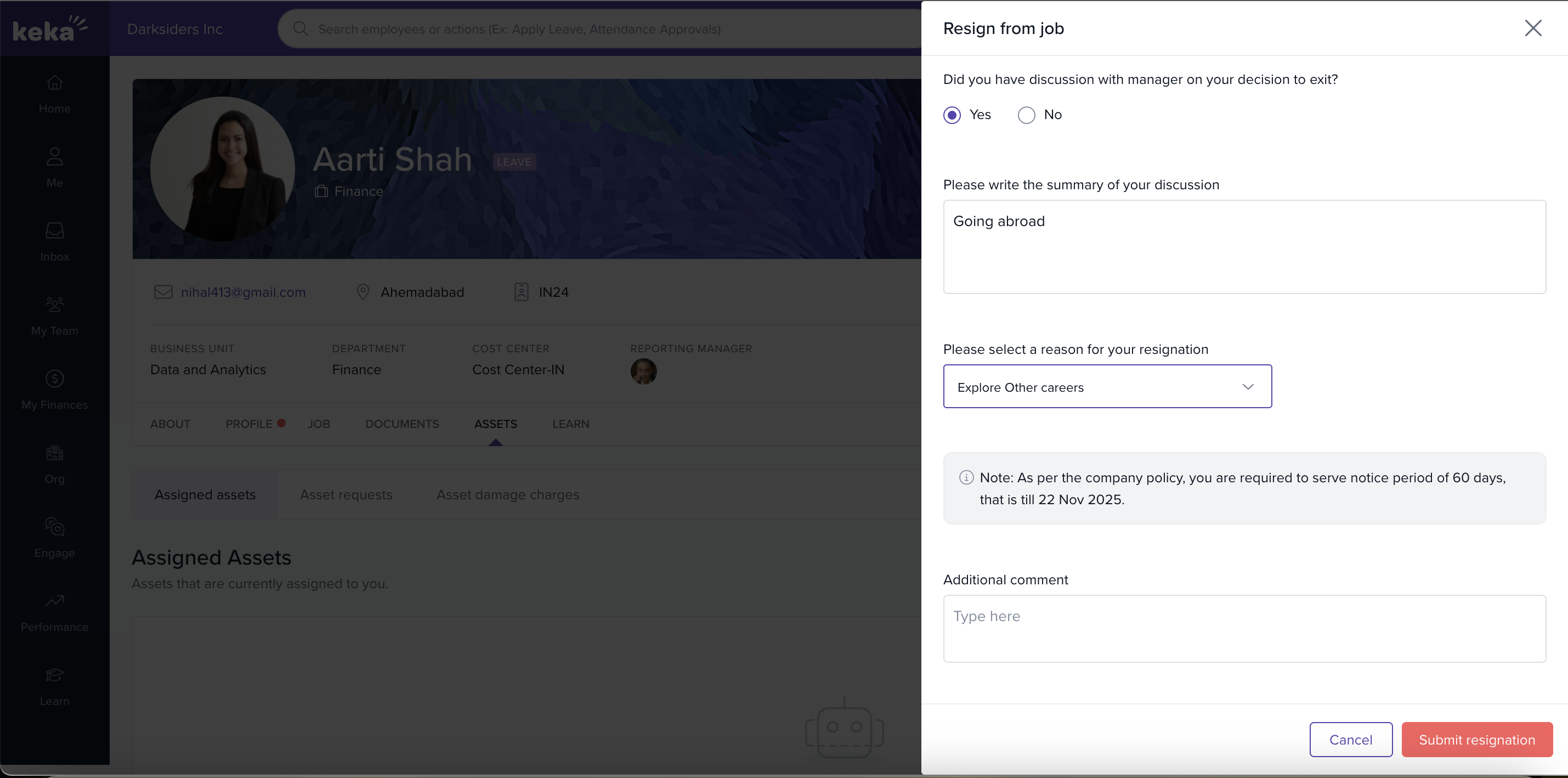
Select your reason for resignation, add comments, indicate if you discussed with your manager, then Submit.
-
If you don’t see the resign option, HR/manager or Admin can initiate the exit.
Updating your profile regularly ensures your information is accurate and complete. It helps you connect better with your team, avoids missing out on important communications or tools tied to your job/department, and supports organizational transparency. Always keep your personal, job, document, and asset info up to date.
Comments
0 comments
Please sign in to leave a comment.