To streamline onboarding and ensure that all necessary employee or candidate information is collected efficiently, Keka has introduced Profile Field Tasks within Task Templates.
This feature allows organizations to create tasks specifically designed to collect essential details—such as personal, contact, and employment information—before an employee joins.
It helps HR teams automate data collection and provide a smooth onboarding experience.
What are Profile Field Tasks?
Profile Field Tasks are special tasks within Task Templates that collect specific employee or candidate information.
These tasks prompt individuals to fill in required fields such as personal details, address, emergency contacts, or bank details directly in Keka—before their joining date.
Use Cases for Profile Field Tasks in Keka
You can use Profile Field Tasks to gather:
Basic personal details: Name, date of birth, contact number, etc.
Emergency contact information: Contact name, relationship, and phone number.
Address verification: Useful for remote workers or equipment delivery.
Background check details: ID proof, previous employment, and education history.
Bank details: Bank name, account number, and routing number for payroll setup.
Role-specific information: Certifications or job-specific documentation.
How to Set Up Profile Field Tasks
Follow these steps to create and configure Profile Field Tasks:
Navigate to Org → Onboarding → Task Templates.
Click the dropdown next to Add Task Template and select Create from Scratch → Profile Field Task.
Enter the task details, including Name, Description, and add attachments if required.
Define the due date, assign a task owner, and set up approvers.
Selecting Profile Fields
In the Profile Fields section, click Add Profile Fields.
If your organization operates in multiple countries, select the relevant country.
-
You’ll see several field categories such as:
Primary details
Contact details
Addresses
Relations
Use the + icon next to a card to include all fields in that section, or click + next to specific fields to include only selected ones.
Click Continue, review your selections, and confirm when prompted.
Note: The selected fields will be editable and viewable by task owners and approvers, regardless of field permissions.
.gif)
Applying the Task to Employees or Candidates
Specify which departments, locations, or roles the task applies to.
Any new employee or candidate matching the criteria will automatically receive the task.
(Optional) Add a checklist to the task by clicking Add Checklist.
You can also set email reminders to notify participants before or after the task’s due date.
Click Create Task to save the template.
Once saved, the task becomes available for selection during onboarding initiation.
Employee Completing The Tasks
When onboarding is initiated, the employee receives a notification in their Keka inbox.
The notification lists Profile Field Tasks with an Add Profile Details button.
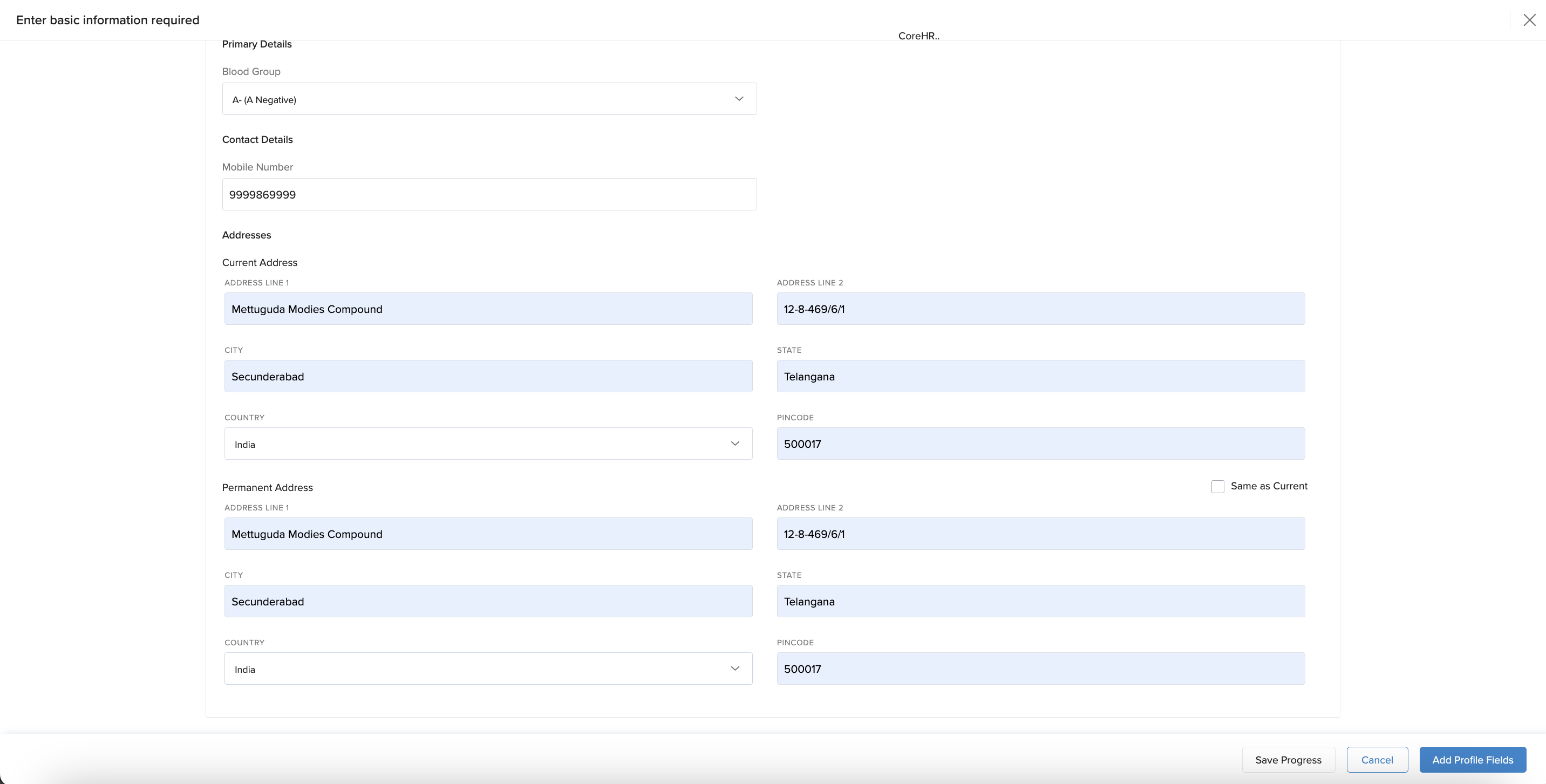
On the next page, employees can fill in the required details.
They can either save progress to edit later or click Add Profile Fields to complete the task immediately.
Candidate Completing The Tasks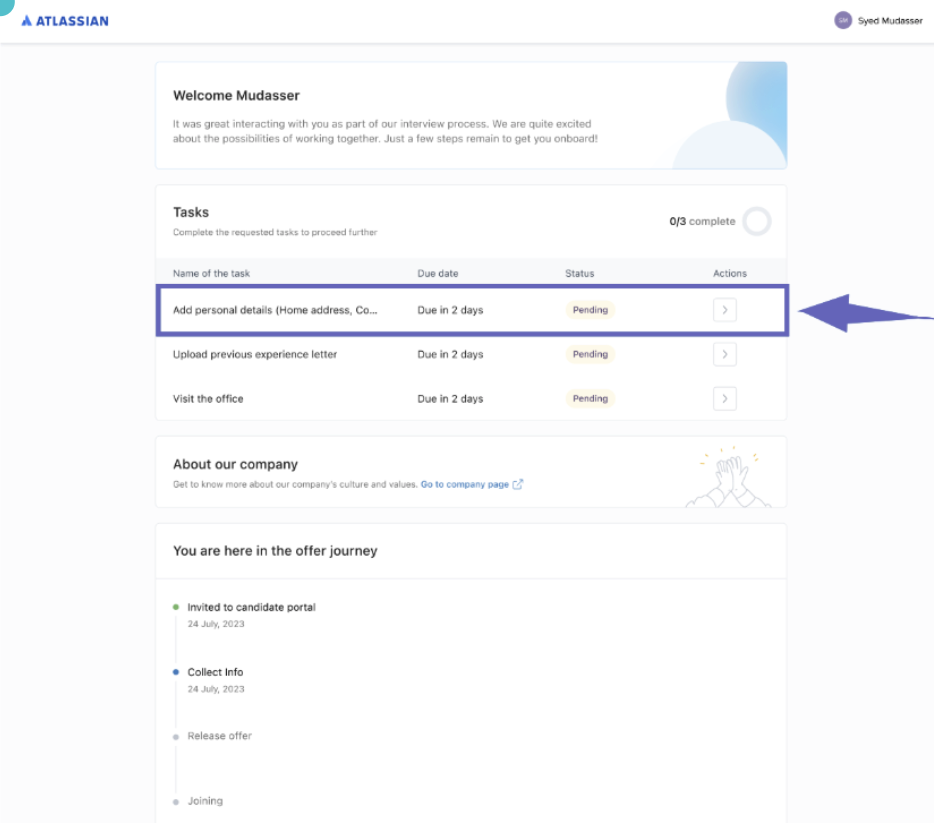
For candidates, the task appears in their Candidate Portal.
They can follow the provided instructions and complete the required details online before joining.
The Profile Field Tasks feature in Keka’s Task Templates helps HR teams streamline onboarding by collecting essential employee and candidate data upfront.
By automating this process, organizations ensure a smoother, more efficient transition for new hires.
For more guidance, visit the Keka Task Templates Help Page and start enhancing your onboarding workflow today.
Comments
0 comments
Please sign in to leave a comment.