Task templates in Keka are one of the most powerful ways to automate your Preboarding and Onboarding workflows. With just the right configuration, you can set up tasks once and have them assigned automatically whenever a new hire matches specific criteria.
These tasks can cover a wide range of actions—from collecting documents to provisioning assets—ensuring minimal manual intervention and a consistent experience for both HR teams and new employees.
Previously, tasks were available only in Onboarding flows. But starting April 2024, you can use them in Preboarding as well, making it easier to manage the entire candidate-to-employee journey.
Understanding the components of a task
A task is any action that someone (either the new hire or an internal team member) needs to complete as part of Preboarding or Onboarding. These actions can vary across departments and roles—for example:
A candidate submits their ID proof
A facilities admin books temporary accommodation
HR delivers a welcome kit on Day 1
You can build these tasks into templates and use them whenever you onboard someone new.
Each task should include the following components:
Name: A short title like “Upload Aadhaar Card”
Description: What needs to be done, why, and how
Attachments: Add reference files if needed
Task type:
General: For logistics like ID cards, laptops, etc.
Identity Documents Collection: For document submission by the candidate
Academics/Experience: For submitting past employment or education docs
Task trigger: Defines when the task is activated (e.g., after offer release)
Due date: Sets the deadline for completing the task
Assignee: The task owner (e.g., HR, candidate, IT)
Approvers: Optional—people who need to review/approve the task
Applies to: Filters which new hires the task applies to
Using task triggers
Instead of relying on fixed onboarding stages, you can now trigger tasks at the most relevant point in your process.
Choose from the following trigger stages:
Pre-offer
Offer release
Post offer acceptance
Pre-joining
On joining day
Post joining day
You can also add custom timing—for example, trigger a task 5 days after offer release or 30 days after joining.
This helps create a well-paced onboarding experience that adapts to your organization’s needs.
Creating Task Templates
Navigate to Org> Onboarding> Task templates
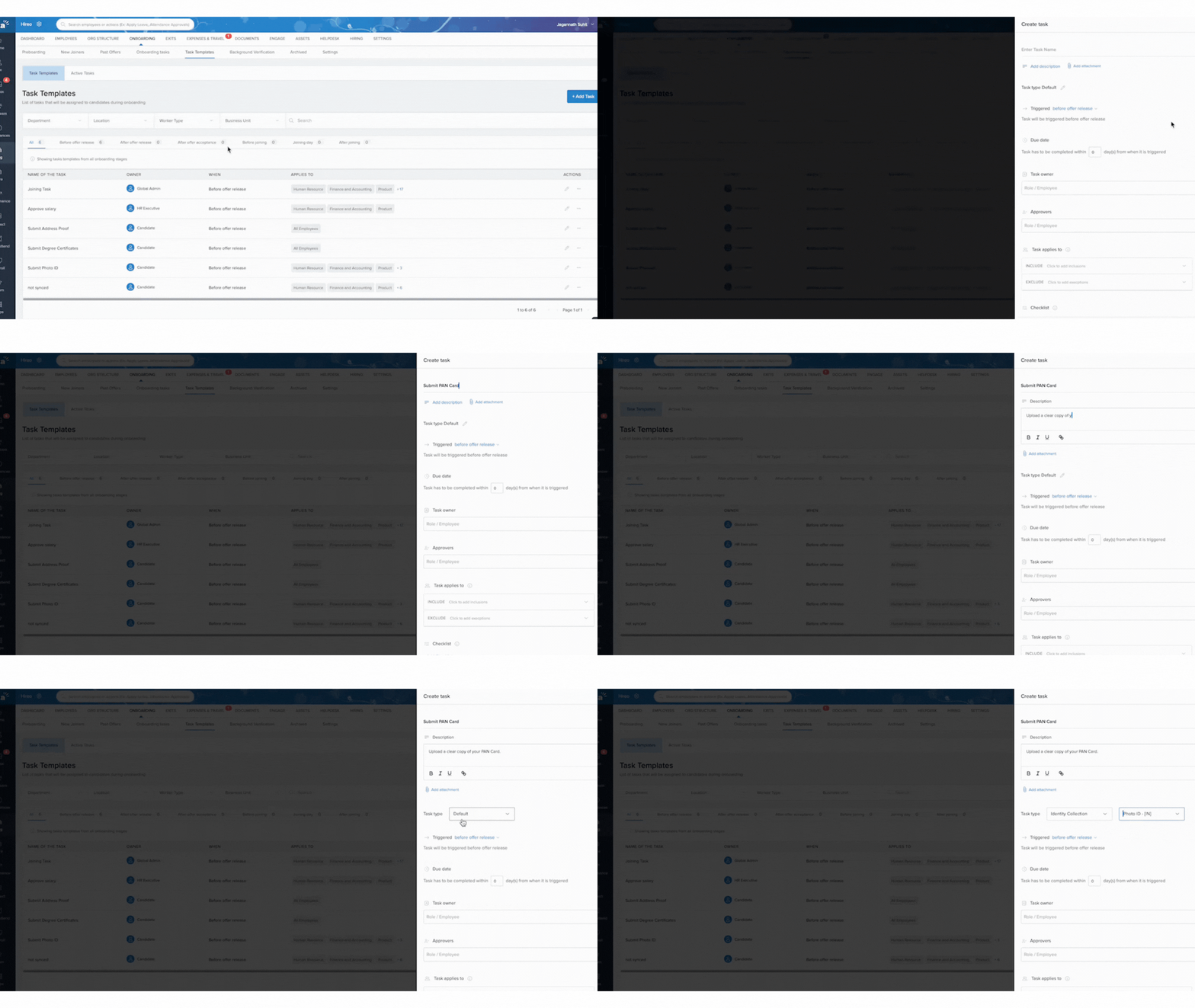 Task Trigger: This setting determines when the task will be triggered. Options include the following stages:
To create a task template, HR managers or privileged users can go to the task configuration area in Keka and define a new template.
Each template contains:
Task Name: Clear and simple
Description: Include why it’s important and how to complete it
Attachments: Upload anything the assignee needs
Task Type: Choose from General, Identity, or Academic/Experience
Task Trigger: Choose the event that initiates the task
Trigger day offset: Fine-tune when the task starts (e.g., “5 days after offer acceptance”)
Due Date: Set how many days the task owner has to complete it
Task Owner: Assign to a specific user or role
Approvers: Optional, but helpful for tasks that need validation
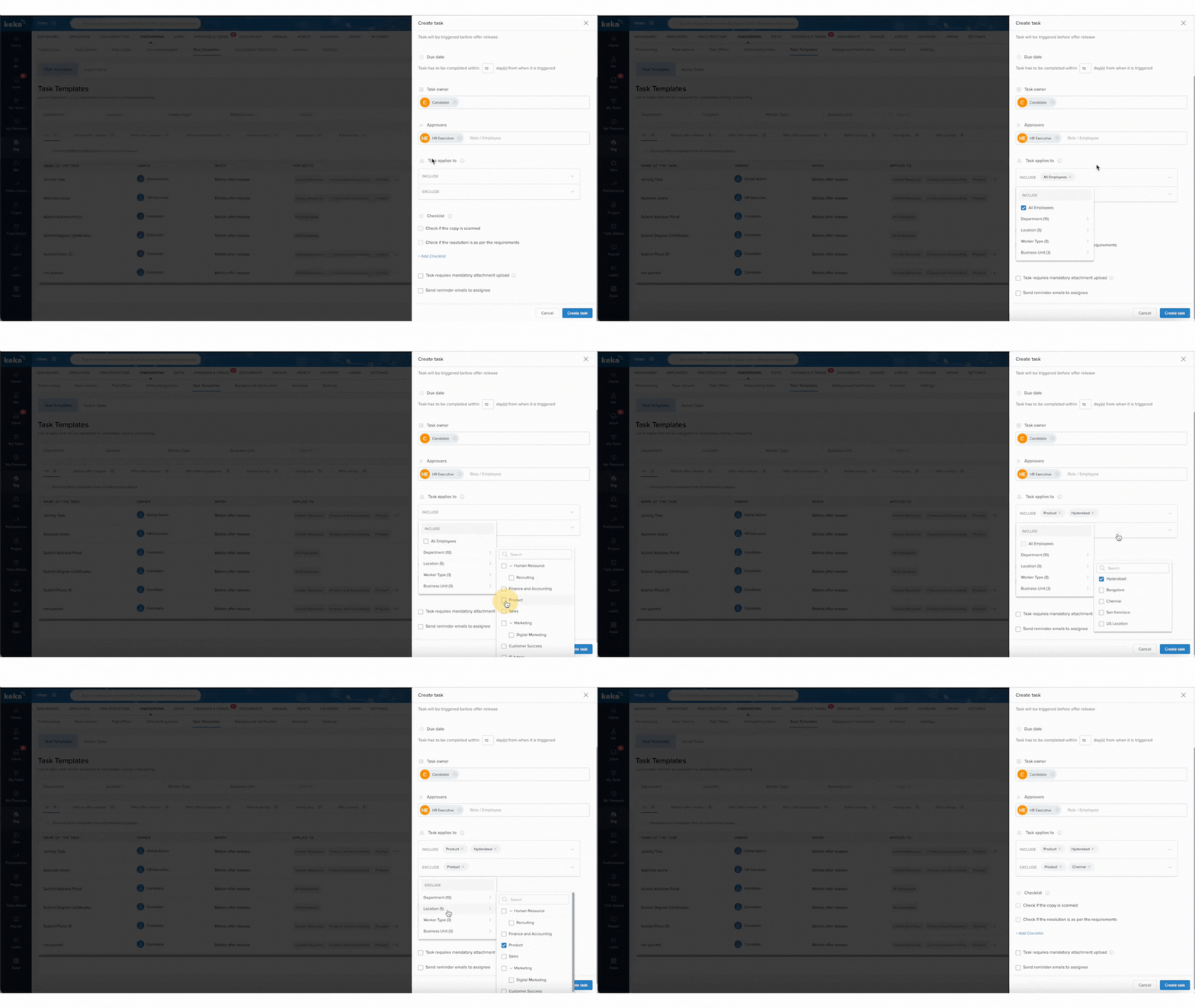
Applies To: Define who the task should apply to based on employee attributes
“Task Applies To” lets you automatically assign tasks based on employee criteria like department, role type, or location.
For example:
If someone joins the Design department, assign a task to the IT admin to provide a MacBook Pro
If someone joins Sales as a Full-time employee, assign tasks to provide a Dell laptop + SIM card
If someone joins Sales as an Intern, assign only a Dell laptop
In each case, the task is automatically assigned to the correct person (e.g., IT admin) when someone matching the conditions joins.
Note: “Task Applies To” defines when a task should be assigned based on employee attributes.
“Task Owner” defines who will complete the task.
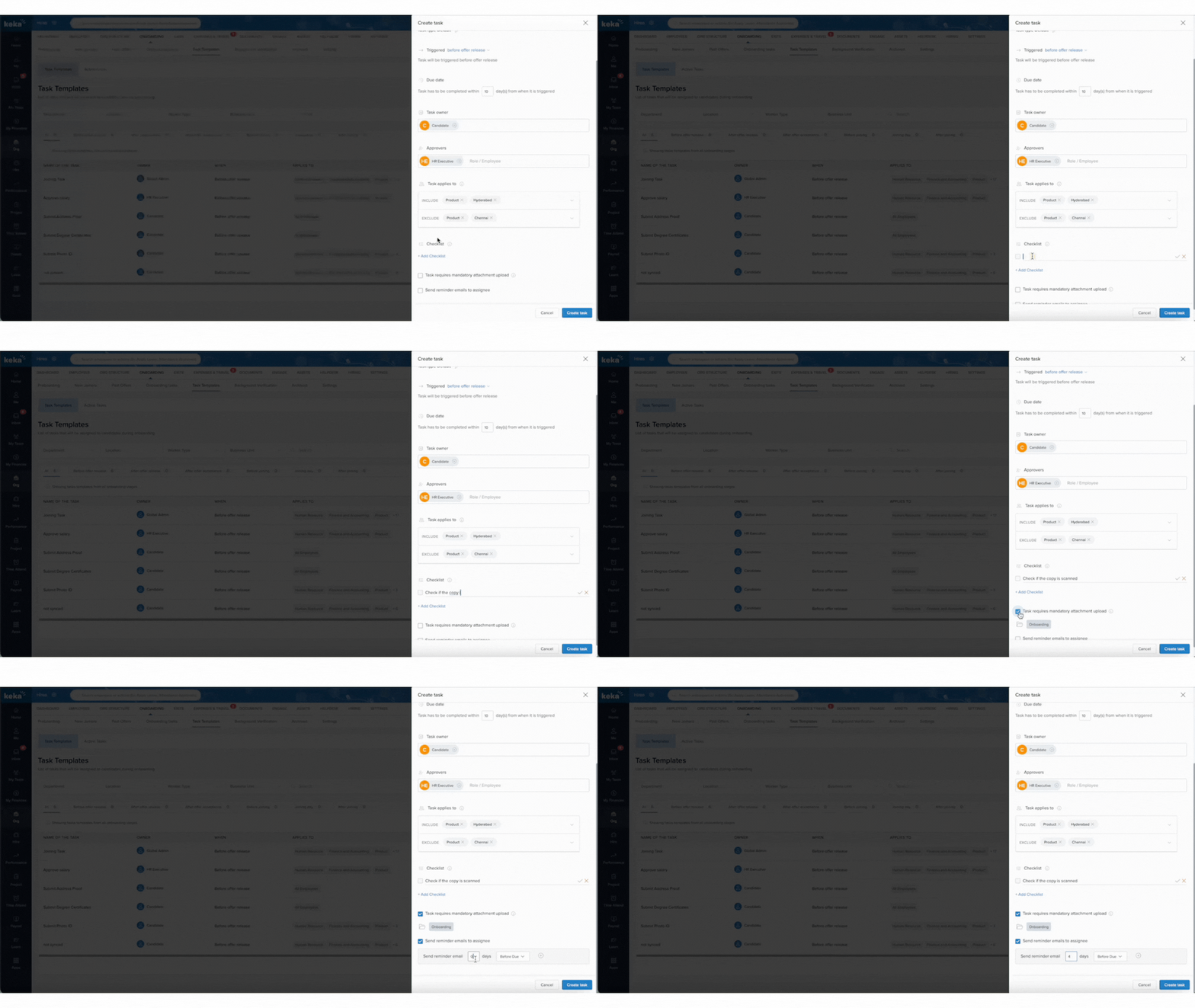
 Checklist
You can include a checklist inside any task. This helps break a task into smaller, manageable steps.
Checklists are helpful for task owners but are not mandatory. The task can still be marked as complete even if the checklist isn't fully ticked.
Example: A document upload task might include:
Upload Aadhaar card
Upload PAN card
Upload recent photo
Task Requires Mandatory Attachment Upload
If this setting is enabled, the task cannot be marked complete unless the assignee uploads the required documents.
Use this for tasks like:
Collecting ID proofs
Gathering academic certificates
Uploading signed forms
Send Reminder Emails to Assignee
To avoid delays, you can set automatic email reminders for task owners. You define:
How many days before the due date the reminder should be sent
Whether to send additional follow-up reminders
This ensures tasks don’t get forgotten and keeps everyone on schedule.
Let’s say you're onboarding a new team of Sales Associates. Here's how task templates can help:
Create a task with a welcome message and a company overview video.
Add a document checklist for PAN, Aadhaar, and resume.
Set up a task to assign a mentor from the sales team.
Each task has due dates and automated reminders. The mentor assignment ensures new hires feel supported, and the structured flow helps them settle in faster.
With task templates, HR teams deliver a consistent and efficient onboarding experience—while saving time and effort.
Active Task
The Active Tasks dashboard is your central view of all ongoing task activity.
Once a candidate accepts their offer, this becomes their task hub.
It displays:
Completion Rate: Real-time progress by task stage (Not Started, In Progress, Overdue, Completed, Skipped)
Task Details: Task name, assignee, due date, and current status
This helps HR stay on top of what’s pending and follow up where needed.
Example: If a task like “Submit bank details” is overdue, HR can take quick action to nudge the candidate.
Use Case Scenario
Let’s say you're onboarding a new team of Sales Associates. Here's how task templates can help:
Create a task with a welcome message and a company overview video.
Add a document checklist for PAN, Aadhaar, and resume.
Set up a task to assign a mentor from the sales team.
Each task has due dates and automated reminders. The mentor assignment ensures new hires feel supported, and the structured flow helps them settle in faster.
With task templates, HR teams deliver a consistent and efficient onboarding experience—while saving time and effort.
Comments
0 comments
Please sign in to leave a comment.