Introduction
A pay cycle defines when and how salary data is calculated for a group of employees. In Keka, you can edit pay cycle details for each pay group to align payroll processing with your organization’s timelines.
Navigate to Pay Group Settings
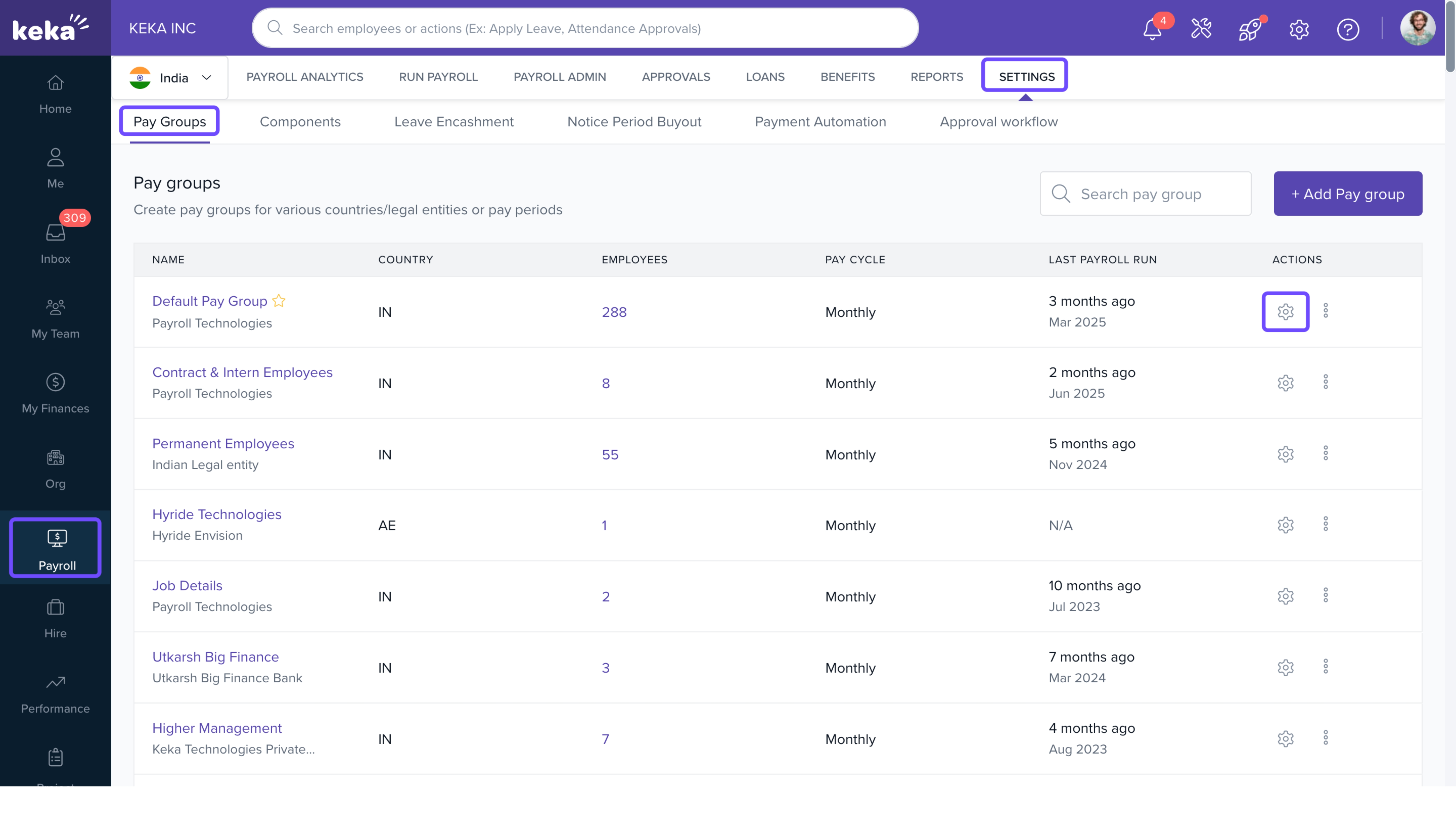
Go to Payroll from the left navigation menu.
Select the Settings tab.
Open the Pay Groups tab.
From the list of pay groups, choose the one you want to update and click the Configure icon.
Open Pay Schedule Settings
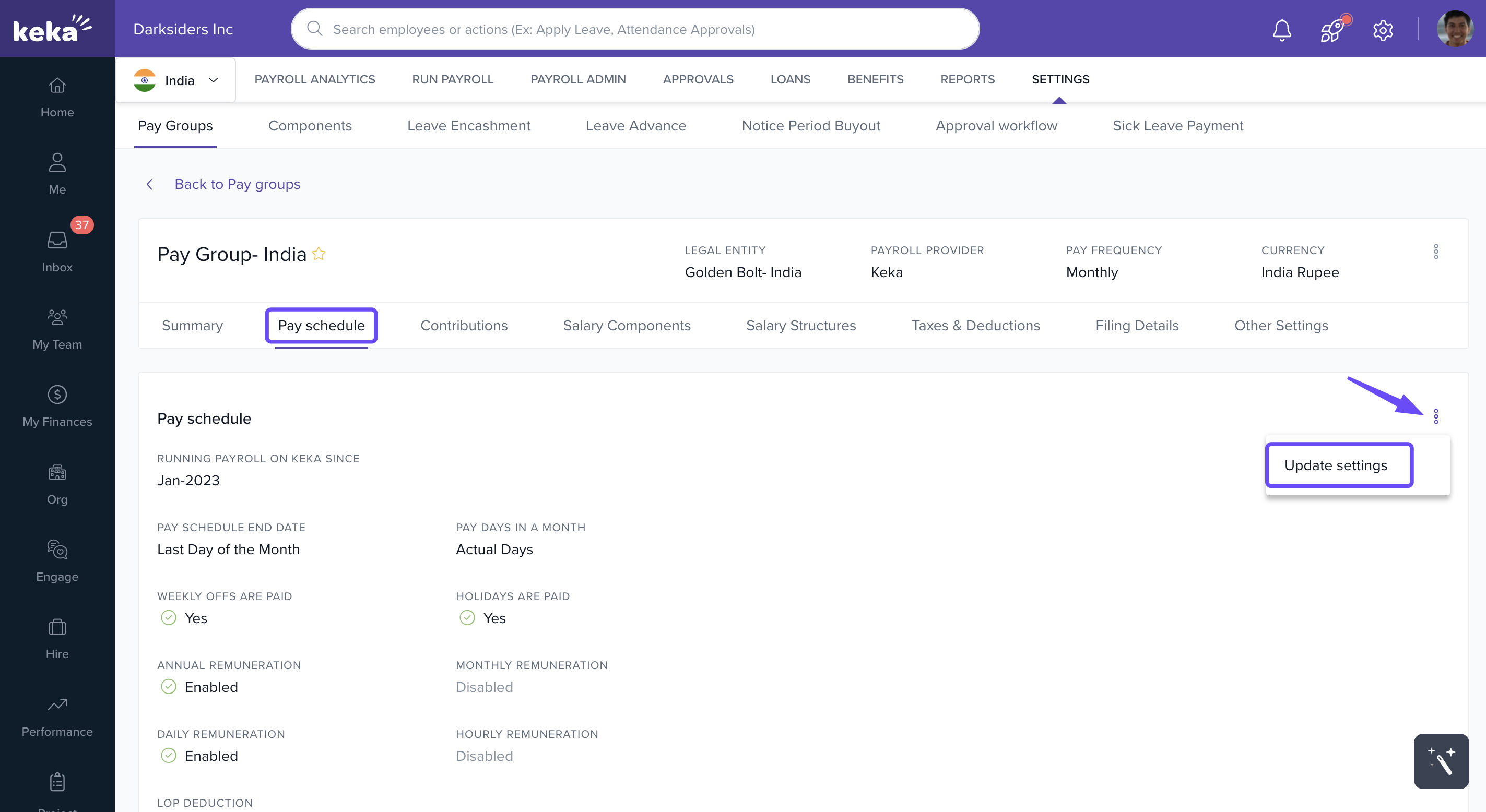
On the Pay Group Configuration screen, select the Pay Schedule tab.
Review the current pay cycle settings.
Click the three dots menu and select Update Settings.
Update Payroll Schedule Settings
On the Update Payroll Cycle Settings screen, you can configure:
Start Month: Define the month from which payroll should start in Keka.
Payroll Cycle End Date: For new pay groups that have not yet run payroll, you can adjust the cycle’s end date.
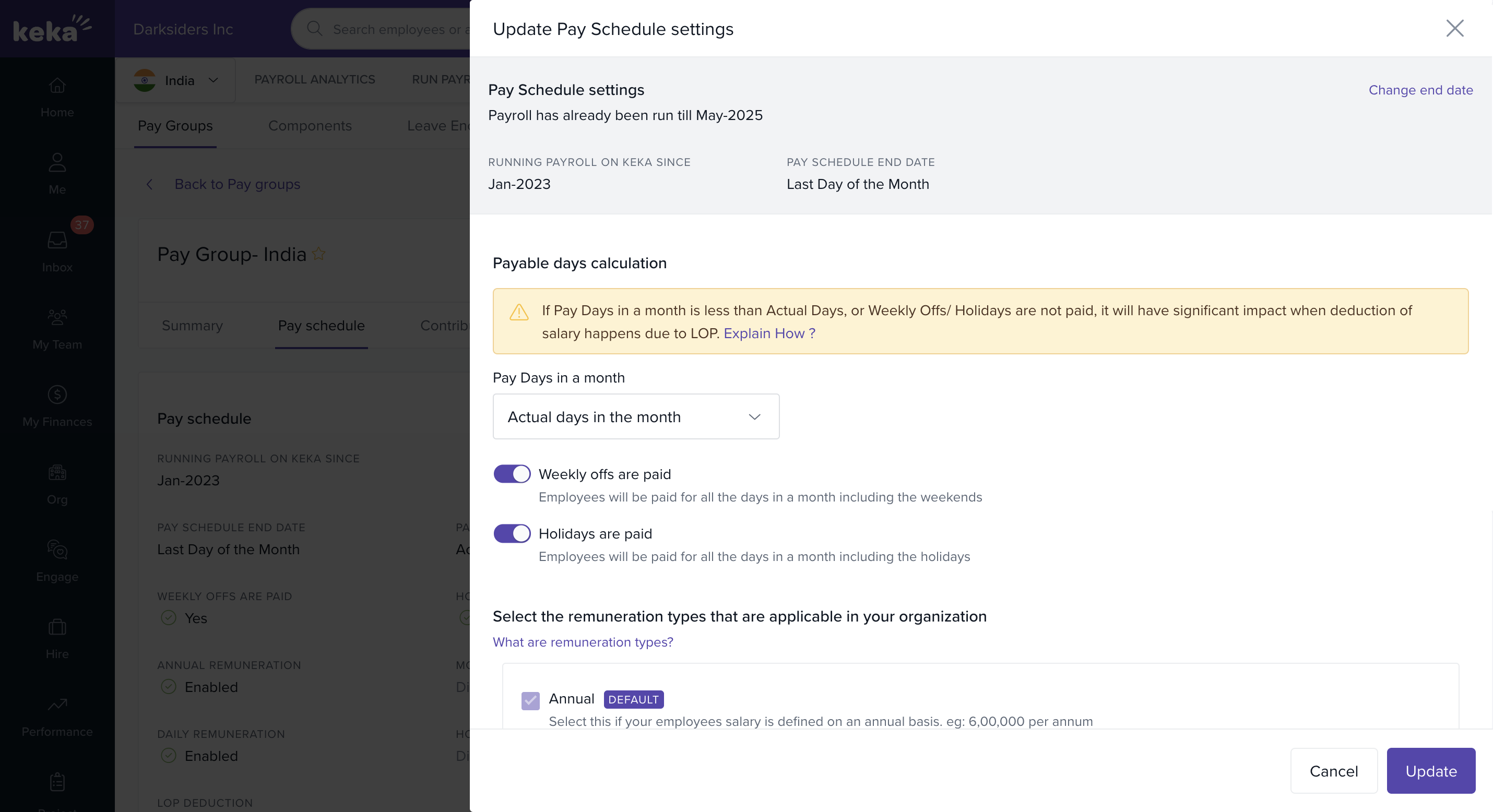
This helps you match your payroll cycle to your company’s payroll practices.
Notes & Tips
Important: If payroll has already been processed for the pay group, you may not be able to change both the start month and the end date. These options are fully editable only for newly created pay groups.
Comments
0 comments
Please sign in to leave a comment.