Introduction
Keka makes it easy for you to manage your expenses and travel requests from one place. You can submit claims, request advances, upload receipts, track approvals, and view your expense history with clear status updates.
What You Can Do
1. Submit Expense Claims
-
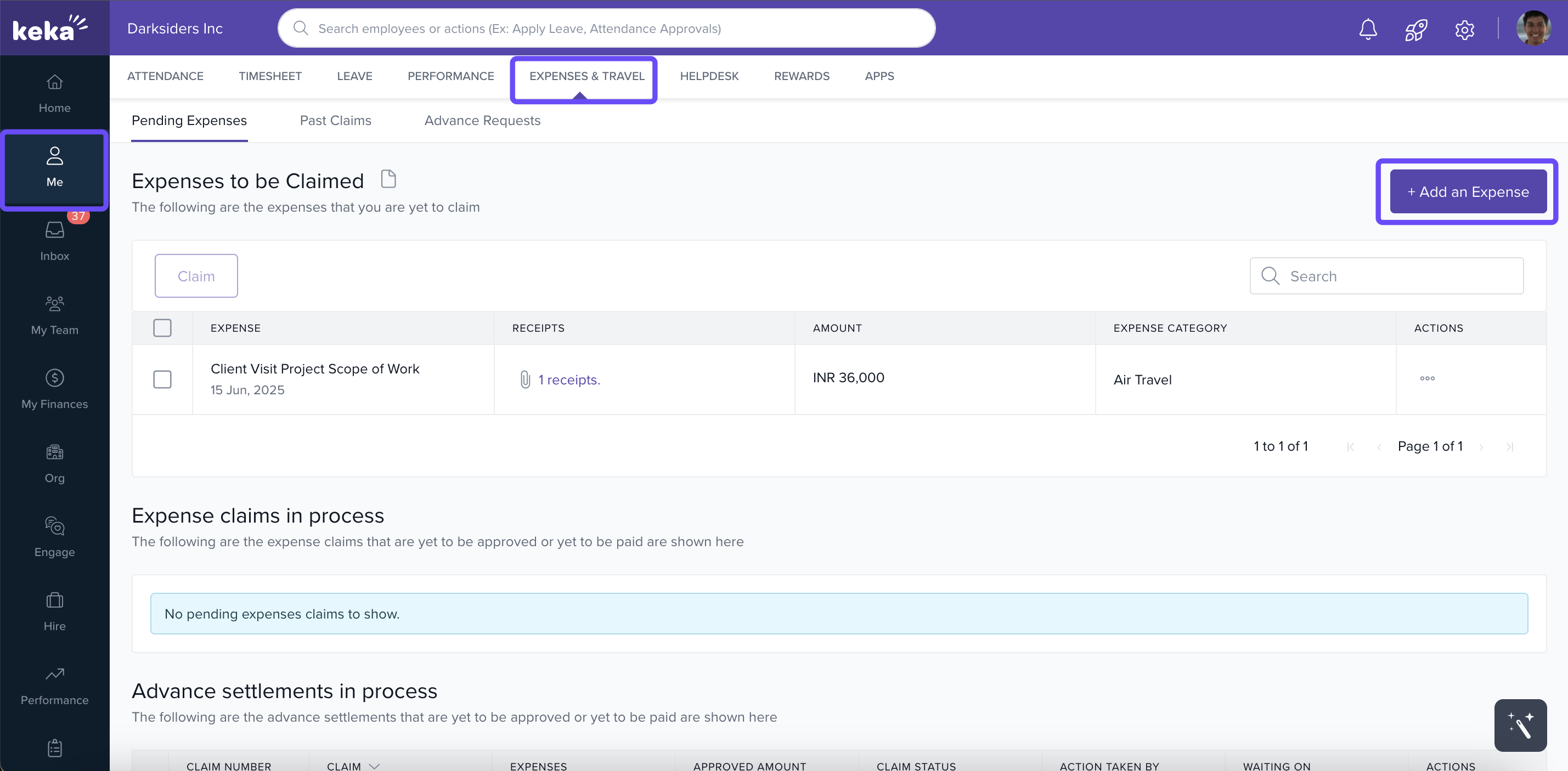
Go to Me → Expenses & Travel → Create Expense Claim.
-
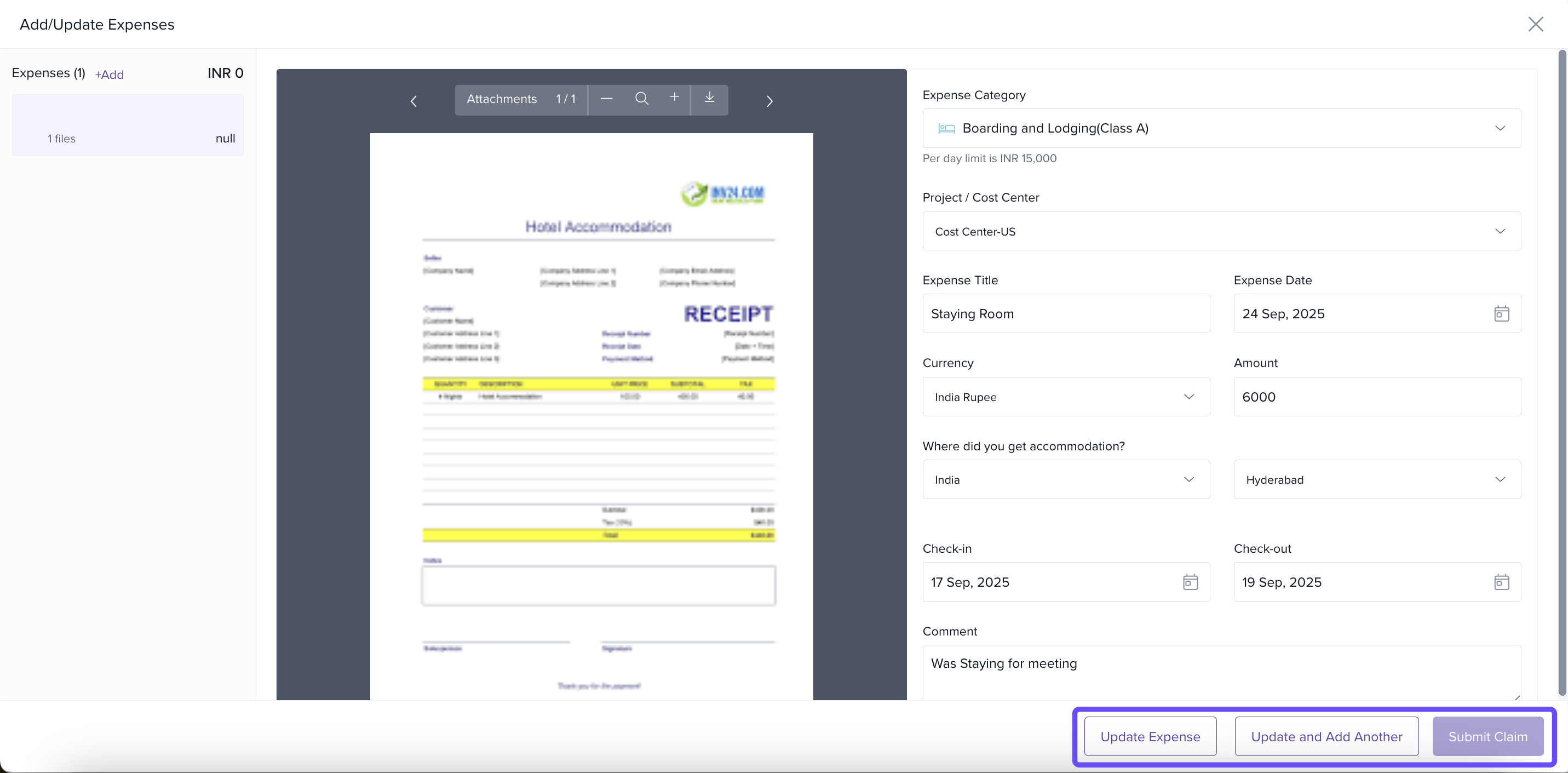
Choose the expense category, add date(s), amount, attachments/receipts.
-
Optionally provide notes or justification.
-
Submit the claim when ready.
2. Request an Expense Advance
-
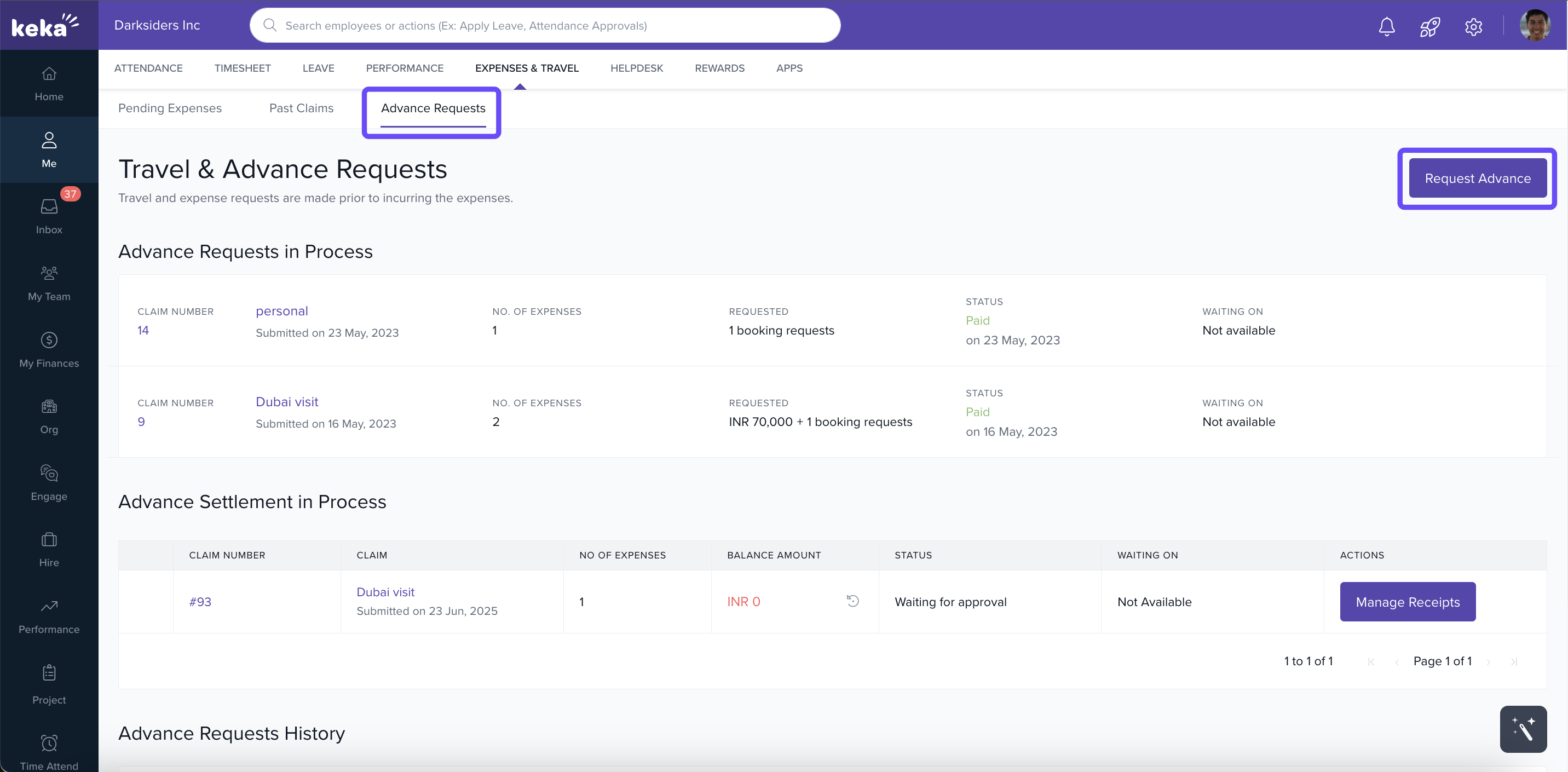
If your company allows advances, use Request Advance tab.
-
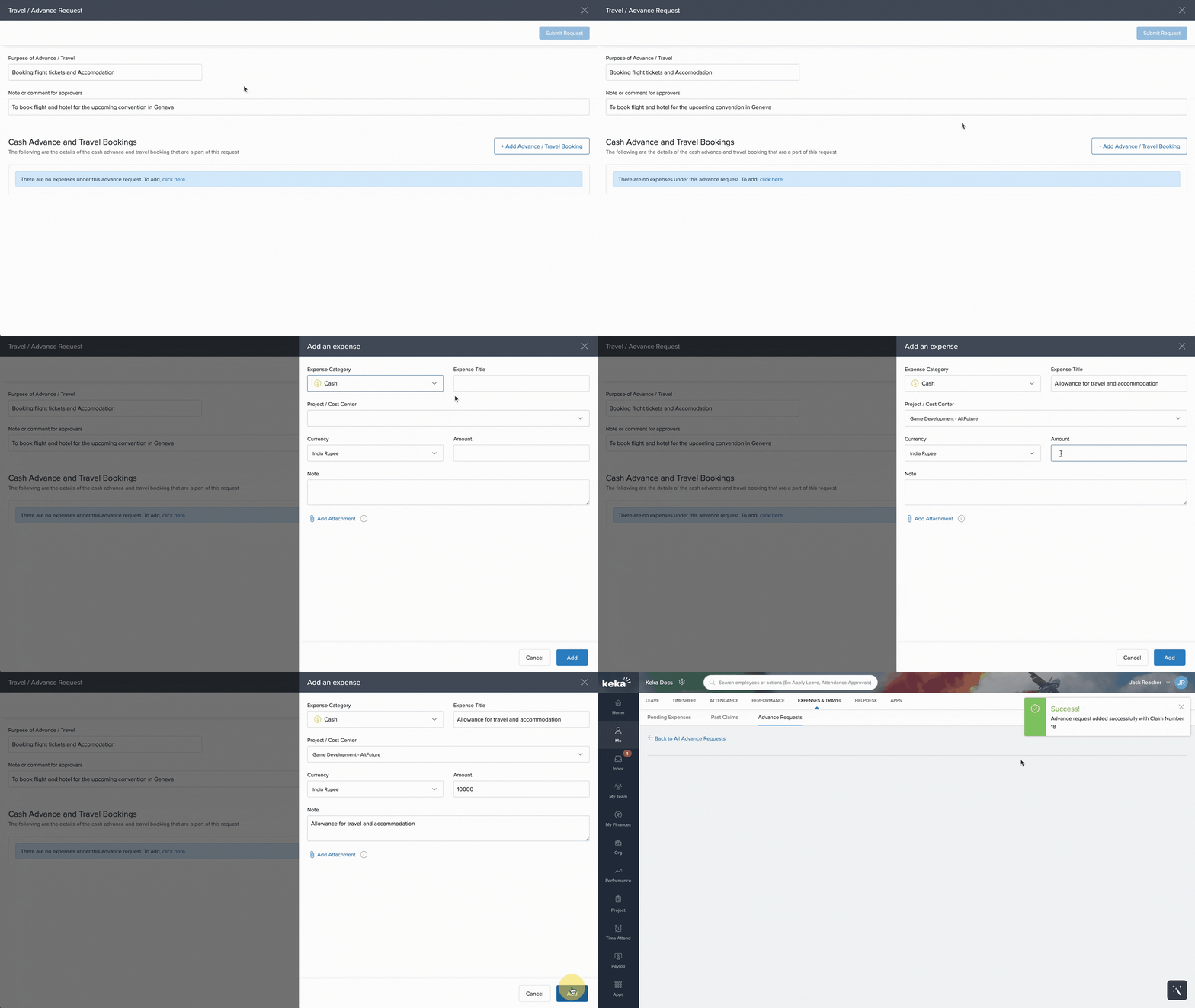
Fill in the amount required, purpose, and attach supporting documents.
-
Once approved, it'll reflect under your pending payments or advance balance.
3. Upload Receipts & Attachments
-
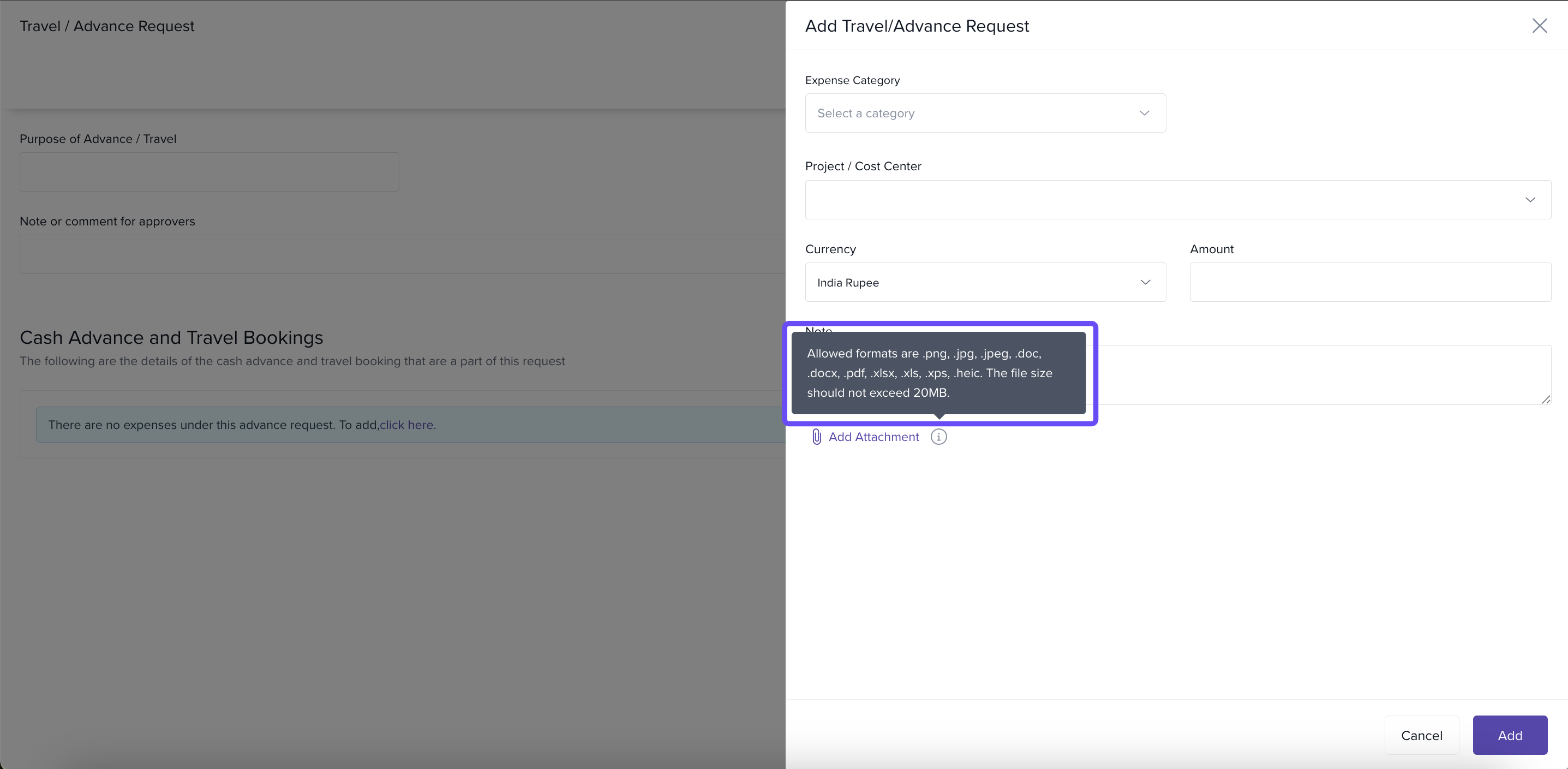
Receipts can be uploaded in common formats (PDF, JPG, JPEG, DOC, DOCX, XLS, XLXS, XPS, Heic, PNG) file upload limit is 20 MB.
-
Make sure the receipt is clear and legible.
-
Attach to the correct expense item for accurate reviews.
4. Track Status of Your Claims & Advances
View the Pending Approval section to see claims or advances waiting for manager / finance review.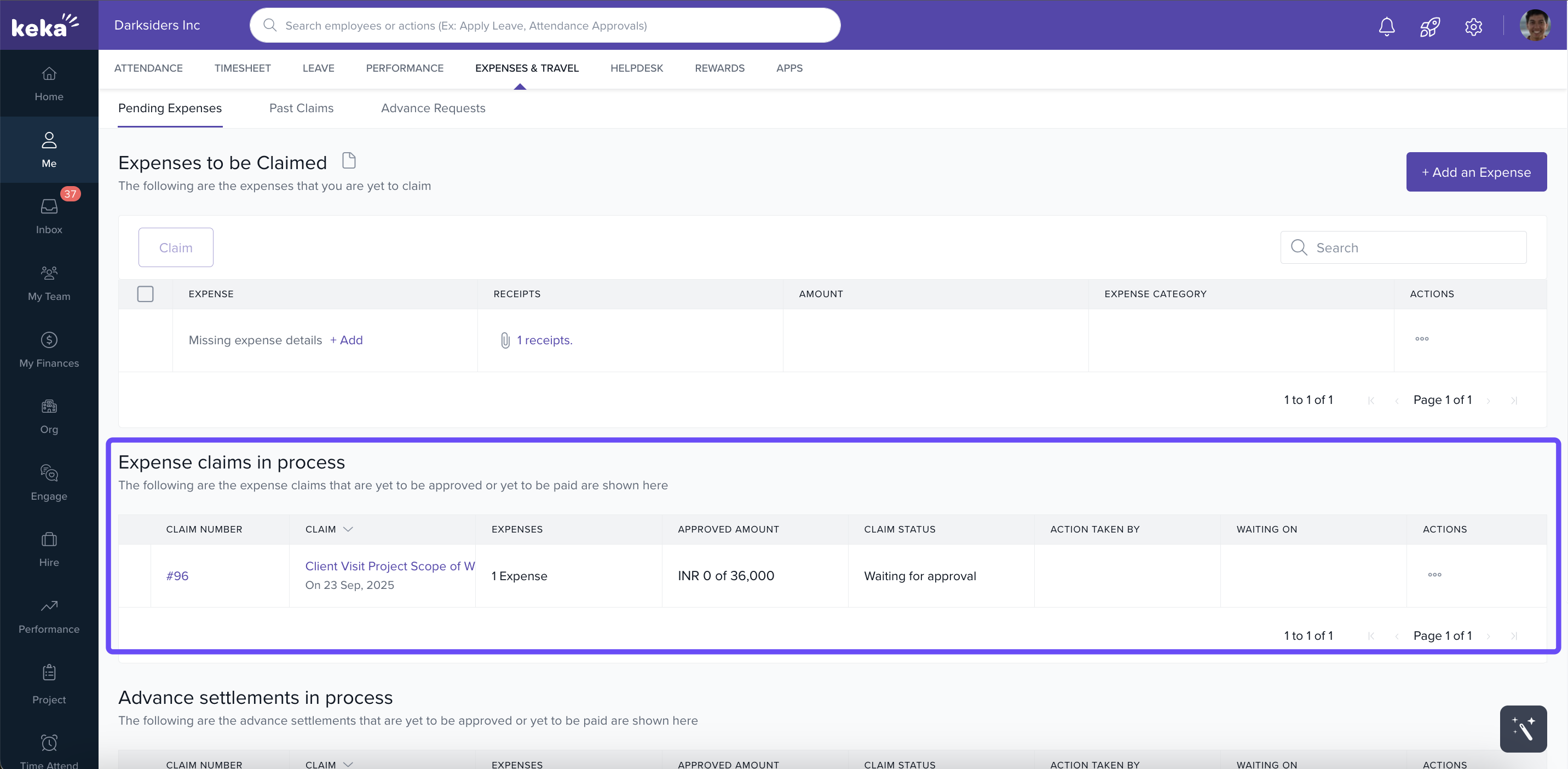
Once approved, see payments status (paid / settled).
Use the Past Claims / History section to see completed or rejected claims, with details of each.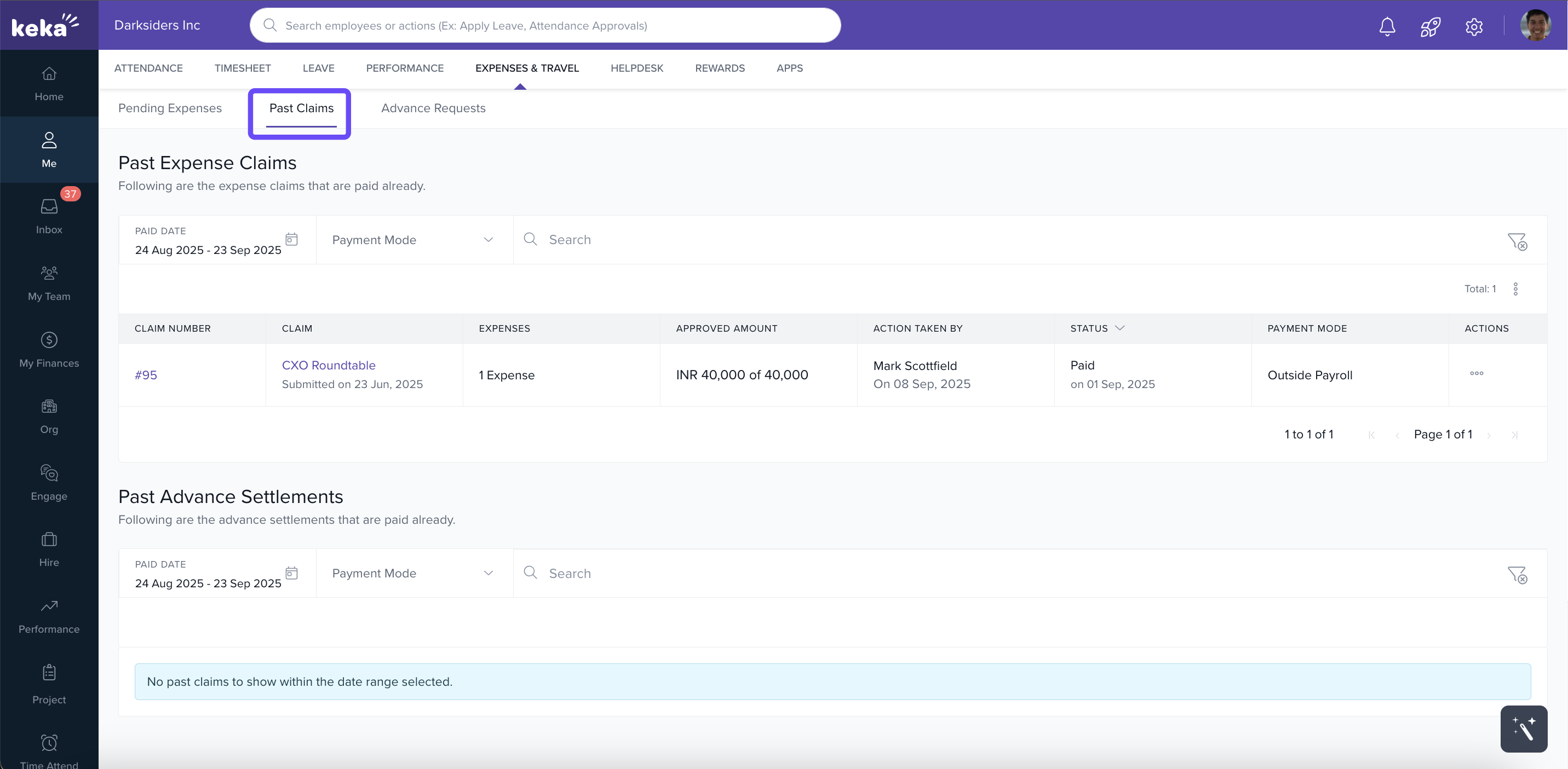
5. Edit or Cancel Requests
If your claim or advance is still pending, you can edit details, delete it or download claim form.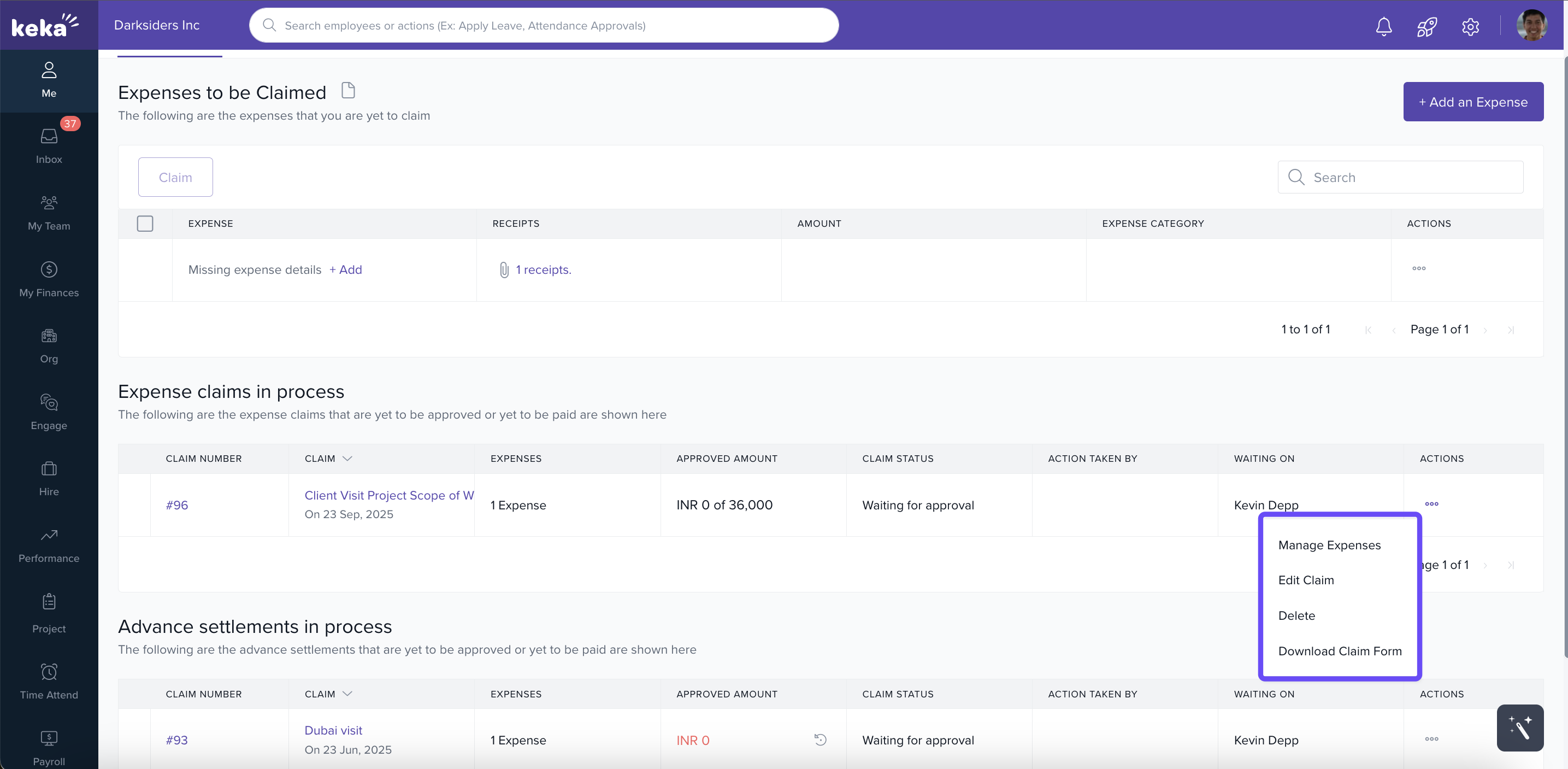
Once a claim has been approved or paid, further edits or cancellations are not allowed. However, you can still view or download the claim form.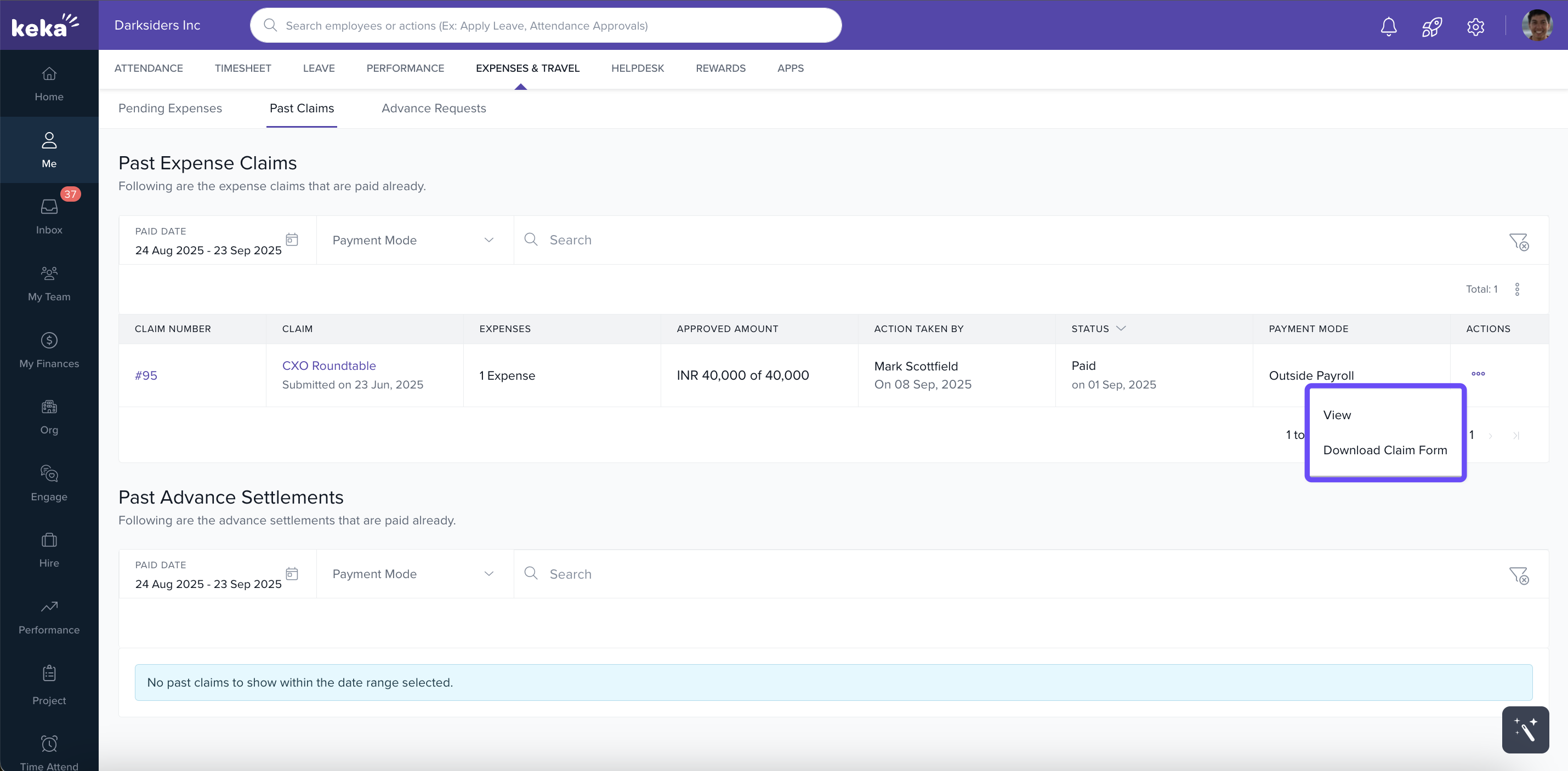
6. View Expense & Travel History
-
Under History or Past Claims, see all your submitted claims and advances, along with status, amounts, and whether they were reimbursed.
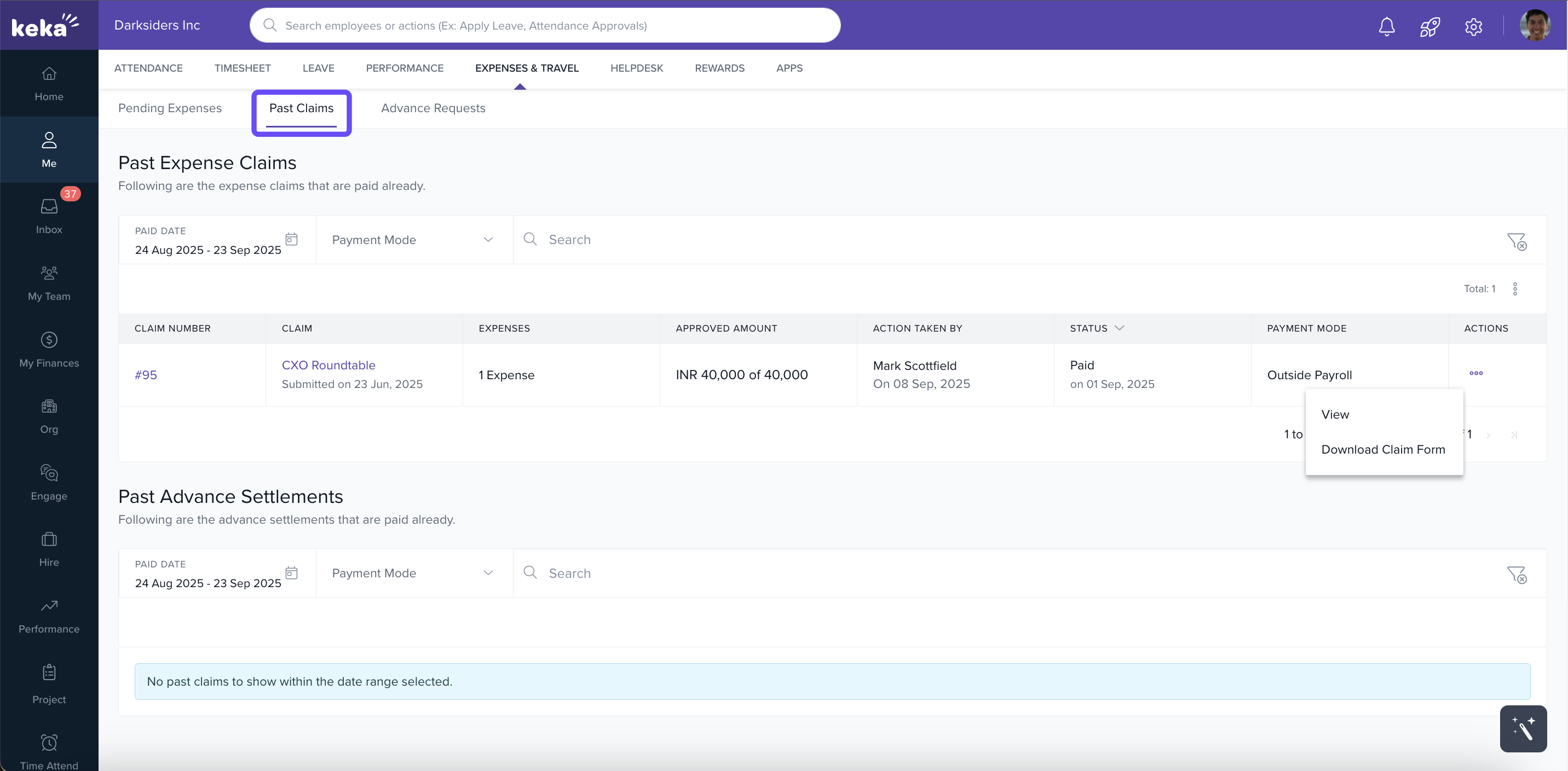
Using Keka for expense management helps you stay organized and informed. By submitting claims, requesting advances, tracking everything, and keeping your history clean, you can prevent delays and ensure reimbursement goes smoothly. Always refer to your organization’s policy so you understand what is allowed.
Comments
0 comments
Please sign in to leave a comment.