Introduction
In Keka, Goals help organisations track progress at the individual, department, and company levels. Advanced goal settings give admins more control over how goals behave, how progress is calculated, and how tasks contribute to parent objectives and child goals.
This article covers:
Allowing tasks to roll up progress to child and parent goals.
Enabling alignment between objectives and sub-goals.
Configuring progress update rules and weightages.
Overriding roll-up and assigning custom weights at KPI, task, or child levels.
Steps to Configure Update Progress Settings
Opening Advanced Goal Settings
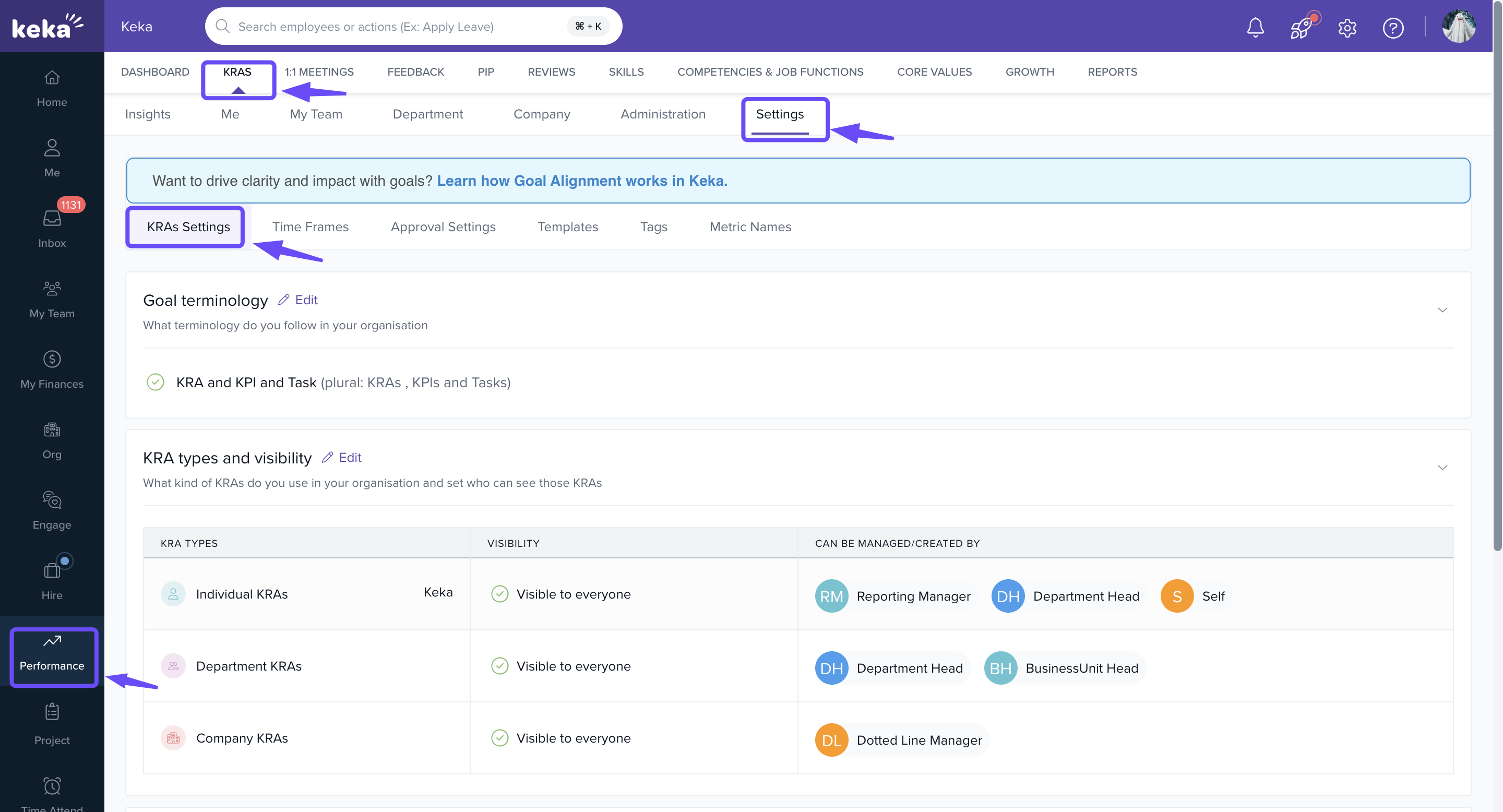
- Go to Performance in the left menu.
-
Click Goals, then select Settings.
-
Under Goals Settings, click Edit next to Advanced goal settings.
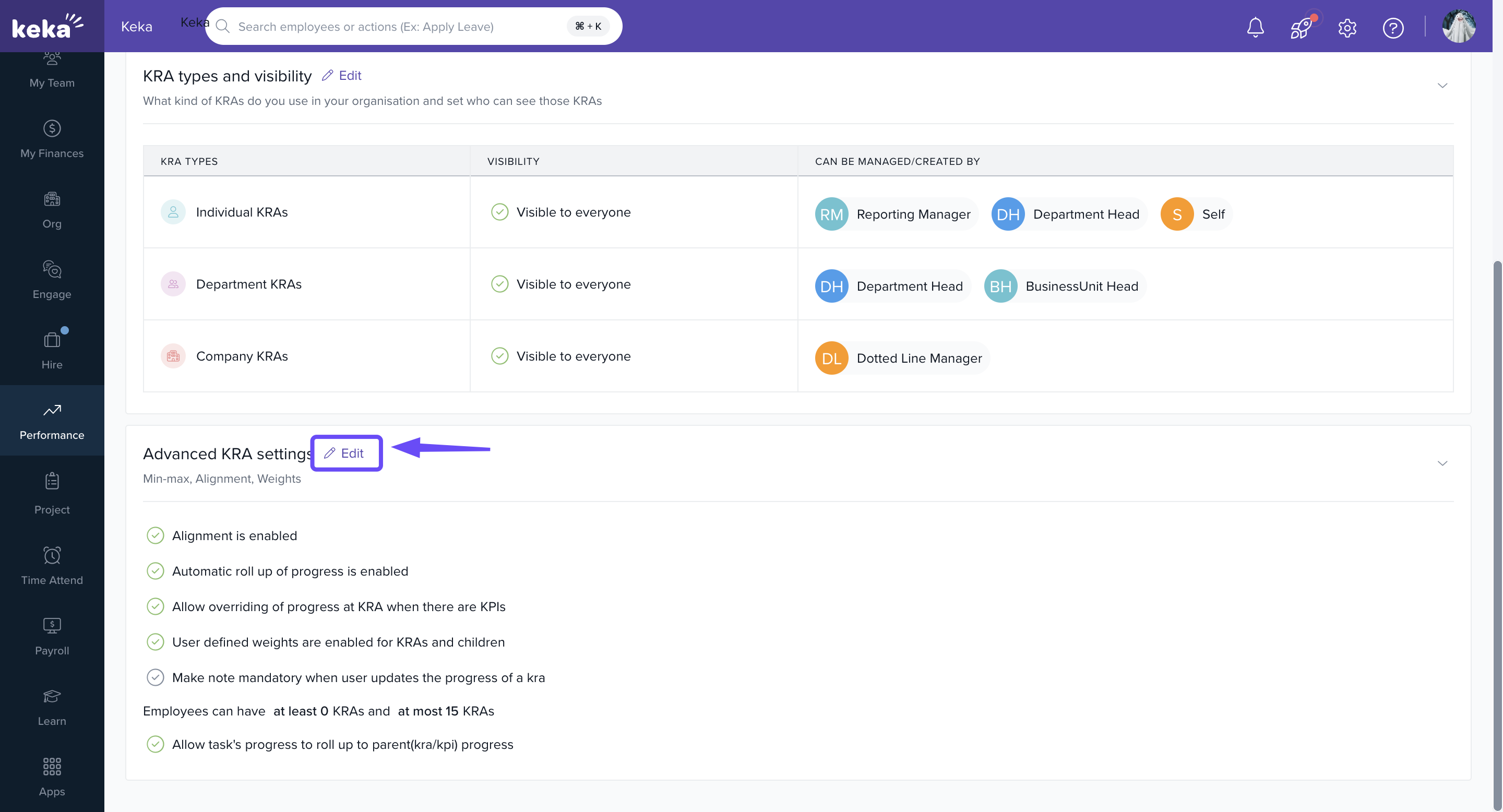
Enabling Alignment Between Goals
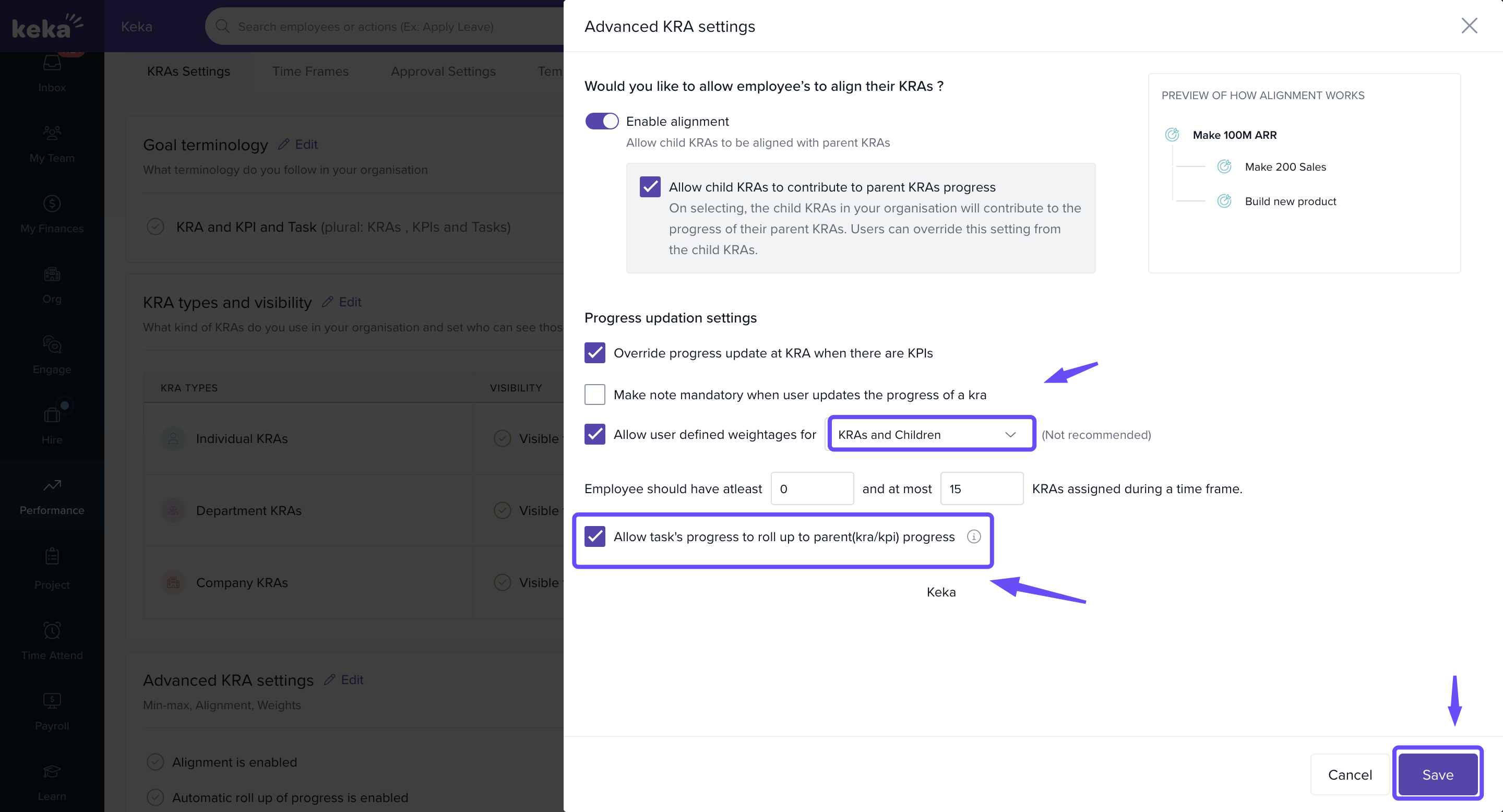
Toggle Enable alignment to allow alignment between parent and child goals.
-
Allow child goals to contribute to parent progress you want sub-goals to roll up into parent goal progress.
Users can override this setting at the individual goal level.
A preview panel displays how alignment will look visually.
-
To include task progress in parent goal calculations, enable the following additional options:
User-defined weightages for KRAs and Children: Allows weights to be assigned at child goal or KRA level.
- Allow task progress to roll up: Ensures task completion is included in parent (goal/KPI) progress.
-
Click Save to apply changes.
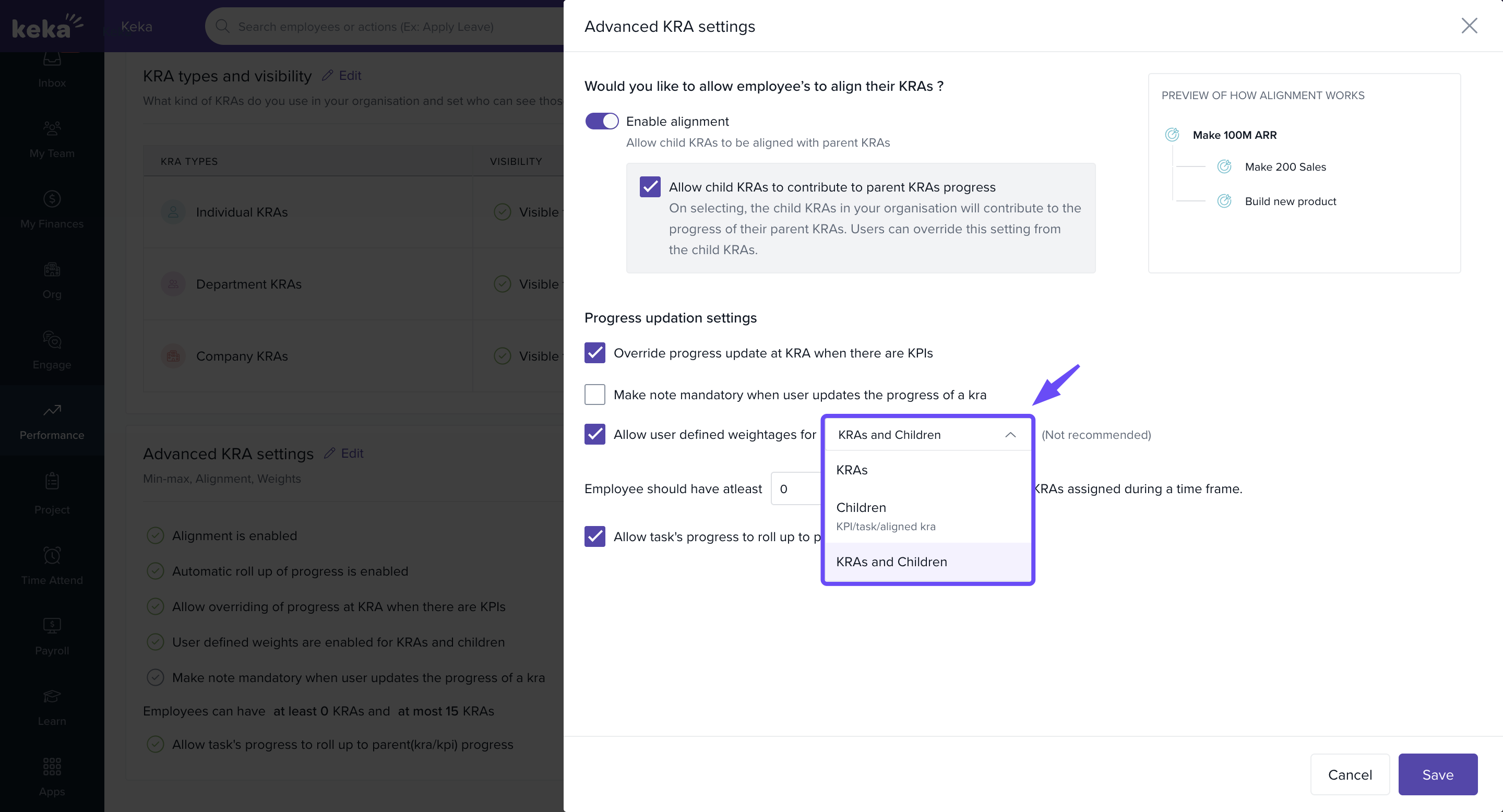
When user-defined weightages for KRAs and child goals are enabled, you can specify how progress contributions are allocated:
| Option | What it does |
|---|---|
| Goals | Assign weights only at the parent goal level |
| Children | Assign weights only to child goals |
| Goals and Children | Both levels carry weights (not recommended) |
Roll Up and Update Task Progress in Main Goals
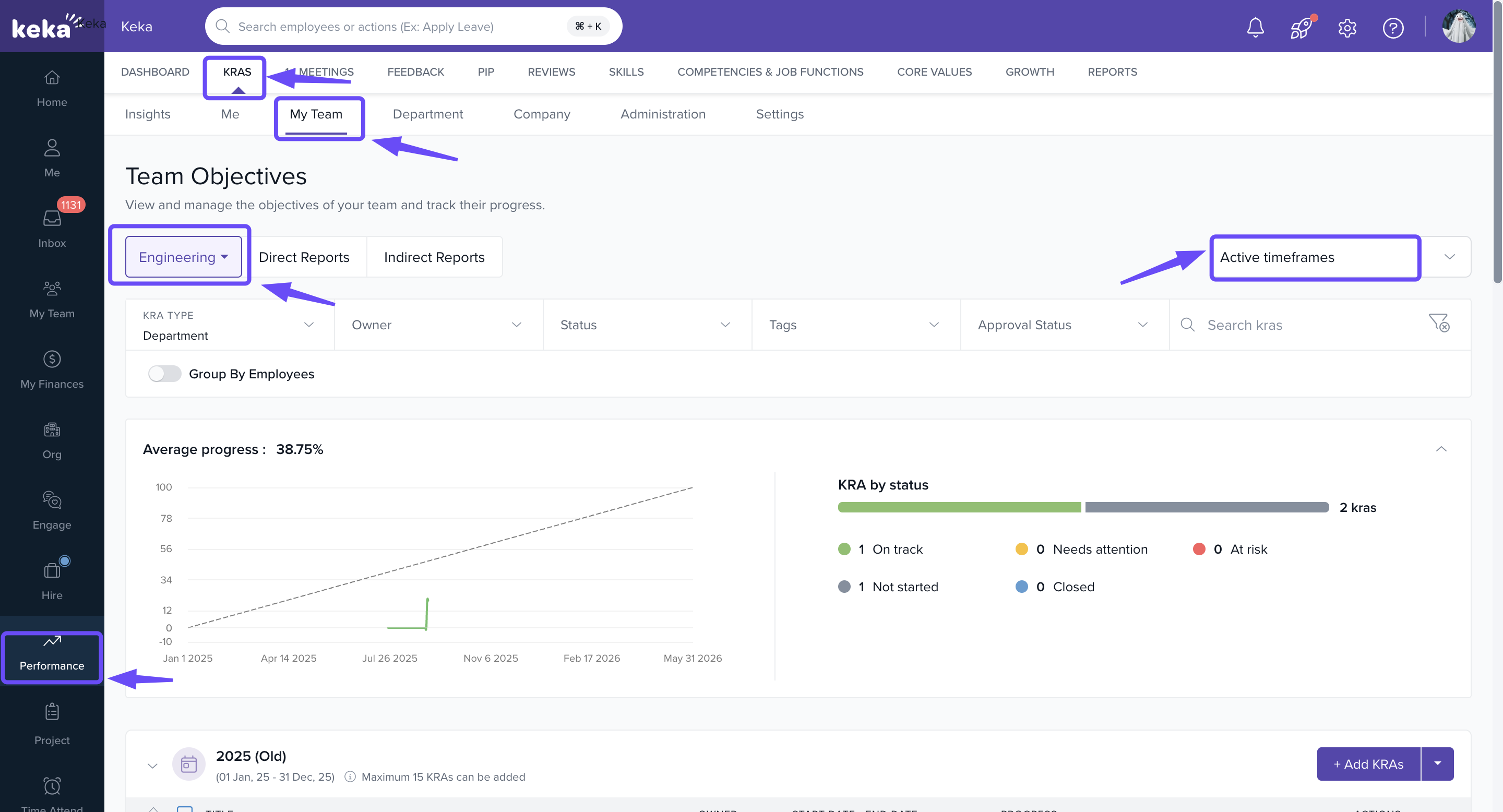
Navigating to Your Objectives
Go to Performance from the left navigation panel.
Click KRAs/Goals and select My Team (or My Objectives if updating your own).
-
Select the department and timeframe where your goal is created.
Locating the Goal and Sub-Goal
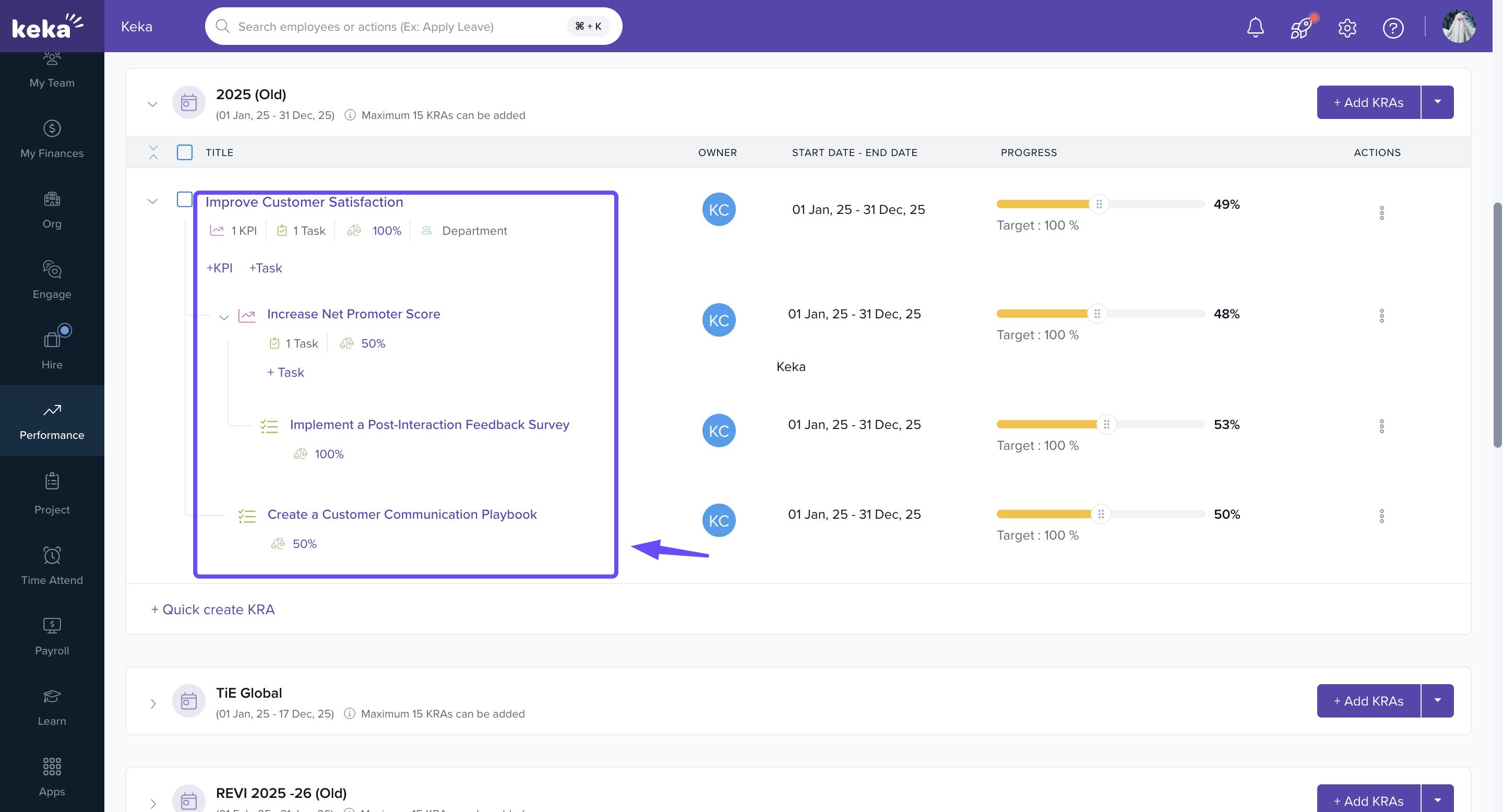
Find the main goal (e.g., Improve Customer Satisfaction).
-
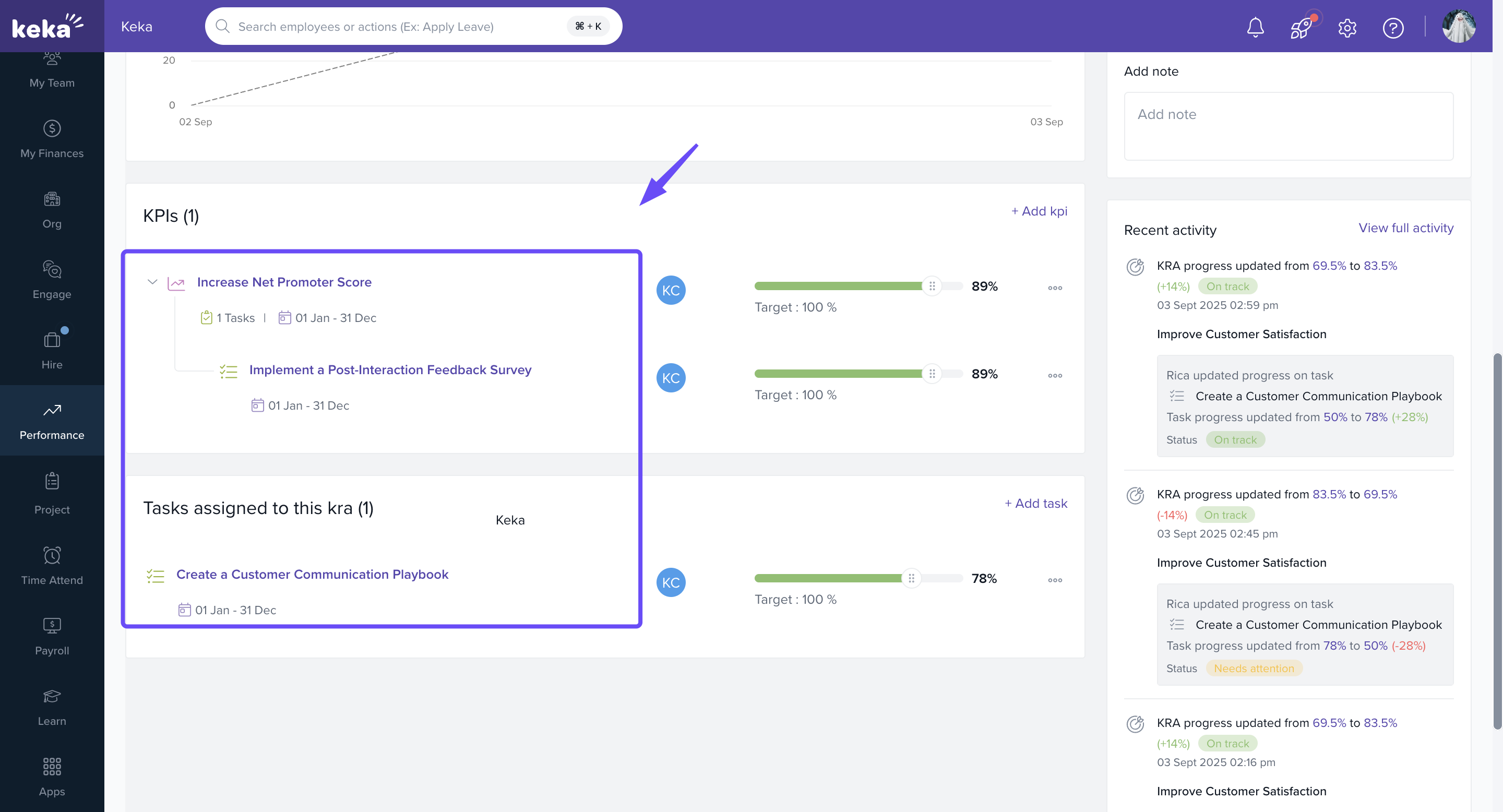
Expand it to view sub-goals and tasks.
Example: Increase Net Promoter Score is a sub-goal.
It has a task (Implement a Post-Interaction Feedback Survey).
-
The main goal also has a direct task (Create a Customer Communication Playbook).
Rolling Up the Task Under a Sub-Goal
-
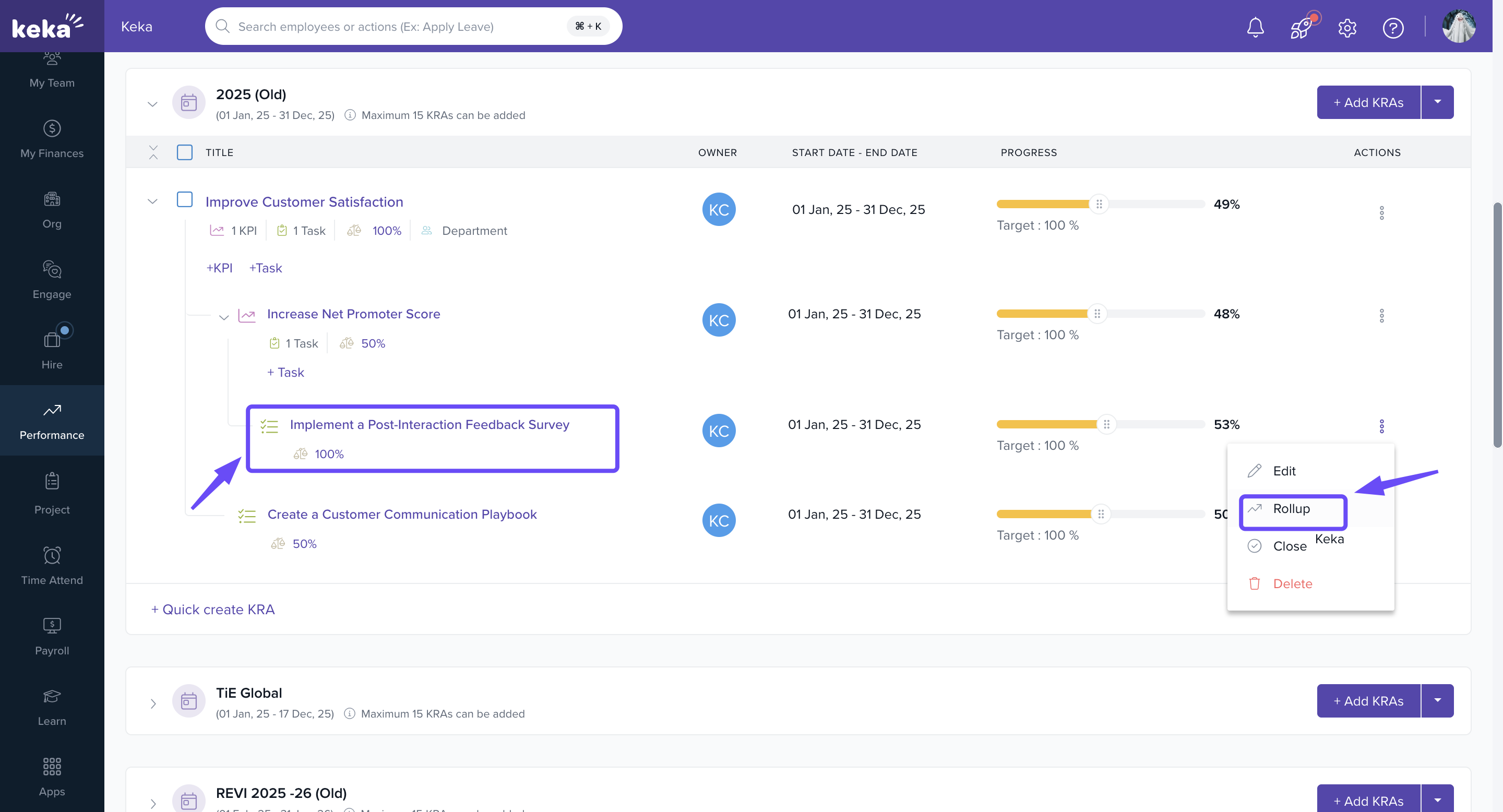
Against the sub-goal’s task, click the three dots (⋮) → Rollup.
-
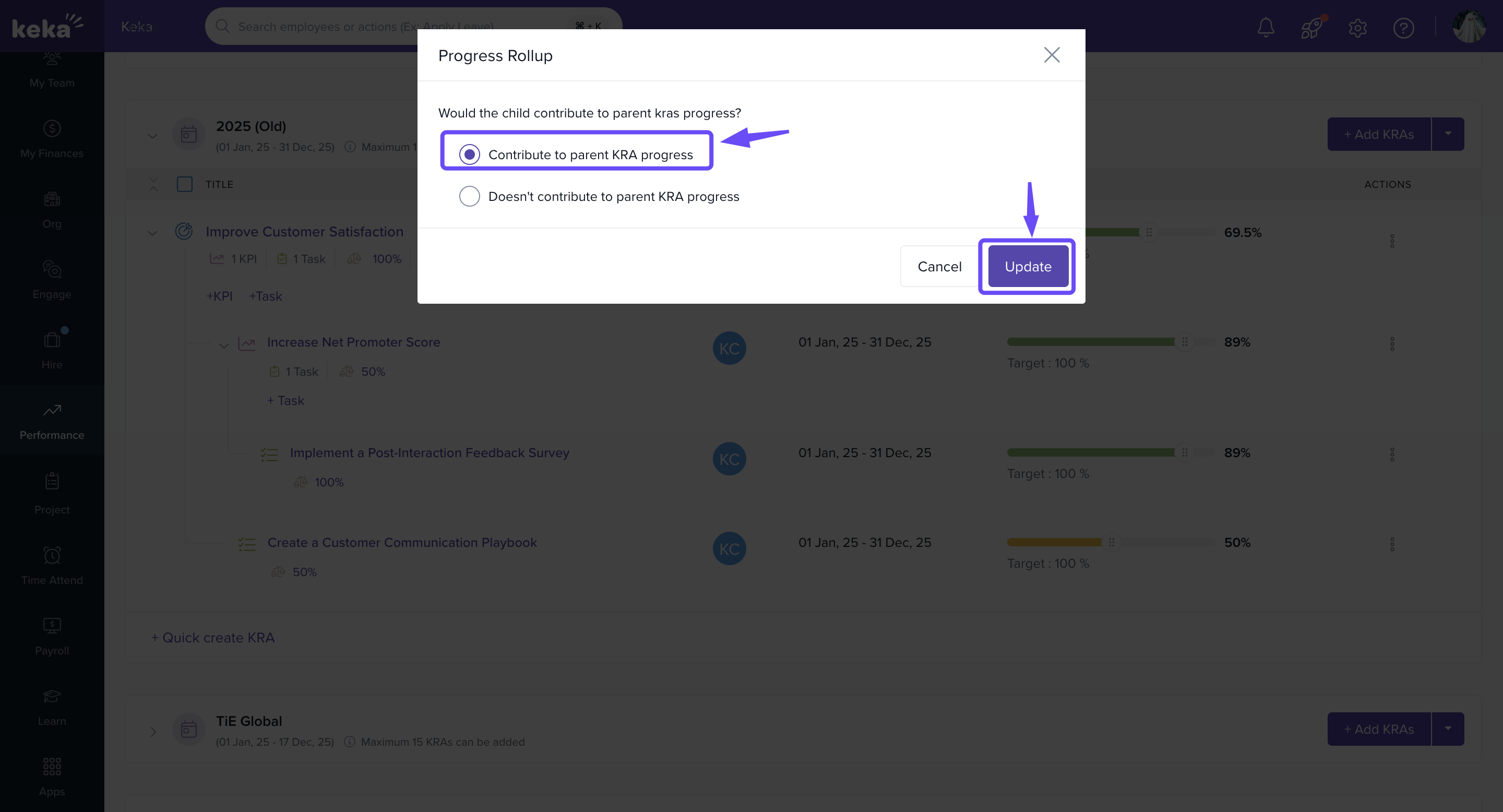
In the Progress Rollup popup:
Select Contribute to parent goal progress.
-
Click Update.
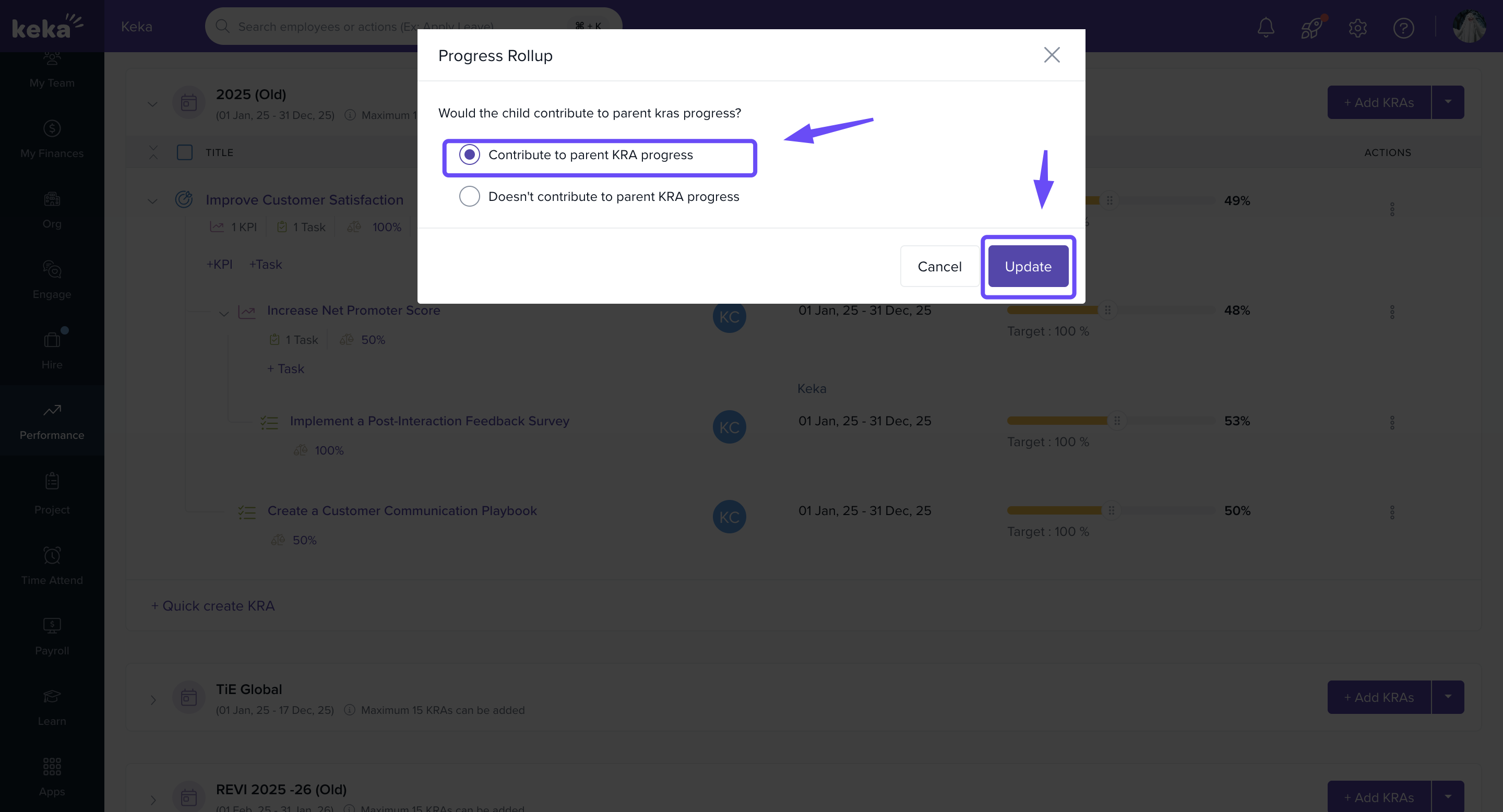
Now, any updates to this task’s progress will roll up into the sub-goal and further into the parent goal.
If the sub-goal itself is not rolled up to the main goal, the task's progress will only impact the sub-goal. Be sure both the sub-goal and its tasks are rolled up to reflect in the parent goal.
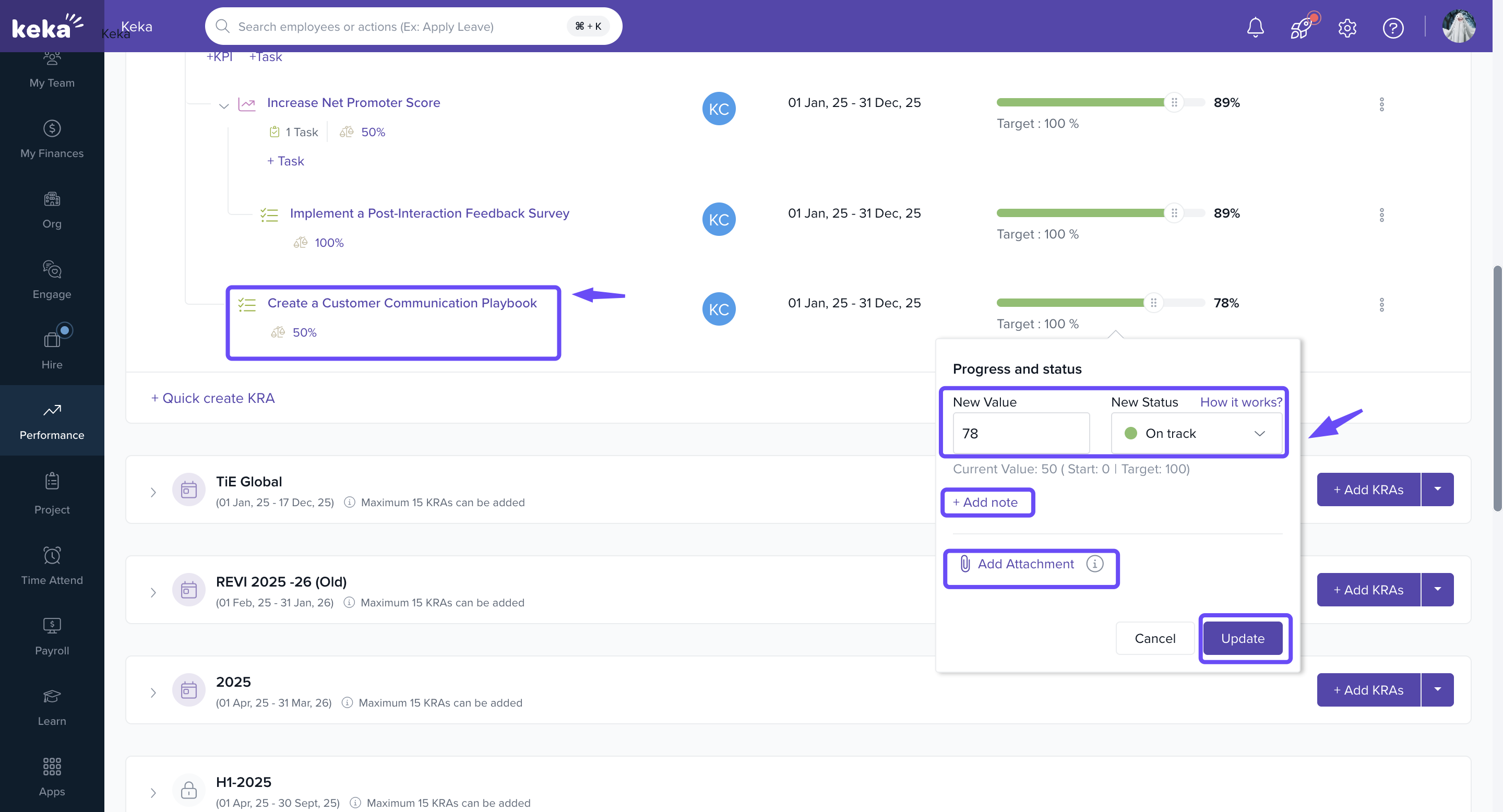
Updating the Task Progress
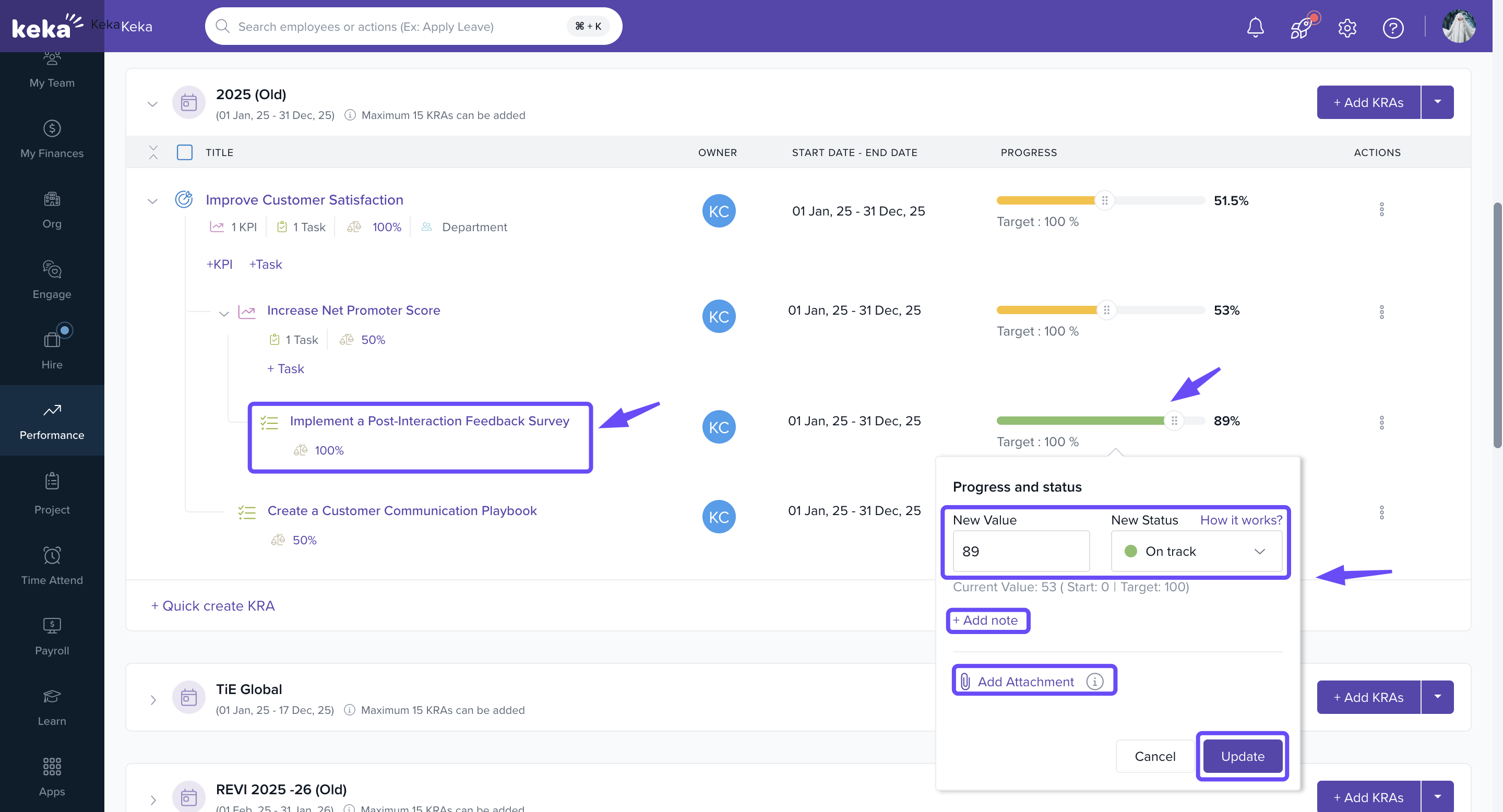
Click on the progress bar of the task.
Enter the New Value (e.g., 89).
Choose the Status (e.g., On track).
Optionally add a note or attachment.
-
Click Update.
-
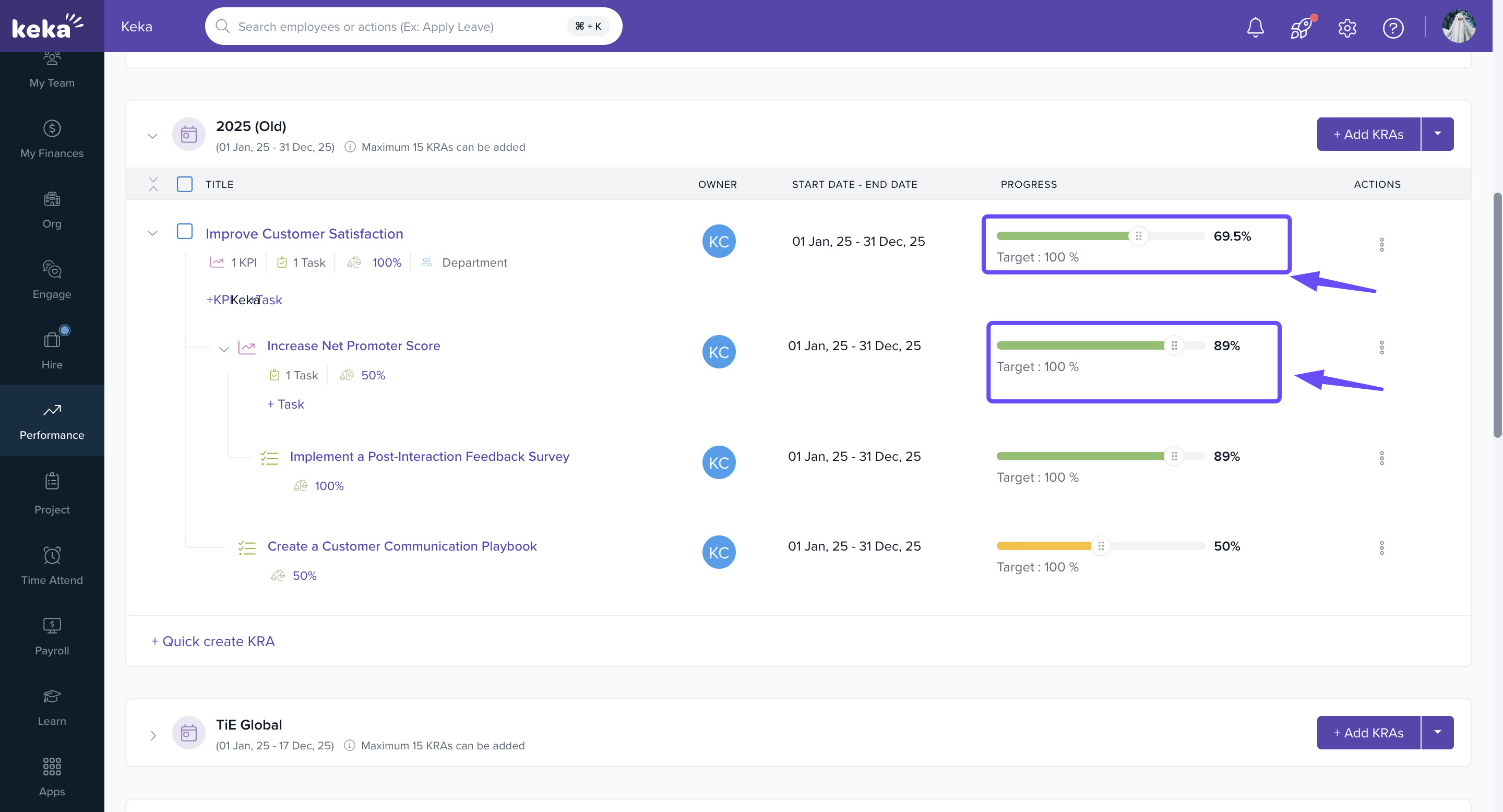
You’ll see the parent goal’s progress and sub goal's progress update accordingly.
Rolling Up and Updating Direct Tasks of the Goal
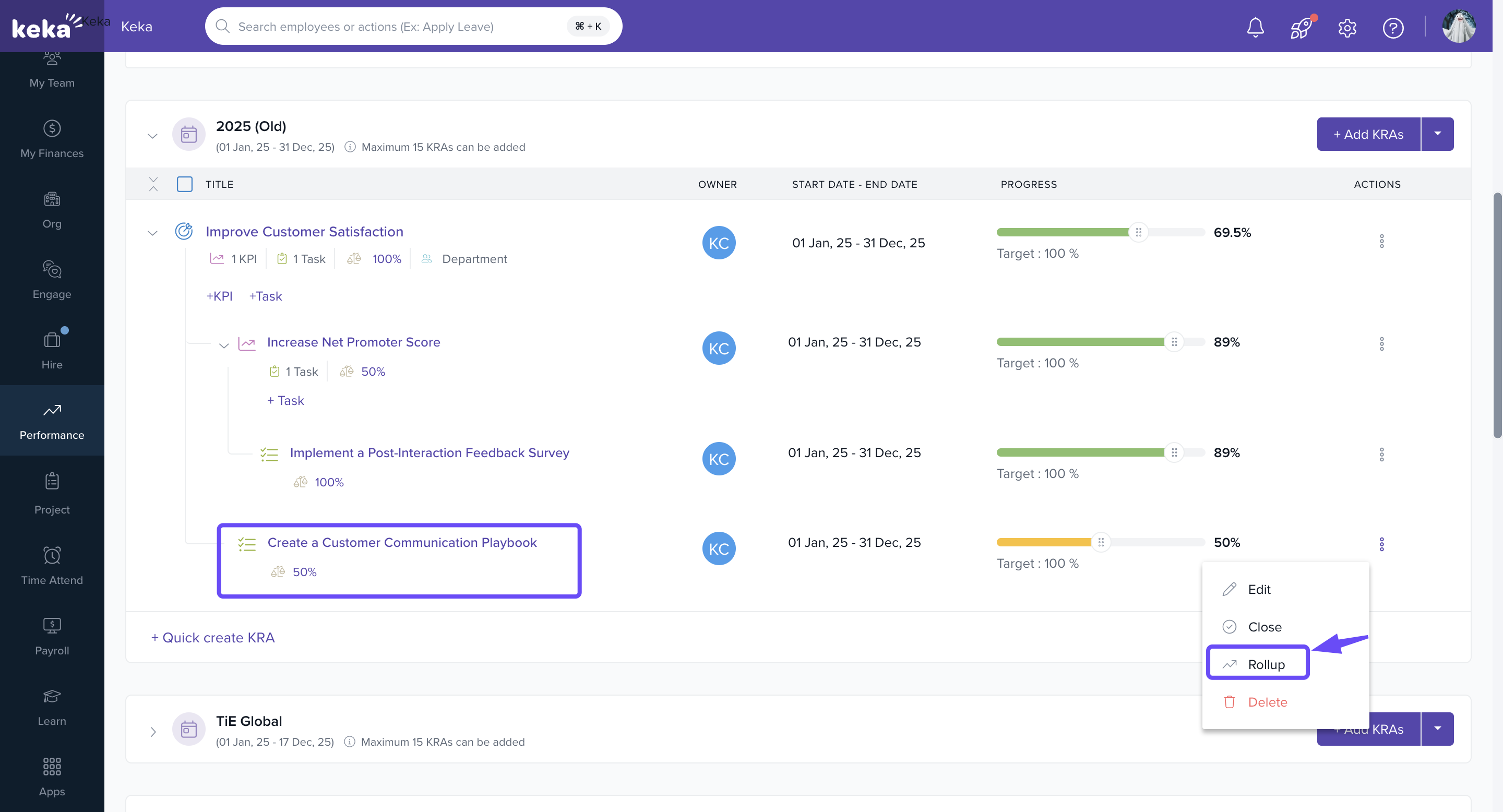
For tasks directly under the parent goal (e.g., Create a Customer Communication Playbook), repeat the same process:
Click three dots (⋮) and select Rollup.
-
Select Contribute to parent goal progress and click on Update.
-
Then, update the task’s progress.
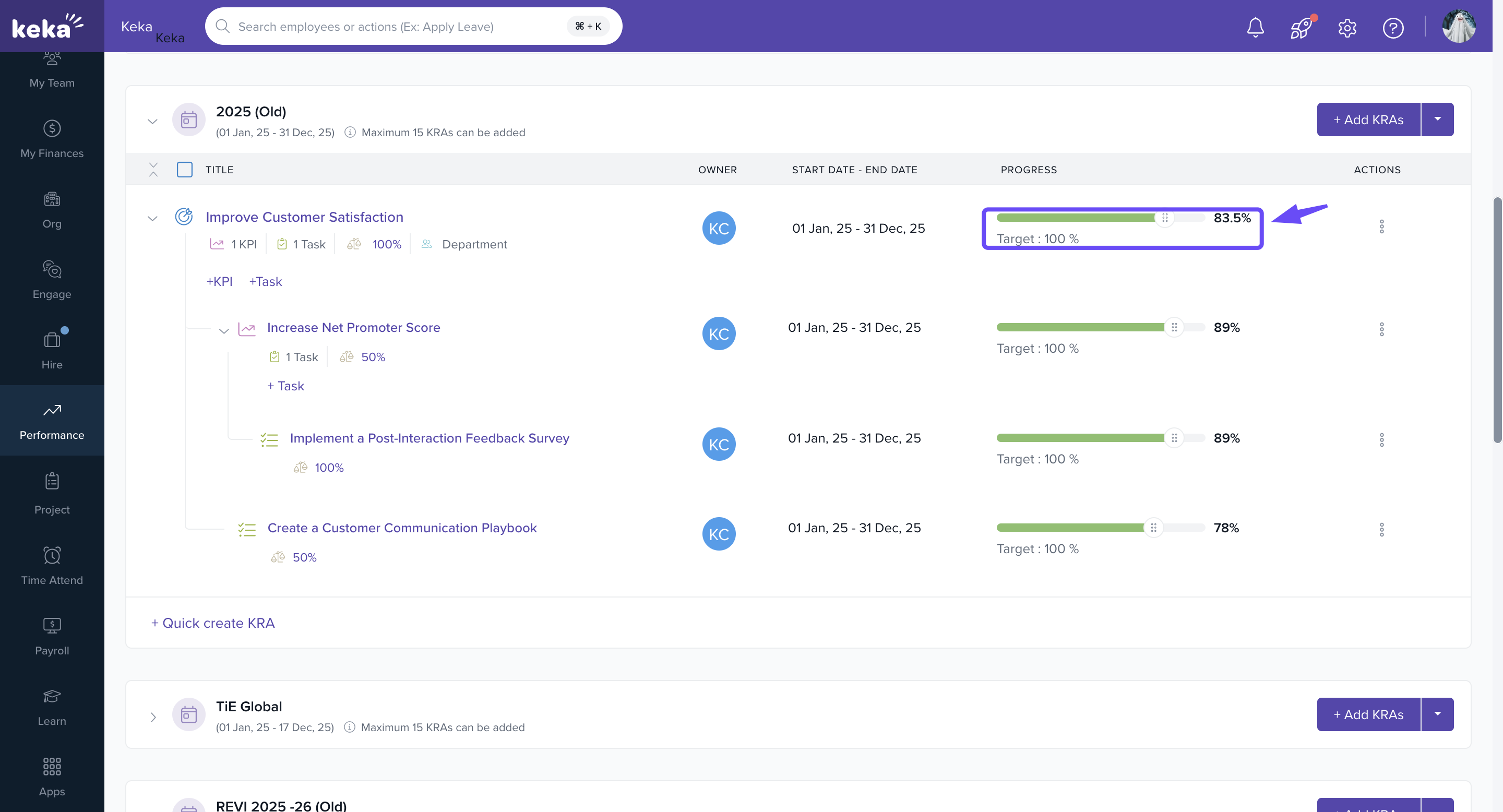
Verifying Parent Goal Progress
After updating, check the parent goal’s progress bar.
-
It should show the combined effect of both:
Sub-goal progress (including rolled-up tasks).
Tasks aligned directly with the parent goal.
-
Now the parent goal accurately reflects all contributions.
Editing and Allocating Task Weightages in Goals
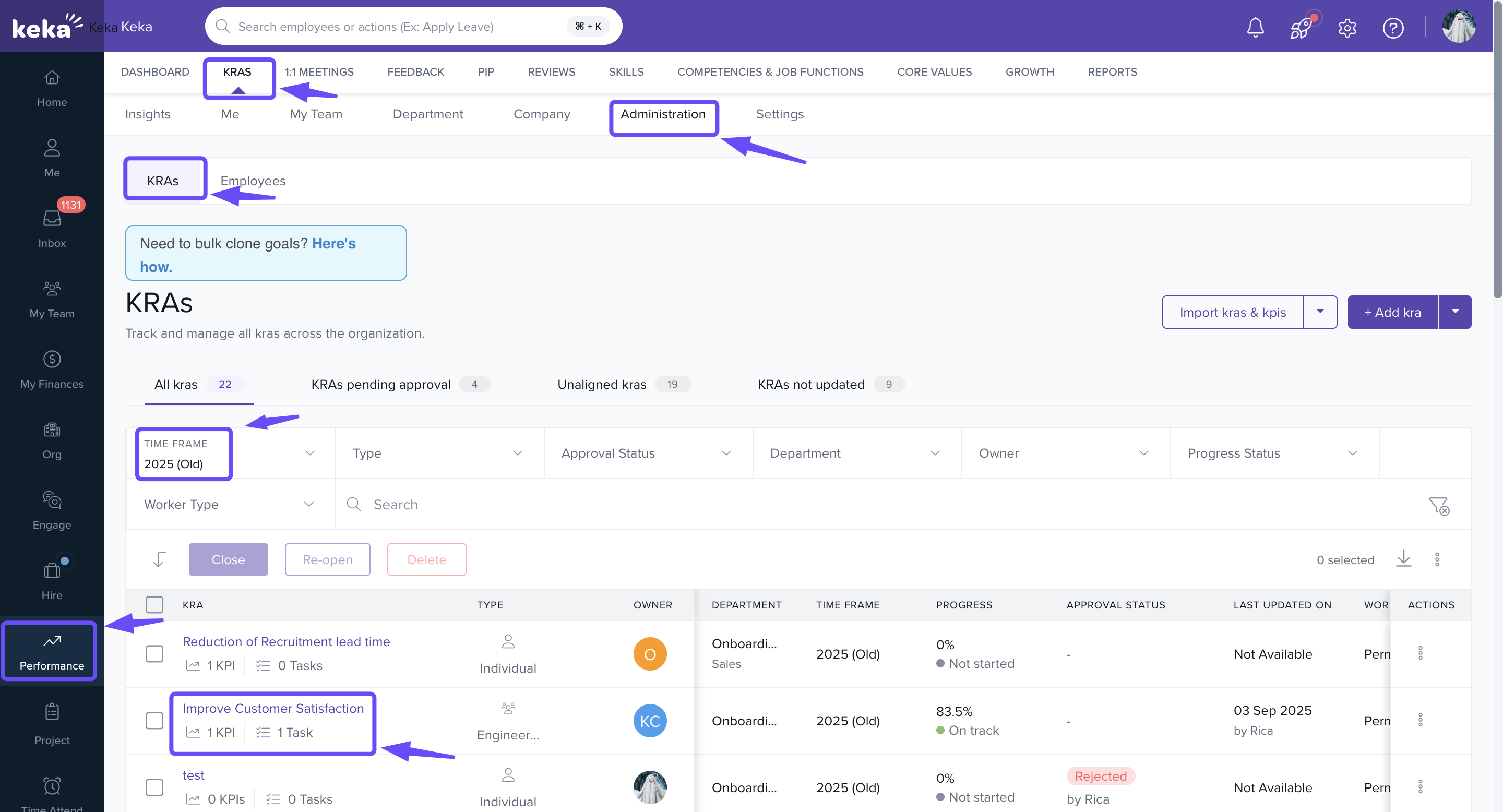
Navigating to KRAs in Administration
Go to Performance from the left navigation menu.
Click on KRAs from the top bar.
Switch to the Administration tab.
Select the correct timeframe (e.g., 2025 (Old)).
-
Locate the goal.
-
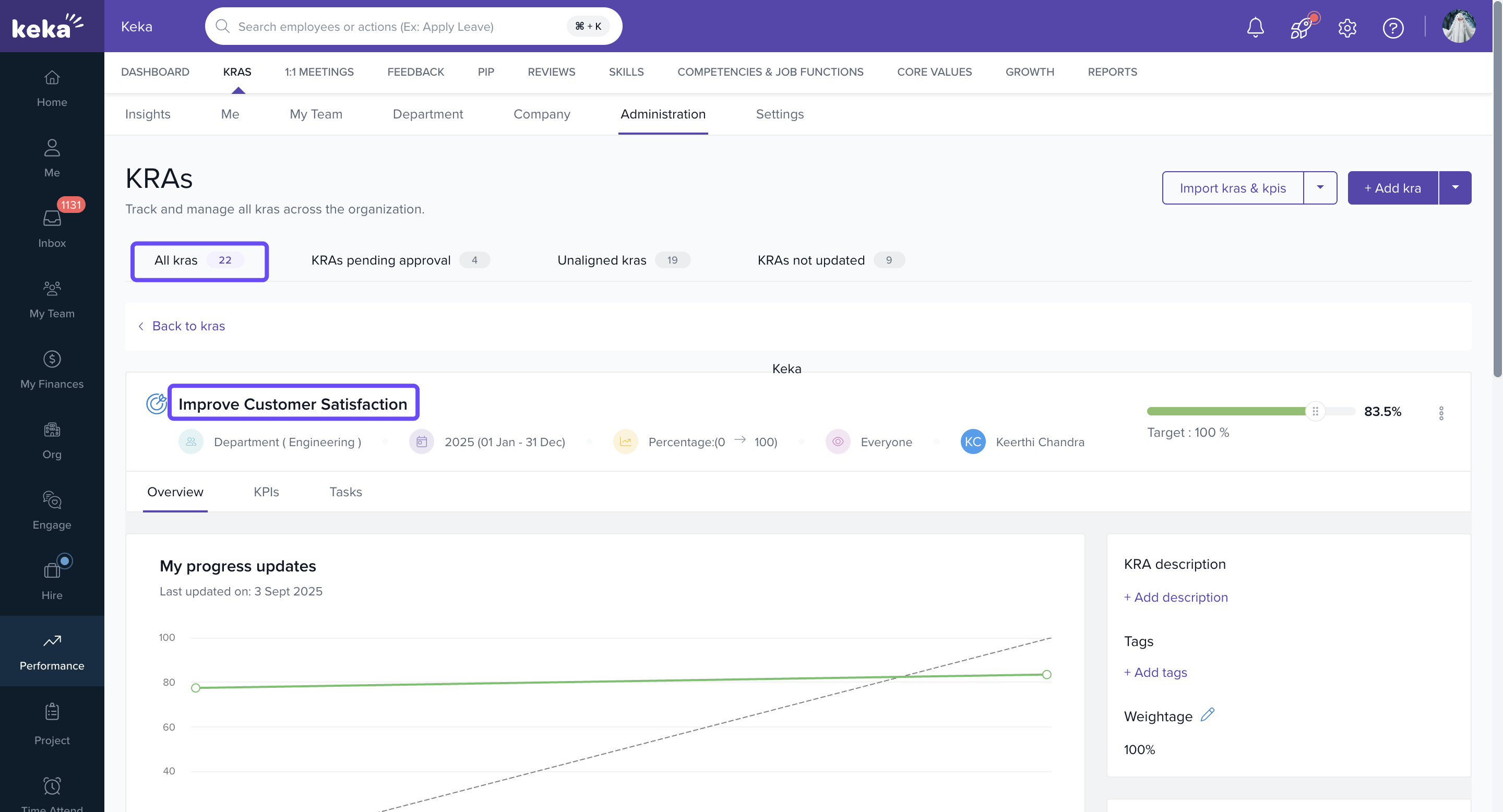
Click on the created goal (e.g., Improve Customer Satisfaction).
Opening Sub-Goal and Task Details
Inside the goal view, expand to see the sub-goal and its tasks.
-
Identify the task aligned under the sub-goal and the task aligned under main goal.(e.g., Implement a Post-Interaction Feedback Survey and Create a Customer Communication Playbook).
Editing Weightage for Sub-Goal Task
Against the sub-goal task, click the three dots (⋮) menu.
-
Select Edit Weightage.
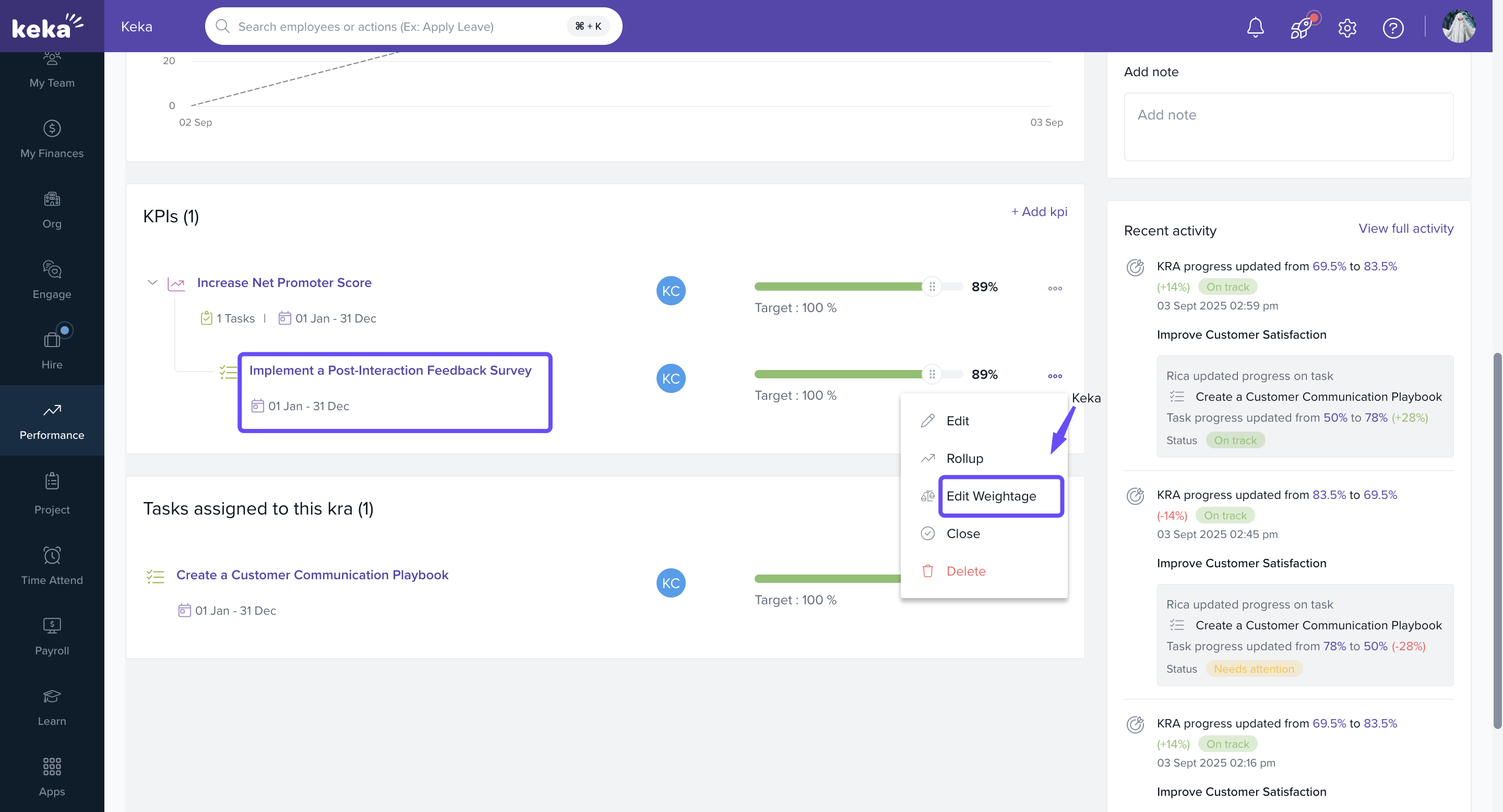
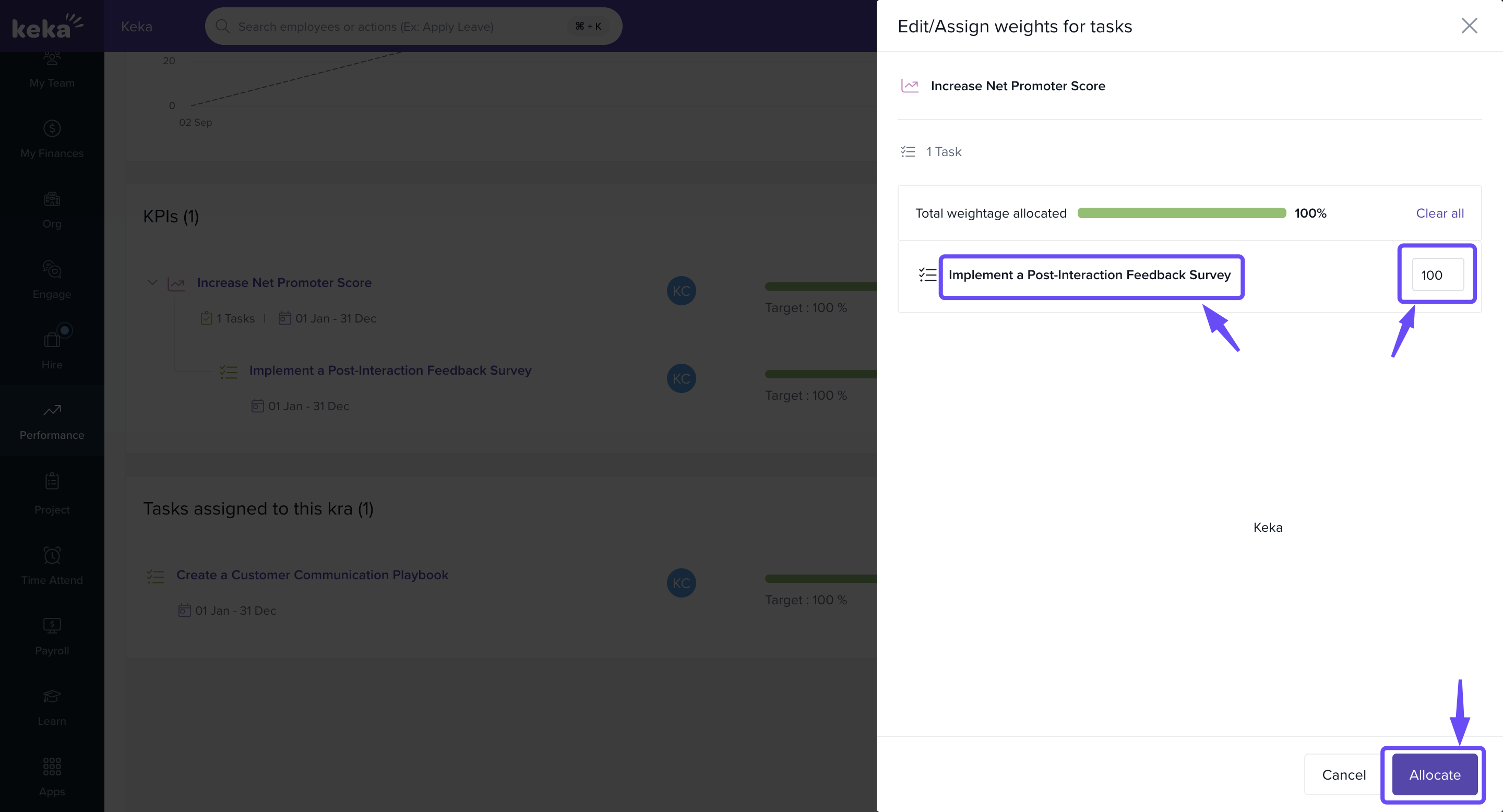
A new window opens showing only this task for which you can add or edit weightage.
Enter the desired weightage value.
-
Click Allocate to save changes.
Editing Weightage for Main Goal Task
Now scroll to the tasks directly aligned with the main goal (e.g., Create a Customer Communication Playbook).
Click the three dots (⋮) menu against this task.
-
Select Edit Weightage.
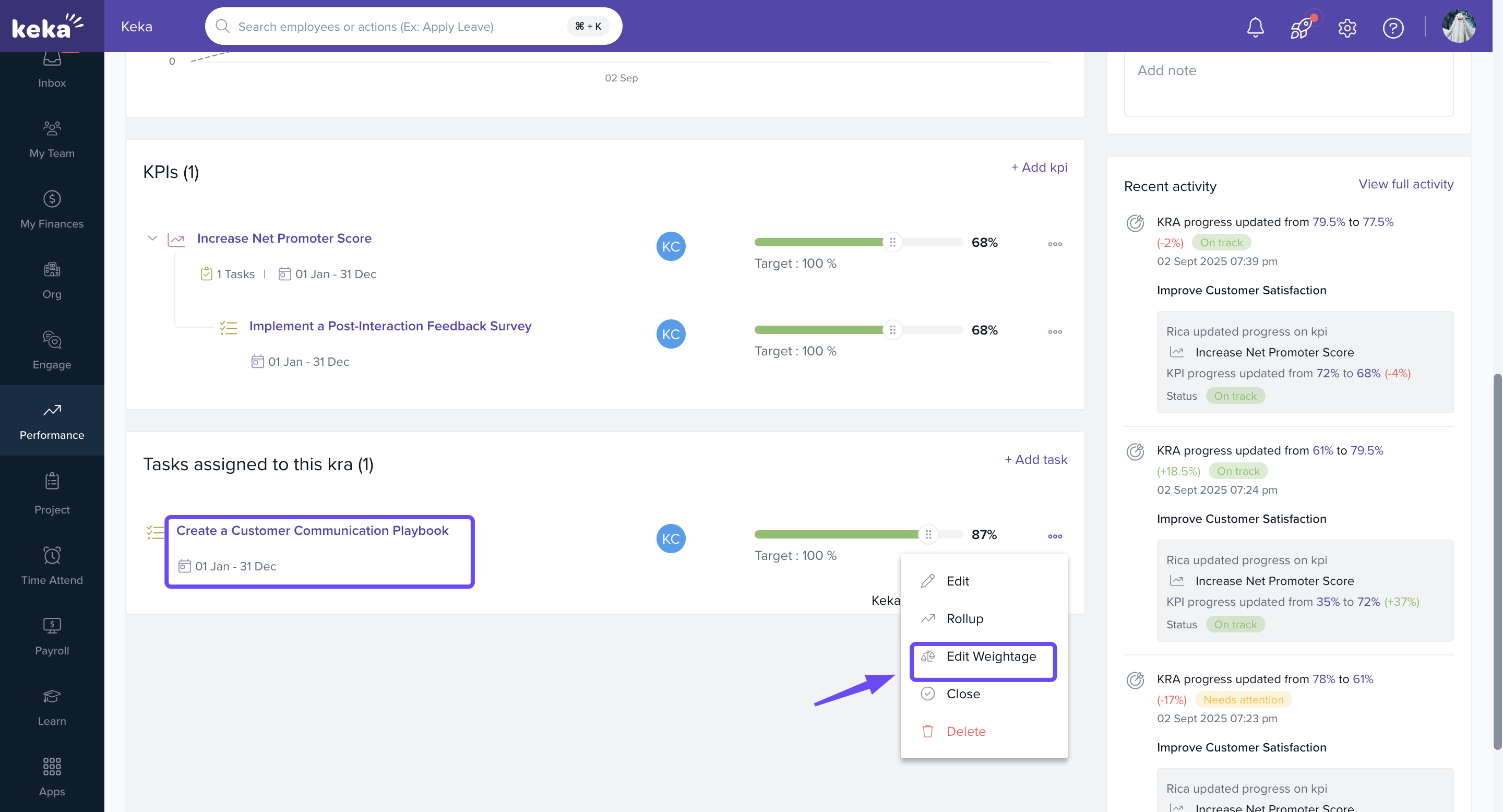
In the window, you’ll see this both the task and the sub- goal listed.
Enter the required weightage value for each.
-
Click Allocate to save changes.
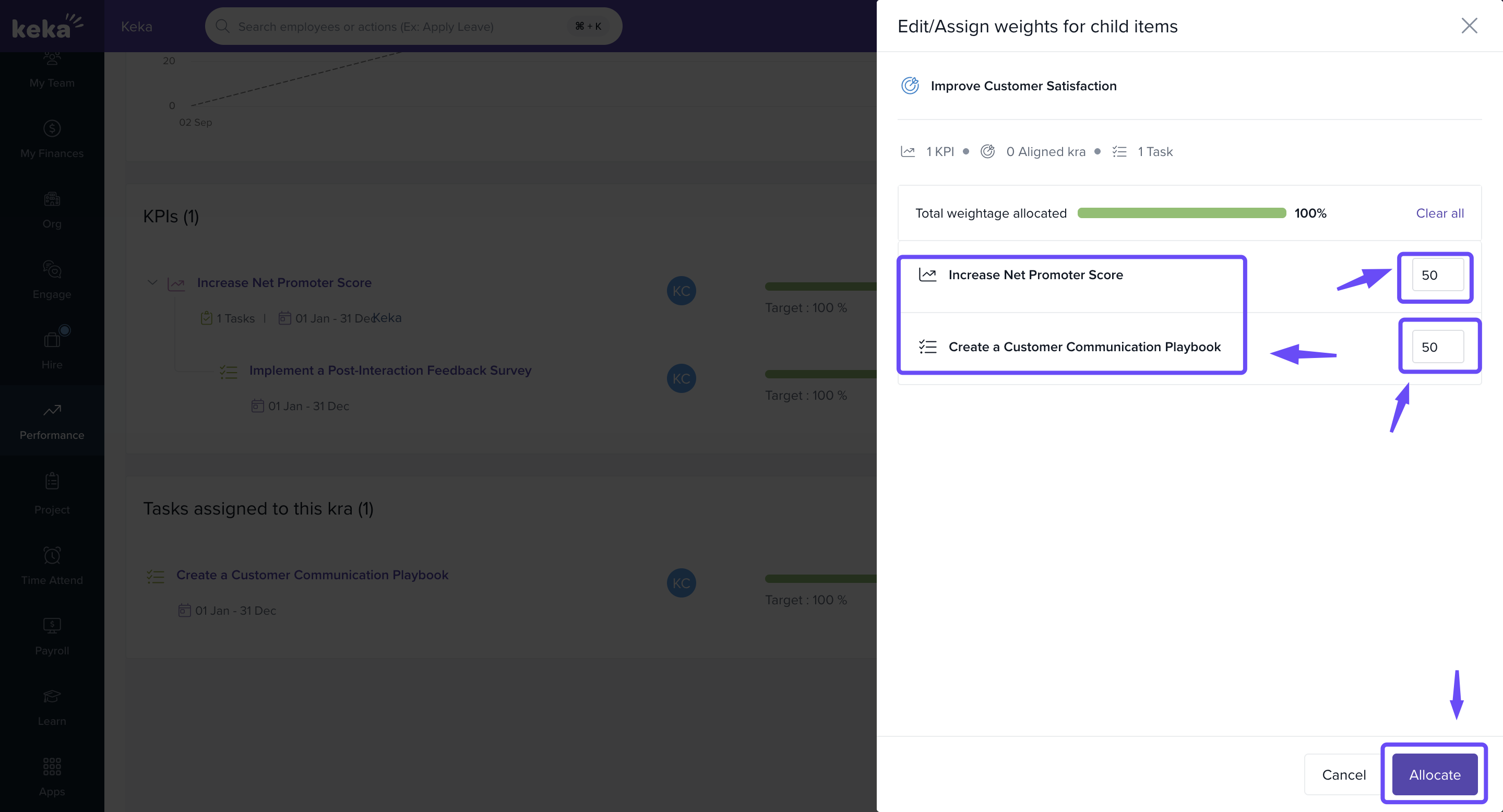
- You have now successfully edited and allocated task weightages for both sub-goals and direct tasks under a goal.
Notes & Tips
Ensure that the total weightage allocated = 100% across all tasks and sub-goals.
-
For example, you may assign:
Increase Net Promoter Score (Sub-goal) → 50%
Create a Customer Communication Playbook (Main goal task) → 50%
- You can override roll-up logic at the individual KRA level, even if global roll-up is enable.
With these settings, you can build a performance management system that balances flexibility with accuracy.
Comments
0 comments
Please sign in to leave a comment.