Introduction
Keeping track of candidate details is essential for effective hiring. In Keka, you can add tags, notes, and attachments directly to each candidate’s profile. This helps your team stay aligned, easily access important information, and make better hiring decisions.
Use this feature to:
Capture interview feedback
Categorize candidates using tags
Upload important documents
You can manage all of this without switching between tools—everything stays within the candidate's profile.
Add Tags to a Candidate
Tags help categorize candidates for quick filtering and search.
To add a tag:
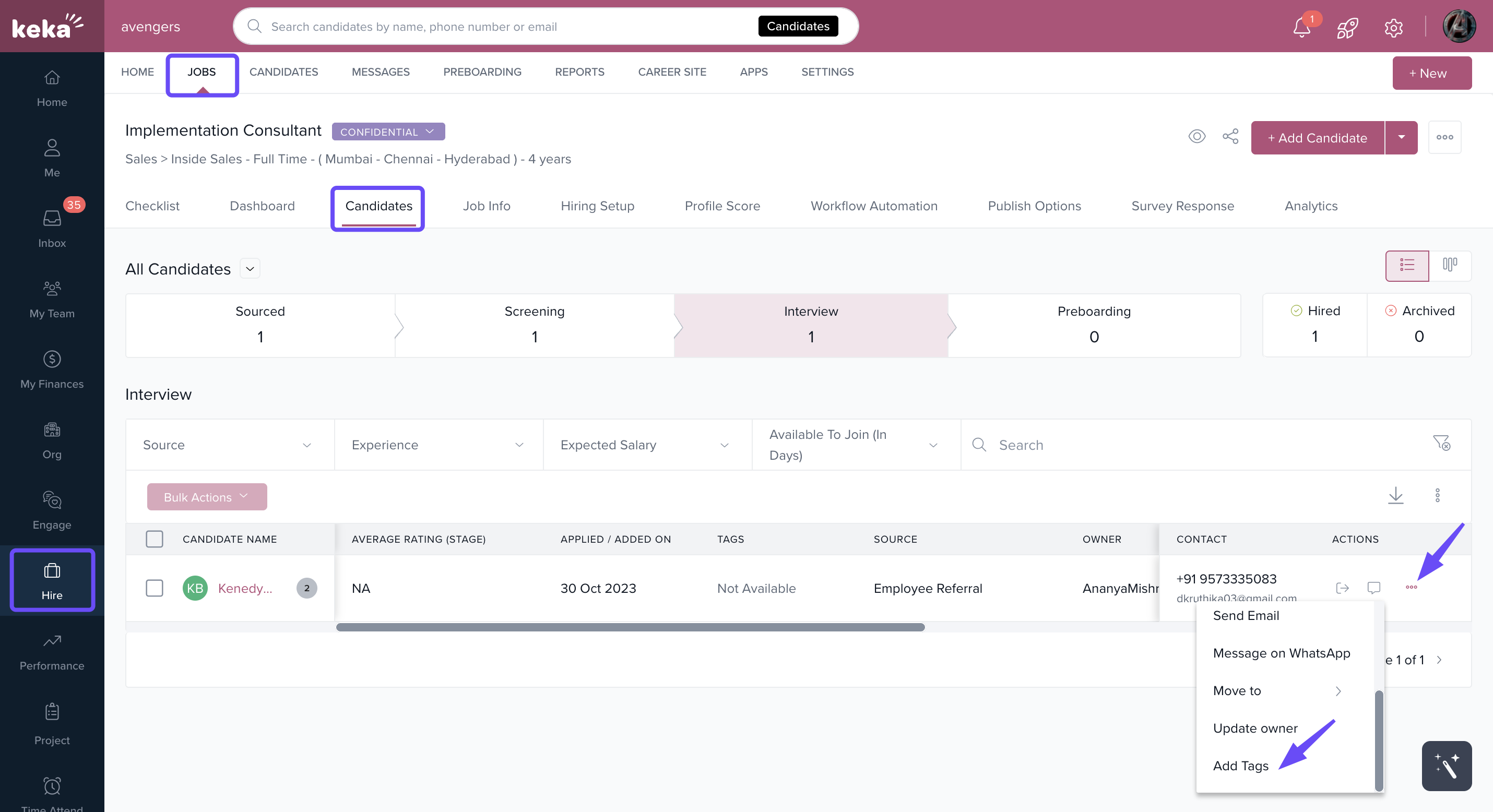
Go to the Hire section.
Click Jobs, then select Candidates.
Find the candidate you want to update.
Click the three dots under the Actions menu.
Choose Add Tags.
6. In the pop-up window, type your tag and click Save.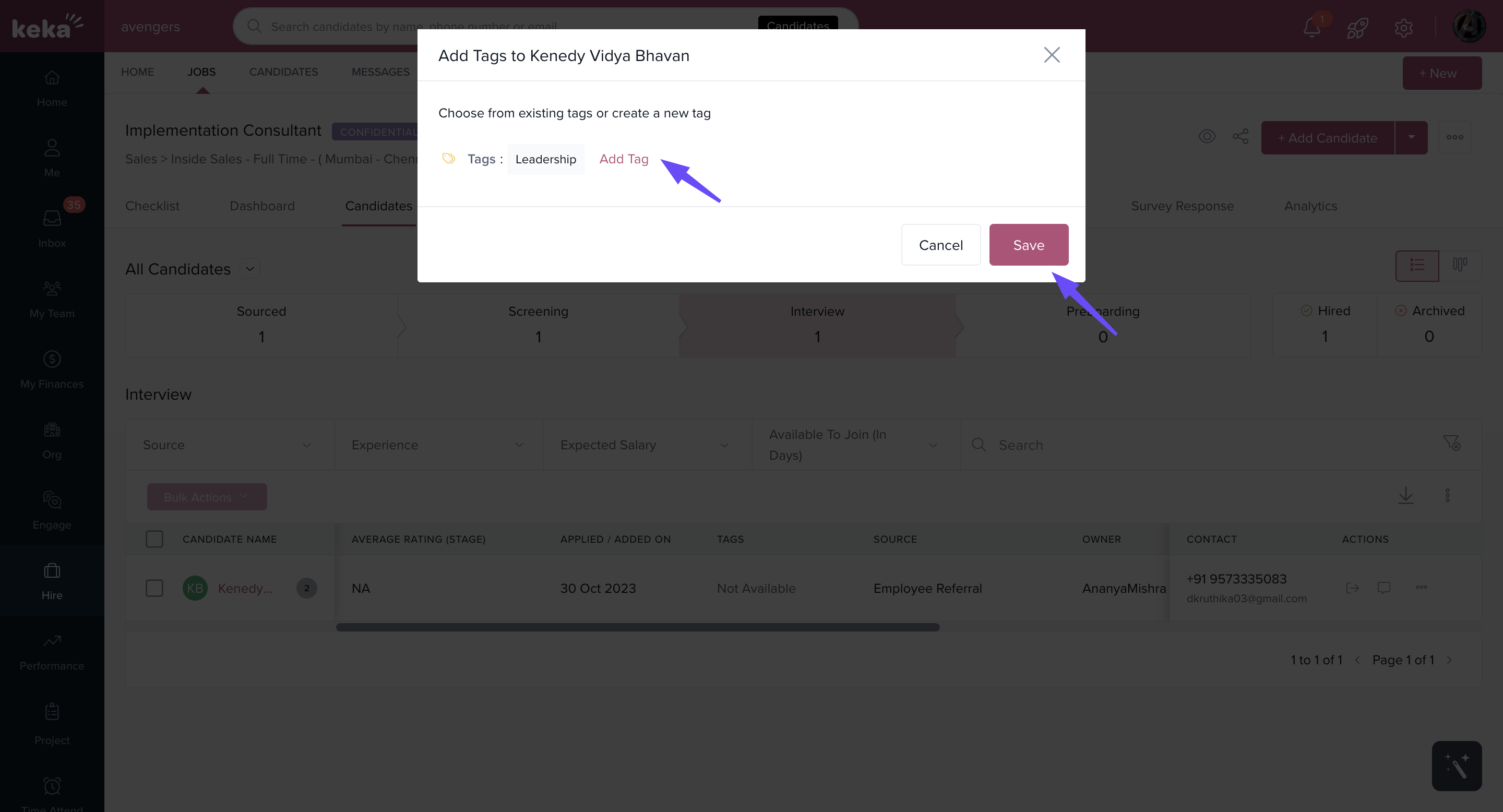
Alternate way to add tags:
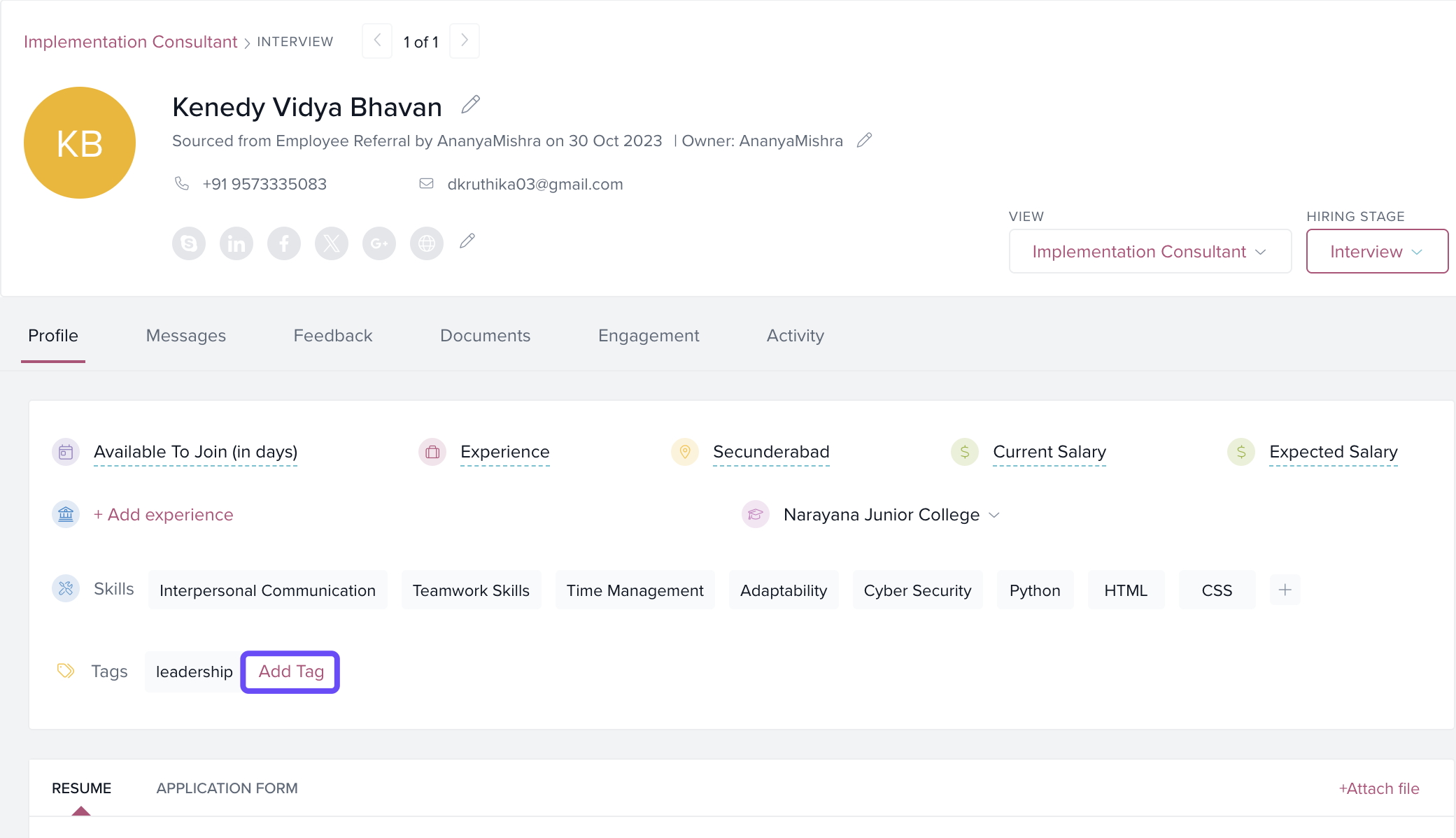
Go to the Candidates section.
Open the candidate’s profile.
Find the Tag area.
Click Add Tag, enter your tag, and save.
Add Notes to a Candidate
Notes help you document feedback and share context across the team.
To add a note:
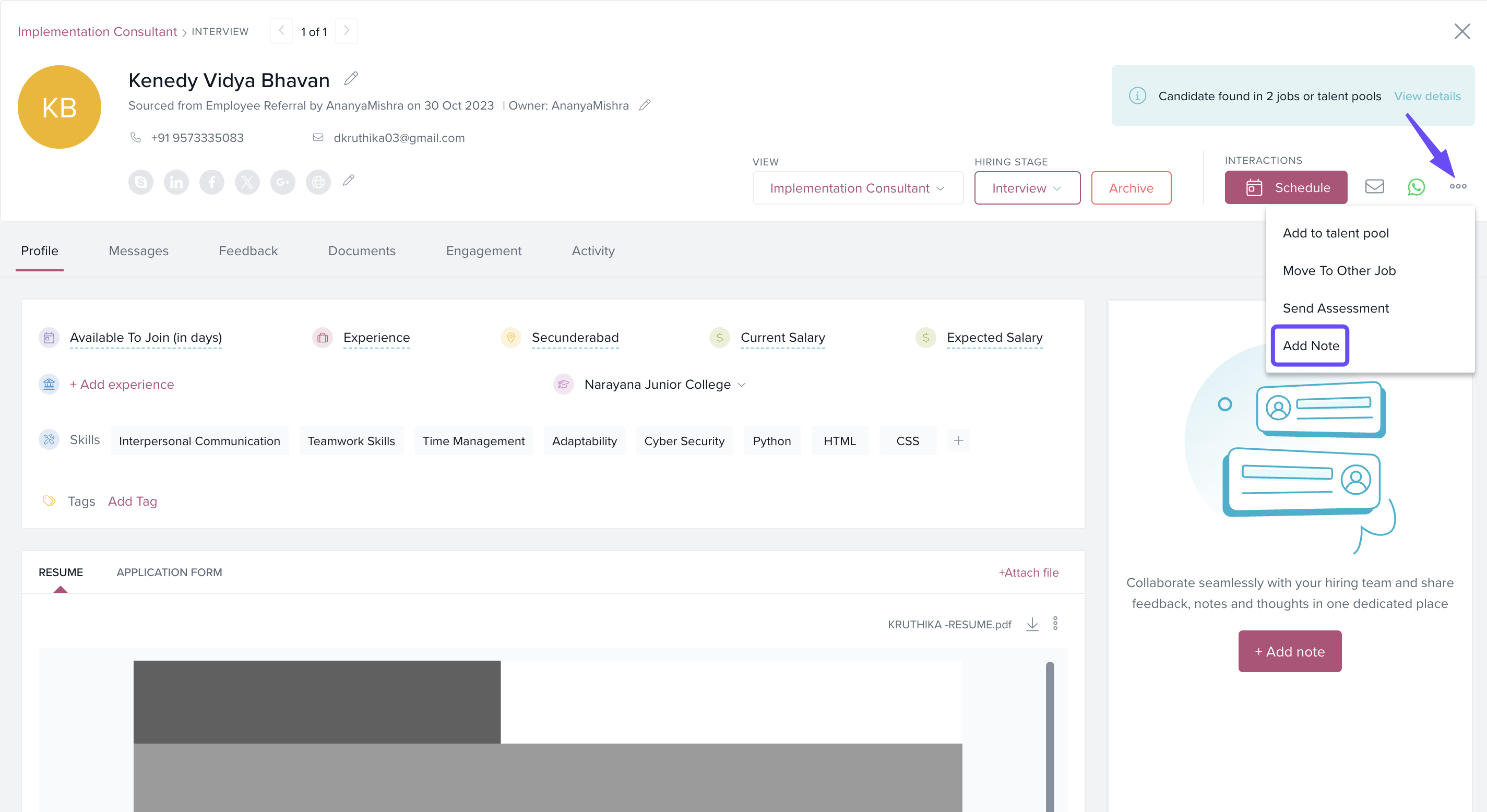
Go to the candidate’s profile.
In the Interactions section, click the Add Note option from the dropdown.
-
In the note window:
Type your message in the text area.
(Optional) Click Add Tag to link a tag to this note.
(Optional) Click Add Attachment to upload any related files.
Set visibility preferences to control who can see the note.
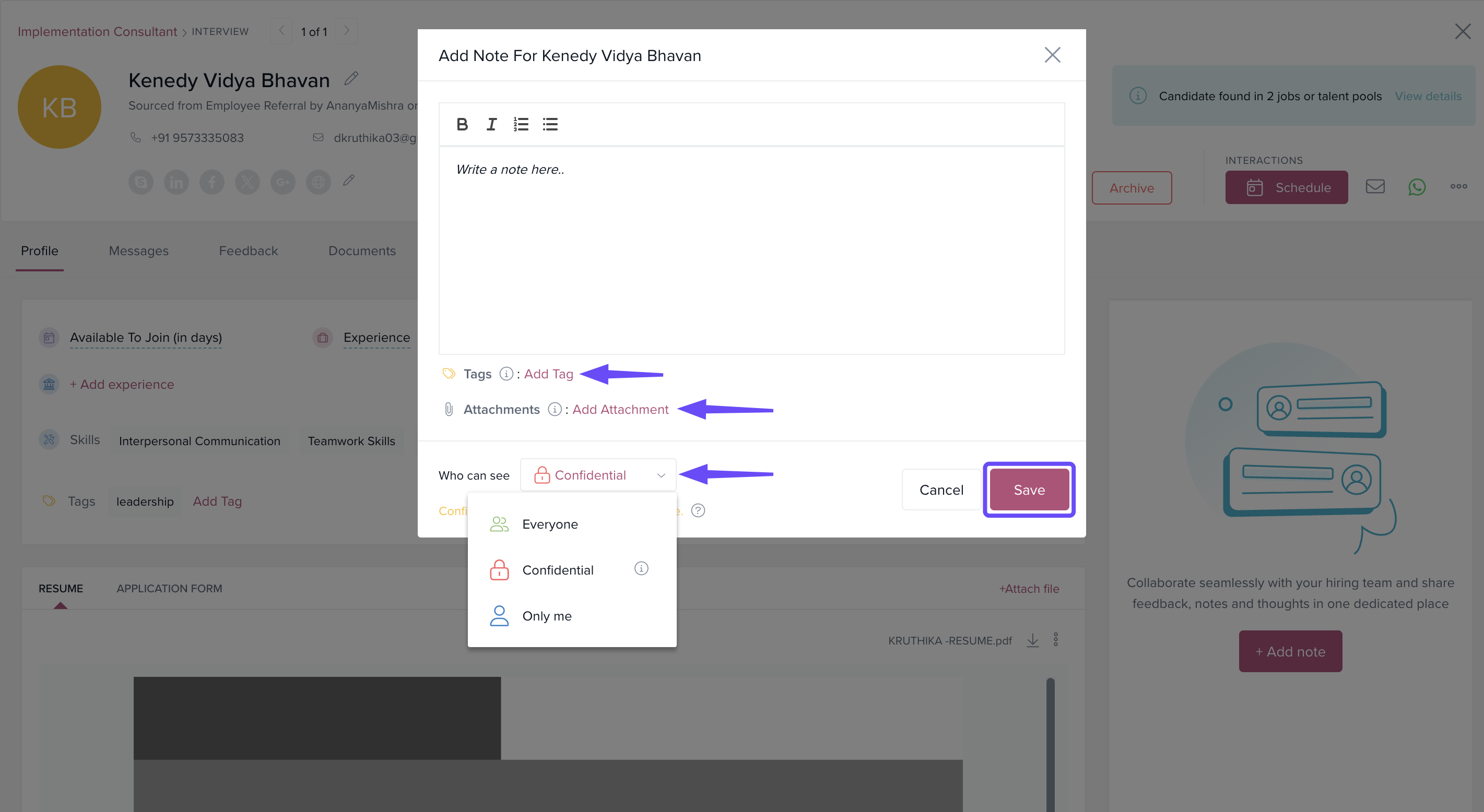
Click Save to store the note.
Options & Variants
You can tag candidates either from the Candidates list view or directly within their profile.
Tags can also be attached to individual notes for more detailed categorization.
Attachments can be included when adding a note but not when adding a standalone tag.
Visibility settings allow restricting who can view each note—helpful for private feedback.
Notes
Tip: Use consistent tag names across candidates to streamline filtering and shortlisting.
Important: Notes and attachments are stored in the candidate's profile for future reference by authorized team members.
We trust this article provides the guidance you need.
Comments
0 comments
Please sign in to leave a comment.