Introduction
Candidate tags in Keka help your team stay organized, collaborate better, and make faster hiring decisions. These tags are custom labels you can assign to candidates—like skills, experience, or other attributes—making it easier to filter, search, and analyze your talent pool.
By using tags effectively, you can streamline candidate tracking, identify talent gaps, and create a more data-driven recruitment strategy.
What Are Candidate Tags?
Candidate tags are flexible labels that let you mark and organize candidates based on specific characteristics—like "Java Developer", "Senior Manager", or "Referral". These tags make it easier to manage a growing pool of applicants and quickly identify who fits what you're looking for.
Why Use Candidate Tags?
Here’s how tags can help:
Enhanced Organization: Group and retrieve candidate info easily.
Efficient Filtering: Instantly narrow down candidates based on skills, qualifications, or preferences.
Improved Collaboration: Use a shared tagging system so your team speaks the same language when evaluating candidates.
Data-Driven Decisions: Analyze tag data to track trends and improve hiring outcomes.
Smarter Talent Management: Spot gaps in your pipeline—like missing skillsets—and focus your sourcing strategy accordingly.
Candidate Tag Management: Create, Assign, Filter, Bulk Actions & Audit Log
1. Create and Manage Candidate Tags
Only admins can create, edit, or delete candidate tags.
To manage tags:
Go to Hire > Settings > Hiring > Candidate Tags.
Use the search bar to find existing tags.
Add new tags or edit/delete existing ones.
-
Tags are grouped alphabetically for easier navigation.
Important: If a tag is deleted, it will also be removed from all associated candidate profiles.
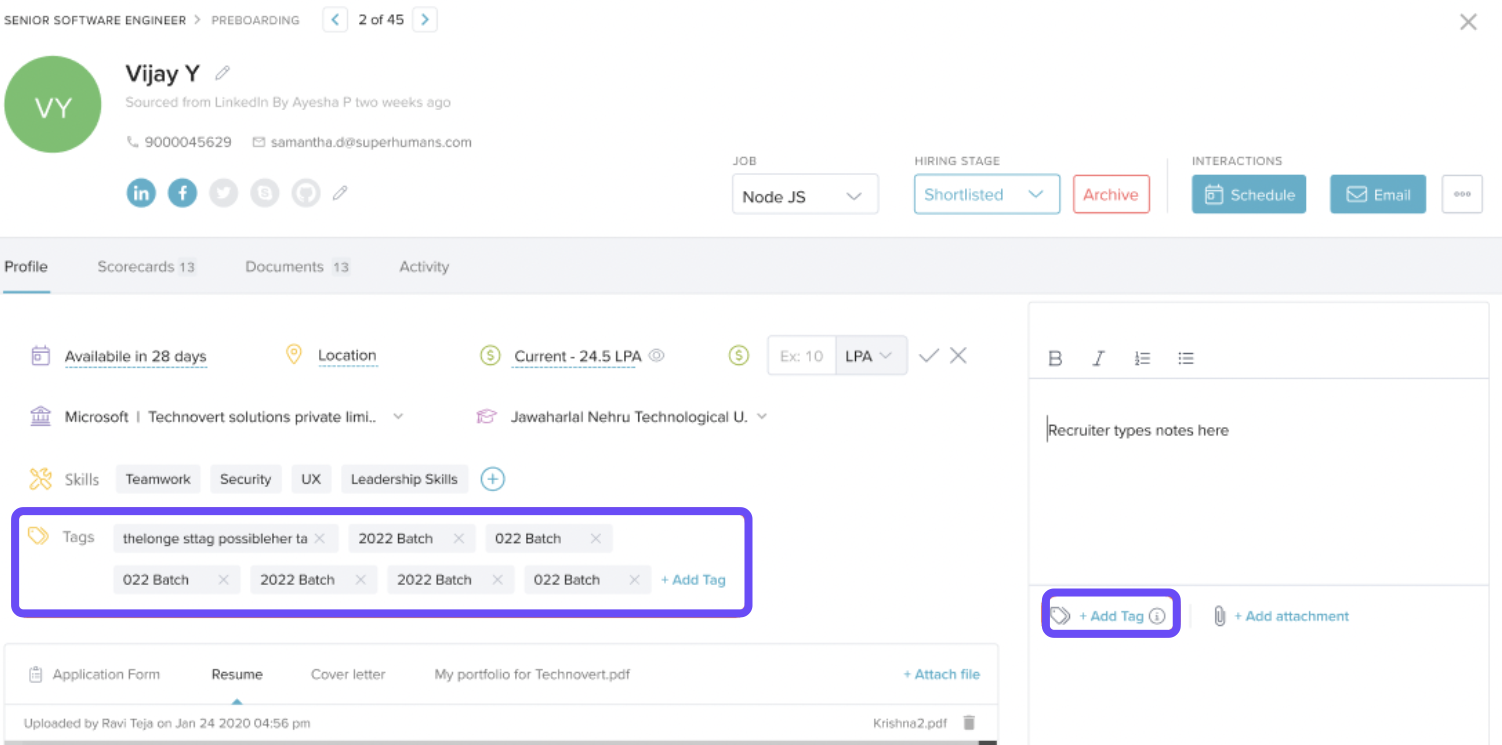
2. Assign Tags to Candidates
Recruiters, hiring managers, and team members can assign tags when:
Adding candidates individually or in bulk
Writing feedback
-
Adding notes to a candidate profile
Note: Users can remove tags from a candidate’s profile, but only admins can delete tags from the system.
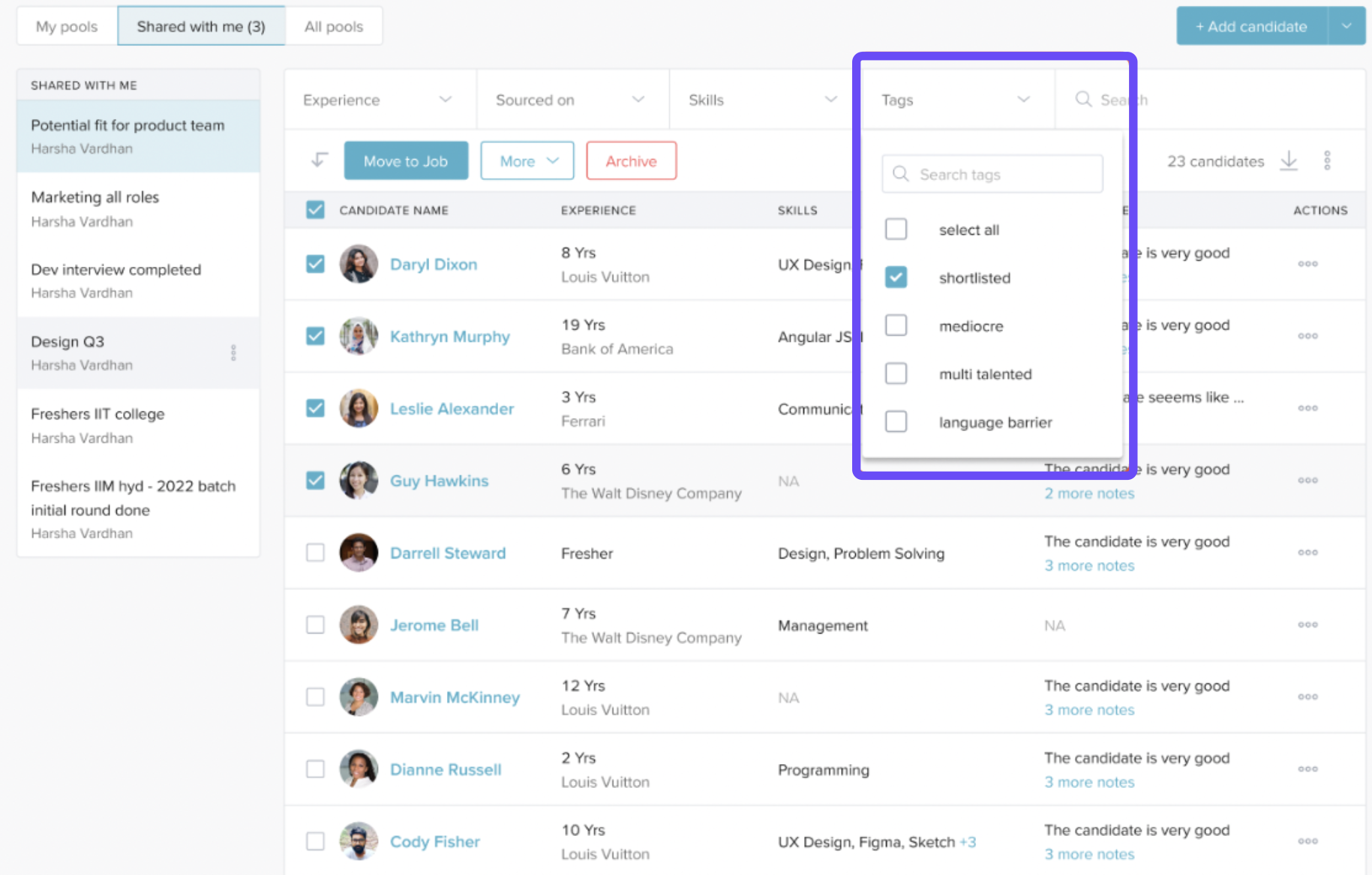
3. Filter and Search Candidates Using Tags
You can use tags to filter candidates in various views:
Job Stages
Kanban View
Talent Pool
Advanced Search
My Candidates
Archived Tab
Tags help you segment the candidate pool—for example, by skill level, industry background, or referral source.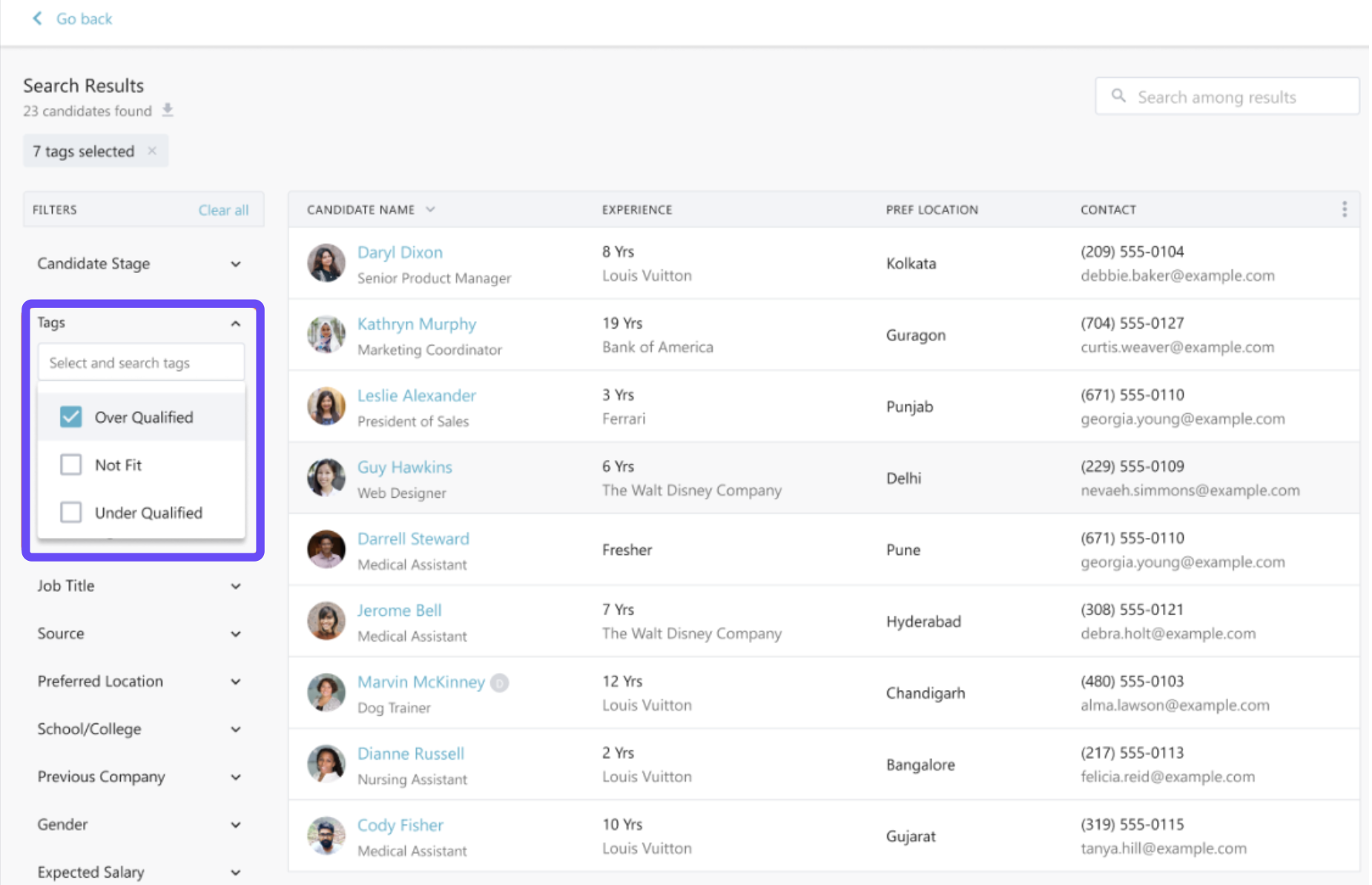
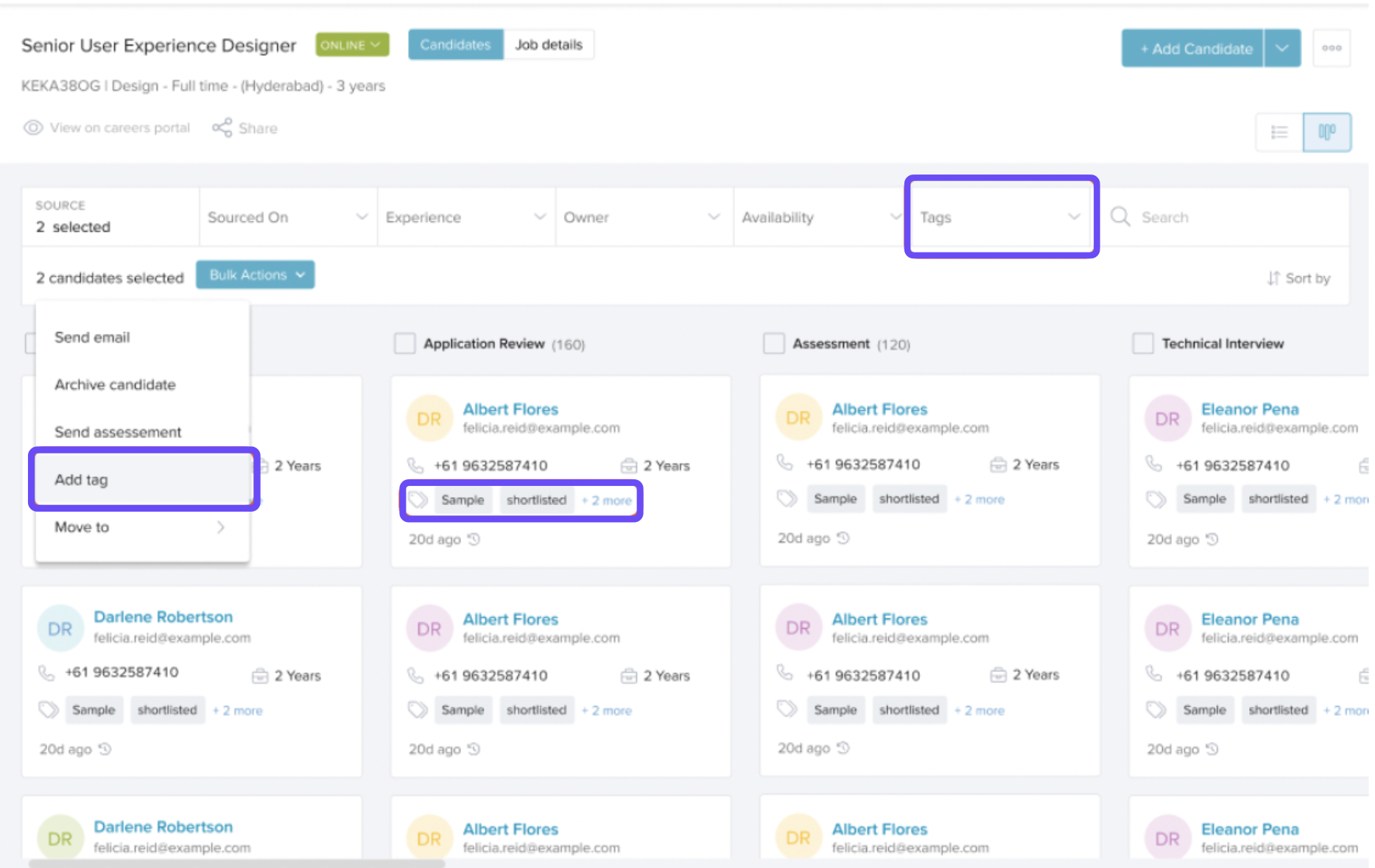
4. Bulk Assign or Remove Tags
To save time, you can bulk-tag candidates directly from the job stages or kanban view. This helps when managing high volumes of applicants.
5. Track Changes with the Audit Log
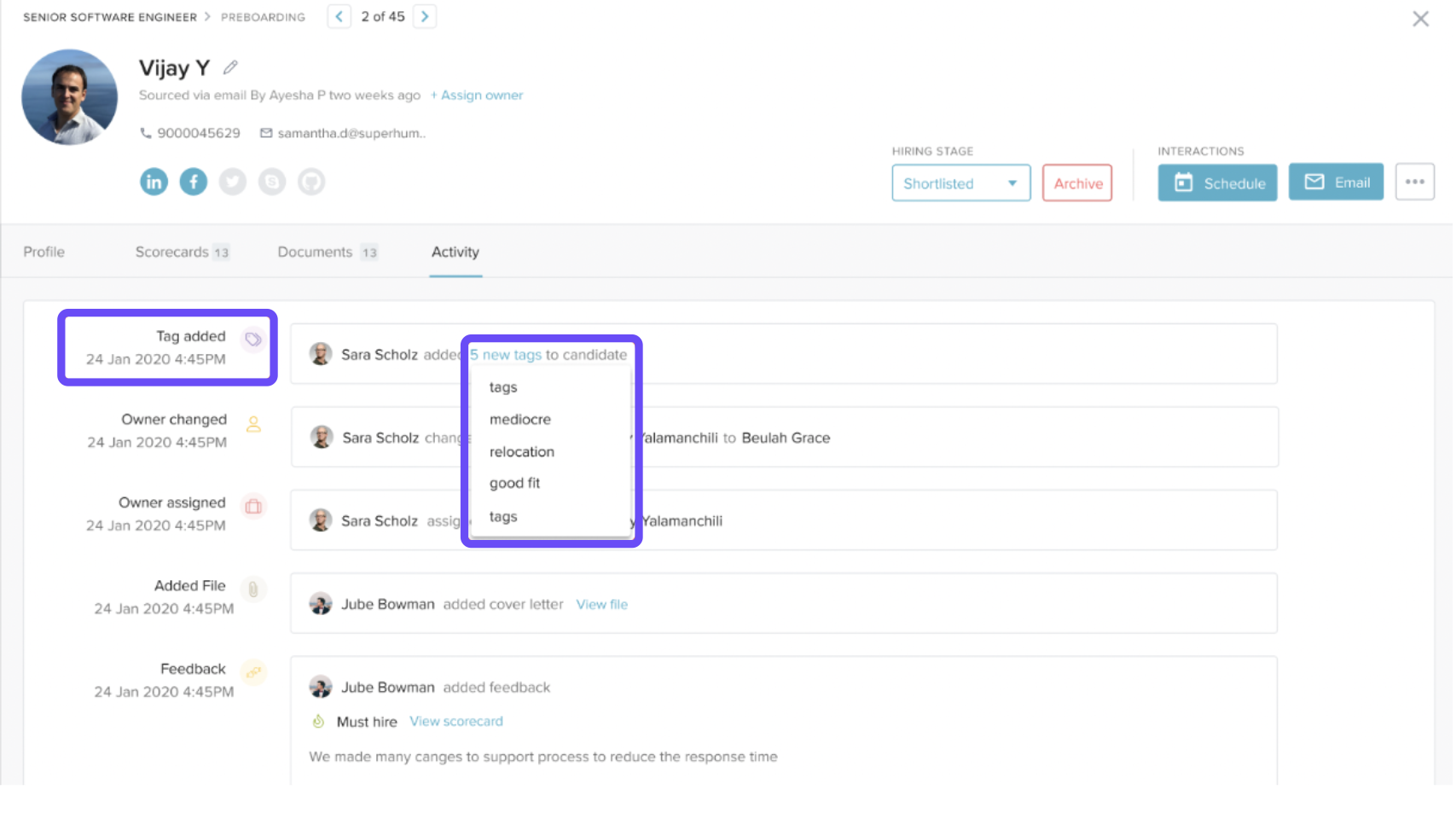
Every time a tag is added, removed, or updated, the change is recorded in the Activity section of the candidate’s profile. This ensures transparency and accurate record-keeping.
By default, all users can add tags to candidates. To restrict this, go to User & Permission settings and remove the Add Tag or Manage Tag permission for specific personas.
If you have any feedback or need further assistance, we’re here to help.
Comments
0 comments
Please sign in to leave a comment.