Introduction
Candidate tags in Keka Hire help you organize and manage candidates more effectively. By adding custom tags to candidate profiles, recruiters can quickly filter, search, and analyze applicants based on specific attributes. This article walks you through creating, managing, and using candidate tags to enhance your hiring process.
Why Use Candidate Tags?
Tagging candidates provides you with more data to work with, more flexibility, and improved reporting, all of which help you make better hiring decisions.
- Enhanced Organization: Tags allow for a structured approach to candidate management, making it easier to locate and retrieve relevant information.
- Efficient Filtering: Tags facilitate quick filtering and segmentation of candidates based on specific attributes, saving time and effort.
- Improved Collaboration: Tags provide a common language for team members to communicate and share insights about candidates.
- Data-Driven Decisions: Analysing candidate data based on tags enables informed decision-making and strategic planning.
- Improve your talent management strategies: By using candidate tags to track specific skills, experience, or other traits, you can identify gaps in your talent pool and develop strategies to address them. For example, if you notice that you have a shortage of candidates with a certain skill, you can focus your recruiting efforts on finding candidates who possess that skill.
Create and Manage Candidate Tags
Only administrators can create or modify candidate tags. To do this:
Go to the Hire section.
Click Settings.
Under Hiring, select Candidate Tags.
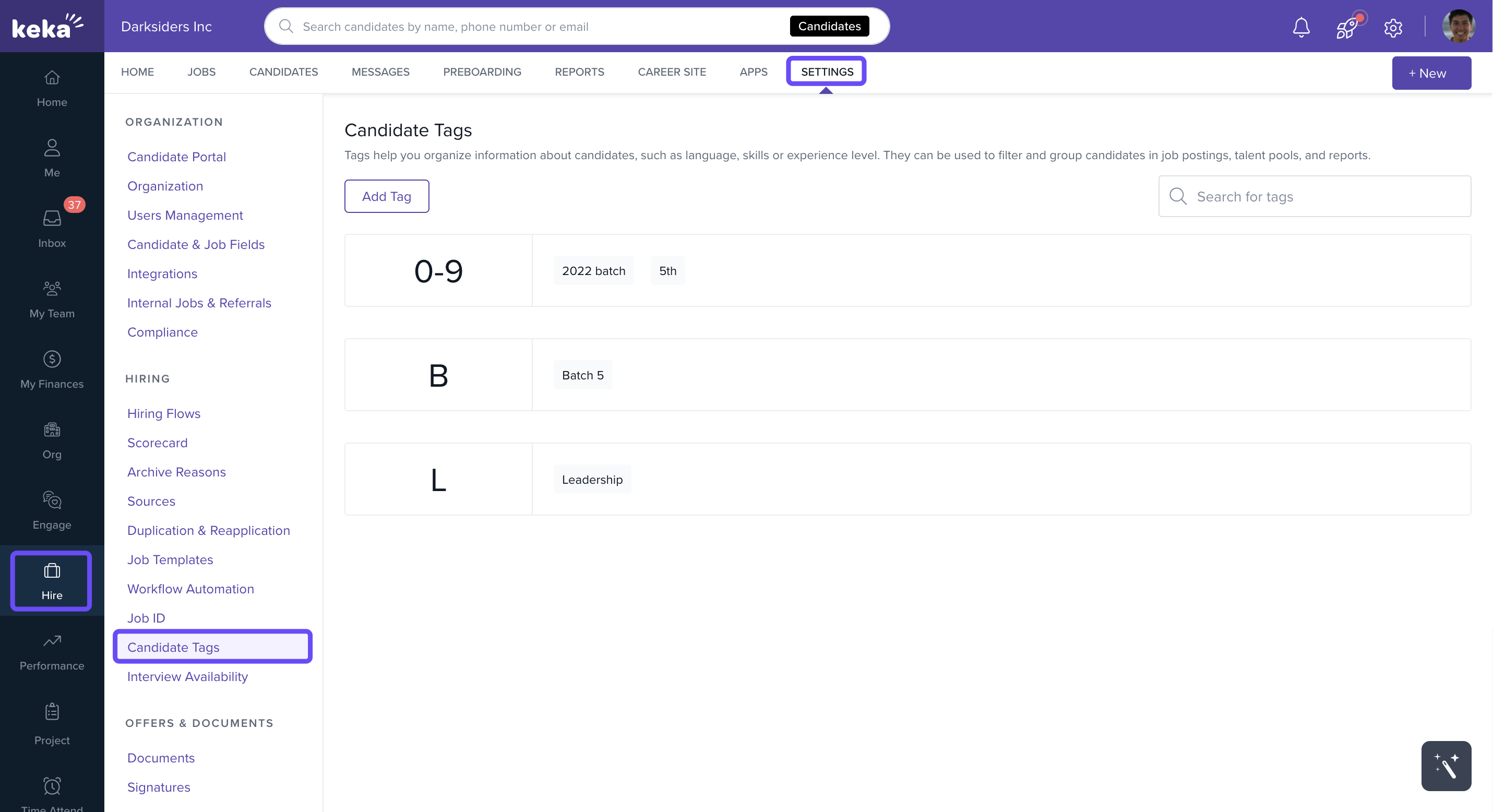
- Click +Add Tag, type a tag name, and click the checkmark.
Tags appear in alphabetical order and can be searched using the search bar. If you delete a tag that is already assigned to candidates, it will be removed from their profiles automatically.
Assign Tags to Candidates
To tag a candidate:
Open the candidate’s profile.
Click +Add Tag to apply one or more tags.
Optionally, click Add Note to add context and apply filters.
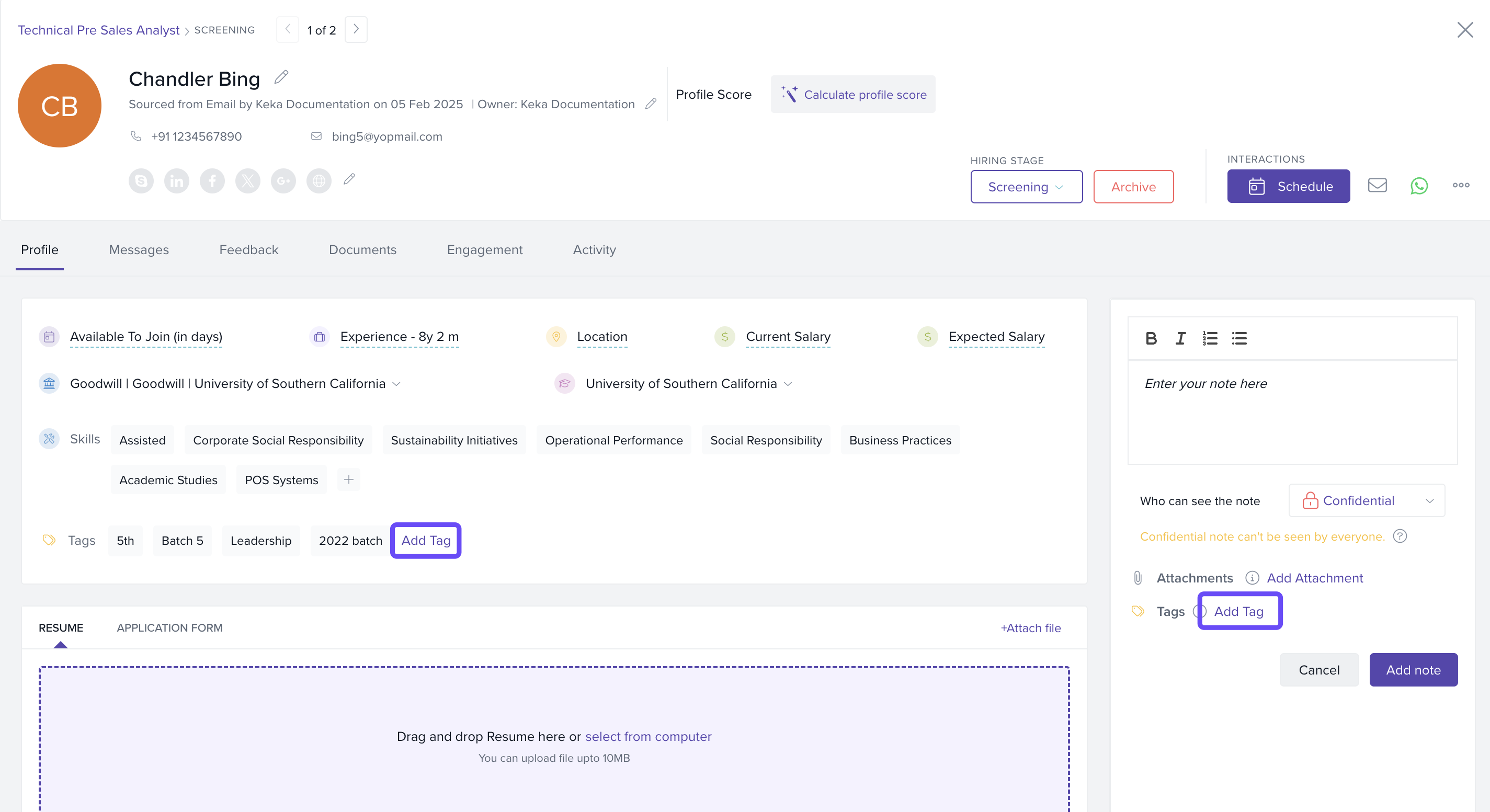
Tags can represent skills, experiences, certifications, or any other relevant criteria.
Filter and Search Candidates by Tags
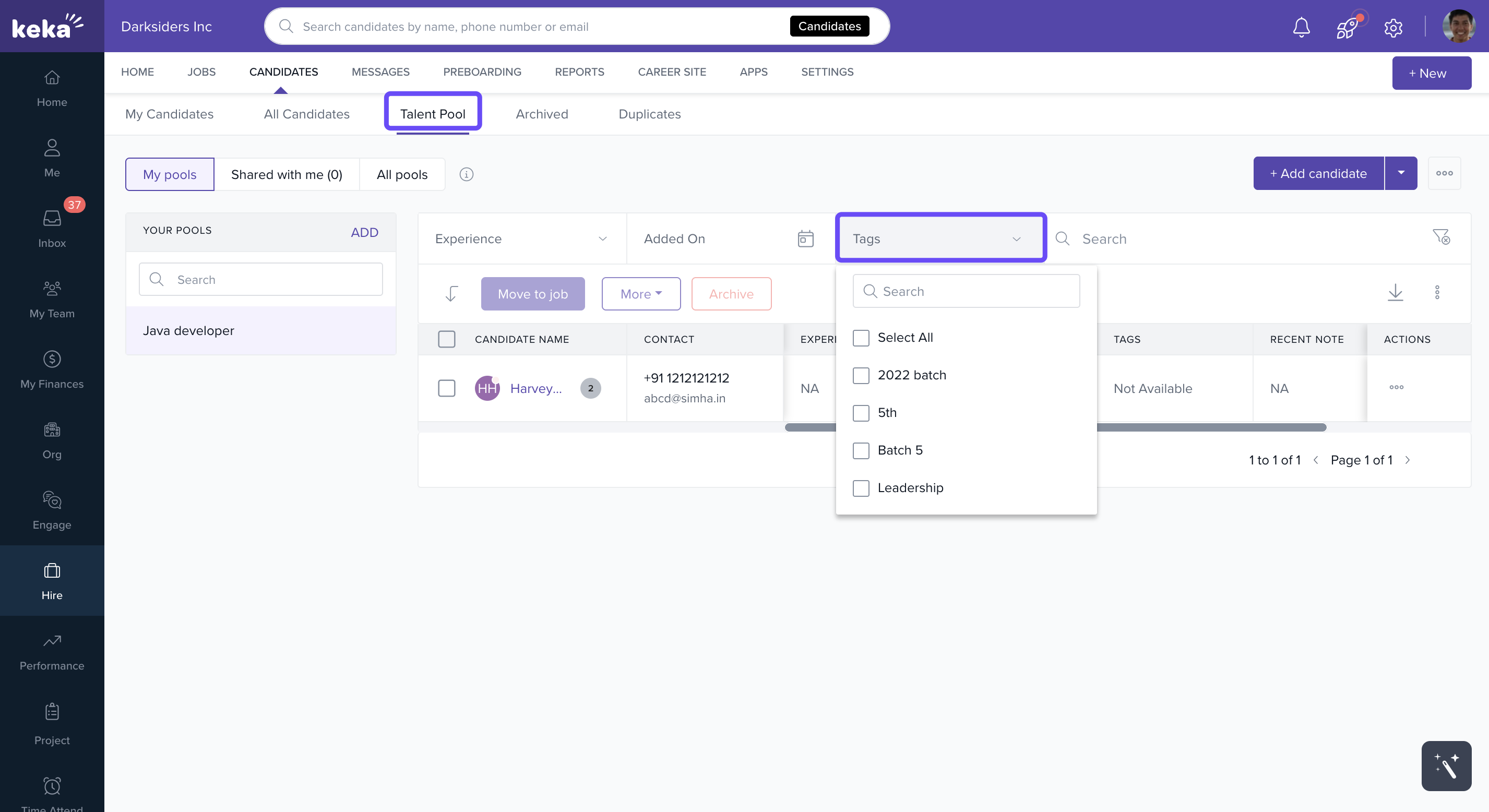
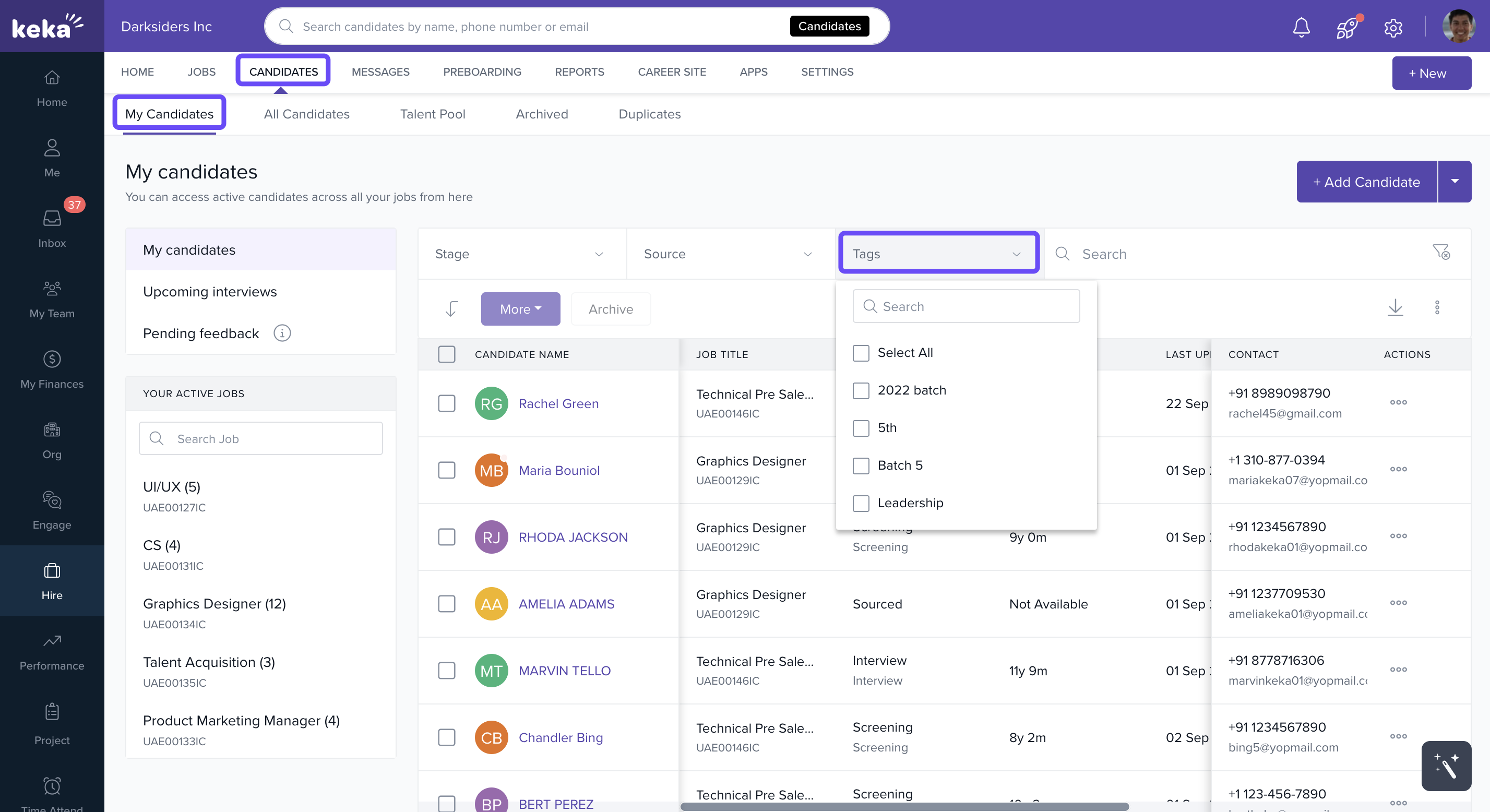
Use tags to quickly narrow down your candidate list:
-
Apply the Tag filter in views like:
Kanban view
Talent Pool
Advanced Search
My Candidates
Archived tab
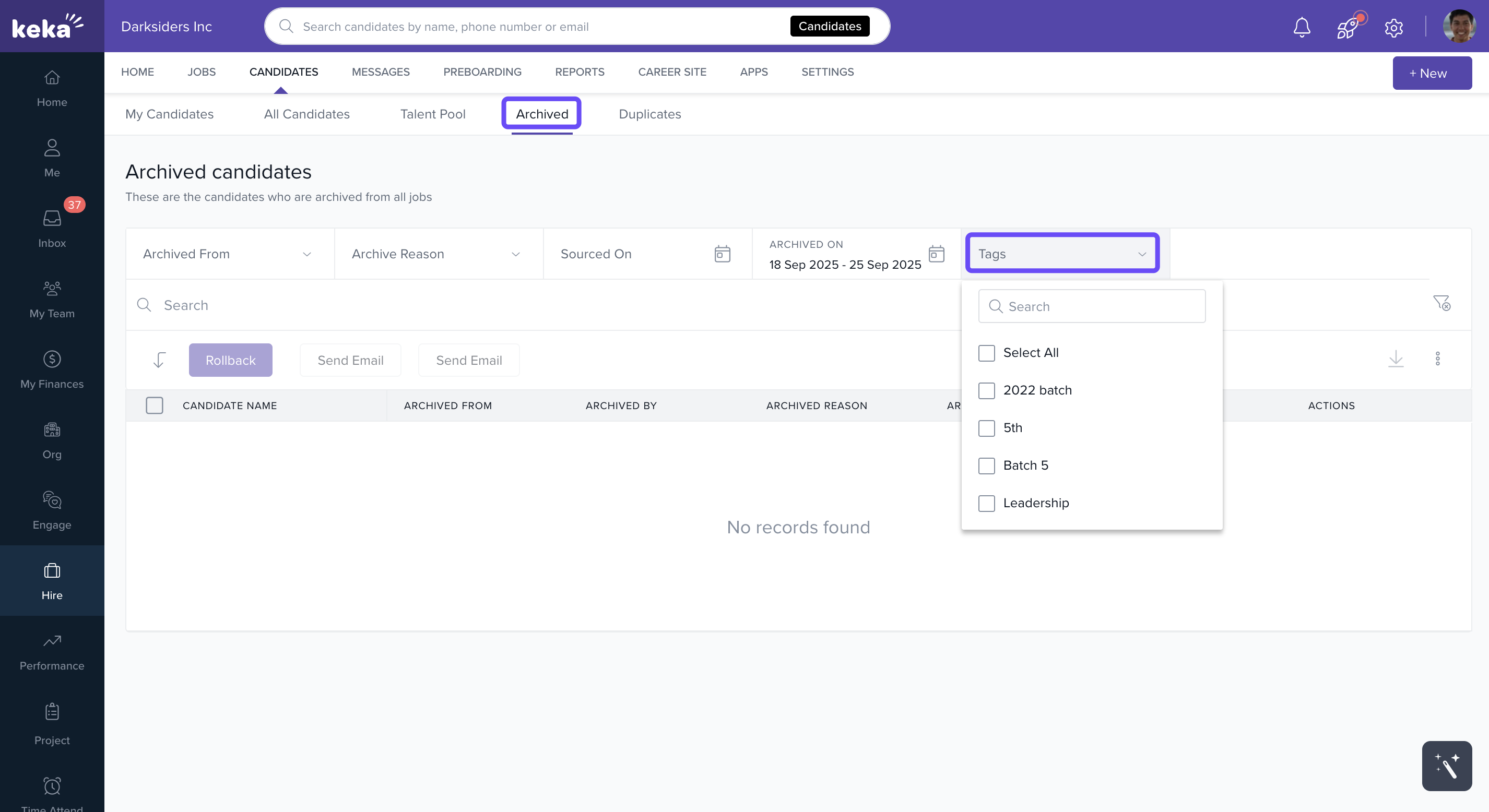
This helps you segment candidates by specific skills, qualifications, or preferences.
Bulk Assign or Remove Tags
In any job stage or Kanban view:
Select multiple candidates.
Use bulk actions to Assign or Remove Tags.
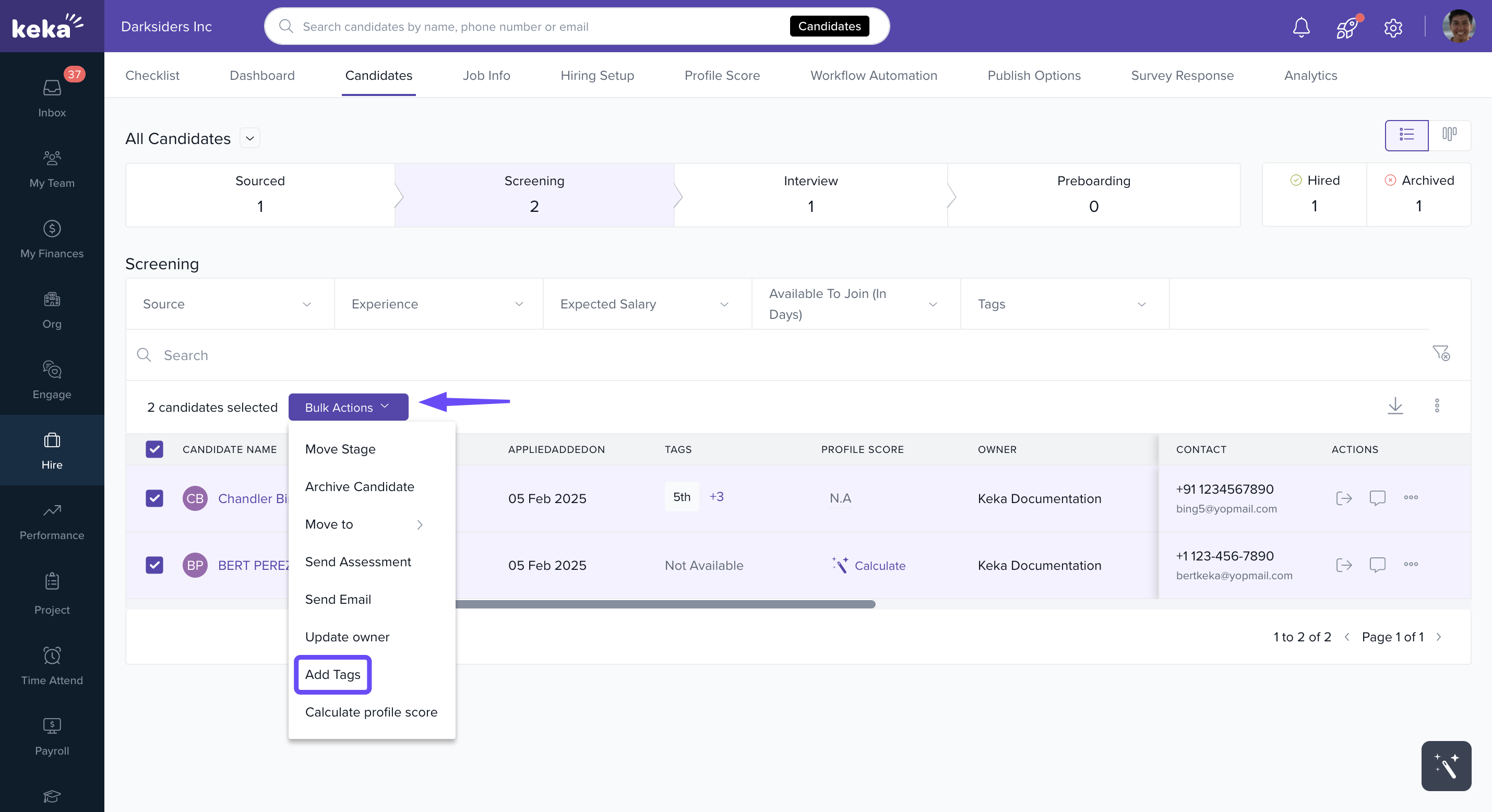
This saves time when managing large volumes of candidates.
View Tag Activity in Audit Log
All tag-related changes are logged:
Go to the Activity section in a candidate’s profile.
View the audit log to track when tags were added, removed, or updated.
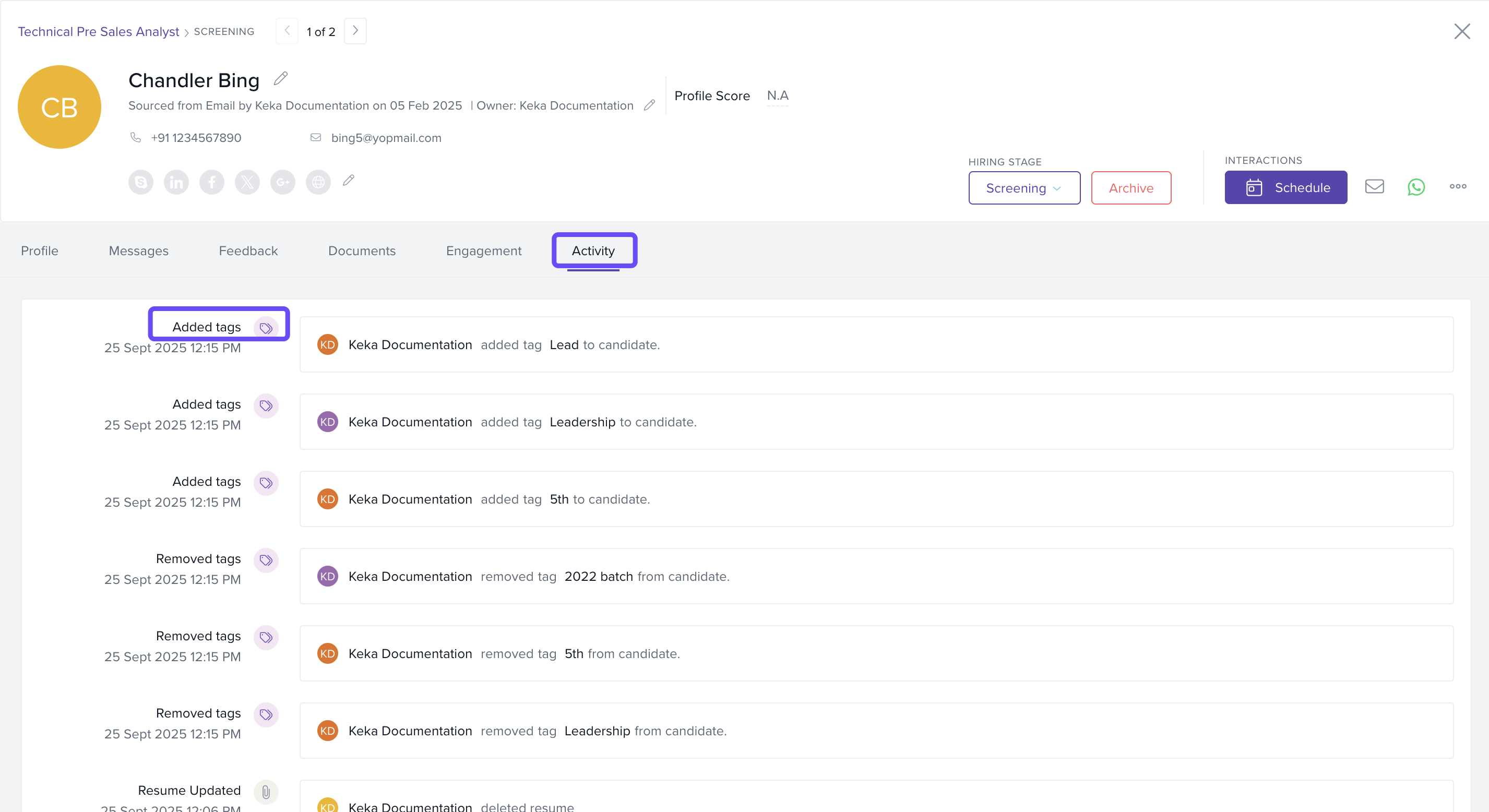
This ensures transparency and accurate record-keeping.
Field Reference
| Field / UI Element | Description |
|---|---|
| +Add Tag | Assign new or existing tags to a candidate |
| Add Note | Add remarks alongside tags for better candidate insights |
| Candidate Tags | Central admin location to manage all tags |
| Settings > Hire | Path to manage tagging permissions and configurations |
| Activity | Candidate profile section that logs tag history |
| User & Permission | Manage who can add or manage tags across different personas |
Notes, Tips, and Warnings
Important: Deleting a tag from the system will also remove it from all candidate profiles where it was used.
Tip: Use consistent tag naming conventions (e.g., "JavaScript" vs "JS") to keep your tagging system organized and effective.
Examples & Use Cases
Identify talent gaps: If few candidates are tagged with “Python,” consider targeting this skill in future recruitment efforts.
Collaborate better: Share tagged profiles with team members to discuss candidates with similar attributes or skills.
Speed up hiring: Quickly find candidates with niche skills by filtering for specific tags.
Comments
0 comments
Please sign in to leave a comment.