Introduction
This guide explains how to set up and manage scorecards and rating scales in Keka Hire. These tools help ensure a structured and consistent evaluation process for all candidates.
Using scorecards, recruiters and interviewers can assess candidates based on predefined competencies and questions. Ratings are then averaged across sections, interviewers, and interview rounds to support better hiring decisions.
Set Up Scorecard Categories
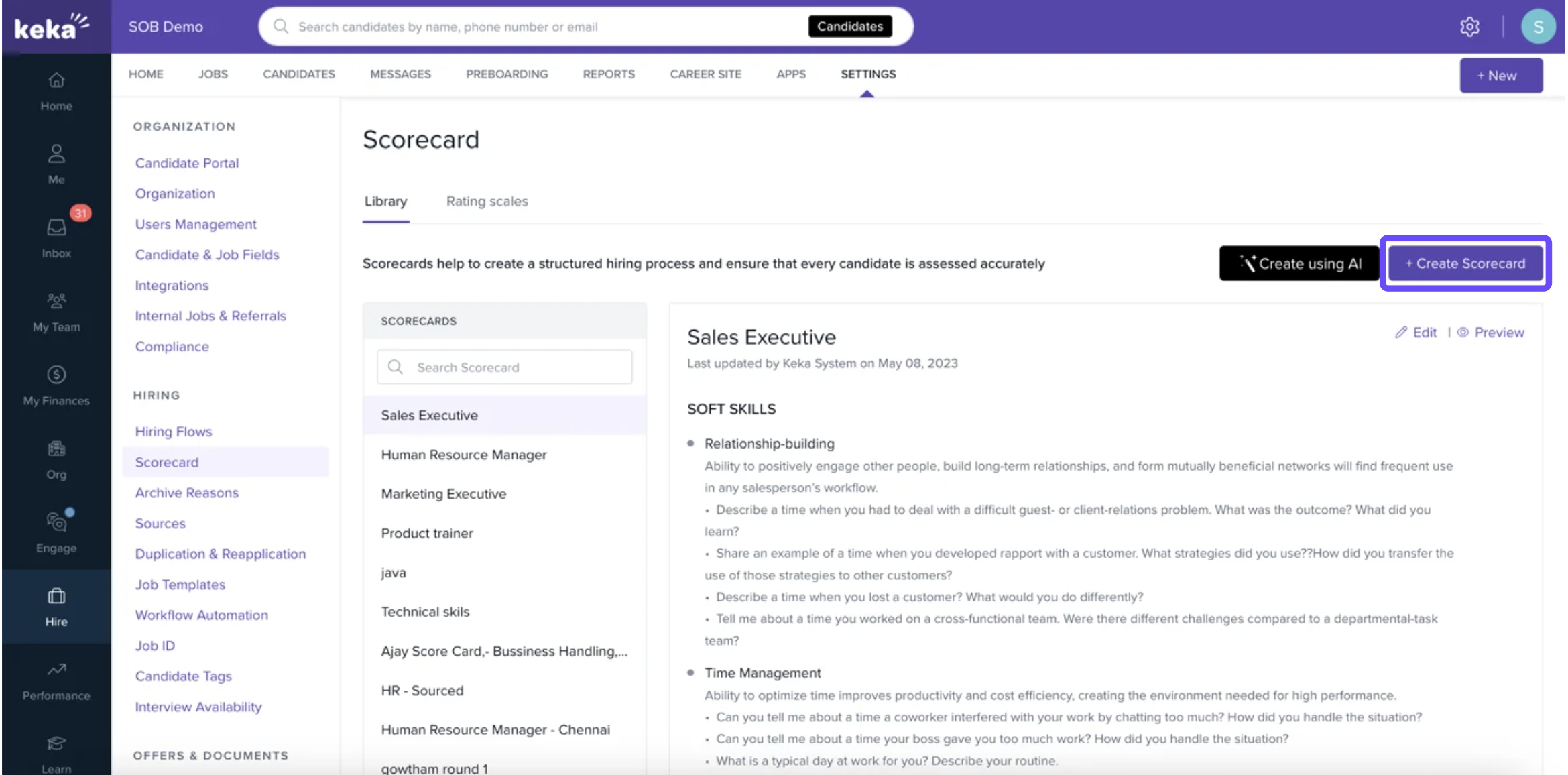
Go to the Hire section in your Keka portal.
Click Settings, then select Scorecards.
Under the Scorecard Library tab, click + Create Scorecard.
-
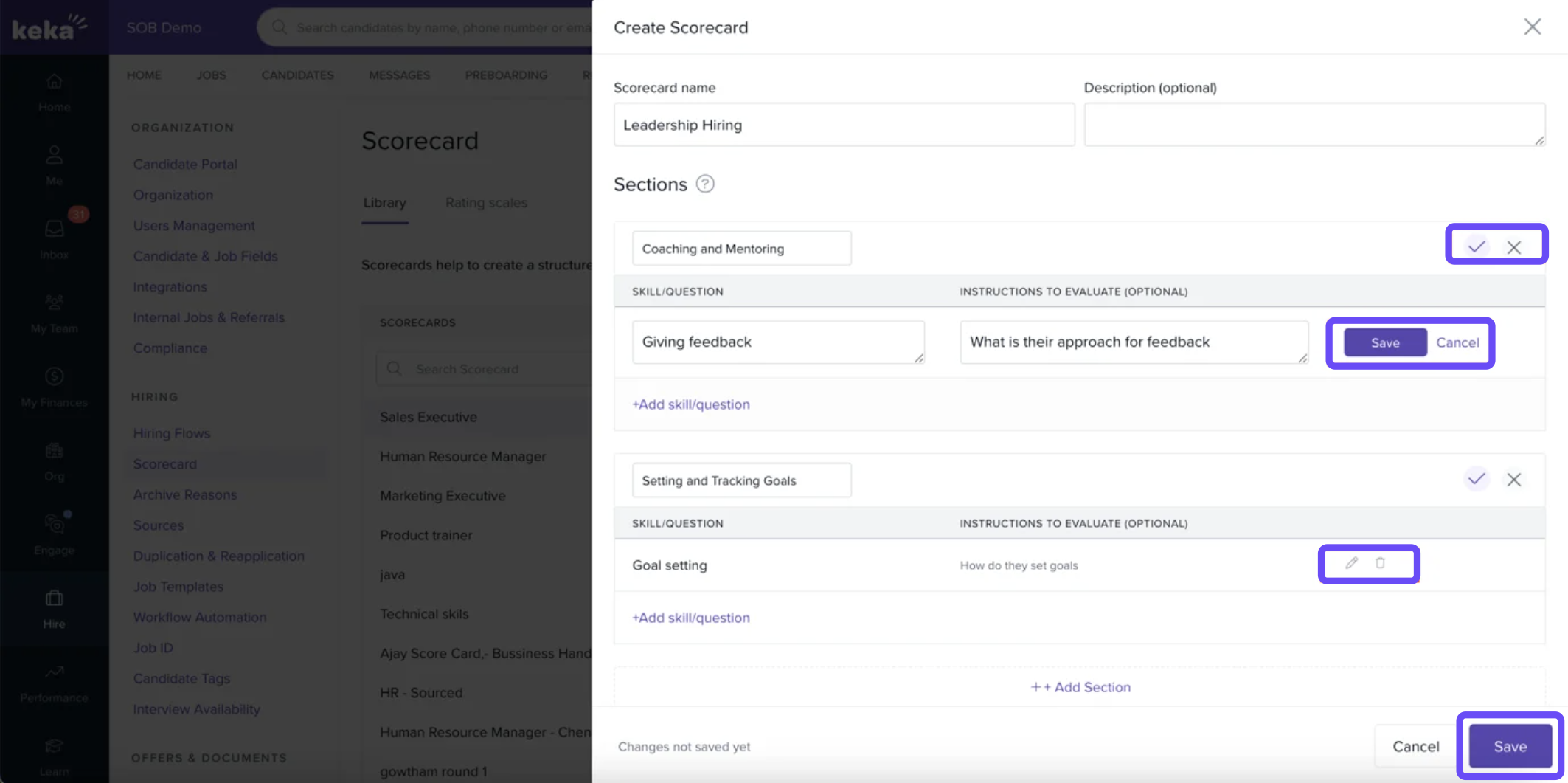
On the Add Scorecard Category page:
Enter a name for the category.
Optionally, click +Add Description to add a description.
Add sections to group competencies or questions (e.g., “Team Management”).
-
For each section:
Click the Save icon to save the section name.
Use Add to include relevant skills or questions.
Use Cancel to remove any item if needed.
After entering all sections and questions, click Save to store the scorecard.
To edit an existing scorecard, return to the Scorecard Library, select the scorecard, and click the Edit icon.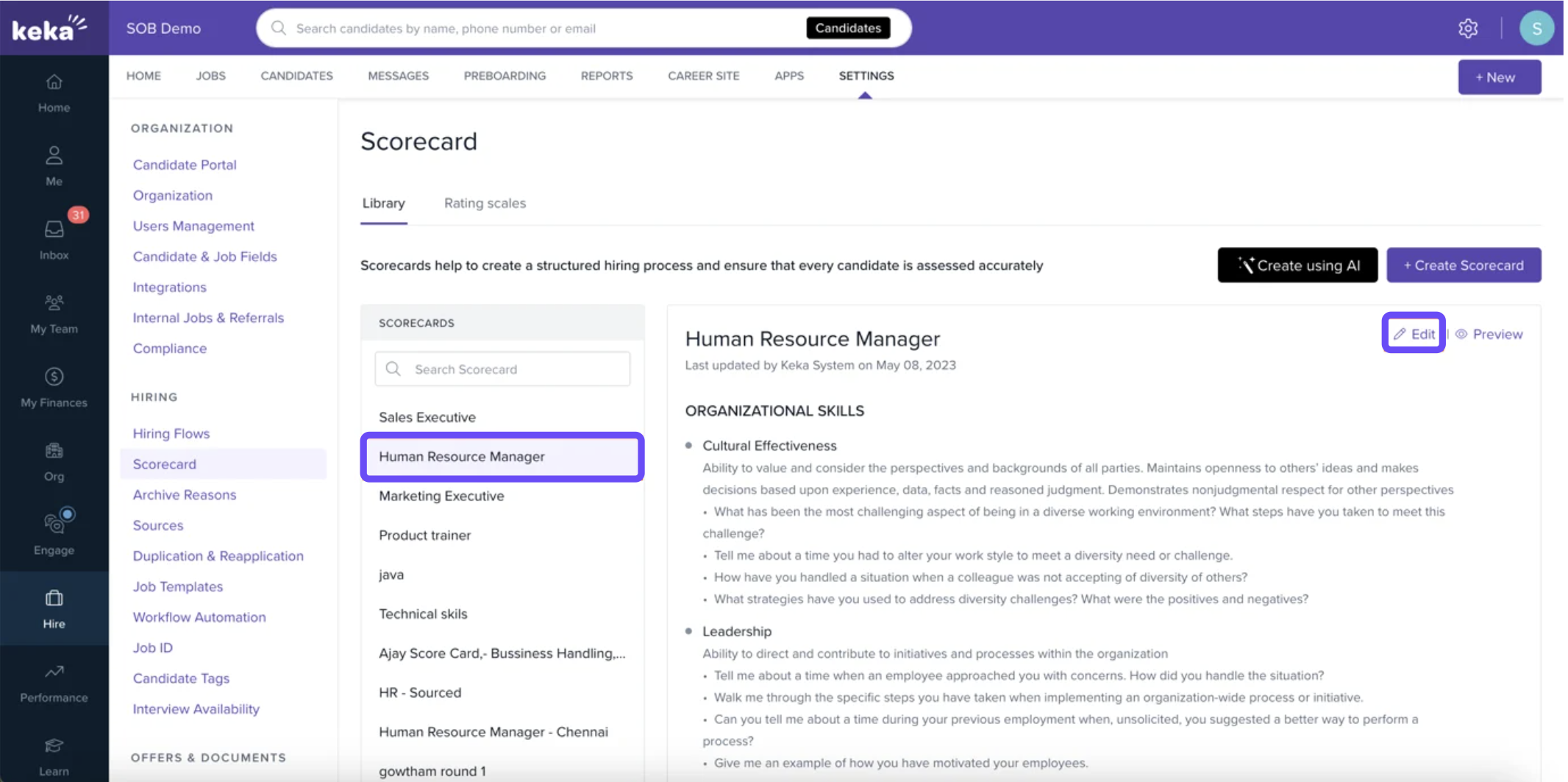
Configure Rating Scales
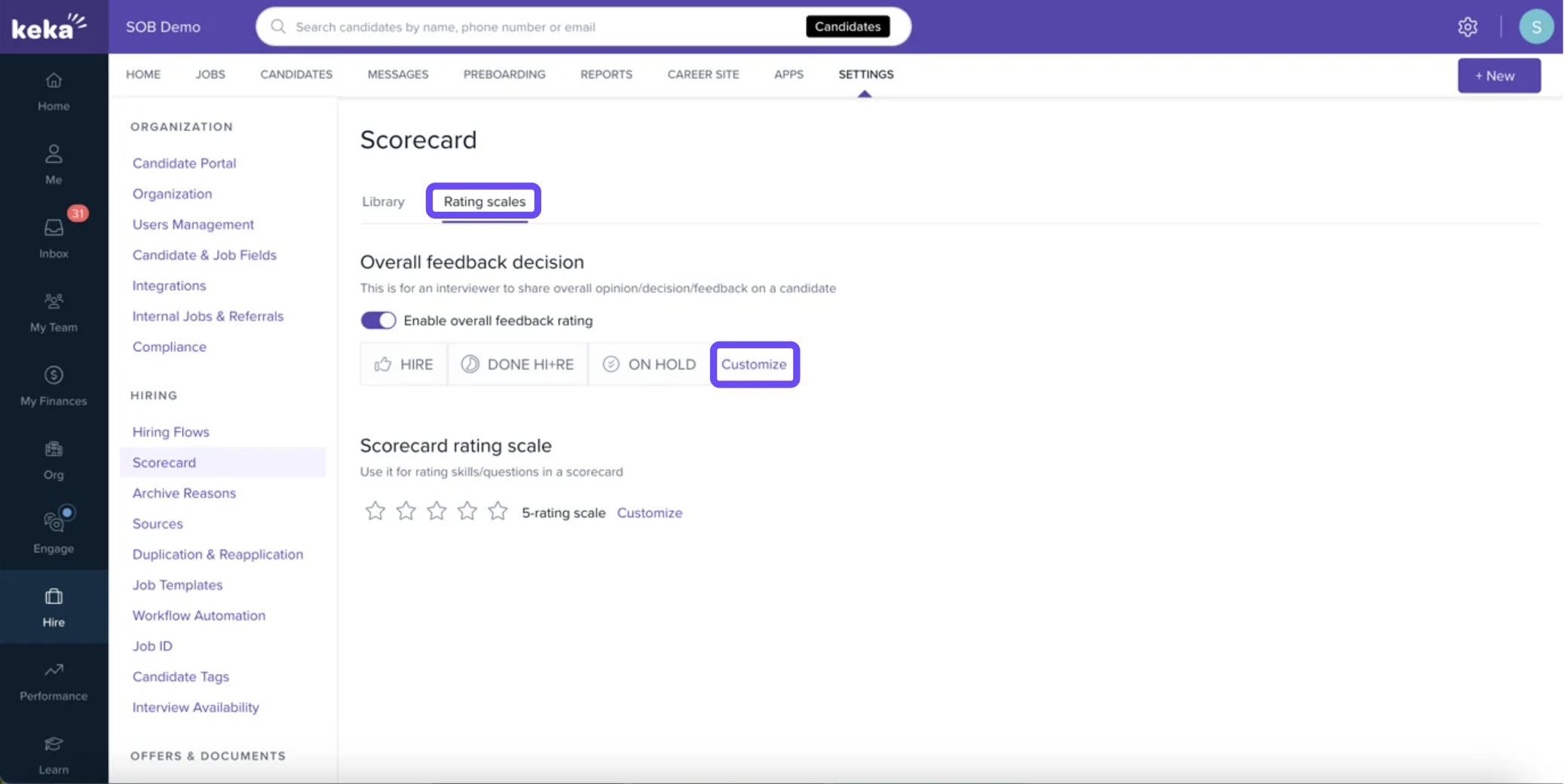
In the Scorecards settings, open the Rating Scales tab.
-
You’ll see two types of rating scales you can configure:
Overall Feedback Decision Rating Scale
Scorecard Rating Scale
Manage Overall Feedback Decision Rating Scale
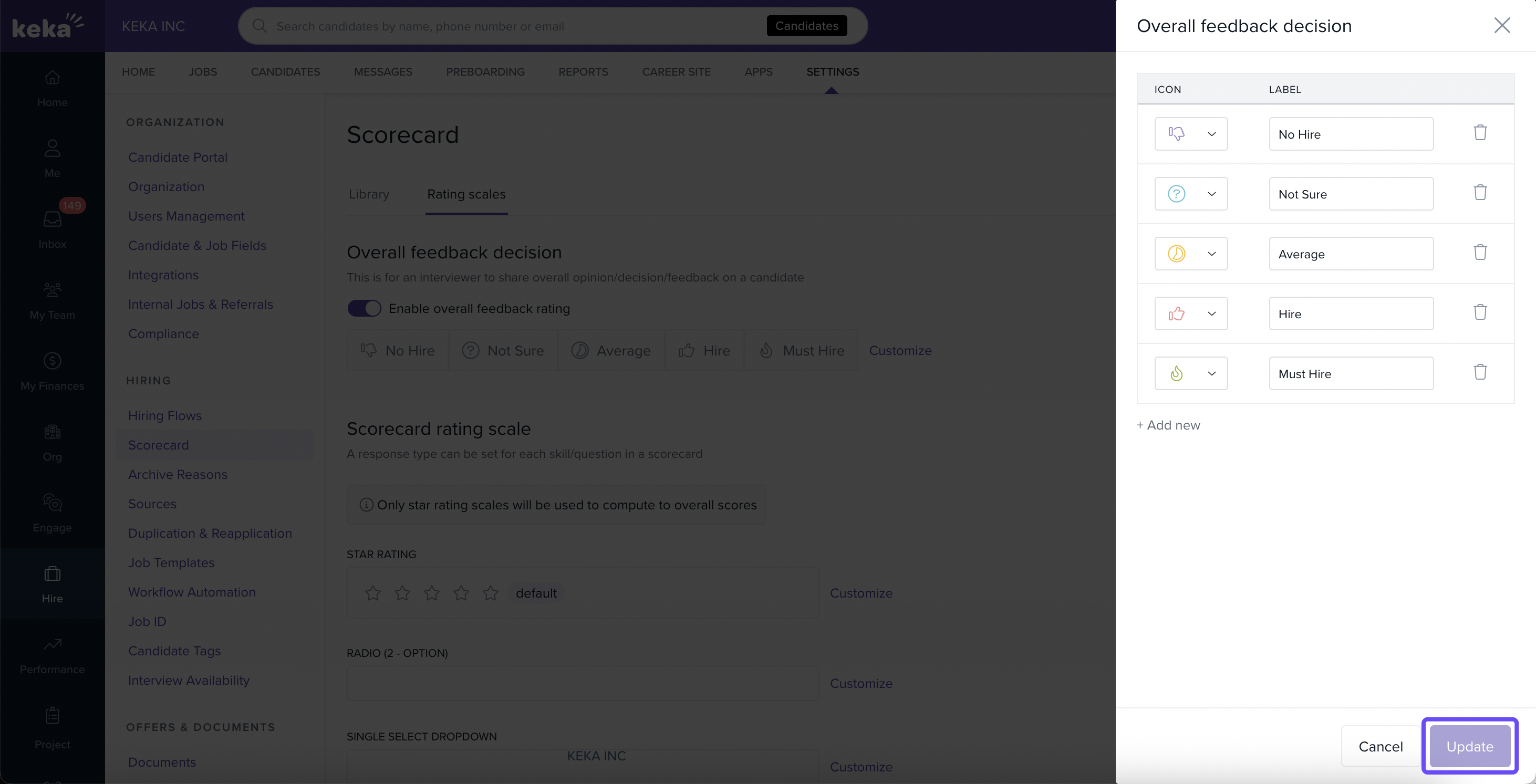
Use the Enable Overall Feedback Rating toggle to activate or deactivate this feature.
-
Click Customize to:
Add or remove rating labels.
Assign icons to each label.
Click Update to save changes.
Manage Scorecard Rating Scale
-
Click Customize to select your preferred rating scale:
5-star or 3-star rating system.
Add custom labels for each rating level to guide interviewers.
Click Update when done.
Select the Scorecard for Interviews
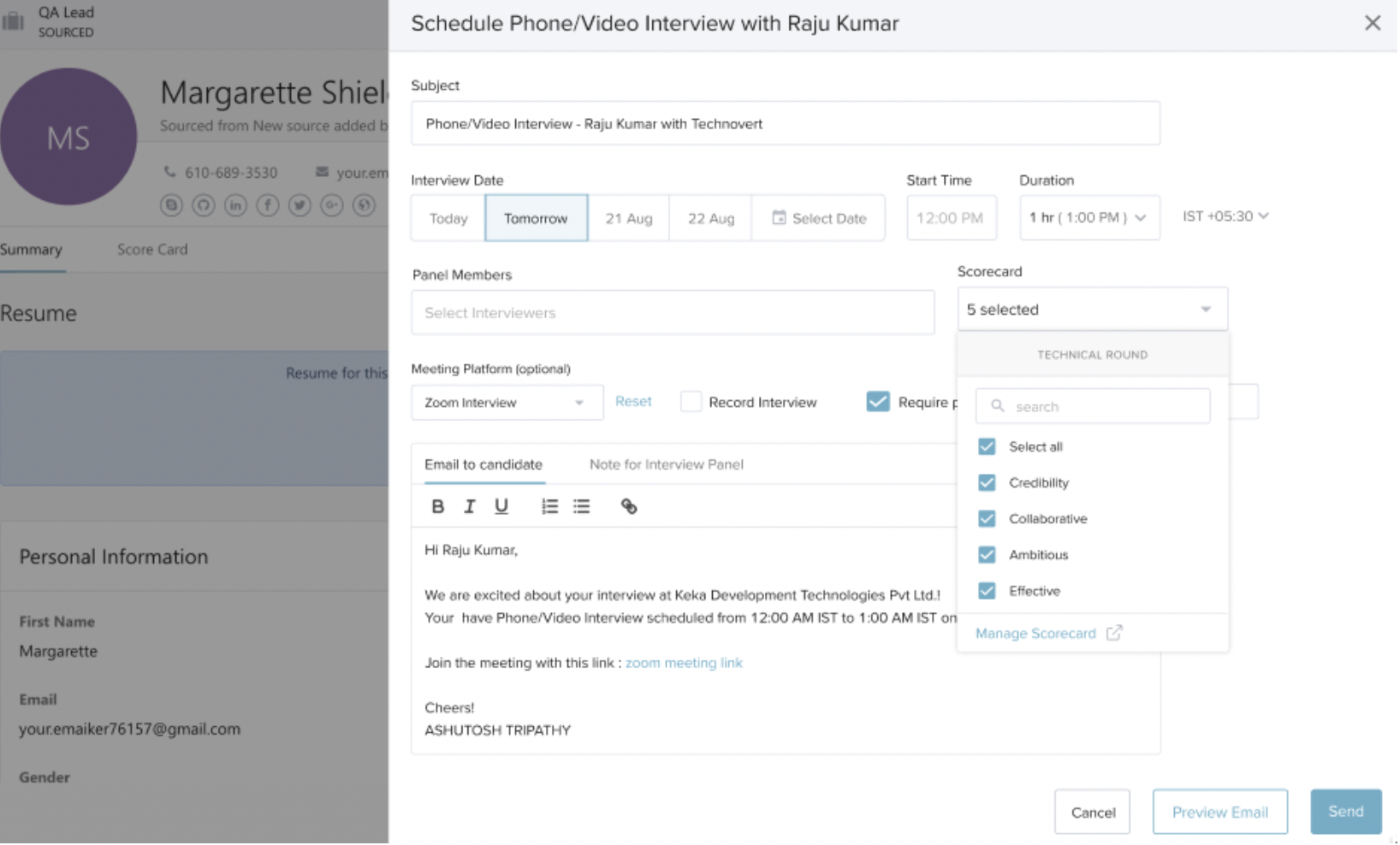
When scheduling interviews, recruiters can select the relevant scorecard.
A link to the scorecard is automatically included in the interview email sent to interviewers.
Interviewers click the link to access the candidate’s profile and submit their evaluations.
Submit Scorecards
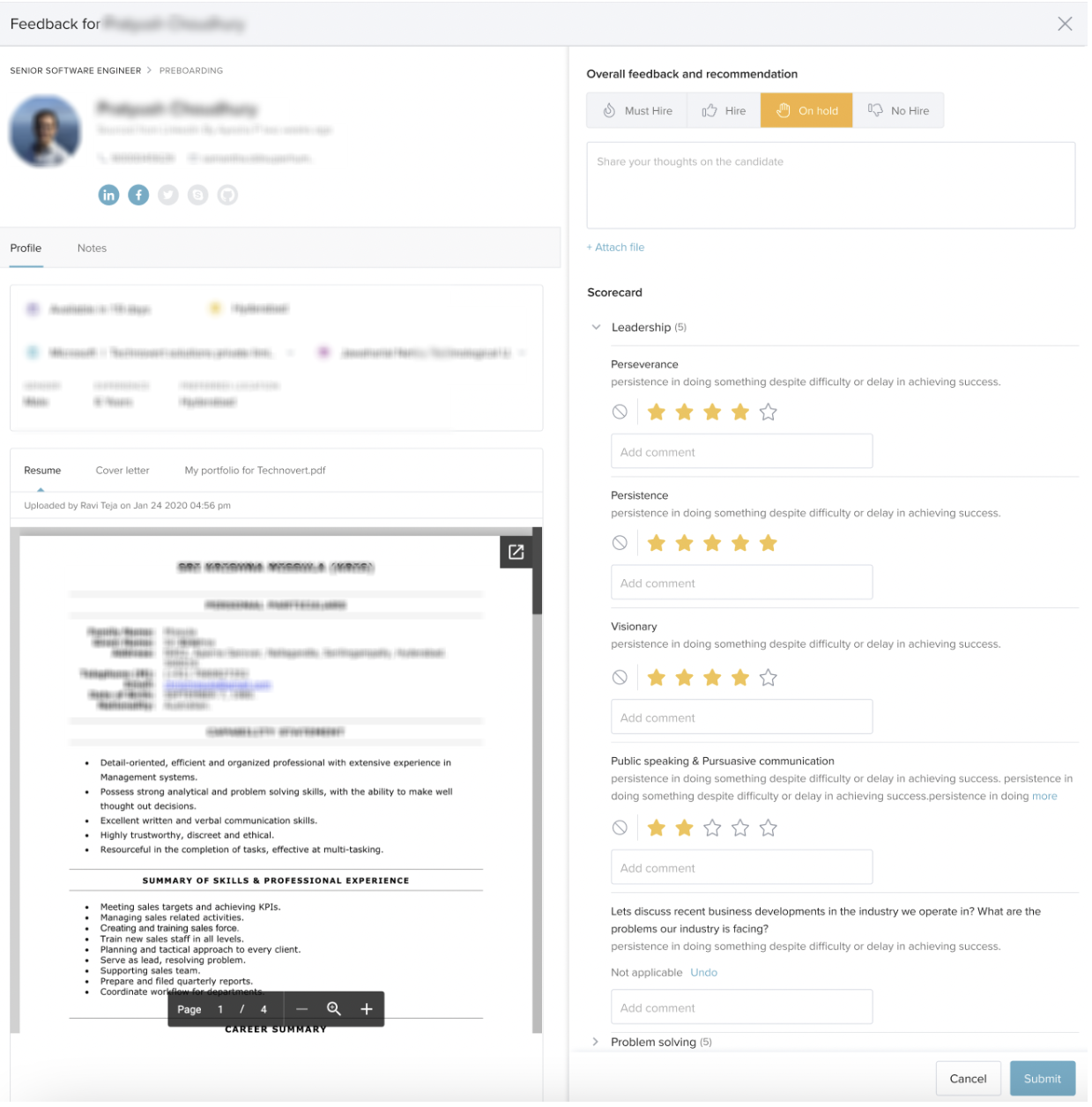
Interviewers will see the configured rating scale and the option to give an overall decision (if enabled).
Skills or questions can be marked as Not Applicable if needed.
Once submitted, the responses are available to recruiters in the candidate's profile.
View Submitted Scorecards
Open the candidate's profile.
Scroll to the Feedback section to view scorecard submissions from panel members.
-
The system automatically calculates average ratings for:
Each section
Each panel member
Each interview round
Use the view selector to toggle between:
Grid View: Ratings by each panel member for every skill or question.
Detailed View: Ratings plus any comments added by panel members.

View Interview Feedback Column
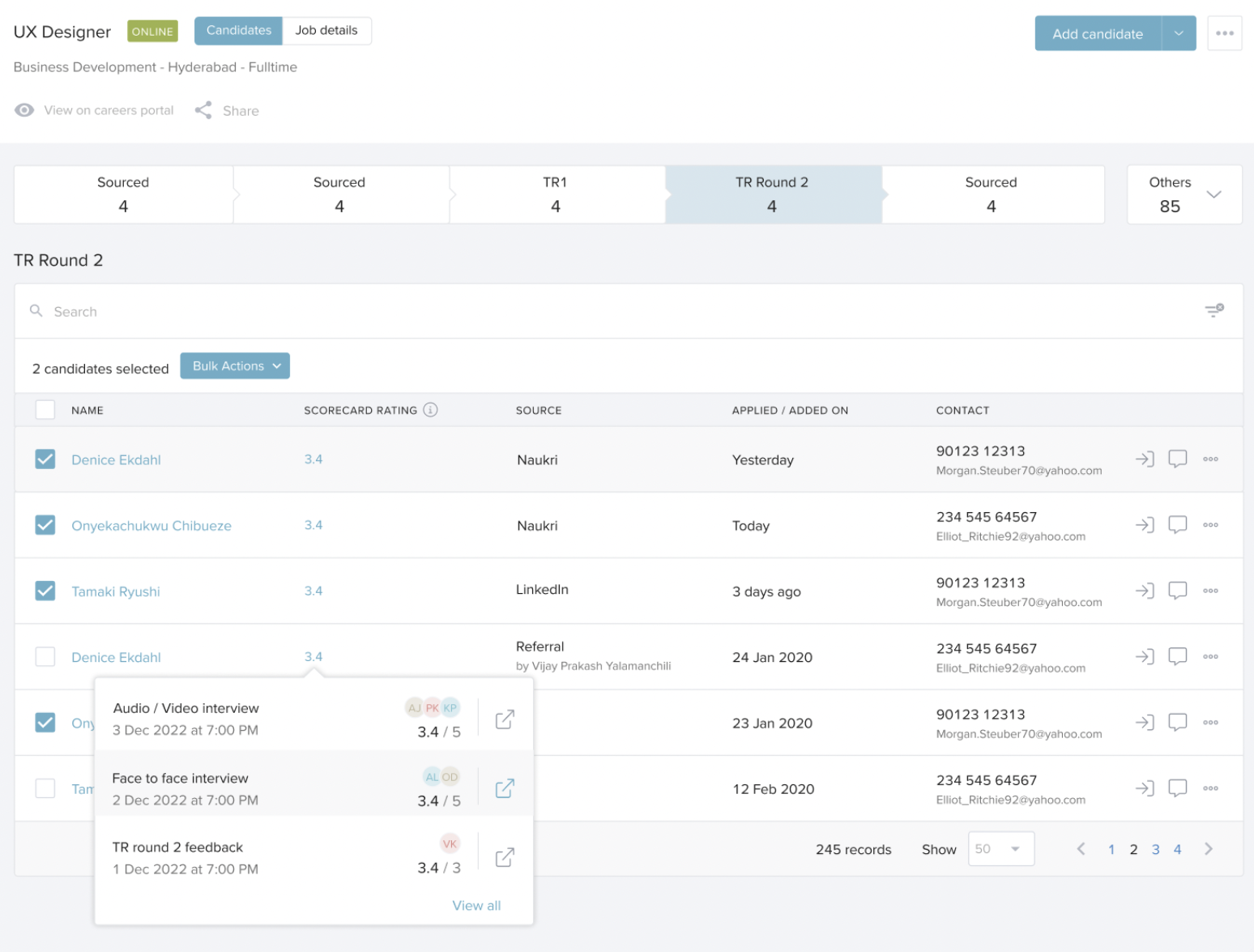
In the Interview Stages section of the job, you'll find a column displaying average feedback ratings for each candidate.
Click the rating to open a pop-up with the last three feedback submissions.
Click View All to go directly to the detailed scorecard for that candidate.
Options & Variants
Rating Scale Types: Choose between 3-star and 5-star scales based on your evaluation style.
Overall Feedback Toggle: Enable or disable the overall decision rating option based on your hiring needs.
Field Reference
| Field/Option | Description |
|---|---|
| Scorecard Category Name | Name used to identify a scorecard set |
| Section Name | Group of related skills or questions |
| Skill/Question | Criteria used for evaluating candidates |
| Rating Scale Type | 3-star or 5-star |
| Rating Label | Descriptive text assigned to each rating level |
| Overall Feedback Decision | Option to give an overall hiring decision rating |
| Icons | Optional visual representation for each rating label |
We hope the article provided valuable guidance.
Comments
0 comments
Please sign in to leave a comment.