Introduction
Candidate feedback surveys help you understand how effective your hiring process is and how candidates experience it. By collecting structured feedback, you can improve recruitment practices and ensure a positive experience for both hired and archived candidates.
In Keka Hire, you can easily create and manage these surveys directly from your settings.
Candidate surveys
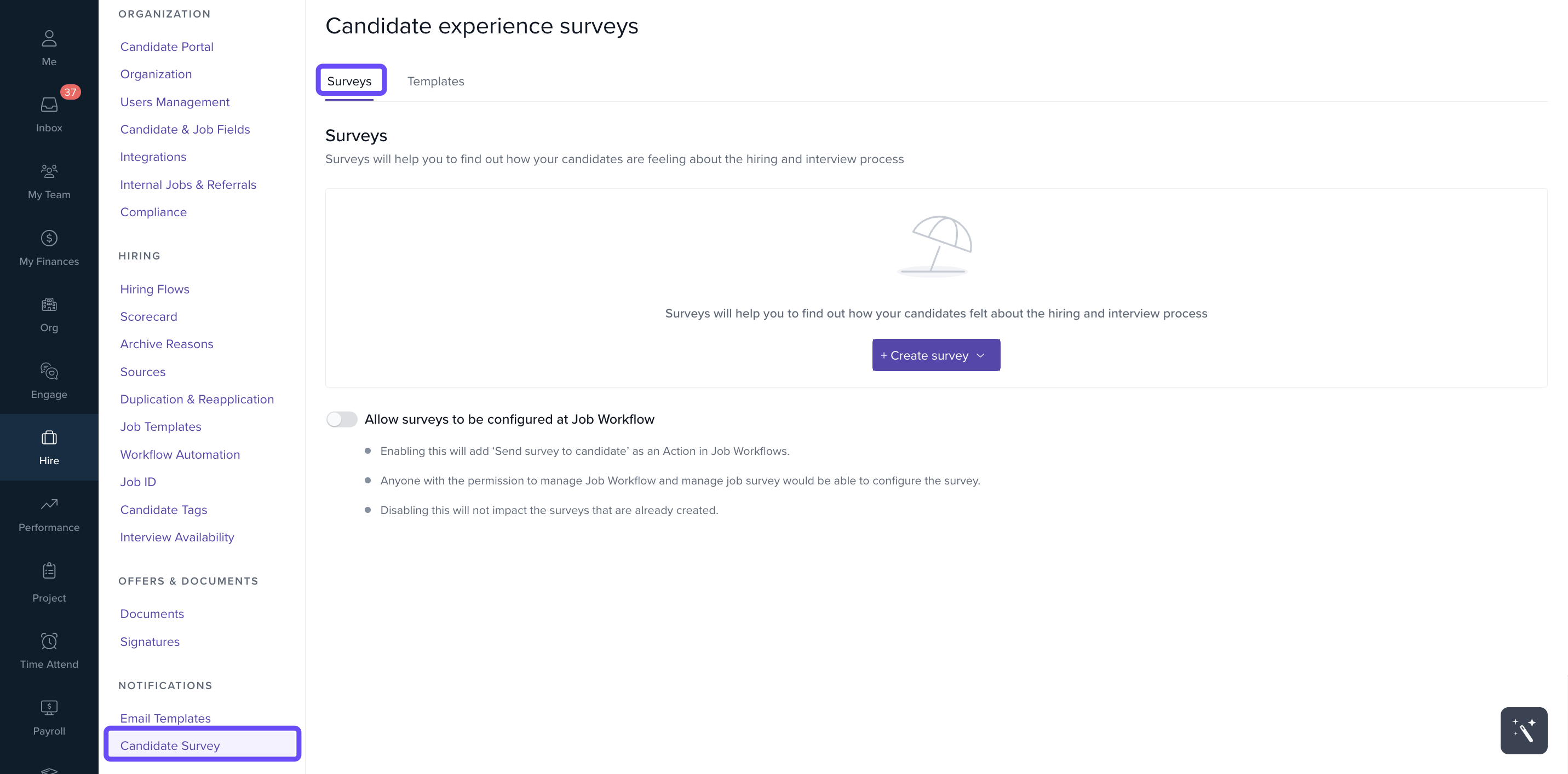
- Go to Hire > Settings > Candidate Survey.
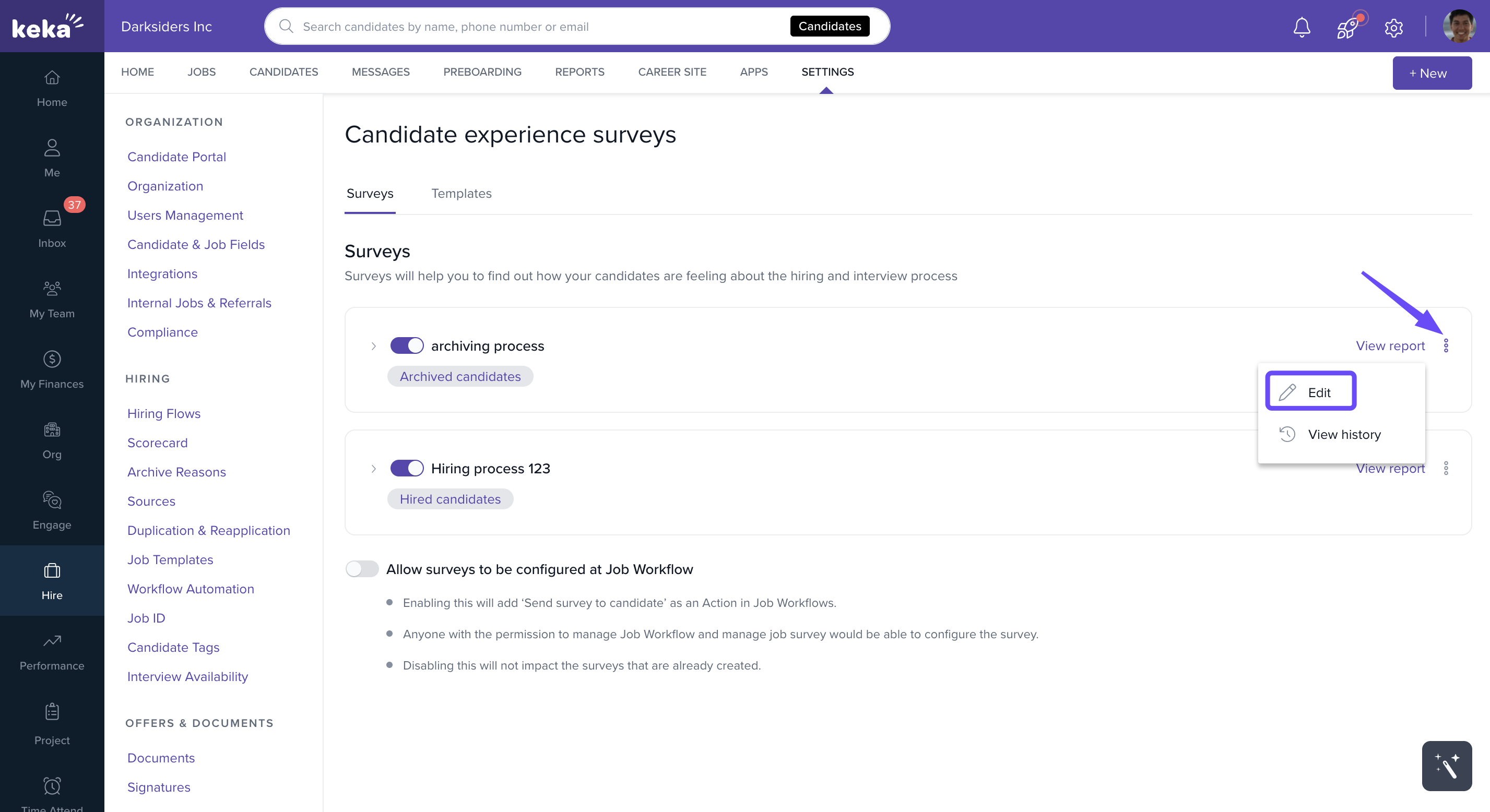
2. In the Surveys section, click the three-dot menu and select the pencil icon to edit a survey.
Setting up Survey
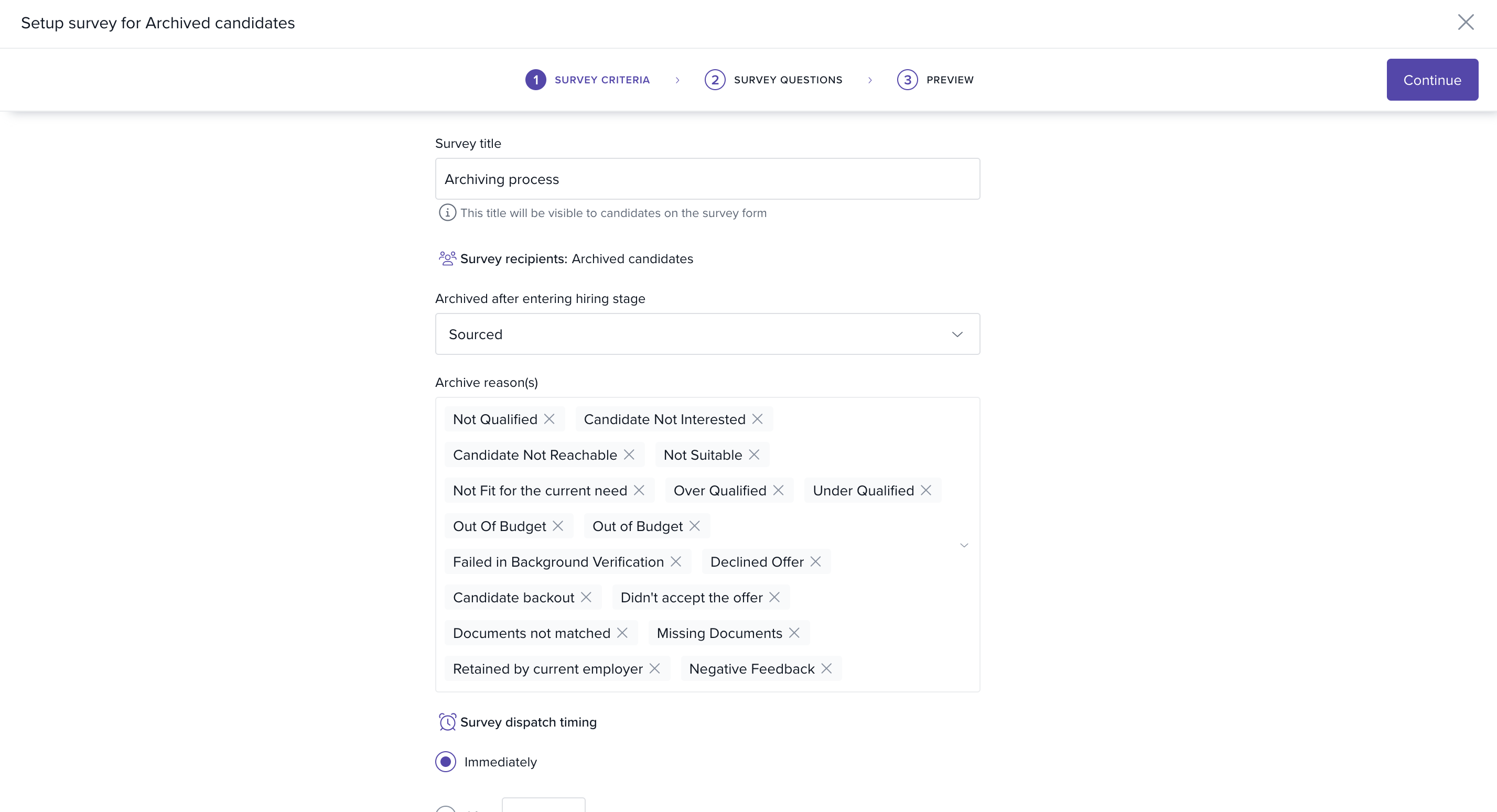
- Set up the survey criteria, including the
- Survey title
- Archive reasons
- Survey email.
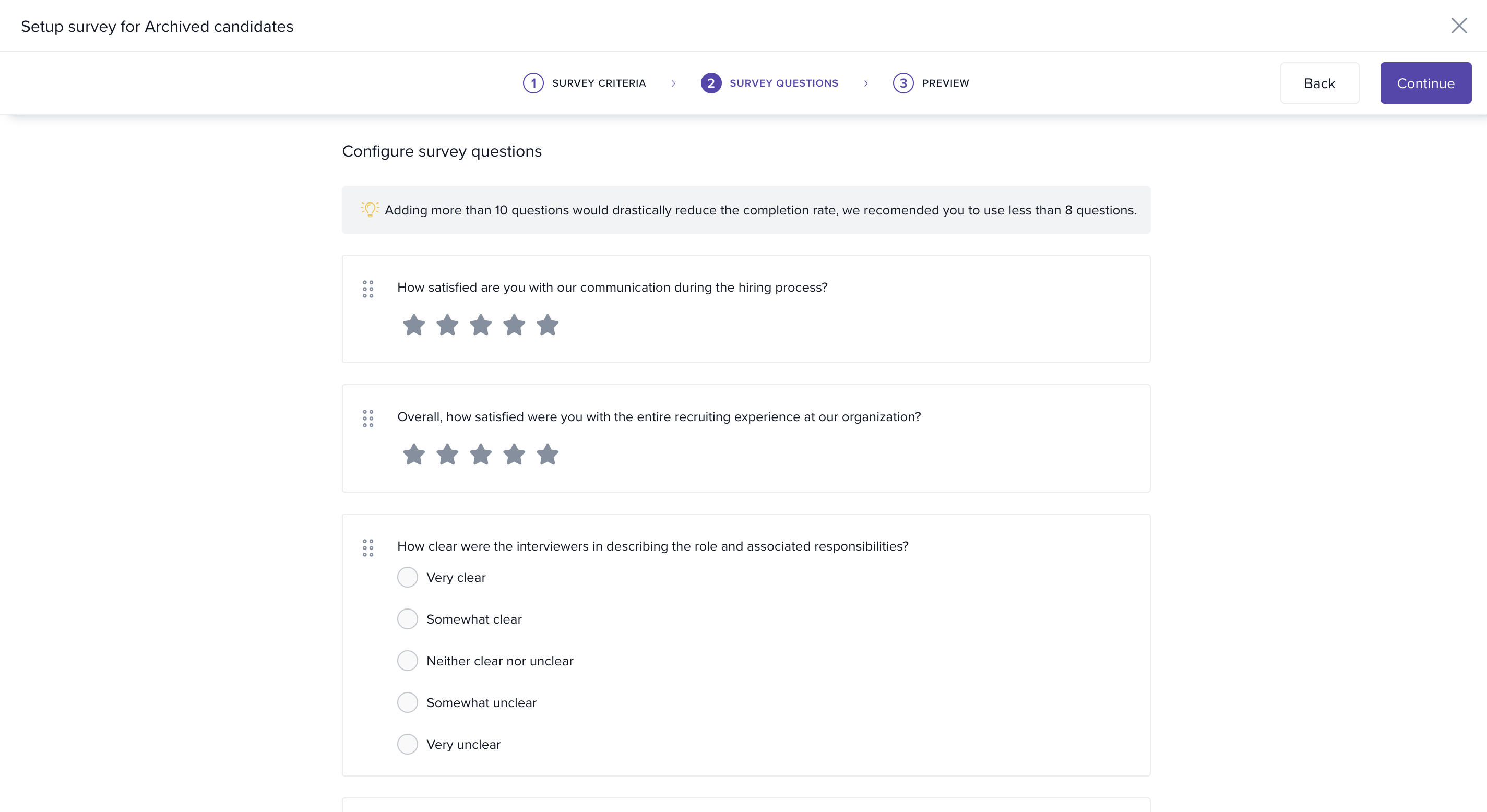
2. Configure your survey questions in the next step
-
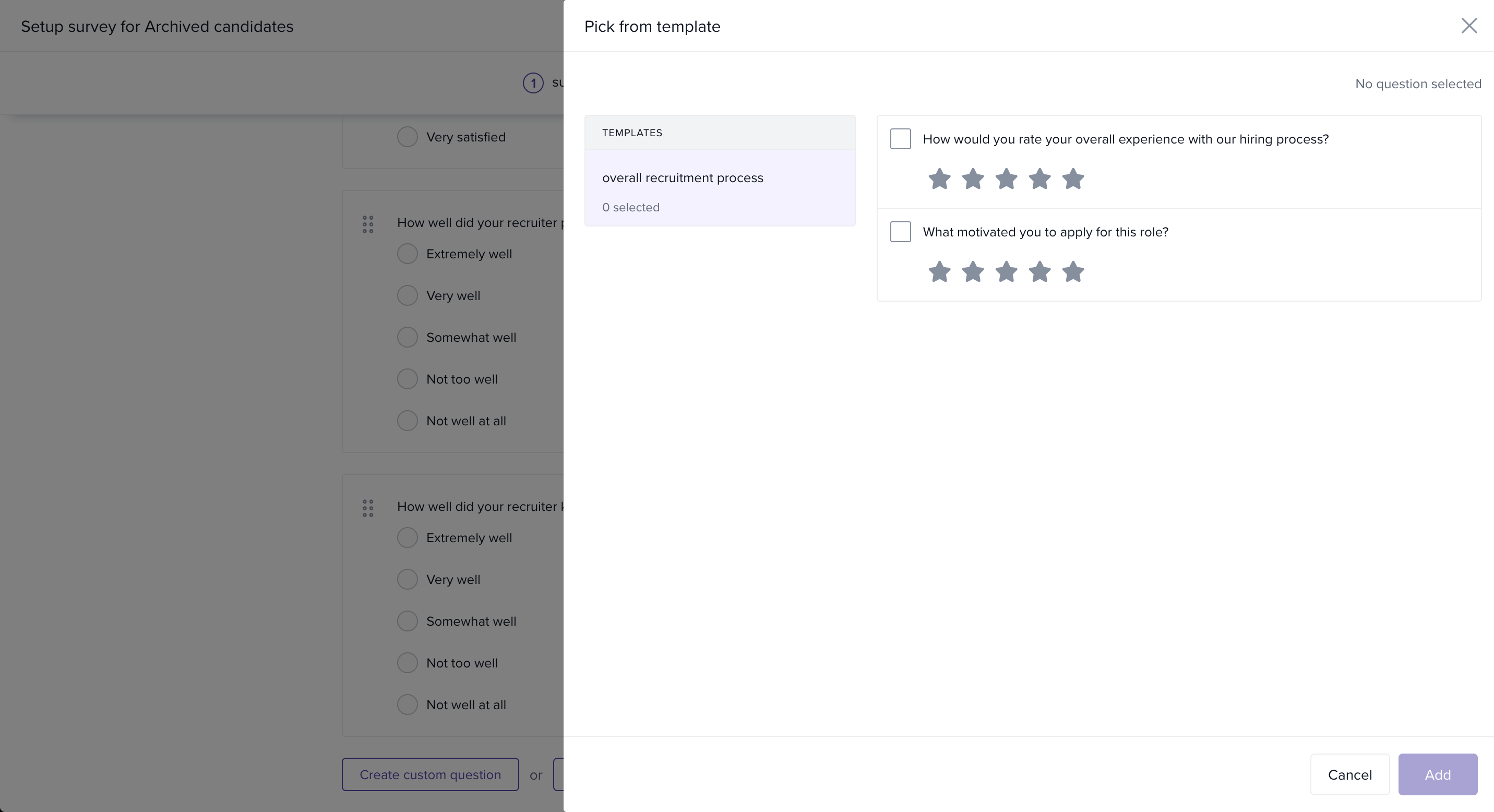
Use templates: Click Pick question from template.
- Choose from three available question sections.
- Select the ones you want and click Add.
-
Add custom questions:
- Click Create Custom Question.
- Enter your question and choose a response type:
- Single select
- Multiple select
- Star rating
- Text area
- Decide if the question is mandatory and whether candidates can add comments.
- Save the question.
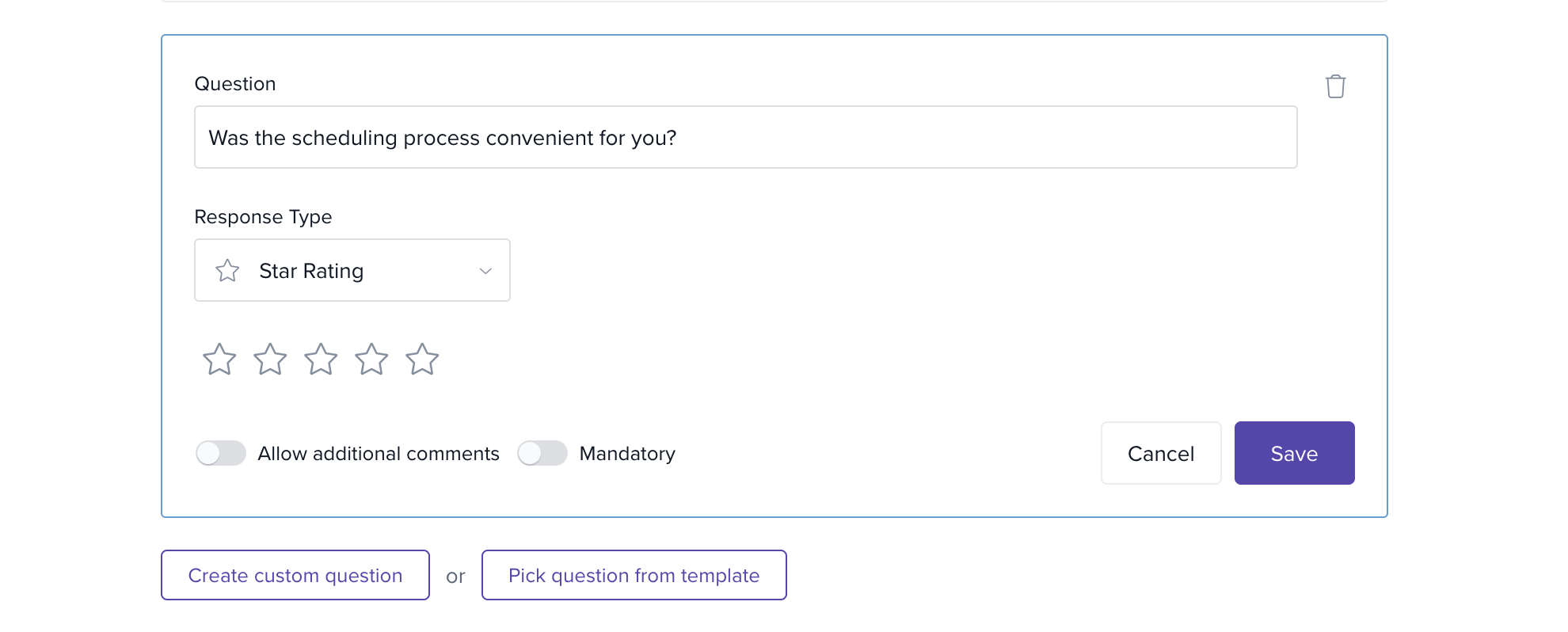
- You can mix template and custom questions in the same survey.
3. Preview your survey
- See how it looks on both desktop and mobile.
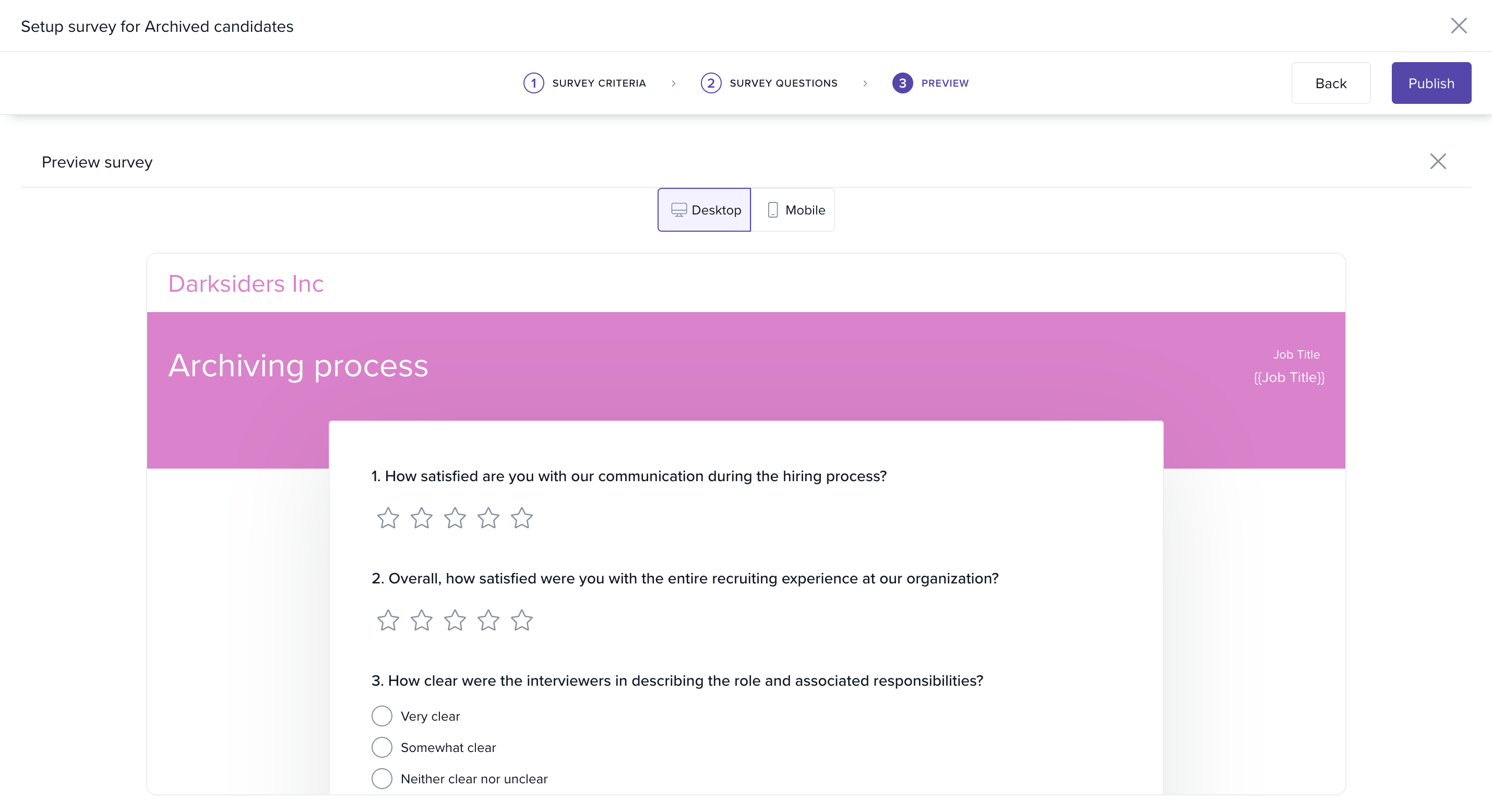
Click Publish to make it live. Surveys will automatically be sent to candidates who meet your chosen conditions.
Options & Variants
- Survey recipients: Target hired candidates, archived candidates, or narrow down by specific archive reasons and stages.
-
Survey questions: Build entirely from templates, entirely custom, or combine both.
Notes
- Tip: Use a mix of pre-set and custom questions to balance consistency and customization.
- Important: Once published, surveys are automatically sent based on the rules you set, so review carefully before publishing.
Comments
0 comments
Please sign in to leave a comment.