Overview
In this guide, you will learn:
- How to raise hiring requests from the Smart Allocator and Role Requests
- How to view, manage, and close hiring requests
- Where to track hiring request history and actions
Who Can Do This?
- Project Managers
- Global Admins
- Other users with access to Resource Allocation and Hiring Request features in PSA.
Pre-requisites
- Project or role must be created in PSA
- Hiring permissions must be enabled for your user role
Raising a Hiring Request
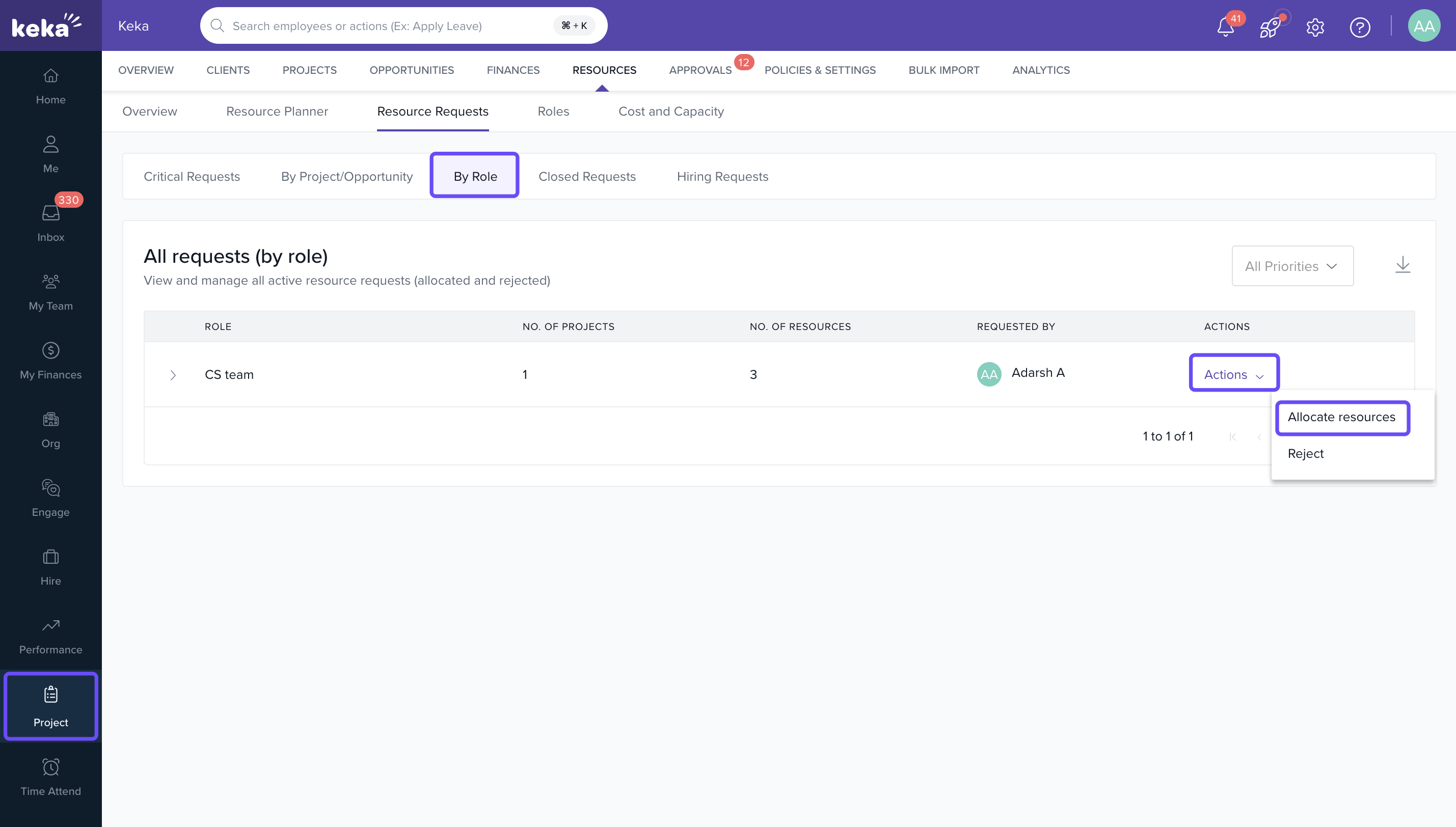
- Go to Resources > Resource Requests.
- In the Role section, under Role Requests, click on the Actions menu.
- Select Allocate Resource to initiate a new hiring request.
- On the Smart Allocator page during resource assignment, click on Raise a Hiring Request.
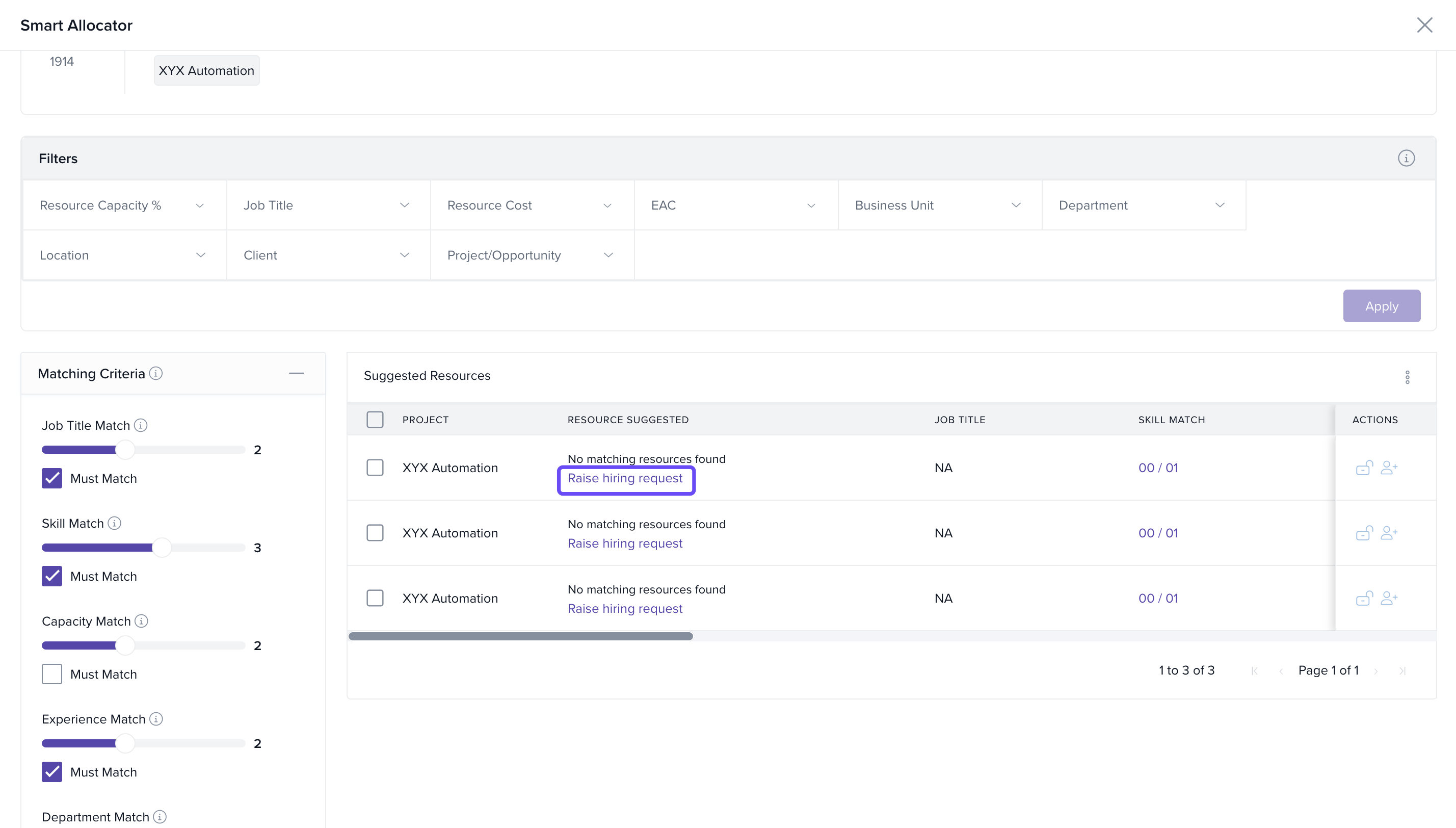
Submit the Request
- Fill in the required information, including Role, Skills, and Project/Opportunity.
- Once submitted, the hiring request is routed to the HR/Recruitment team.
- The request is added to the centralized Hiring Requests tab.
Tracking and Managing Hiring Requests
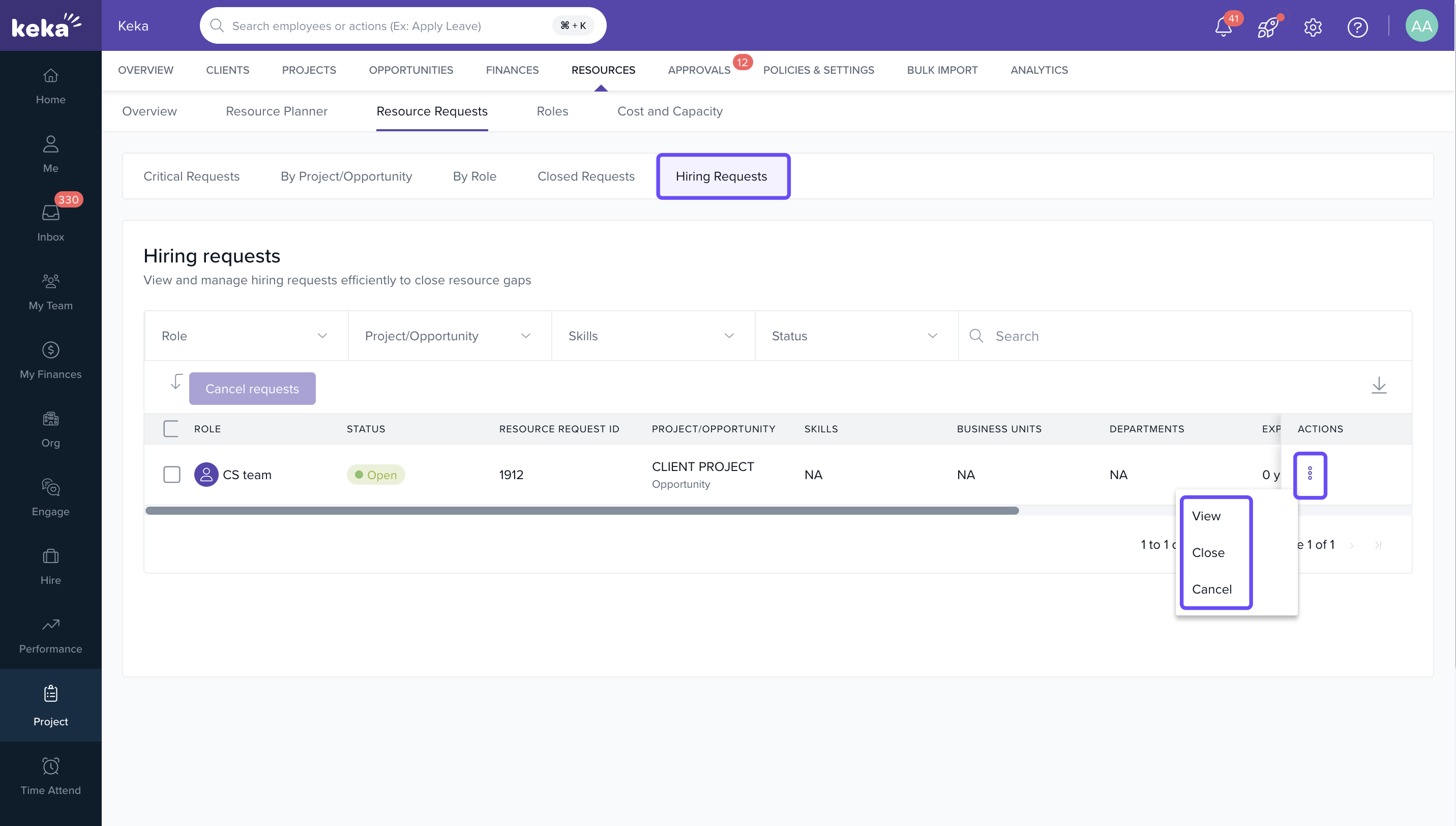
- Go to Resources > Resource Requests > Hiring Requests.
- You’ll see a list of all open and closed requests.
- Click on any request to View, Close, or Reject it based on hiring progress.
- Use the filters to track requests by project, department, or skill set.
How It Connects with Other Modules
| Module | Integration Details |
|---|---|
| Recruitment | Raised hiring requests are automatically visible to the HR/Recruitment team for follow-up and closure. |
| Projects | The linked project is updated once a resource is hired or assigned, enabling seamless handover. |
FAQs
-
Q: Can I raise a hiring request without linking it to a project?
A: No. Hiring requests must be tied to a project or opportunity. -
Q: Who gets notified when I raise a request?
A: Your organization’s HR/Recruitment team or designated hiring approver. -
Q: Can I modify a hiring request after submission?
A: No. You’ll need to close the existing request and raise a new one with updated details. -
Q: How do I know if a hiring request has been fulfilled?
A: Check the Hiring Requests tab. The status will reflect whether a resource has been allocated.
Troubleshooting
-
Can’t raise a request?
o Make sure the role is created and allocation is attempted from an eligible section (e.g., Smart Allocator). -
Request not visible?
o Check your filters or permission settings under Resources > Resource Requests.
For more information on enhancements in resource management, please click here: Resource management - Enhancements
Comments
0 comments
Please sign in to leave a comment.