Overview
This article explains how to assign, update, and analyze resource costs in Keka PSA. With these capabilities, you can track project profitability, allocate resources effectively, and make informed financial decisions across projects.
Who Can Do This?
- PSA Admins
- Finance Managers
- Project Managers
Pre-requisites
- Resources must be added to the system
- Appropriate role-based permissions must be in place
- Rate cards and currency setup completed (if applicable)
Assigning Costs to Resources
- Go to Projects from the left navigation pane.
- Select the Resources tab.
- Click on Cost and Capacity.
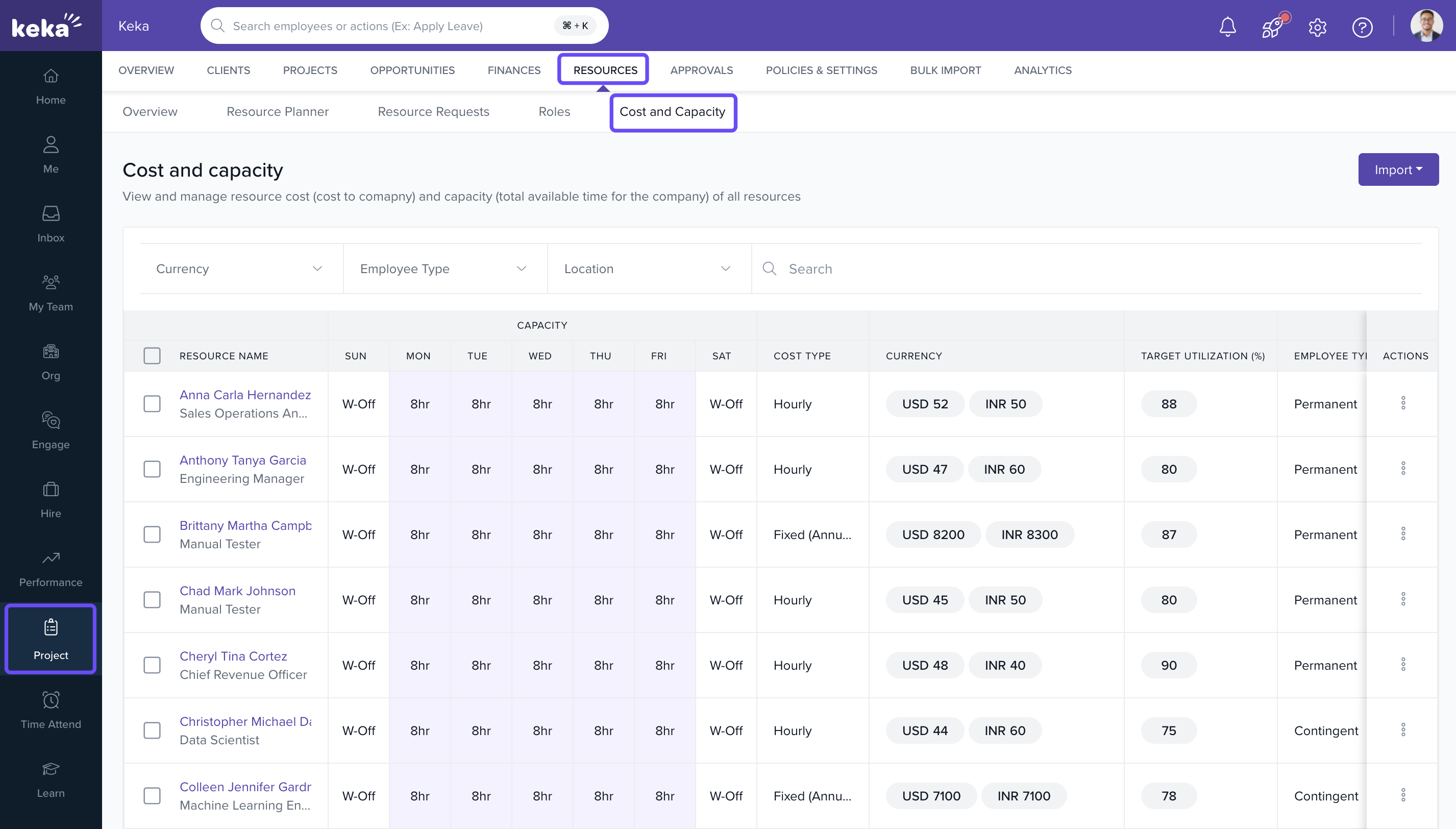
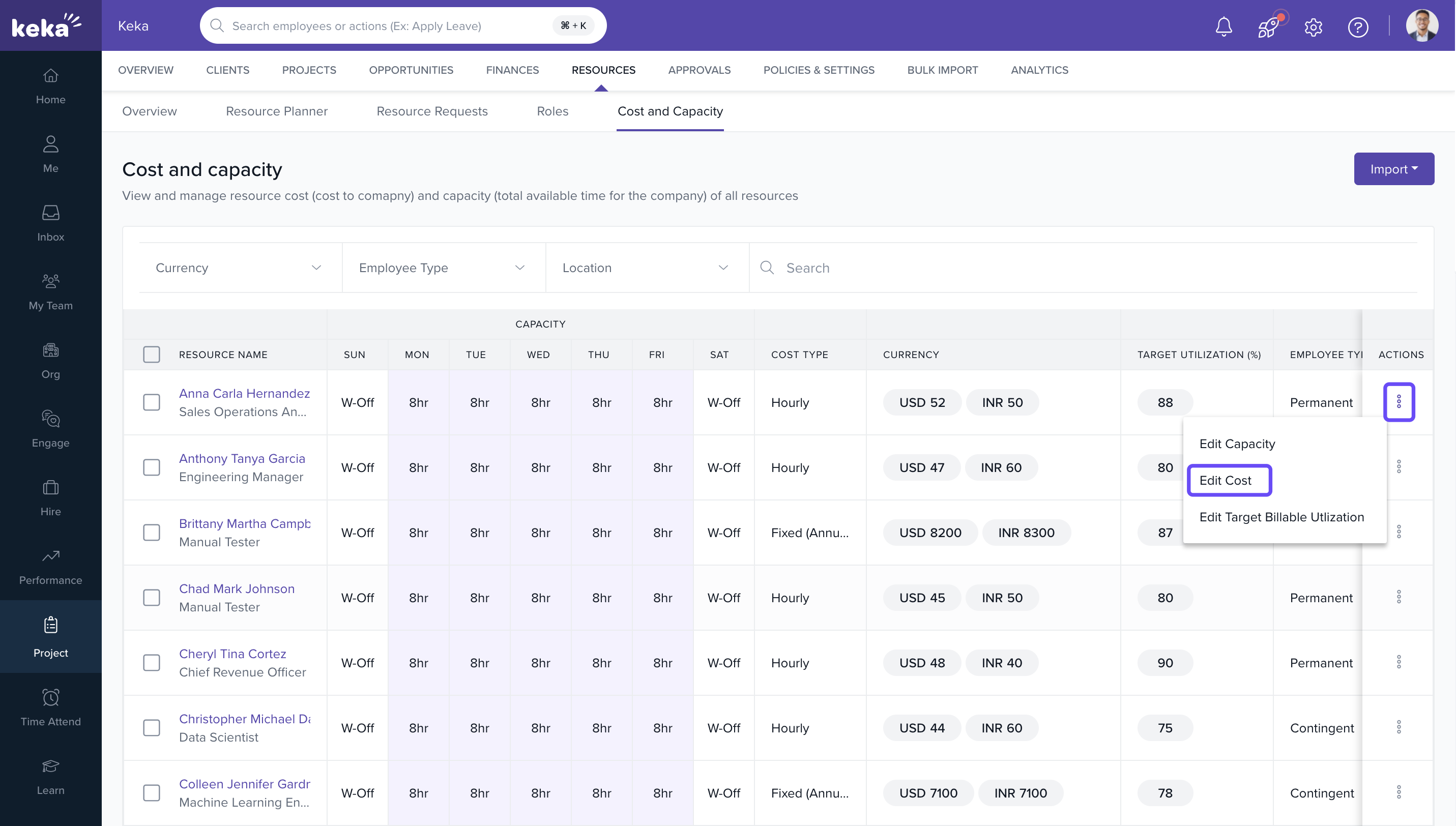
- Select the desired resource.
- Click on the 3 dots icon under the Actions column.
- Select Edit cost from the dropdown menu.
- In the pop-up window, input the following: Currency, Rate Type (Hourly or Fixed), Cost Rate, Effective From date.
-
Click +Add Cost to add multiple cost records (with different effective dates).
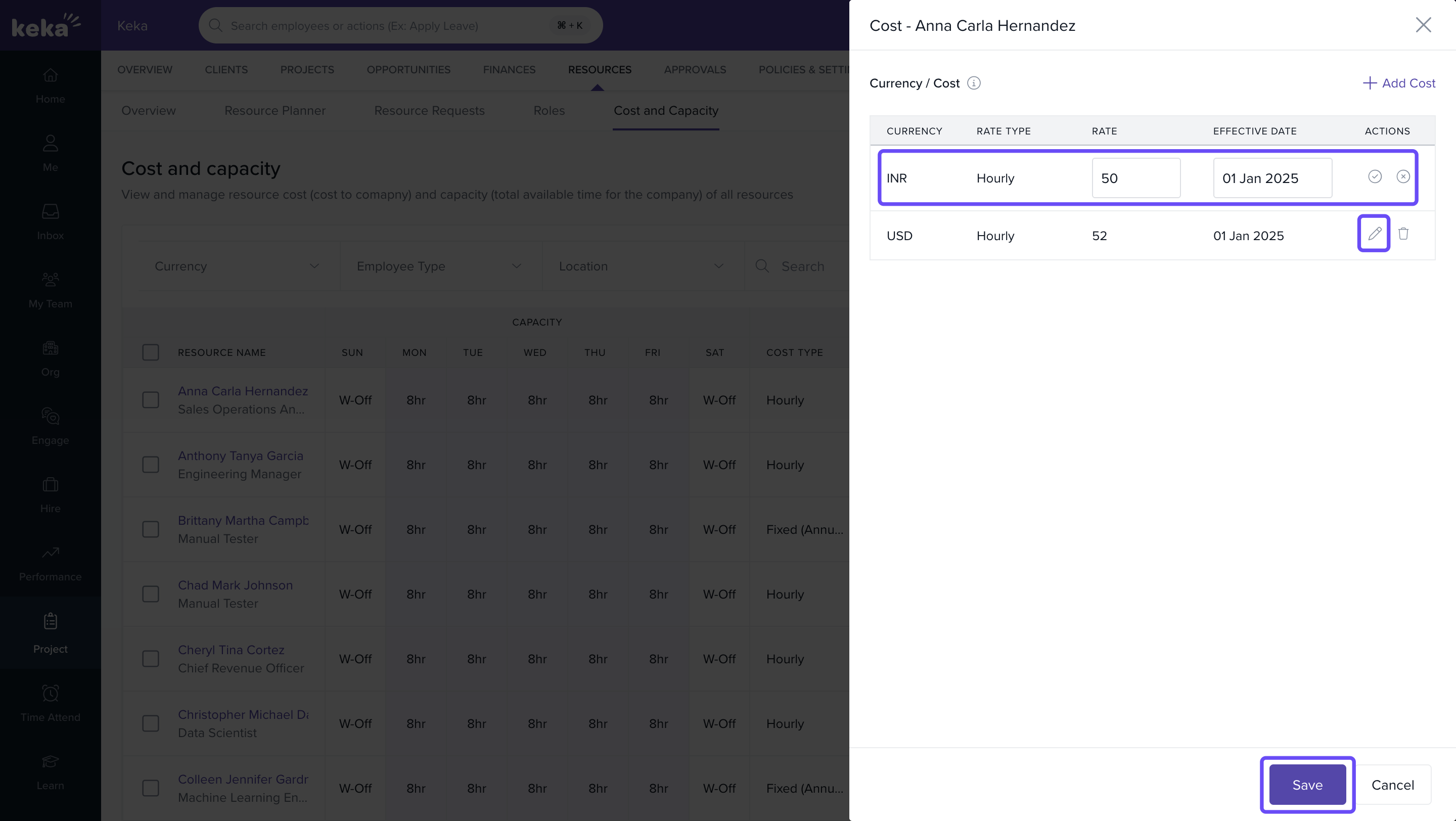
Note: You cannot assign two cost entries with the same currency and effective date.
Bulk Assigning Resource Costs
- Go to Projects → Resources → Cost and Capacity.
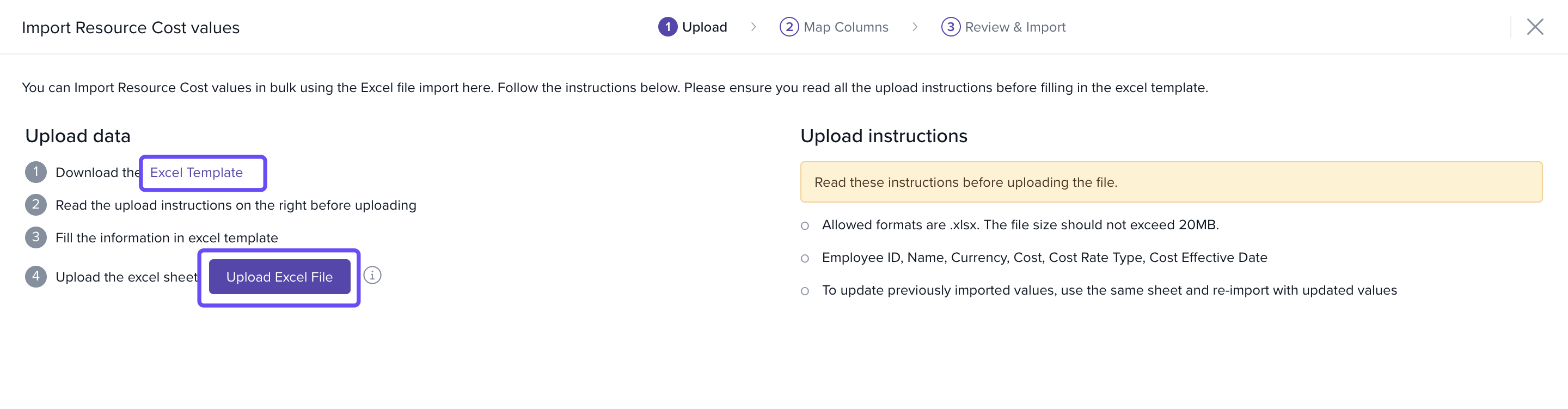
- Click on Import.
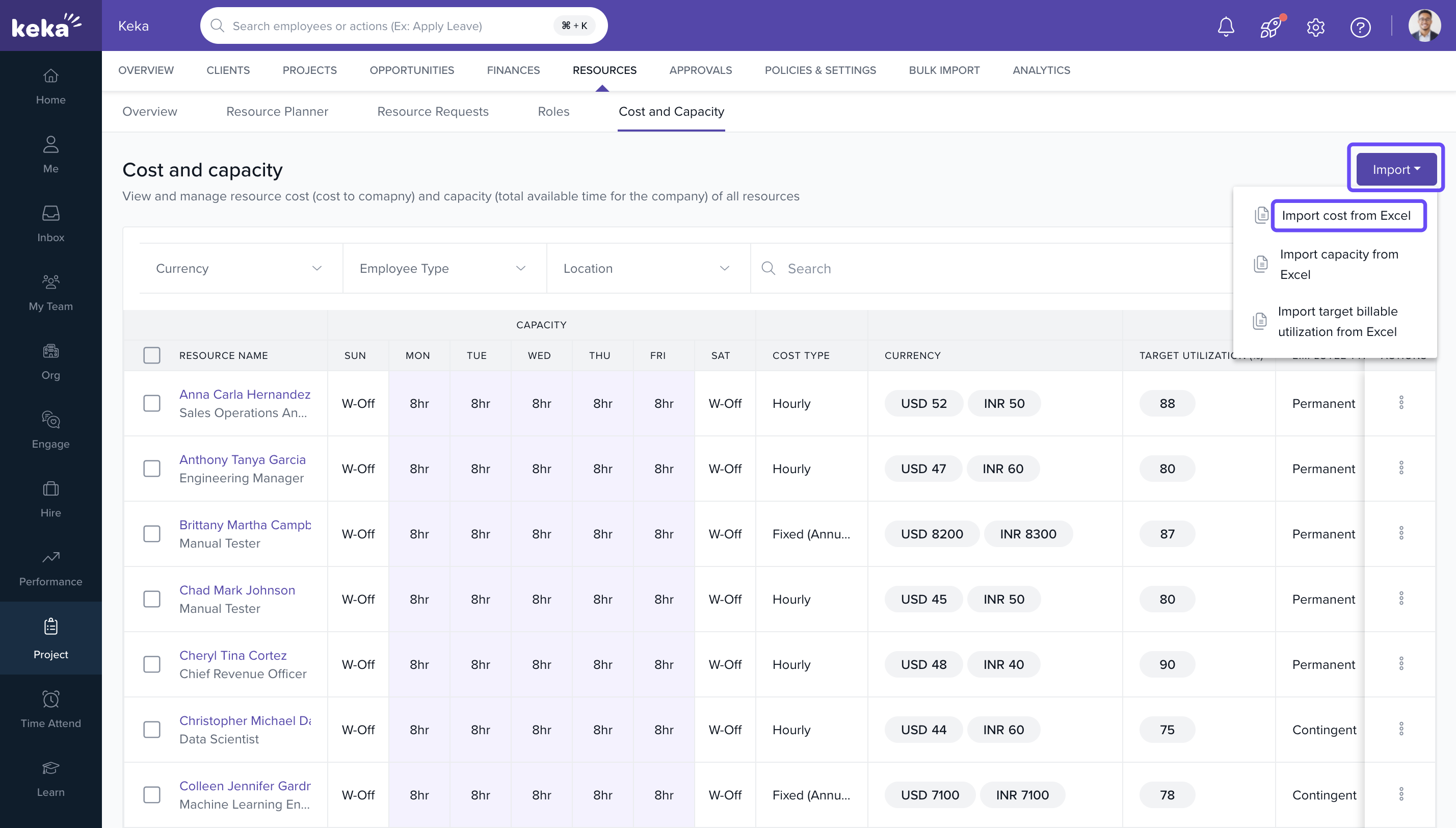
- Download the Excel Template and fill in all mandatory fields (highlighted in red).
- Upload the completed sheet using the Upload Excel File option.
- After uploading, you'll be prompted to:
- Match Columns to align Excel headers with system fields.
- Preview Data before final submission.
- Ensure all errors are corrected before finalizing the import.
Analysing Resource Costs and Margins
- Keka PSA offers two financial reports:
- Resource Cost and Margin (Project-Level): Provides project-wise cost, margin, and billing insights.
- Resource Cost and Margin at Org Level: Shows organization-wide profitability trends.
-
To access the report:
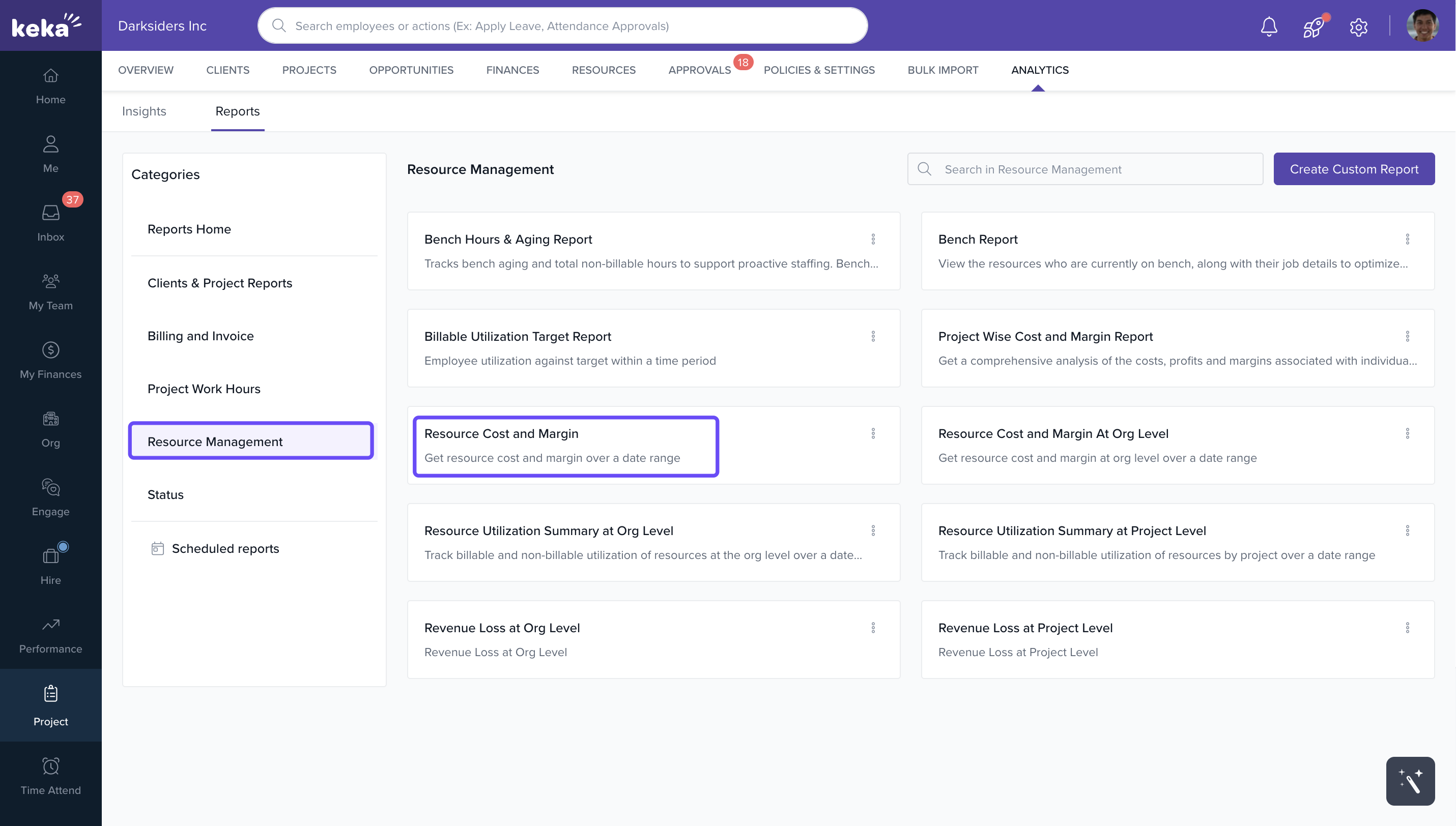
- Go to Projects.
- Click on the Analytics tab.
- Choose Reports and select Resource Cost and Margin.
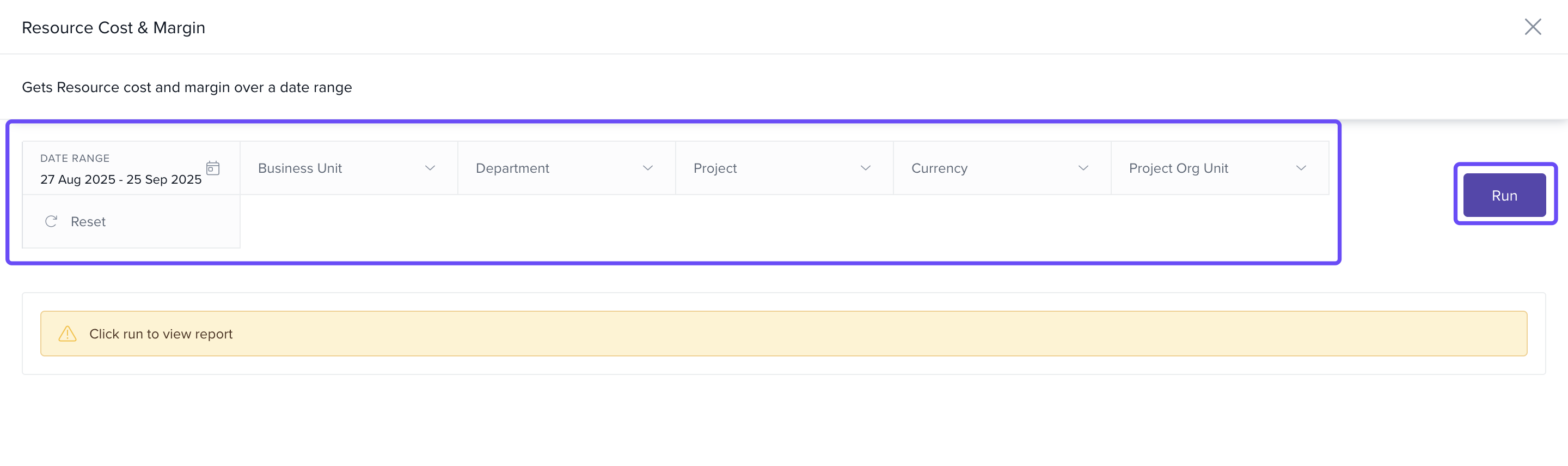
- Apply relevant filters and click Run to generate the report.
FAQs
Q: Can I set multiple costs for one resource?
Yes. You can add multiple entries using different effective dates.
Q: Is bulk import limited to specific formats?
Yes. Use the system-provided Excel template and ensure all mandatory fields are filled.
Q: Can I update resource costs after project start?
Yes, provided the effective date is in the future or doesn’t conflict with an existing cost entry.
Comments
0 comments
Please sign in to leave a comment.