Introduction
Maintaining accurate employee leave balances can be challenging when records rely on manual updates or inconsistent processes. Mistakes not only affect payroll but also employee trust.
Keka makes this easier by allowing you to adjust leave balances directly in the system—no Excel uploads required. Adjustments are instant and ensure real-time accuracy across employee profiles.
Steps to Adjust Leave Balances
Go to the Time and Attendance section from the left navigation menu.
Click the Leave tab.
Select the Leave Balance sub-tab. You’ll see a list of employees.
Find the employee whose balance you want to update.
In the Actions column, click the pencil icon to Edit Leave Balance.
A window will open where you can adjust the balance for a specific leave type.
Balances are recorded in hours or days, depending on your leave setup.
Enter the correct number of leave days/hours.
Click Save. The updated balance will reflect immediately on the employee’s profile.
Always double-check the values before saving. Inaccurate adjustments can cause payroll and reporting issues.
Update leave balances from Employee Profile
To reduce handling time, HR teams can also update leave balances directly from Employee Profile → Leave Balance → Update Leave Balance.
This new entry point mirrors the existing balance view for easier cross-referencing, supports quick inline edits to reduce errors, and streamlines the workflow by making updates accessible in just a few clicks.
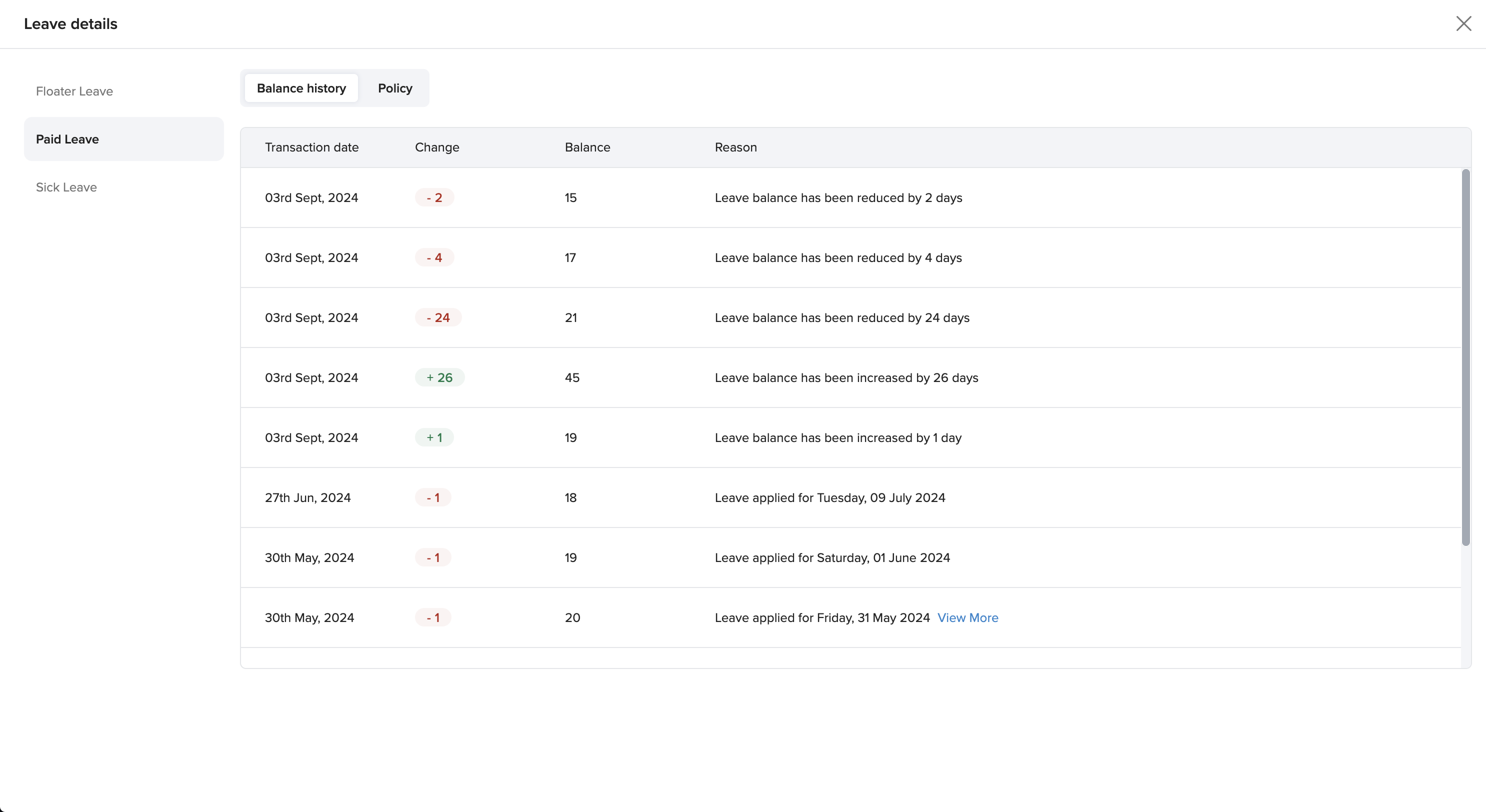
Admins can now view the complete history of leave balance adjustments—including who made the change, when it was made, and the adjustment amount—improving transparency and auditability during reconciliations.
View Leave Balance Adjustment History
You can track when and how a leave balance was last updated for any employee.
Go to the Me section in the left pane.
Select the Leave tab. You’ll land on the Summary page.
Scroll down to the Leave Balances section.
Click View Details next to a leave type.
A window will display the leave balance history, including when it was last updated.
Comments
0 comments
Please sign in to leave a comment.