Handling leave requests at work can get tricky, but it's a breeze with Keka. This article will guide you through the different kinds of leaves you can set up in Keka, making sure you're prepared for any situation.
Introduction
Managing leave requests can be complex, but Keka makes it straightforward. You can set up different leave types, customize them to fit your organization’s policies, and track balances effortlessly.
This guide explains how to configure different leave types in Keka and outlines what each type means.
Setting Up Different Leave Types
-
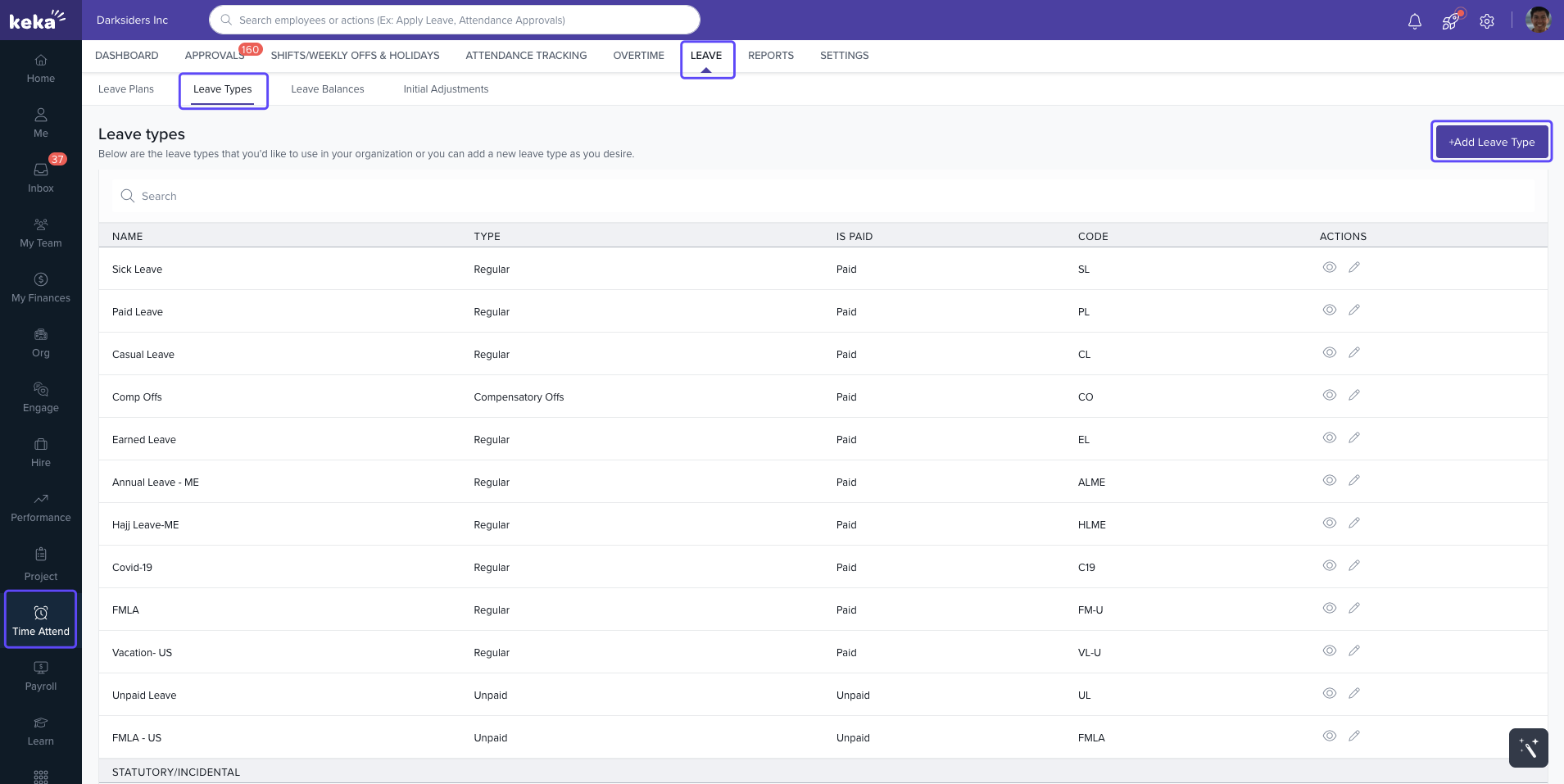
Go to the Time and Attendance section.
-
Open the Leave tab and select Leave Types.
-
You’ll see a list of standard leave types already available. You can activate these or create new ones.
-
To create a new leave type:
-
Click +Add Leave Type.
-
Choose the leave type you want to add.
-
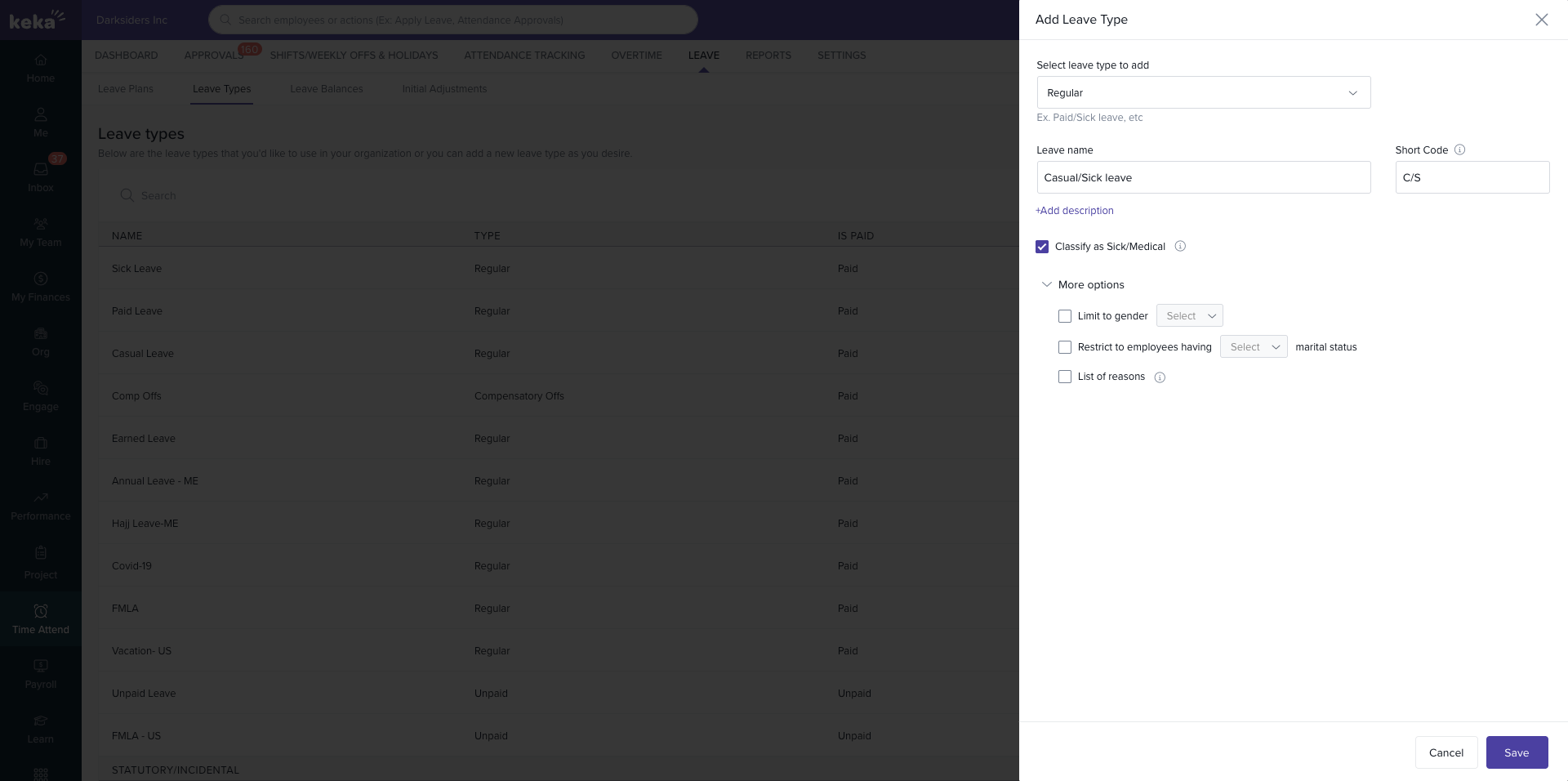
Enter a Name and Short Code (e.g., Sick Leave, SL).
-
Optionally, mark the leave for specific purposes like medical needs (for compliance).
-
Restrict eligibility by gender or marital status if needed.
-
Add custom reasons to make the leave type fit your organization’s requirements.
See screenshot: [Add leave type setup window].
-
Understanding the Types of Leave
Keka supports multiple leave categories to cover different employee needs:
Regular Leave
This is the standard leave type covering common policies like sick leave, casual leave, or earned leave. Employees can use it for personal time off, medical needs, or rest.
Incident Leave
Designed for significant life events, such as maternity/paternity leave, birthdays, anniversaries, or marriage days. This type shows that your organization supports employees during important milestones.
Unpaid Leave
If an employee exhausts all allocated leave but still needs time off, they can request unpaid leave. As the name suggests, this time off is without pay, but ensures flexibility when balances are zero.
Comp Off
Compensatory off (Comp Off) is earned when employees work during holidays or scheduled days off. They receive credits they can use later to take leave, helping balance workload and reward extra effort.
Next Steps
After setting up leave types, the next step is to configure Leave Plans to define accruals, carryovers, and rules. See: Creating a Leave Plan.
Comments
0 comments
Please sign in to leave a comment.