Overview
Accurate tracking of project-related expenses is essential for maintaining financial transparency and controlling budgets. Keka PSA enables teams to record, filter, and audit project-linked expenses effortlessly. With centralized access, project managers can quickly verify claims, ensure billing accuracy, and streamline reimbursement and invoicing processes.
Who can do this?
- PSA Admins
- Project Managers with view financials privilege.
- Client Managers
- Finance Teams with access to project expenses
Pre-requisites
- The option Allow expenses to be billed against this project should be selected under Billing settings.
- Employees must have submitted expenses linked to the project.
Step by steps instructions
- Navigate to Projects >> Project List.
- Locate and click on the project for which you want to track expenses.
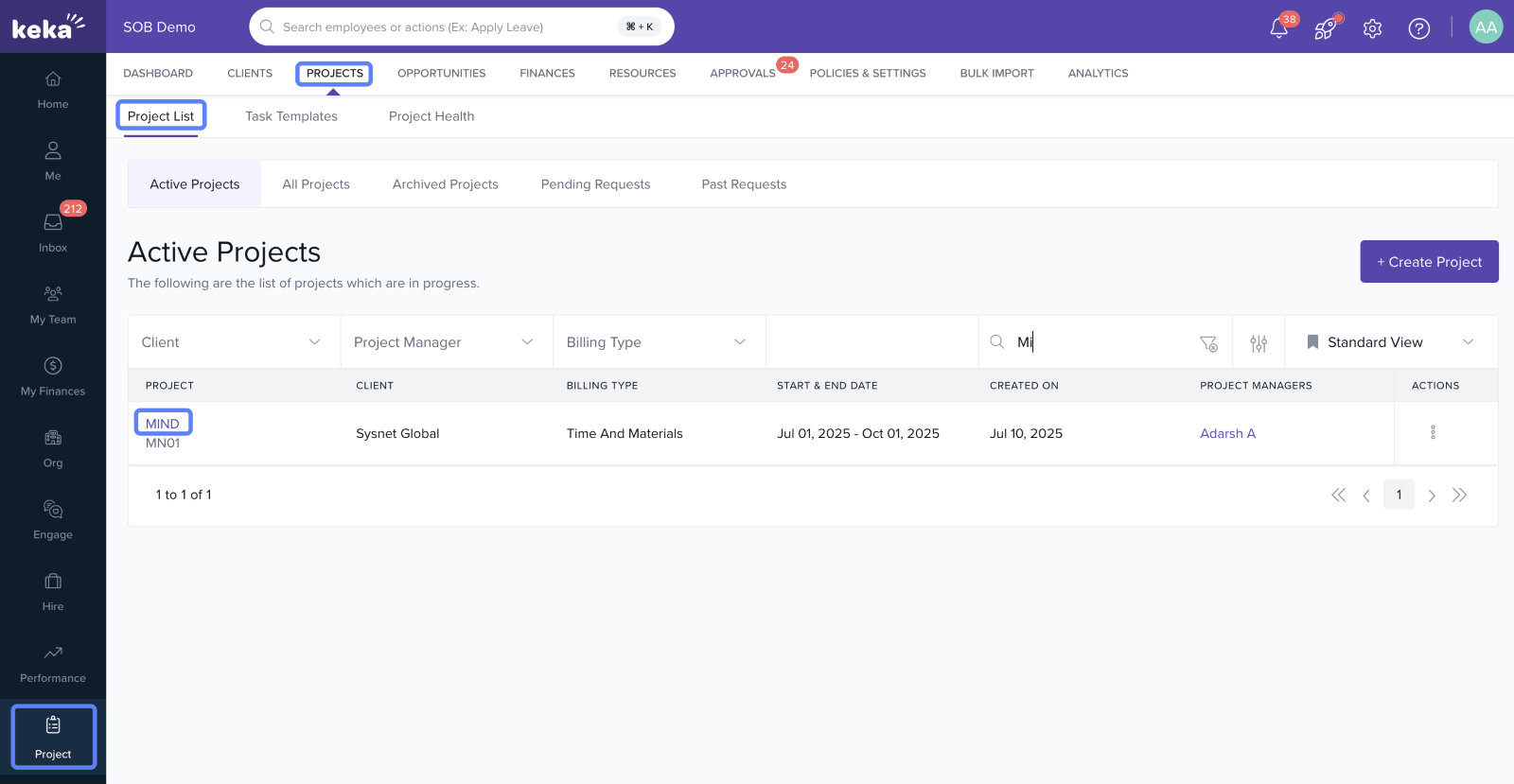
- Within the selected project, click on the Expenses tab.
- This section lists all expenses submitted against the project.
- Filter expenses using:
- Expense Category
- Date Range
- This helps locate specific records quickly for review or audit.
- In the Receipts column, click on the linked document to view uploaded proof submitted by employees.
Tip: You can also mark the expenses are reimbursable by client and non-reimbursable
Note: The Expenses tab appears only if expense billing is enabled in project settings.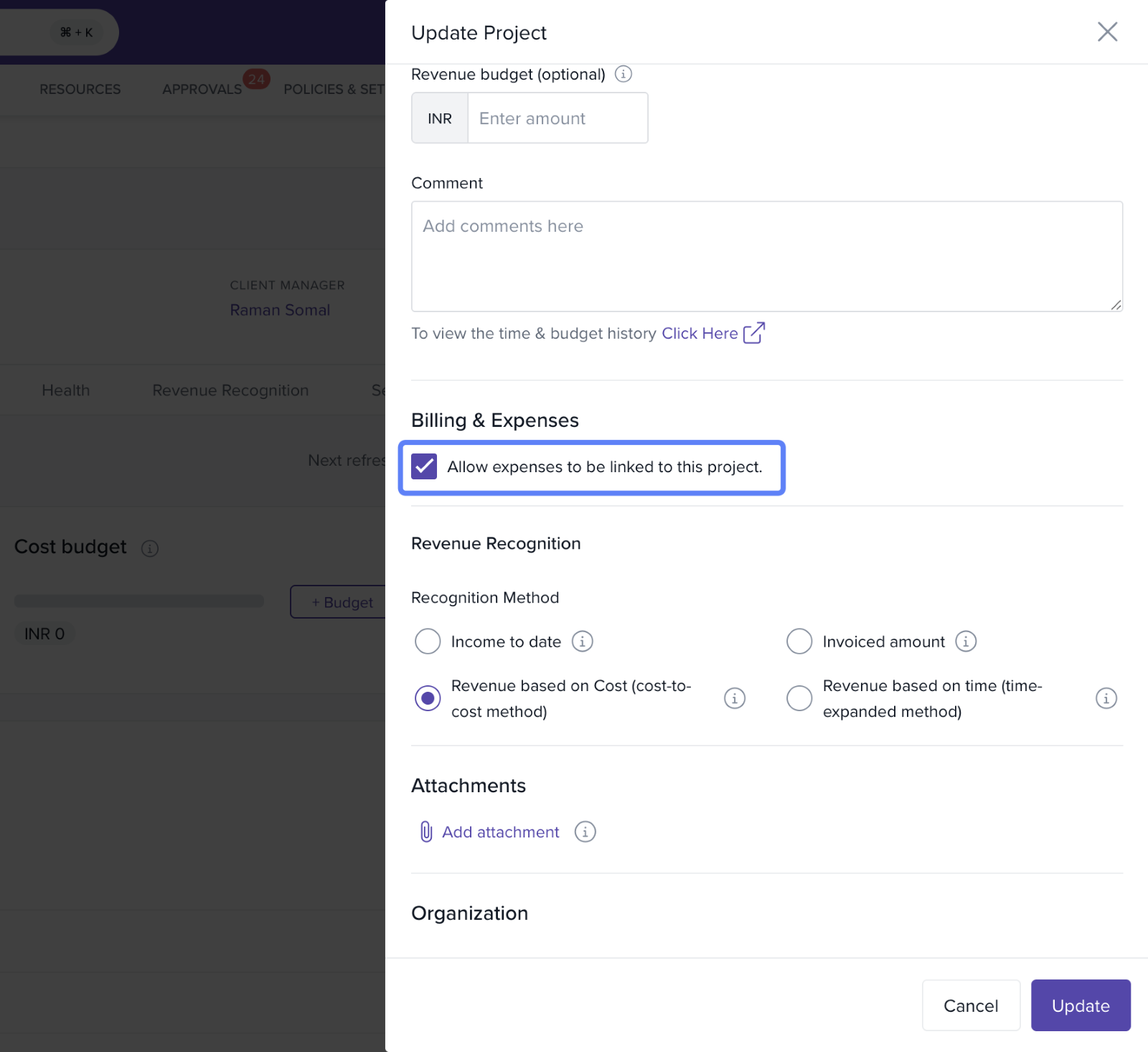
How it connects with other modules
|
Module |
Integration Details |
|
Billing |
Approved expenses can be included in client invoices. |
|
Finance |
Helps in reimbursing employees for approved claims. |
|
Audit & Compliance |
Expense receipts are available for financial audits. |
FAQs
Q: Why can't I see the Expenses tab in a project?
A: Ensure Allow expenses to be billed against this project is enabled in Billing settings.
Q: Can I download expense reports?
A: Yes, use the download or export options available in the Expenses tab.
Q: Are expenses automatically billed to clients?
A: No, they must be reviewed and added during invoicing manually.
Troubleshooting
Expenses not showing up?
- Check if employees have submitted them under the correct project.
- Ensure filters are not excluding relevant entries.
Unable to view receipts?
- Make sure the employee has uploaded a document with the expense submission.
Billing error with expenses?
- Confirm that the billing option is correctly configured in the project settings.
Comments
0 comments
Please sign in to leave a comment.