Overview
Effective project management starts with breaking down large projects into smaller, manageable units—tasks, phases, and milestones. Keka PSA provides a robust framework for structuring projects with clear task definitions, timeframes, and billing classifications. This guide covers how to add, import, and manage tasks, as well as how to use milestones and templates to streamline planning and execution
Who Can Do This?
- PSA Admins
- Project Admins
- Global Admins with edit permissions on project tasks and billing
Pre-requisites
- The project must already be created.
- Task templates (if used) must be pre-configured in Keka.
- Billing classifications should be set up in Projects >> Policies & Settings >> Billing Classification.
Accessing the Tasks Page
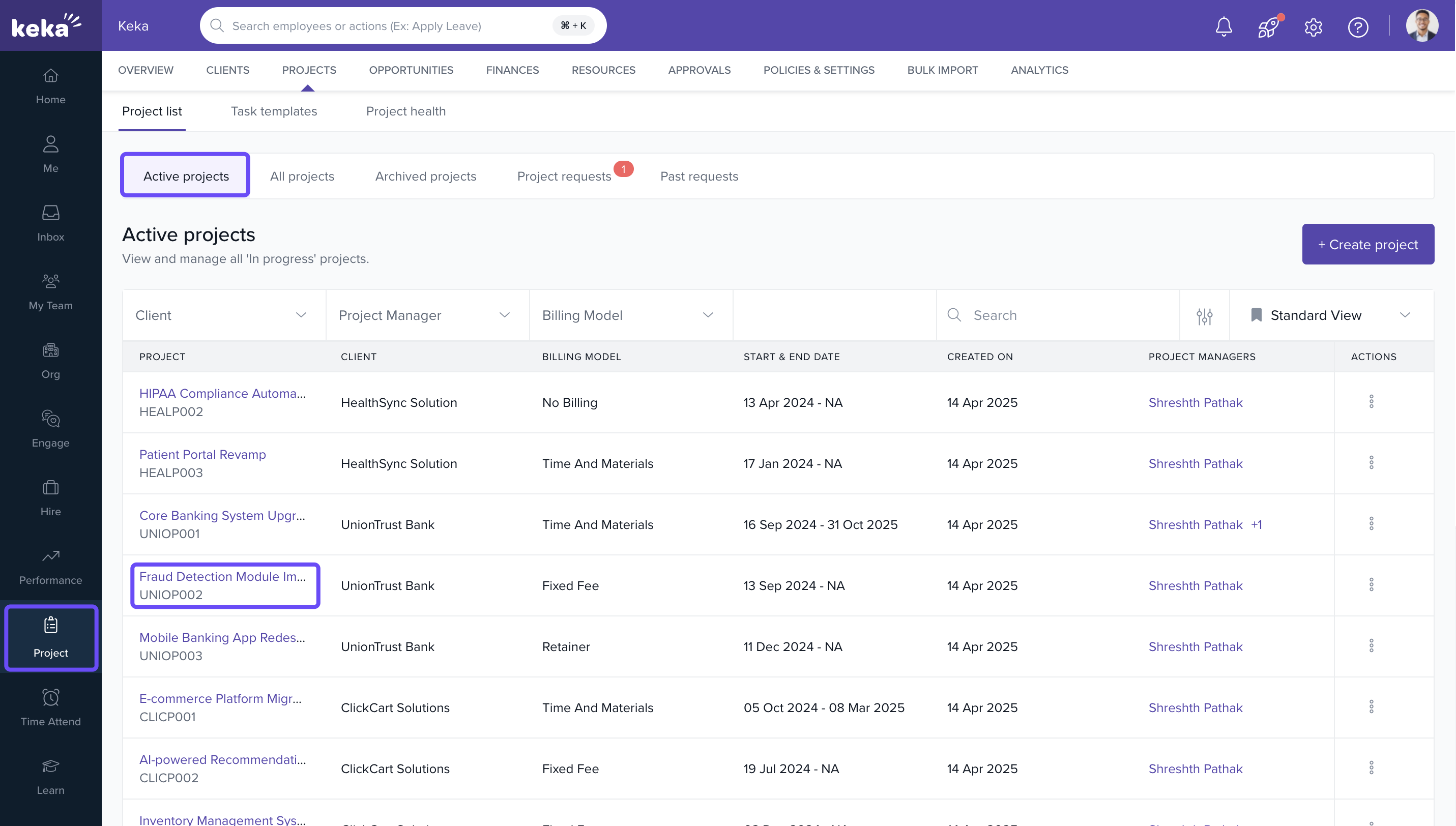
- Go to Projects >> Project List.
- Locate and click on the desired project to open its Project Details page.
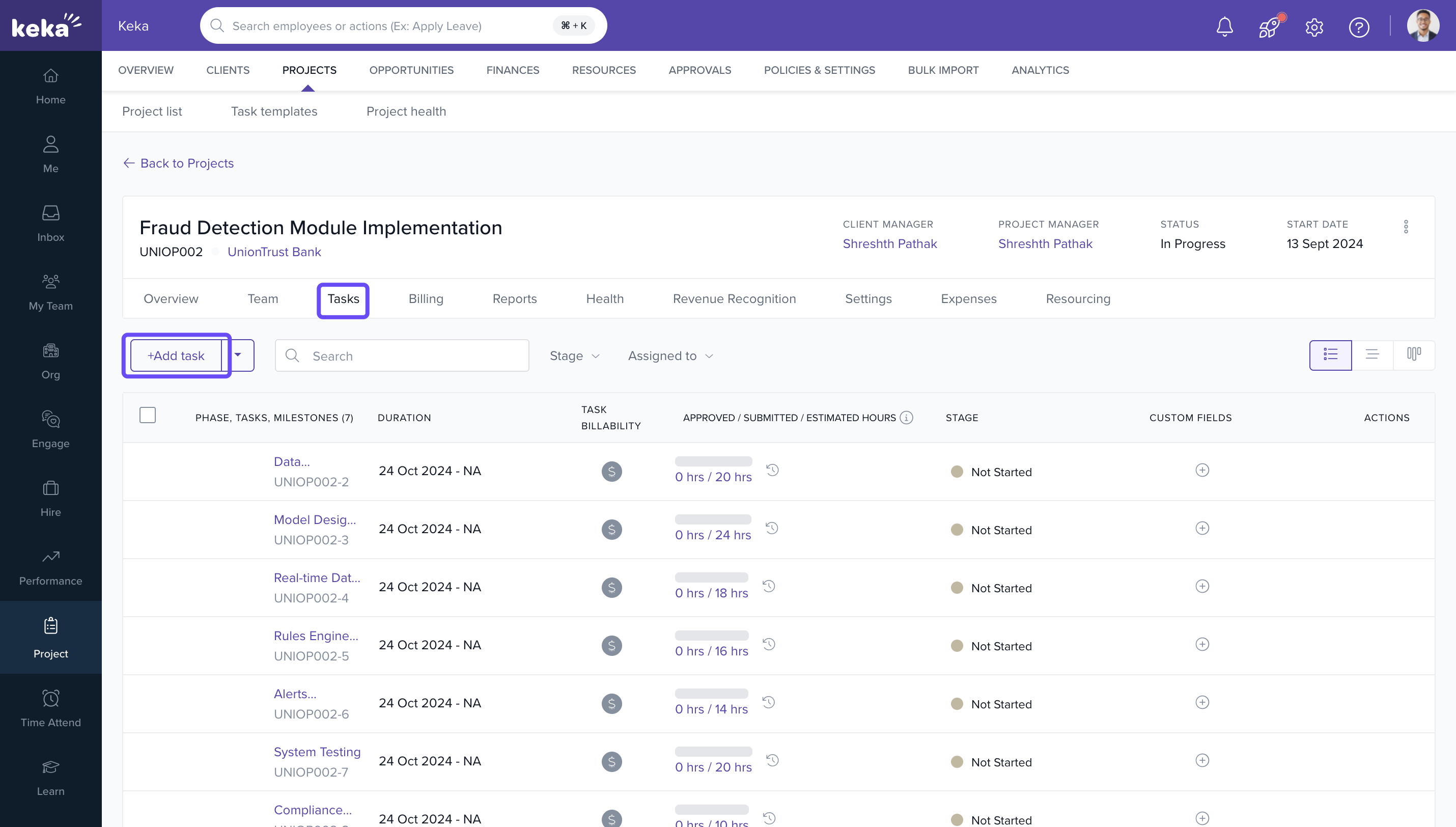
- Navigate to the Tasks tab.
Adding Tasks and Phases Individually
- In the Tasks tab, click on +Create Phase or +Create Task.
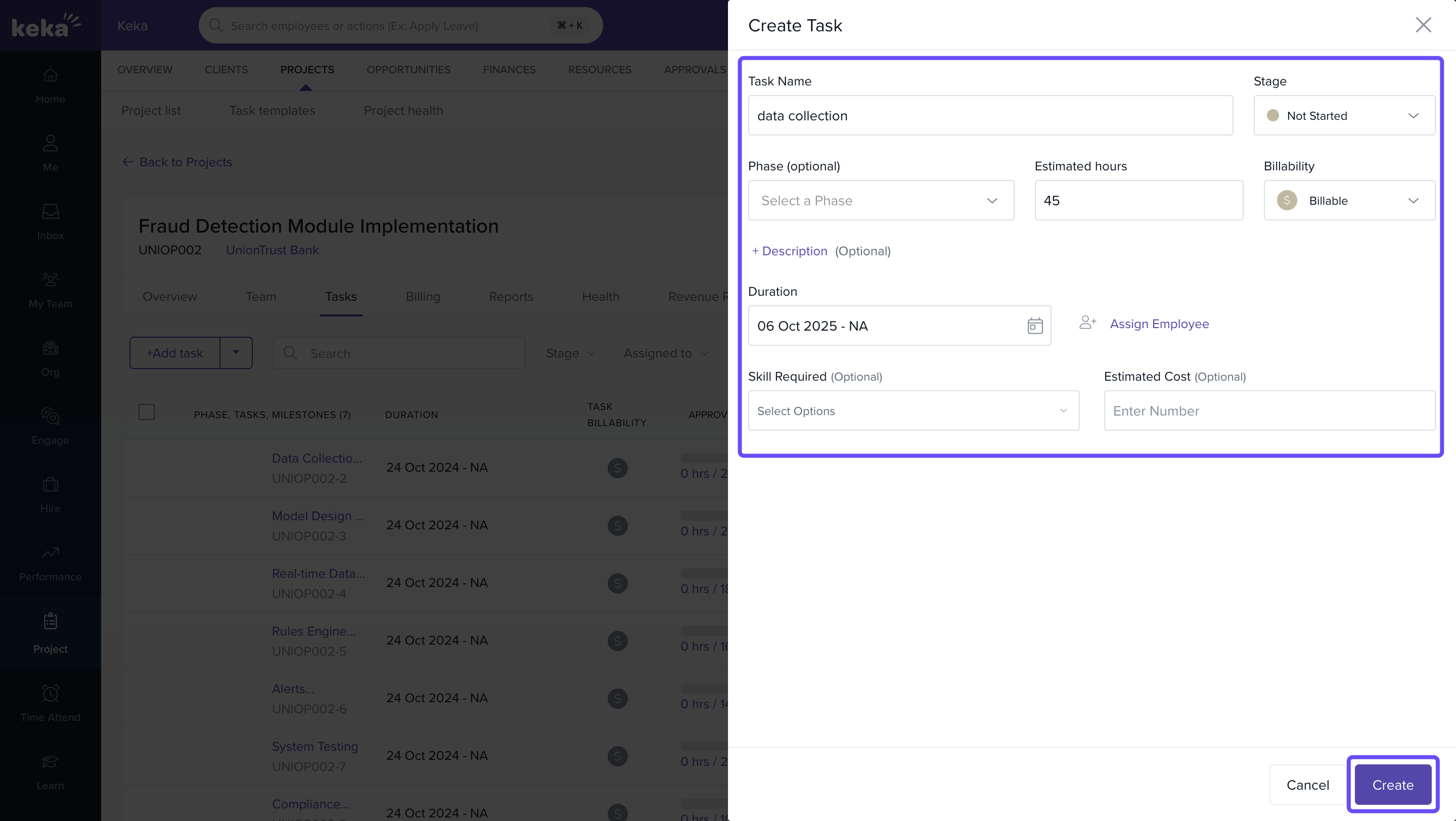
- Enter the required details:
- Task/Phase Name
- Start Date and End Date
- Estimated Hours
- Billing Classification (Billable or Non-Billable)
- To add a task under a phase:
- Click on the + icon beside the Phase Name.
- Select Task from the dropdown.
- Click on Add to save the task or phase.
Tip: Task names need not to be unique , duplicate task names are allowed.
Editing Task Details
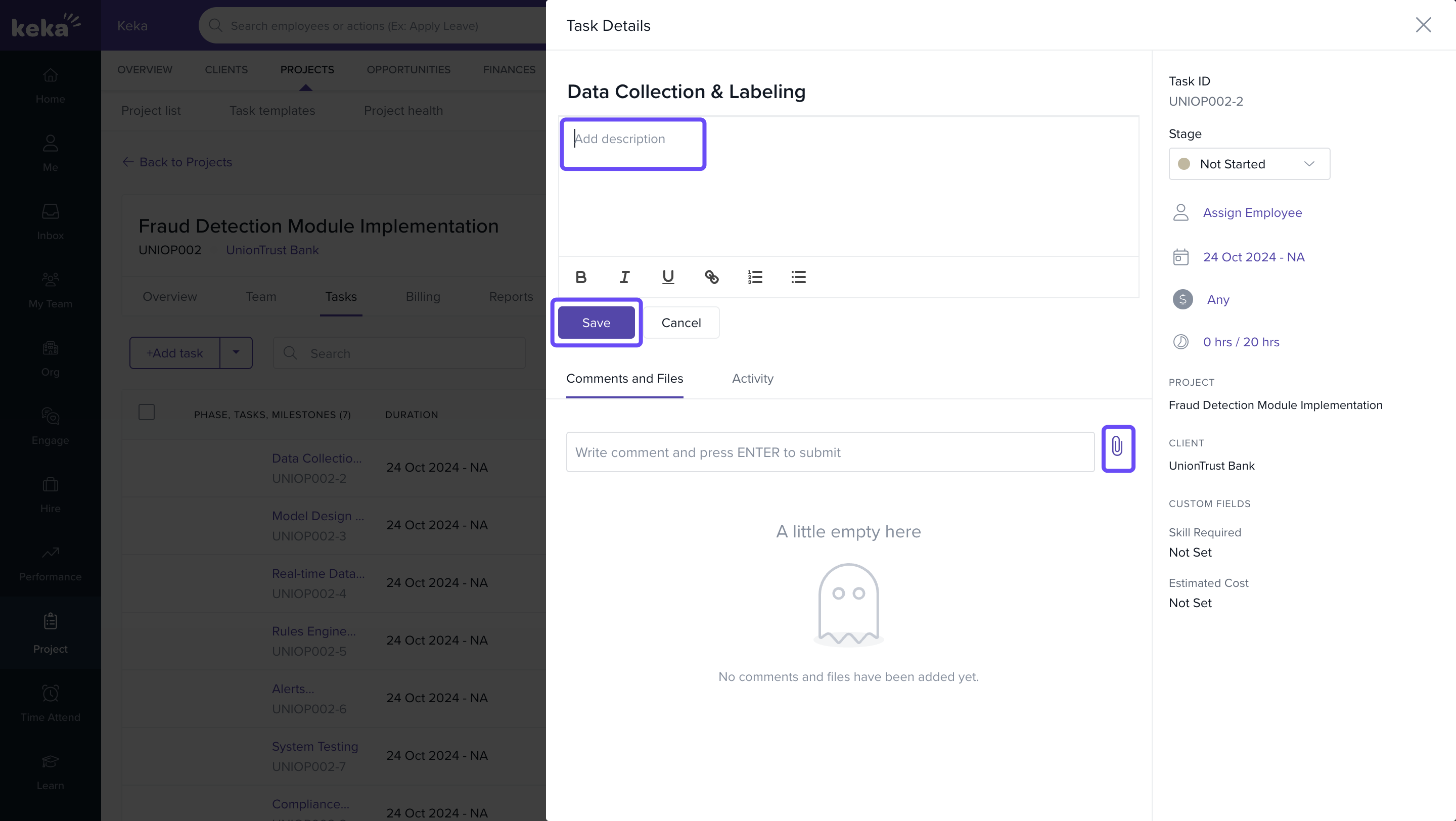
- Click on the Description icon beside the task name.
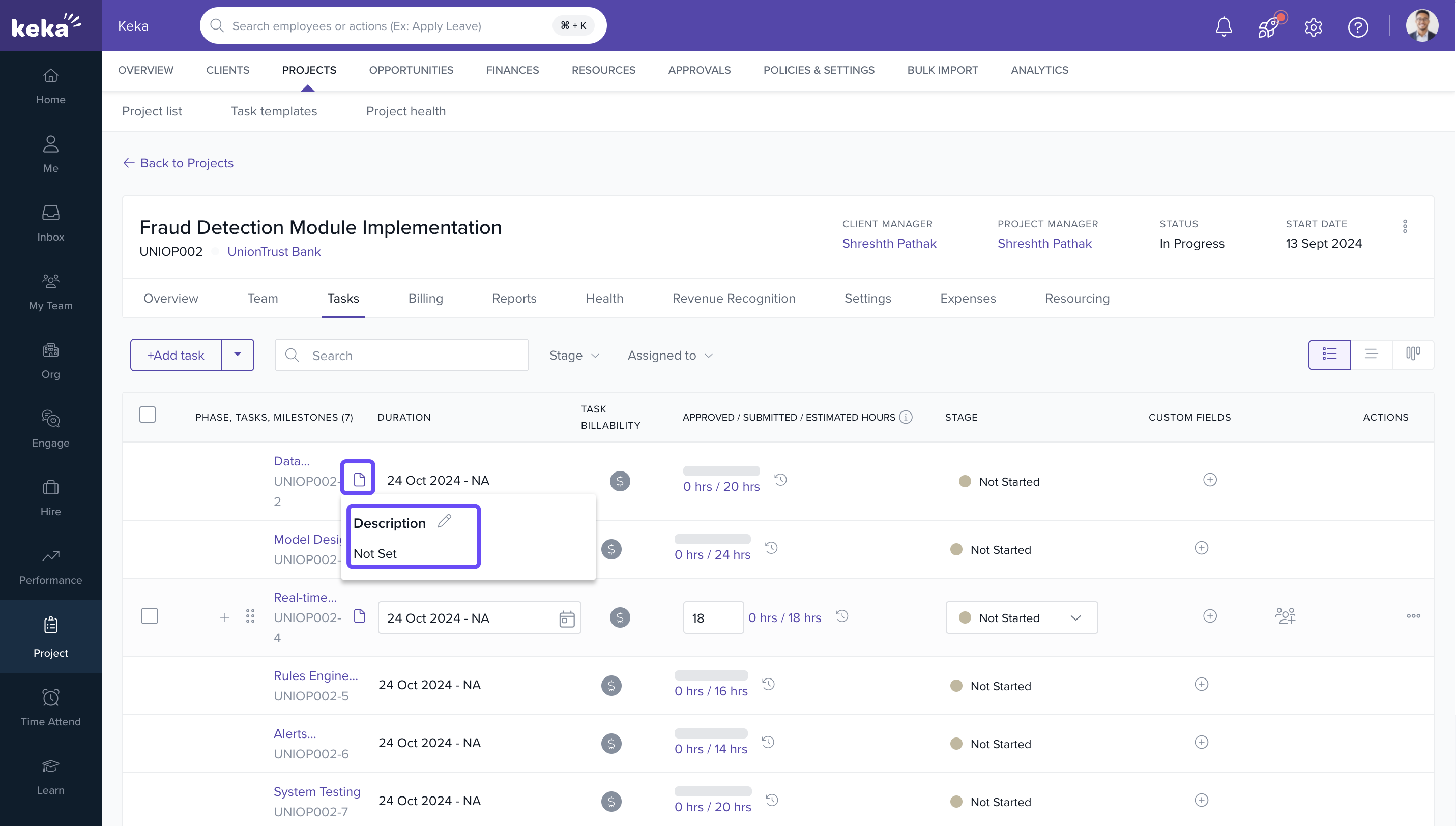
- In the Task Details page:
- Enter a task description
- Attach files if needed
- Add comments for team visibility
- Click on Save to apply the updates.
Assigning Employees to Tasks
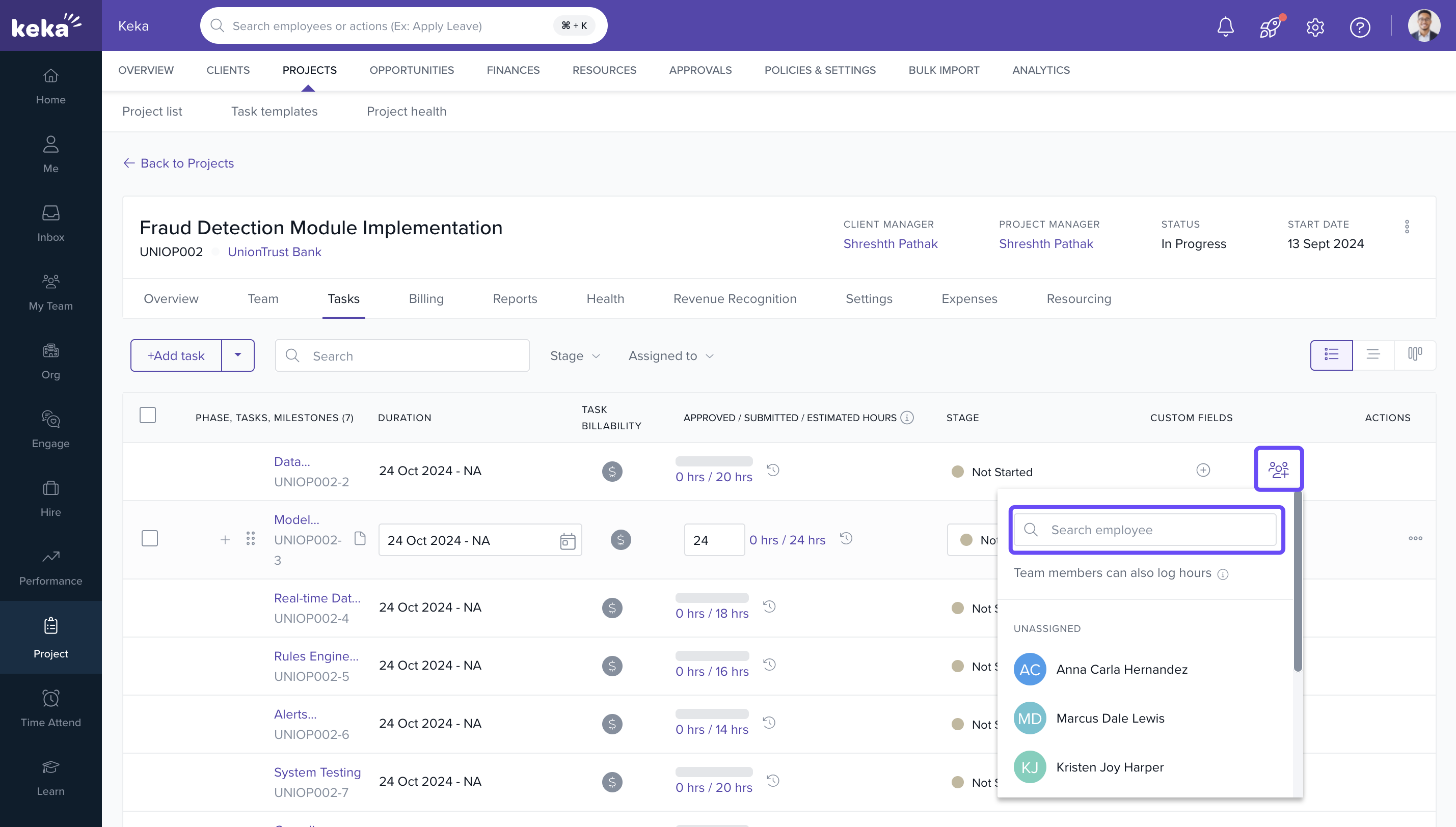
- Click on the Assign Employee icon next to the task.
- Search for and select the employee using the dropdown.
- The employee will be assigned to the selected task.
Reordering Tasks or Moving Them Between Phases
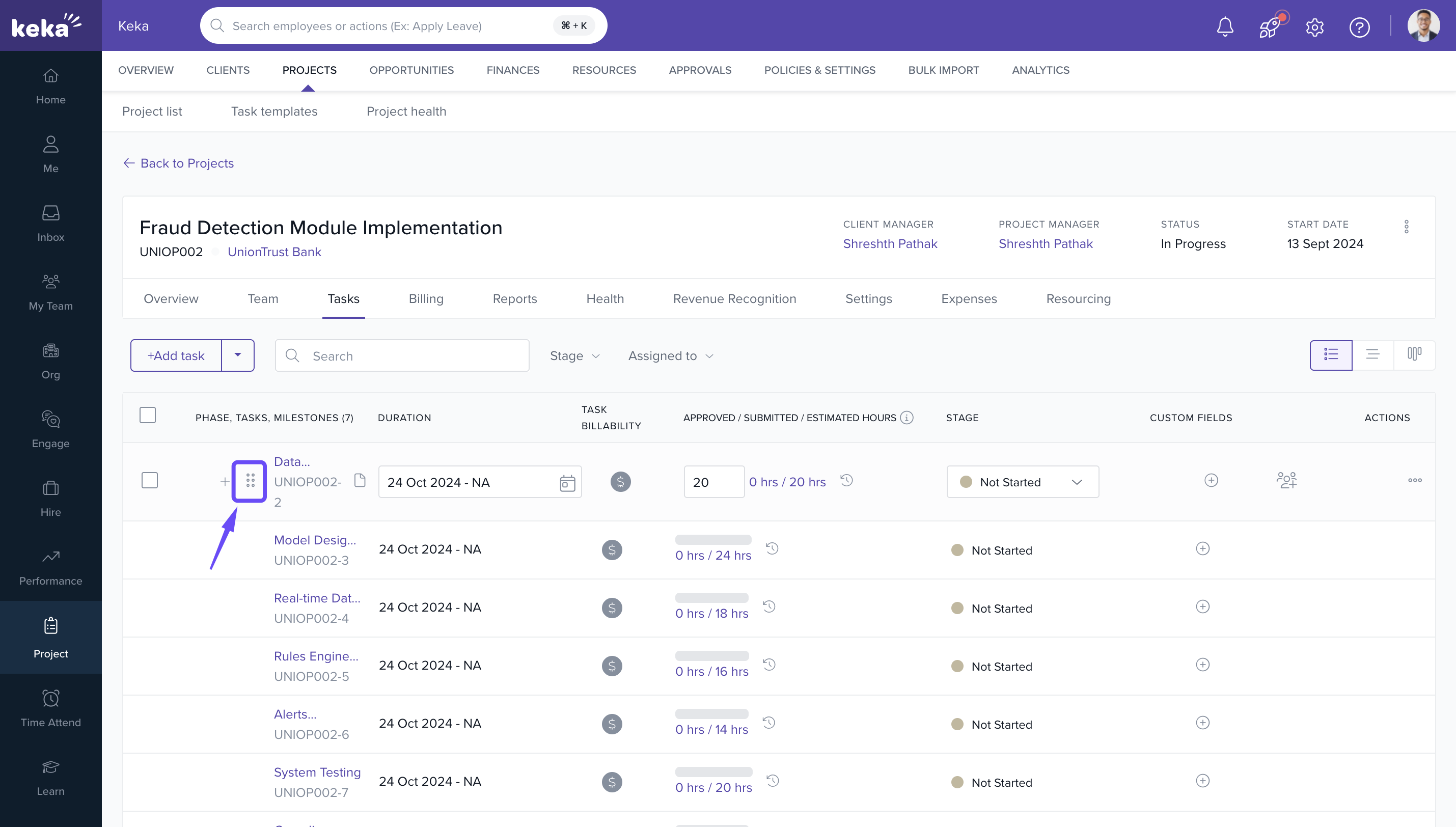
- Click on the Reorder icon next to a task.
- Drag and drop the task to the desired position or phase.
Adding Milestones
- Click on the + icon on the Tasks tab.
- Select Milestone from the dropdown.
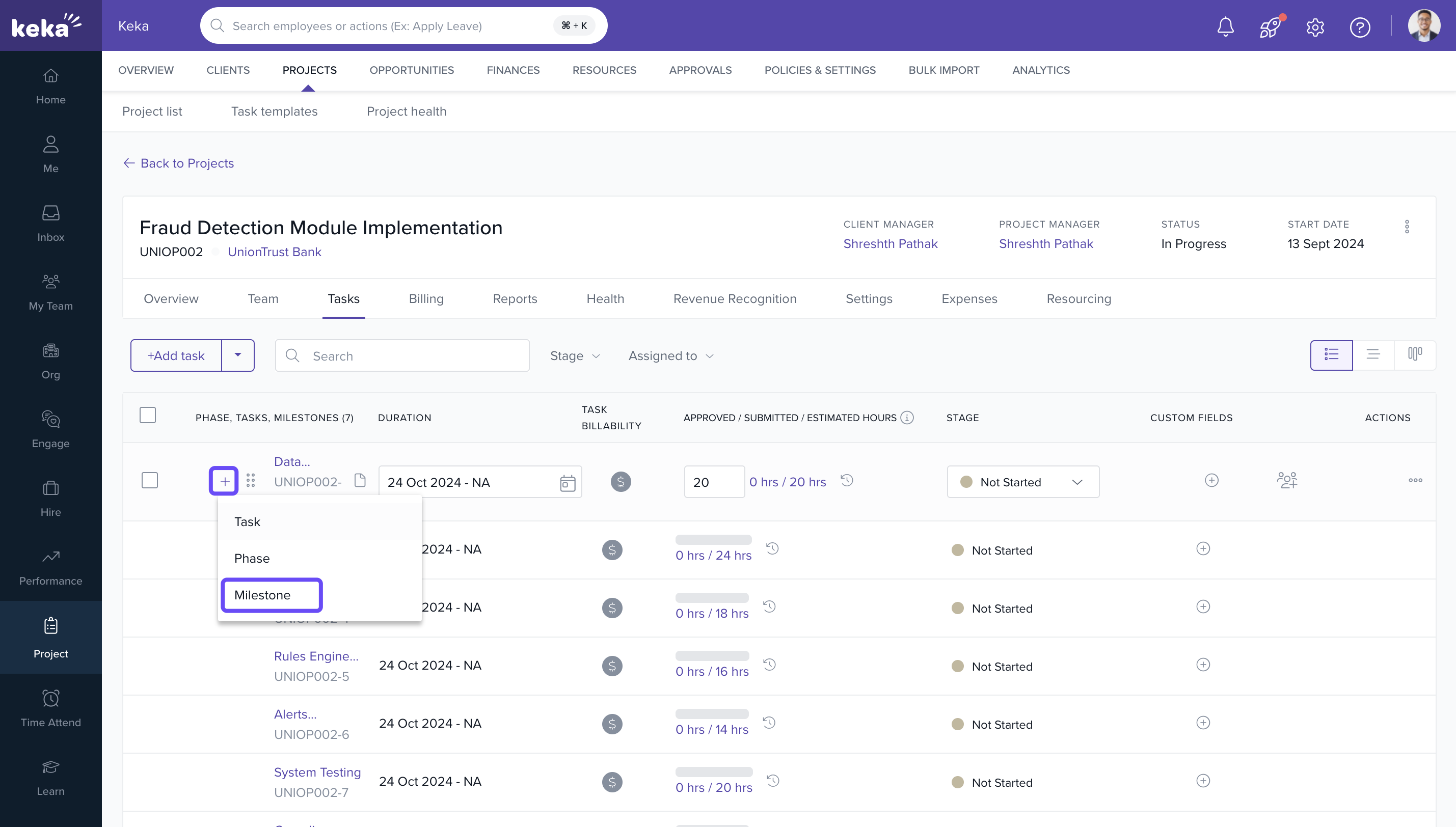
- Enter the following details:
- Milestone Name
- Completion Date
- Amount to be paid (for billable milestones)
- Click on Tick icon to save the milestone.
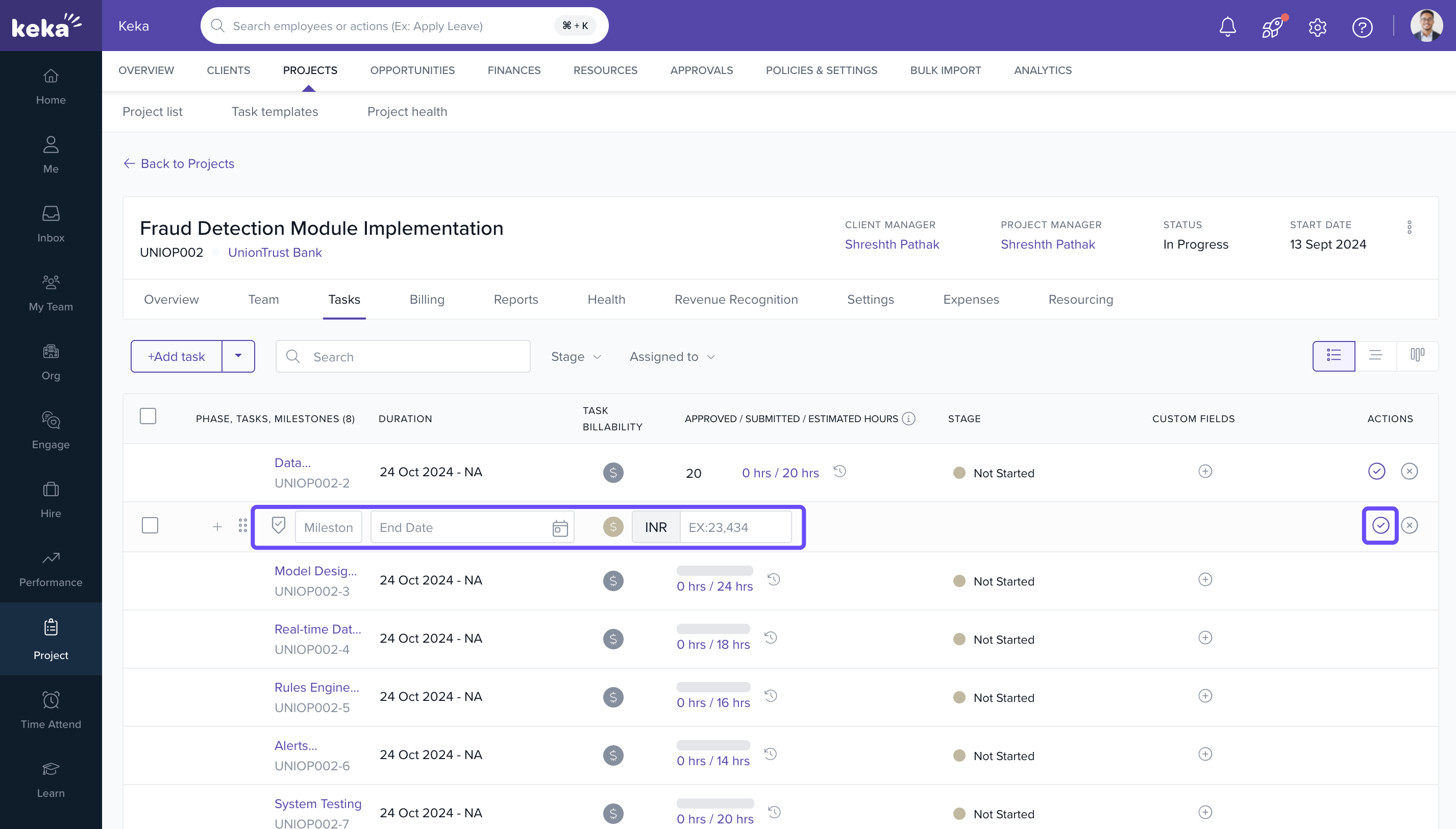
Note: Milestones are key components in fixed fee or milestone-based billing models.
Adding Tasks Using Templates
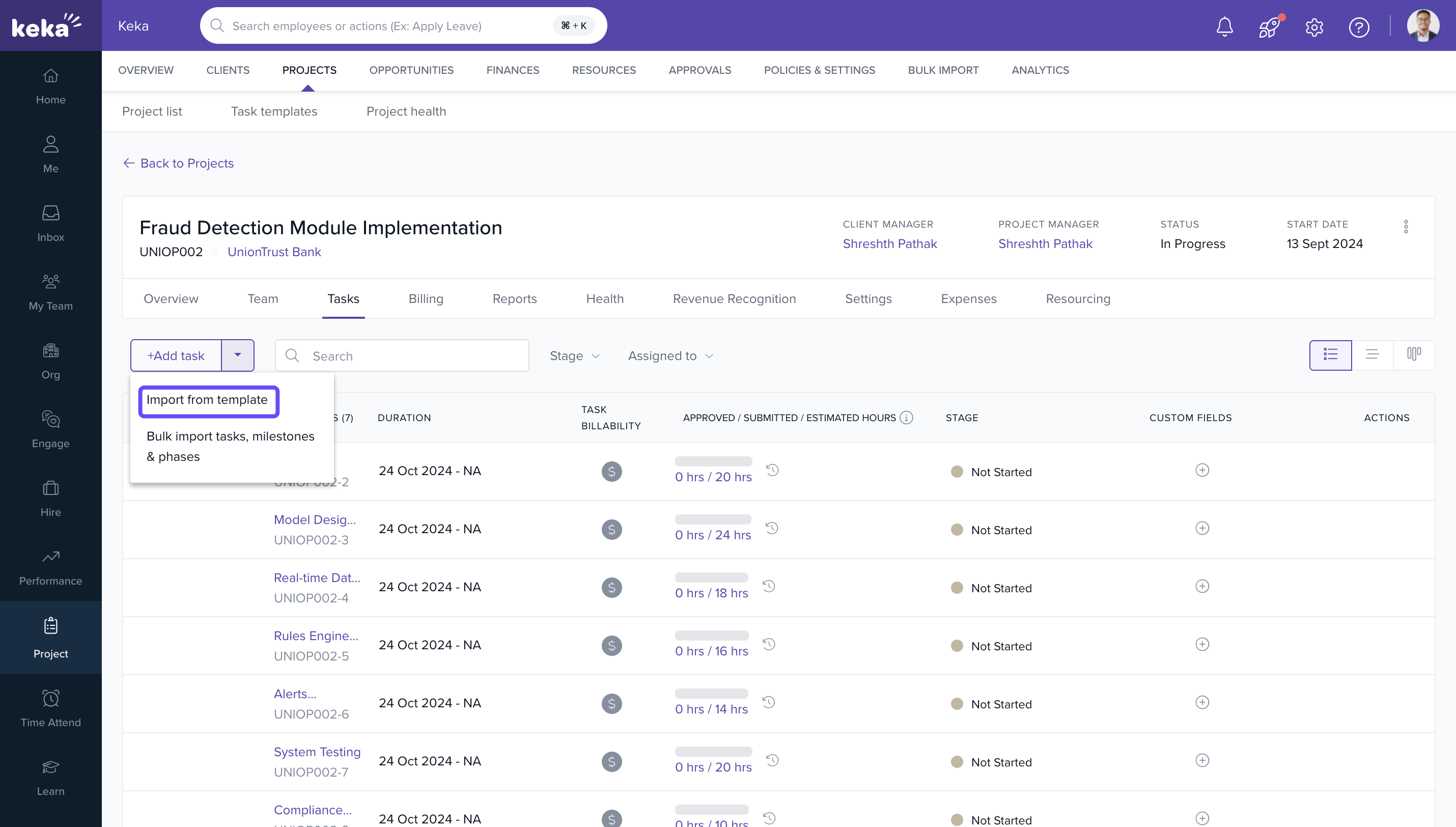
- In the Tasks tab, click on the arrow next to +Add Task.
- Select Import from template from the dropdown.
-
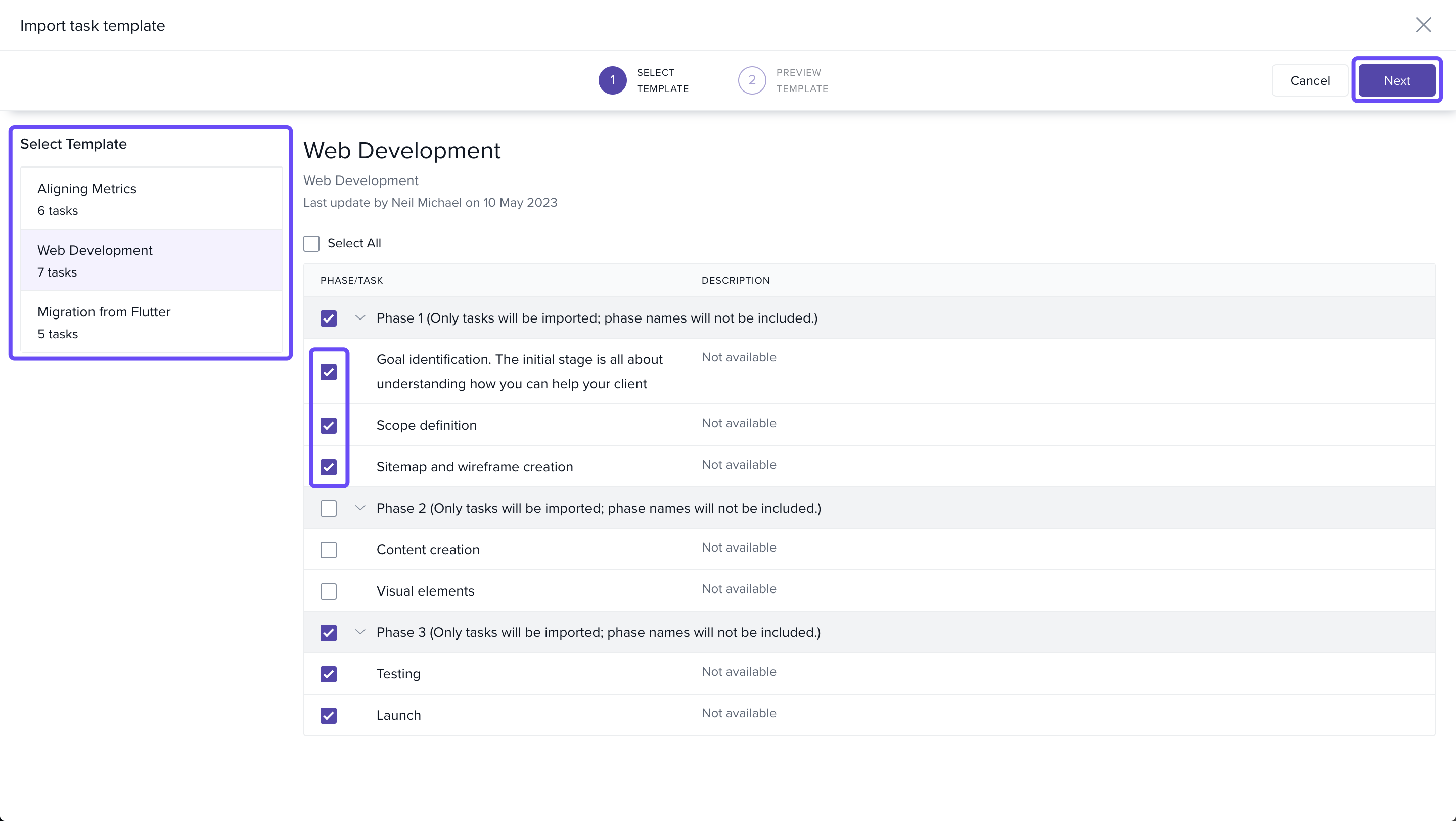
In the Import Task Template screen:
- Select the desired template
- Use checkboxes to include specific tasks or phases
- Click on next
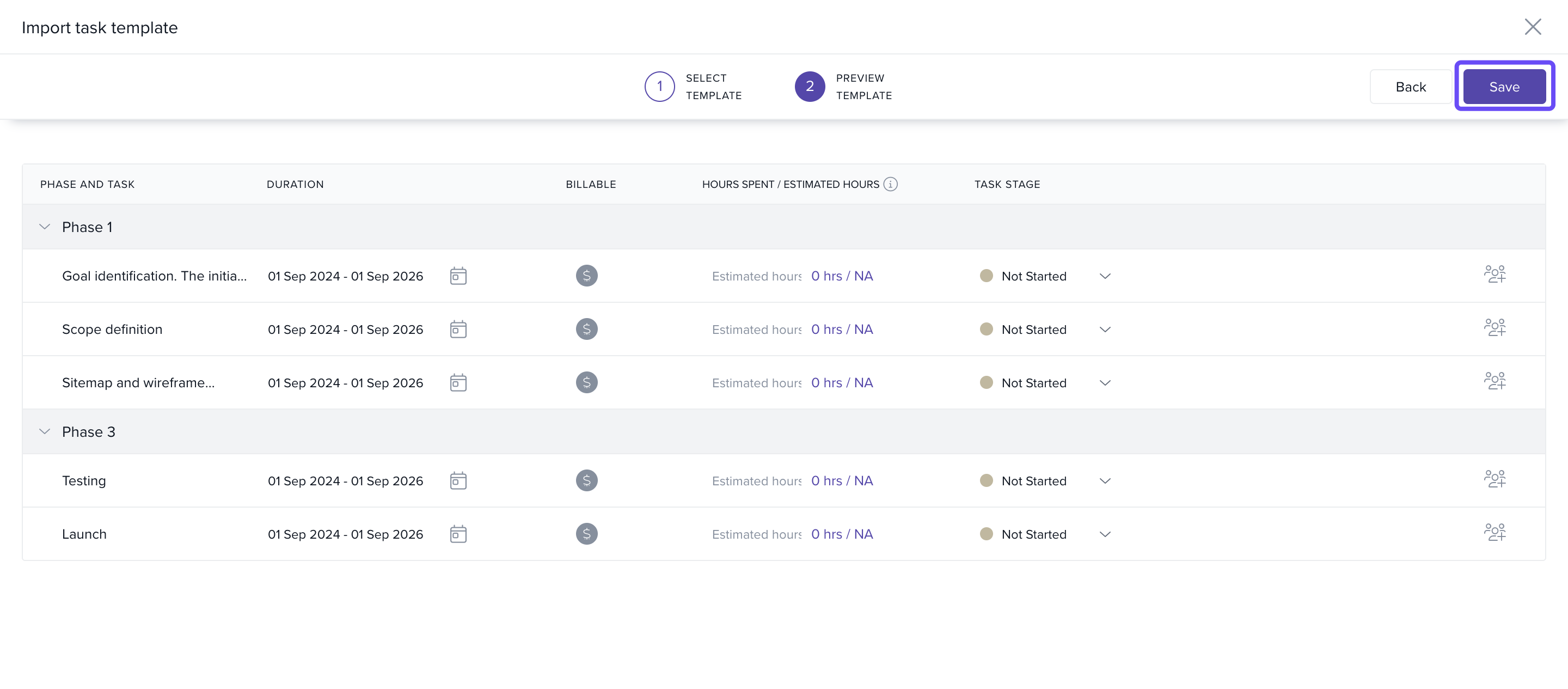
- In the preview:
- Add Start/End Dates, billing classification, estimated hours, and assign team members
- Click on Save to finish importing.
Bulk Importing Tasks and Phases
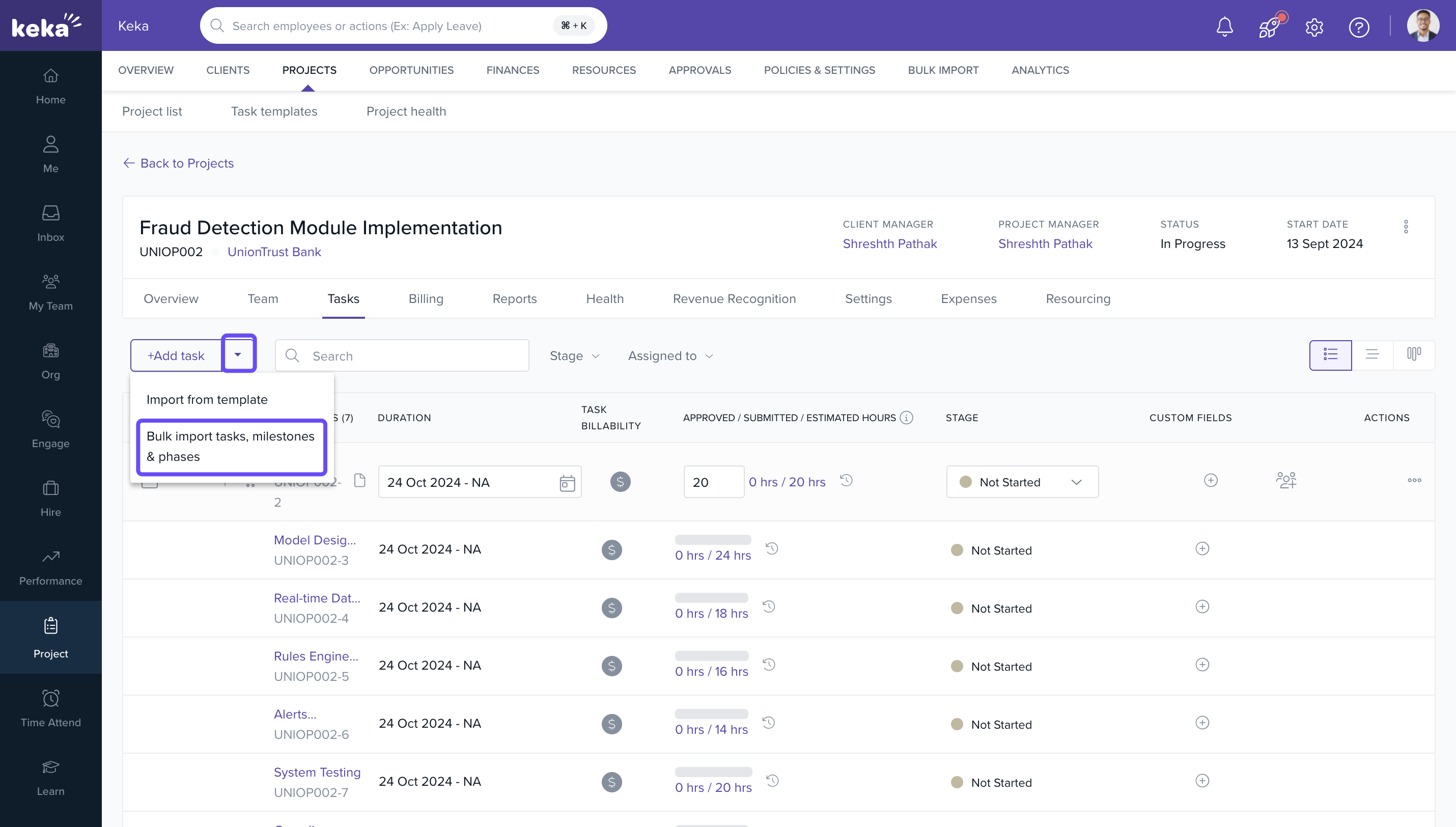
- In the Tasks tab, click on the arrow next to +Add Task.
- Select Bulk import tasks and phases.
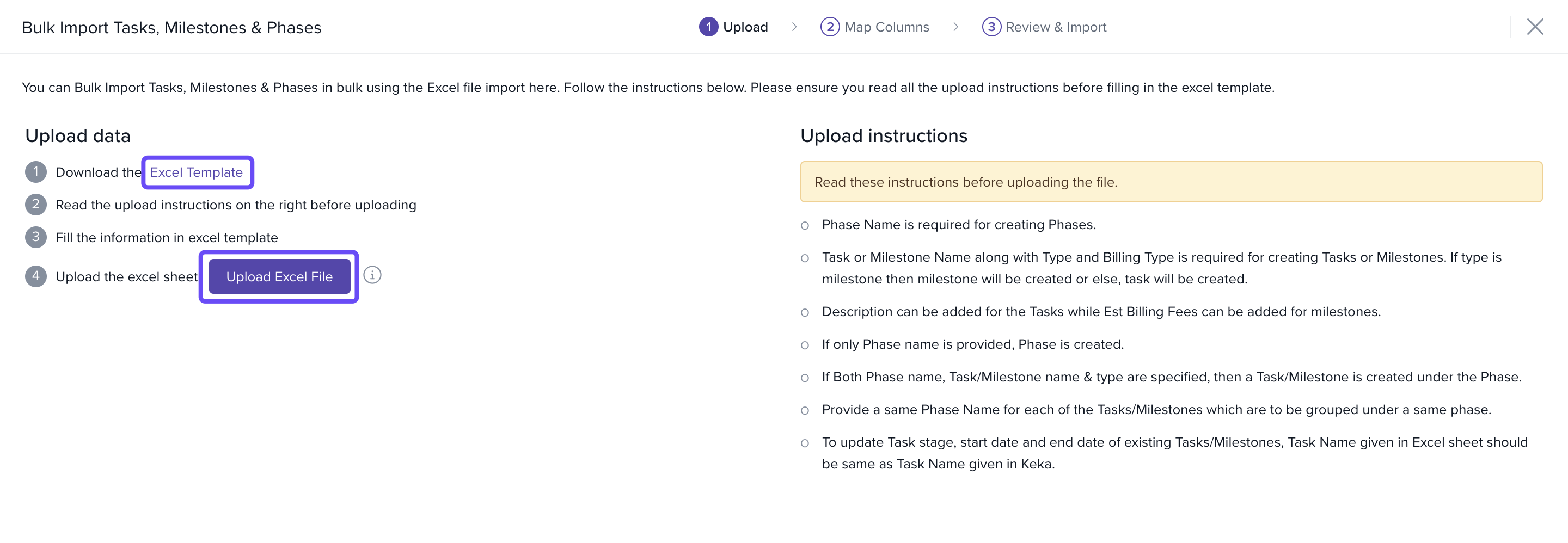
- On the import screen:
- Download the Excel template
- Fill in the required fields:
- Phase Name (optional)
- Task Name
- Start Date, End Date
- Estimated Hours, Description
- Billing Classification, Task Stage
- Save the Excel file.
- Click on Upload Excel File and upload your file.
- In the Match Columns screen, verify fields and click Continue.
- Review errors in the Preview Data section, then click Complete.
Deleting Tasks, Phases, or Milestones
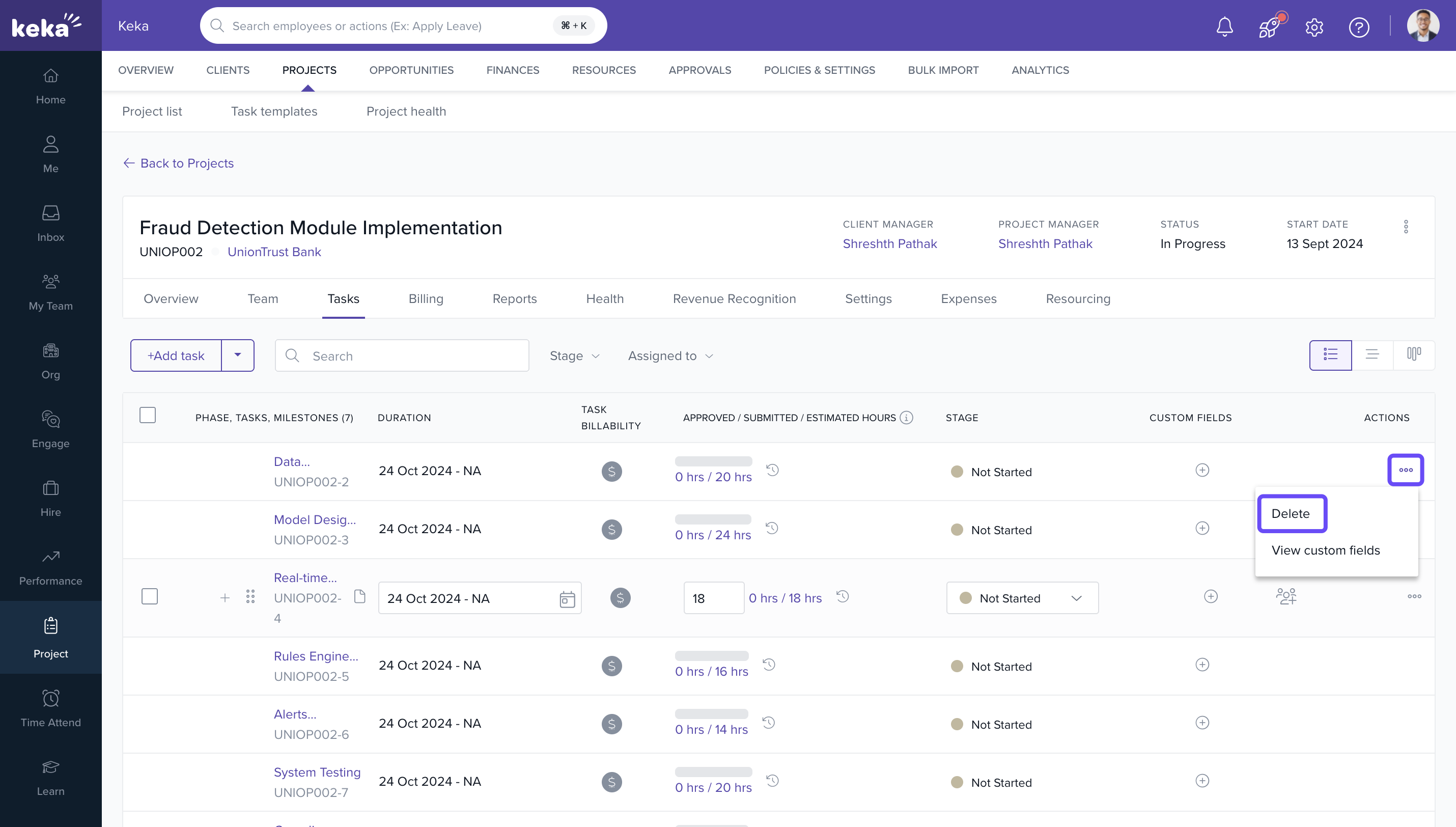
- Click on the three dots beside the item you wish to delete.
- Select Delete from the dropdown.
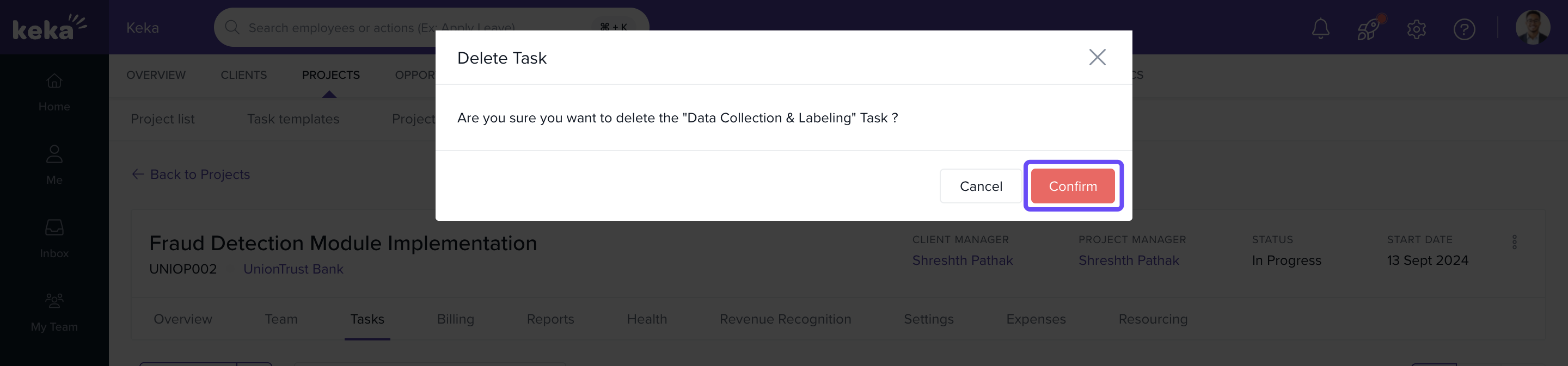
- Confirm the deletion in the pop-up window.
How It Connects with Other Modules
| Module | Integration Details |
|---|---|
| Timesheets | Logged hours are tagged to tasks and billing status. |
| Invoices | Billable tasks and milestones influence invoicing and revenue. |
| Resource Allocation | Tasks guide how team members are scheduled and measured for utilization. |
| Billing | Billing classification determines if the task contributes to billable effort. |
FAQs
Q: Can I change task details after saving?
A: Yes, use the Edit and Description icons to update task attributes.
Q: What’s the difference between a phase and a milestone?
A: A phase groups related tasks, while a milestone marks a major billing or project checkpoint.
Q: Can I assign multiple employees to one task?
A: No, tasks are typically assigned to a single resource for clarity and ownership.
Q: Is there a limit to the number of tasks per project?
A: No specific limit, but it's best to keep tasks structured for easy tracking.
Q : Can i create a new task with the same name of an existing task?
A : Yes, duplicate task names are allowed in the system.
Troubleshooting
Import fails or shows errors?
- Verify that all required fields are filled and match the expected format.
- Use the Match Columns step to correct mapping issues.
Tasks not visible after upload?
- Refresh the page or check under the assigned phase.
Billing type icon missing in tasks?
- Ensure billing classification is enabled for the project.
Unable to assign employees?
- Confirm employees are already allocated to the project.
To explore more about the bulk import functionality for project tasks, please click here for detailed guidance. How to Import project Tasks in Bulk?
Comments
0 comments
Please sign in to leave a comment.