Overview
This guide will walk you through the process of creating, assigning, and tracking tasks to ensure project success.
Who Can Do This?
- Project Managers
- PSA Admins
- Users with permission to create or manage tasks within projects
Pre-requisites
- Project must already be created and active
- Phases should be added if you plan to organize tasks under them
- The user must have edit access to the Tasks tab for the selected project
Step-by-Step Instructions
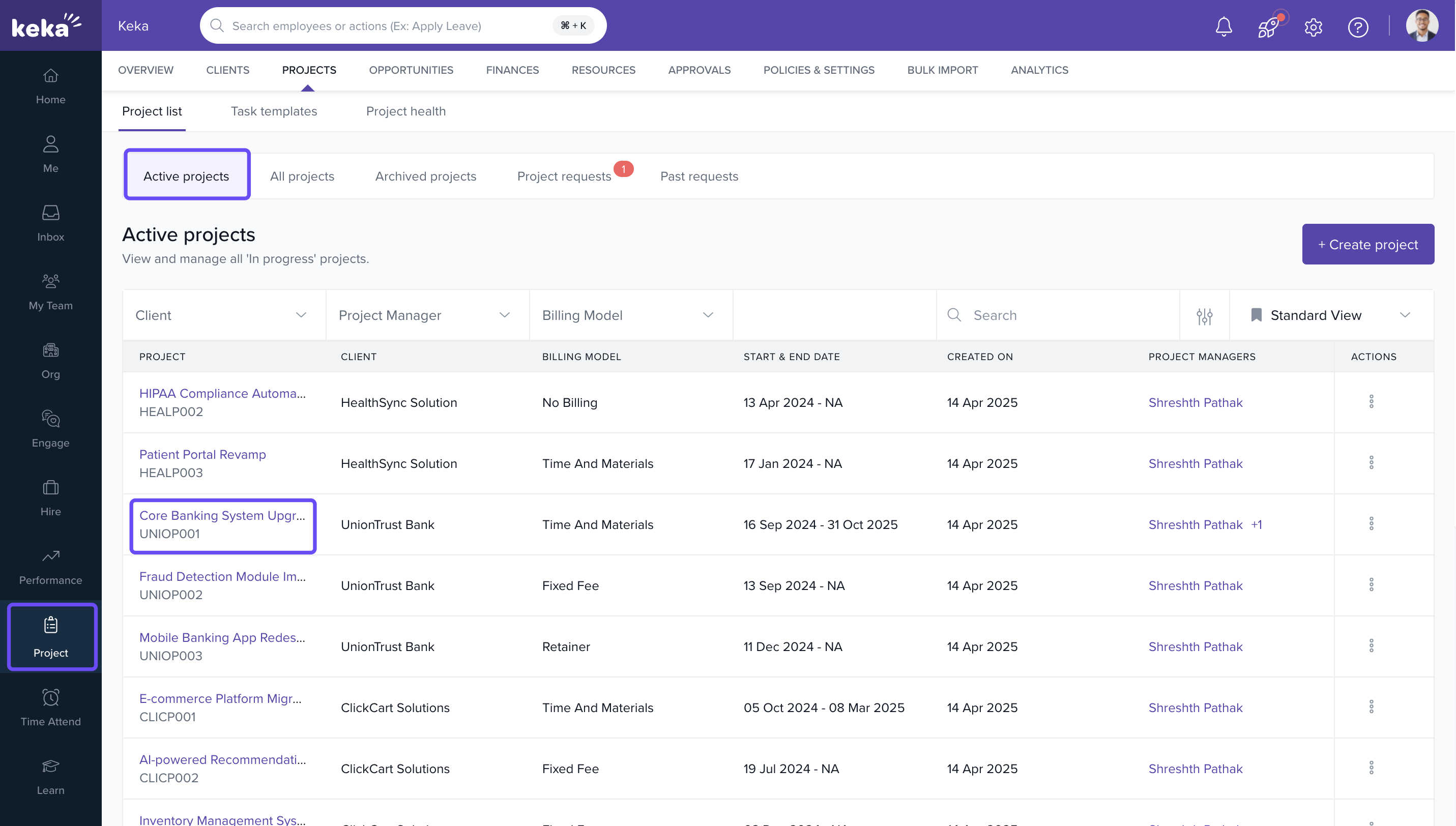
Navigate to the Projects Section
- Go to the Projects tab from the main navigation.
- Click on the Projects list.
- Under Active Projects, select the desired Project Name.
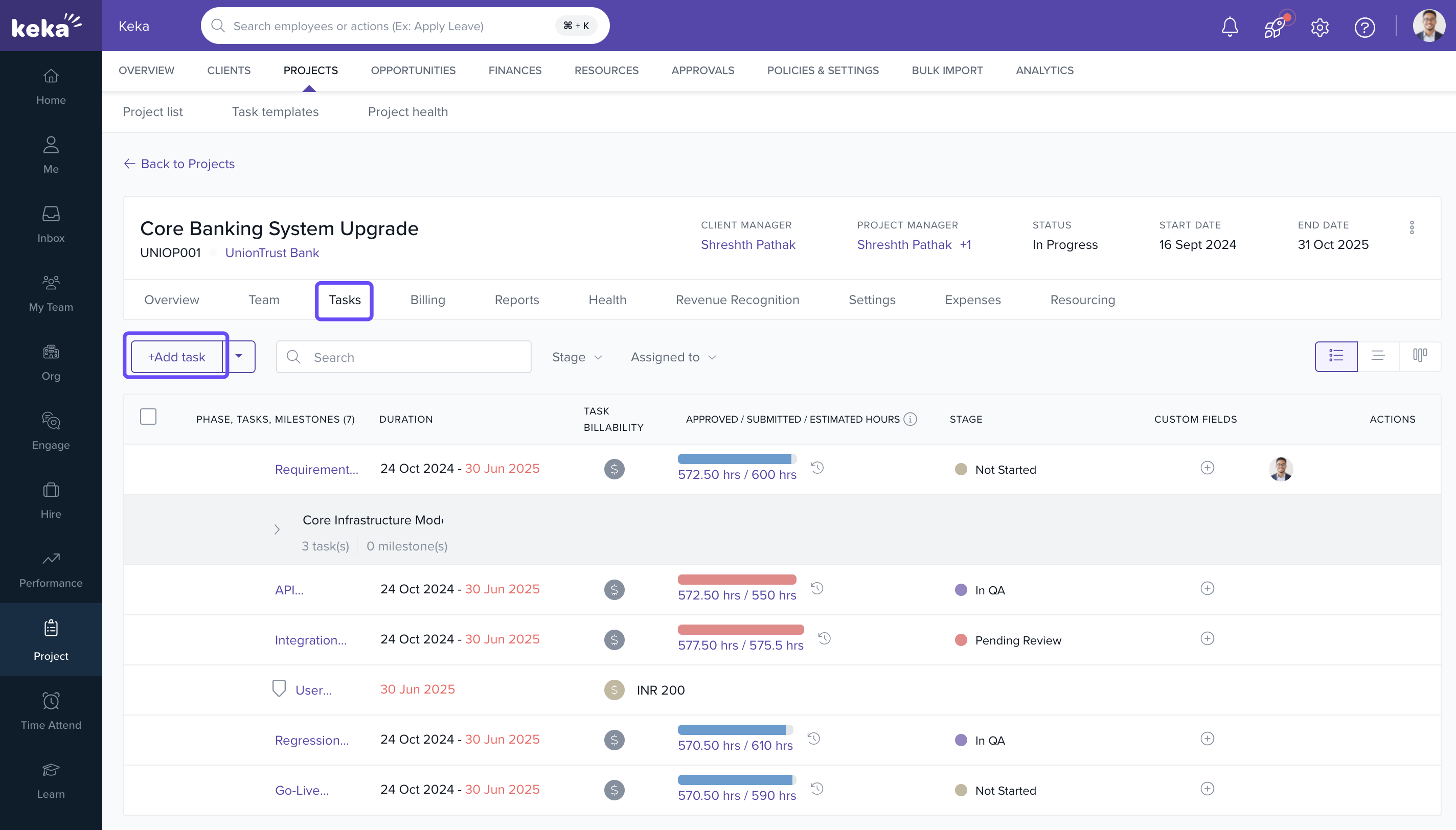
Access the Tasks Tab
- On the project details page, click on the Tasks tab.
- Click Add Task to open the Create Task window.
Fill in Task Details
- Enter the Task Name.
- Select the Stage of the task (optional).
- Assign the task to a Phase if applicable.
- Input Estimated Hours for task completion.
- Select the Billing Type.
- Set the Start and End Dates (Duration).
- Assign teammates under Assignees.
- Click create to add the task.
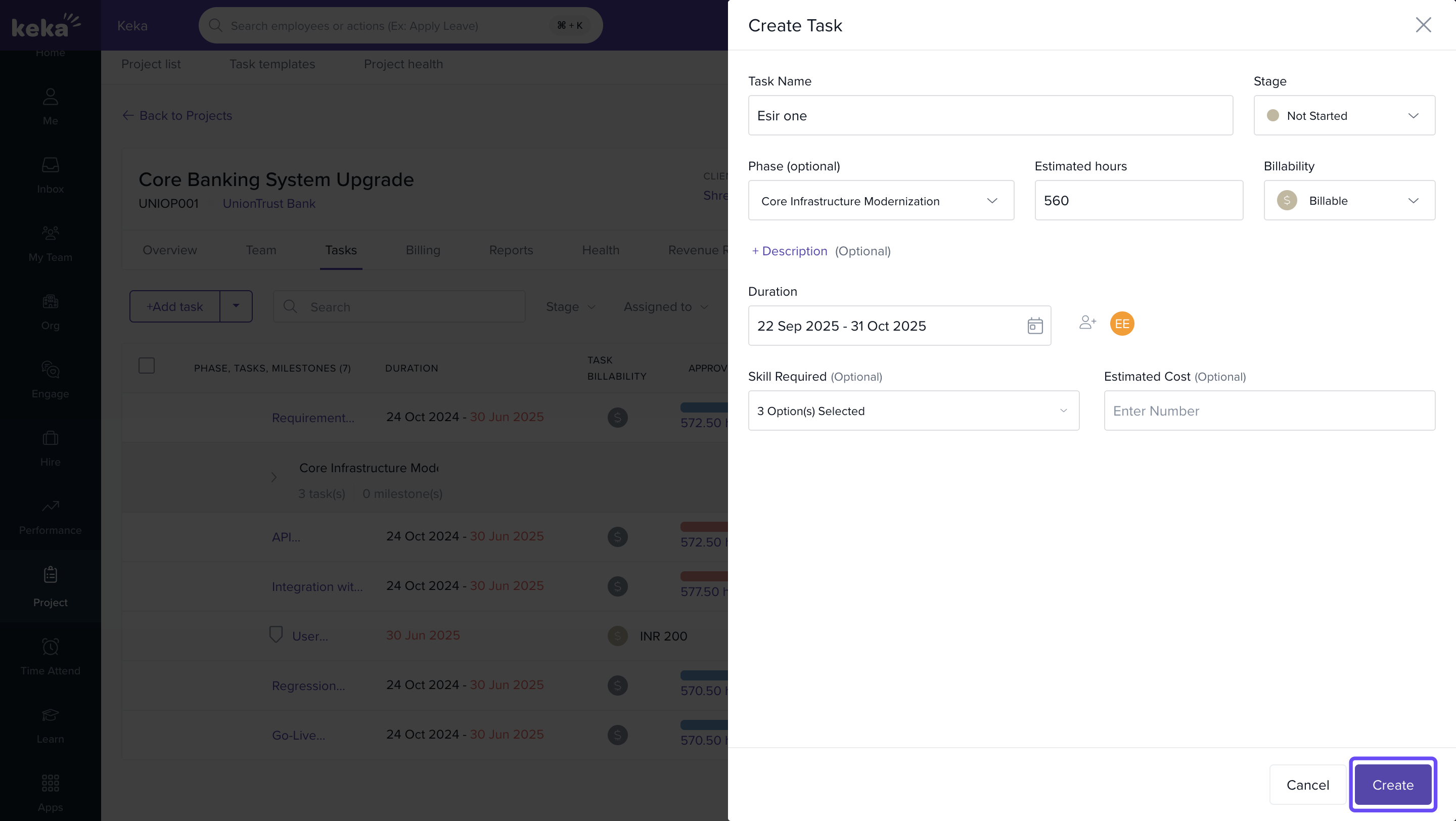
If timesheet logging is restricted to assignees, make sure relevant users are assigned here.
Add Tasks Within the Same Phase
Use the Add option next to any existing task in the phase to create a new task within the same structure.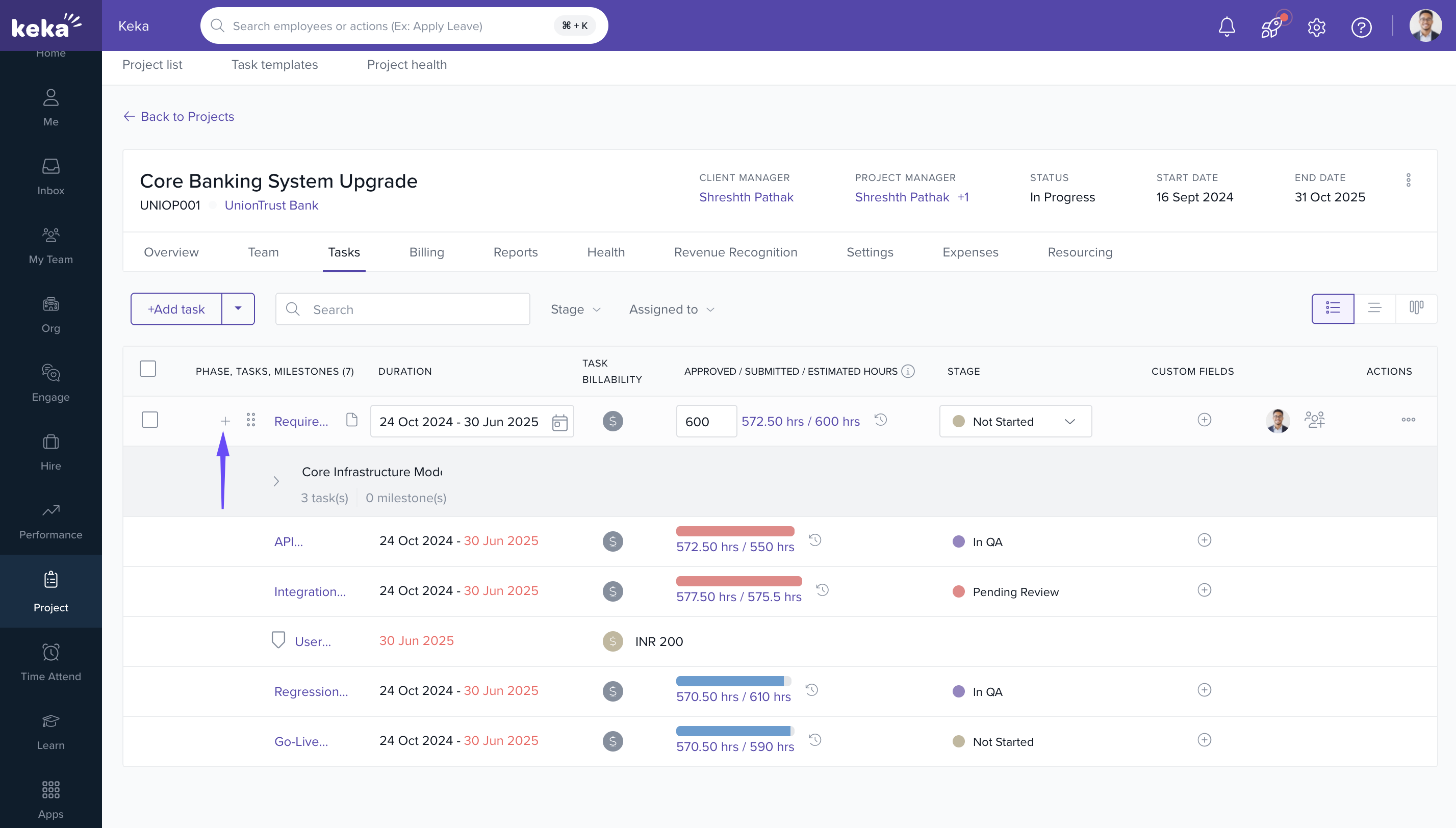
Import Tasks Using Templates
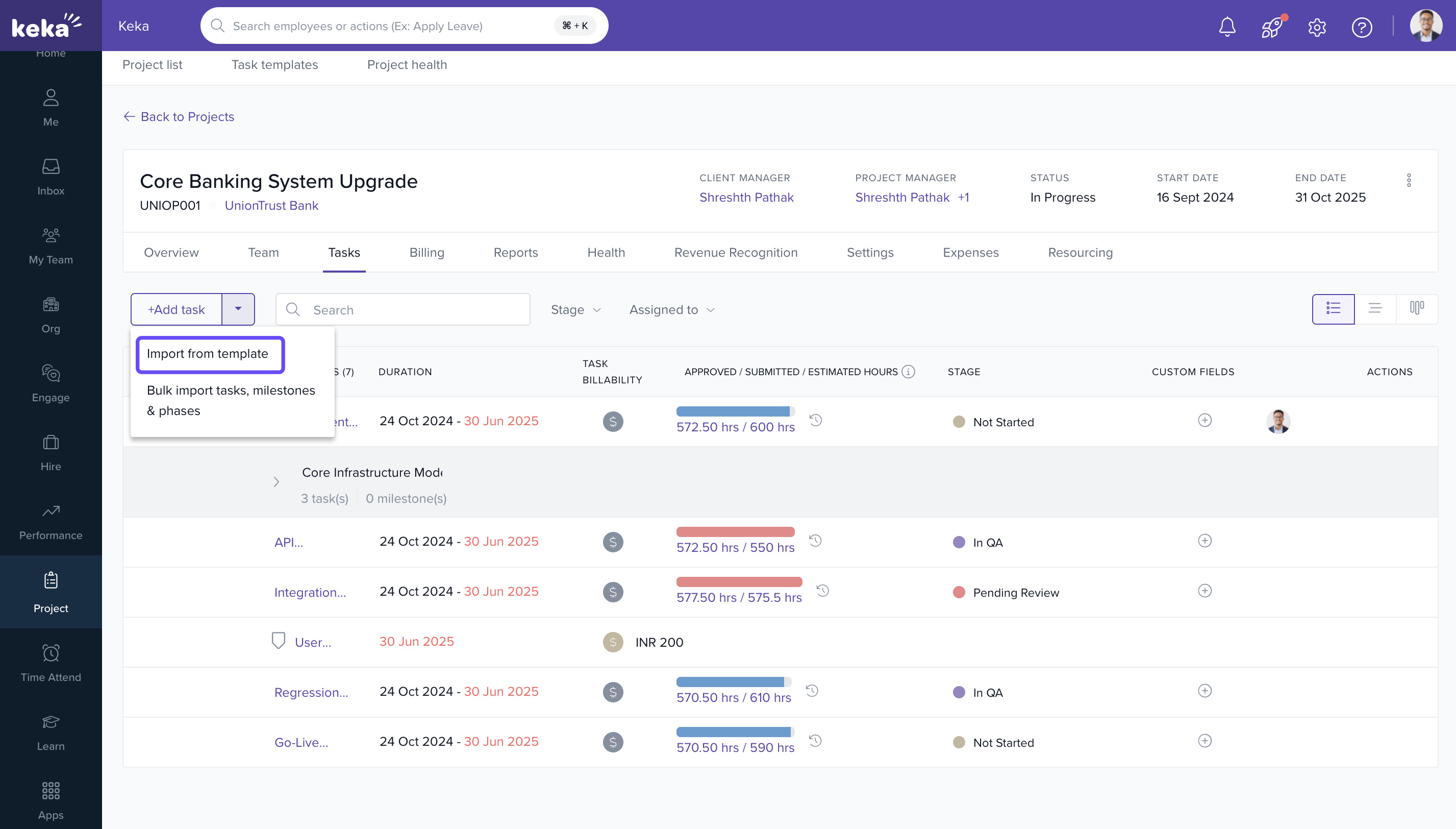
- Click the dropdown beside Add Task and select Import from Template.
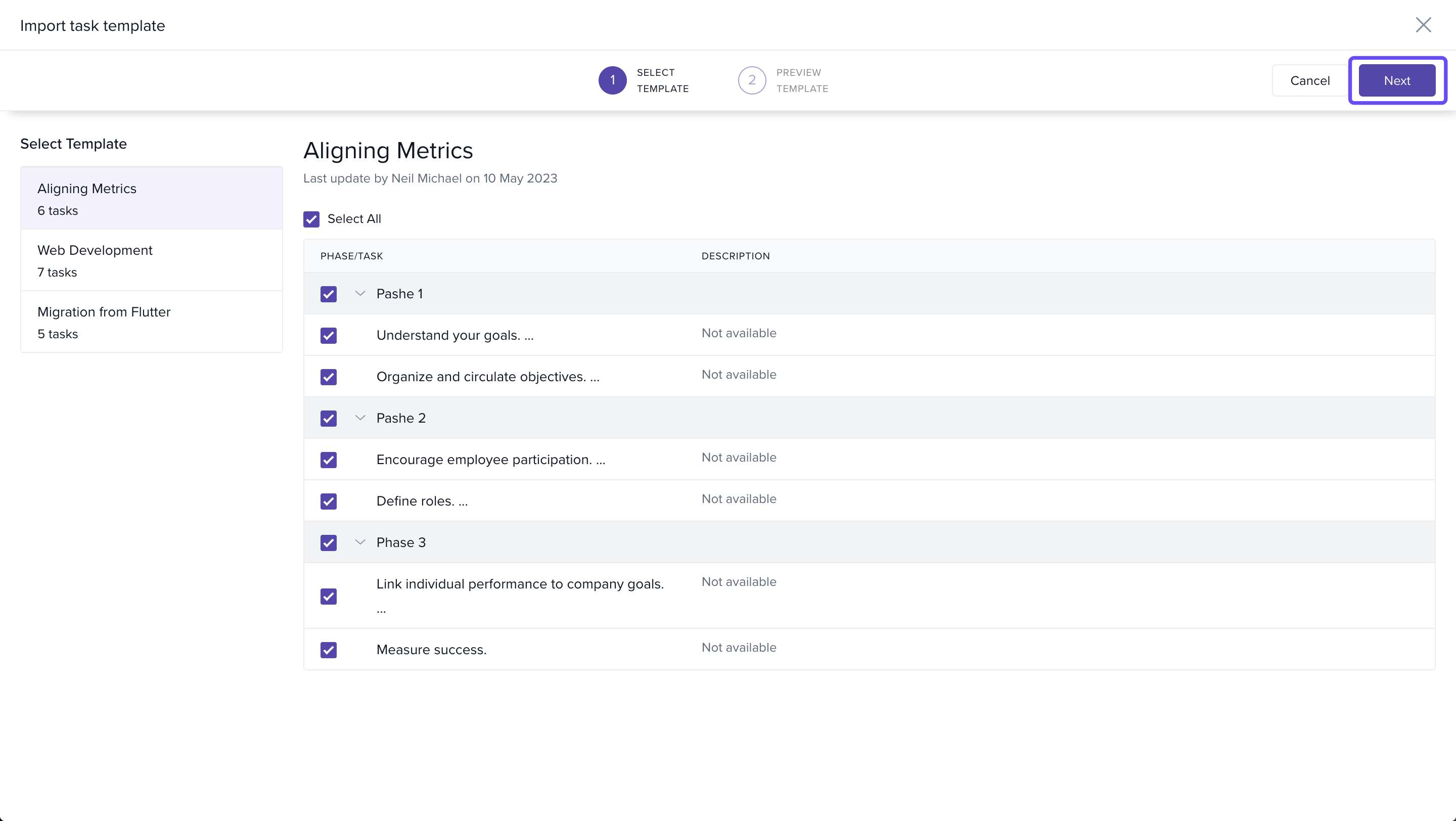
- Choose a template from the Select Template list.
- Check the boxes next to tasks you want to import.
- Click Next.
Preview and Finalize Imported Tasks
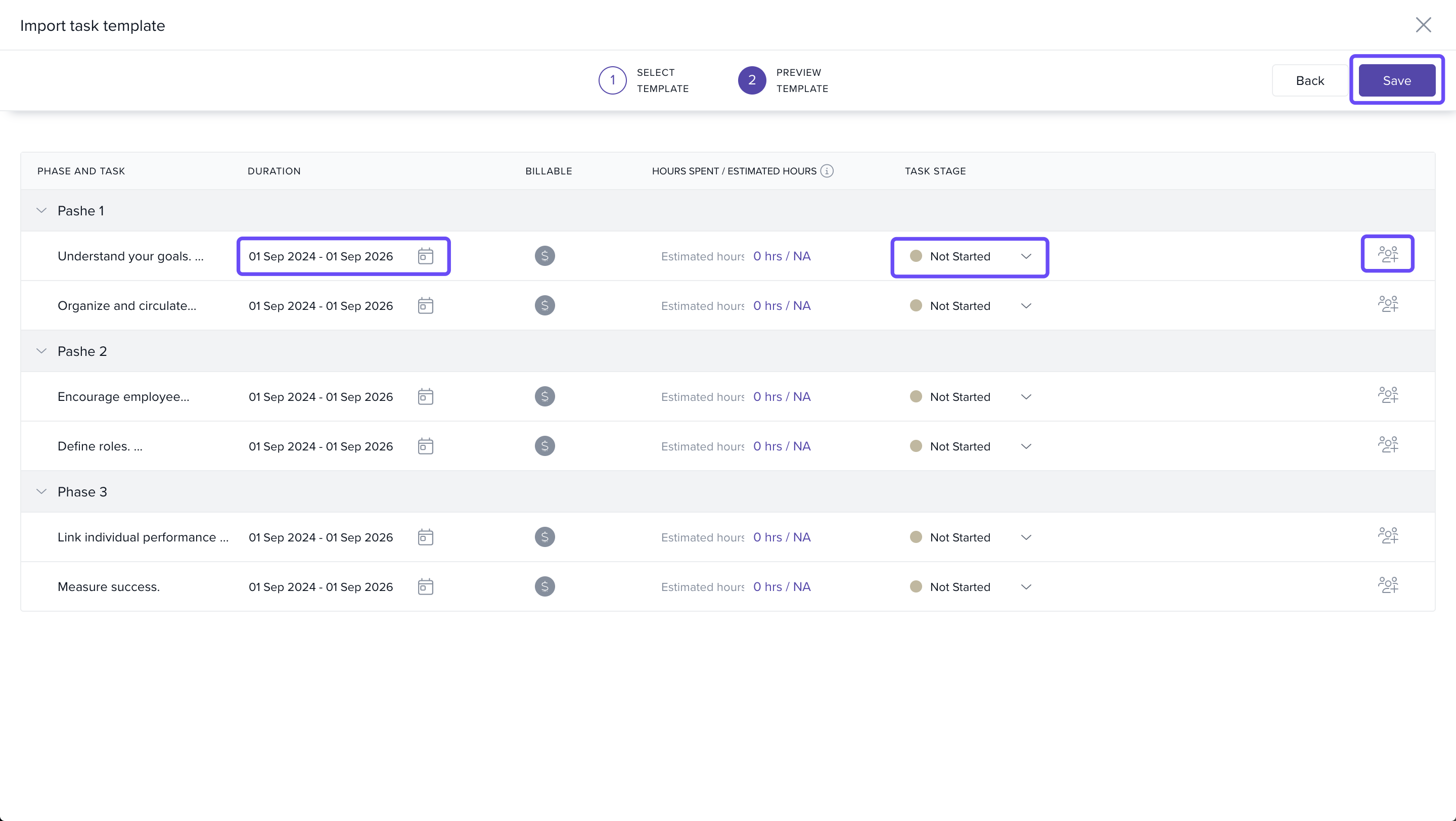
- In the Preview Template tab, review your selected tasks.
- Set the Duration (start and end dates) for each task.
- Assign Teammates to each task if required.
- Click Save to import all selected tasks into the project.
Tips
- Use task templates to standardize frequently repeated workflows.
- Visualize task progress and dependencies using the Gantt chart view.
- Regularly update task stages, durations, and assignees to reflect real-time progress.
- To enable team members to create their own tasks, assign the Create and Manage Own Task permission from role settings.
FAQs
Q: Can I assign multiple assignees to a task?
A: Yes. You can assign more than one teammate while creating or editing a task.
Q: Can tasks be moved between phases?
A: Yes. Tasks can be reassigned to different phases by editing them.
Q: Can I track time only for tasks assigned to me?
A: That depends on your project settings. If timesheet logging is restricted, only assignees can log time.
Q: Are task templates customizable?
A: Yes. Admins can configure task templates for reuse across multiple projects.
Comments
0 comments
Please sign in to leave a comment.