Overview
Properly configuring a project in Keka PSA ensures you can fully utilize its features—ranging from billing and resource allocation to task management and timesheet tracking. Once a project is created, users can set up billing types, define the project team, and add tasks. This article provides a step-by-step guide to configuring a new project, including billing setup, resource assignment, and task creation.
Who can do this?
- PSA Admins
- Global Admins
- Client Managers
- Users with permission to edit project configurations
Pre-requisites
- The project must be created and visible in the Projects list.
- The user must have manage project permissions
- Billing preferences (if applicable) must be decided during project creation.
Step-by-step instructions
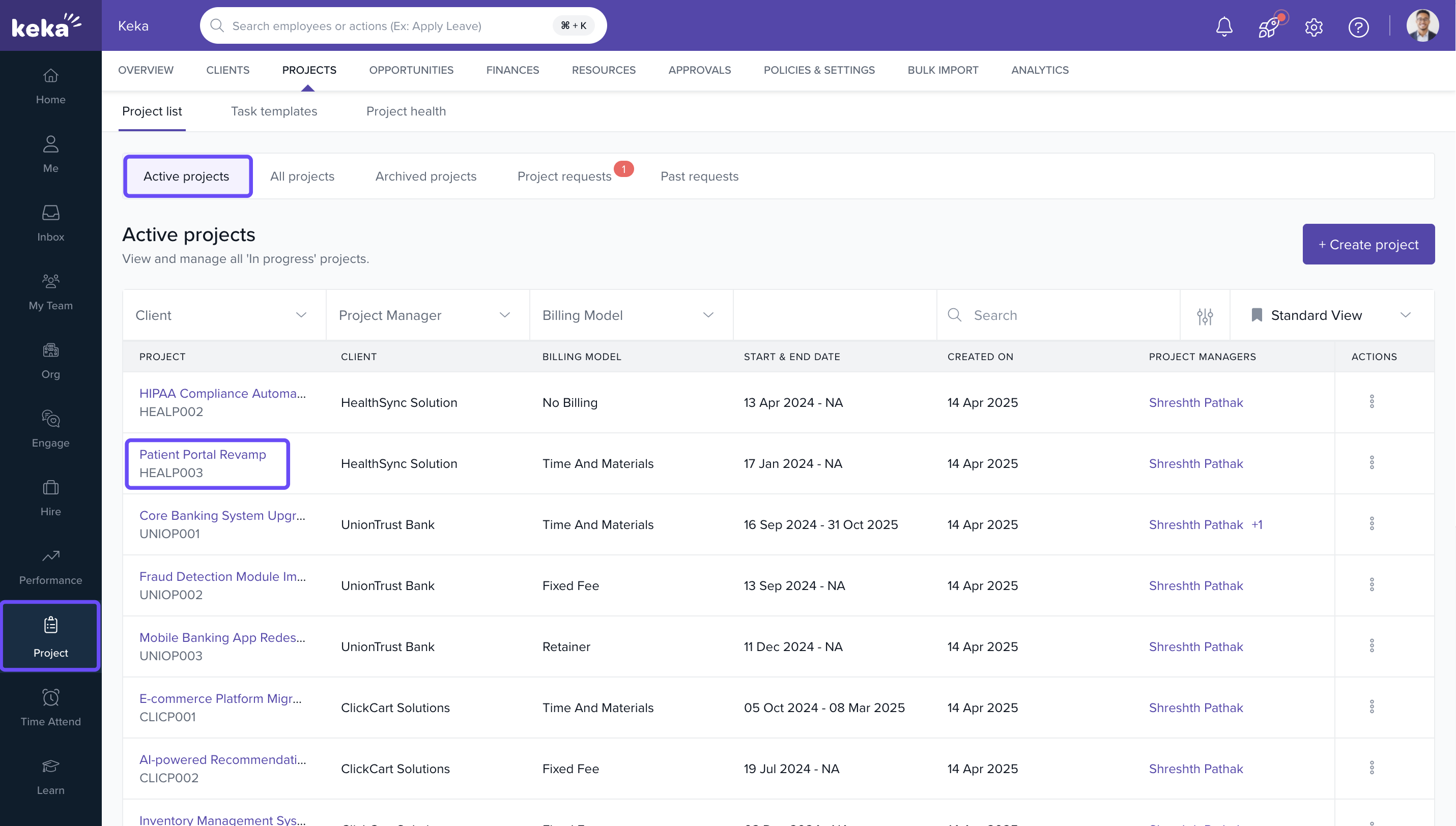
Locate your project
- Go to Projects >> All Projects.
- Switch to the appropriate tab based on project status:
- In Progress projects: Found under the Active Projects tab.
- Not Yet Started or other statuses: Found under All Projects.
-
Click on the project name to open its configuration page.
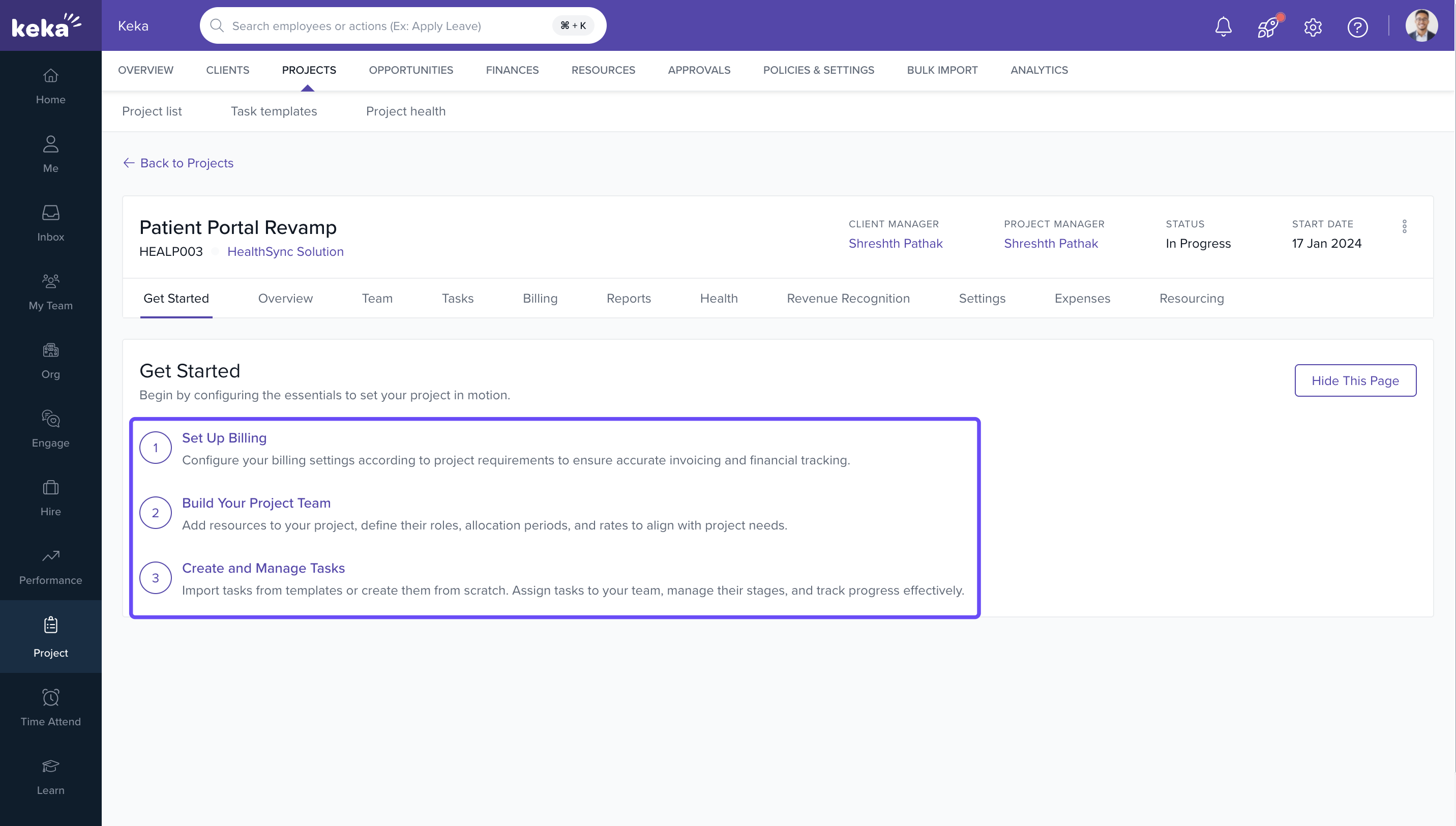
Begin project setup
- Upon opening the project, you will land on the Get Started tab. You can remove this tab by clicking on hide this page.
-
You'll see three key configuration sections:
- Setup Billing
- Project Team
- Tasks
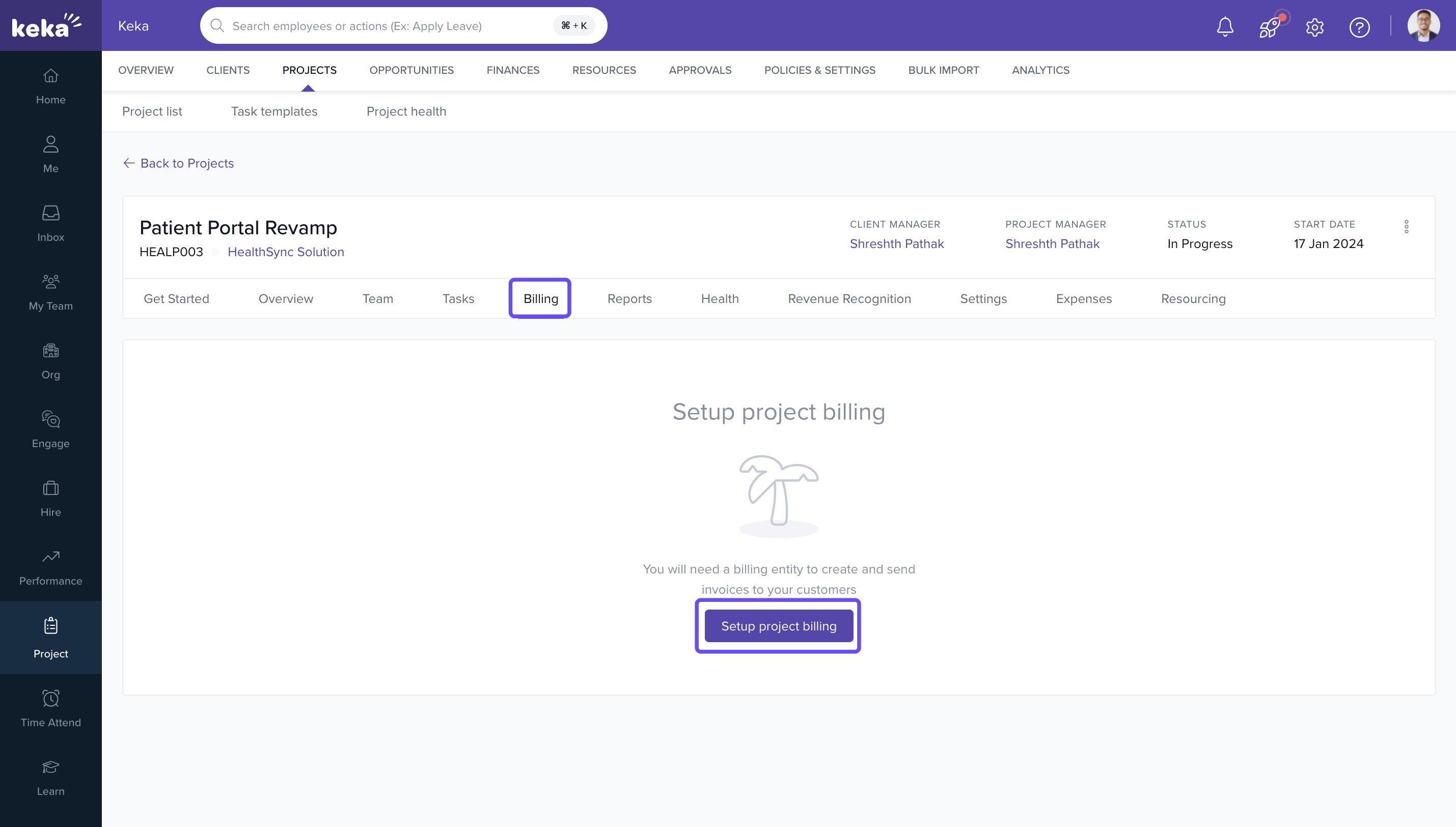
Setting up project billing
- From the Get Started tab, click on Setup Billing.
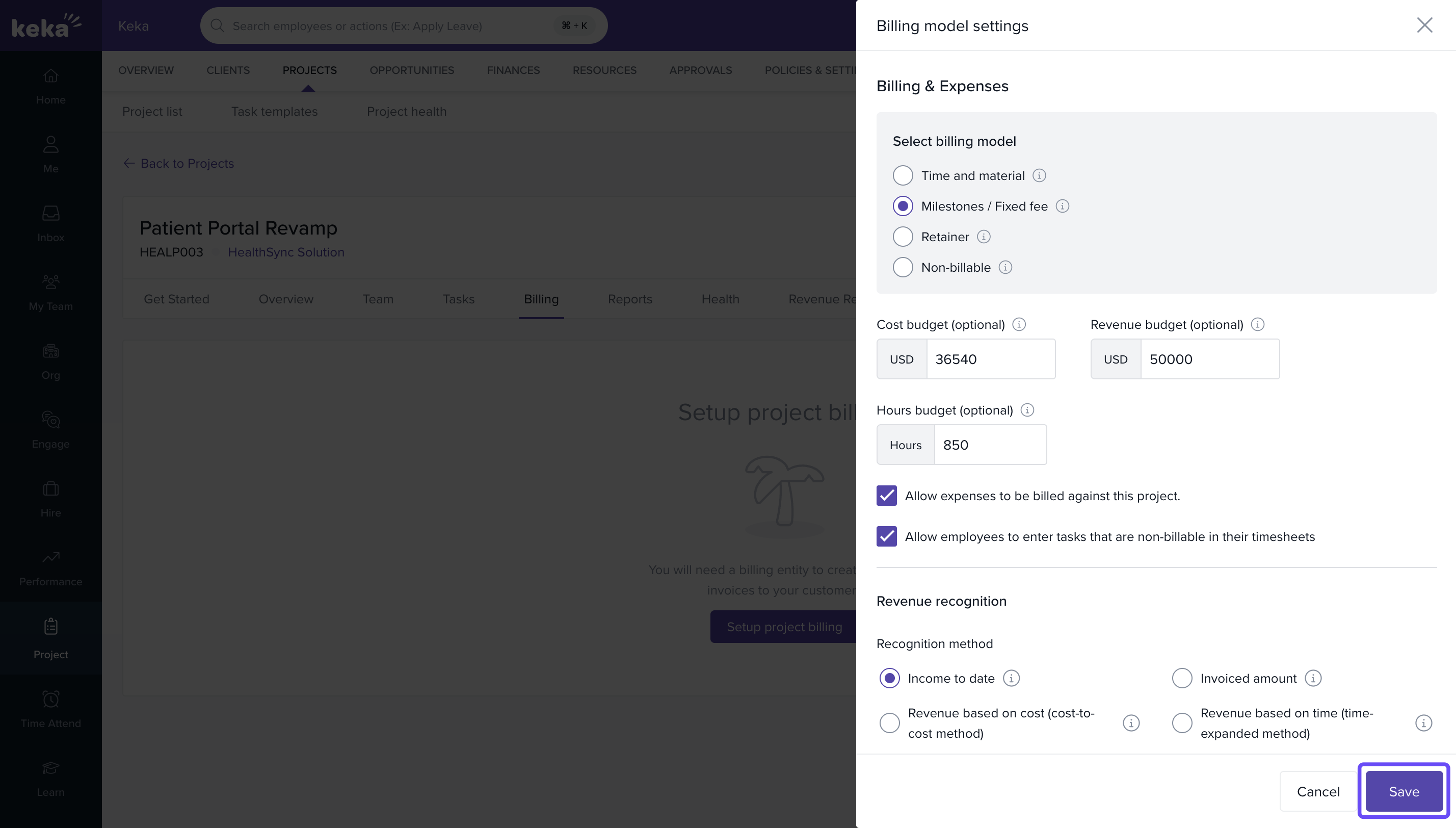
- On the Update Billing Settings page, you can:
- Enable/disable billing
- Choose billing type
- Allow/disallow non-billable tasks
- Permit employees to log expenses
- After making changes, click on save.
Note: If project is non billable, the setup billing will not be shown.
Adding resources to the project
- Go to the Project Team section or Team tab.
- Under Active Allocation, click on +Add Resource.
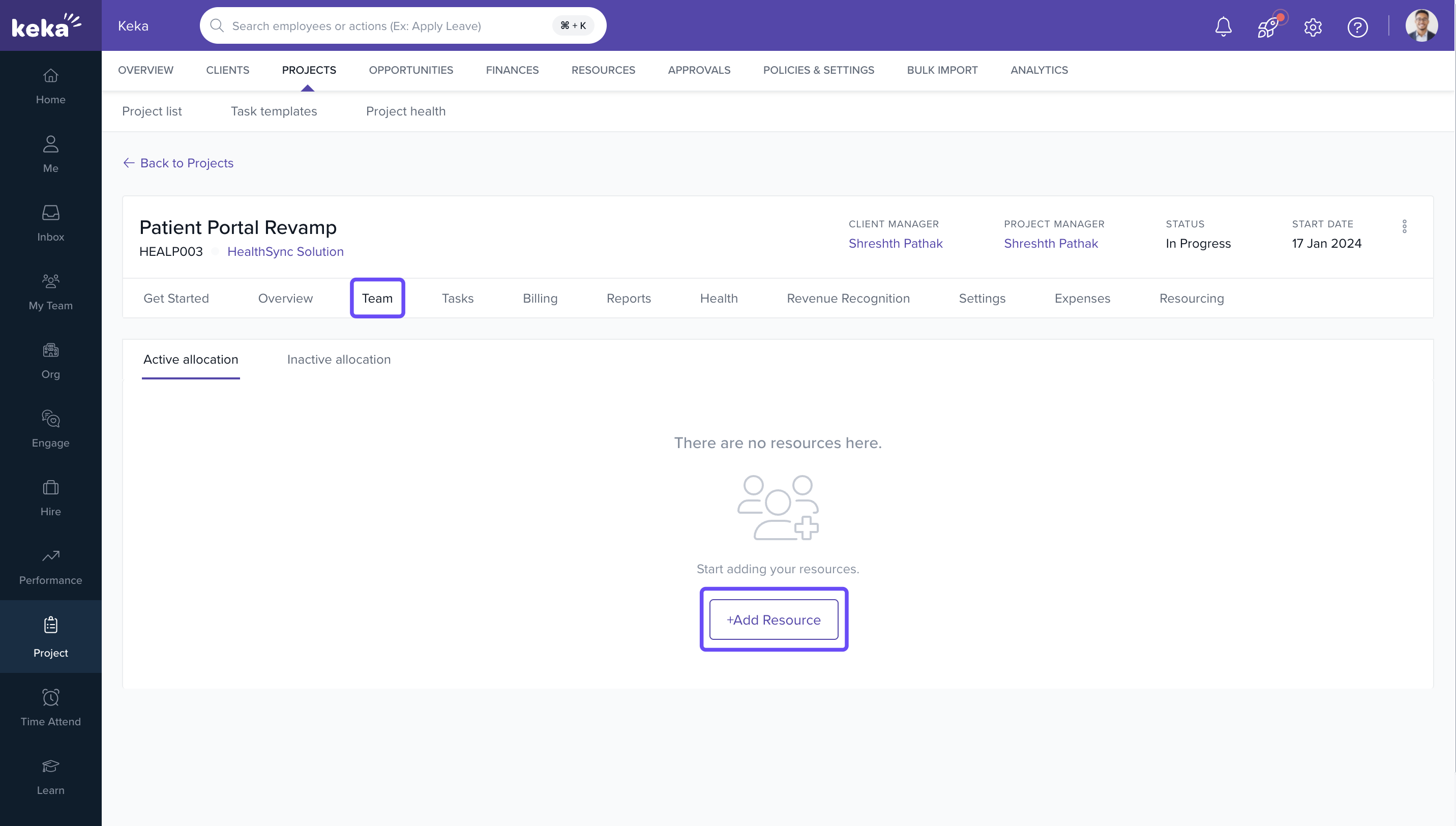
- On the Add Resource page:
- Search for and select the employee
- Set Allocation: Enter Start Date, End Date, and Allocation %
- Assign Billing Role from the dropdown (predefined in Billing settings)
- To add more resources, click on +Add Resource again.
- Once done, click on Add to confirm.
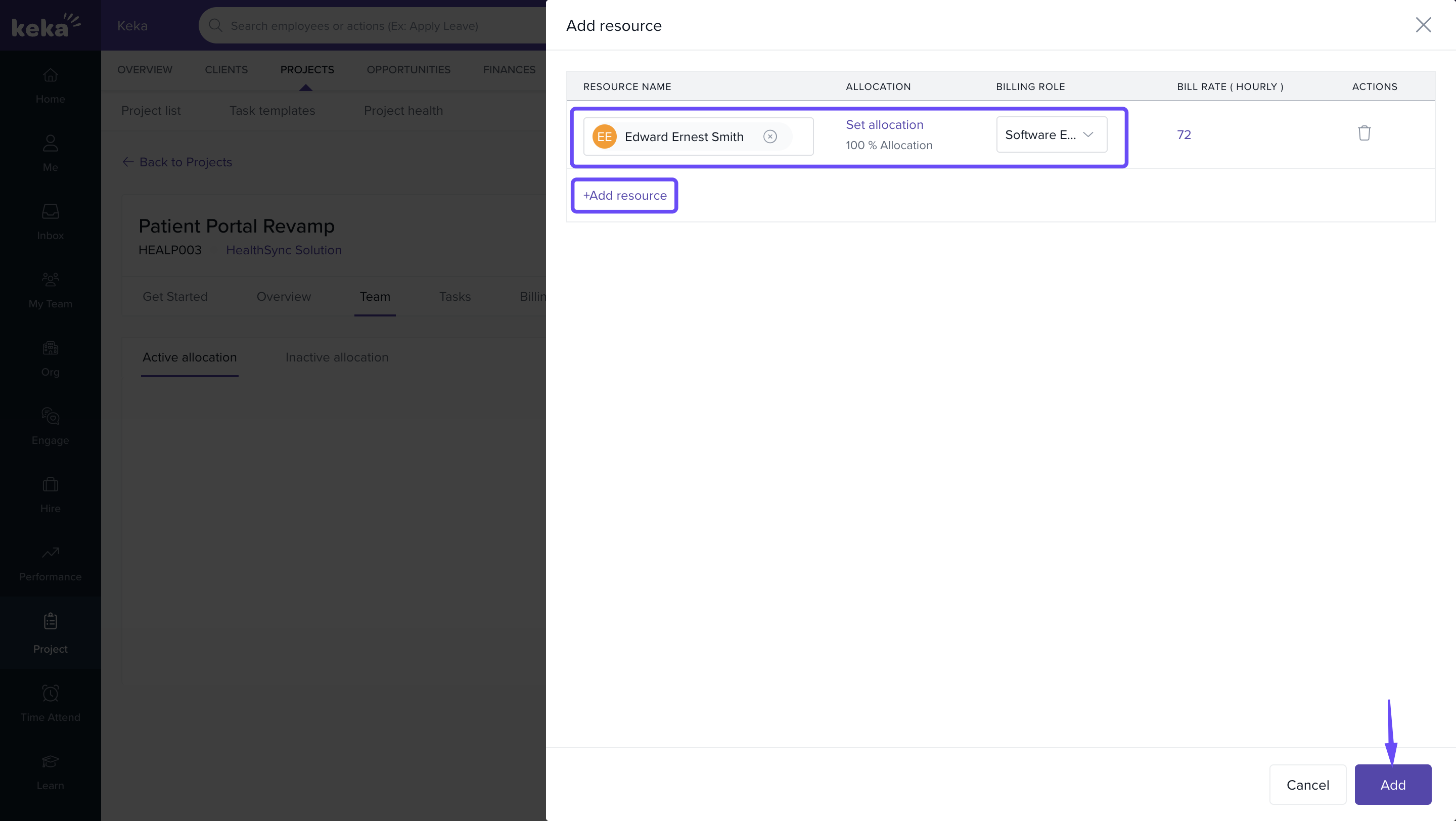
Note: Allocation allows part-time assignments and cross-project distribution.
Editing or removing a resource
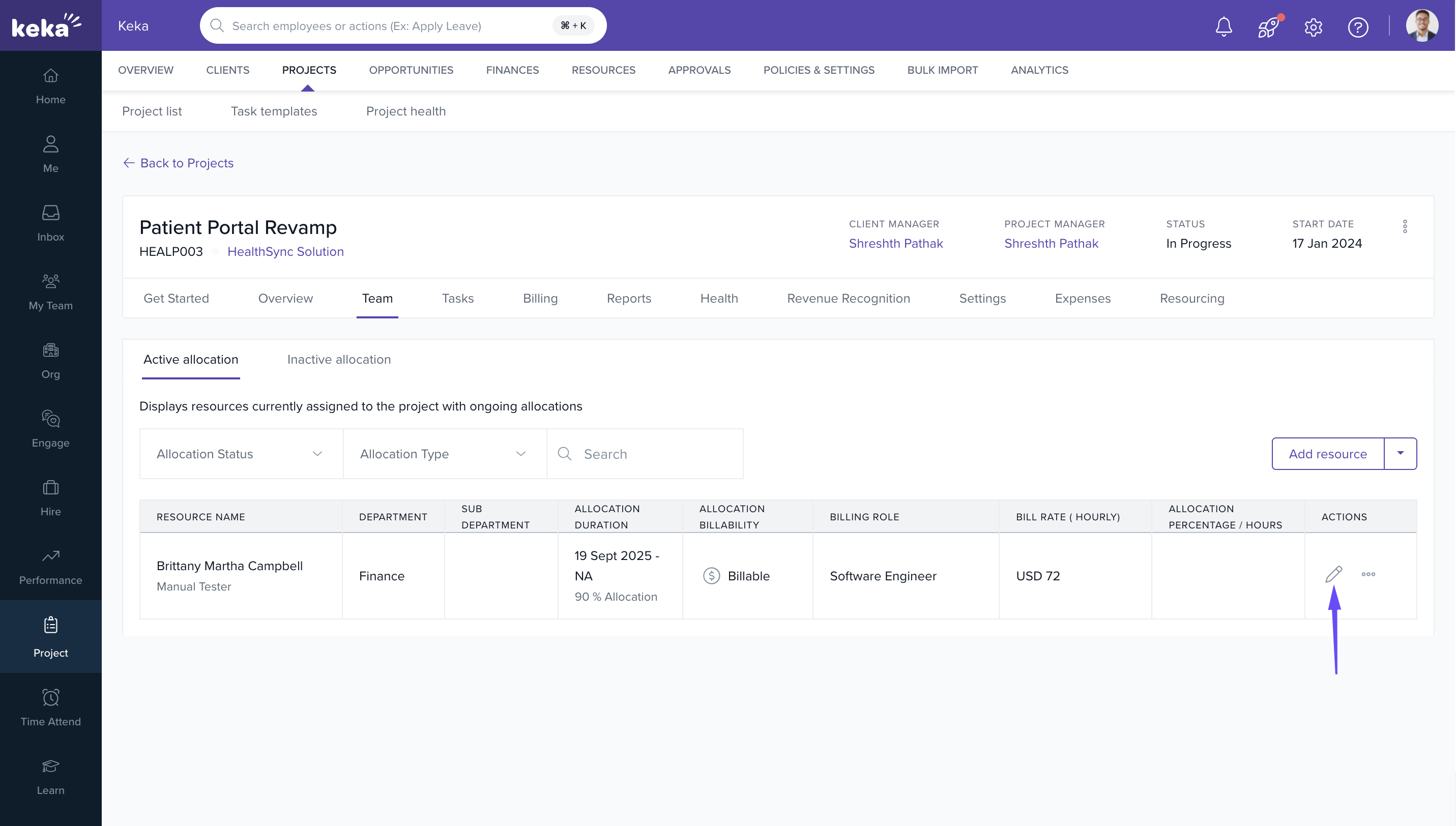
- To edit: Click on the Edit icon in the Actions column, make changes, then click on Tick mark.
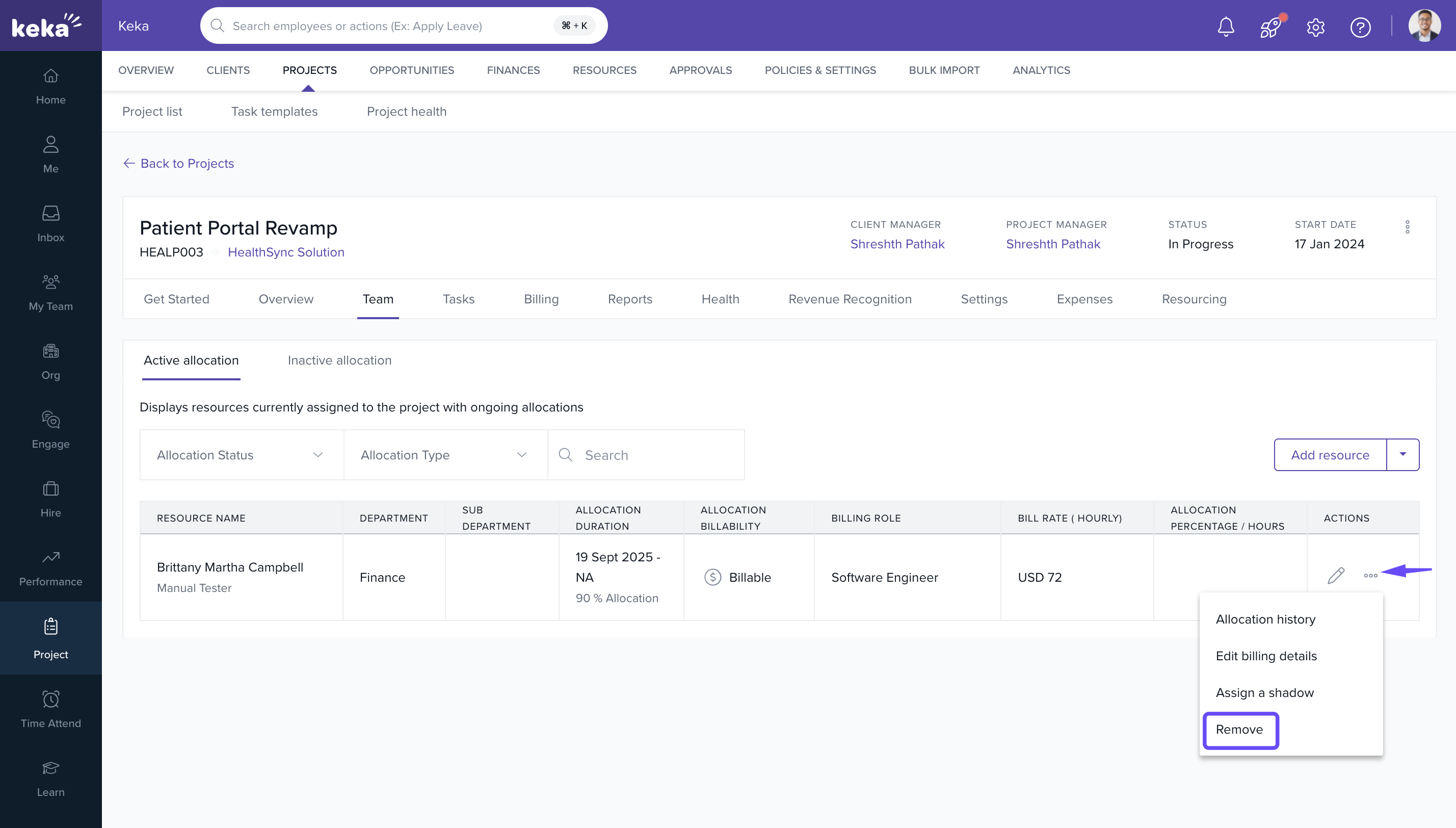
- To delete: Click on the 3 dots icon, then click Remove from dropdown.
2. If a project is added and "Everyone in the org can log time entries" setting is enabled, project team will be marked as completed automatically
Adding tasks to the project
- From the Get Started tab, click on Tasks or directly go to the Tasks tab.
- Add new tasks and specify:
- Task name
- Billable/non-billable status
- Estimated hours
- Status (e.g., Not Started, Completed)
- These tasks will appear in the timesheet interface and impact billing calculations.
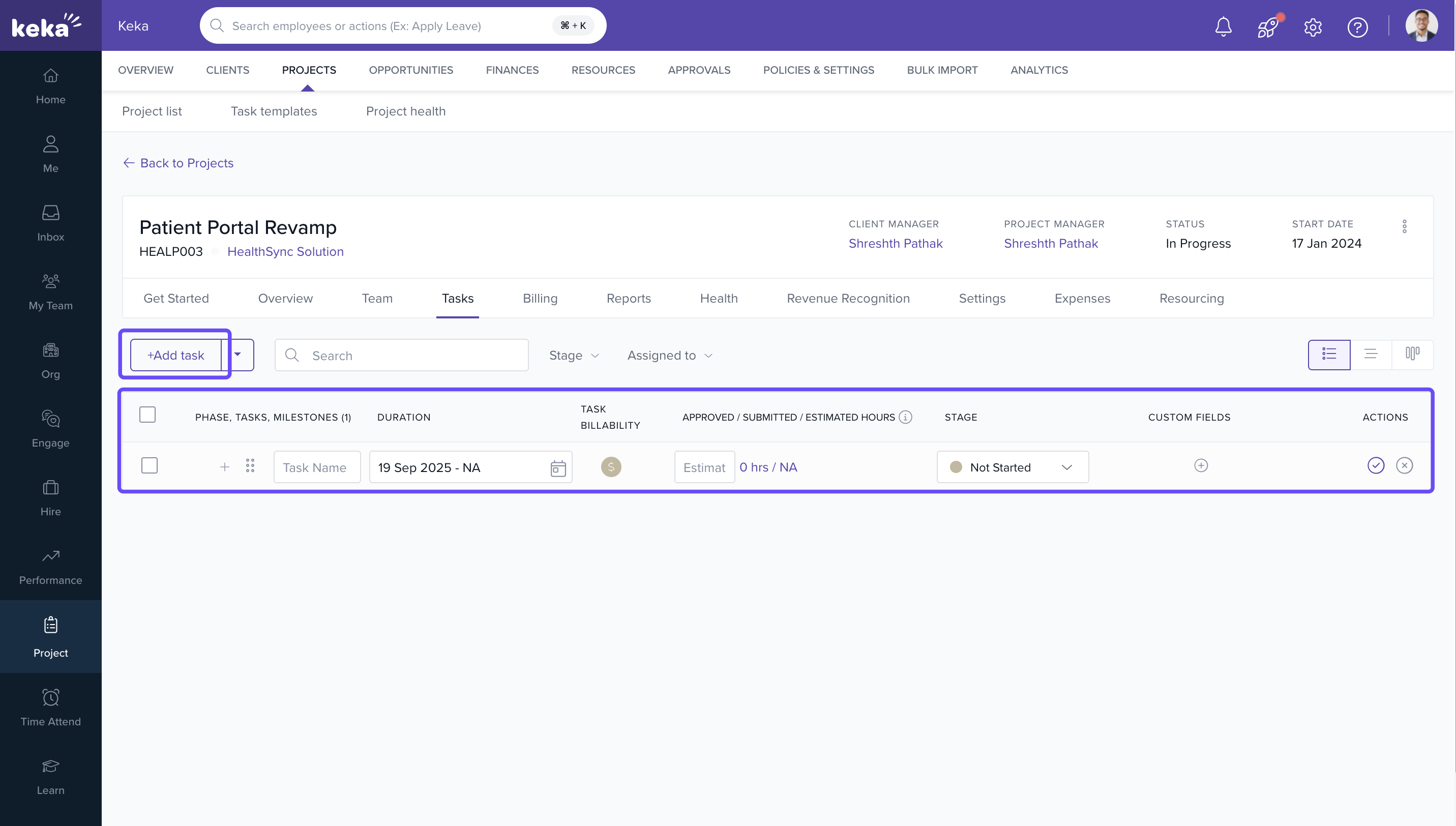
Note: If all tasks are deleted, the tasks part in get started will be marked as incomplete
How it connects with other modules
|
Module |
Integration Details |
|
Timesheets |
Task and resource setup defines time logging rules and billing eligibility. |
|
Invoices |
Billable tasks and effort estimate impact invoice generation. |
|
Projects |
Configuration defines how the project is tracked and reported. |
|
Employees |
Resource allocation data informs workload distribution and utilization reports. |
FAQs
Q: Can I configure billing after project creation?
A: Yes, billing can be enabled and edited via the Setup Billing section unless locked by policy.
Q: What if a resource needs to be assigned to multiple projects?
A: Use the Allocation % option to distribute the resource across multiple projects.
Q: Can I assign different billing roles to the same person for different projects?
A: Yes, billing roles are project-specific and can vary by assignment.
Q: What if I don’t want to bill a particular task?
A: Mark it as Non-Billable when creating or editing the task.
Troubleshooting
Project not found in Active tab?
- Check the All Projects tab if the status is Not Yet Started or On Hold.
Unable to update billing settings?
- You may lack edit permissions, or the billing is locked by admin policy.
Task not appearing in timesheets?
- Ensure the task is marked as active and assigned to at least one resource.
Resource not available in dropdown?
- Check if the employee is active and eligible for allocation.
Comments
0 comments
Please sign in to leave a comment.