Overview
In Keka PSA, "resources" refer to employees assigned to specific projects. Resource management allows project leads and admins to allocate team members, define their billing roles, and set flexible allocation percentages. This ensures optimal workload distribution and billing accuracy. Additionally, you can assign shadow resources to support senior team members by sharing tasks and responsibilities.
Who can do this?
- PSA Admins
- Global Admins
- Users with edit project privileges.
Pre-requisites
- The project must be created and accessible in the Projects list.
- Billing roles must be predefined in the Billing section (for role-based assignment).
Adding a resource to a project
- Go to Projects >> All Projects.
-
Click on the project name to open its details.
- If the status is In Progress, check under the Active Projects tab.
- If it's Not Yet Started, go to All Projects.
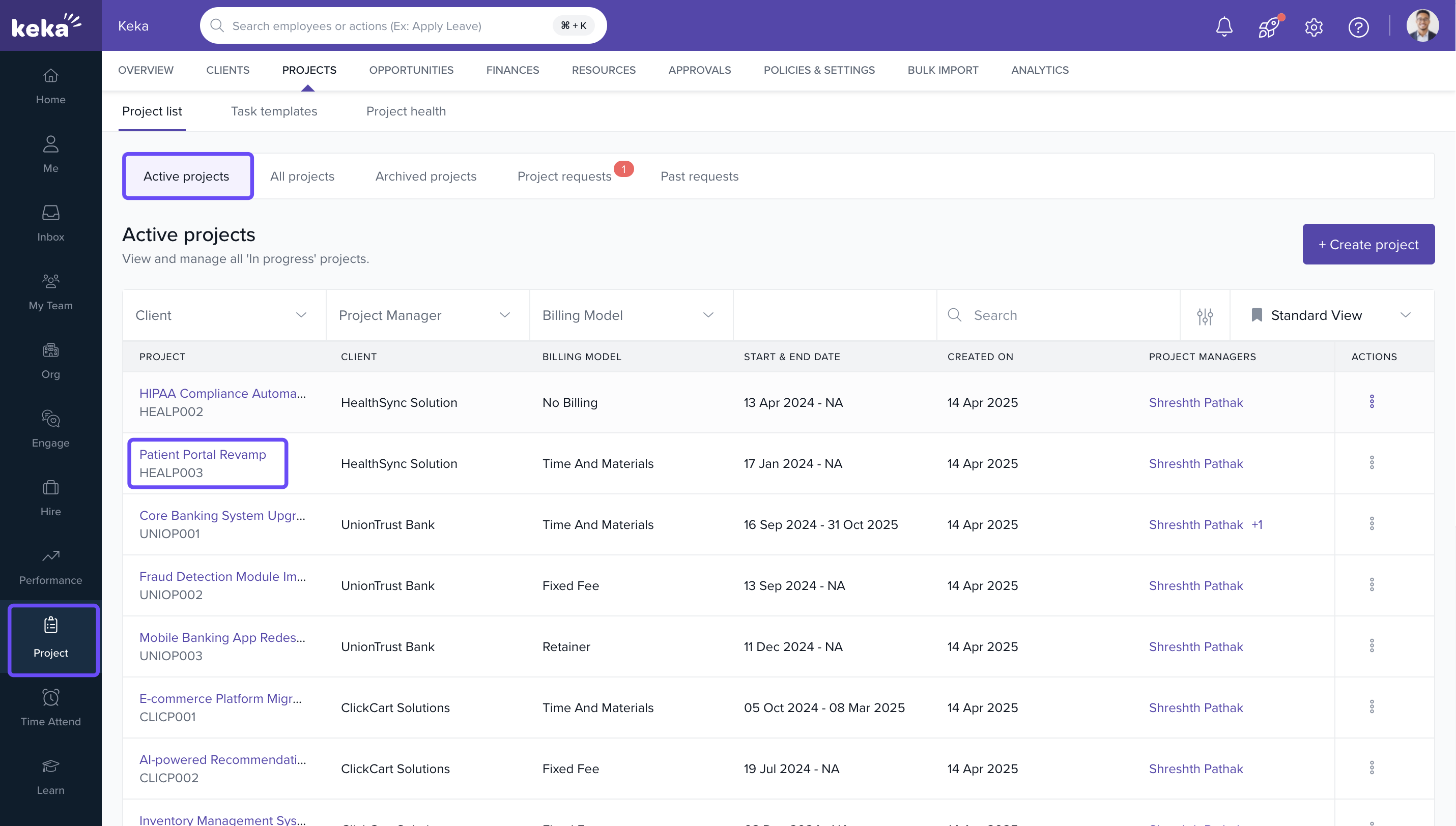
- For new projects: Navigate to the Get Started tab.
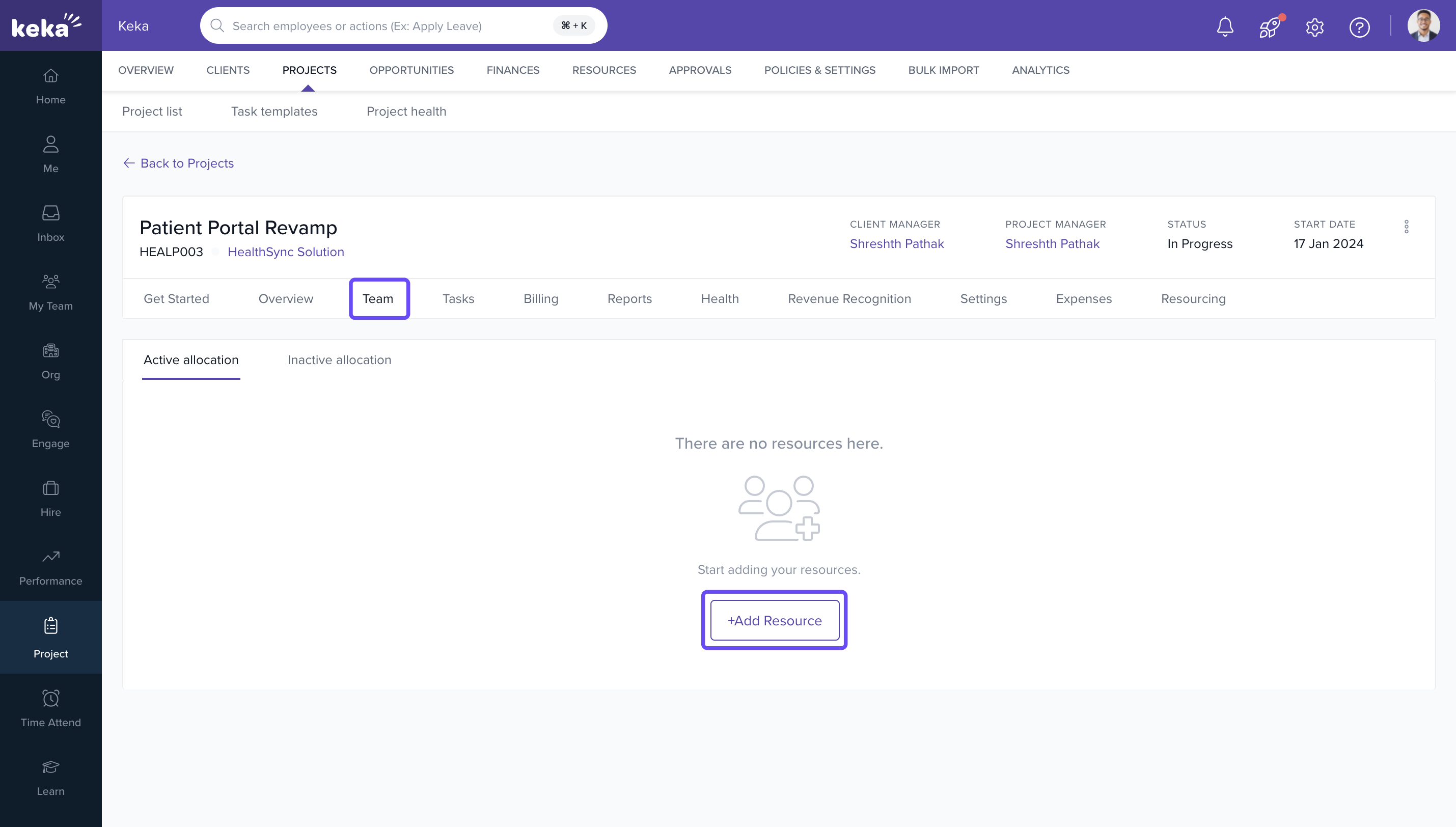
- For existing projects: Go directly to the Team tab.
- In the Active Allocation section, click on +Add Resource.
-
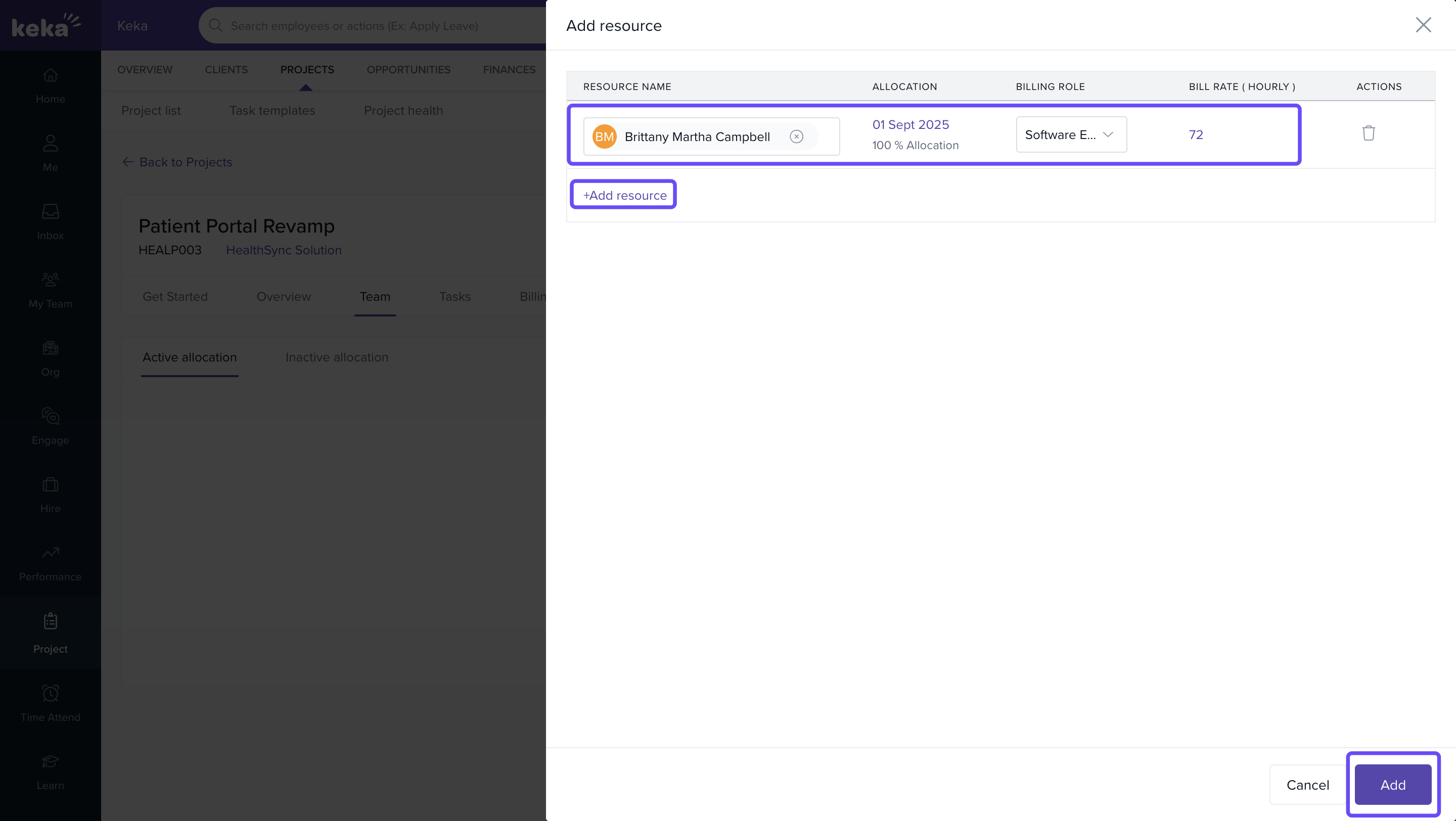
On the Add Resource page:
- Search for and select the employee.
- Click on Set Allocation:
- Choose Start Date and End Date (optional)
- Define the Allocation % (e.g., 25%, 50%, 100%) you can either select an allocation percentage from the drop down, or manually type a whole number between 0-100
- Choose the Allocation type.
- Select a billing role from the dropdown. Hourly rates will auto-populate based on the selected role. If the resource is added is non billable, hourly rate will be N/A
- To add more employees, click on +Add Resource again.
- Once all entries are complete, click on Add to save.
Note: Use partial allocation when resources are shared across multiple projects.
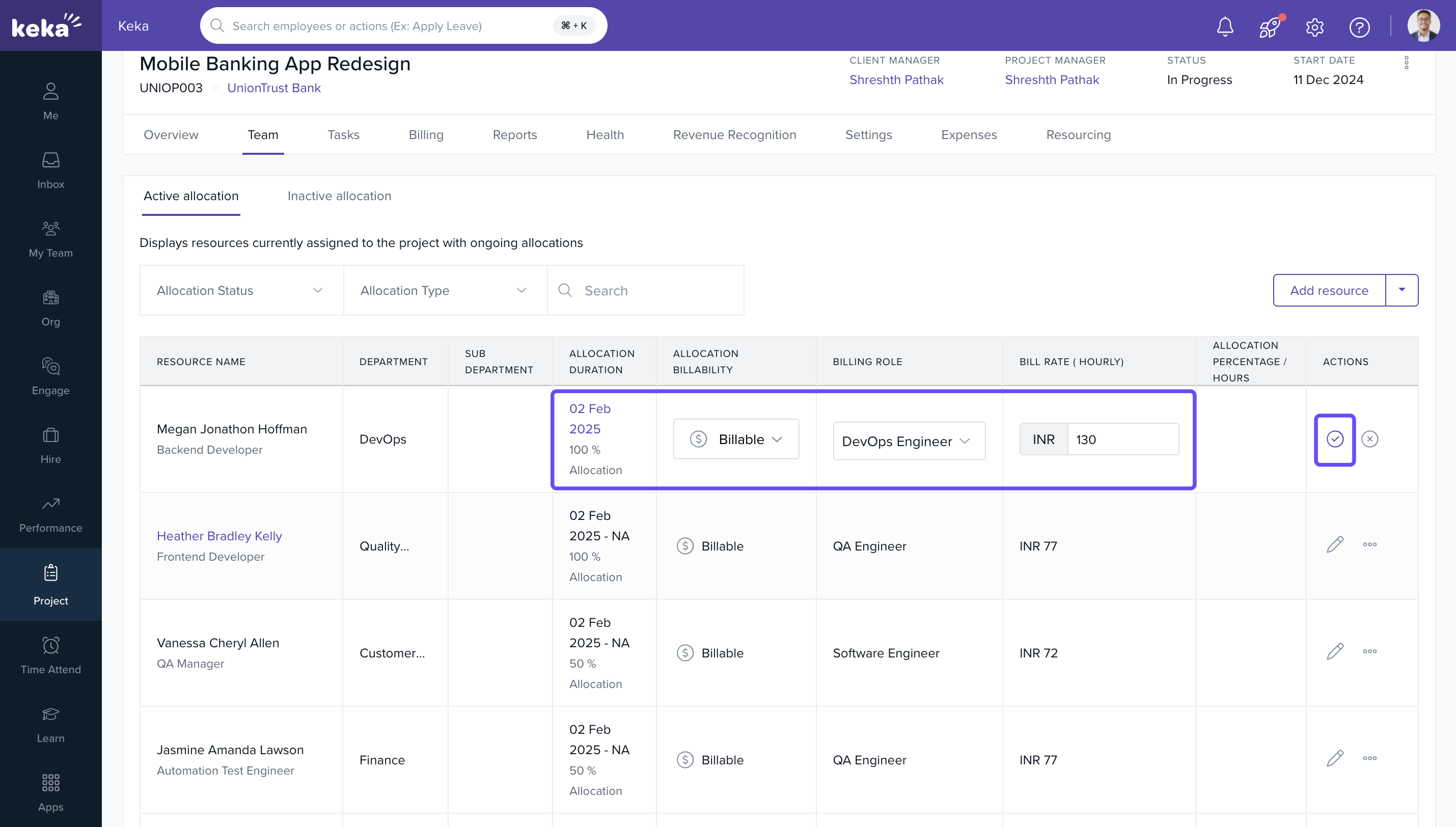
Editing resource details
- Navigate to the Team tab of the project.
- Locate the desired resource and click on the Edit icon in the Actions column.
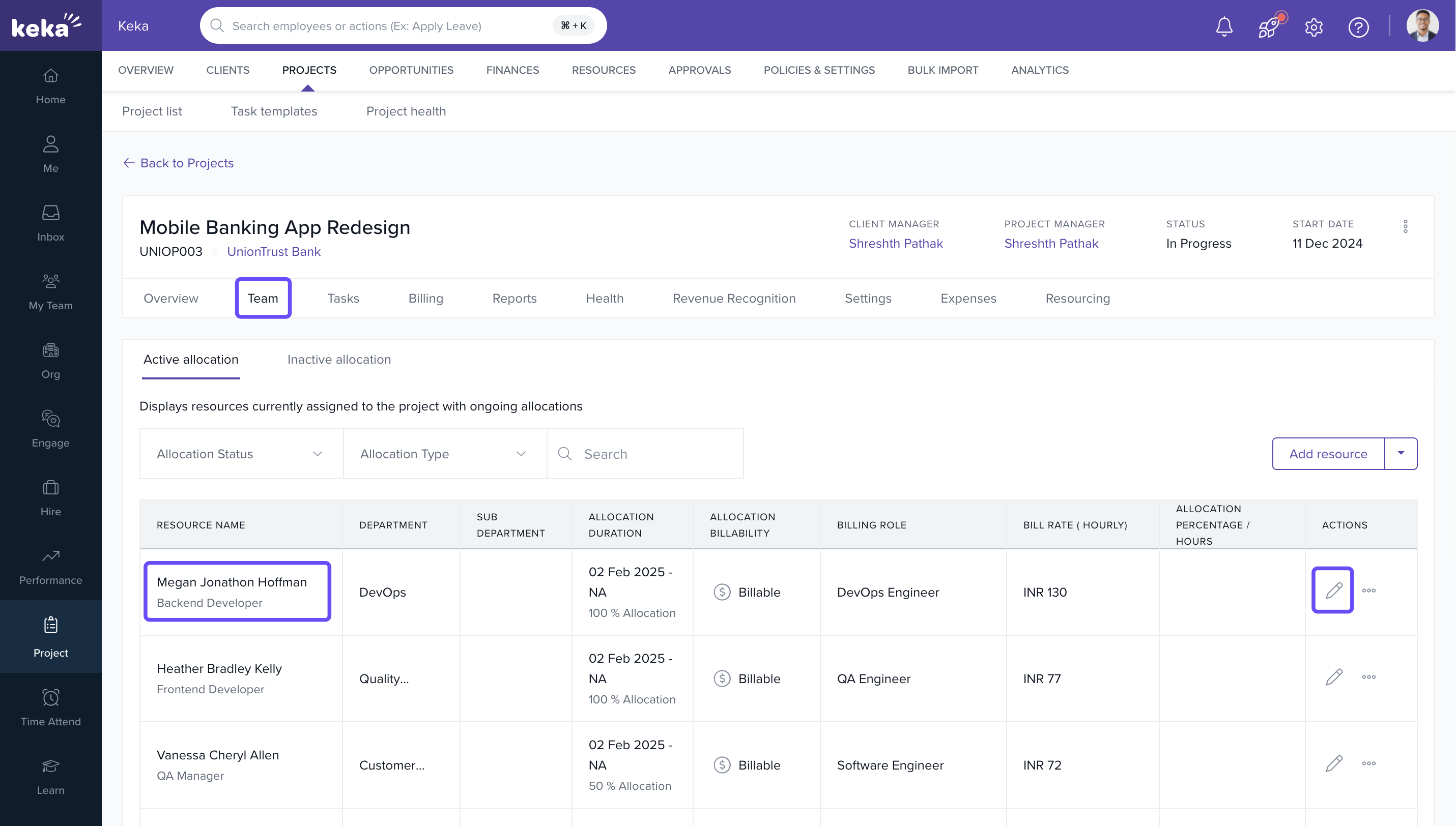
- Update the allocation start/end dates, percentage, billing role, or rate.
- Click on the Update icon to save changes.
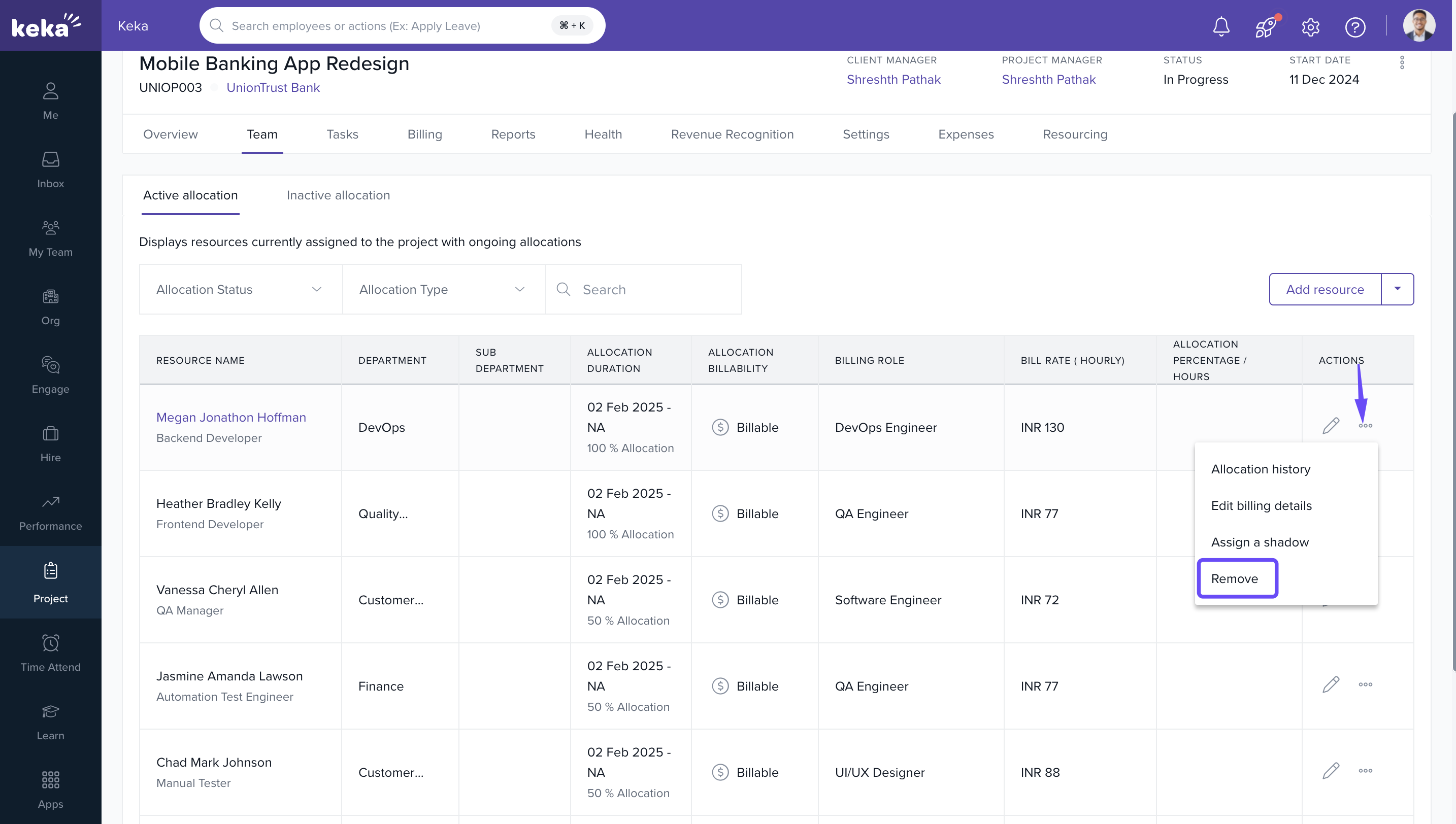
Removing a resource from a project
- Go to the Team tab within the project.
- Locate the resource to remove.
- Click on the three dots next to their name and choose Remove.
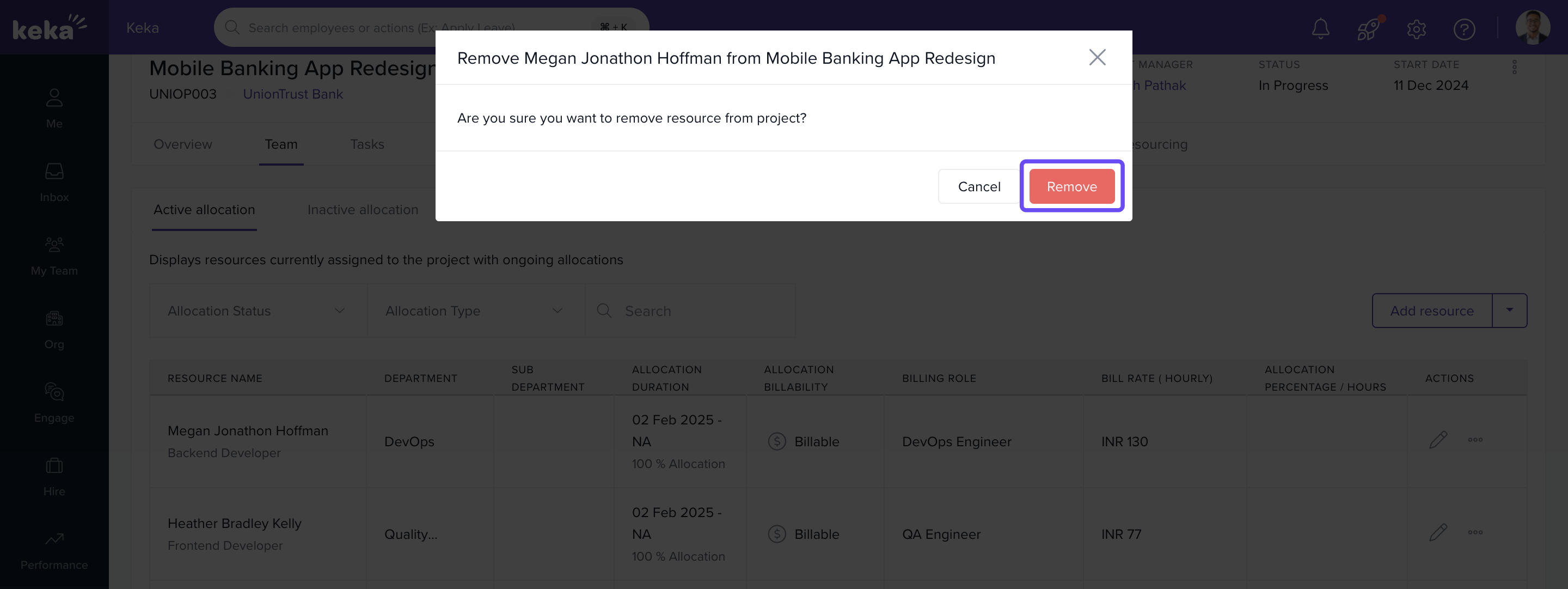
- In the confirmation window, click on Remove to finalize deletion.
How it connects with other modules
| Module | Integration Details |
|---|---|
| Timesheets | Assigned resources log hours tied to tasks and billing roles. |
| Invoices | Billable time from assigned resources feeds into client invoices. |
| Billing | Billing roles and rates defined during allocation are used for revenue calculation. |
| Utilization | Resource allocation % contributes to utilization and availability analytics. |
FAQs
Q: What is the allocation percentage?
A: It defines how much of the employee’s time is allocated to the project (e.g., 50% = half-time).
Q: Can I assign a resource to multiple projects?
A: Yes, use the allocation % to distribute their time across projects.
Q: What is a shadow resource?
A: A shadow resource supports a primary resource by handling similar tasks to share workload.
Q: Can billing roles differ per project?
A: Yes, roles are assigned on a per-project basis.
Troubleshooting
Can’t see the Add Resource button?
- Ensure you have permissions and that your plan includes Resource Management.
Resource not appearing in search?
- Check if the employee is active and not already allocated with conflicting availability.
Allocation not saving?
- Ensure all fields (dates, % allocation, role) are filled correctly.
Billing role not visible?
- Set up roles in the Billing section under Settings >> Billing Roles.
Comments
0 comments
Please sign in to leave a comment.