Overview
Task templates in Keka PSA enable organizations to predefine reusable sets of tasks and phases that can be applied across multiple projects. This promotes consistency, speeds up project setup, and reduces manual errors. Task templates help standardize workflows, improve communication, and allow project managers to focus on execution rather than setup.
Who can do this?
- PSA Admins
- Project Admins
- Global Admins with access to manage project templates
Pre-requisites
- Access to the Projects module
- Appropriate permissions to create templates
- Predefined task structures (optional, for importing via Excel)
Step-by-step instructions
How to create a task template
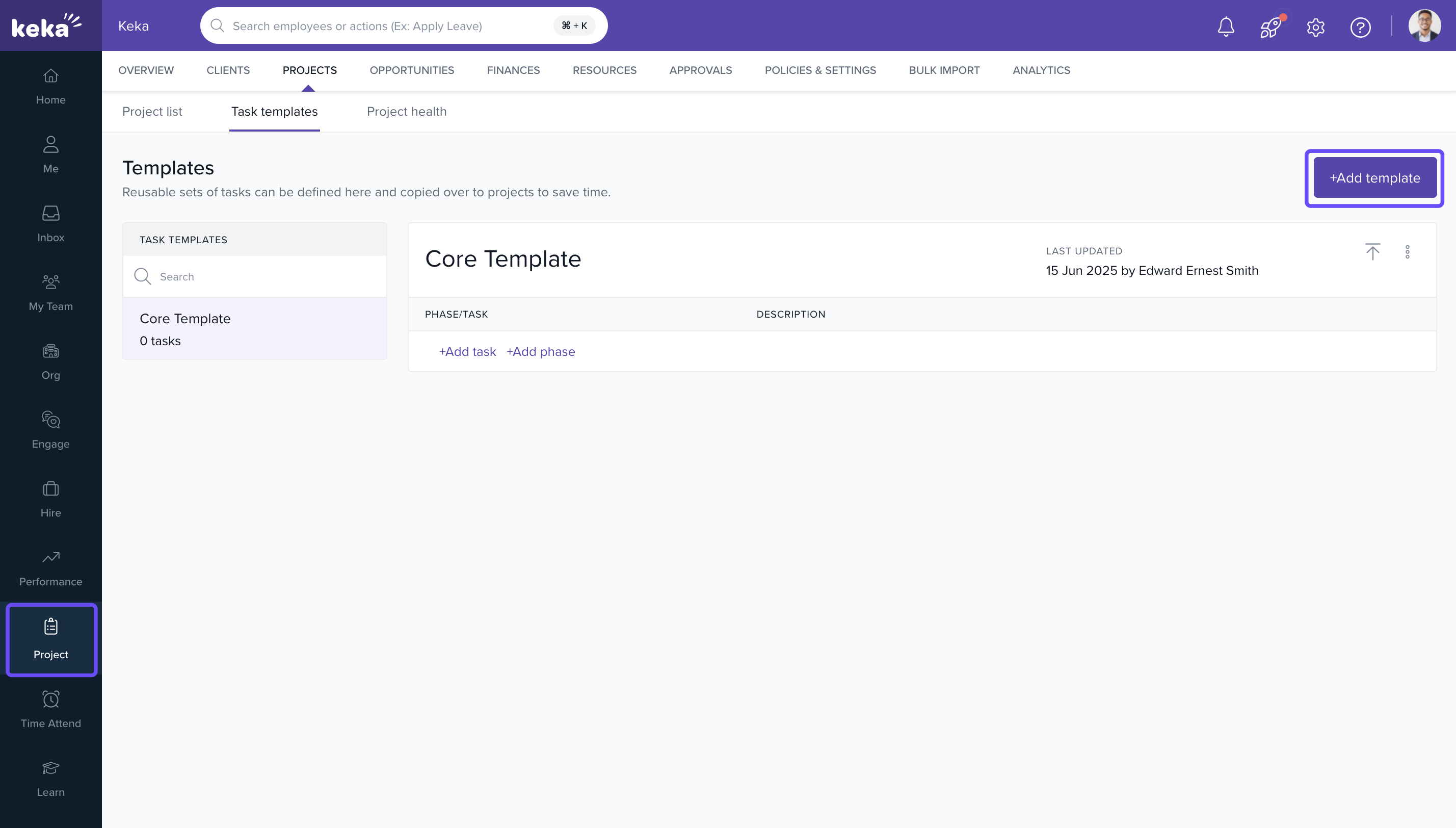
- Navigate to Projects >> Task Templates.
-
Click on the +Add Template button.
- Enter template details
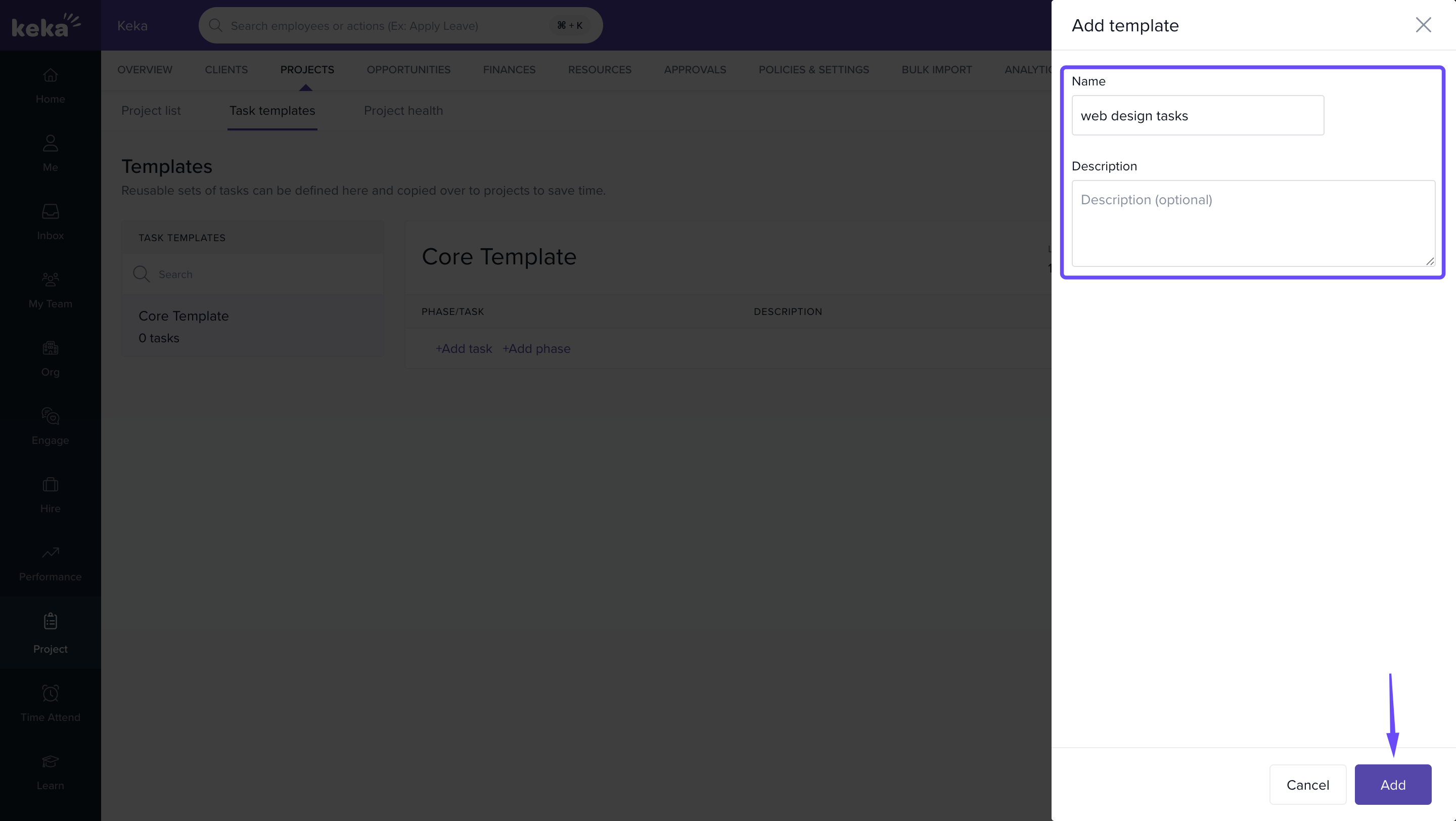
- Template Name – Required
- Description – Optional context for future reference
- Click on Add. The new template will appear in the Task Templates List.
Adding tasks and phases to a template
-
Add phases individually
- Click on +Add Phase.
- Enter the phase name.
- Click on the tick icon to save it.
- Repeat to create multiple phases as needed.
-
Add tasks to phases
- Click on +Add Task under the desired phase.
- Enter the task name.
- Click on the tick icon to save it.
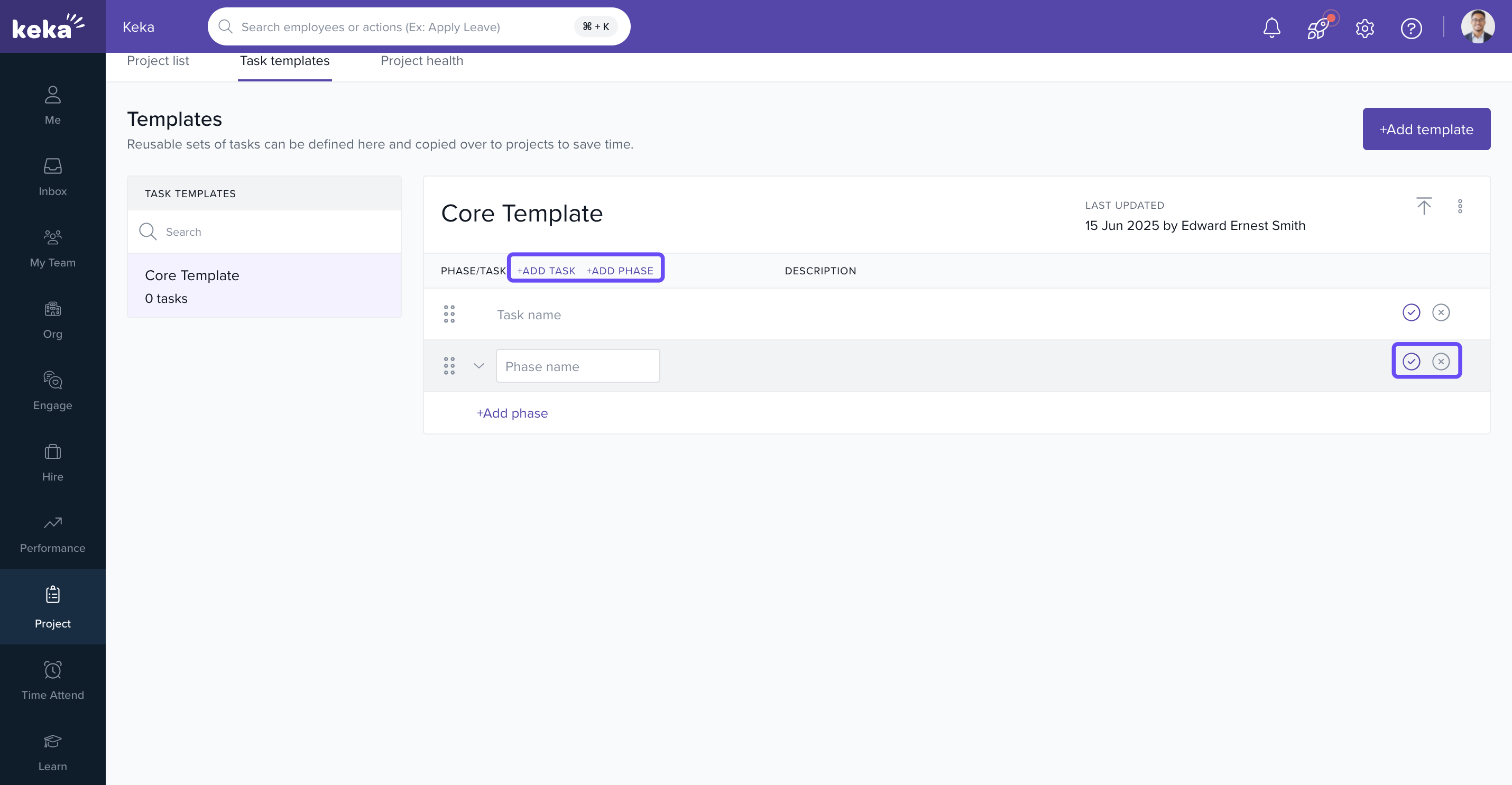
Tip: If you add tasks using the top ribbon after creating phases, tasks will default to the most recently created phase.
Bulk import tasks and phases
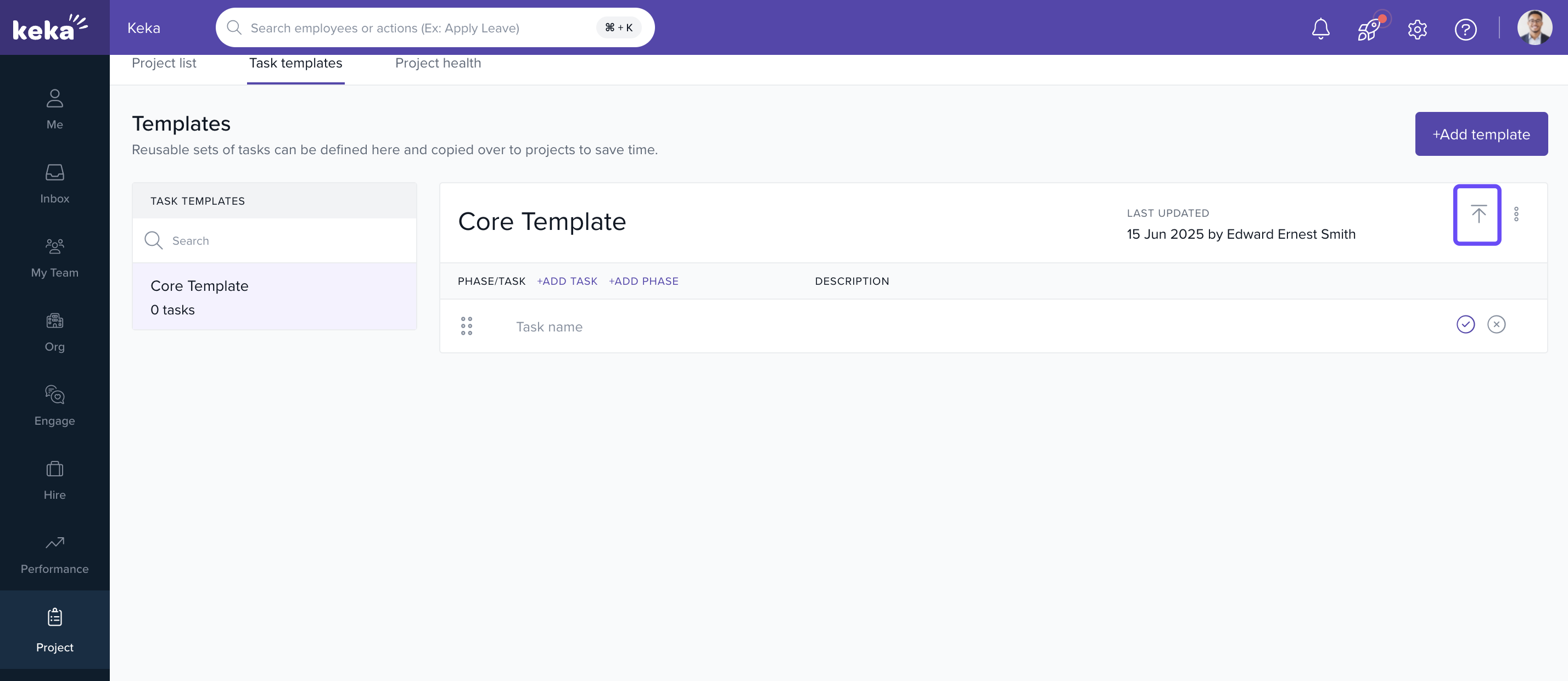
- Click on the Import from Excel icon Located in the Task Templates page.
- Download the Excel Template
-
Fill in the Excel sheet
- Phase Name
- Task Name
- (Optional) Description
- Click on Upload Excel File and upload the completed template.
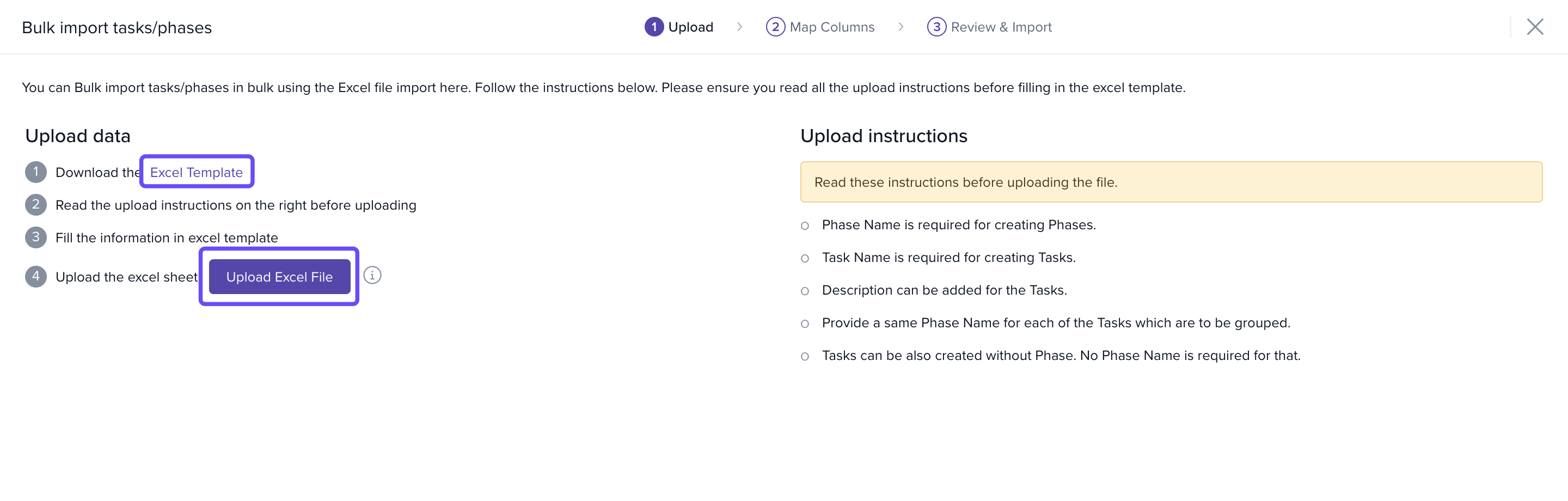
- Match columns and confirm import : Validate that your Excel columns match the Keka fields. Review for any errors. Complete the upload.
How it connects with other modules
| Module | Integration Details |
|---|---|
| Projects | Templates are applied during project task setup. |
| Billing | Tasks created from templates retain billing status (if configured post-import). |
| Timesheets | Tasks created from templates become loggable work items. |
FAQs
Q: Can I edit a template after it’s created?
A: Yes, templates can be modified anytime before they’re applied to a project.
Q: Are task durations and estimates stored in templates?
A: No, templates capture only task and phase names; duration and other fields are set during project configuration.
Q: Can I assign tasks to employees within a template?
A: No, task assignments occur at the project level after the template is applied.
Troubleshooting
Template not saving?
- Ensure the name field is filled; it’s mandatory.
Excel import fails?
- Check for missing task names or unstructured rows.
Tasks not visible under a phase?
- Confirm you saved each task using the tick icon after entry.
Comments
0 comments
Please sign in to leave a comment.