Once you've set up payroll information, the next step is to enroll the employee in benefits. In Keka Payroll, you can enroll employees in benefits during the initial payroll setup or individually from the employee’s Finance section.
Employee Benefits Enrollment Process
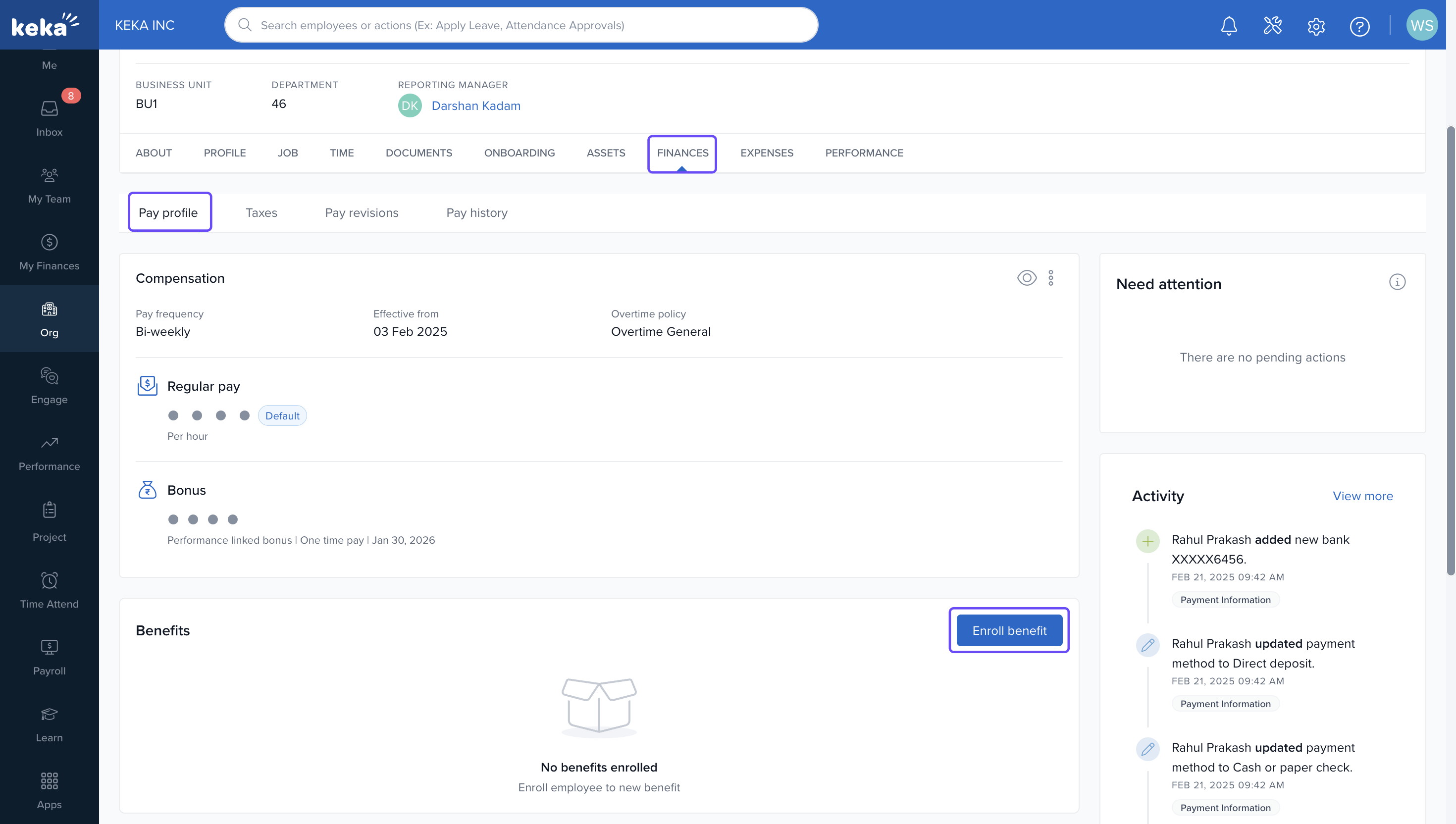
Navigate to the Employee's Finance Tab
1. Open the employee's profile page.
2. Click on the Finances tab.
3. Under the Benefits section, if no benefits are enrolled yet, you'll see an option to Enroll Benefit.
4. Click Enroll Benefit to start the process.
Selecting a Pre-Created Benefit
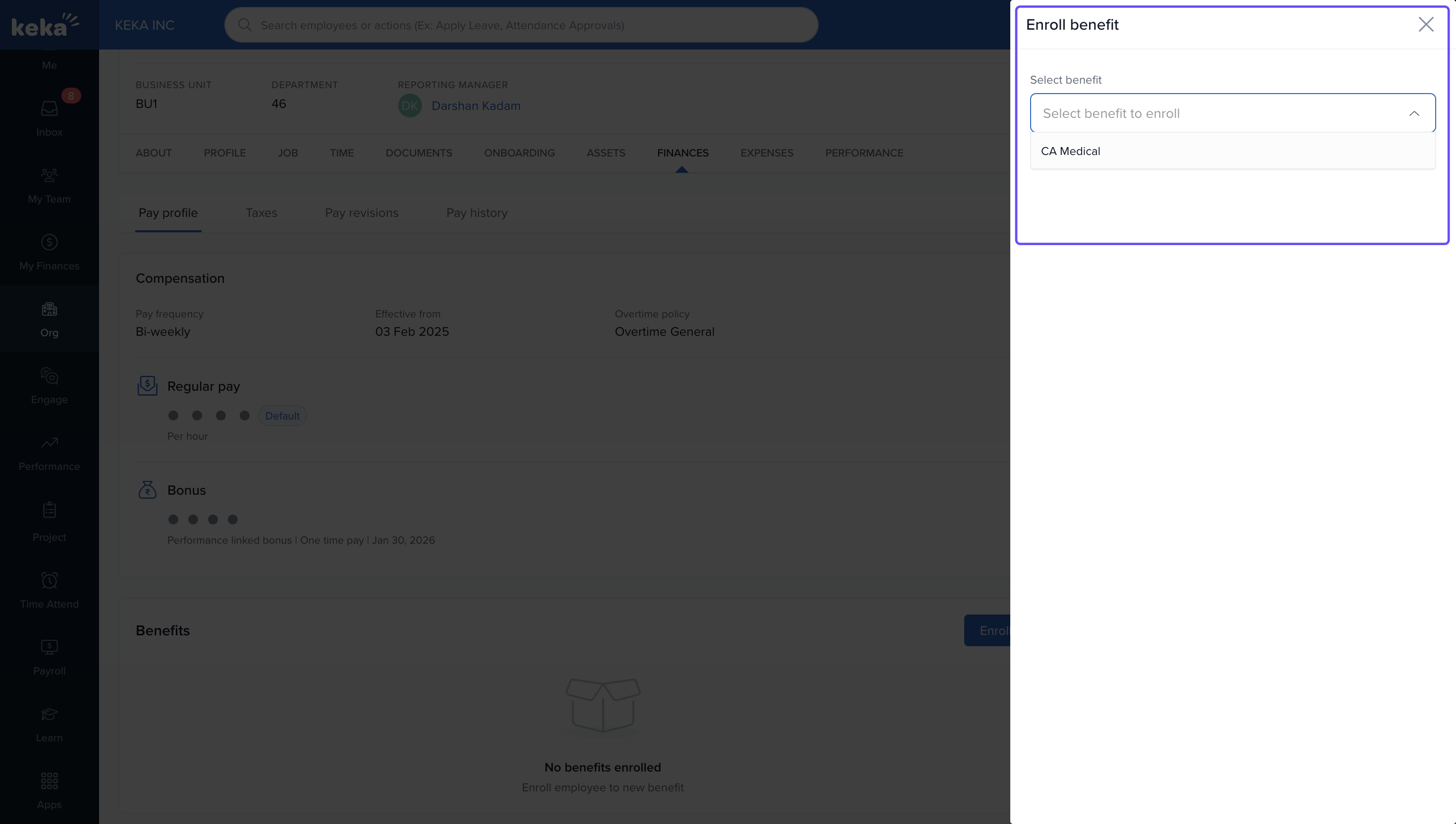
After clicking Enroll Benefit, you'll be presented with a dropdown list of available benefits. These benefits must be pre-created in the Payroll module under the Benefits section to appear here.
Select the desired benefit from the dropdown list
Editing Benefit Details
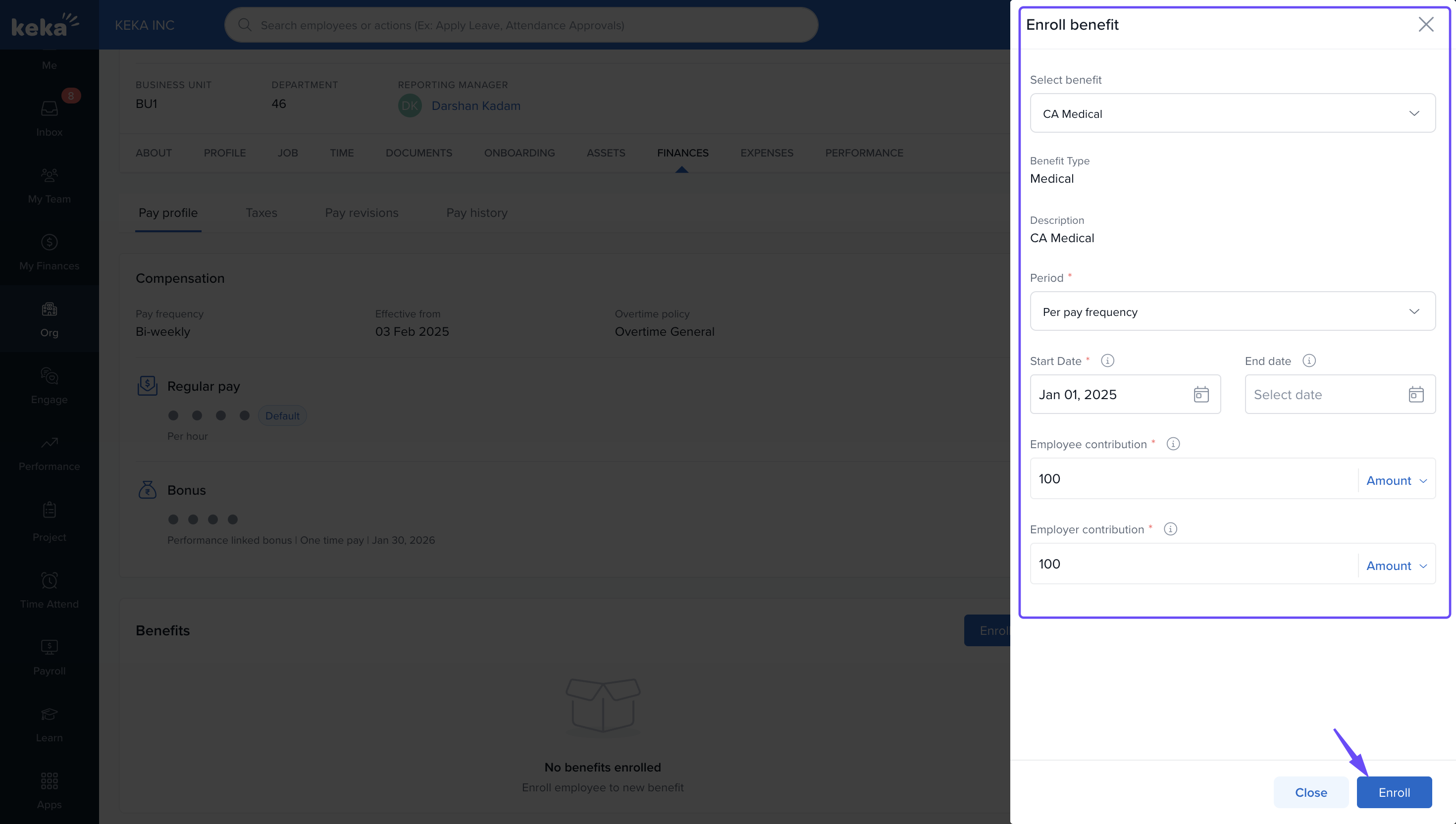
Once a benefit is selected, the following details will appear, which can be customized for the employee:
- Benefit Type: Shows the type of benefit.
- Description: A brief description of the benefit.
- Period: Defines how frequently the contribution will be made (e.g., Monthly, Quarterly).
- Start Date and End Date: Set the duration for which the benefit will be active.
- Employee Contribution and Employer Contribution: Enter the respective contribution amounts from the employee and employer.
Enrolling in Multiple Benefits
If the employee is eligible for more than one benefit, you can repeat the process to add additional benefits. For each new benefit added, it will appear under the appropriate category, such as:
Health Benefits
Finance Benefits
Each benefit will be listed under the relevant section, allowing easy management of multiple enrollments.
Managing Enrolled Benefits
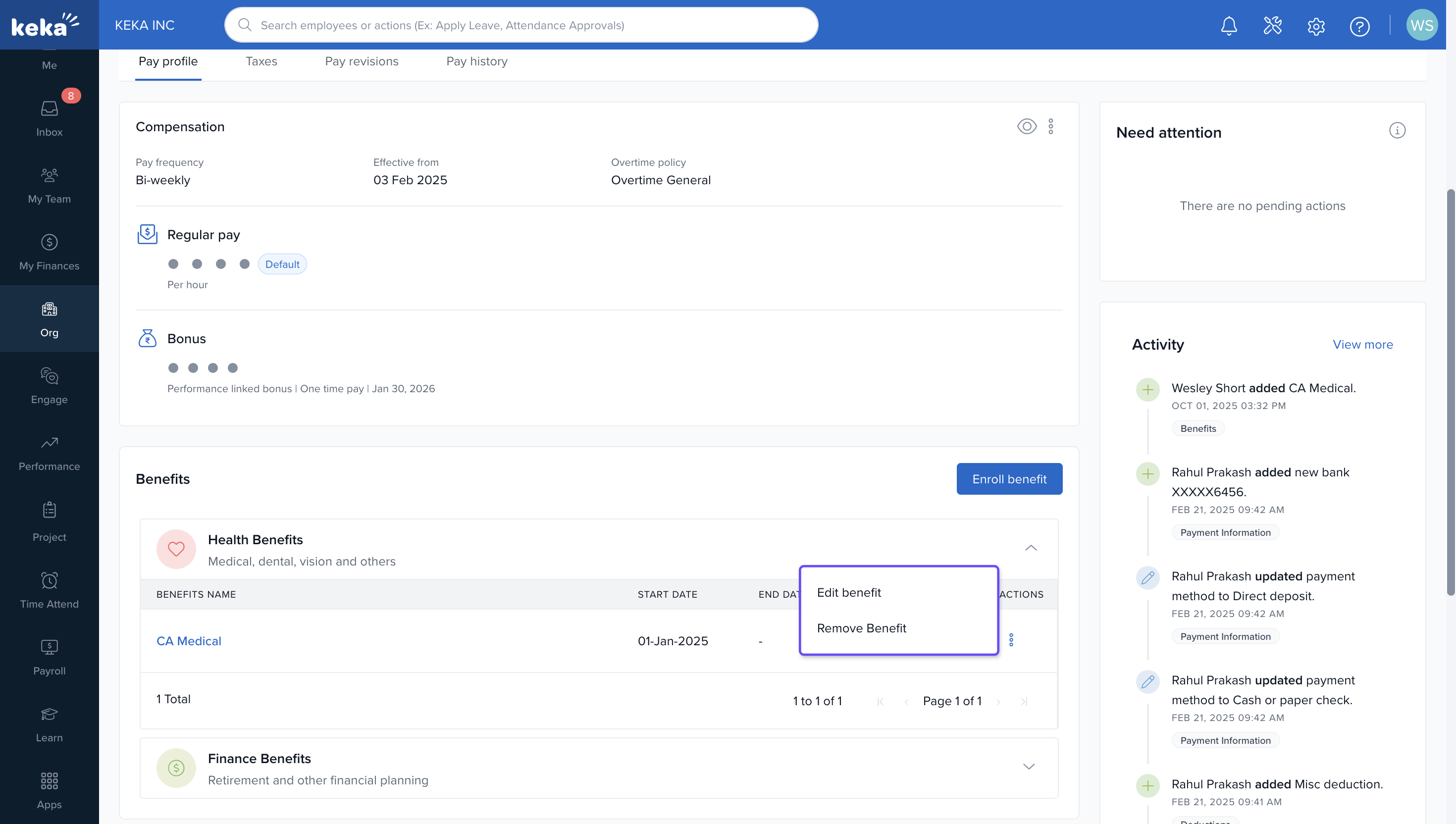
Once benefits are added, they will appear as Benefit Cards in the Benefits section. You can expand each category by clicking the arrow next to it to see all the benefits included.
For each benefit, there are three dots in the Actions column, where you can:
Edit Benefit: Modify the benefit details, such as contribution amounts or dates.
Remove Benefit: Remove the benefit from the employee’s profile.
By following these steps, you can ensure that the employee is correctly enrolled in the benefits they are entitled to, with the flexibility to adjust the contributions or other details as necessary.
Comments
0 comments
Please sign in to leave a comment.