Introduction
This guide walks you through setting up or updating an employee's payment method in Keka. You can choose between direct deposit and cash or check payments. Setting this up ensures employees are paid on time and through their preferred method. All users with access to manage employee payroll
Configure Employee Payment Method
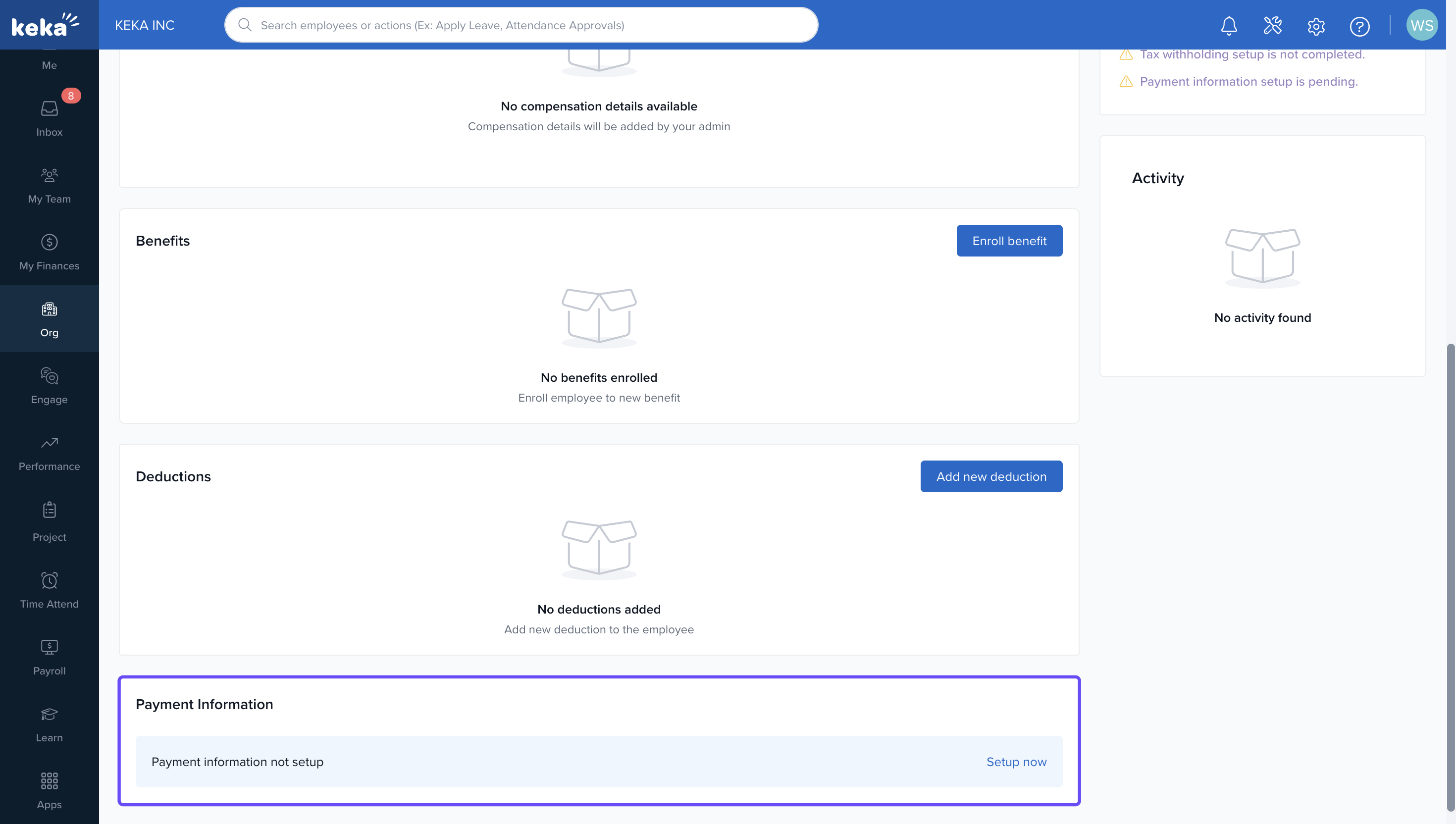
Go to the Payment Information Section
Navigate to the employee's profile.
Click on the Finance tab.
Scroll down to Payment Information.
If payment details haven't been added yet, click Setup Now to begin.
Select a Payment Method
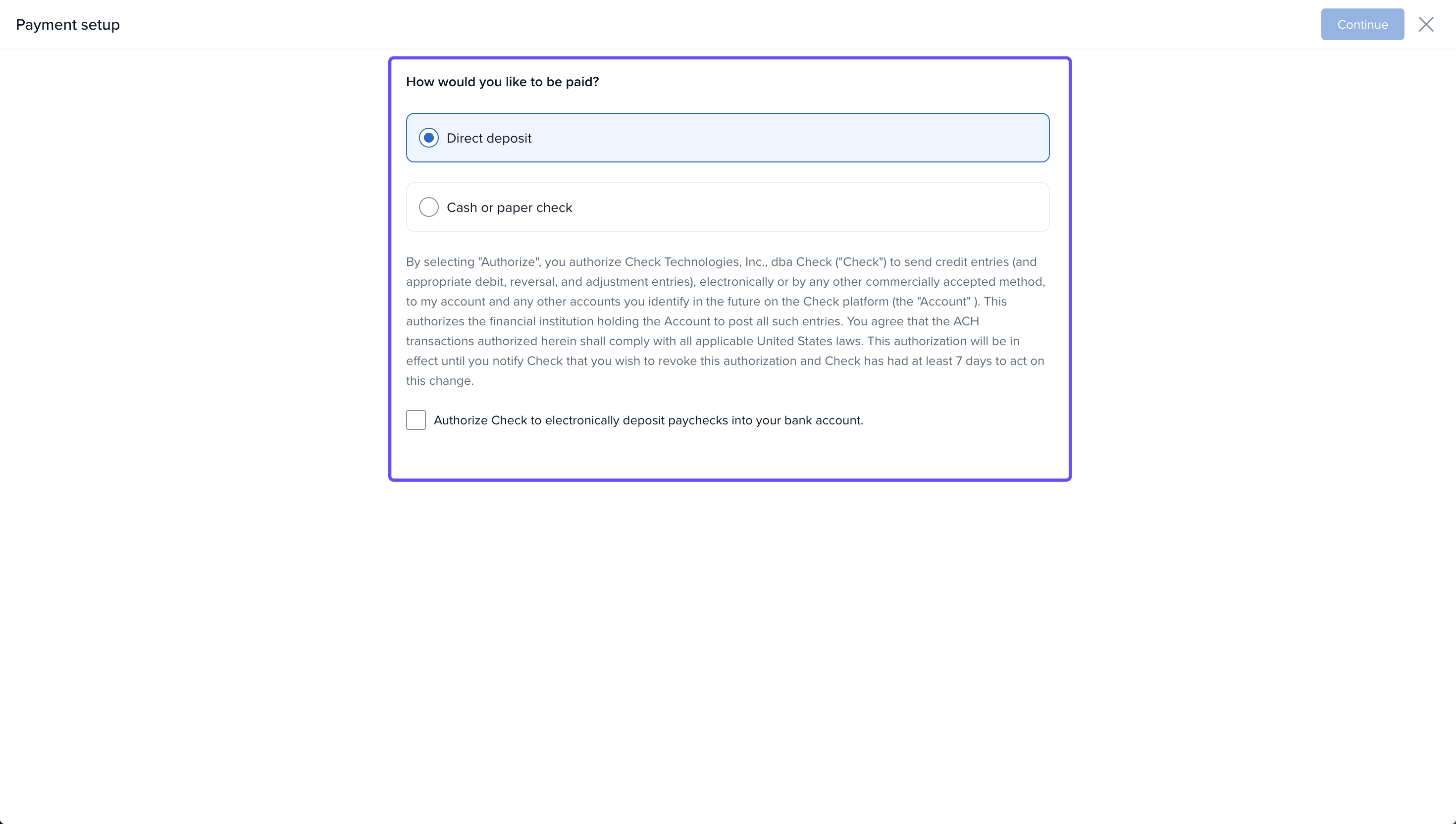
You’ll be prompted to choose one of the following:
Direct Deposit: Pay is transferred directly to the employee’s bank account.
Cash or Paper Check: Pay is issued manually in cash or via a check.
Set Up Direct Deposit
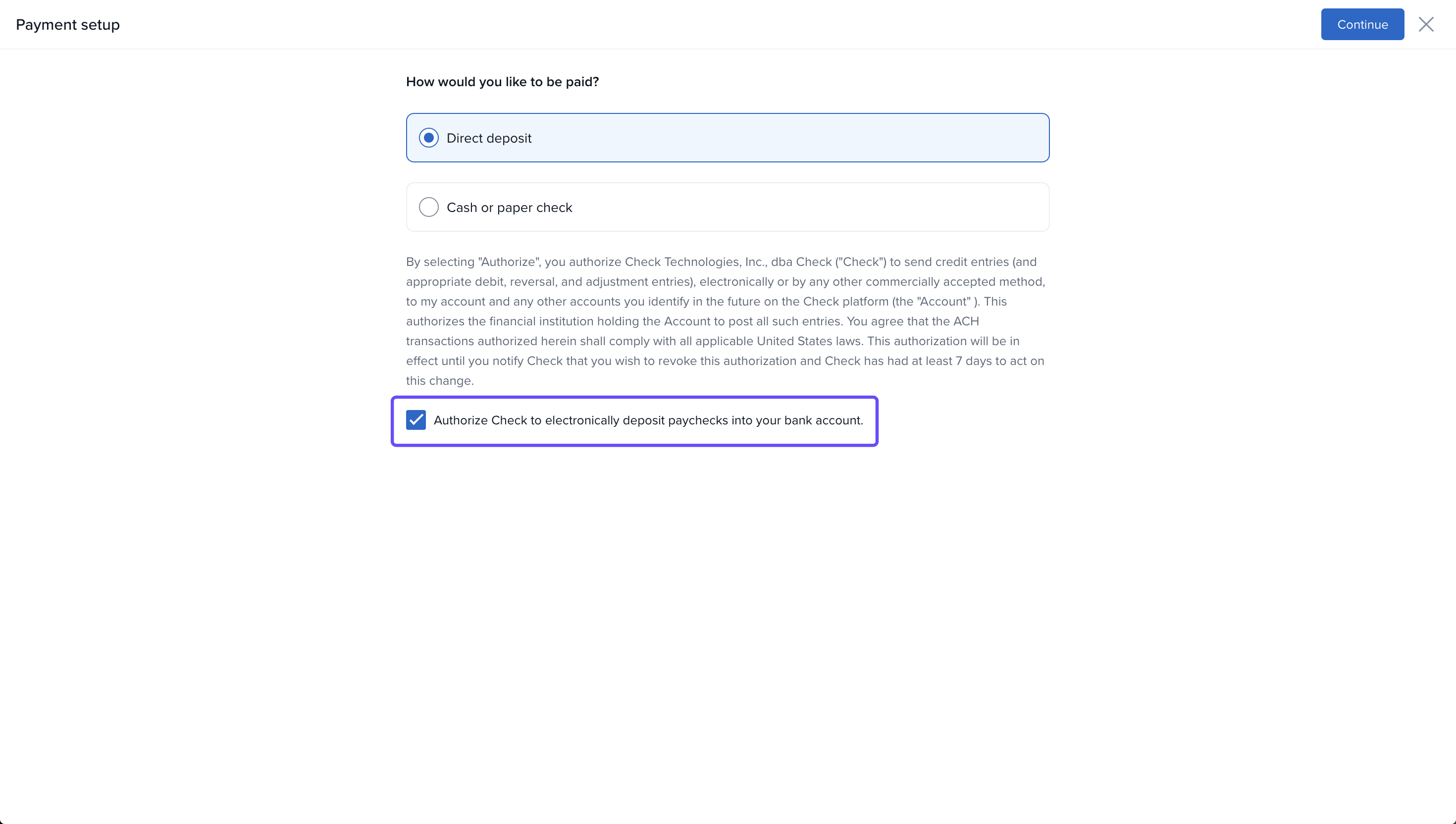
If you choose Direct Deposit:
Tick the checkbox: Authorize Keka to electronically deposit paychecks.
Click Continue.
Verify Bank Account Details
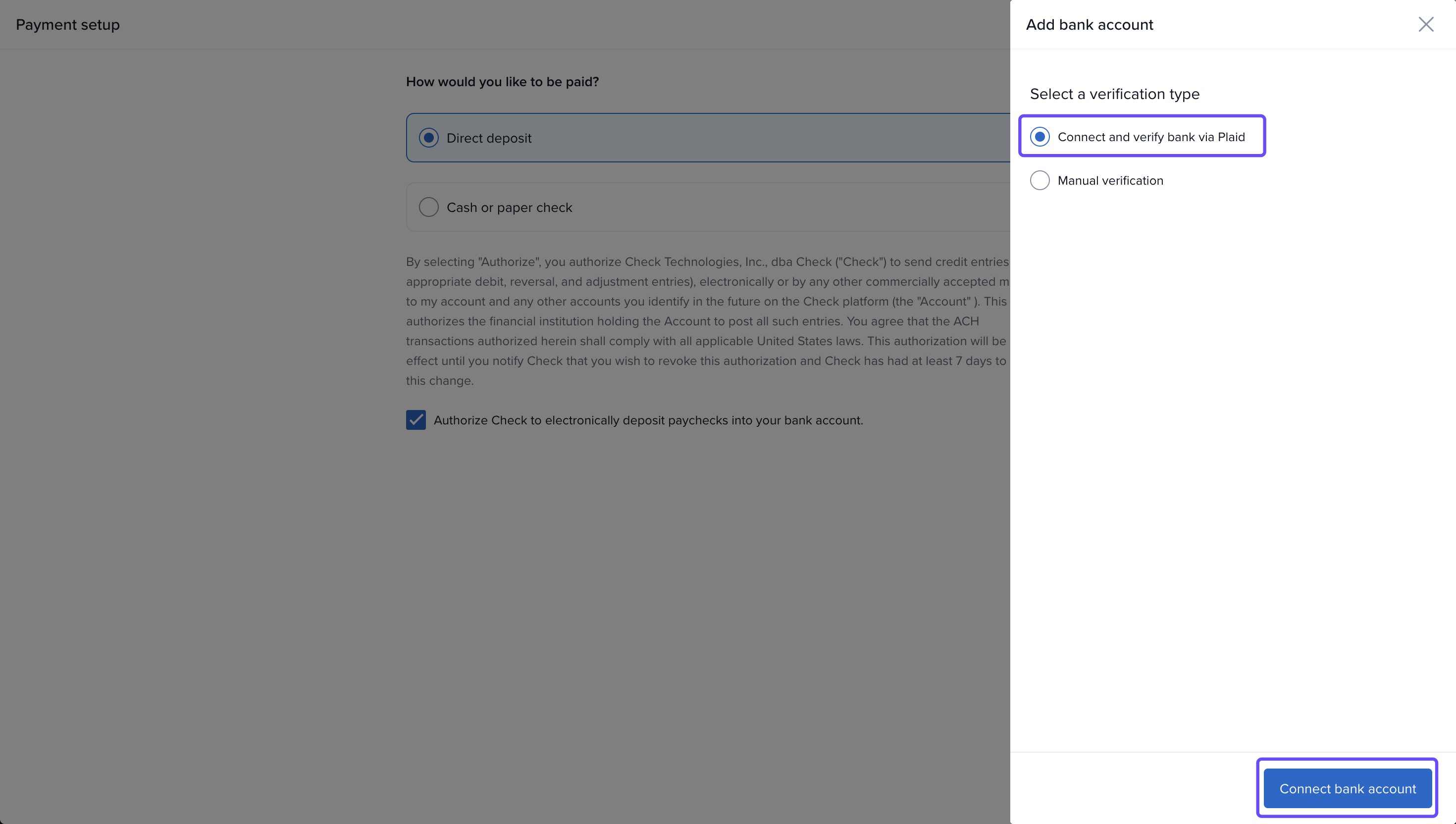
Use Plaid (Recommended)
Plaid allows you to securely link a bank account:
Click Connect Bank Account.
Follow the prompts to sign in to your bank through Plaid.
Your bank details will be securely linked and verified.
To know more about Plaid click here.
Manual Verification:
This option takes longer and requires you to fill in bank details yourself:
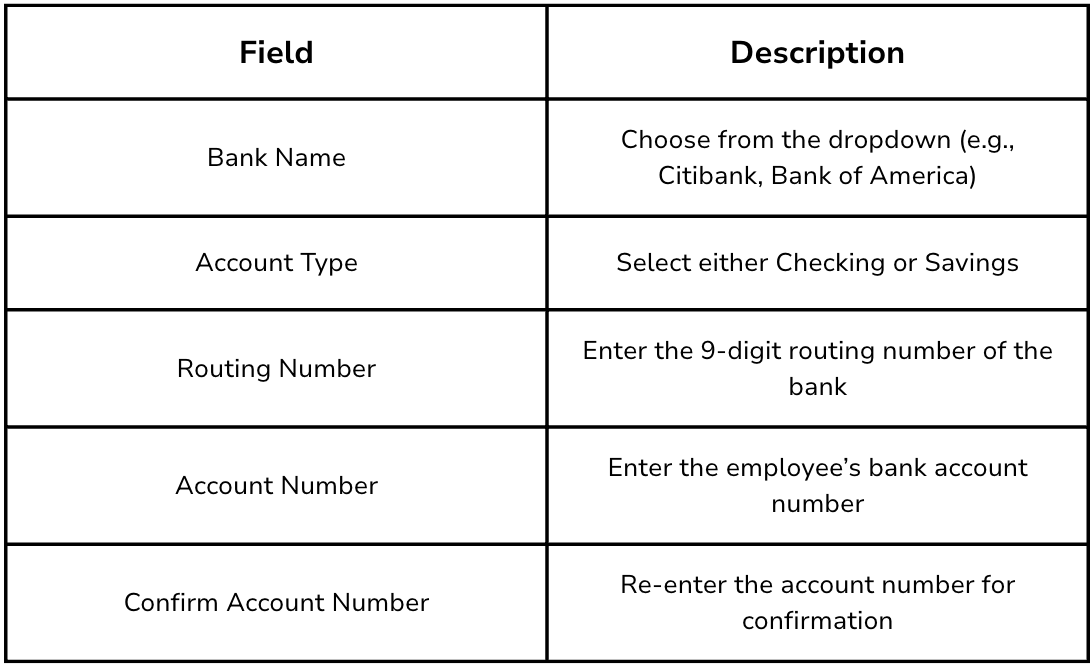
After entering all details:
Review the information.
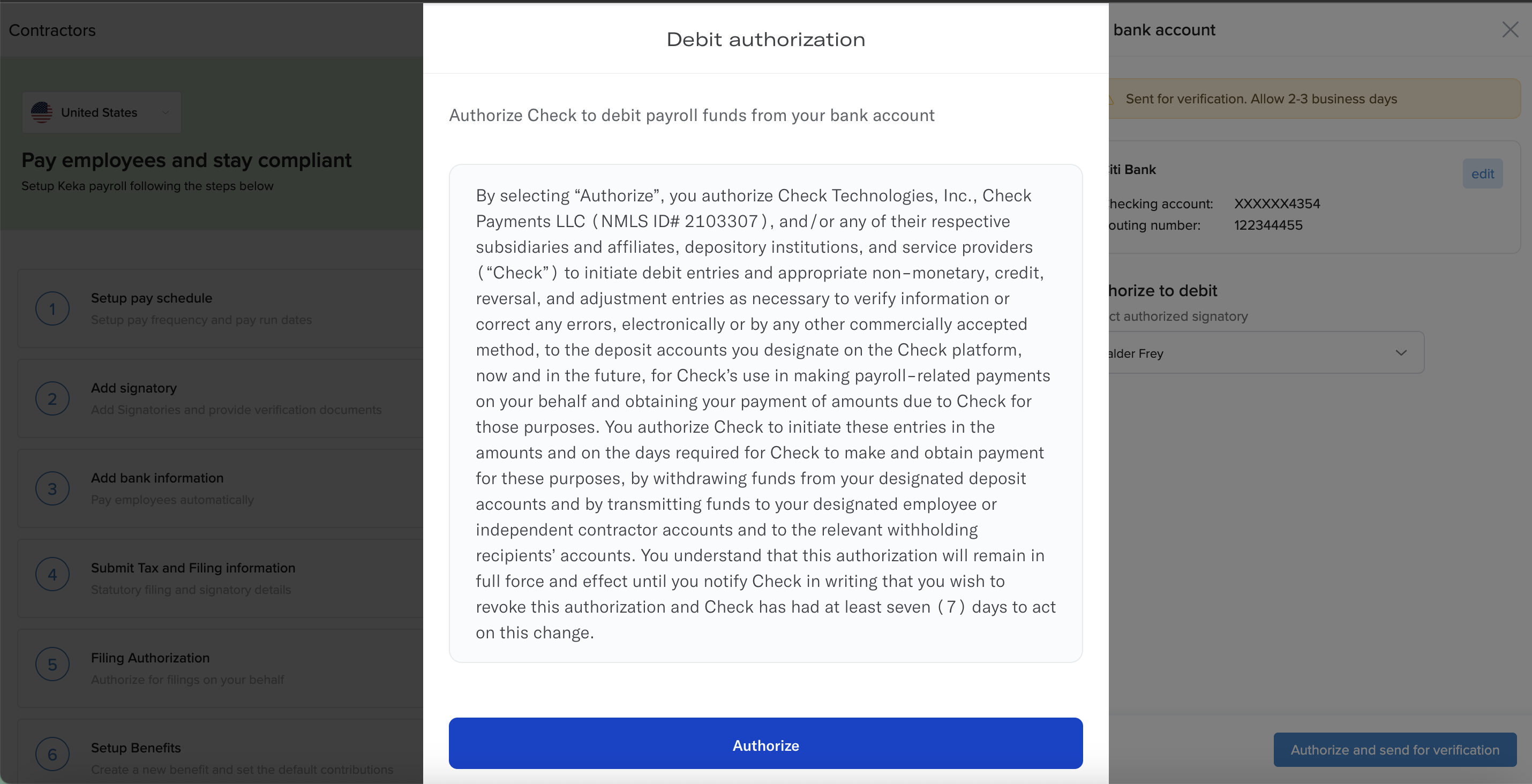
Agree to the terms and conditions of the payroll service to authorize transactions.
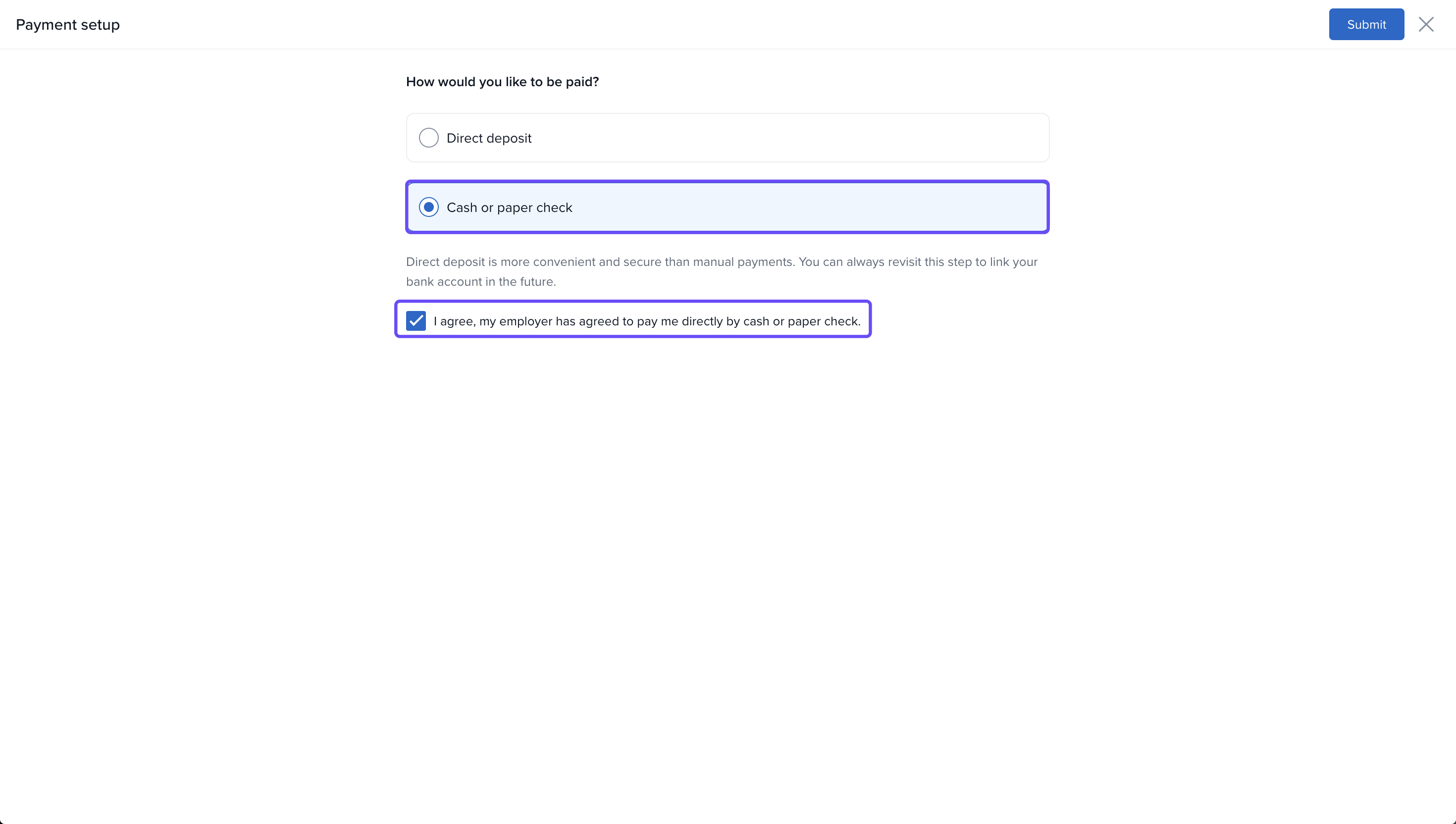
Cash or Paper Check
If you choose this method instead:
Tick the checkbox to confirm you accept direct payments from your employer via cash or check.
By completing these steps, you ensure that the employee’s payment information is correctly configured in the system, enabling smooth and timely payments.
Comments
0 comments
Please sign in to leave a comment.